Repository navigation
Stores for Trip


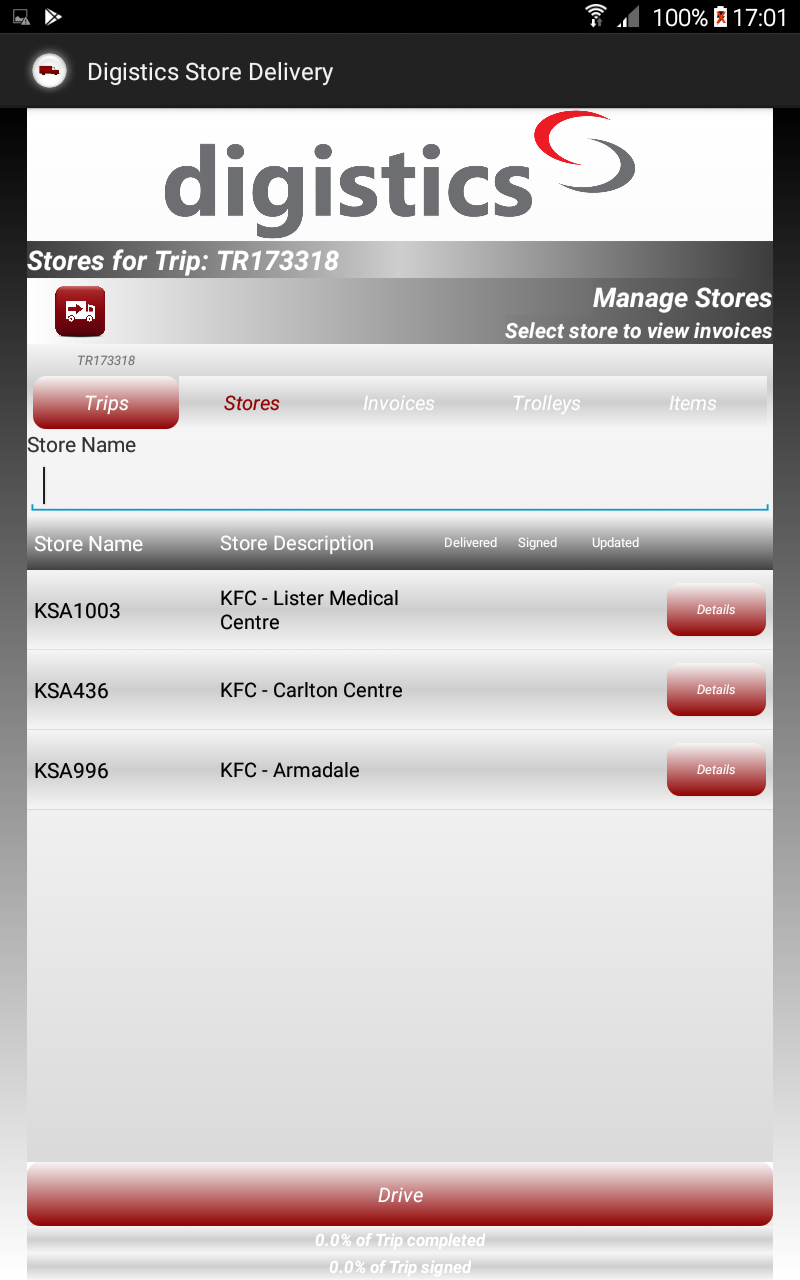
This screen allows for viewing Stores for a selected Trip. The screen is opened when clicking on a Trip in the Trip for Operators screen.
Details: clicking the Details button on a store will open the Store Details screen showing additional information about the Store.
Drive: the delivery process begins when clicking on the Drive button to open the Map for Trip screen that provide the turn-by-turn navigation.
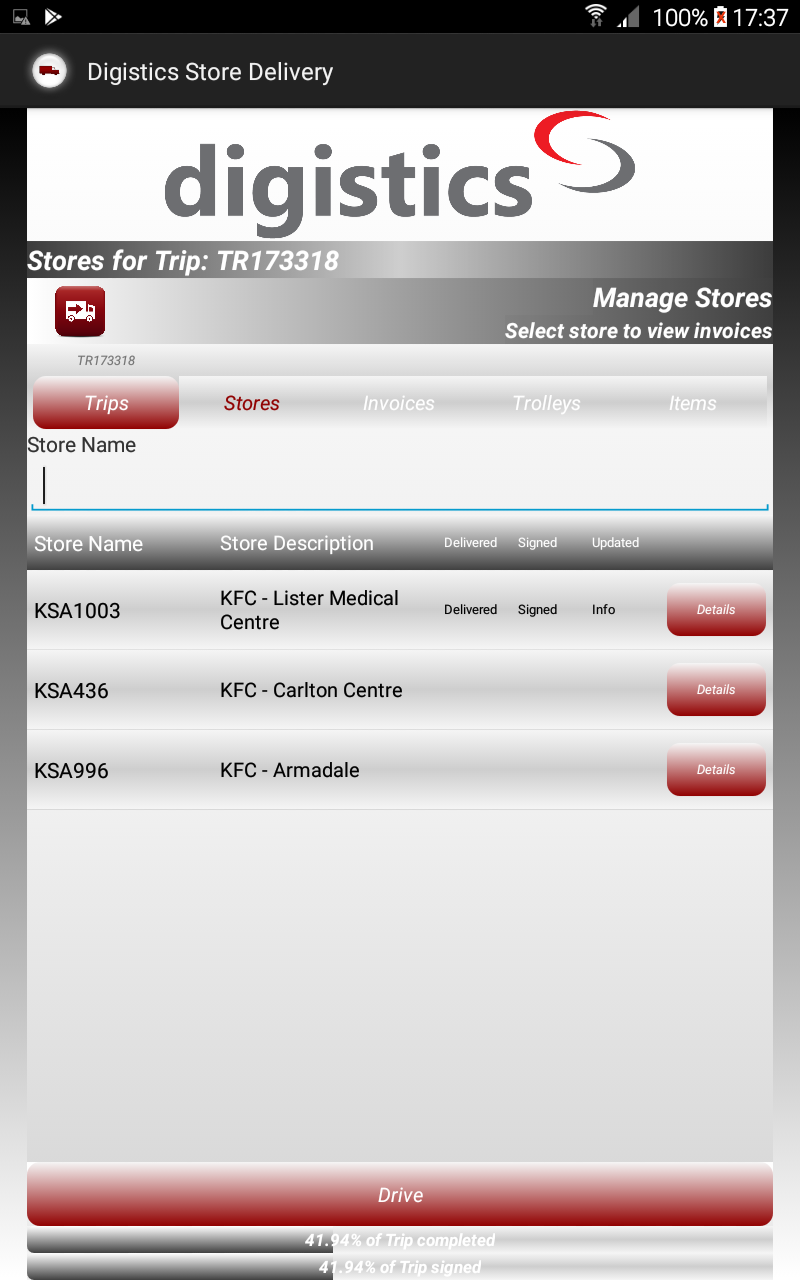
Stores for which the delivery has been completed will flagged as Delivered and those for which the invoices have been signed, will be flagged as signed. Whenever a record such as a store has been updated the "Updated" column shows "Info" to indicate that information has been updated on the record.
N.B. once all stores for a trip have been delivered (completed), the Complete button appears at the bottom of the screen. Clicking the Complete button will close this screen and return back to the Trips for Operator screen.
 Digistics Store Delivery Mobile App Help