Repository navigation
Saved Games
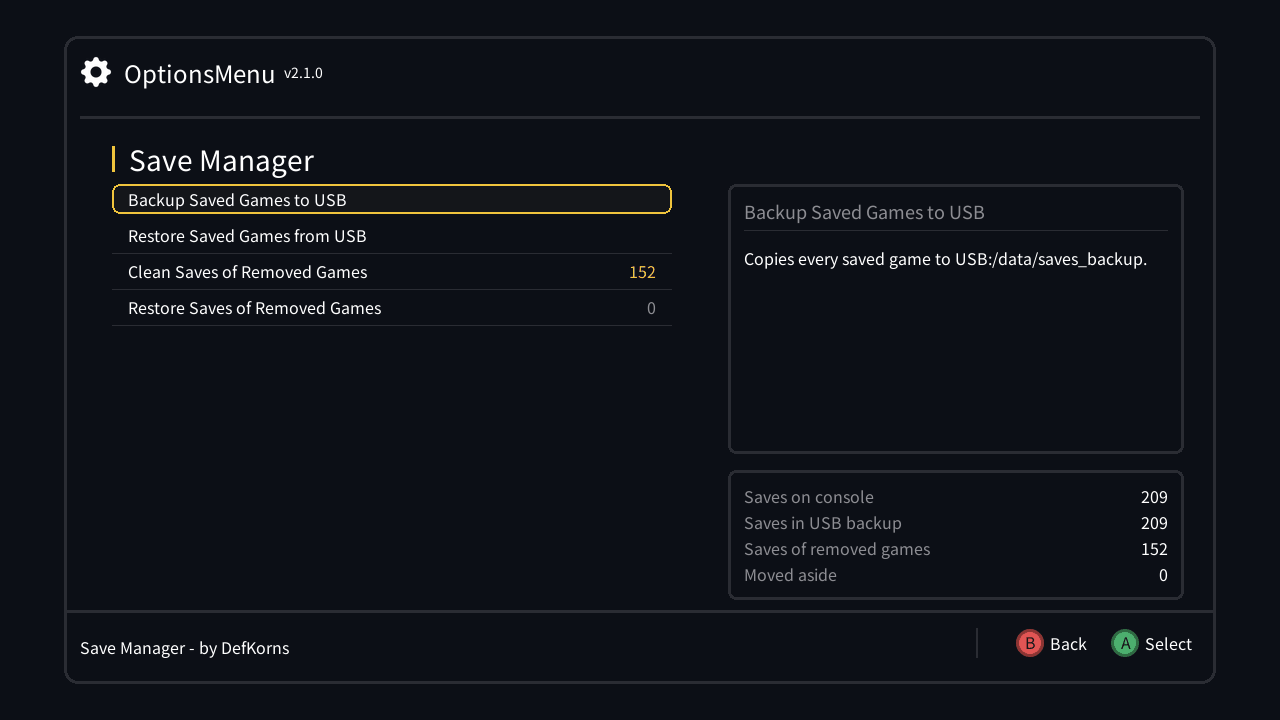
Needs a USB/SD drive with your saves on it. One screen lists the actions on the left; the right panel explains the selected one and shows how many saves are on the console, in the USB backup, left over from removed games and moved aside. Every action asks for confirmation: Start + Select for the ones that overwrite or move saves, A for bringing back the saves of removed games, which never overwrites anything.
| Action | What it does |
|---|---|
| Backup Saved Games to USB | Mirrors your saves folder to /media/data/saves_backup. Saves you deleted since the last backup are removed from it too; system folders (FOLDER, hakchi, home-menu, mcp-state) are skipped |
| Restore Saved Games from USB › | Lists the saves in the backup (none marked); mark the ones you want back with A and press Start. They overwrite saves with the same name and leave the others alone. Select all restores the whole backup |
| Clean Saves of Removed Games › | Lists the save folders of games that are no longer in any menu (all marked; A unmarks) and moves the marked ones to /media/data/deleted_games_saves. Menu folders (CLV-S-*) are never touched |
| Restore Saves of Removed Games › | Lists what was moved aside; mark the ones you want back with A and press Start. A save already on the console is never overwritten |
In the long lists (here and in the Module Uninstaller), Left/Right page up and down on a tap and walk the list letter by letter while held; L/R jump a letter at a time.
The two "Removed Games" lists show the names of the removed games instead of their codes (CLV-H-ABCDE). Every time the console starts, it remembers the names of the games installed at that moment in game_names.txt in your saves folder, and a name stays there after its game is removed. The backup keeps the file with your saves, and a restore adds its names without replacing newer ones. Saves without a known name keep showing their code, two games with the same name show their code too, and empty save folders aren't listed. Getting the names never changes or moves a save.
Games removed before this version was installed were never seen on the console, so their names can only come from your Hakchi CE library. The console can't read your PC, so the PC sends them. With the console on and reachable by Hakchi CE (USB or Wi-Fi), run pc/push_game_names.ps1 from a PowerShell window:
.\push_game_names.ps1 --ip 192.168.1.50-
--ip: the console's IP address, shown in Hakchi CE or in Options Menu › Network › Display IP Address. Defaults to169.254.13.37, the console connected over USB. -
--hakchi-path: the Hakchi CE folder that has thegamesfolders. Usually not needed: the script looks in its own folder first, so copying it next tohakchi.exe(portable Hakchi CE) is enough. It also finds the library of an open Hakchi CE, andDocuments\hakchi2for non-portable installs.
If Windows refuses to run scripts, use powershell -ExecutionPolicy Bypass -File push_game_names.ps1 --ip 192.168.1.50.
The names it sends are added to the ones already on the console.
The backup is on the same drive as your saves. Copy
/media/data/saves_backupto a PC from time to time to be safe from a dead drive too.