Repository navigation
Panel Setup and Configuration
Grafana Intelligence Gateway analyzes query data, images, or both. This guide covers panel 1.1.2, which requires companion 1.1.0 or later and Grafana 11.6 or later. The optional Grafana LLM app may require a newer Grafana version.
| Mode | Query setup | Image setup and action |
|---|---|---|
| Data only | Configure this panel's queries, commonly Dashboard → Source panel. | Leave images unattached; select Analyze. |
| Images only | No query results or Dashboard source required. | Turn Include query data with images off; preview images, select Use images, then Analyze images. |
| Data and images | Connect the query results needed for precise values. | Leave Include query data with images on; preview images, select Use images, then Analyze images. |
All three modes require AI provider → Secure AI data source. It connects the model. Queries → Dashboard is a separate setting that reuses another panel's query results; selecting the AI data source does not import measurements. Capturing a panel adds its rendered image, not its DataFrames.
The supplied demo instance, DEMO ONLY - Mock AI (no inference), returns a fixed receipt: no model runs and no data or image analysis occurs. Read the analysis panel's AI connection label to identify the currently selected instance. For genuine analysis, use Connections → Data sources → Add new data source to create a separate real-provider instance, configure and test it, then select it and its approved model under the panel's AI provider settings. Follow the two-phase walkthrough; the chart's TestData/Dashboard connection is not an AI provider.
Install digitalrcs-intelligencegateway-datasource 1.1.0 or later, restart Grafana, then create an Intelligence Gateway Secure AI data-source instance.
- Select OpenAI, LM Studio, Open WebUI, Grafana LLM app, Custom/OpenAI-compatible, or Copilot Studio Direct Line preview. The Grafana app is optional; Copilot is not an enterprise SSO integration.
- Configure the administrator-controlled base URL.
- Set a default model and include it in Allowed models. If the list is empty, only the default model is permitted.
- Set the backend timeout and maximum output-token ceiling.
- Store the provider's API key, bearer token, or Copilot Direct Line secret only in its dedicated
secureJsonDatafield. LM Studio may need no credential. A Grafana LLM app token is a dedicated Grafana service-account token, not a browser login. - Keep HTTPS enabled. Use Allow insecure HTTP only for a trusted local development network.
- Select Save & test.
See AI Providers for endpoint examples, and Secure Backend and Secret Storage for provisioning and policy. OpenAI-compatible models must accept the adapter's Chat Completions parameters; model discovery alone does not guarantee compatibility.
For data-only or combined assessment, create or identify a panel that returns the data to analyze. Time series, tables, logs, and other query results are accepted when Grafana exposes them as DataFrames. Confirm that the source returns data for the active dashboard time range. Skip this step for images-only assessment.
- Select Add visualization.
- Choose Grafana Intelligence Gateway.
- For query-data sharing, in Queries, select the
-- Dashboard --data source. For images-only use, skip steps 3–5. - Under Source panel, select the panel whose results should be analyzed.
- Choose All data unless annotations are specifically required.
- Save the dashboard.
The Source panel title or ID (hint) is descriptive prompt metadata only. The Dashboard data source performs the actual connection.
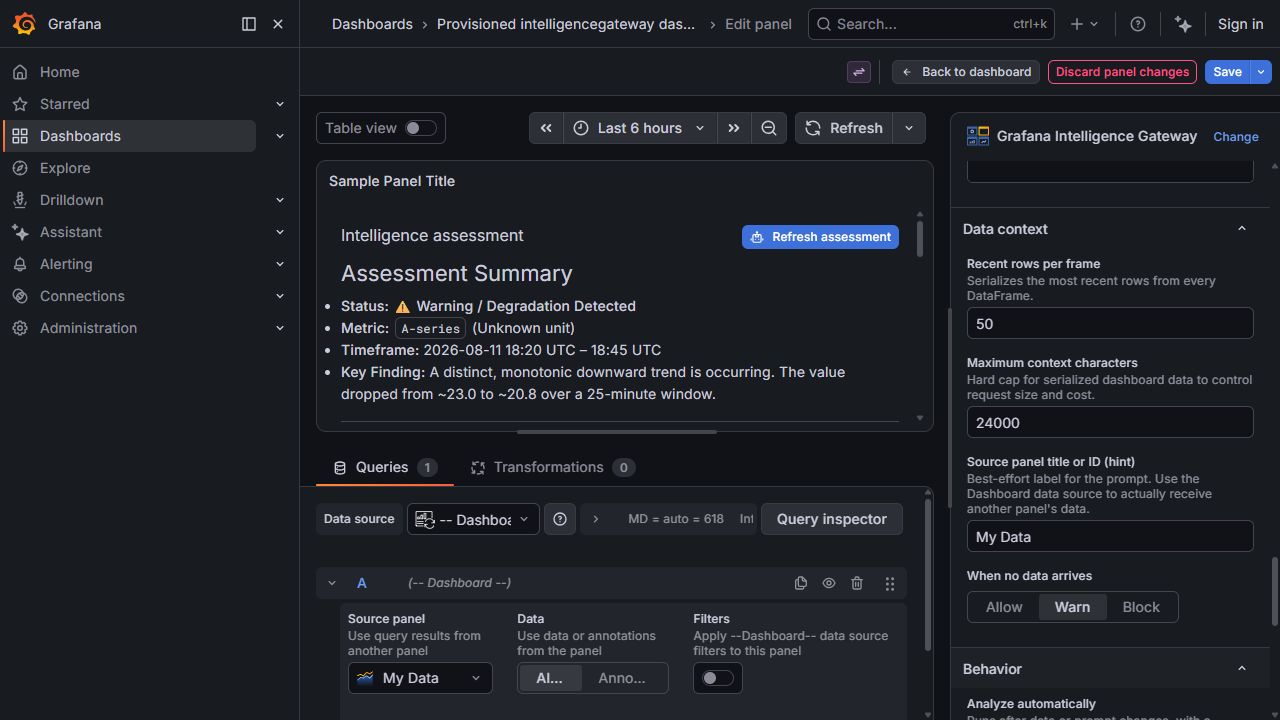
| Option | Purpose | Example | Guidance |
|---|---|---|---|
| Secure AI data source | Selects the backend instance by UID. | Intelligence Gateway Secure AI |
Required. The panel stores only the UID. |
| Model | Chooses an administrator-approved model. | review-model |
Use Load models securely or enter an allowed ID. |
| Temperature | Controls response randomness where supported. | 0.2 |
Range 0–2. Low values can reduce variation, but do not guarantee repeatability. Not enforced by Copilot Direct Line. |
| Provider/model default output limit | Omits the panel request cap. | Off | The backend administrator ceiling and provider limits still apply. |
| Maximum output tokens | Hard panel request cap where supported. | 1200 |
Slider range is 64–1,048,576; the backend applies the lower panel/admin cap. Model limits can be lower; Copilot owns its generation policy. |
| Requested answer max tokens (soft) | Adds a concision instruction. | 0 |
Zero disables it. Models cannot guarantee exact token counts. |
| Response timeout | Cancels the panel wait. | 300 |
Range is 10–600 seconds. Align it with the backend timeout. |
Responses are buffered and cancellable; tokens do not stream into the panel as they are generated. Provider credentials, URLs, authentication headers, and provider error bodies never enter panel options.
For reasoning models, the output budget may include both reasoning and the visible answer. Raising only the data-source ceiling does not raise a smaller panel request: a panel set to 1200 still requests only 1,200 output tokens even when the data source permits 256000. As a bounded starting point for a suitable local model, try Maximum output tokens 8192 in both panel and backend, Requested answer max tokens (soft) 500, and Response timeout 300 seconds in both. These are examples, not guaranteed capabilities. A model's context window is not its output budget. The soft target is approximate, the default-limit option is not unlimited, and the panel does not expose a separate reasoning-effort control.
Output-limit errors and timeouts are different. The shortest applicable panel, backend, proxy, and upstream deadline wins. The Grafana LLM app 1.2.0 has a two-minute upstream timeout that these settings cannot override. Copilot Direct Line does not enforce temperature or output-token settings; configure those policies on the agent.
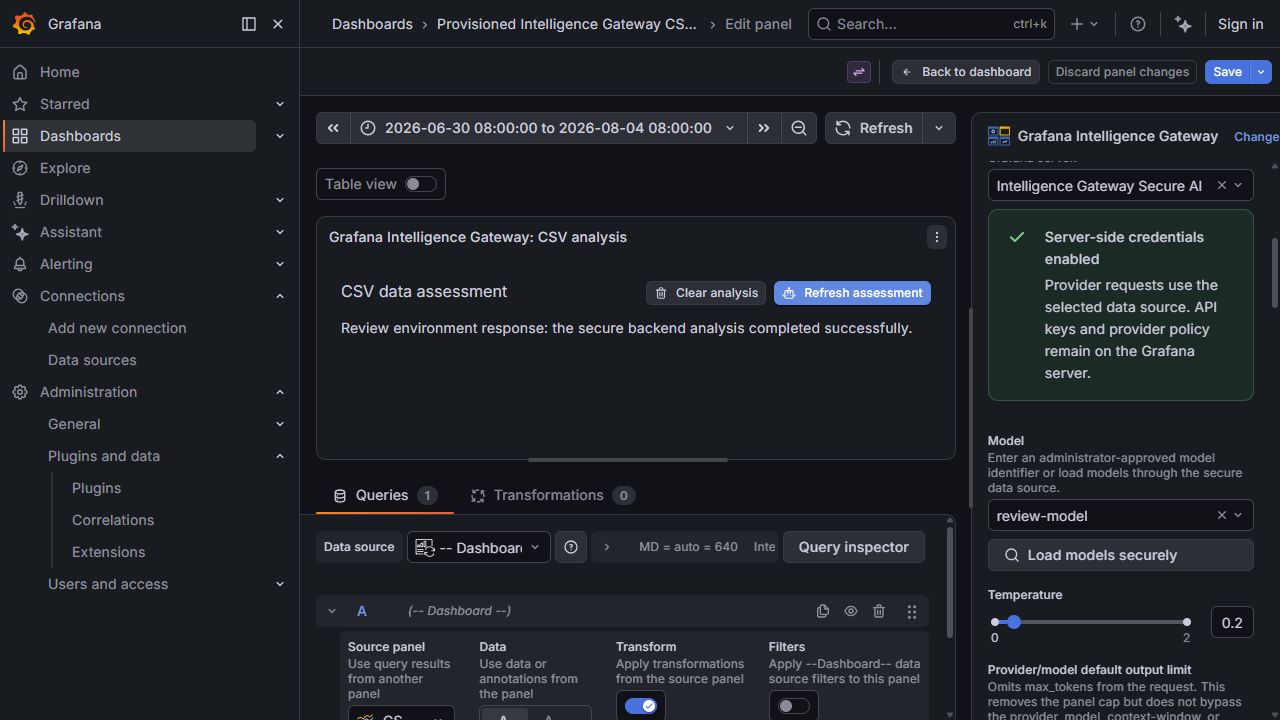
After analysis, the generated assessment appears with Clear analysis and Refresh assessment. Clear analysis cancels an active request and removes the answer, errors, and pending images without modifying the dashboard query or source data. A successful image assessment releases its attachments; capture or attach again before requesting another image assessment. Refreshing without new attachments is a data-only request.
| Option | Purpose | Example |
|---|---|---|
| System / backend prompt | Defines the model's role, evidence rules, safety rules, and response format. | You are an SRE analyst. Separate observations from hypotheses. |
| User message template | Defines the task and injects runtime variables. | Assess {{panelTitle}} for {{timeRange}} using {{data}}. |
| Skills / additional context | Adds thresholds, runbooks, ownership, and domain definitions. | p95 latency critical: 1000 ms. |
| Constructed prompt preview | Shows assembled messages before live data is injected. | Read-only preview |
Supported variables:
| Variable | Runtime value |
|---|---|
{{data}} |
Bounded JSON serialization of every received DataFrame. |
{{timeRange}} |
Current dashboard start/end timestamps. |
{{panelTitle}} |
Intelligence Gateway panel title. |
{{panelId}} |
Numeric Grafana panel ID. |
{{skills}} |
Skills/additional context. |
{{sourcePanel}} |
Descriptive source-panel hint. |
Treat dashboard field names, labels, values, and logs as untrusted evidence rather than instructions.
| Option | Purpose | Default |
|---|---|---|
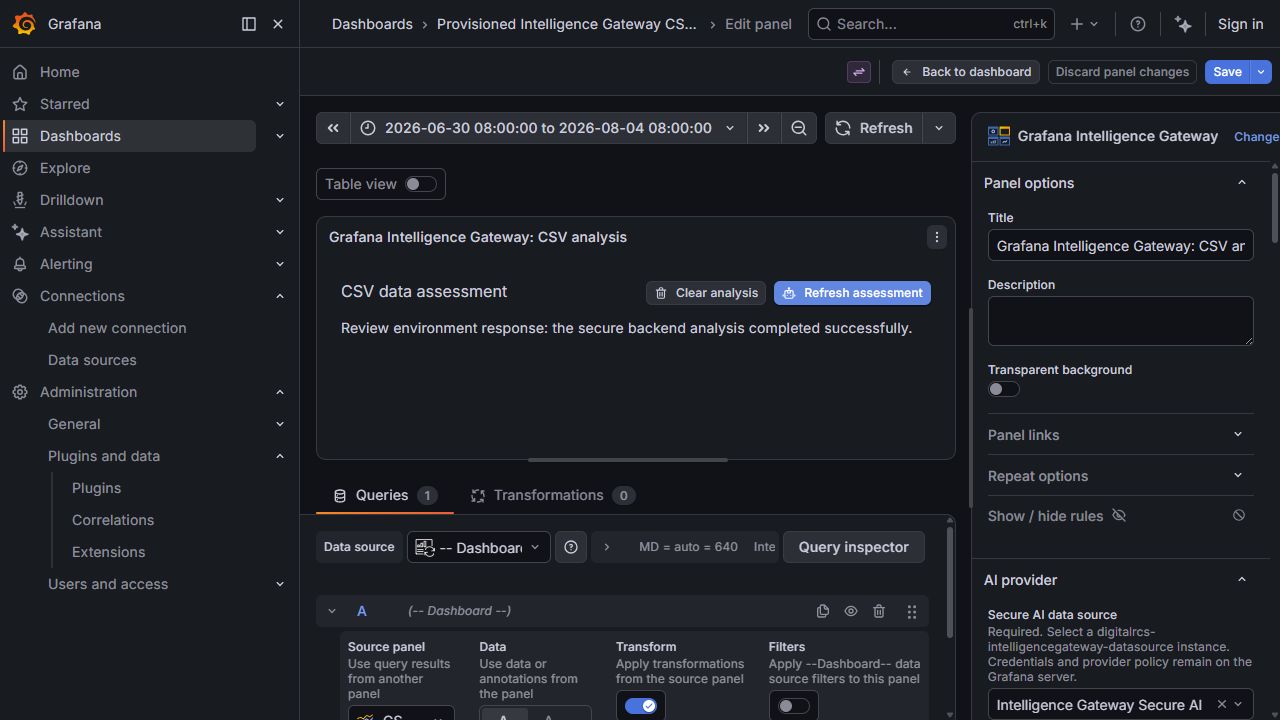
| Recent rows per frame | Includes the most recent rows per frame; range 1–1,000. | 50 |
| Maximum context characters | Caps serialized DataFrame JSON; range 1,000–200,000. | 24000 |
| Source panel title or ID (hint) | Descriptive prompt label; does not establish a data connection. | Synthetic traffic |
| When no data arrives | Allows, warns, or blocks text-only analysis without frames. Attached images permit image analysis even with Block selected. | Warn |
| Analyze automatically | Runs data-only analysis after data/prompt changes; pauses while image inputs are open or attached. | Off |
| Auto-analysis debounce (ms) | Waits after a change before automatic analysis; range 300–30,000. Shown when automatic analysis is enabled. | 1200 |
| Show Analyze button | Keeps manual analysis available. | On |
| Clear analysis | Cancels an active request and removes response, errors, and pending images. | Runtime button |
Start with manual analysis. Enable automatic analysis only after provider budgets, prompt behavior, and data limits are understood.
Image controls are included in 1.1.0 and require companion 1.1.0 or later. They are optional: keep using Analyze with no attachments for data-only analysis.
| Control | Purpose | Default or example |
|---|---|---|
| Show image controls | Shows the runtime Images button. Any pending images remain reviewable even if this setting is turned off. | On |
| Include query data with images | Sends this panel's bounded query rows alongside the images. Turn off for an image-only assessment. | On |
| Images | Opens capture, upload, and removable previews. It does not send an assessment. | Runtime button |
| Use images | Closes the preview and keeps the images staged in memory. | No network submission |
| Remove / Remove all images | Discards one or all staged attachments. | No network submission |
| Analyze images | Sends the staged images and prompt through the selected secure companion. | Explicit action only |
| Clear analysis | Cancels a request and removes the answer, errors, and pending images. | Source measurements unchanged |
The administrator must enable image analysis and approve the selected vision model in the data source. Automatic analysis is paused while images are staged or the dialog is open. Successful image assessments release the attachments; capture again for a newer view. See Image Analysis for all capture limits and privacy considerations.
| Option | Purpose | Default or example |
|---|---|---|
| Assessment title | Heading above the generated assessment. | Intelligence assessment |
| Description | Optional explanatory text beneath the title. Use it to label a mock or live environment. | Empty; for example Assessment of synthetic data
|
| Background color | Assessment background. | Transparent |
| Text color | Overrides the theme's text color; leave empty for theme-aware text. | Empty |
| Font size | Assessment font size in pixels; range 10–48. | 14 |
| Padding | Inner spacing in pixels; range 0–64. | 16 |
| Alignment | Left, Center, or Right. | Left |
Keep sufficient contrast and verify both Grafana themes when choosing custom colors.
- Select Load models securely and confirm only approved models appear.
- Select Analyze.
- Confirm the Markdown assessment renders.
- Compare cited fields, values, and timestamps with the source panel.
- Select Clear analysis and confirm only generated state is removed.
- Save the dashboard.
For images-only verification, disconnect query results, turn Include query data with images off, attach an approved synthetic image, preview it, then select Analyze images. Check known visual facts in the response. For a combined test, reconnect the query results and turn that setting on. A mock image-count receipt verifies transport, not visual understanding.
| Symptom | Likely cause | Action |
|---|---|---|
| No secure data source appears | Companion plugin is missing or no instance exists. | Install it, restart Grafana, configure an instance, and reload the editor. |
| Save & test fails | Endpoint, HTTPS policy, credential, model, or network error. | Correct the data-source configuration; provider details remain server-side. |
| No models load | Provider /models failed or no approved model was returned. |
Verify data-source health and ensure the default/allowed IDs exist upstream. |
| Requested model is rejected | It is outside the administrator allow-list. | Select an approved ID or ask the administrator to update policy. |
| No visible answer or reasoning-only response | The model may have exhausted its output cap before the final answer; empty provider output can have other causes. | Read the sanitized error, compare both caps, and use an appropriately supported model. |
| Request times out | Model generation exceeded a panel or backend deadline. | Reduce context, use a faster model, or align/increase both timeouts within 600 seconds. |
| No source data | Dashboard data source is disconnected or source panel is empty. | Re-select -- Dashboard --, choose the source panel, and inspect its active-range data. |
| Image controls cannot send | Companion is older than 1.1.0, vision is disabled, or model is not approved for images. | Upgrade both plugins, restart Grafana, and ask the administrator to check vision policy. |
| Old labels or controls after upgrade | Browser tab is still using the earlier plugin runtime. | Restart Grafana after installation, then reload the whole page; dashboard Refresh is not a code reload. Follow the cache guidance below. |
See Connecting Data from Other Panels for transformations and multi-frame behavior.
For persistent stale code, see the development cache guide. Do not clear all browser credentials or enable server development mode just to bypass cache.
Use panel 1.1.2 or later for tall dashboards on Grafana 12.4.0. This fixes document scrolling so lower panels can be visited. A stalled scroll reports an error instead of producing an incomplete image. Existing size limits and partial-capture warnings still apply. Companion 1.1.0 or later remains required; updating Current View Exporter alone does not update this panel.