




DisplayBuddy is a focused external monitor control utility for Mac — using the DDC (Display Data Channel) protocol to control monitor hardware settings directly from the Mac menu bar, making brightness, volume, and input source adjustments as quick and accessible as adjusting the built-in display.
The DDC hardware brightness control sends brightness adjustment commands directly to the external monitor's hardware through the DDC protocol — the same protocol that allows monitors to communicate configuration with connected devices. Rather than controlling a software overlay that simulates brightness change (which doesn't actually reduce the monitor's light output), DDC control adjusts the monitor's actual hardware backlight brightness as if the physical OSD brightness buttons were used. The result is genuine hardware brightness reduction that reduces eye strain and power consumption, not a software dimming layer. The menu bar quick access places the monitor controls in a compact menu bar panel — clicking the menu bar icon reveals sliders for brightness and volume adjustment, input source selection, and other configured controls, all accessible without leaving the current application or touching the monitor's physical buttons.
The keyboard shortcut brightness control configures keyboard shortcuts for incremental brightness adjustment — raising or lowering external monitor brightness with a key press the same way macOS's brightness keys control the built-in display. This keyboard control makes brightness adjustment instantaneous and keeps hands on the keyboard without interrupting workflow to reach for monitor buttons or open a menu. The input source switching changes the monitor's active input from the Mac — switching between connected sources without using the monitor's physical OSD menu, particularly useful for monitors connected to multiple devices that require frequent input changes.
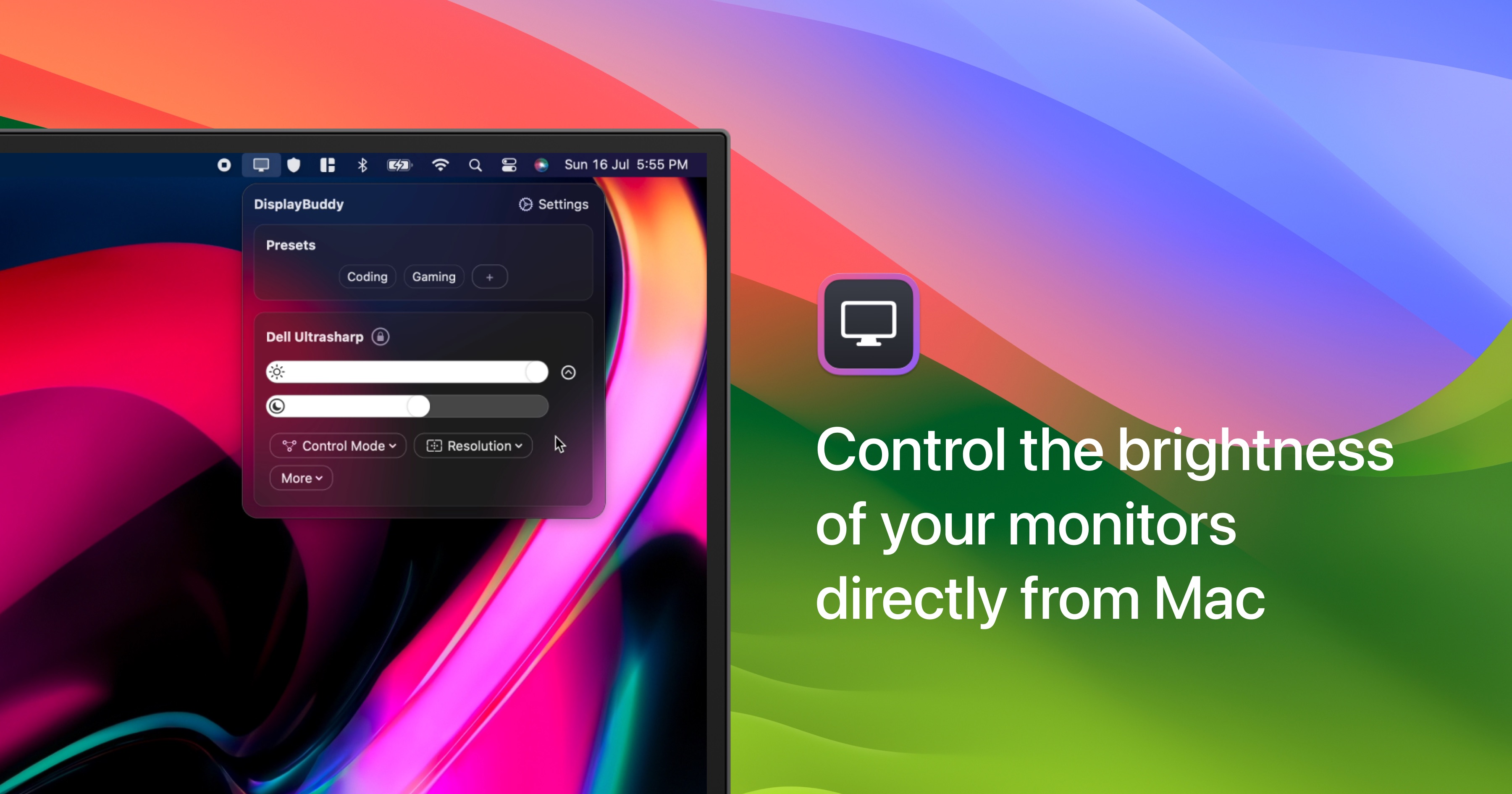
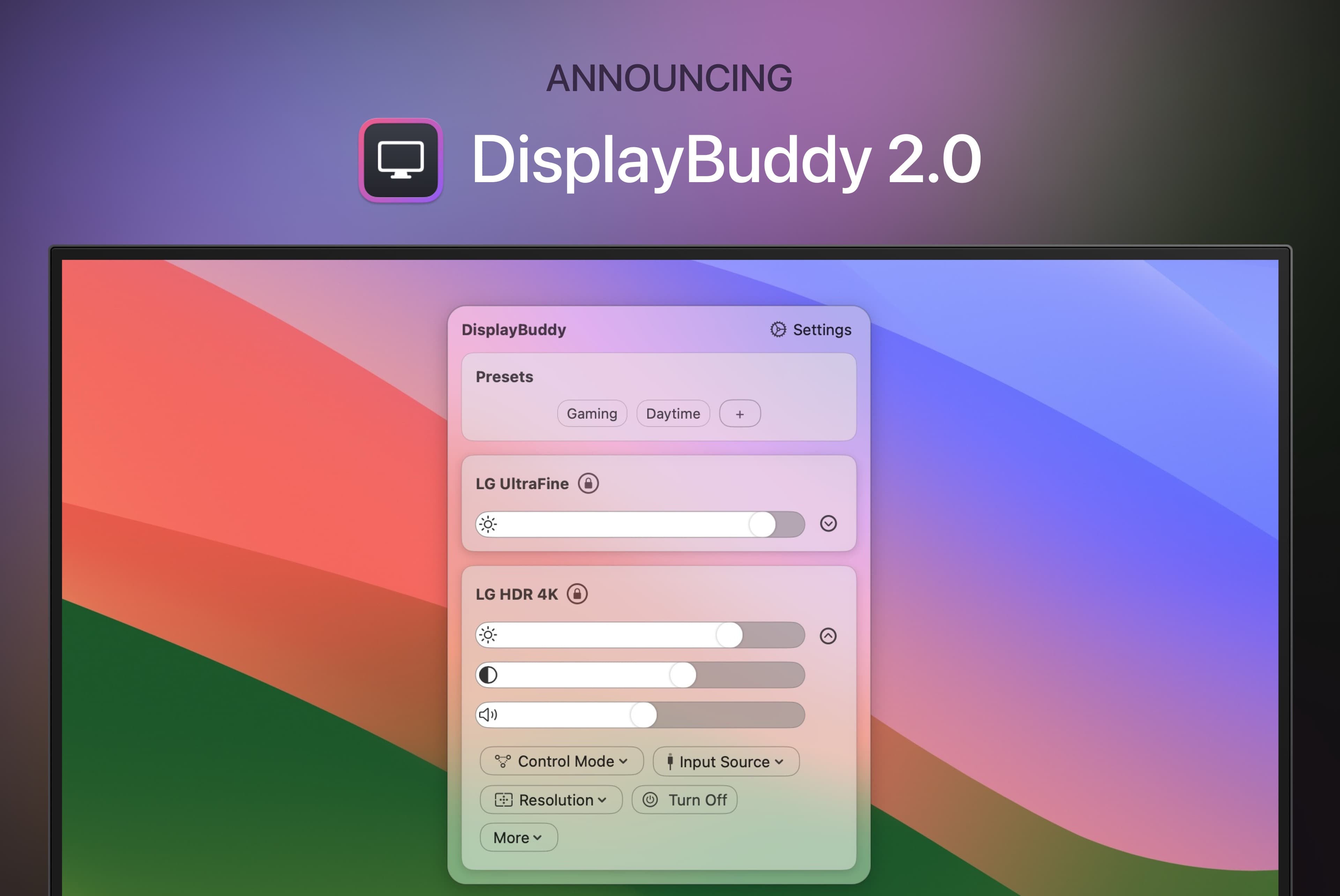
Multiple monitor management controls all connected external monitors individually — separate brightness settings for each monitor, independent input source selection, and per-monitor control from the same menu bar panel. Volume control for monitors with built-in speakers adjusts the monitor's hardware speaker volume through DDC — useful for monitors whose built-in speakers are the audio output for a Mac setup.
Display information panel shows current monitor settings — the active brightness level, current input source, monitor model information, and other DDC-readable display parameters. Setapp subscription availability includes DisplayBuddy for subscribers who want monitor control alongside other Mac utilities through a single subscription.
- DDC Hardware Brightness — Actual monitor backlight adjustment — genuine hardware control, not a software dimming overlay.
- Menu Bar Quick Access — Brightness and volume sliders, input source — all controls in a compact menu bar panel.
- Keyboard Shortcut Brightness — Raise or lower external brightness with a key press — same as built-in display brightness keys.
- Input Source Switching — Change monitor input from Mac — no physical OSD navigation for source switching.
- Multiple Monitor Control — Individual settings per monitor — separate brightness and input for each display.
- Monitor Volume Control — Hardware speaker volume via DDC — monitors with built-in speakers controlled from menu bar.
- Display Information Panel — Current brightness, input source, model info — DDC-readable display parameters at a glance.
- Setapp Available — Included in Setapp subscription — monitor control alongside other Mac utilities.
- Mac users with external monitors — keyboard shortcut and menu bar brightness control without physical OSD button navigation
- Developers and creative professionals — frequent brightness adjustment as quick as built-in display keys during extended work sessions
- Multi-monitor Mac users — independent brightness and control per display for different lighting and content requirements
- Users with multi-device monitor setups — keyboard-accessible input source switching without OSD navigation
External monitor control Mac · DDC brightness Mac · Monitor brightness keyboard · Mac display utilities · Input source switching Mac · Menu bar monitor control · Multiple monitor Mac · Mac display tools · Monitor management · Mac utilities
DisplayBuddy's DDC brightness control is qualitatively different from software overlay dimming solutions. A software overlay reduces perceived brightness by placing a translucent dark layer over the display content — the actual monitor backlight remains at full power, producing only a visual simulation of reduced brightness. DDC control adjusts the monitor's hardware backlight directly, genuinely reducing light output, reducing power consumption, and producing the eye strain reduction that comes from actually turning down the light rather than placing a film over it.
"DisplayBuddy keyboard brightness shortcuts changed how I use my external monitor. I adjust brightness throughout the day constantly — for different lighting as the sun moves, when switching from code to design work, in the evening as ambient light drops. Without shortcuts this was tedious enough that I didn't do it and just left the brightness at one level. With shortcuts I adjust it dozens of times a day." — Marcus T., Developer
"Hardware DDC control versus software overlay was the reason I chose DisplayBuddy over alternatives. I need actual light reduction, not a dark film over the screen. My eyes are sensitive and the genuine hardware brightness reduction makes a real difference for long sessions." — Elena K., Designer
- Go to the installation site using the button above.
- Follow the on-screen instructions to install DisplayBuddy on your Device.

Does DisplayBuddy control external monitor brightness through software overlay?
No. DisplayBuddy uses the DDC protocol to adjust the monitor's actual hardware backlight brightness — genuine hardware control rather than a software dimming layer.
What is DDC?
DDC (Display Data Channel) is a standard protocol for communication between displays and computers. It allows software to read and write display settings including brightness, volume, and input source.
Does DisplayBuddy work with all external monitors?
DDC control requires monitors and connections that support the DDC protocol. Most modern monitors on HDMI, DisplayPort, and USB-C connections support DDC. Specific compatibility depends on the monitor model and cable. Some USB hubs and adapters can interfere with DDC communication.
Can DisplayBuddy switch monitor input sources?
Yes. Input source switching changes the monitor's active input through DDC without using the physical OSD menu.
Does DisplayBuddy support multiple monitors?
Yes. Multiple connected external monitors control individually with separate settings for each display.
Does DisplayBuddy have keyboard shortcuts?
Yes. Configurable keyboard shortcuts adjust external monitor brightness incrementally — the same experience as the Mac's built-in brightness keys.
Is DisplayBuddy available through Setapp?
Yes. DisplayBuddy is available through the Setapp subscription service.
Does DisplayBuddy control monitor speaker volume?
Yes. Monitors with built-in speakers that support DDC volume control can adjust volume from DisplayBuddy.
Does DisplayBuddy run on Apple Silicon?
Yes. Current versions support Apple Silicon Macs natively.