CAM SE Workflows
This page describes the process once a scientist has indicated on their issue that their branch is ready for cam_development. This documents the steps that the assigned SE will perform.
- CAM SE scheduler duties
- Primary Assigned SE's duties for when code from scientists are being brought into CAM
- Run CAM tests
- Make a CAM tag
- Handle a pull request to cam_development
- Make a code change in release branch and cam_development
- Update development branch from cam_development or release branch
- Create a new release
- Enter a card for the request onto the CAM project board (barring PTO this should happen within a day of the request)
- If possible, assign the SE who will be responsible for bringing this onto cam_development and/or a release branch.
IF SCIENTIST HAS OPENED A PR
-
Discuss with scientist if they want:
a. You push your changes back to their branch in the PR directly - then you clone their branch directly and push changes back to it
b. You issue a PR back to their branch in the PR - you create a branch in your fork using their branch in the PR and when edits are complete you issue a PR back to their branch.
-
Perform necessary cleanup (if any needed) prior to requesting additional CAM SE reviewers. In particular, you should update your branch to the head of the PR target (cam_development or release branch).
-
Consider if a new CAM regression test needs to be added. If so, discuss with the scientist about getting an appropriate test or modifying an existing test.
-
Get the final edits back into the scientist's PR
-
Hit the merge button
NOTE -- The steps above have more details in the steps below.
IF EXTENSIVE MODIFICATIONS ARE REQUIRED OR NO PR HAS BEEN OPENED - this will involve opening a new PR
-
Copy scientist branch to your fork
-
Perform necessary cleanup (if any needed) prior to issuing a pull request. In particular, you should update your branch to the head of the PR target (cam_development or release branch).
-
Consider if a new CAM regression test needs to be added. If so, discuss with the scientist about getting an appropriate test or modifying an existing test.
-
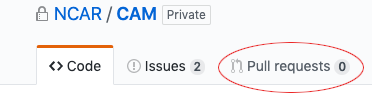
Go to your CAM fork's GitHub page, and select the "Pull requests" tab:
-
Create a new pull request using the "new pull request" button:

-
Set the "base repository" to "ESCOMP/CAM", and the "base" to your branch of interest (likely "cam_development"):

-
Set the "head repository" to your CAM fork repo, and the "compare" to your newly created branch:

-
If the phrase "Able to merge" is present, then select "create pull request":

-
Add a title for your request, along with a description of what your pull request is doing. Fill out all fields in the template while removing any template comments. Be sure to list the issue(s) which are addressed by this pull request, taking care to use the correct syntax.
-
Add a label (ideally one that matches the associated issue or issues). Add a project as well to get the PR to automatically have a card generated on the appropriate project page. Only one project should be added, with that project being the one that is associated with the target branch of the PR. Also add a milestone, if applicable. Once finished, create the pull request.
-
DO NOT ADD REVIEWERS.
-
Once the PR has moved up the queue, the scheduler will assign reviewers and move the PR to the "Upcoming tags - in review and testing" column. Reviewers should follow these guidelines:
- Review code, data, and documentation changes, adding comments, and change requests as necessary.
- If you are designated as the "first reviewer" for a PR by you being the sole reviewer and the review is marked "Draft", when your review is complete and all requested changes have been made, remove the "Draft" designation and assign the other reviewers.
- Recognize that once a review is requested, these are the next potential tags, so be sure to act quickly on the review and re-review requests.
- If you do not have time to fill the review request, or do not feel you have the necessary expertise, you may remove yourself from the reviewers list. Note the reason for your decision in the PR conversation section.
- There needs to be at least two approved reviews for a PR so not everyone can abstain from a requested review.
-
Make requested changes to your personal branch (following the above instructions for modifying your fork).
-
Notify reviewers that you are ready for a re-review. Click on the two arrows to the right of the reviewers name on the github PR page. Note that while they may receive automated emails from GitHub as you push changes, requesting re-review is a necessary step to indicate you have completed your modifications.
- If the PR appears to be ready but there are still pending reviews, first notify those reviewers and ask for an expedited review. If the reviewer is not available, the acting scheduler can decide to eliminate that review so the PR can proceed.
- A reviewer should mark a comment of theirs as resolved (by clicking the 'Resolve conversation' button for that comment), however, no one else should take this action so that the reviewer has a chance to ensure that the issue has been adequately addressed.
- If multiple people are involved in a conversation, the original poster may explicitly pass off responsibility for the issue to another reviewer (flag them in the conversation).
- All issues (conversations) should be resolved before a PR is merged.
-
When all reviewers have approved the PR, you will need to receive notice that your commit is next in line from the scheduler (currently Cheryl Craig, and Steve Goldhaber usually fills in when she is out). At this point, you need to:
- Make sure that your code is current with the head of the branch to which you are committing
- Rerun manage_externals/checkout_externals if any External config files have changed
- Run all the tests with this code base
- Update the ChangeLog filling in the testing results and the tag name that you've been given
-
At this point, your code may be merged with the appropriate upstream branch (e.g. "cam_development"). When you click the "merge" button, a dialog box will pop up with a title that will like this:
Merge pull request #XXX from <username>/<branch_name>
where #XXX is the PR number, <username> is your Github username, and <branch_name> is the name of the branch that contains the modifications. Please do NOT edit this title, as automated scripts depend on the text within the title in order to function properly. However, you can add anything you want in the comment box below the title.
-
Store the baselines on both cheyenne and izumi (run archive_baseline.sh) Use CESM_TESTDIR to identify the location of your testing directory.
On izumi:
-
env CESM_TESTDIR=/scratch/cluster/YourName/aux_cam_gnu_yyyymmddsssss CAM_FC=GNU ./archive_baseline.sh cam6_3_XXX
-
env CESM_TESTDIR=/scratch/cluster/YourName/aux_cam_nag_yyyymmddsssss CAM_FC=NAG ./archive_baseline.sh cam6_3_XXX
On cheyenne:
- env CESM_TESTDIR=/glade/scratch/YourName/aux_cam_yyyymmddsssss ./archive_baseline.sh cam6_3_XXX
- Add the tag to the appropriate location on the CESM "plans" page (https://csegweb.cgd.ucar.edu/testdb/cgi-bin/tagList.cgi), if necessary.
- Determine where the tag should be placed (which upcoming tag it should go in). If you have questions on the proper tag, contact Chris Fischer (fischer@ucar.edu) or Cheryl Craig (cacraig@ucar.edu) and they can advise you with the appropriate tag.
- Click on the appropriate tag
- Scroll down to CAM and hit the + sign which opens up a window to fill out
- revision is the tag name you just made (note it will automatically change to a fullpath name when it is entered into the table)
- Indicate if it is bit-for-bit, some or none
- Enter in the PR title and if the changes are "some" indicate which tests are different
- Indicate if this tag requires any other external components to be updated at the same time (a coordinated CESM tag) and enter that information in the notes as well
Make sure that you have merged your branch up to the HEAD of the cam_development or release branch prior to running tests. Rerun manage_externals/checkout_externals if any Externals config files have changed. If your branch is behind, merge in your testing sandbox but do not push the merge commit back to your GitHub remote.
- On Izumi: Run
<root>/test/system/test_driver.shwithCAM_FC=gnuandCAM_FC=nagandBL_TESTDIR=/fs/cgd/csm/models/atm/cam/pretag_bl/XXXX(where XXXX is the name of the previous baseline)env BL_TESTDIR=/fs/cgd/csm/models/atm/cam/pretag_bl/XXXX_nag CAM_FC=NAG ./test_driver.sh -fenv BL_TESTDIR=/fs/cgd/csm/models/atm/cam/pretag_bl/XXXX_gnu CAM_FC=GNU ./test_driver.sh -f
- On Cheyenne: Run
<root>/test/system/test_driver.sh(on cheyenne the command defaults to intel) andBL_TESTDIR=/glade/p/cesm/amwg/cesm_baselines/XXXX(where XXXX is the name of the previous baseline)env BL_TESTDIR=/glade/p/cesm/amwg/cesm_baselines/XXXX ./test_driver.sh -f
- Review tests (note the ONLY tests which are allowed to fail are ones expected due to changes in the commit and every one will need to be documented in the ChangeLog)
- For CESM tests, look in the aux_cam_zzz_yyyymmddsssss.log file for the --test-root location. cd to the test-root directory and run the cs.status.aux_cam_zzz_yyyymmddsssss command. It is useful to run grep to find the lines of interest. For example to remove all the lines with PASS (to more easily see the anomalies) run
./cs.status.aux_cam_zzz_yyyymmddsssss | grep -v PASS. - Be sure to look in aux_cam_nag_yyyymmmddsssss.log file for the output of the TR8 and TGIT tests. Fix any errors listed there.
- For CESM tests, look in the aux_cam_zzz_yyyymmddsssss.log file for the --test-root location. cd to the test-root directory and run the cs.status.aux_cam_zzz_yyyymmddsssss command. It is useful to run grep to find the lines of interest. For example to remove all the lines with PASS (to more easily see the anomalies) run
- If need to rerun CESM testing for computer glitches without rerunning all of the tests which passed
- Find the directory and ID for the tests by inspecting the aux_cam_zzz_yyyymmddsssss.log file for the --test-root location and the --test-id respectively.
- Set CESM_TESTDIR to the full path of the test-root
- Set the qualifier for the --rerun-cesm to the test-id
- env CESM_TESTDIR=/full/path/from/test-root CAM_FC=NAG BL_TESTDIR=/fs/cgd/csm/models/atm/cam/pretag_bl/XXXX_nag ./test_driver.sh -f --rerun-cesm test-id-from-log-file
- If after running a --rerun-cesm, there are still some issues: TIPS to force the CESM testing to rerun when jobs were stopped in awkward states (deleting a job midrun or after a computer failure)
- Rebuild the test from scratch. Execute the following in each test which continues to fail:
- ./.case.test --reset
- ./case.build --clean-all
- ./case.setup --reset
- ./case.build
- ./case.submit
- Rebuild the test from scratch. Execute the following in each test which continues to fail:
- Fix any errors and/or document expected fails
- Make a science run, if is is required (e.g., for answer changing updates or for new tests)
- Make sure all CAM tests have been run on the HEAD of the destination branch (e.g., cam_development or release branch).
- To clarify, this means that you either merged the HEAD of the destination branch into your branch or rebased your branch on top of the HEAD of the destination branch before your last round of tests.
- Update ChangeLog to reflect all changes since previous tag on branch
- Commit to branch and push to proper remote
- Open a pull request from your branch to the correct branch on ESCOMP.
- After pull request has been merged (see below), make an annotated tag with the ChangeLog summary as the tag commit message
- Clone https://github.com/ESCOMP/CAM or update an existing clone with
git fetch <escomp_remote> <branch_name>. - Find the PR merge commit (
<merge_commit>) for the tag:- In the ESCOMP/CAM clone, find the merge commit with
git log --oneline -1 <escomp_remote>/<branch_name>where the merge commit is the first field in the output.
- In the ESCOMP/CAM clone, find the merge commit with
- Tag the
<merge_commit>withgit tag -a <tag> <merge_commit> -m '<commit_message'>where<commit_message>is the same as the message for the<merge_commit>
- Clone https://github.com/ESCOMP/CAM or update an existing clone with
- Push the tag to the proper remote
git push <escomp remote> <tag>
- Make sure the "Create a merge commit" option is selected in the dropdown to the right of the green 'Merge pull request' button.
- After clicking the button, copy and paste the entire text of the PR description (first item in the PR 'conversation' where the ChangeLog template is filled out).
- Click "Confirm merge".
- Update your cam_development branch in a clone that can run a test.
- Check the log to see that your commit is there.
- Run at least one test to make sure the code works.
- Delete the branch which was just merged.
Before running tests or merging in a PR, you should update your code to the head of the target branch (e.g., cam_development). Before opening the PR, the recommended procedure is to rebase your branch onto the target branch. For example, if the remote is named ESCOMP and the target branch is cam_development, make sure your branch is clean and run:
git rebase ESCOMP/cam_development
After this, your branch should look as if it was just created on top of the HEAD of cam_development. Push this branch back to your fork using the --force option.
For more information on using git rebase, see the description from the Pro Git book or the manual page (which includes git rebase --interactive).
However, if, after opening a PR, another tag is made before you, you should merge the changes into your branch:
git merge ESCOMP/cam_development
For more on git merge, see the description from the Pro Git book or the manual page.