GroupVPN Installation
!! Will be updated with actual configuration soon!!
-
Install MS Visual C++ Redistributable
-
Install Python 2.7 for Windows.
-
Install tap-installer from OpenVPN.
-
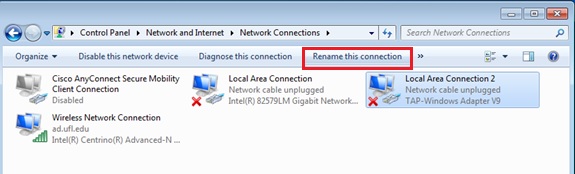
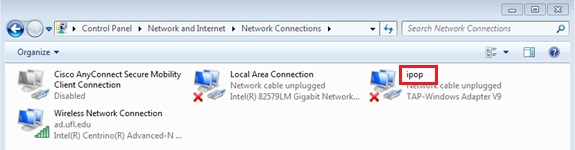
Rename the newly installed tap-device to 'ipop'.
-
Extract 'ipop-14.01.1-x86_32_win7'.
-
You need a proper configuration file to join the GRAPLE IPOP overlay. To obtain this configuration file, please send an email to Ken Subratie (kcratie at gmail.com). Please include in your email your name, affiliation, and the number of computers you are going to connect to the GRAPLE resource pool.
-
Wait to receive your configuration file by email before you proceed to the next step.
-
Copy the configuration file to the folder you extracted IPOP in step 2.
-
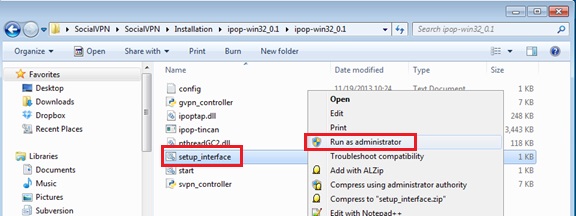
Right-click on 'setup-interface.bat' file, and click on 'Run as administrator'.
-
Double-click on 'start_gvpn.bat' file whenever you want to run GroupVPN and then two command shell windows will show up showing that it is running.
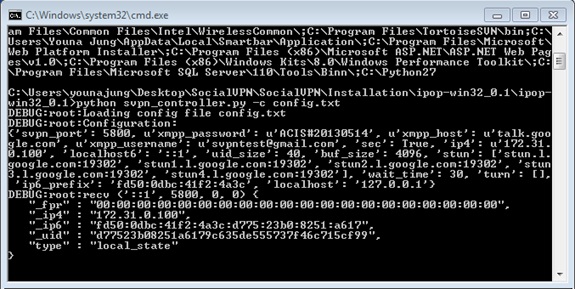
- fpr is the X509 fingerprint of the local user
- ip4 is the IPv4 address of the local user
- ip6 is the IPv6 address of the local user
- uid is the uid of the local user
- type means this is a local state message
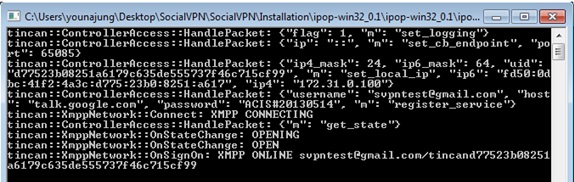
The last 5 lines are the most important lines because they show the node connecting to XMPP server and becoming ONLINE. If you do not see this message, that means that you have not properly connected.
-
Verify connectivity by pinging the Condor Central Manager.
Once you have successfully connected to IPoP network, the condor central manager is reachable at IP address 10.254.0.1. Open a console window by running the cmd.exe executable. Enter the command "ping 10.254.0.1" and press the return key. The output should indicate if the host is reachable and the time taken to contact it.
- Close two shell windows.