GroupVPN Installation
!! Will be updated with actual configuration soon!!
Disclaimer : currently the Windows port should be consider a demonstration - it tunnels IP, but lacks a key feature (DTLS encryption support) and it is not as stable as the Linux port which is our primary target. If you are a Windows expert who would like to help with hardening this version, please contact us!
This has been tested on Windows 7 (32bit and 64bit). The libjingle library currently uses SChannel for Windows which does not have DTLS support meaning the connection to the XMPP server is encrypted but the P2P VPN connections are not encrypted.
-
Install MS Visual C++ Redistributable
-
Install Python 2.7 for Windows.
-
Install tap-installer from OpenVPN.
-
Rename the newly installed tap-device to 'ipop'.
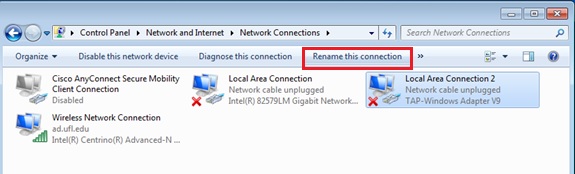
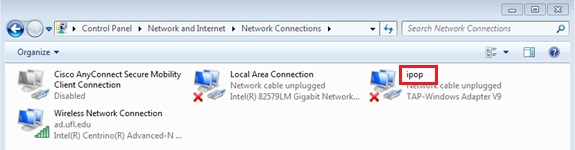
-
Extract 'ipop-14.01.1-x86_32_win7'.
-
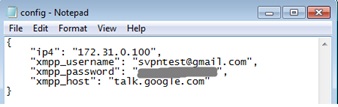
Right-click 'config.txt' file and click on 'Edit'. Update with your XMPP service credential. Each peer that participates in a GroupVPN must be assigned a unique static IPv4 address. On each node this must be set. In the 'config.txt', set the 'ip4' value to the same address you assigned to the ipop adapter for the current node. You can also set your XMPP username and password at this point and save the changes made to both files.
 -
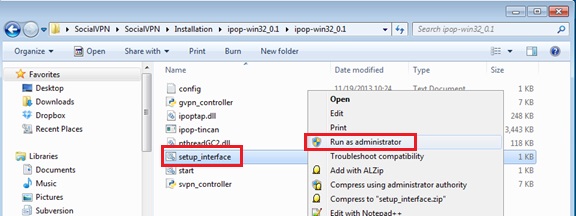
Right-click on 'setup-interface.bat' file, and click on 'Run as administrator'.
-
Double-click on 'start_gvpn.bat' file whenever you want to run GroupVPN and then two command shell windows will show up showing that it is running.
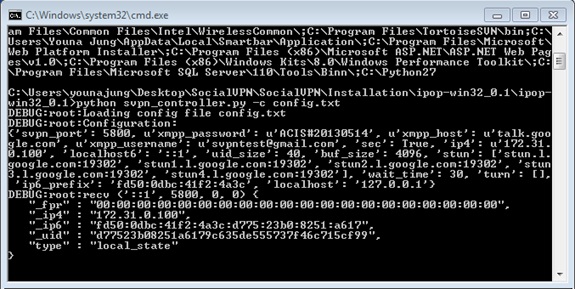
- fpr is the X509 fingerprint of the local user
- ip4 is the IPv4 address of the local user
- ip6 is the IPv6 address of the local user
- uid is the uid of the local user
- type means this is a local state message
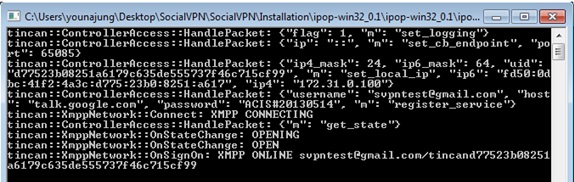
The last 5 lines are the most important lines because they show the node connecting to XMPP server and becoming ONLINE. If you do not see this message, that means that you have not properly connected.
-
Run GroupVPN on another machine using same credentials and they will connect with each other.
By default, addresses are assigned dynamically on a round-robin fashion. Alternatively, you can assign addresses for your peers yourself through an additional configuration file. Please refer to our FAQs for details.
- Close two shell windows.