GroupVPN Installation
- You will need a proper configuration file to join the GRAPLE IPOP overlay. To obtain this configuration file, please send an email to Ken Subratie [kcratie at ufl.edu]. Please include in your email your name, affiliation, and the number of computers you are going to connect to the GRAPLE resource pool.
Installation of dependencies
-
Install MS Visual C++ x86 Redistributable Packages for Visual Studio 2010
-
Install MS Visual C++ x86 Redistributable Packages for Visual Studio 2013. (Both are currently required.)
-
Install Python 2.7 for Windows.
-
Install tap-installer from OpenVPN.
-
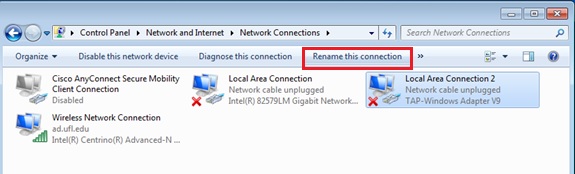
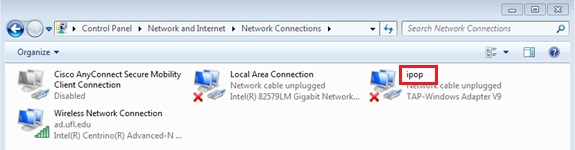
Rename the newly installed tap-device to 'ipop'.
-
Extract 'ipop-14.07.0-x86_win7.zip', preferably to your system root folder, e.g., _C:_. You should have a directory similar to c:\ipop-14.07.0-x86_win7.
-
You will need the configuration file you requested by email before you proceed to the next step.
-
Replace the default configuration file, config.json, in the IPOP folder with the new one you received. If you received more than one configuration file, each file is to be used on a separate PC. Do not duplicate a configuration file on multiple PCs as this will cause errors.
-
Open a Windows command console with administrative privileges, by right clicking on Command Prompt and selecting Run as administrator.

-
Change your current working directory to the directory containing the IPOP executables and run the following command.
setup-interface.bat
- In the same command console, install IPOP Service using the following command.
IPoPSvc --install
[[https://github.com/ipop-project/documentation/wiki/SvcInstalled.png]]
- To run in the native mode as a Windows service start the service from the Windows Service Control Manager or run the command
net start IPoPService
-
Verify connectivity by pinging the Condor Central Manager.
Once you have successfully connected to IPOP network, the condor central manager is reachable at IP address 10.254.0.1. In the command console run the following command.
ping 10.254.0.1
The output should indicate if the host is reachable and the time taken to contact it. Please note, that it can take up to a minute for the IPOP service to fully initialize and the ping test to work.
- (Optional) The service, by default, is not configured to start automatically. You are required to either manually start the service each time the computer boots, or change the service start mode to Automatic (Delayed Start). This start mode allows Windows to automatically start the service at the appropriate time whenever the computer is booted.

- The IPOP VPN is stopped by running the net stop command or stopping the service via the Windows Service Control Manager.
net stop IPoPService
- If you are experiencing difficulties getting your system successfully started further literature is available in the GRAPLE FAQs and at IPOP-Project website.