Repository navigation
Steps and pattern
Versión en español · Illustrated manual · Alpha 0.15
⚠️ Alpha 0.15 is experimental: the FX sequencer and the looper (Alpha 0.13) have been tried on the device; most other things since Alpha 0.04 mostly in emulation. Back up your SD card.
- 3.1 Velocity and Micro Step
- 3.2 Pattern Settings and probability
- 3.3 Patterns: chains
- 3.4 Pattern Mutate
How to get there: the Velocity button; Micro Step = Shift + Gate

Micro Step: pad 31 fixed length, pad 32 gate by press (off: dim).
| View | Gesture | What it does |
|---|---|---|
| Velocity | Shift held | ★ the automation view (Alpha 0.09): steps with knob automation in yellow, the marked ones in red, the others as the view draws them |
| Velocity | Shift + a yellow step | ★ listen to it (Alpha 0.09): its values go to the knobs and the sound, those knobs yellow (brightness = the value); another yellow step sets its own; let go of Shift and everything goes back |
| Velocity | Shift + another step | marks the step (since Alpha 0.04): when it plays, automation is silent there and automated parameters go back to Project init (Alpha 0.09) (up to Alpha 0.08, to their knob's position); a knob turned by hand stays where you left it. Again = unmark |
| Velocity | Velocity again | ★ the automation view latched, without holding Shift (Alpha 0.09): a tap on a yellow step listens to it, on another marks it. Velocity again, or another view, removes it (what you were listening to goes back). Shift + Velocity is still the original's fixed velocity |
| Velocity | Clear + step (with or without Shift; Clear first) | ★ erases that step's knob automation; its notes, its mark and the Mixer's lanes stay (Alpha 0.09) |
| Velocity | Yellow step held + another step (automation view) | ★ ramp (Alpha 0.10): each knob lane with a value at either end gets the straight line between them, micro step by micro step; an end without a value uses the current value |
| Track view (Samples) | Record held + step | ★ snapshot (Alpha 0.09): each knob not at Project init goes into that step (its 6 micro steps); the step's pad yellow while you hold it; when you let go of Record, recording as it was |
| Micro Step | pad 31 | fixed length: off → the selector on pads 17-32 (1-16 steps; picking one switches it on); on → off (orange bright / dim) (since Alpha 0.04) |
| Micro Step | pad 32 | gate by press: the hit lasts as long as you hold the step's pad; holding an empty step 300 ms or more also creates it (green bright / dim) (since Alpha 0.04) |
Switching one of the two Micro Step options on switches the other off. With either, a hit entered by hand on the steps takes that length.
A track's Project init (Alpha 0.09): its parameters as the project was last loaded or saved (taken again on every save). Pad 8 of the track menu (red) brings its voice back there.
How to get there: the Pattern Settings button (twice: the probability view, mode 1)
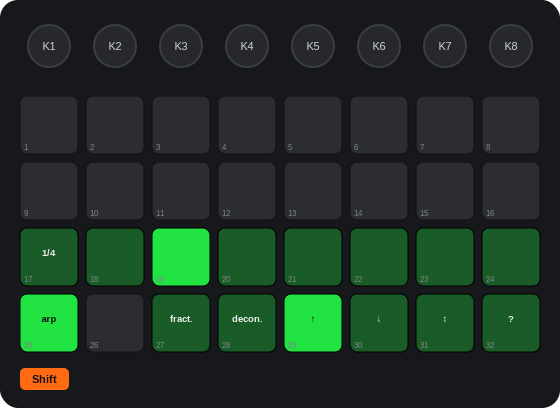
Pattern Settings with Shift: the arpeggiator.
| Gesture | What it does |
|---|---|
| Pad 26 (blue) | Nudge: moves the chosen range one step back; with Shift, forward. Steps, lanes and per-step values go with it (Alpha 0.10) |
| Pad 27 / 28 | fractal (1 · 1 2 · 1 2 3 …) and deconstructed (1 6 11 16 · 2 7 12 13 …) orders; a direction pad goes back to the original (since Alpha 0.0) |
| Pad 25 (grey) | probability view, mode 2: pick a step; row 3 = dynamics (velocity and delay within the step; with Record, each step with dynamics is written as it played), row 4 (25-28) = sample mutation (sometimes its neighbour plays) (since Alpha 0.0) |
| Pattern Settings twice | probability view, mode 1: row 4 = frequency of the step: it plays on the last of every n passes (Alpha 0.10); each pattern of a chain keeps its own count, and when it does not play, the previous note rings on (since Alpha 0.0) |
| Clear + pad 25 | clears the pattern's dynamics and mutation (frequency stays) (since Alpha 0.04) |
| Shift + pad 25 | ★ the track's arpeggiator on / off (green bright / dim) (since Alpha 0.0) |
| Shift + pads 1-4 (arpeggiator on) | ★ octave spread: none, +1, +1 / −1, +2 / −1 (Alpha 0.10) |
| Shift + pads 5-8 (arpeggiator on) | ★ when the octave changes: after a cycle, every note, every 3, every 4 (Alpha 0.10) |
| Shift + pads 9-12 (arpeggiator on) | ★ groove: none, note / dotted note, swing, each note twice (Alpha 0.10) |
| Shift + pads 13-16 (arpeggiator on) | ★ restart: none, after 1 / 3 / 5 notes of the second cycle (Alpha 0.10) |
| Shift + pads 27-32 | arpeggio order: fractal, deconstructed, up, down, ping-pong, random |
| Shift + pads 17-24 | arpeggio resolution (1/4 … 1/32T); the same one again = the track's sync rate |
The arpeggiator's rows with Shift: the chosen option bright green, the others dim green (since Alpha 0.05). The arpeggio modifiers come from CIRCUIT-HACKS and are saved per pattern; with the arpeggiator off, those pads do the original's. Per-step values travel with the hit when quantizing, nudging, copying a step and with the original's Mutate.
How to get there: the Patterns button
| Gesture | What it does |
|---|---|
| Shift + the upper page button | chain mode (green) (since Alpha 0.0) |
| In the mode: a pattern (A), again (n + 1 passes), another (B), one more (C) | rule "n times A, then B; the next time, C" (AAB AAC …) |
| Clear + pattern | no rule |
| Shift + the lower page button | out of the mode: the original's chain |
Each scene remembers the mode it was saved with. The rules are saved with the project.
How to get there: Patterns or Mixer: Shift + Duplicate
Designed by mefisme (Rhythm Plus, MIT), with our own code (Alpha 0.13). Each chosen track plays a random list of patterns made from its chain, instead of the chain.
| Gesture | What it does |
|---|---|
| Shift + Duplicate (a tap, Patterns or Mixer) | a new seed: the chosen tracks play their list from their next pattern end |
| Shift + Duplicate held (Patterns) | the settings page (red-orange; chosen = bright) |
| On the page: column 1 / 2 | the list's length 1-4 / 5-8 |
| column 3 | length type: as the chain / exact / random up to the length |
| columns 4-5 | how much changes: all, 7, 6, 5 / 4, 3, 2, 1 slots |
| column 6 | repeats yes / no; column 7: keep the first slot |
| Track buttons | the tracks it mutates |
| Clear + Duplicate (any view) | ends every list; a pattern pad ends its track's |
A mutating track ends its chain on its list's last slot (so the next scene comes in on time).