Repository navigation
First Workflow
In about 10 minutes you build a small workflow: it reads a text file, keeps the lines that contain a word, and shows the result. No Nextflow knowledge is needed.
You need N-WAVE open: the browser demo to build it, or
your own installation to also run it.
Have any small text file at hand (a .txt file of a few lines is enough).
Prefer to be shown around first? Open Demo 1 - Text basics on the home page: its tutorial walks through the same parts in seven steps.
On the home page, click New Workflow, then Empty workflow. An empty canvas opens with the bottom bar below it. Double-click the name Untitled Workflow to rename it.
- Click + (Add node) in the top-right corner, and choose File Input.
- On the new node, click Upload File(s) and choose your text file.
The node now shows the file's name and size.
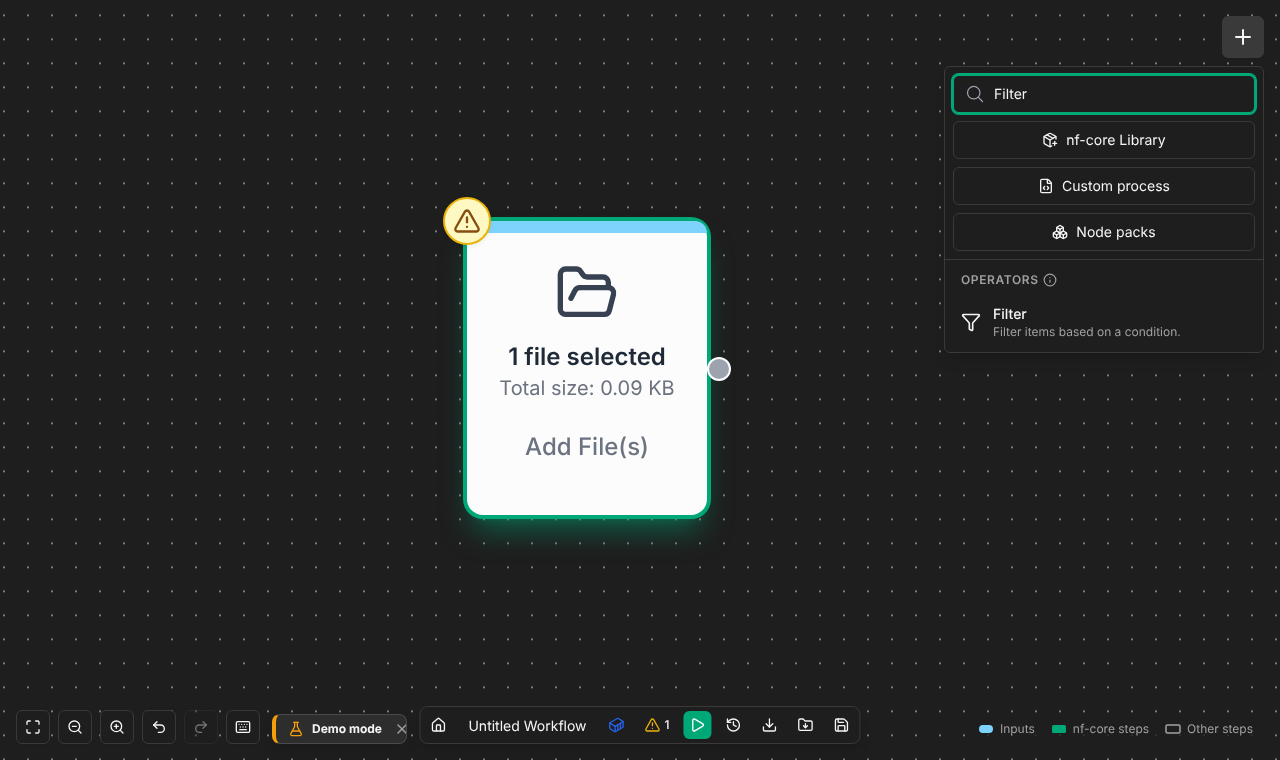
- Click + again and choose Filter.
- Double-click the Filter node to open its panel. In Filter Text, type a word that appears in your file. Leave Filter Mode at Contains.
- Close the panel (✕).
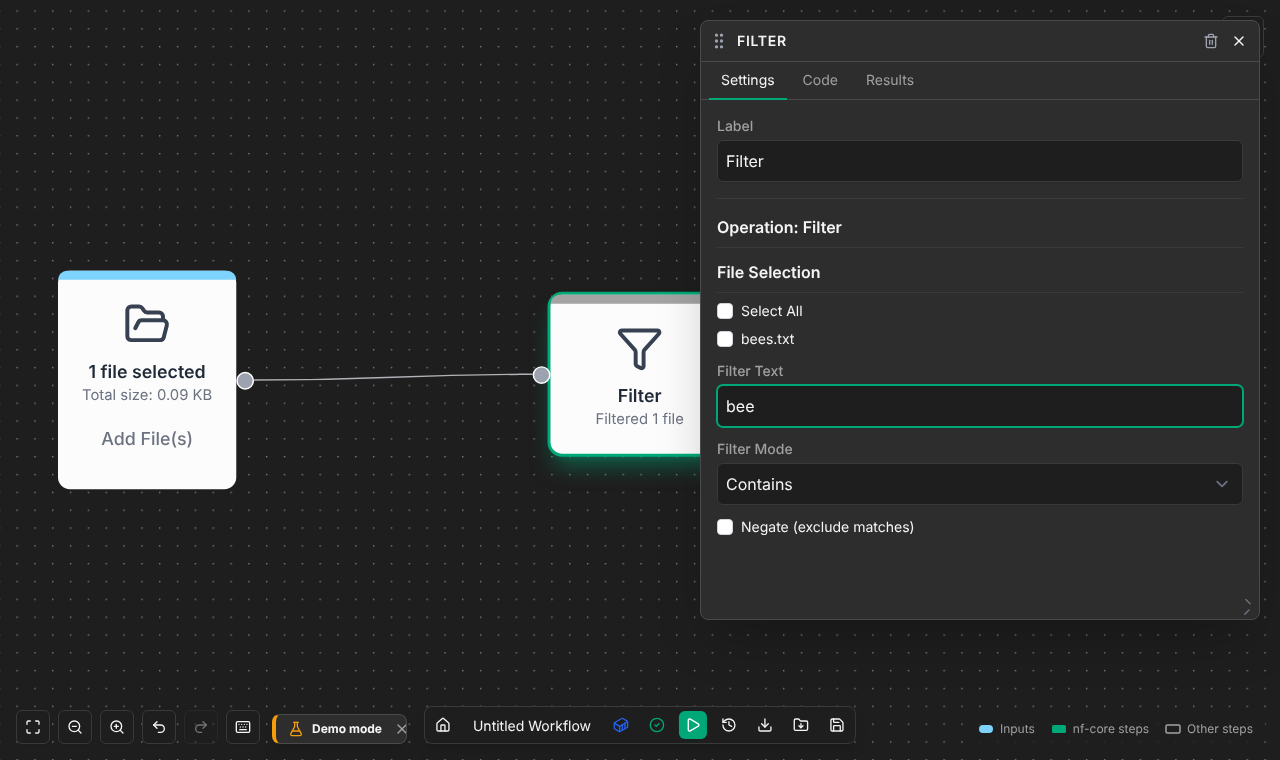
File Selection can limit the filter to some of the incoming files; with none ticked, it filters all of them.
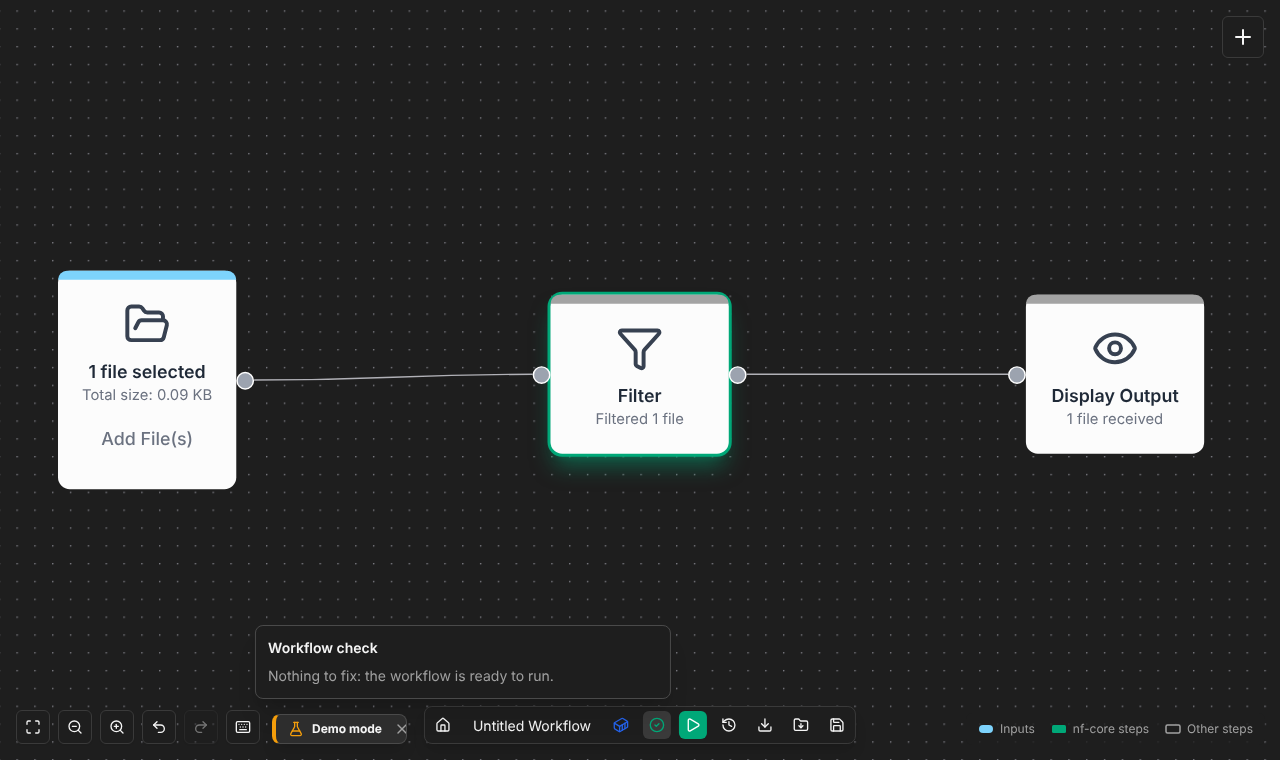
Click + and choose Display Output.
Drag from the dot on the right of File Input to the dot on the left of Filter, then from Filter to Display Output. While you drag, the inputs that fit are ringed green.
The check next to the Run button now says No problems found. If it lists a problem, click it: Show moves the canvas to the node it's about.
Click Run Workflow (the green ▶ in the bottom bar). The run panel opens and shows each step; the first run takes longer because N-WAVE downloads Nextflow. When it says Workflow Complete, double-click Display Output: it shows the lines that contain your word.
The browser demo can't run workflows (a run there stops with a notice). Click Export Project instead to download the workflow as a project you can run anywhere with Nextflow.
Double-click Filter and open its Code tab: this is the Nextflow the node adds. The whole script is what Download Workflow saves. Your workflow is saved automatically.
- Building workflows: connecting, checking, copying and shortcuts.
- Node reference: what every node does.
- nf-core library: real bioinformatics tools, or start from the QC of FASTQ files template.
- Unknown terms: the Help page in N-WAVE (home page → Help, the canvas's ? button, or the ⓘ buttons).