FAQ_KooL
Tip
Before changing any files or configuration, it is advisable to create a back-up. So you can easily revert back to original settings if things goes sideways.
- i.e.
cp fileName.conf fileName.bak
- Well as a start, if I put all the contents in one file, you will end up probably more than thousands of lines making it difficult to find which is which
- To make it simplier, I broke down the variables, settings, decorations, animations, etc into different files making it easier to file
- Oh to know which is which, I added some notes on hyprland.conf. But the file name should give you already a hint which is for.
- For example, WindowRules.conf is for Window Rules ; UserAnimations.conf is for Animations. Keyword is there
- but, if you are still confused, you can just add last line in
~/.config/hypr/hyprland.confsince hyprland is smart enough to load that especially if positioned last
- As stated on each readme on Distro-hyprland install scripts
Important
install a backup tool like snapper or timeshift. and Backup your system before installing hyprland using this script. This script does NOT include an uninstall of Hyprland packages
Note
Main reason why I have not included an uninstall script is simple. Some packages maybe already installed on your system by default. If I create an uninstall script with packages that I have set to install, you may end up a unrecoverable system.
-
Hyprland configuration files are in
~/.config/hypr/UserConfigswith some settings~/.config/hypr/configsin Can view using SUPER E (by default, will be opened with nano. You can edit default editor by editing~/.config/hypr/scripts/QuickEdit.sh - In Generaral, costumize your own dots in
~/.config/hypr/UserConfigs - files located in this folder can be edited using editor of your choice.
- It's Hit and Miss. However, if you decided to try, make sure you have 3D Acceleration enabled
- NOTE!!! VMware and Virtualbox have poor 3D acceleration support.
- If you want to try in a VM, recommend it to try using QEMU with Libvirt.
- Here are the list of libvirt clients which manages QEMU virtualization Arch Wiki link
- All configs are in
~/.config/hypr/.hypridle.confandhyprlock.conf. Edit as you see fit for your needs
- By default, it is configured that screen will lock in 10 mins.
- To change this settings, edit
~/.config/hypr/hypridle.conf
- To change this settings, edit
- If you don't want automatic screenlocking,
- Edit
~/.config/hypr/UserConfigs/Startup_Apps.conf - Comment out or delete line 38
exec-once = hypridle -q - Alternatively, activate the idle_inbitor on your waybar. Thats the
- Edit
- KooL's Dots v2.3.4, rainbow colors will only be on active or focused window. If you wanted rainbow colors in all window as before, edit
~/.config/hypr/UserScripts/RainbowBorders.sh - KooL's Dots v2.3.1, will be offered as optional during copy / installation.
- Simplest way is to delete
~/.config/hypr/UserScripts/RainbowBorders.sh - if you want to restore rainbow borders function, rename
~/.config/hypr/UserScripts/RainbowBorders.bak.shto~/.config/hypr/UserScripts/RainbowBorders.sh. PressSUPER ALT Rto refresh and to take effect.
-
SUPER EDecoration. - File to edit if you want to do it manually is
~/.config/hypr/UserConfigs/UserDecorationss.conf - Note that by default is sourcing colors from wallust. If you dont want the wallust color, around line 8 delete or put # on
source = $HOME/.config/hypr/wallust/wallust-hyprland.conf. - all the one with $color0-15 are from wallust-colors. Set colors how ever you want.
Hyprland WIKI
- starting Hyprland Dots v2.3.10, animation menu is introduced.
SUPER SHIFT Adefault keybind - You can add your own animations in
~/.config/hypr/animations/Choose viaSUPER SHIFT A - You also edit
~/.config/hypr/UserConfigs/UserAnimations.conforSUPER E Animations. After you edit, you can copy in~/.config/hypr/animations/so you can load later on again fi desired.
♨️ Themes are broken when changing dark light or NO THEMES after installing even opted to install GTK Themes
- Check contents of ~.themes and ~.icons . If no contents, you can download from here
GTK Themes & Icons Link - Press the dark light button on waybar "" to switch between dark or light and gtk theme to take effect. Or use nwg-look utility to adjust GTK settings.
- If you opt for GTK themes, Bibata cursor was also downloaded in your system.
- You can also install your own dark and light themes and icons. Just ensure to rename the themes icons with -Dark or -Light as this is the reference keyword that script is looking for if you want to utilize the dark / light transition script.
- starting Hyprland-Dots v2.3.8, by default, if you opt for GTK theme, it will also default to Bibata Ice Cursor with hyprcursors.
- to change the cursor, download and extract a cursor to ~/.icons , set the cursor using
nwg-look. If you have hyprcursor as well, edit~/.config/hypr/UserConfigs/ENVariables.conf,env = HYPRCURSOR_THEME,Bibata-Modern-Ice and env = HYPRCURSOR_SIZE,24 - see
THIS LINKto Hyprland wiki regarding hyprcursor
- nwg-look is a very good app. Use it to adjust your own preference.
- for qt-apps, use qt5ct and/or qt6ct and kvantum
- HiDPI users, I suggest you do the following to have a better appearance.
-
adjust scaling according to your taste by editing
~/.config/hypr/UserConfigs/Monitors.conf -
adjust font size using nwg-look (GTK Settings)
-
You can tweak the fonts scaling in Font tab in nwg-look
-
Lastly, if desired, adjust waybar fonts sizes in
~/.config/waybar/styles/. NOT the styles.css since that is only a symlink to the styles in waybar styles folder - to adjust Kitty fonts, edit
~/.config/kitty/kitty.conf.
- copy over your previous Keybinds.conf from the hypr-backups in
~/.config/hypr/Userconfigs
- This
POSTmaybe a fix
- starting Hyprland-Dots v2.2.11, the tty and kitty wallust color change are disabled by default.
- by running wallust run /path/wallpaper, it will change the tty immediately. To make it permanent, edit
~/.config/kitty/kitty.conf&remove # on line #include kitty-colors.conf - to change tty colors after wallpaper change, edit the
~/.config/hypr/scripts/WallustSwww.shremove the -s inwallust run "$wallpaper_path" -s &(located at the end)
- By default, some apps like discord, start and open on workspace 7. etc. You can change this behaviour by editing
~/.config/hypr/UserConfigs/WindowRules.confYou will find a lines with# windowrule v2 move to workspaceand# windowrule v2 move to workspace (silent). Edit as per your preference - or SUPER E choose window rules
- By default, it should be automatically started when needed.
- You can force start when starting your system
-
SUPER Echoose edit startup_apps - uncomment the last part of that file (remove #)
exec-once = $scriptsDir/PortalHyprland.sh
- SUPER E Decorations and Animations look for inactive_opacity change from 0.9 to 1.0. Or manually editing
~/.config/hypr/UserConfigs/UserDecorAnimation.conf - You can also disable the opacity per application via editing opacity on window rules
~/.config/hypr/UserConfigs/WindowRules.confor(SUPER E - edit Window-Rules) - Or you can disable TEMPORARY the opacity of the active window with
SUPER ALT O. Note that it is just temporary. Once your exit Hyprland with reboot or logout, window rule will take over over.
- fixed by PR
#434
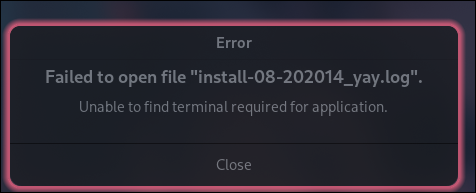
- edit neovim.desktop either in
~/.local/share/applications or /usr/share/applications
Exec=kitty nvim %F
Terminal=false
- you can uninstall it. For arch -
sudo pacman -Rns pokemon-colorscripts-git& edit~/.zshrc - other distro. Navigate to your downloaded -Hyprland folder. look for pokemon-colorscripts. cd into it. chmod +x uninstall.sh , then ./uninstall.sh
- or if you just want to disable it, edit your ~/.zshrc . Comment out (#) the pokemon part.
- Set your default EDITOR
- edit
~/.config/hypr/UserConfigs/ENVariables.confaddenv = EDITOR, vim(will be introduced in KooL's Dots v2.3.4 but disabled by default) - above sample is making
vimas default editor - Alternatively, edit
~/.config/hypr/UserScripts/QuickEdit.sh
- you might not have intel_backlight installed. Check
HERE
💻 Laptops, when lids closed, after a settings or automatic wallpaper change, the laptop display wake's up or is re-enabled.
- Currently in v2.1.18 it's optional.
- See notes on Laptops.conf and LaptopDisplay.conf in
~/.config/hypr/UserConfigs/)- The reason being optional is that there is a CON for doing this.
- See NOTES in Laptops.conf for more information.
- One solution if you have an external monitor, mirror your laptop display to the external terminal :)
- Install pipewire and OBS
- If OBS screenshare still does not work, you could try forcing to start the xdg-desktop-portal-hyprland.
- Edit (xdg-desktop-portal-hyprland) in
~/.config/hypr/UserConfigs/Startup_Apps.conf - Remove # before exec-once=$scriptsDir/PortalHyprland.sh . Logout and relogin
- Edit (xdg-desktop-portal-hyprland) in
- Make sure that it does not conflict with other pre-defined keybinds in
~/.config/hypr/configs/Keybinds.conf. - If you think that I should change the pre-defined Keybinds due to conflict with i.e Global Shortcuts, let me know through github or on my Discord Server. Make sure to present a valid argument
- Starting v2.2.2 add your own keybinds in
~/.config/hypr/UserConfigs/UserKeybinds.conf
- Unmute the mic
- For Arch Linux and Arch Linux based distros, try switching over to
cava-git
- This happens because when asked about your keyboard layout during copy / installation, you just answered y even detected layout is (unset)
- edit kb_layout in
~/.config/hypr/UserConfigs/UserSettings.confline 96. - Type in your proper kb_layout. i.e. us . Use command
localectl list-keymaps. - More info from here
Arch Linux Wiki Keyboard Configuration
- edit kb_layout in
- pls see this PR
Pull Request #292 - a note from author ["If the layout in the waybar does not match the current keyboard layout, run: echo "us" > ~./.cache/kb_layout instead of "us", put the identifier of the current keyboard layout, for example "ru" or "en" or "ua", etc."]
-
the weather module on hyprlock gives about 3-5 seconds of delay.fixed on Hyprland-Dots v2.2.11 - configuration of hyprlock is in
~/.config/hypr/hyprlock.confhyprlock link
- edit
~/.config/rofi/config.rasiand delete the last line - example
@theme "/usr/share/rofi/themes/xxxx.rasi"DELETE this linee
- Make sure you installed the ROFI-WAYLAND. Rofi will work but you will have issues
- ROFI-wayland
LINK - Note that rofi-wayland is compatible with x11 so you dont need to worry
- instruction how to remove and install of rofi-wayland are stated on the Readme's on Distro-Hyprland install scripts. Look at the known issues sections
- Try logging out and back in.
-
THISmight help
- This was disabled a few days ago. (19 May 2024). This was because some users, after they used the Distro-Hyprland scripts with other DE (gnome-wayland or plasma-wayland), if they choose to login into gnome-wayland for example, Hyprland is starting.
- to avoid this, I disabled it. You can re-enable again by editing
~/.zprofile. Remove all the # on the first lines
- This might work for you especially if you have nvidia
LINKor this might help 'Arch Wiki Backlight'
- if you opt for zsh, you have access to customize your zsh
- keybind
super shift Owill pop up a menu for a premade zsh themes - preview of these themes is on this LINK
- If you install alongside Plasma, you might get an issue with packages that uses kwallet
- From a BLOG POST by geoffcorey is a nice how to fix that issue
- files are located in ~/.config/hypr/UserConfigs . View with SUPER E
- Keybindings file is located here ~/.config/hypr/UserConfigs/UserKeybinds.conf & ~/.config/hypr/configs/Keybinds.conf
- Super Alt V launch the rofi menu of clipboard manager
-
click to select the clipboard. And paste as normal (CTRL V or right click menu)
-
some additional actions at the clipboard manager entry (CTRL del or ALT del)
-
- nwg-look is a very good app. Use it to adjust your own preference.
- for qt-apps, use qt5ct and/or qt6ct
- HiDPI users, I suggest you do the following to have a better appearance.
-
adjust scaling according to your taste by editing ~/.config/hypr/UserConfigs/Monitors.conf
-
adjust font size using nwg-look (GTK Settings)
-
You can tweak the fonts scaling in Font tab in nwg-look
-
Lastly, if desired, adjust waybar fonts sizes in ~/.config/waybar/styles/ . NOT the styles.css since that is only a symlink to the styles in waybar styles folder
- for GTK apps theming, use nwg-look (GTK Settings) utility. Its a very powerful gtk utility theming. Take note that when changing from Dark Light using the waybar button dark-light, the DarkLight.sh (~/.config/hypr/scripts) will take over. The Darklight.sh is looking for "Light" and "Dark" keywords in ~/.themes, ~/.icons, waybar [Light] or [Dark], ~/Pictures/wallpapers/Dynamic-Wallpapers
- For QT Apps theming, use qt5ct, and/or qt6ct and Kvantum Manager. By default, the qt-theme (set using kvantum), is set to Catpuccin-Mocha theme. You can change the qt apps theme using kvantum-manager.
- kb_passthrough is disabled by default. To re-enable, edit
~/.config/hypr/UserConfigs/UserKeybinds.confAt the bottom you will see the Keyboard passthrough
- Do note that you need to enable or disable some items in ENVariables.conf file located in
~/.config/hypr/UserConfigs/ENVariables.conf - a guide on wiki - https://wiki.hyprland.org/Nvidia/
- if you only want to use notification part of swayNC, edit ~/.config/swaync/config.json
- look at the widgets part. you can disable by putting /* / i.e. /"buttons-grid",*/ or delete that line. Then you can refresh with
SUPER ALT R
-
Multimedia keys - may not work for every keyboard may need to hold down the function (
fn) key - Follow the wiki - https://wiki.hyprland.org/
- Follow the github - https://github.com/hyprwm/Hyprland
- ROFI BEATS or ONLINE Music ( SUPER SHIFT M) (note: you may need to install yt-dlp or youtube-dl). You can edit the links of your choice. Script is located in
~/.config/hypr/UserScripts/RofiBeats.sh. - EMOTICONS (SUPER ALT E) - useful for chats or messages ). Click to copy and CTRL V to paste
- Hyprland has a nice animation but it cost cpu and gpu usages including ram usages.
- On this dots, you can disable the borderangle animation in Hyprland settings under animations.
- You can also disable blur, reduce the shadow etc
- You can also refer to
Hyprland Wiki
- Using the Dark Light Theme switcher
in the waybar (beside the calendar in Waybar Default Layout), you can switch your Flatpak apps to set the Dark / Light GTK themes. However, some system flatpak apps may not honor this - work arounds: execute these two commands: in your tty (kitty)
sudo flatpak override --filesystem=$HOME/.themessudo flatpak override --filesystem=$HOME/.themes