Repository navigation
Lyrics
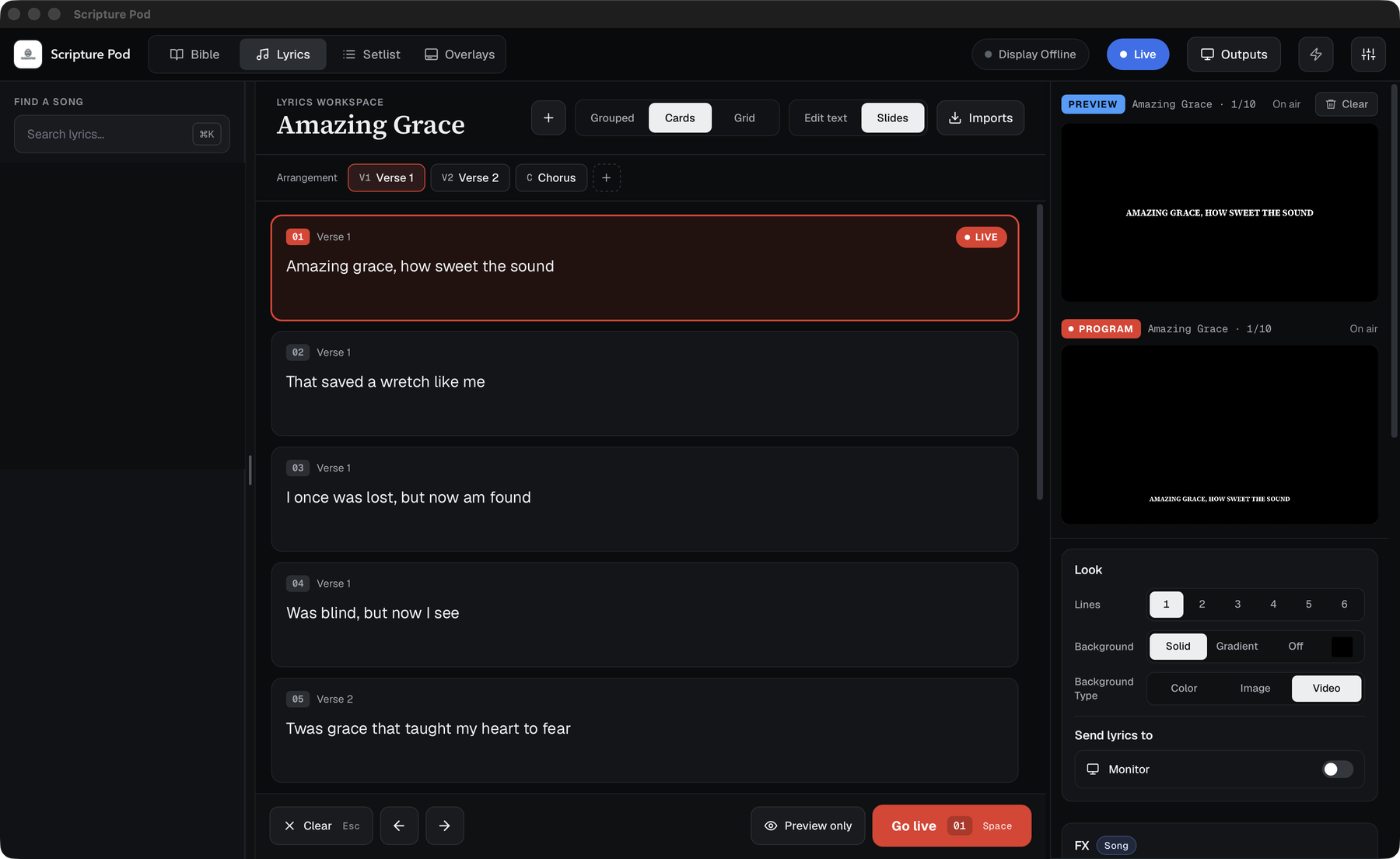
The Lyrics workspace holds your songs and sends them to the screens as slides.
Scripture Pod does not include song lyrics. Add only lyrics you have the right to use in your church (for example with a licence such as CCLI).
Songs appear as slides: large cards, a compact grid, or grouped by section. Choose the layout at the top of the workspace or in Settings, Lyrics. Section names such as Verse 1 and Chorus can be shown on each card.
| Key | Action |
|---|---|
↑ ↓
|
Previous / next slide |
← →
|
Previous / next song |
1–6
|
Lines shown at once |
Space / Enter
|
Go live |
⌘/Ctrl + click |
Cue a slide to Preview only |
- The live display (Stream feed, the Display link, the Program monitor) always shows lyrics as a lower third on a transparent page.
- Monitors (the main screen window and the Monitor link) show them full screen with the clock.
- The Preview monitor is full screen too.
Press Edit text to open the lyrics editor. The tag bar adds arrangement tags such as Verse, Chorus and Bridge, and has:
-
Tidy lyrics: removes verse numbers and repeat marks such as
1.,x2,(x4),-2. - Clear all tags.
- History: lists earlier versions of the song (the newest ten are kept on this computer) and restores one. A version is kept before Tidy lyrics, Clear all tags or a paste.
Turn on Bilingual in Settings, Lyrics to show a translated line with the lyrics, and set its size relative to the main text.
-
New song (
⌘N/Ctrl+N) opens an empty song. -
Imports (
I) brings in songs from other apps' files. - Search lyrics online (command palette) fetches from a short list of supported lyric websites, for example for Tamil and Kannada songs. Check you may use what you fetch.
At the top of the Look card, Save look keeps the current look under a name. The list switches between looks in one click; Update and Delete change the selected look.