Repository navigation
Colours and Themes
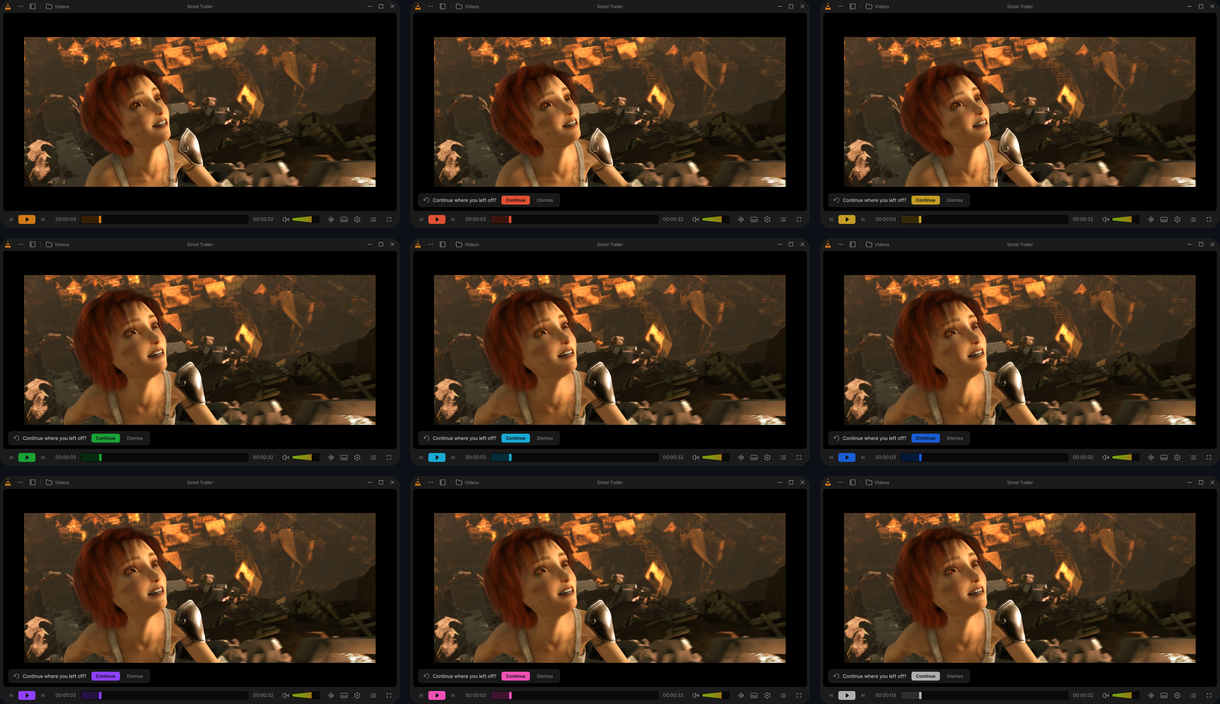
VLC Redesign has the two themes of the design, Dark and Light, and a third choice, System, that follows Windows. On top of the theme, one of nine accent colours marks what is selected and active. Both change at once, without a restart, and both can follow a player profile.
| Default | Choices | |
|---|---|---|
| Theme | System | Dark, Light, System |
| Accent colour | Orange #D37918
|
Nine colours (below) |
| Increase text contrast | Off | On, Off |
- Settings → General → Appearance (Ctrl+P): the Theme row (Dark / Light / System) and the Accent color row (the nine swatches). The whole interface shows a change at once; it is kept when the window closes. Reset all settings (Advanced Options of General) goes back to System and orange. See Settings: General.
- The welcome steps. The second step of the first-run setup, Select your preferred theme and color., shows three tiles, Light, Dark and System, and the nine colours as discs under them; the chosen tile has a ring in the accent colour, the colours not chosen are dimmed. The setup runs again from Settings → General → Advanced Options → Welcome setup.
- Profiles. A player profile keeps the theme and the accent colour with its other settings, so switching profile (⋯ → Profile) can change them too: a Music profile can be light and green, a Movies one dark and orange. A built-in profile you have never left keeps the colours in use. See Customize the player.
| Theme | What it does |
|---|---|
| Dark | The colours of the design's player and library: near-black backgrounds, light grey text. |
| Light | The Player - Light frame of the design: light grey backgrounds, dark grey text, the icons recoloured to its greys. |
| System (default) | Dark or Light as Windows' app mode says (Windows Settings → Personalization → Colors). It follows a change of Windows while VLC runs. |
The whole interface follows the theme: the library, the player, the panels and menus, the Settings window, the welcome steps, and VLC's classic windows (Open Media, Convert, Media Information…).
| Light theme, library | Light theme, player |
|---|---|
 |
 |
| Colour | Value | |
|---|---|---|
| 1 | Orange (default) | #D37918 |
| 2 | Red | #E15033 |
| 3 | Gold | #C49D24 |
| 4 | Green | #18A235 |
| 5 | Cyan | #18AAD3 |
| 6 | Blue | #185DD4 |
| 7 | Purple | #8E41FF |
| 8 | Pink | #F051B5 |
| 9 | Grey | #AFAFAF |
The accent colour marks selections, sliders, the played part of the seek bar, check marks, the current page of the
sidebar and of the Settings window, the ring of the keyboard focus, and the Record button while recording. Two
shades come from it, as the design draws them for orange: a dimmer one (81 % of the colour, #AB6314 for orange)
and a dark one for the background of selections (26 %, #371F06 for orange). The images the design draws in
orange are shown as they are with the default accent, and tinted with any other.
Good to know. With System, VLC Redesign follows Windows' Choose your default app mode, not the Windows mode: a Windows with a dark taskbar and light apps gives the light theme.
Some texts of the design are dim on purpose (hints, descriptions, watched videos). Settings → Interface → Accessibility → Increase text contrast draws them brighter in the dark theme, darker in the light one, to the 4.5:1 contrast of the WCAG AA guidelines, and gives the (i) icons at least 3:1. Off (the default), the colours of the design stay as they are. See Settings: Interface.

- The music player shows the cover over a blurred copy of itself, in both themes. In the dark theme the title line measures how bright the artwork is behind it: it keeps the design's grey where that grey reads at 3:1 or more, and turns near white or dark, the more readable of the two, over a bright cover. In the light theme the title keeps the dark grey of the design. See The player.
- Cover art off. With Show cover art in the window when playing audio off (Settings: Interface), the dark placeholder of the theme takes the place of the cover.
- Videos and covers keep their own colours: neither the theme nor the accent changes them. The rounded corners of the video are drawn in the background colour of the theme.
Settings: General · Settings: Interface · Customize the player · Home