Repository navigation
The Player
The player opens when a video or a song plays. A video sits in a frame with rounded corners between the top bar and the control bar; in fullscreen it fills the screen and the bars float over it. A song opens the music view: the cover over a blurred copy of itself, the title and the artist, and a waveform for a seek bar.
This page describes every part of the player: the bars, every button the control bar can hold, the panels the buttons open, the seek bar, the volume, the queue, and what the mouse and the keys do.
The buttons of the control bar depend on the profile in use (⋯ → Profile) and can be moved, added and taken out: see Customize the player. Every key is listed in Keyboard shortcuts.
From left to right:
| Part | What it does |
|---|---|
| The VLC cone | The logo. |
| ⋯ (Menu) | The main menu: Open File(s), Open Folder, Open Network Stream, Open Disc, Open Capture Device, Convert, Open Recent, Profile (name), Keyboard Shortcuts, Customize Player, Settings and About VLC. |
| Library (the sidebar icon) | Shows or hides the library next to the video (see The library next to the video). L does the same. |
| The folder of the media | The name of the folder of a local file (Videos, Music...). Its tooltip is Show (folder) in the library: a click opens that folder in the library. |
| Title (middle) | The title of what plays. With nothing playing, and again after Stop, it reads VLC Media Player. |
| Window buttons (right) | Minimize, maximize (or restore) and close, drawn by VLC Redesign while Show window decorations is off (Settings: Interface, the default on Windows). When the profile's bar has no Fullscreen button, a Fullscreen button shows here too. |
The ⋯ menu, the Library button, the title and the folder can be moved into the control bar (they are the Menu, Library, File Name and Folder Name controls). Once in the bar, they leave the top bar.

The bar of the Default profile has Previous, Play/Pause and Next on the left, the seek bar with the times in the middle, and the Volume, Effects, Languages and tracks, VLC Settings, Play Queue and Fullscreen on the right. The music view has a bar of its own: Previous, Backward 15s, Play/Pause, Forward 15s, Next, then the Volume, Effects, Play Queue and Fullscreen.
- The bar has three zones, left, center and right. The seek bar sits between them, or on a row of its own above them (drag it there in Customize Player).
- When the window is too narrow for every button, the inner buttons hide first: the outer ones (in the Default profile, Fullscreen and Play Queue) stay the longest.
- In fullscreen the bars hide once the mouse stops (Hide after, Settings: Interface) and come back when it moves. They stay while a panel is open.
Names are those of the Customize Player palette. The column Palette says whether the control can be dragged in from the palette (see Customize the player). The others are VLC's own controls: they show in a bar that has them, but the palette does not offer them.
| Button | Palette | What it does |
|---|---|---|
| Play | yes | Play / pause. |
| Previous, Next | yes | The previous or next media of the play queue. |
| Backward 15s, Forward 15s | yes | Jump 15 seconds back or forward. |
| Backward 10s, Forward 10s | yes | Jump 10 seconds back or forward. |
| Replay | yes | Back to the start of the media. |
| Stop | yes | Stops playback. |
| Playback Speed | yes | Shows the speed (1x). A click opens the speed popup (see Speed); the wheel over it changes the speed. |
| Previous Frame, Next Frame | yes | Step one picture back or forward (playback pauses). |
| A-B Loop | yes | Loops a part of the media (see A-B loop). |
| Repeat | yes | Cycles Off, Repeat all, Repeat one. Lit while on; its tooltip reads Repeat one in that mode. |
| Shuffle | yes | Plays the queue in random order. Lit while on. |
| Record | yes | Records what plays to a file; in the accent colour while recording. Where recordings go: Settings: Recording. |
| Snapshot | yes | Saves the current picture as an image. Where and in which format: Settings: Video. |
| Picture in Picture | yes | Goes to the library with the video in a small player over it (see Picture in picture). |
| HDR | yes | Opens the HDR output panel above it (see HDR). |
| Zoom | yes | A list of zoom levels for the video (Choose a video zoom level). Dimmed without a video: Zoom is unavailable without video. |
| Right Sidebar | yes | Shows or hides the queue card, as Play Queue does. Lit while it shows. |
| Play Queue | yes | Shows or hides the queue card (Q, Ctrl+L). |
| Languages and tracks | yes | Opens the languages and tracks panel above it (see Languages and tracks). |
| Effects | yes | Opens the effects panel above it (see Effects). |
| VLC Settings | yes | Opens the menu of the player above it (see The VLC Settings menu). |
| Fullscreen | yes | Enters or leaves fullscreen. |
| Volume | yes | The mute button and the volume slider (see Volume). |
| Menu | yes | The ⋯ main menu, in the bar. |
| Quit VLC | yes | Quits VLC Redesign. |
| Go Home | yes | Opens Home in the library. |
| Playlists | yes | Opens the Playlists page of the library. |
| Thumbnail | yes | The artwork of the media. |
| File Name | yes | The title of the media, as text (it leaves the top bar while in the bar). File name unavailable when there is none. |
| Artist Name | yes | The artist of the song. Artist unavailable when there is none. |
| Folder Name | yes | The folder of the media (it leaves the top bar while in the bar). Folder name unavailable for a stream. |
| Playlist Name | yes | The queue and the place of the media in it: Play Queue (3/10). |
| Properties | yes | Opens the media information window (Ctrl+I). |
| Chapters | yes | A menu of the chapters and titles of the media, above the button. |
| Favorite | yes | Add to favorites / Remove from favorites of the library. For a media outside the library it is dimmed: Available for items in your library. |
| Bookmark | yes | A menu of the bookmarks of the media, above the button, with Manage (Ctrl+B). |
| Bookmarks | yes | Opens the bookmarks window (Ctrl+B). Needs the media library. |
| Cast to TV | yes | Opens the cast panel above it (see Casting to a TV). |
| Spacer, Divider | yes | A fixed space, and a thin vertical line, between buttons. |
| Library | no | The Library button of the top bar, in the bar. In the accent colour while the library shows. |
| Slower, Faster | no | Lower or raise the playback speed one step. |
| Aspect Ratio | no | A list of aspect ratios for the video. |
| Previous chapter, Next chapter | no | Go to the previous or next chapter. |
| Duration, FPS, Resolution | no | The length, the frame rate or the size of the video, as text. |
| High Resolution Time | no | The time with frames (00:00:00:00). |
| Open | no | Opens the open dialog. |
| Expanding Spacer | no | A space that fills the room left in its zone (not allowed in the center zone). |
| DVD menus, Navigation, Navigation Box | no | The menus of a disc, and the arrows that move in a disc menu. |
| Program Button, Teletext | no | The programs of a TV stream, and its teletext. |
| Trickplay Reverse | no | Reverse playback, where the media allows it. |
| Artwork Info, Switch Player | no | In the bar of the library: the cover with the title, and the button that opens the player. |

- Click a place to go there, or drag the bar. While you drag, playback pauses (no bursts of sound) and the picture follows; playing goes on when you let go. A click close to the start of a chapter goes to that chapter.
-
Frame previews. With the pointer over the seek bar of a local video, a real frame of the video at that place
shows above it, with its time. The frames come from the file itself (on a grid of 1/200 of the length, at the
nearest key frame), and the frames around the pointer are decoded ahead so a sweep along the bar stays quick. A
stream on the network, a song, and a media that cannot seek have no preview. The setting is Show thumbnail
while scrubbing in Settings: Playback (option
qt-seek-thumbnail, on by default). - Chapters. A media with chapters shows them as sections of the bar while the pointer is over it, and for three seconds after. The time tooltip adds the name of the chapter.
- Waveform. A song shows its waveform in the bar, the part already played lit. It is made for local files up to 1 GB and 8 minutes; other media get the plain bar.
-
The times. The time played is on the left, the length on the right, always with hours (
00:02:10).- Click the time played to type a time to go to,
1:02:10,62:10or130(hours, minutes, seconds), then Enter. Esc or a click elsewhere leaves it. Ctrl+T opens VLC's Go to time dialog. - Click the length to show the time left instead (
-00:41:12); click again for the length. At a speed other than 1x, the tooltip of the time left gives the real time left at that speed.
- Click the time played to type a time to go to,
- Right to left. In Hebrew, Arabic and the other right-to-left languages, time still runs from left to right on the bar, its chapters and its waveform, as on most players.
- The slider goes from 0 to the Maximum volume of Settings: Audio: 200 % by default (100 % to 300 %). Its fill grows like a cone, as the design draws it, and the speaker icon shows four states: muted, low, medium and high.
- While the pointer is on it, while you drag it, and for a moment after the wheel or a key changes it, the value shows in a box above the slider (100 %). Dragging near 100 % snaps to it.
- The speaker icon mutes and unmutes (M).
- Keys: Ctrl+Up / Ctrl+Down, and Up / Down in the player. The wheel over the video changes it too (see Mouse on the video).
- The volume at startup is set in Settings: Audio.
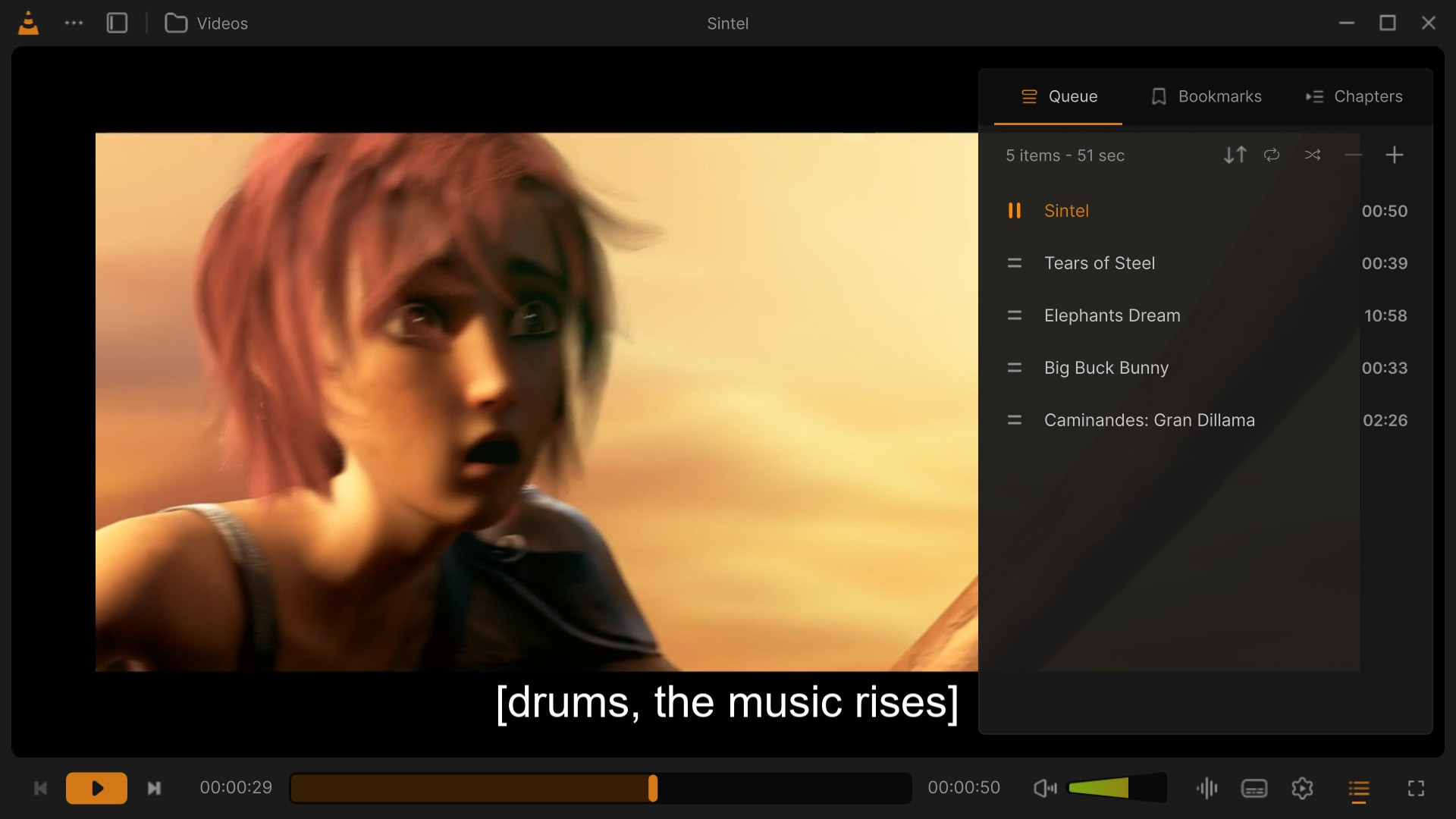
Play Queue (or Q, or Ctrl+L) opens a card over the right of the video, with three tabs:
| Tab | What it shows |
|---|---|
| Queue | The play queue. Its header gives the number of items and their length, then Sort, Repeat, Shuffle, − (Remove selected items) and + (Add files to the queue). Drag rows to reorder them (or drop files on the card), click to select, Delete removes the selection, right-click for the menu of a row, double-click to play. With Show the playlist as a tree (Settings: Interface) the media are listed under the folder or site they come from. |
| Bookmarks | The bookmarks of the media, numbered, with their time. + (Add a bookmark at the current time) adds one; a row's remove button deletes it; a click on a row goes there. Bookmarks are kept in the media library: without it the tab reads Bookmarks need the media library. |
| Chapters | The chapters of the media: number, name and start. The current one stands out; a click goes there. No chapters in this media otherwise. |
Five buttons open a panel right above them: Languages and tracks, Effects, VLC Settings, HDR and Cast to TV.
- A second click on the button closes the panel; so does a click anywhere outside it, and Esc.
- That outside click only closes the panel: it does not pause the video or press the button under it.
- Opening one panel closes the one that was open.
- While a panel is open the bars stay, the video is not dimmed, and the keyboard shortcuts wait until it closes.
- Opened from a menu or a shortcut (Effects and Filters, Ctrl+E), the effects open in the middle of the window instead, over a dimmed window.

Three tabs, Video, Audio and Subtitles; the panel opens on Subtitles. Under them, a footer.
- Subtitles: the languages, the subtitles of the chosen one, the online search, the timing, the series preset, and the position and size of the subtitles. All of it is on the Subtitles page.
- Audio: Embedded Tracks (the audio tracks of the media, and None), Output Device (the sound devices, with a button that refreshes the list), and Audio delay: −50 and +50 (milliseconds, from −10 s to +10 s), the delay, and Reset. J and K change it from the keyboard.
- Video: Embedded Tracks (the video tracks, and None).
- Playback (footer): Playback speed (Current: 1.00×, and 0.5×, 0.75×, 1×, 1.25×, 1.5×, 2×), the Chapters of the media, and Bookmarks with Manage bookmarks… (Bookmarks require the media library without it).
- Show Preferences (footer): closes the panel and opens the page of Settings the tab is about: Subtitles, Audio, Video or Playback.
The equalizer, compressor, spatializer and stereo widener, the video effects, and the effect presets. See Effects.

| Row | What it does |
|---|---|
| Profile (name) | The profiles. A click on one switches to it; New profile… makes one; the ⋯ of a row renames, clones or deletes it. See Customize the player. |
| Customize player | Opens Customize Player. |
| Hide player UI / Show player UI | The video alone, without the bars (Ctrl+H or Ctrl+\). |
| Sleep timer | See Sleep timer. |
| Preferences | Opens Settings: Playback. |
The output of HDR video: Auto, Off, HDR10, HDR10+, Dolby Vision and HLG.
- HDR10+ and Dolby Vision are listed, as the design has them, but cannot be chosen; the pointer over them says why: Windows offers no way for a player to send this format to a display.
- HDR10 and HLG use the libplacebo renderer and need a display and a driver that take HDR.
- Auto and Off go back to the renderer used before (Direct3D 11 by default), with its own HDR output on or off.
- A choice applies to the next media: HDR output saved. Applies to the next media.
- When the build has no renderer for it, the panel reads HDR unavailable.
See also Troubleshooting and FAQ.
The Chromecasts, TVs and speakers of your network, and This computer to come back. See Casting to a TV.
- Playback Speed opens a popup: a slider from 0.25 to 4.00, and Presets: 0.25, 0.5, 0.75, 0.96, 1.0, 1.04, 1.25, 1.5, 1.75 and 2. The wheel over the button changes the speed without opening it.
- Slower and Faster buttons, and the speeds of the Playback footer of the languages and tracks panel.
- Keys: + / - (a step), ] / [ (a fine step), = (back to 1x).
- Picture and sound change speed together. Some media (most live streams) cannot change speed: the panel says Speed cannot be changed for this media.
- The speed every media starts at is Default playback speed in Settings: Playback.
A-B Loop (in the bar of the Work profile, or add it from the palette):
- Click it at the start of the part: A is marked (half of the icon lit).
- Click it at the end: B is marked, and the part between A and B plays in a loop (the icon lit).
- Click it a third time to end the loop.
VLC Settings → Sleep timer:
- After a number of minutes (1 to 720; 30 to begin with).
- Stop playback or Pause playback.
- Start timer.
While it runs, the sleep timer shows Remaining: … and its button reads Cancel timer. It goes on across the media of the queue.
Picture in Picture, or any other way to the library while a video plays (Go Home, Playlists, the folder of the top bar), shows the library with the video in a small player over it:
- Drag it anywhere in the window.
- A click plays or pauses; a double-click goes back to the player.
- Under the pointer: Previous item, Play or pause, Next item, close video and maximize player (back to the player).
In the library, what plays stays at hand:
- The mini player card (a song or a video while the library shows): the picture or the cover, a seek bar, the title and the controls. Show queue opens the queue on the card: drag a row by its handle to move it, click a row to select it (− removes it), double-click to play it, + adds files (Queue is empty otherwise).
- The player bar at the bottom of the library: the cover with the title, the controls of the profile (in Default: Shuffle, Previous, Play, Next, Repeat), the volume and Switch Player (back to the player). With Always show the player bar (Settings: Interface) it stays while nothing plays: its Play starts the queue, or opens files when the queue is empty.
Library in the top bar (or L) opens a compact library over the left of the video, to pick something without leaving the player:
- Places: Home (the sections of the library's Home, each with See all), Videos and its folders, Music (Songs, Albums, Artists, Genres), Network (Add Network Stream, the services of the network), Playlists and Recent.
- In each place: a search, Sort (Title A-Z, Title Z-A, Newest First, Oldest First), View (Grid View / List View), Play all, Add all to queue, Up one folder in a folder, and More (Rescan library, Add folder to library…, Add network stream…, and Create playlist among the playlists). The + opens media.
- Open in the library leaves the player for the same place in the library window.
See Library.
| Action | What it does | Where to change it |
|---|---|---|
| Click | Play / pause. | Single click on the video: Play / Pause or Nothing (Settings: Controls) |
| Double-click | Fullscreen. | Double click on the video: Nothing or Toggle fullscreen |
| Wheel | Volume. | Scroll wheel: Nothing, Volume or Seek |
| Horizontal wheel (or a touchpad swipe) | Seek. | Horizontal scroll: Nothing, Volume or Seek; Reverse scroll direction reverses seeking |
| Ctrl+wheel | Subtitles larger or smaller. | Keyboard shortcuts |
| Right-click | The player's menu (below). |
The right-click menu has: Play / Pause, Stop, Previous Item, Next Item, Record, Hide UI (Ctrl+\); while a media is open, the Playback, Video, Audio and Subtitle menus; More Settings (Effects and Filters, Track Synchronization, Media Information, Codec Information, VLM Configuration, Program Guide, Messages, Plugins and extensions, Customize Interface..., Preferences, View, Help); Playlist (Play Queue, Shuffle, Repeat → Off / Repeat All / Repeat One, Save Playlist to File, Quit at the end of play queue); Open Media (Open File(s), Open Folder, Open Network Stream, Open Disc, Open Capture Device, Open Location from Clipboard, Convert, Stream); and Quit VLC. Each row shows its key.
The same click, double-click and wheel work on the card shown while a film plays on a TV. A right-click on the music view or on a visualization opens the same menu.
- Fullscreen, F, F11 or a double-click enter it; the same, or Esc, leave it.
- The bars hide after the mouse stops (Hide after, Settings: Interface) and come back when it moves, or with I.
- Which screen is used: Open fullscreen on, in the same settings.
- F11 also makes the library or the music view fill the screen.

- The cover sits in the middle over a blurred copy of itself, the title and the artist under it; the waveform is the seek bar.
- The title stays readable. In the dark theme, VLC measures how bright the artwork is behind the title line. The title keeps the design's grey where that grey reads at a contrast of 3:1 or more, and turns near white or dark grey (the more readable of the two) over a bright cover. The light theme keeps the colours of its design.
- Lyrics. A song with synchronized lyrics in its tags shows the current line under the title. The Lyrics button opens all of them next to the cover; they follow the song. Scrolling them stops the following, and Sync lyrics to playback starts it again.
- Visualizer. A visualization is chosen in Settings: Audio (Visualizer): Disabled, Spectrometer, Scope, Spectrum, Waveform, VU meter, then the other visualizations of the build (Goom...). While a song shows one, a Visualizer button above the controls changes it or turns it off.
- The colours of the music view follow the theme and the accent: see Colours and themes.
- Continue where you left off? A card next to the controls offers to go on from where a media was left (You've watched till 00:45:08 already., Continue Watching). It stays about 10 seconds; Esc closes it. Ask, always or never: Settings: Playback. While it shows, the subtitles rise above it.
- The file name shows at the top of the picture for a few seconds (Show filename when a video starts, Settings: Subtitles).
- Subtitles in your languages show by themselves, or are found online: see Subtitles.
- With nothing to play, the player shows the pixel cat of the design.
- Nothing happens when I press Space. A panel is open (languages and tracks, effects...): the keys wait until it closes. Press Esc or click outside it.
- A button is missing. Another profile may be in use (⋯ → Profile), or the window is too narrow. Add it back from the palette: see Customize the player.
- No frame preview on the seek bar. Previews are for local video files only, and need Show thumbnail while scrubbing on.
- HDR choice seems to do nothing. It applies from the next media.
Library · Customize the player · Subtitles · Effects · Keyboard shortcuts · Casting · Home