Repository navigation
Settings Interface
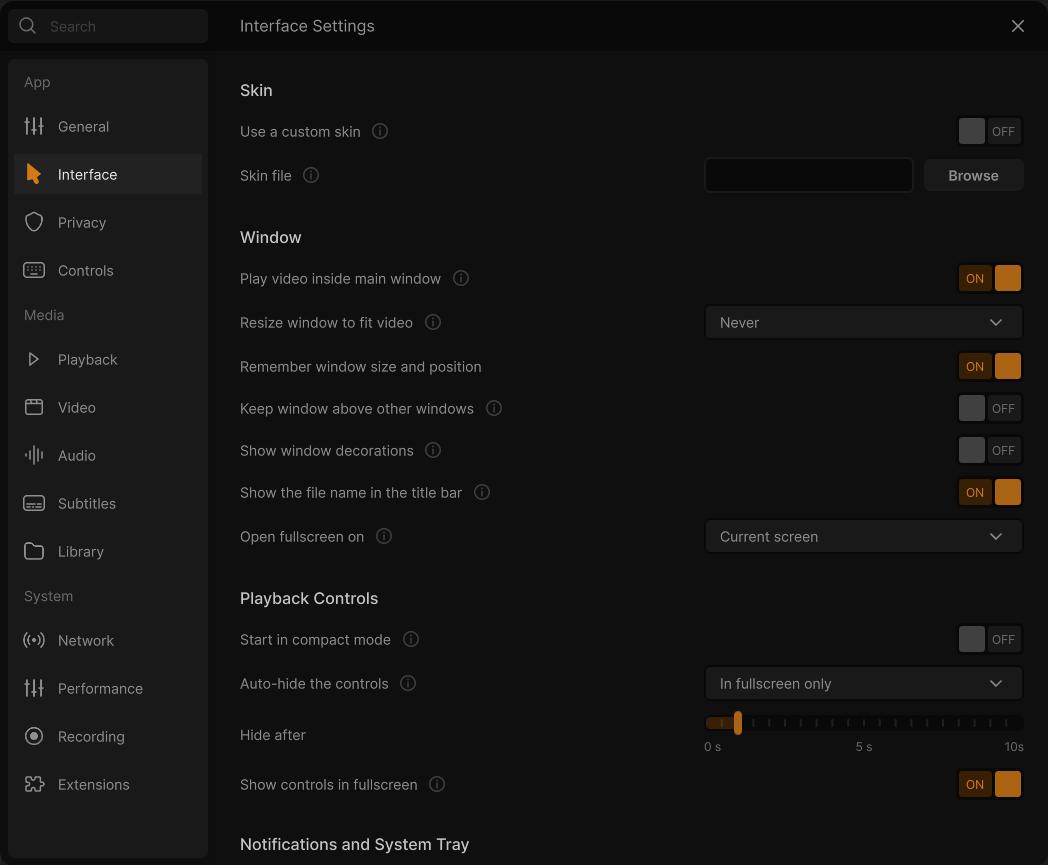
⋯ → Settings → Interface (Ctrl+P; the header reads Interface Settings). The main window, the playback controls, notifications and the tray icon, the play queue as a tree, the player bar, text contrast, and VLC's classic skins. Every row applies when the Settings window closes, except Use a custom skin. See how the Settings window works.
Shown only in builds that include VLC's skins2 interface. A skin replaces this interface entirely: VLC starts with one or the other.
| Option | Choices / default | What it does | VLC option |
|---|---|---|---|
| Use a custom skin | Toggle. Default: off. | Starts VLC with the skin chosen below instead of this interface. Shows Applies the next time VLC starts once changed. Turning it off brings back the default interface. |
intf (on = skins2) |
| Skin file | Path field with Browse (Choose a skin, filter Skin files (*.vlt *.wsz *.xml)). Default: empty. | The skin the skins interface opens. | skins2-last |
To come back from a skin, start VLC once with --intf=qt (for example from a shortcut), open Settings and turn
Use a custom skin off.
| Option | Choices / default | What it does | VLC option |
|---|---|---|---|
| Play video inside main window | Toggle. Default: on. | On: the video plays inside the main window. Off: each video opens in a separate window. Applies to the next video. | embedded-video |
| Resize window to fit video | Dropdown: Never / Always. Default: Never. | Always: the window resizes to the video's own size when a video starts (never larger than the screen). Never: the window keeps the size you gave it and the video fits in it. | qt-video-autoresize |
| Remember window size and position | Toggle. Default: on. | Opens the window where it was, at the size it had, when VLC was last closed. |
redesign/remember-window-geometry (interface setting) |
| Keep window above other windows | Toggle. Default: off. | Keeps the VLC window on top of every other window. | video-on-top |
| Show window decorations | Toggle. Default: off on Windows (on elsewhere). | On: the system's title bar and frame. Off: no system title bar; the window buttons are drawn in the interface (client-side decoration), as in the design. | qt-titlebar |
| Show the file name in the title bar | Toggle. Default: on. | Shows the name of the playing song or video in the window title (and the taskbar). | qt-name-in-title |
| Open fullscreen on | Dropdown: Current screen, then Screen 1 (name), Screen 2 (name)… Default: Current screen. | The monitor used for fullscreen video. Current screen uses the screen the window is on. A screen that is no longer connected stays listed as Screen N. |
qt-fullscreen-screennumber (−1, 0, 1…) |
| Option | Choices / default | What it does | VLC option |
|---|---|---|---|
| Start in compact mode | Toggle. Default: off. | Opens VLC in the compact (minimal) view. Changing it also switches the view at once. | qt-minimal-view |
| Auto-hide the controls | Dropdown: Always / In fullscreen only. Default: In fullscreen only. | In fullscreen only: in a window, the bars sit above and below the video and stay; they only hide in fullscreen. Always: the bars float over the video and hide in a window too. |
qt-pin-controls (In fullscreen only = on) |
| Hide after | Slider 0 s to 10 s, in steps of 0.5 s (labels 0 s, 5 s, 10s). Default: 1 s. | How long the mouse must stay still before the pointer and the controls hide. |
mouse-hide-timeout (ms) |
| Show controls in fullscreen | Toggle. Default: on. | On: moving the mouse in fullscreen shows the controls. Off: only the keyboard shows them (I). Skins read it for their fullscreen controller too. | qt-fs-controller |

| Option | Choices / default | What it does | VLC option |
|---|---|---|---|
| Show a system tray icon | Toggle. Default: on. | A VLC icon in the notification area of the taskbar, with a menu for basic playback control. It appears or goes at once. | qt-system-tray |
| Start minimized to the tray | Toggle. Default: off. | VLC starts with only its tray icon, without showing its window. | qt-start-minimized |
| Show a popup when the track changes | Dropdown: Never / When minimized / Always. Default: When minimized. | A notification with the artist and title when the playing item changes. When minimized: only while the window is minimized or hidden. Needs the tray icon. |
qt-notification (0, 1, 2) |
| Popup duration | Slider 0 s to 10 s, in steps of 0.5 s. Default: 3 s. | How long the track-change popup stays on screen. |
redesign/notification-duration (interface setting, ms) |
| Option | Choices / default | What it does | VLC option |
|---|---|---|---|
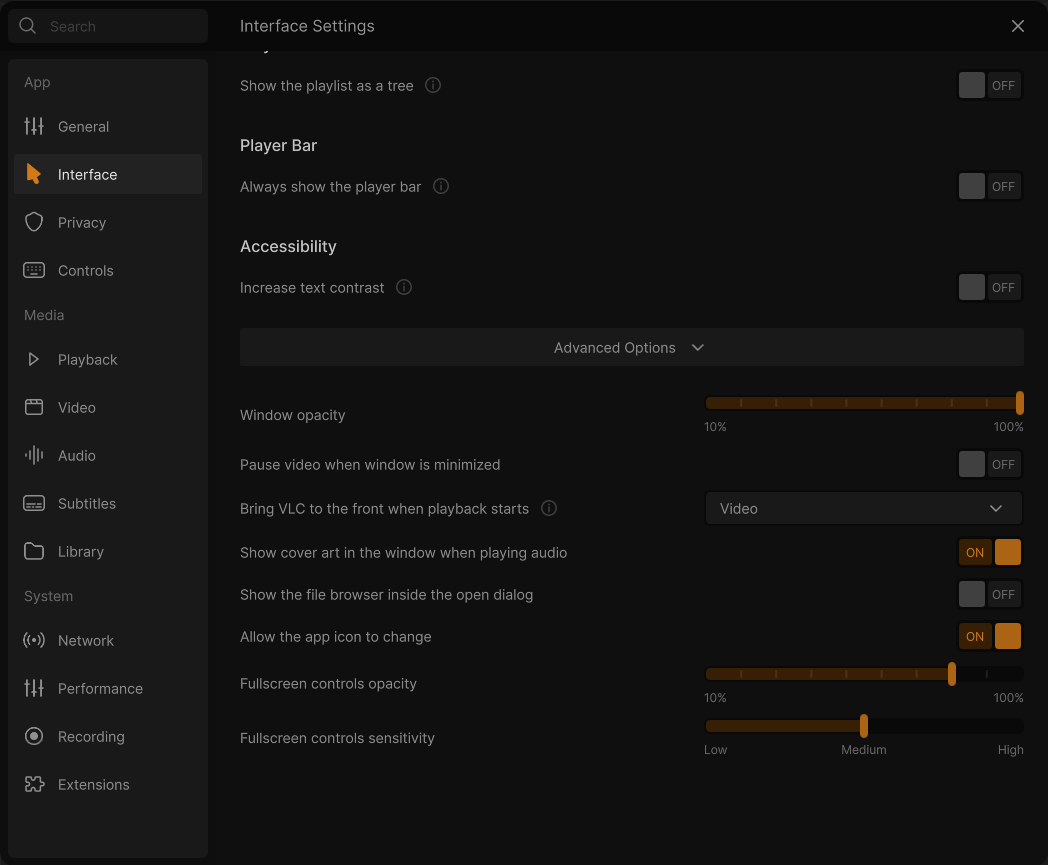
| Show the playlist as a tree | Toggle. Default: off. | The play queue shows its media under the folder (or the website) they come from, as headings. Rows still move, select and drop as before. | playlist-tree |
| Option | Choices / default | What it does | VLC option |
|---|---|---|---|
| Always show the player bar | Toggle. Default: off. | Keeps the player bar at the bottom of Home and the library while nothing plays (its times read --:--). Its Play button starts the play queue, or opens files when the queue is empty; its cover opens the empty player. |
redesign/always-show-player-bar (interface setting) |
| Option | Choices / default | What it does | VLC option |
|---|---|---|---|
| Increase text contrast | Toggle. Default: off. | Draws the dim texts of the design (hints, descriptions, watched items) brighter in the dark theme (#8A8A8A) and darker in the light theme (#333333), to the 4.5:1 contrast of WCAG AA. The (i) icons get at least 3:1. See Colours and themes. |
redesign/increase-contrast (interface setting) |
| Option | Choices / default | What it does | VLC option |
|---|---|---|---|
| Window opacity | Slider 10 % to 100 %. Default: 100 %. | The opacity of the main window. Applies at once. |
qt-opacity (0.1 to 1) |
| Pause video when window is minimized | Toggle. Default: off. | Pauses playback when the window is minimized. | qt-pause-minimized |
| Bring VLC to the front when playback starts | Dropdown: Never / Video / Audio / Audio and video. Default: Video. | Shows and raises the window when that kind of media starts playing. |
qt-auto-raise (0 to 3) |
| Show cover art in the window when playing audio | Toggle. Default: on. | Shows the cover art of the playing audio in the player (the cone in the compact view). Off: a plain placeholder takes its place, which also avoids screen burn-in. | qt-bgcone |
| Show the file browser inside the open dialog | Toggle. Default: off. | The Open dialog shows VLC's own file browser instead of the Windows file dialog. | qt-embedded-open |
| Allow the app icon to change | Toggle. Default: on. | Lets the interface change its icon on some occasions (the seasonal cone at the end of the year). | qt-icon-change |
| Fullscreen controls opacity | Slider 10 % to 100 %. Default: 80 %. | The opacity of the controls shown in fullscreen. |
qt-fs-opacity (0.1 to 1) |
| Fullscreen controls sensitivity | Slider Low / Medium / High. Default: Medium. | How far the mouse must move before the fullscreen controls appear: Low = 12 pixels, Medium = 3, High = 1. Dimmed while Show controls in fullscreen is off. |
qt-fs-sensitivity (pixels) |
- Controls keep hiding the subtitles or the picture? Keep Auto-hide the controls on In fullscreen only: in a window the bars then sit outside the video.
- The controls pop up when the mouse is merely touched in fullscreen: set Fullscreen controls sensitivity to Low, or raise Hide after.
- No track-change popups: they need Show a system tray icon on; with When minimized they only show while the window is minimized or hidden.
- Two monitors: Open fullscreen on sends fullscreen video to the other screen while you keep working on this one.
- A skin and nothing else: after Use a custom skin, VLC starts with the skin only; this Settings window is not part of the skin.
← General · All settings · Privacy →