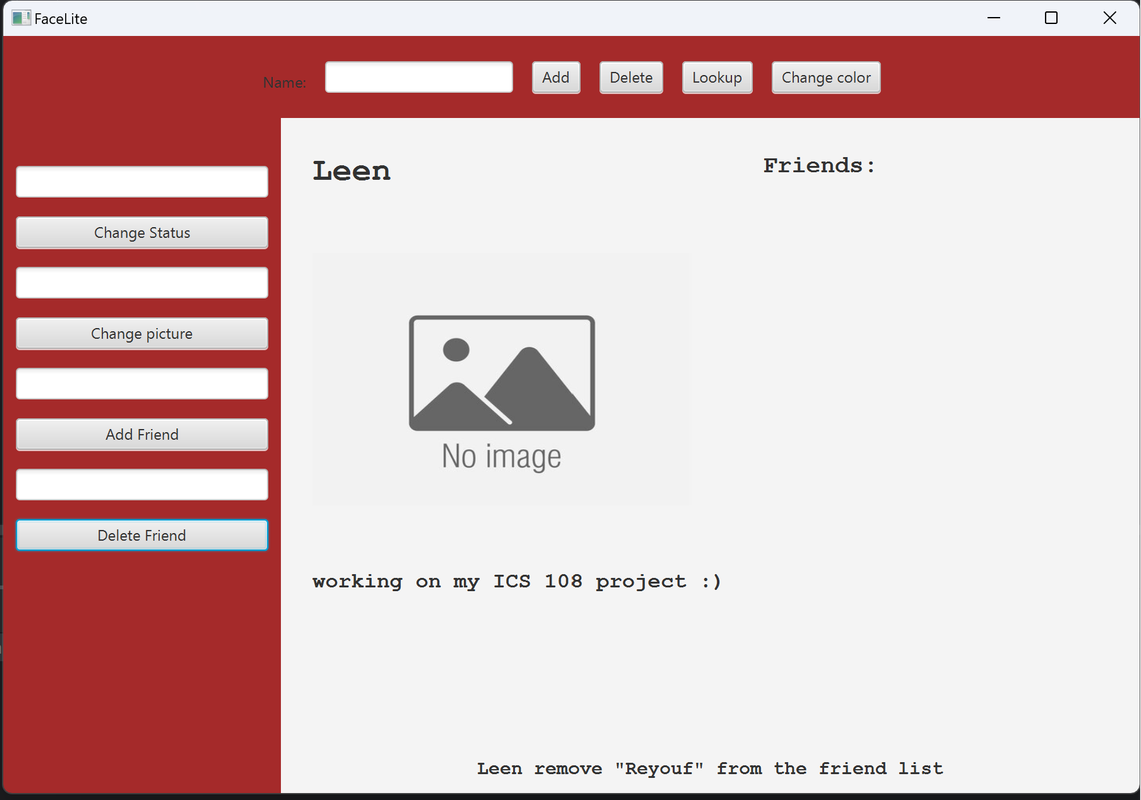
Social media applications have become a crucial part of our daily lives. It helps us connect with people and share updates. In this project, we create a social networking platform called FaceLite. It is a very simple platform where users can create profiles. In this profile, they can follow friends, update their profile image, and share their current status.
Created by: Leen Ghazi & Reyouf Albogomi
- IntelliJ
- JavaFX
FaceLite class that extends Application:
This class represents the main application class for the FaceLite application. It sets up the GUI layout using BorderPane and provides methods to create different regions with buttons and text fields.
1. Instance Variables:
- ArrayList users: Stores a list of User objects
- User currentUser: Represents the currently selected user.
- UserPane userpane: An instance of the
UserPaneclass, used to display user information. - Button variables: Represent various buttons used in the GUI.
- TextField variables: Represent text input fields used in the GUI.
- Label application_message: Represents a label used for displaying different messages.
- BorderPane pane: Represents the main layout container for the GUI.
- String[] colors: Contains an array of color names used for changing the background color of GUI elements.
- int theme: Represents the current theme index used for changing the background color.
2. Start Method:
The start method is an overridden method from the Application class. It is called when the application is launched. It sets up the initial stage and scene of the application. It creates a BorderPane named pane and sets it as the root of the scene. The pane is divided into different regions: the top region contains an HBox, the left region contains a VBox, and the centre region contains a UserPane class.
3. getHBox Method:
- The getHBox method returns an HBox containing buttons and a text field.
- It creates the buttons (addButton, deleteButton, lookupButton, colorButton)
- It creates an HBox named hBox and adds a label ("Name:") and the nameInput text field
4. getVBox Method:
- The getVBox method returns a VBox containing text fields and buttons.
- It creates the text fields (statusInput, imageInput, addFriendInput, deleteFriendInput) and buttons (changeStatusButton, changeImageButton, addFriendButton, deleteFriendButton).
- It creates a
VBoxnamedvBoxand adds the text fields and buttons
UserPane class that extends BorderPane:
This class represents a custom GUI component responsible for displaying user information and their list of friends.
1. Instance Variable:
- User user.
2. Constructor:
- The constructor UserPane() initializes the UserPane and calls the clear() method.
3. setUser Method:
- This method is used to update the user data and calls the show() method to display the user information.
4. clear Method:
- The clear method is a private method that clears the children of the UserPane and sets the padding and alignment for displaying application messages.
5. displaying_application_message Method:
- This method is a private method sets the bottom region to display an application message. It also sets the padding and alignment of the application message.
6. show Method:
- This method is responsible for displaying the user information and their list of friends.
- It starts by clearing the children of the UserPane and setting the padding.
- It creates a VBox named user_information and configures it to display the user's name, image, and status.
- It creates labels for the name and status of the user and an ImageView to display the user's image.
- It creates a VBox named friends to display the list of friends.
- It adds labels for the "Friends" title
- Finally, it sets the user_information as the left region, the friends as the centre region, and the application message at the bottom of the UserPane.
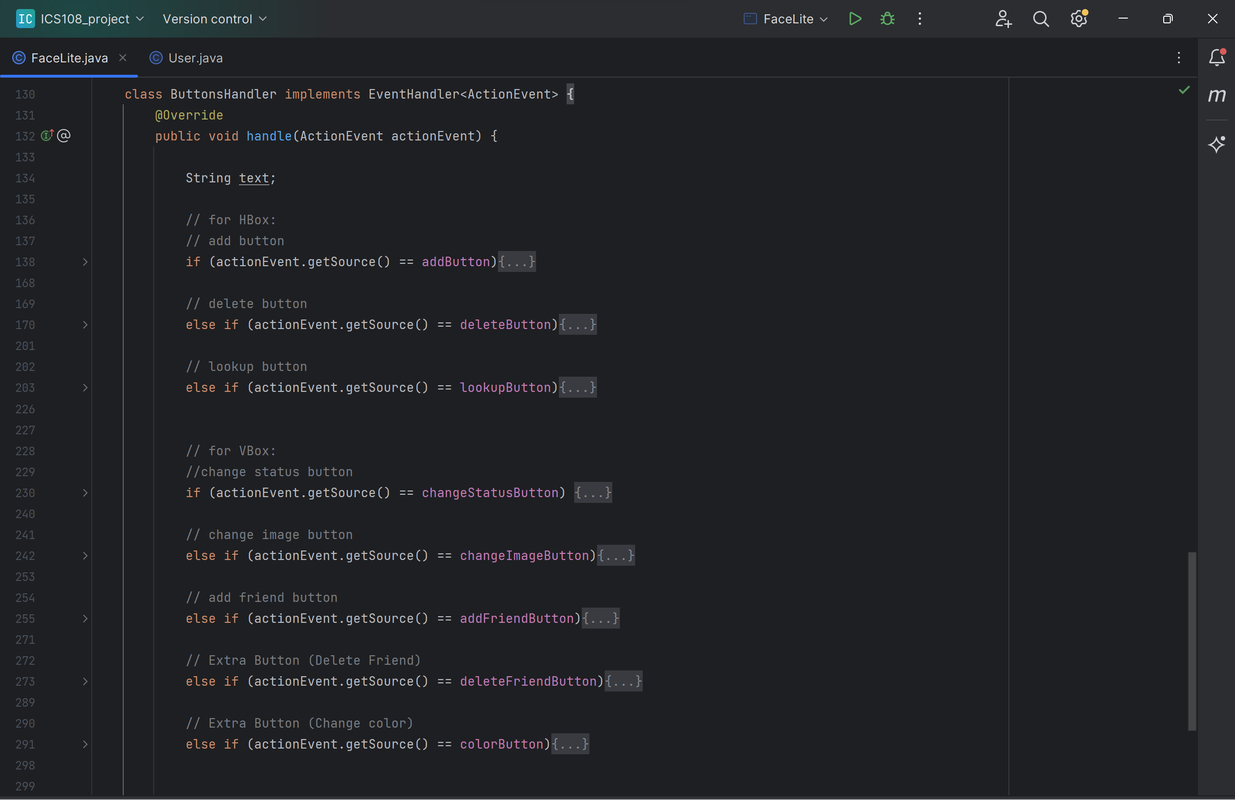
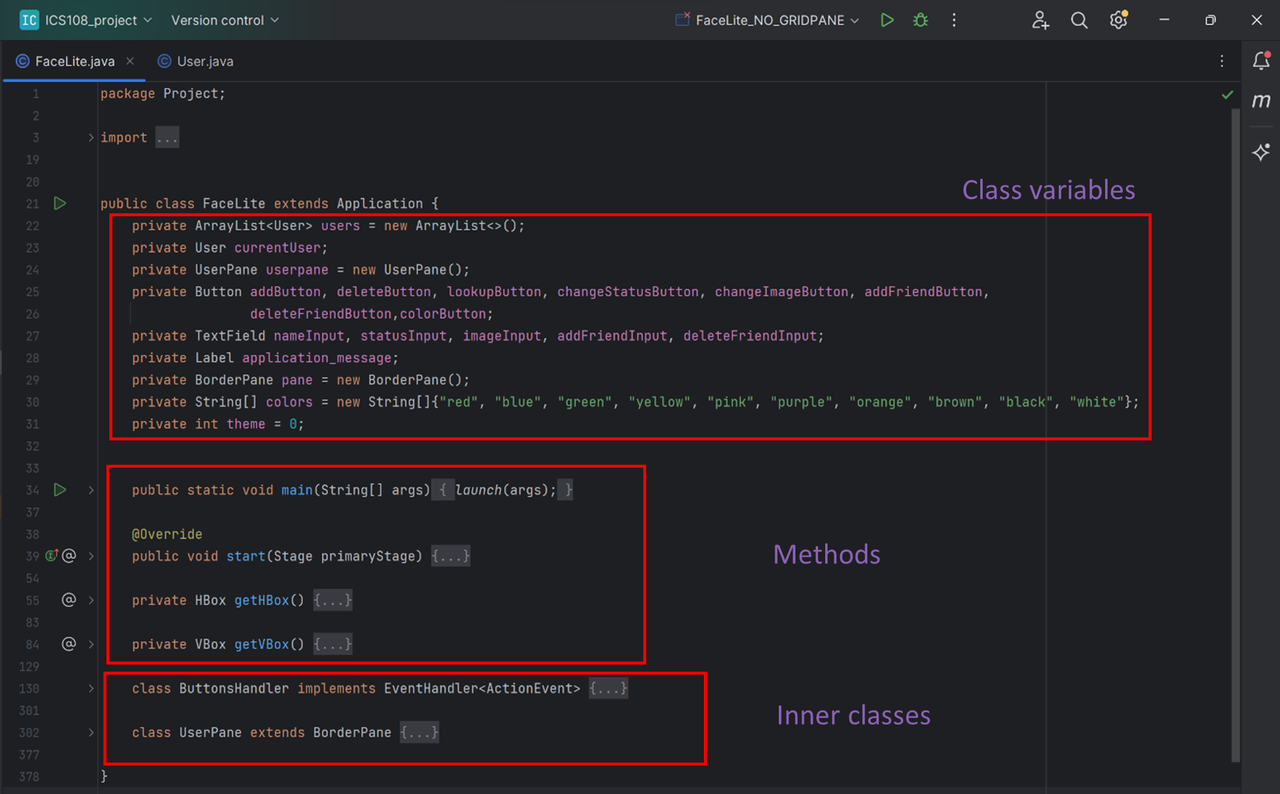
This class extends EventHandler<ActionEvent> , it is used to give the button a direct action and do specific task. The reason that this class is an inner class because this class can use the class variables “Buttons” of the FaceLite class. The image above shows the header of the if-statements.
1. Variables:
- text: used to read the text in the text field.
2. Method handler: used for the tasks of each button (each if statement is for a single button).
- Add button: read the username and check if not exist, then create profile. Otherwise, display a message that a user exists with the same name.
- Delete button: read a username and delete a user if it does exist. Otherwise, display not exist.
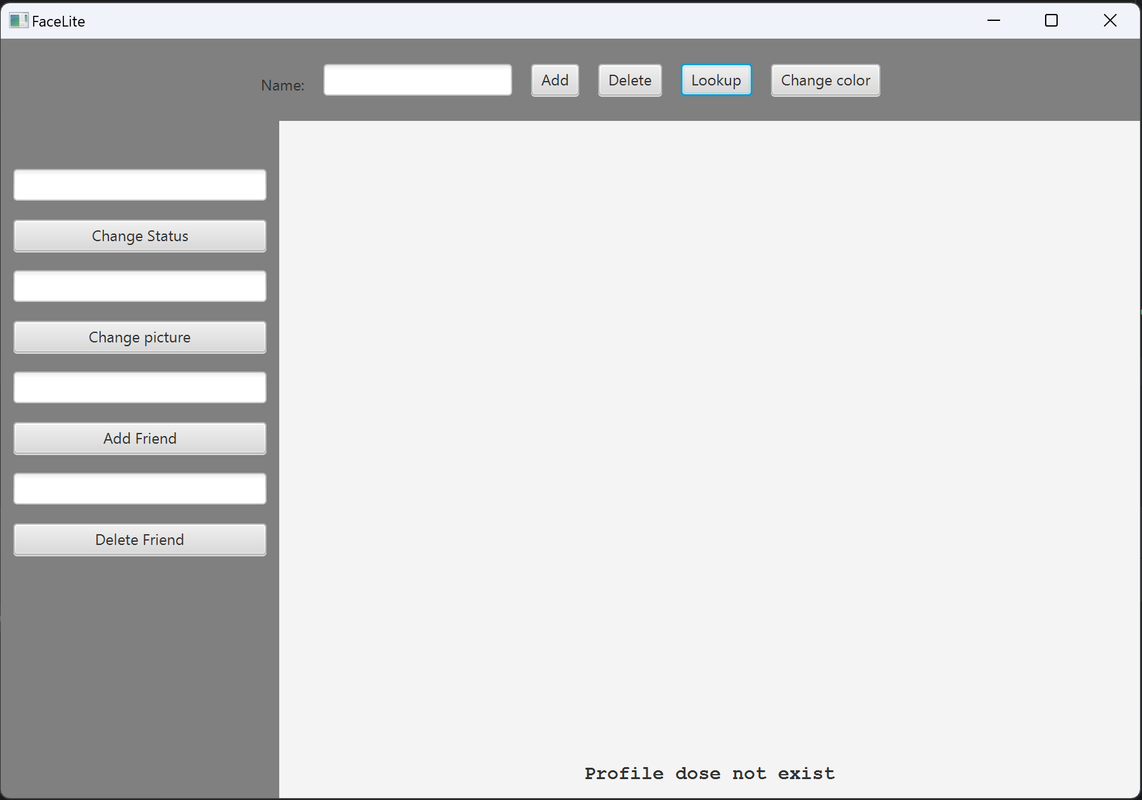
- Lookup button: check if a user exists, search for it and display it. Otherwise, display not exist.
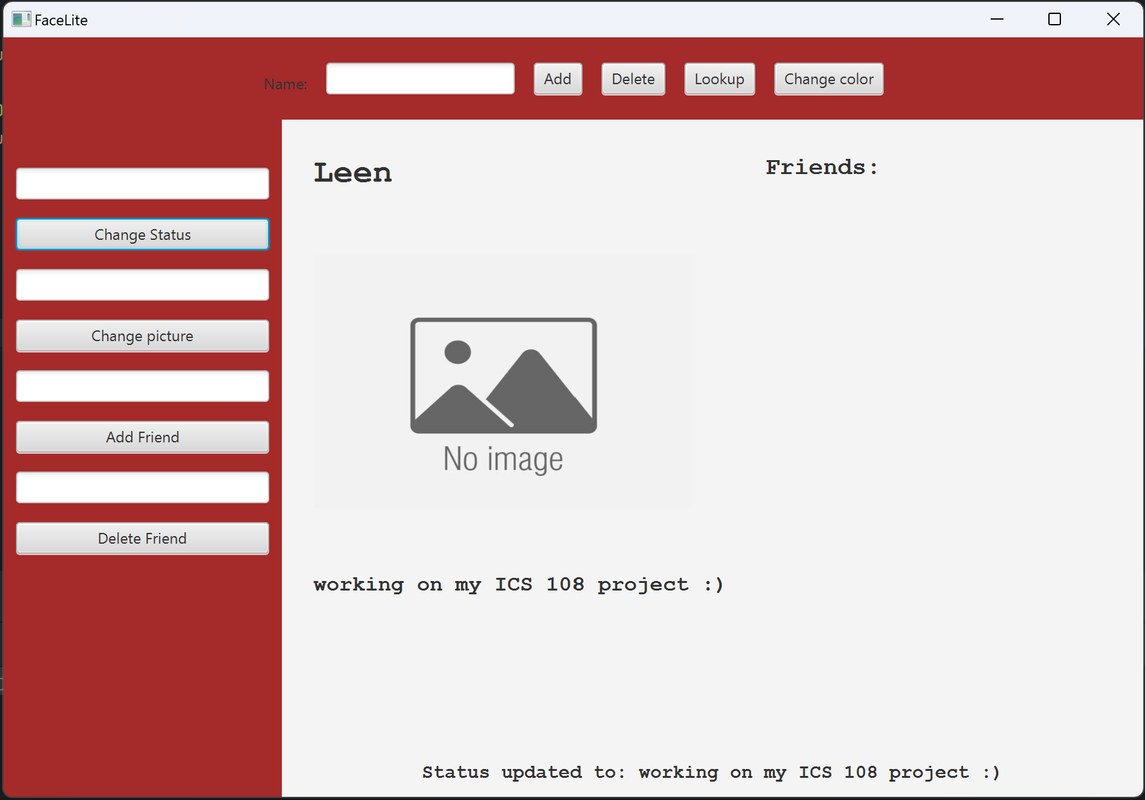
- Change status: if a user is displayed, change its status to the status written in the text field.
- Change image: if a user is displayed, change its image to the image name written in the text field.
- Add friend button: if a user exists, add them as a friend to the current user displayed and go to the friend and add the current user as a friend as well.
- Delete friend button (Extra): if a user is in the friend list of the current user, move them from the friend list. Also, go to the same friend and remove the current user from the friend list.
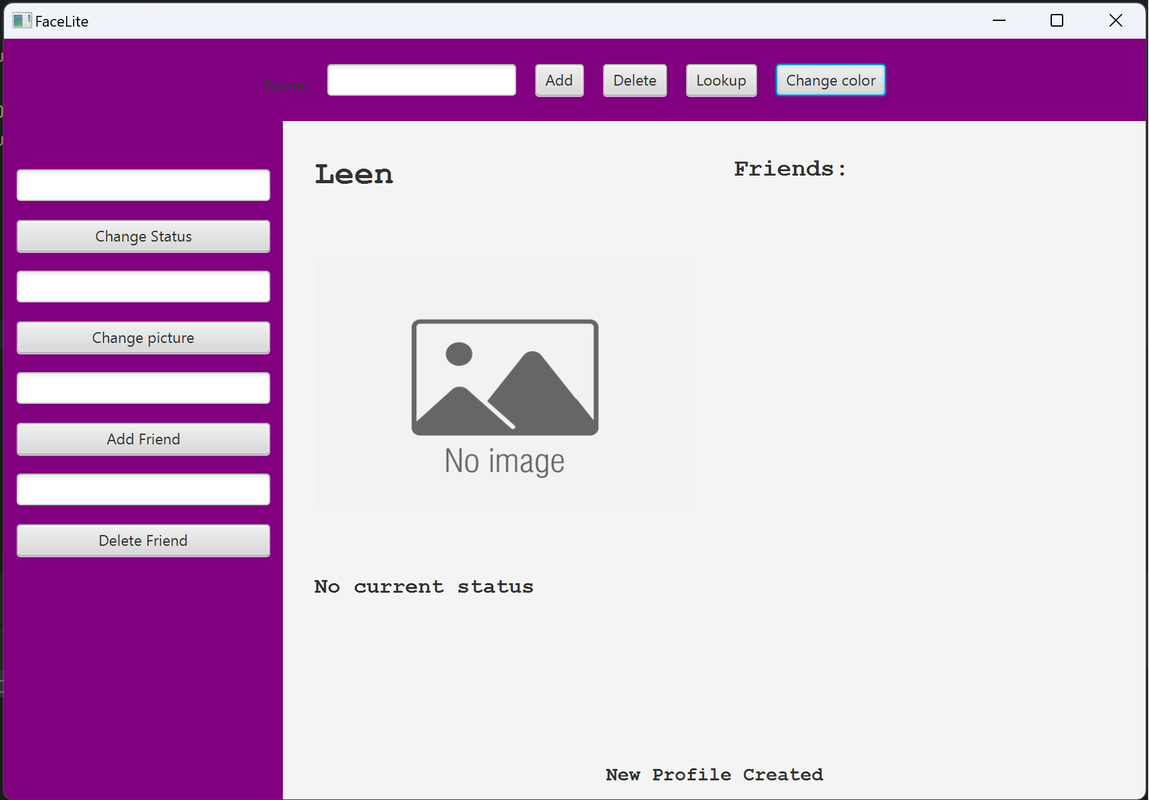
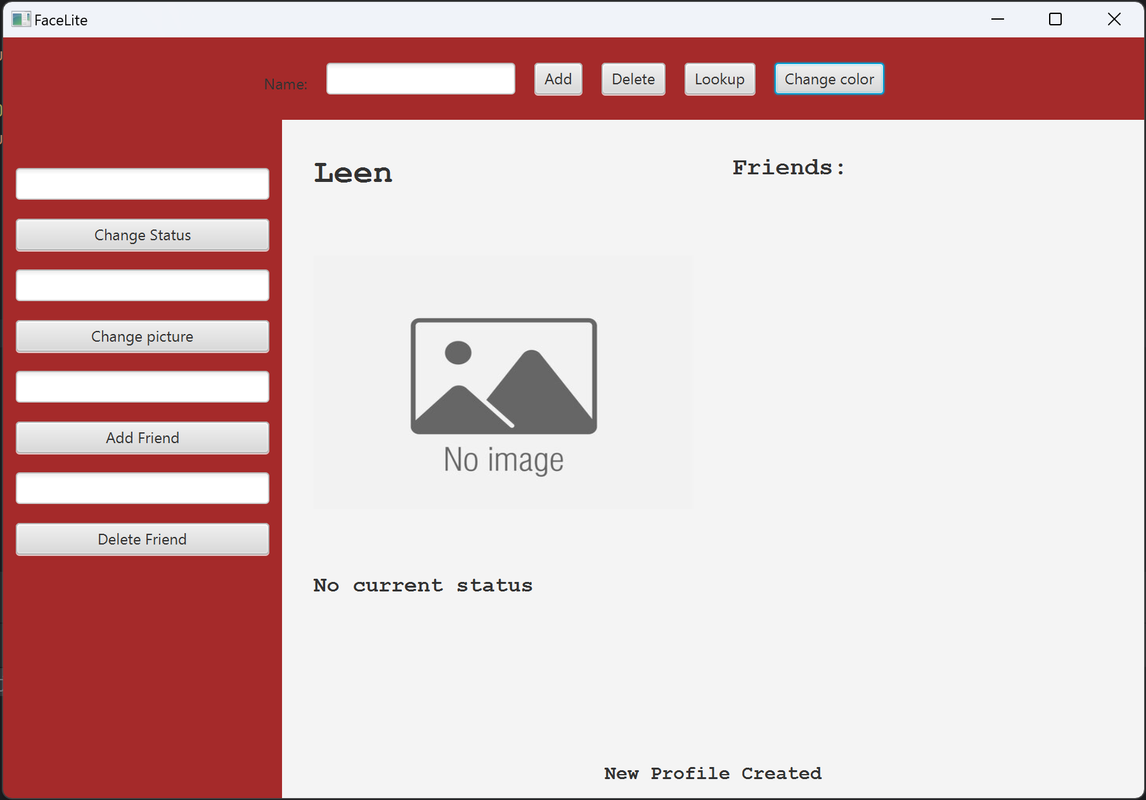
- Color button (Extra): it is used to change the layout of the program and it is not related to the user.
After all the changes made inside each if statement, the method setUser() called from the userpane inner class to display the changes in the program.
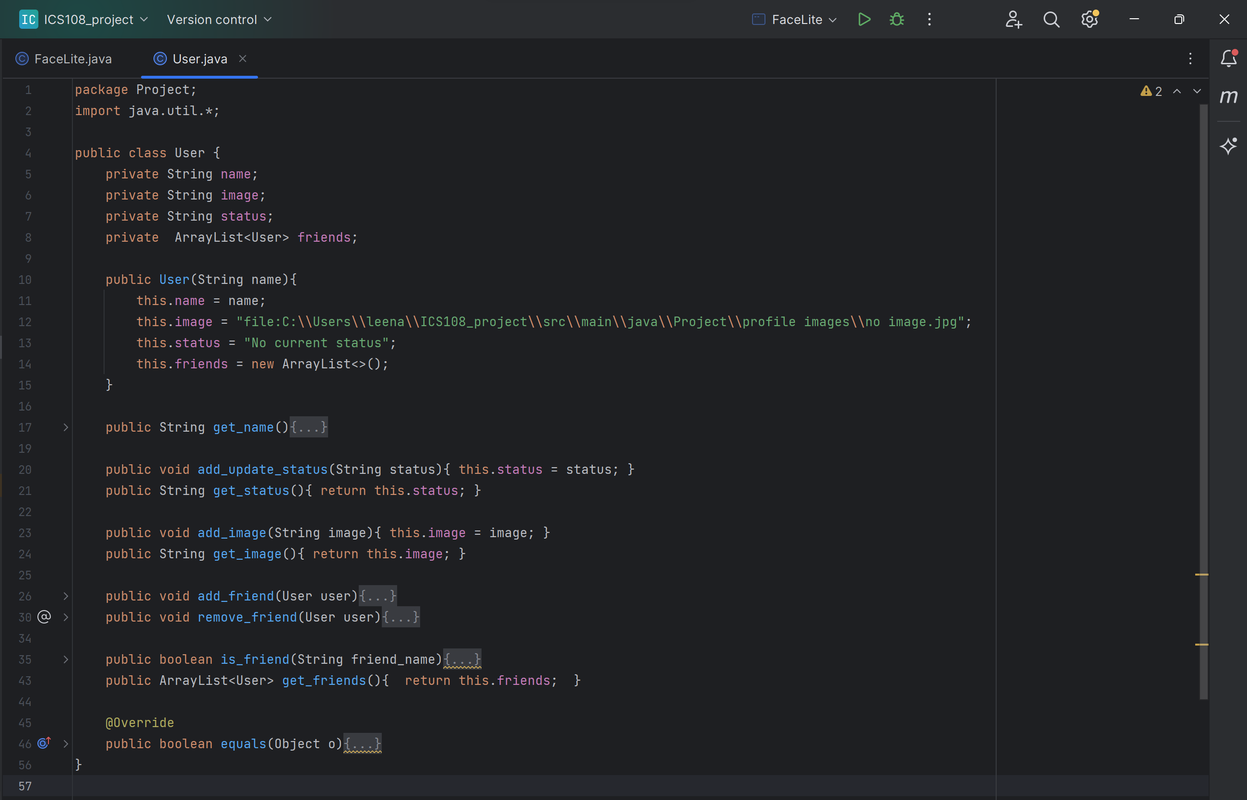
The purpose of this class is to create a user object to easily access or modify the user information. It is later used in the FaceLite program and is added to an arrayList that has all the users during the execution.
1. Variables:
- String name: the name of the user
- String image: the name of the image that is displayed.
- String status: the status of the user.
- ArrayList of User (friend): it is used for adding users in the friend list of a user.
2. Methods:
- Constructor: used to initialize the information when a user is created.
- get_name: used to get the name of the user.
- add_update_status: to chang the status of the user.
- get_status: get the status of the user.
- add_image: take the name of the image and save it in image variable.
- get_image: to get the image.
- add_friend: check if the user is not in the friend list and add it (Avoid duplicate)
- remove_friend: use the method is_friend to check if it is in the friend list and then delete it.
- is_friend: return true if a friend is in the friend list.
- get_friend: return the friend list
The good thing about this program is that a user can easily run it on any device. The user needs to download the zip file and move its contents to an IDE for the JVM language. The file contains two separate Java classes (FaceLite and User) and a single folder (profile image). The java files are moved to the file where the program run, while the profile image folder is moved to the resources. Here is an image of the contents of the file:
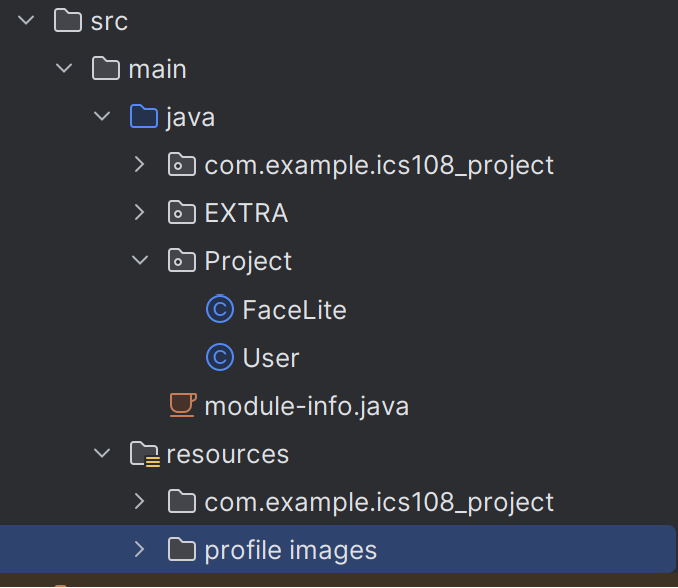
The folder contains some images that the user can use to change the profile image during the execution of the program. All the user needs to do is open the FaceLite Java class and run the program. Here is an overview of the FaceLite class and the header of its method and inner classes:
Here is an image of the program when first executed:
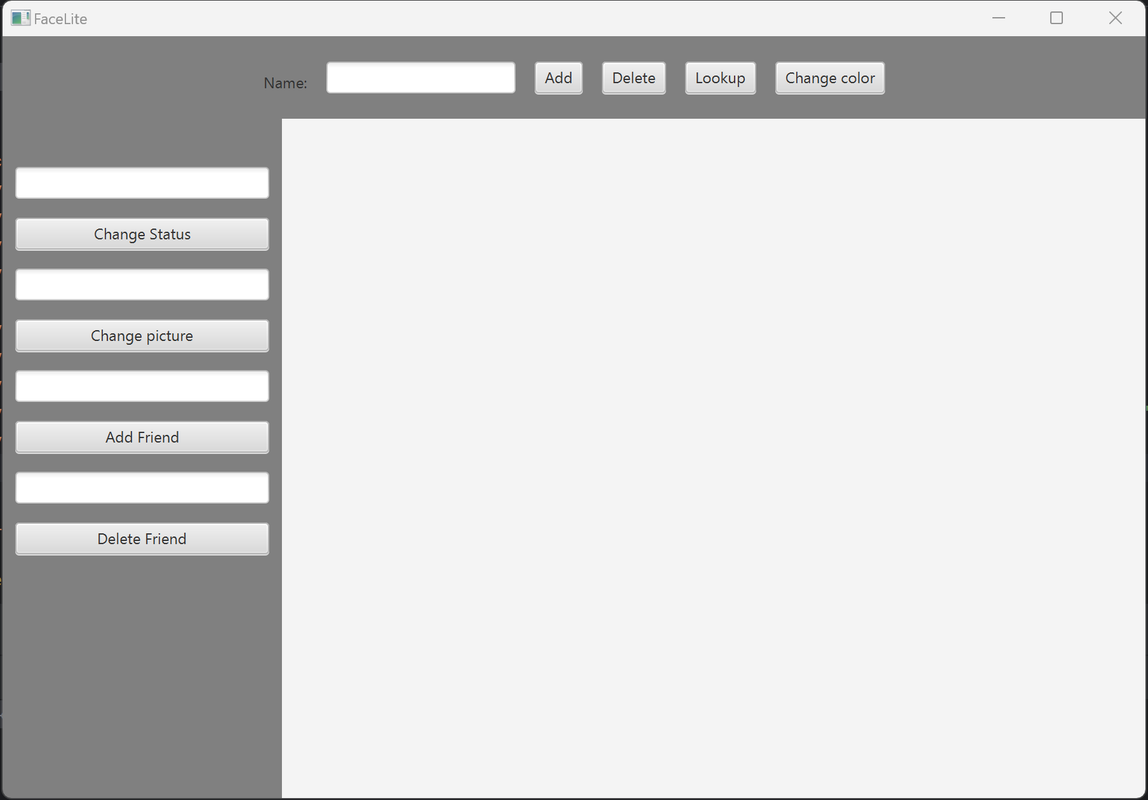
Now, the user can use the program like any other user on the FaceLite platform. The text field next to the name label is accepting a username. Then, the user has three choices (buttons) associated with it. First, click the “add button,” which is used to create a profile with the name entered, a default image, and a status. And at the bottom, there is an application message to display all the changes that the user made. Here is an example:
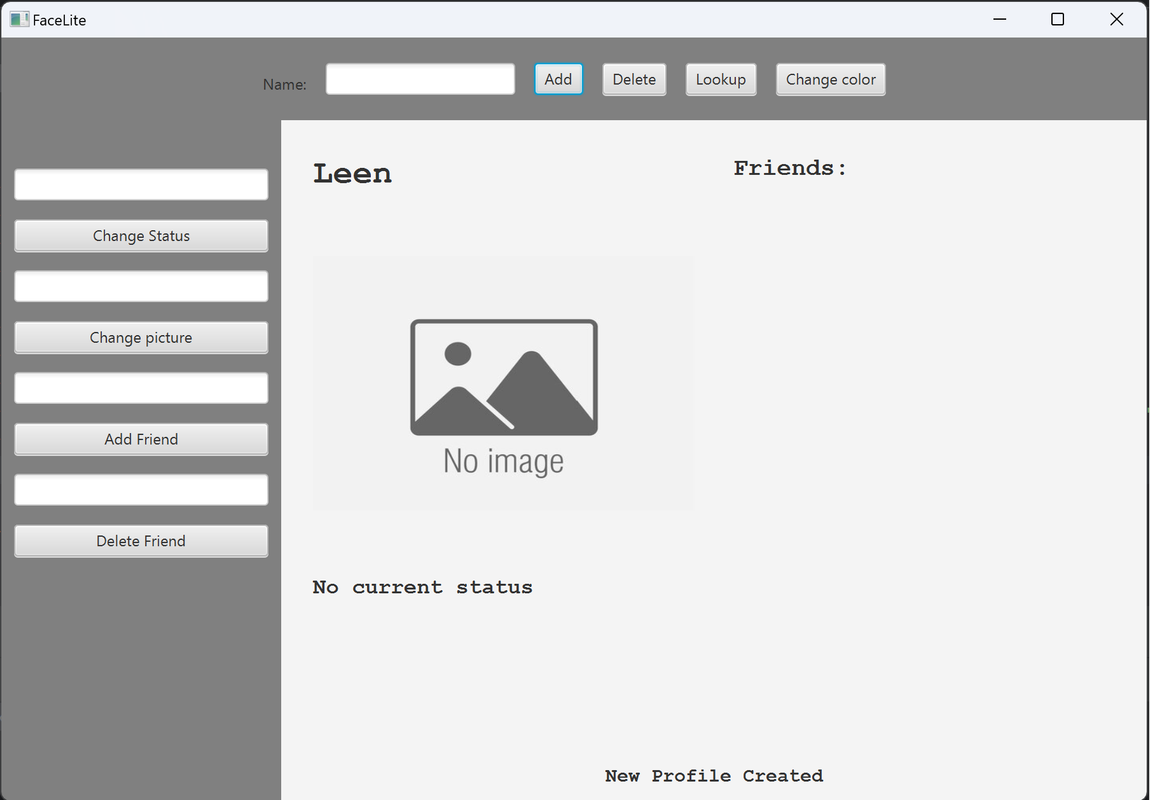
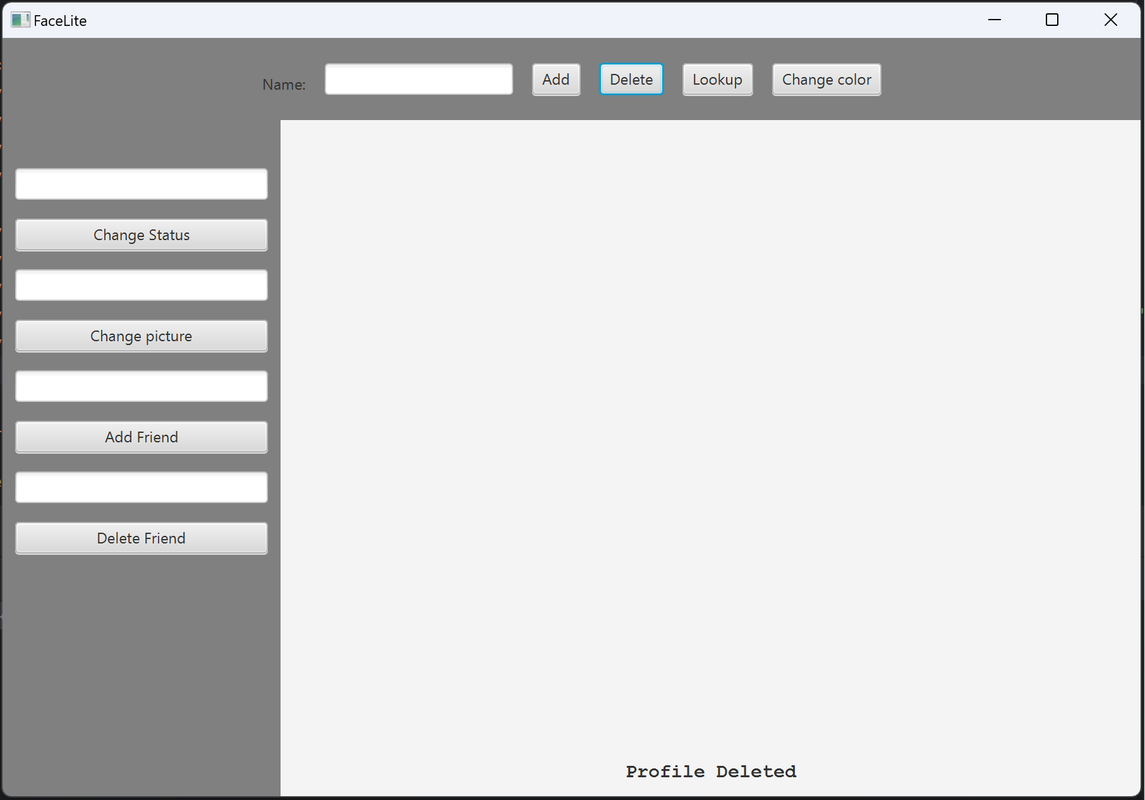
Second, the delete button takes an input from the text field and deletes the user. Whether it is the current user displayed or a different user from the user list that is saved in the program, Third, the Lookup button acts like the search bar on any social platform. Either it displays the user profile or displays the message “Profile doesn’t exist” if the user is not found, as shown below:
Lastly, the change color button is a general button used for any user. It is just for the layout of the FaceLite program and doesn’t affect the user information. Here is an example:
Moving to the buttons on the left, each one of them is related to the current user displayed on the screen. The change status is used to change the status of the user that is located under the image of the profile. Here is an example:
The change picture button does the same thing as the status. For the add friend, it is for adding friends who have an existing account in the FaceLite program. The program will display a message indicating that the user has added friends. If a user does not exist, the program does nothing. (In this program in particular, friends are reciprocal; if I add a user as a friend, I will be added as a user’s friend automatically.)
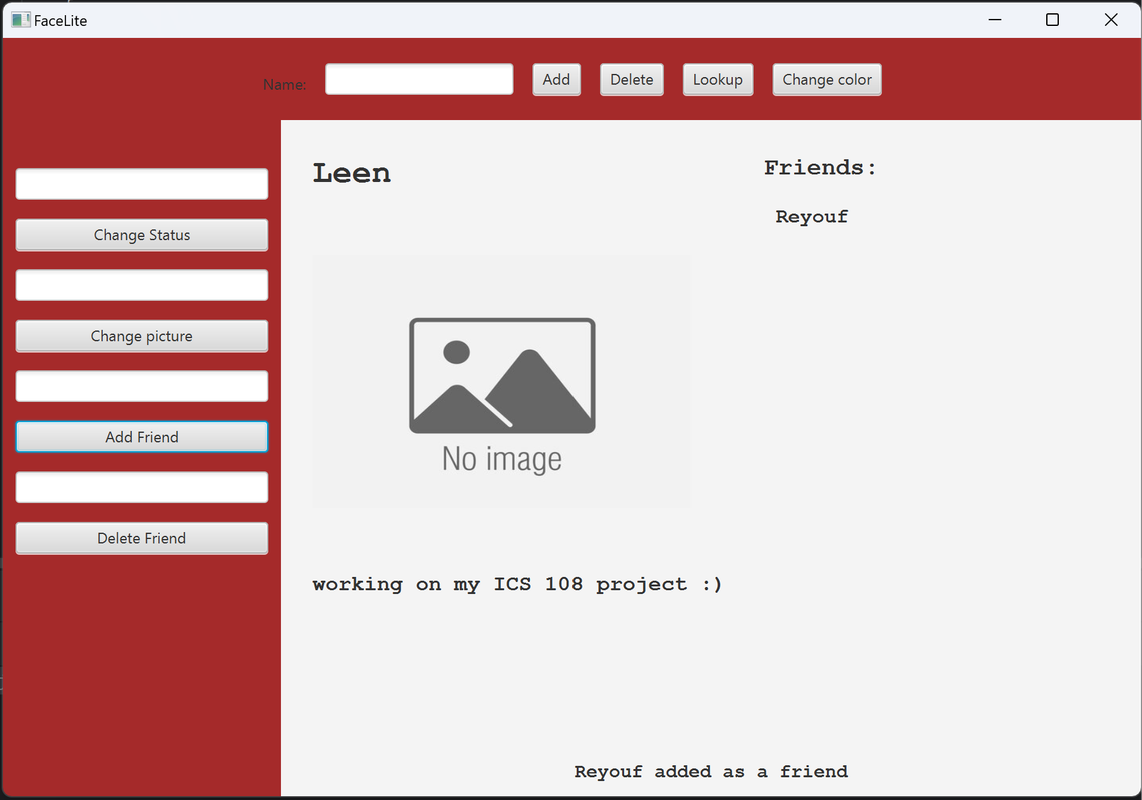
The last button used for deleting a friend from the friend list. And if a user is not a friend or doesn’t exist, the program does nothing. Here is an example: