Repository navigation
Meraline 1.8.0

Download Meraline-1.8.0.dmg, open it, and drag Meraline into your Applications folder. Meraline needs macOS 26 or later. Installed copies update themselves.
What's new
Decision
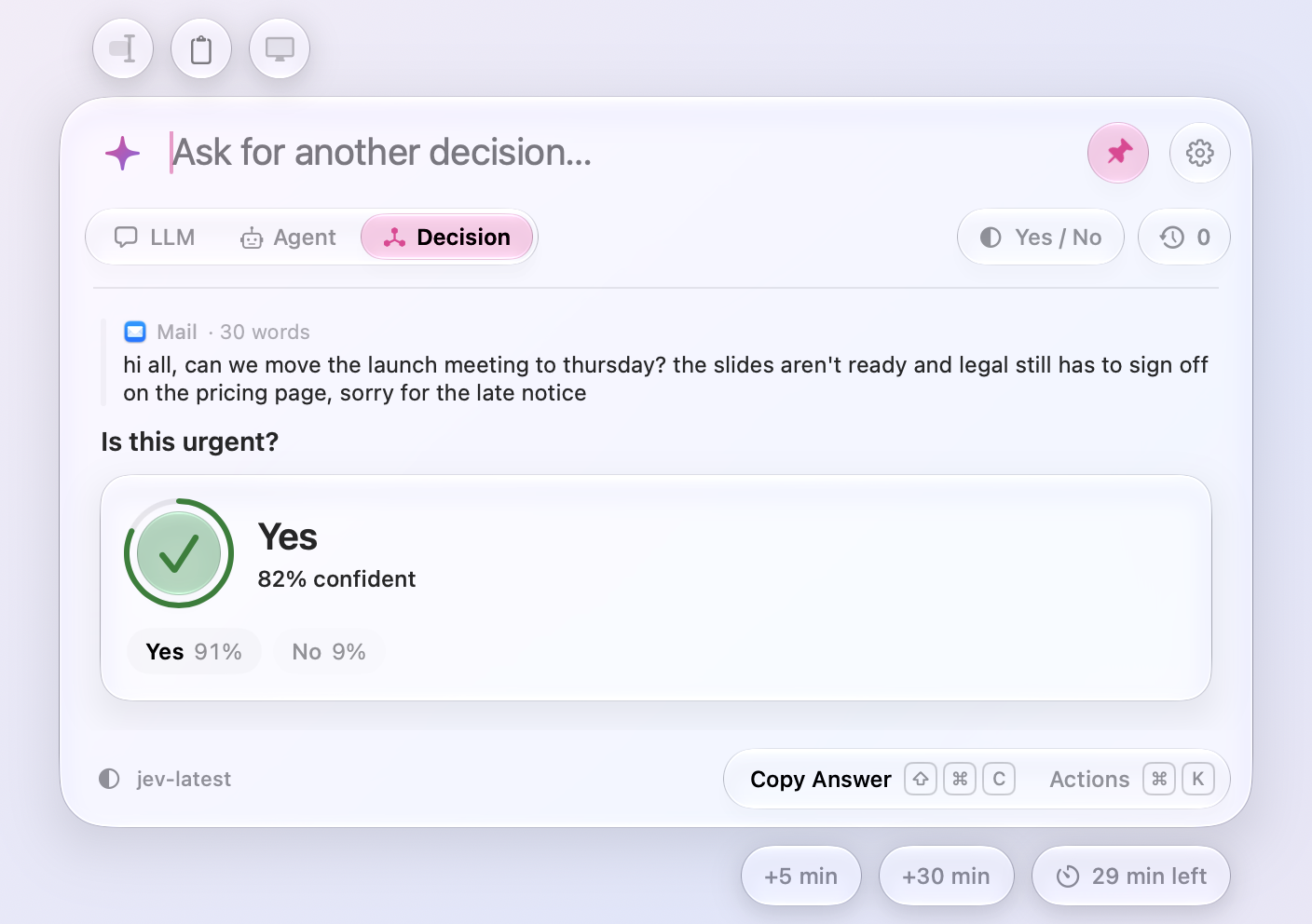
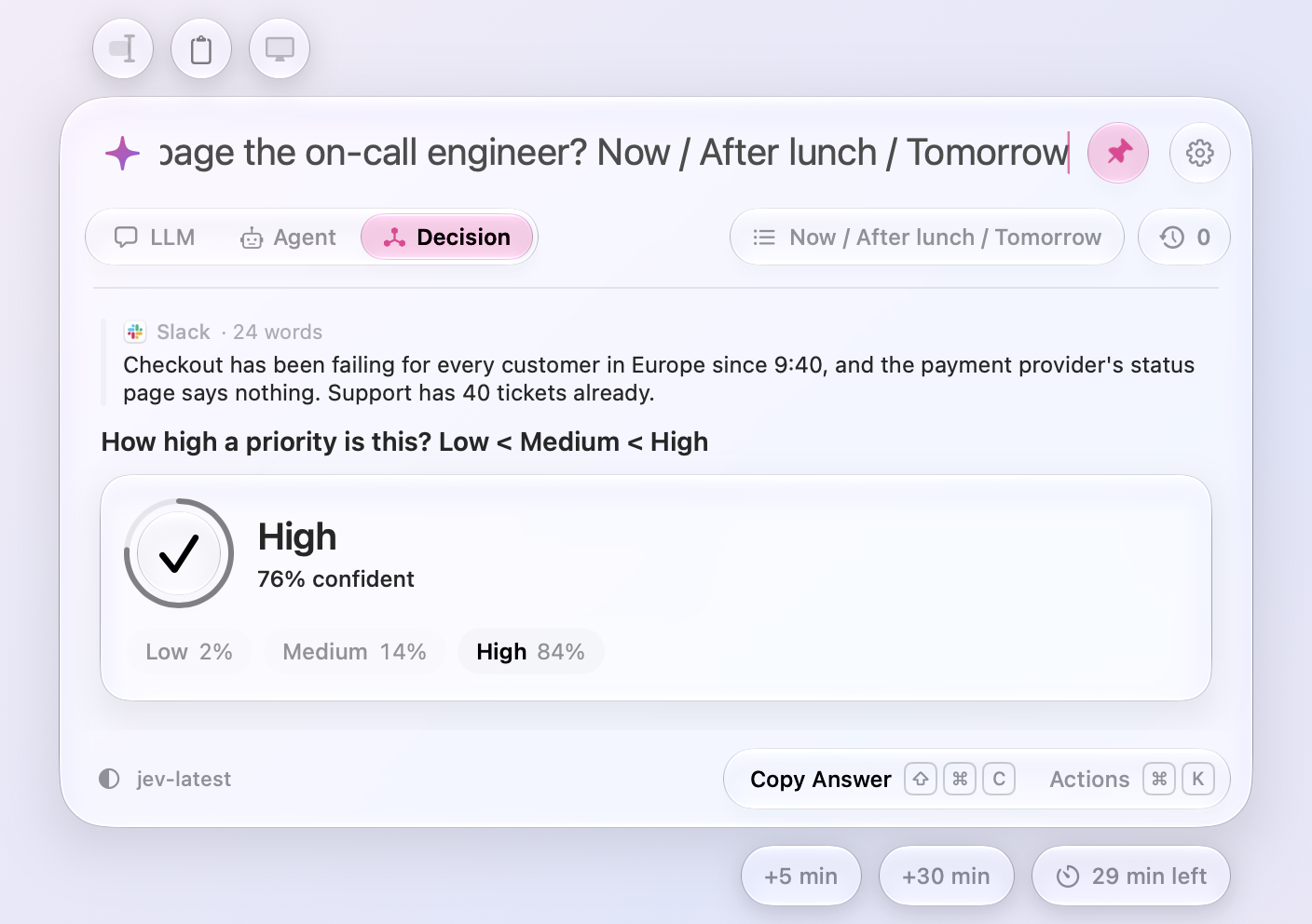
- Decision mode, with TypeSafe’s Jev. The toggle under the input has a third mode beside LLM and Agent (⌘3): Decision. Add the text you selected or copied with the buttons above the window, or write it in the window, ask a question, and Jev, TypeSafe’s decision model, answers in a fraction of a second, not in words but with a decision: a check on green glass for Yes or a cross on red for No, ringed by how sure it is, with “82% confident” beside it and every answer’s probability under it. Under the confidence you set in Settings › Prompt › Decisions, the answer says Not Sure and which way it leans. Yes and No are the answers unless the question names its own after its question mark, with / between them (“Which team should handle this? Billing / Technical / Sales”) or < for levels in order (“How urgent is this? Low < Medium < High”); the capsule under the input shows which answers the question picks from, and Settings sets the ones a question that names none picks from. A decision needs text, so nothing is sent without it, pictures and files wait for another mode, and the screenshot button steps aside. Follow-ups ask about the same text, Copy and Insert give the answer in words, and Settings › Usage counts decisions, with Jev at TypeSafe’s list price. Paste your TypeSafe API key in Settings › Decision Models to start.
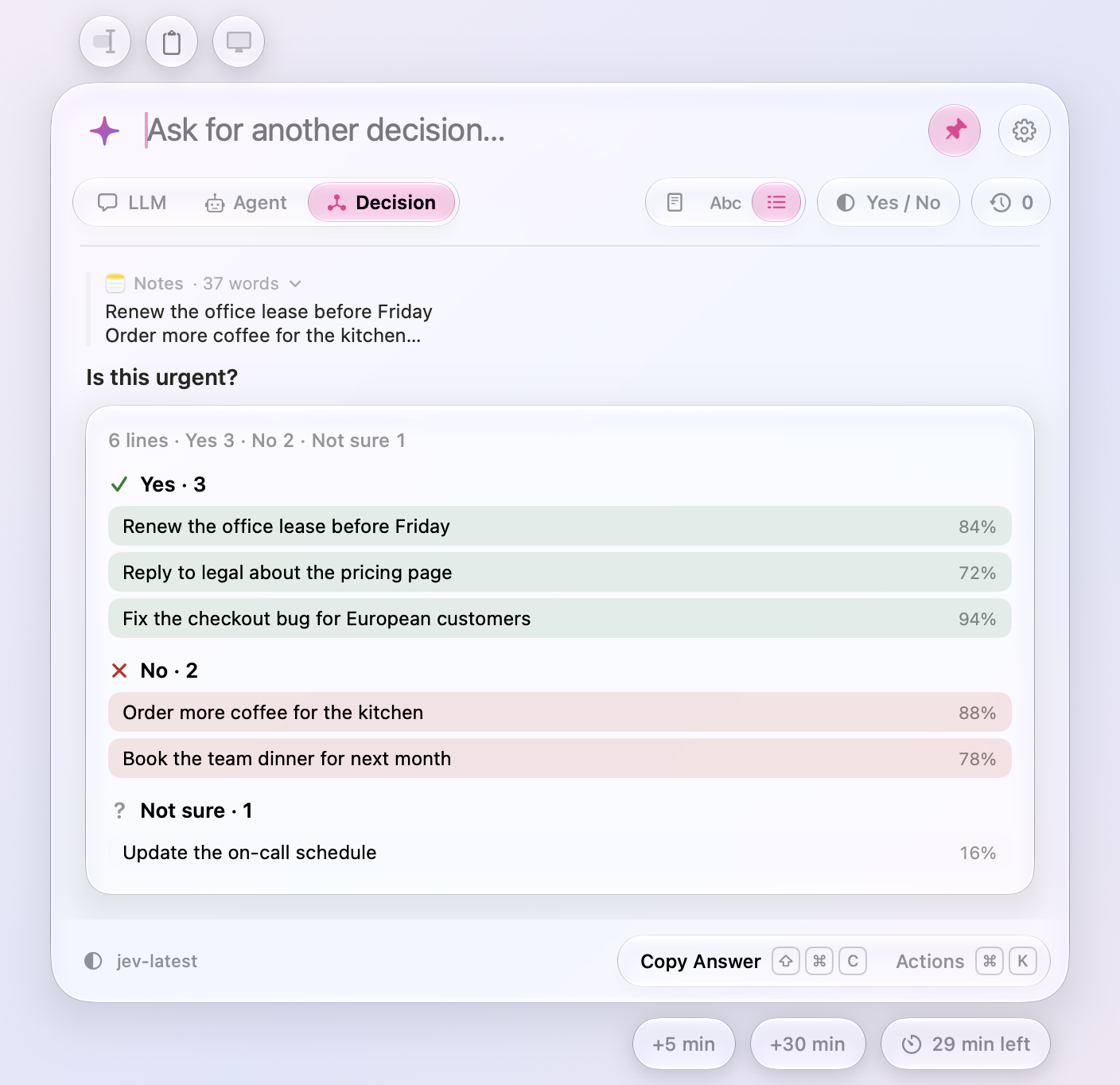
- Decide about each word, or each line. A switch at the games’ place in Decision mode decides about the whole text, each of its words, or each of its lines: Jev answers the question for every one, a hundred at a time, and the card fills in as they come, the words or lines grouped by answer, Yes on green and No on red, each with how sure Jev is. Up to 1,000 words or lines a question;
meraline://ask?mode=decision&scope=linespicks the scope too.
Ask
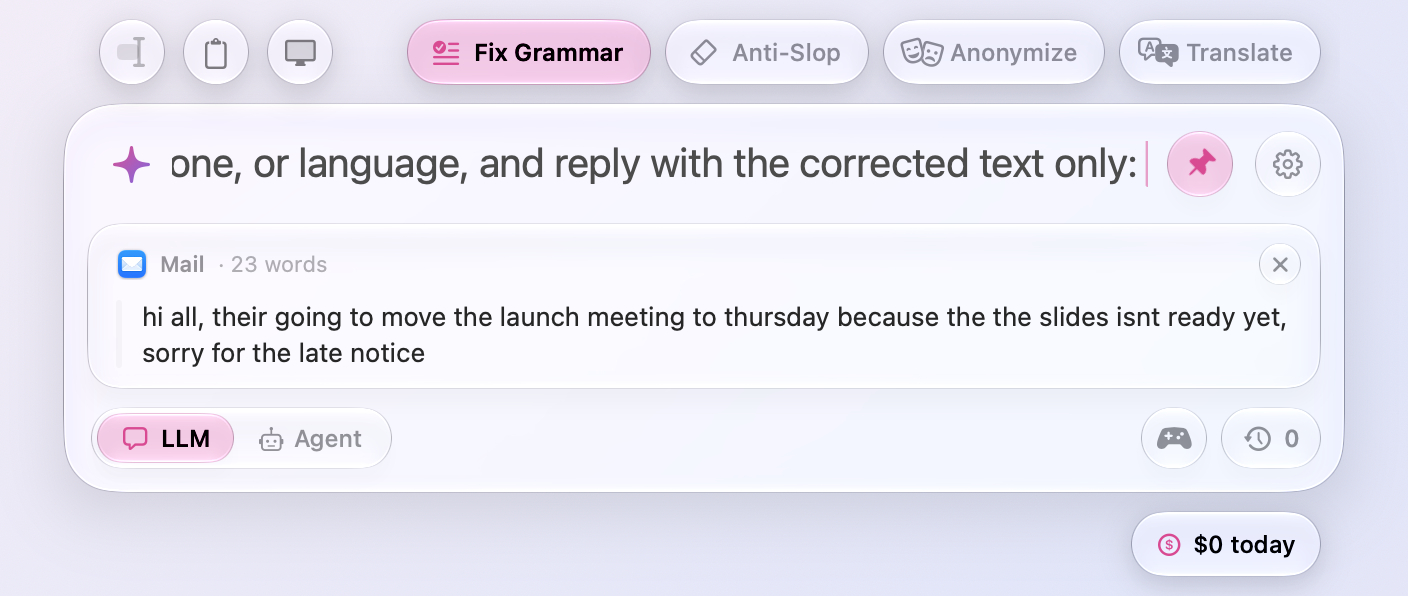
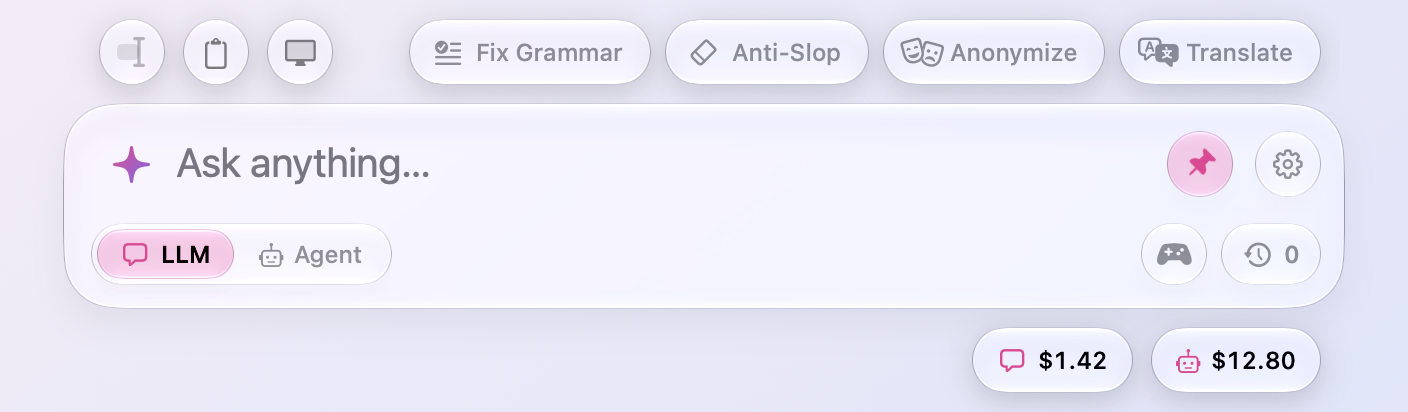
- Presets for your first question. Glass capsules above the window's top right, beside the gear, hold the prompts you'd otherwise type again and again: Fix Grammar, Anti-Slop (strips the filler, buzzwords, and em dashes that give AI writing away), Anonymize, and Translate, into the language set in Settings › Prompt. Click one to put its text in the input, ahead of anything you typed, and add the text to work on, or select it in another app first; Shift-click to send it at once; while Shift is down, the one under the pointer turns pink and points up. Click it again to take it out. They're for starting a chat, so they sink into the window once it starts and come back for the next one. Settings › Prompt › Presets edits them, adds your own with an icon of your choice, moves them along the row, and deletes them.
- Presets for each mode. LLM, Agent, and Decision each have presets of their own above an empty chat, and a change of mode sinks one row into the window as the next rises. Agents start with Find Bugs, Explain Code, Write Tests, and Research; decisions with Urgent?, Scam?, Tone, and Priority, two of which name their answers after the question. Settings › Prompt edits each mode’s list.
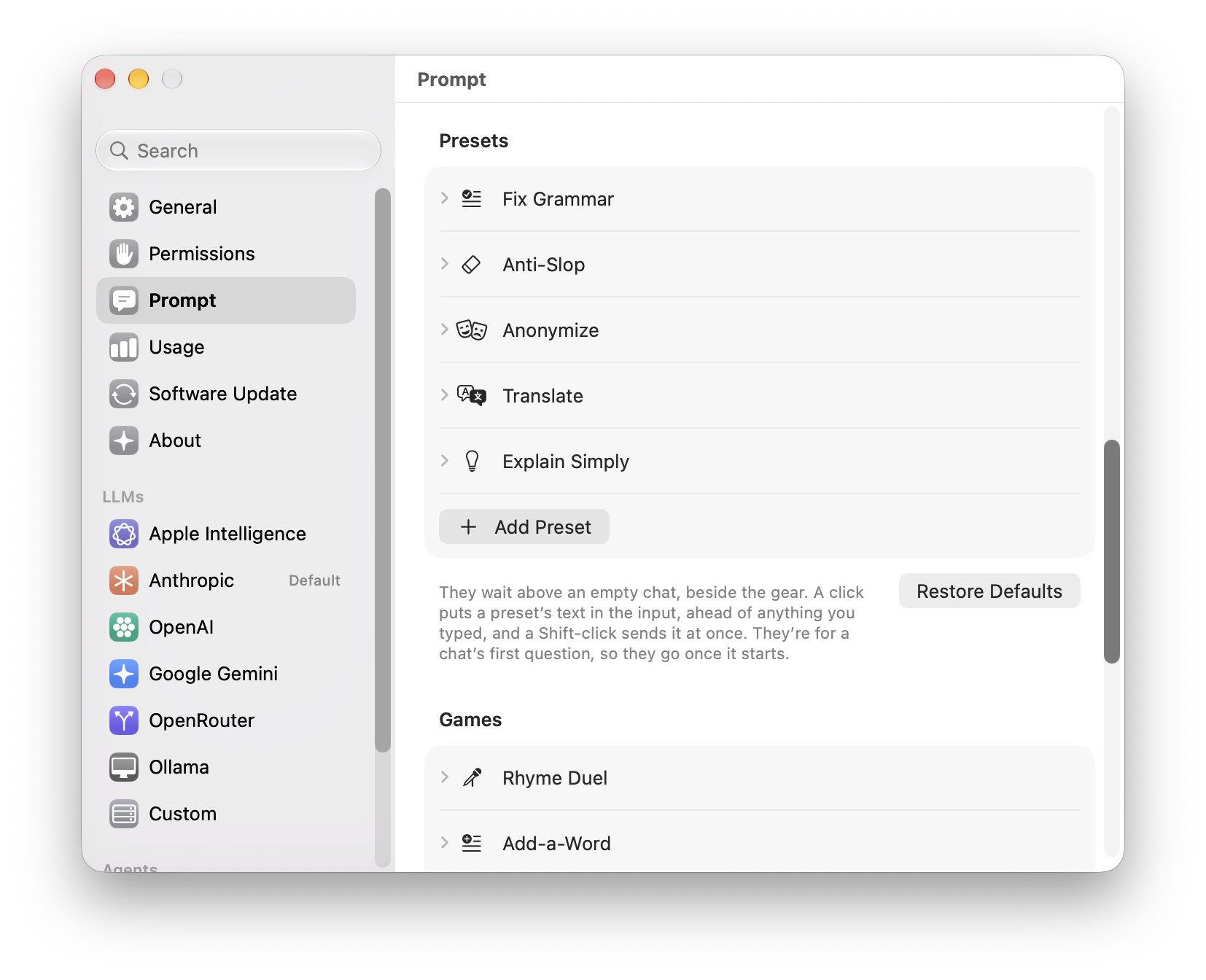
- ⌘1 to ⌘9 run your presets on an answer. Once an answer is ready, Actions (⌘K) lists the presets after Make Shorter and the other rewrites, and ⌘1 to ⌘9 run the first nine without opening it: Fix Grammar, Anti-Slop, Anonymize, or Translate the answer, or run one of your own on it. What comes back takes the answer's place, as a rewrite does, and if you stop it or it fails the old answer returns. They go by the keys' places, so they work on any keyboard layout; meanwhile ⌘1 and ⌘2 leave the LLM and Agent toggle, which they switch again once a new chat starts.
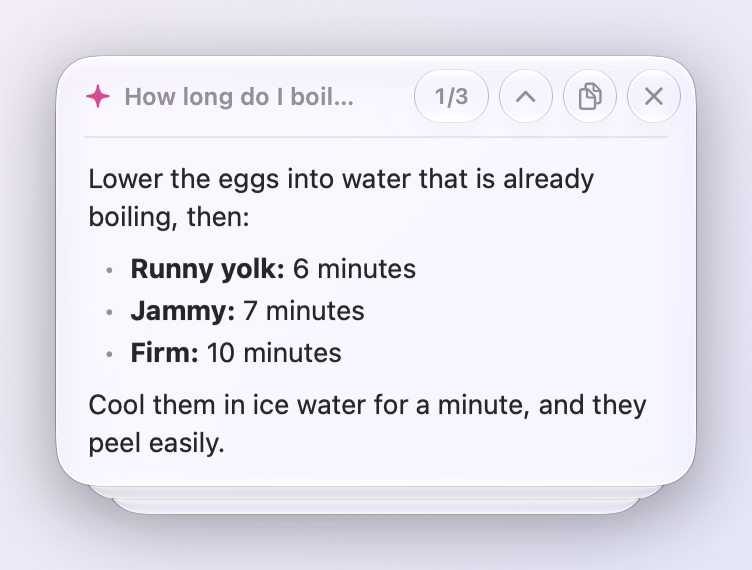
- Follow-up questions under an answer. Once an answer is done, two or three questions you might ask next wait under it, suggested on your Mac and never by your provider: by Apple Intelligence when it's on, and otherwise from the answer itself, its code, the terms it sets in bold, and the kind of question you asked (in English). Click one to put it in the input and change it before you ask, or Shift-click to ask it right away; while Shift is down, the one under the pointer turns pink and points up. While Apple Intelligence is still thinking of them, one chip says so, and it becomes the first of them. They go the moment you type or ask, live in memory only, and a chat reopened from Recent Chats gets new ones.
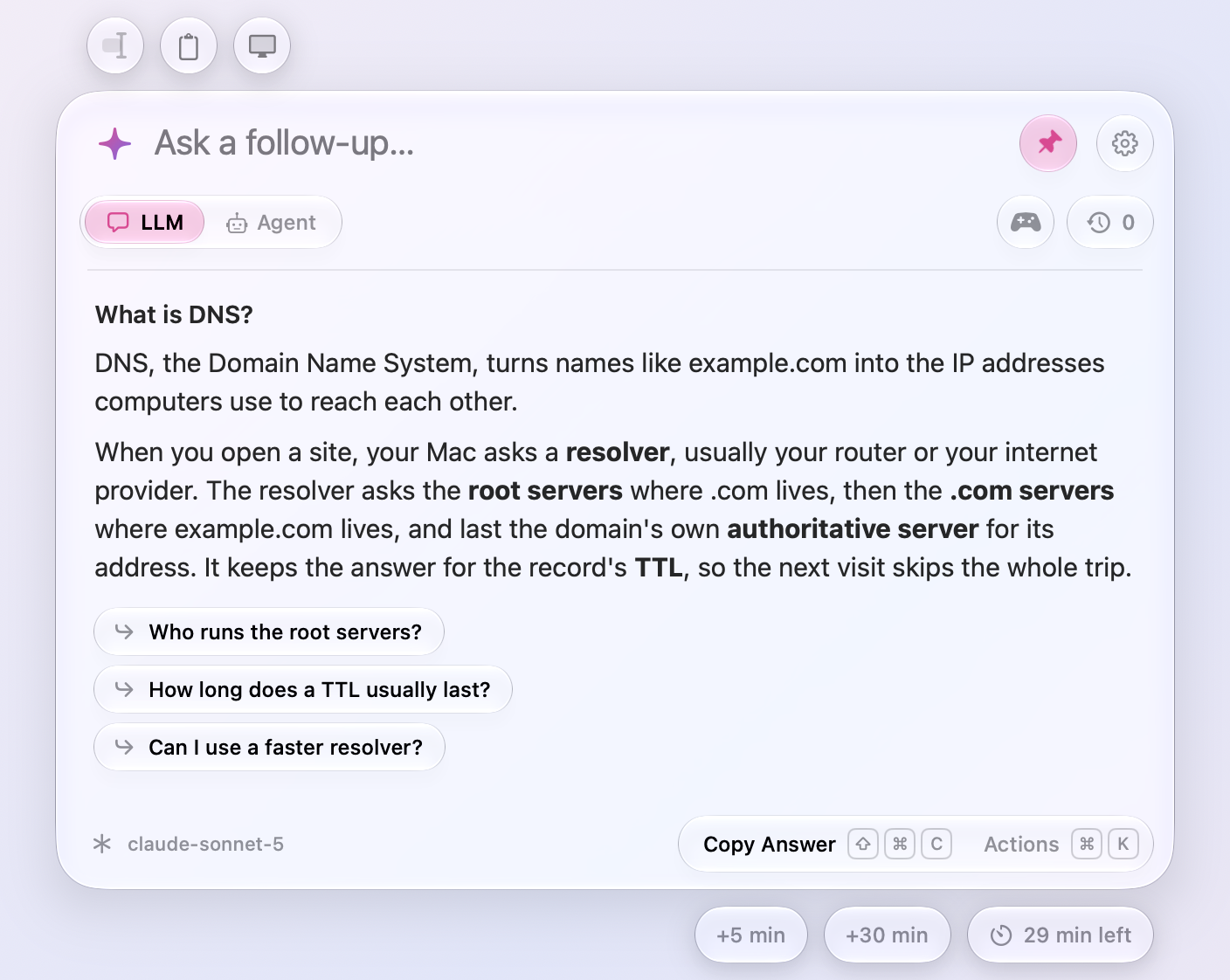
- See what an answer changed. Ask to fix the grammar of text you selected or copied, and Show What Changed under the answer, or ⌘D, puts your text in its place with each word that went struck through in red and each that came in green, so a fix is quick to check before you paste it. Show Answer brings the answer back. Beside the button, how much changed, in numbers: “5% changed · 6 edits”, where a typo counts only the letters that differ. It shows only when the answer is your text changed, not an explanation, a summary, or a translation of it, and the follow-ups and rewrites that rework the same text get it too.
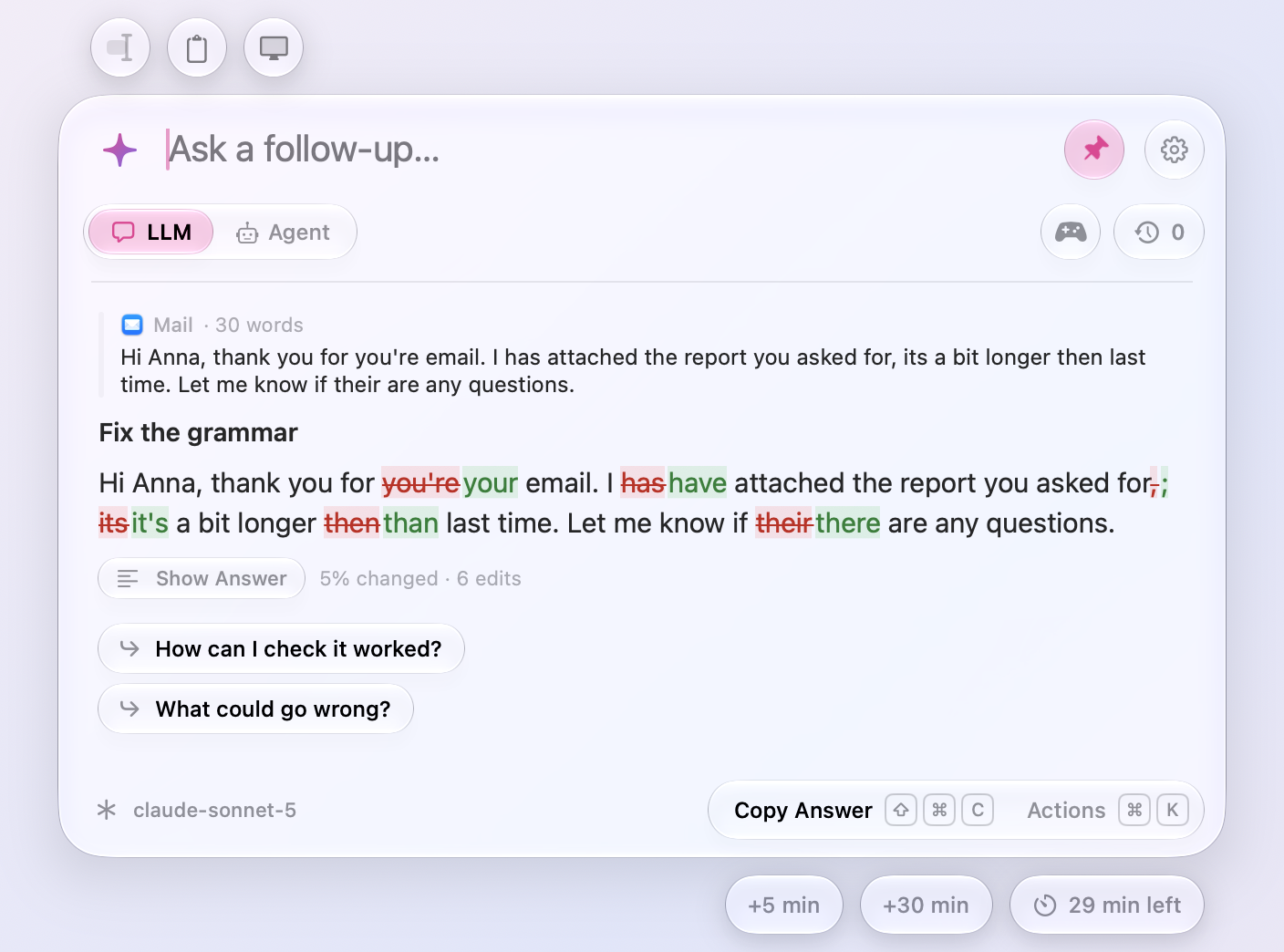
- Tear off several answers into one note. Tear off another answer while a note is open and it goes on top, with the edges of the ones behind it peeking out under the card. A count badge in the note's header, such as 1/3, brings the next one forward and Shift-click the one before, as ⌃⇥ and ⌃⇧⇥ do while the note has the keyboard, so you flip through them without opening the window. Esc, ⌘W, or the cross put away the answer in front, and Option-click on the cross the whole pile.
- Zoom answers to read them across the room. ⌘+ and ⌘− make answers larger or smaller, from 85% to 300%, and ⌘0 brings them back to their own size; pinching on the trackpad zooms too. Their text, code, and tables grow while the rest of the window stays as it is, and a capsule in the footer shows the zoom and goes back to 100% when clicked. A torn-off note opens at the window's zoom, then zooms on its own and widens with it.
- Paths in answers open with a click. A path to a file or folder on your Mac, such as
~/Downloads/report.pdf, becomes a link in the answer: click it to open it in its app, or ⌘-click to show it in Finder. In an agent's chat, paths inside the folder it works in count too, line numbers and all (src/app.swift:42), and so do the links it writes to its files. They open the way handed-over files do, so apps are only shown in Finder and scripts open as text, and they're found as the answer is drawn and kept nowhere.meraline://links in answers work too, but a question one fills in waits for you to press Return. - Drag text in. Drag a selection from any app onto the window, anywhere on it, the input included, and it waits above your question in a card of its own, with the app it came from, just like text you select and add with the button above the window. Drop more and each gets a card of its own, and a picture dragged from a web page still attaches as a picture. Files and pictures dropped right on the input now attach too, instead of landing in it as text.
- Services › Ask Meraline takes pictures. Select part of an image in Preview, or a photo in Photos, and choose Ask Meraline from the app's Services menu: the picture is attached to your next question, for any model, as text already was. The same picture comes only once, and a selection with both words and a picture still comes as words.
- Stash a draft for later. Press ⌘S with no chat open to put what you typed, and the selected text, clipboard, screenshots, and files you added, in Recent Chats, and start on something else. Reopen it from the clock and it's all back in the input. It waits there for 30 minutes, like any recent chat, and reopening another chat stashes what you had typed in an empty one, so it isn't lost. Anonymous mode keeps drafts out of Recent Chats too.
- What today has cost, under the window. Before a chat starts, two glass capsules under the window's bottom right, where a chat's timer shows, say what LLMs and what agents have cost today, as Settings › Usage counts it: the mode's symbol and the amount, nothing more. Until either has cost a tenth of a cent, one capsule says $0 today, and everything starts over at midnight. There's nothing to set, and they never stop you from asking.
- +5 min and +30 min for a chat you still need. Two glass buttons beside the timer under the window's bottom right add 5 or 30 minutes to the open chat, as often as you like, and the timer shines pink for a moment as its minutes roll up, and your next message never takes the extra time away; a chat you close keeps it in Recent Chats. The timer itself no longer takes a click.
meraline://mode?mode=decision. The URL scheme names modes:mode=llm,mode=agent, ormode=decisiononmeraline://askandmeraline://mode, beside theagent=1switch;meraline://modealone now goes around the toggle.
Agents
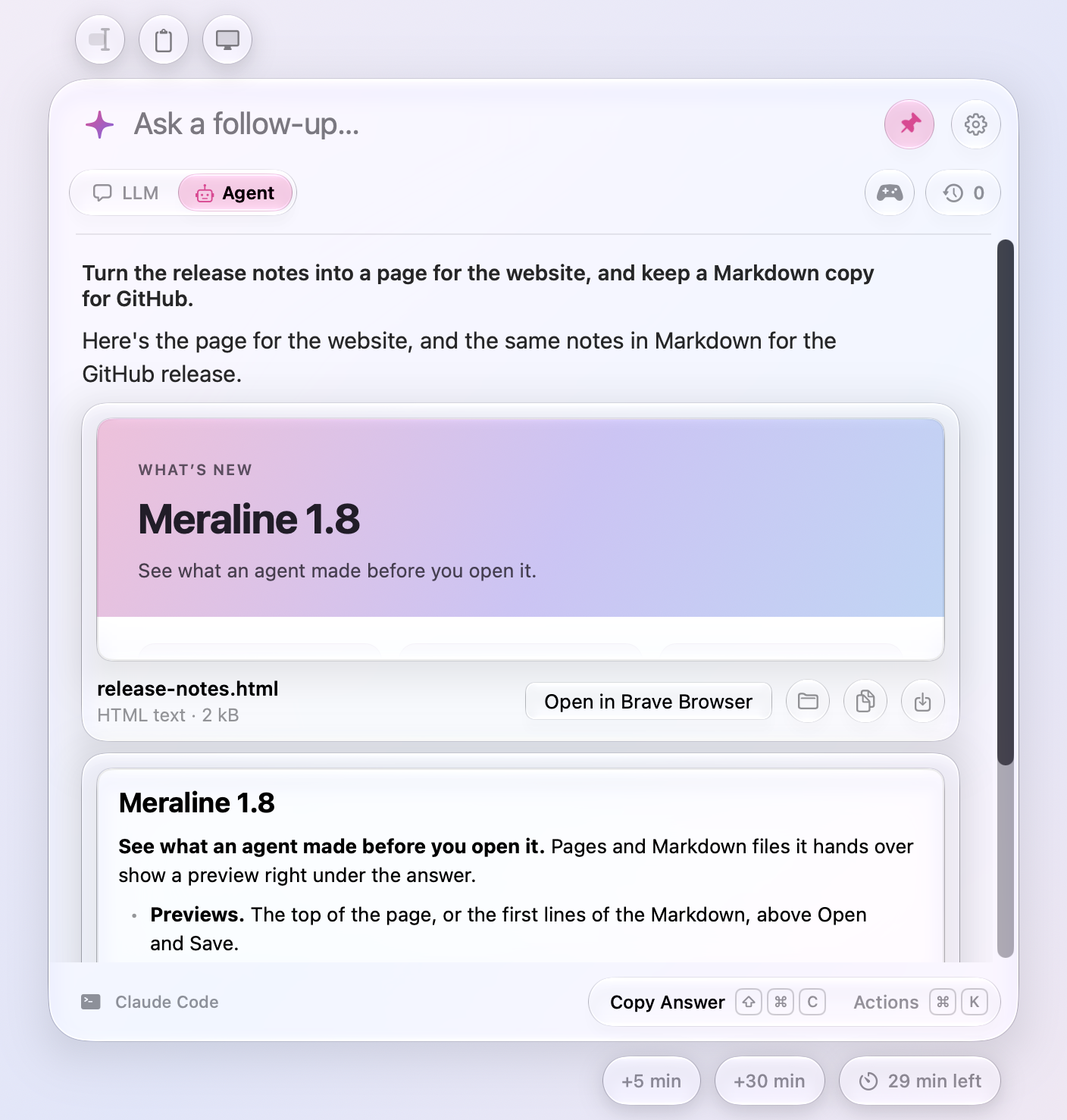
- See a page or a note before you open it. When an agent hands over an HTML page or a Markdown file, its card now shows a glass preview strip above Open and Save: the top of the page as a browser draws it, or the note's first lines drawn like an answer. Click the strip to see more of it. The page runs none of its scripts and loads nothing from the internet, only pictures and styles from the agent's own folder, so looking at it tells no one.
- Why? on the tools an answer used. Once an agent's answer is done, click any of the tools under it, a web search, a page, a command, an MCP tool, and the agent that used it says in one line why, right under them; click it again to fold the line away. Claude Code answers in the same quick run as Why? on its asks, and Codex and OpenCode in a run of their own without the web or MCP servers, so your chat goes nowhere it didn't go already.
Privacy
- Forget chats when you step away. Settings › General › Privacy can forget every chat when the Mac sleeps or its display turns off, when the screen locks or you switch to another user, or both. The chat in the window and what's typed in it, Recent Chats, torn-off answers, and the folders agents worked in all go at that moment. Both are off unless you turn them on, and quitting, restarting, shutting down, or logging out forgets chats as always.
Updates and diagnostics
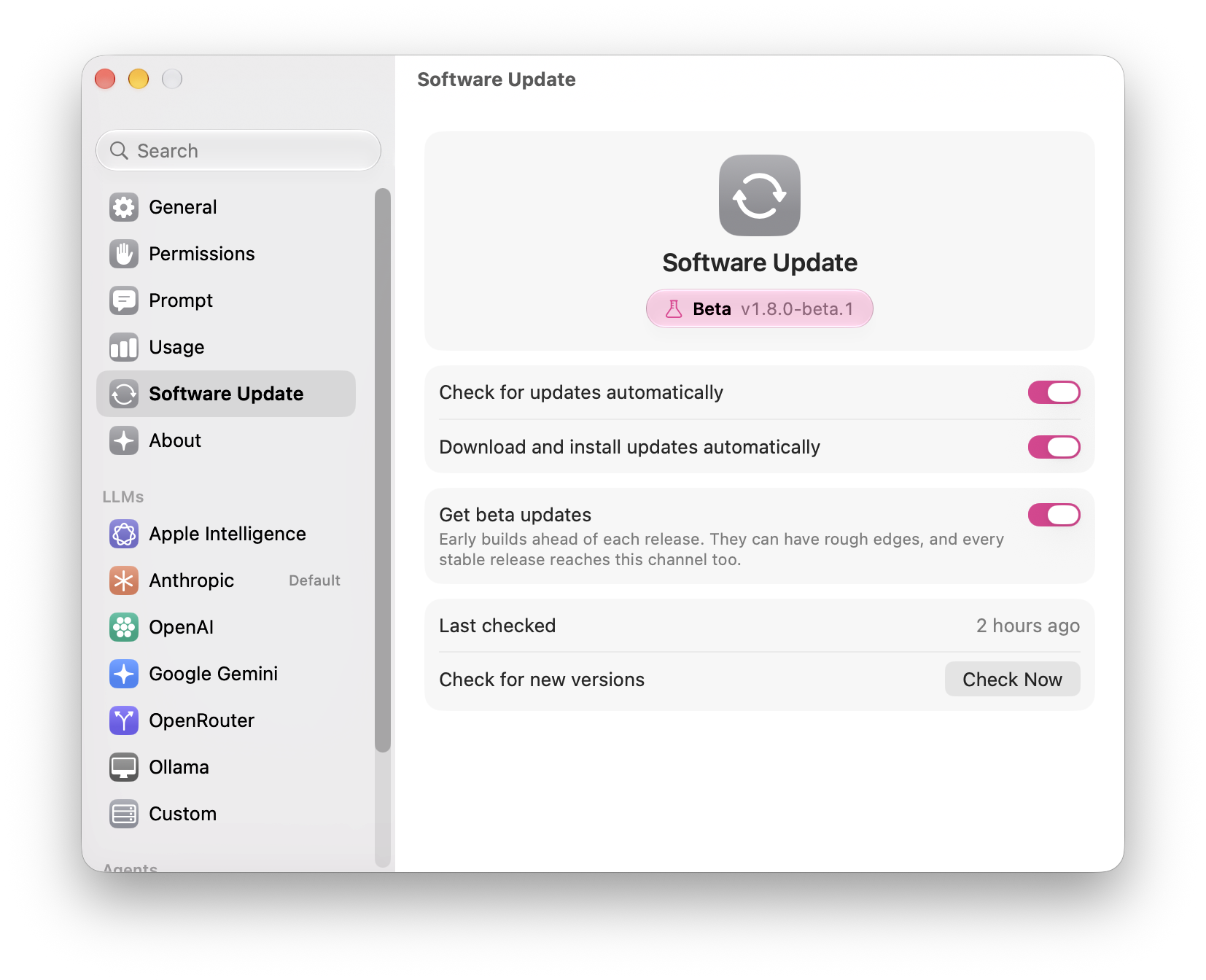
- Stable or Beta at a glance. Settings › Software Update opens on a chip that says whether your copy is a stable build or a beta, with the tag of its GitHub release, such as v1.8.0-beta.1, and a click opens that release, so its notes and downloads are there without looking through the pre-releases. One switch, Get beta updates, takes the place of the Update channel menu. Turn it off on a beta and the pane says the beta stays until a newer stable release comes out.
- Copy Diagnostics whenever you like. The sparkle's panel copies the diagnostics report at any time, not only after a crash, and the capsule under the card says Copied. It still holds no questions, answers, or keys, and it now writes your home folder as
~in the log's paths too.
Fixes
- A robot the size of its neighbours. The robot of Agent mode was drawn a third smaller than the speech bubble beside it. It is now as big as the system's own symbols, in the mode toggle, the cost capsule, and the sparkle's panel alike.
- Long text stays inside the input. Once the input's prompt changed at the moment it emptied, as when you stash a draft about selected text, the next long line in it, such as a preset's, ran under the pin and the gear and past the window's edge, and didn't scroll to the cursor. It scrolls inside the input again.
All files, and how to verify them
| File | What it is | SHA-256 |
|---|---|---|
Meraline-1.8.0.dmg |
The installer | 6dcd45a81bb48b2ea0b7686fe2912873f0cd96a43c0d12ec66fac6b448de4cdb |
Meraline-1.8.0.zip |
The archive Sparkle installs as an update | b328c1ff2f9e01045630799dd15447c0ed3ad5944627e95b28eca6b244e391ef |
Meraline-1.8.0-dSYMs.zip |
Debug symbols, for reading crash reports | 83009a547ae1618069544a3474209b433091b8156968ac901abfa0361bcd0376 |
appcast.xml is the update feed that installed copies check once a day.
Every file was built by GitHub Actions from tag v1.8.0 and carries a signed provenance attestation:
gh attestation verify Meraline-1.8.0.dmg --repo Meldiron/meraline