This repository contains my tutorial describing how to convert a Unity Windows Build into an installable exe file.
The instructions given in this tutorial are the instructions used at Nichathan Gaming. We do not guarantee that they will work for you nor do we guarantee that they will provide the same output as we receive. We sincerely hope that this tutorial helps out small developers but we urge people to use it at their own discretion.
Convert playable .exe to installable .exe
-
Download and install the Inno Setup Compiler
-
Start up Inno Setup Script Wizard
-
Under
New FileselectCreate a new script file using the script wizard -
Click
OK

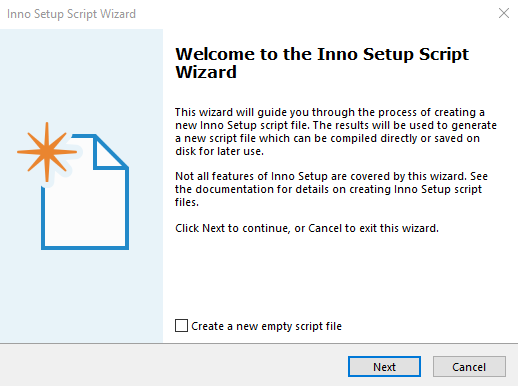
Do not select Create a new empty script file
- Click
Next
-
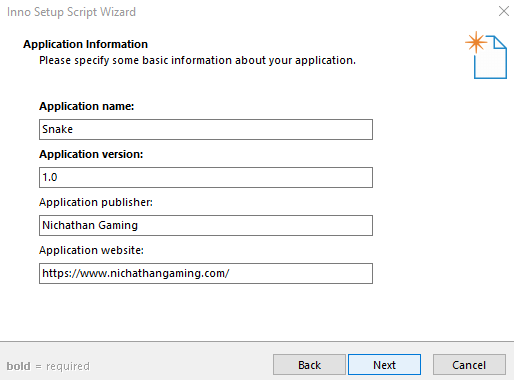
Provide the application information
-
Click
Next
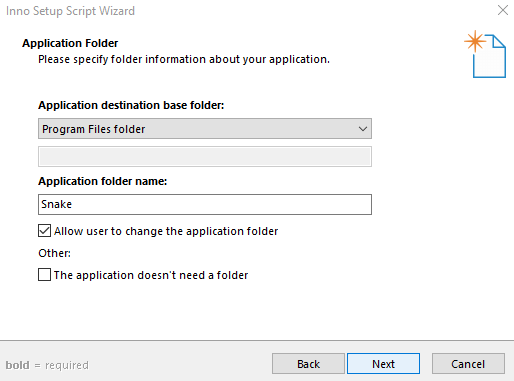
You do not have to change anything on this screen
- Click
Next
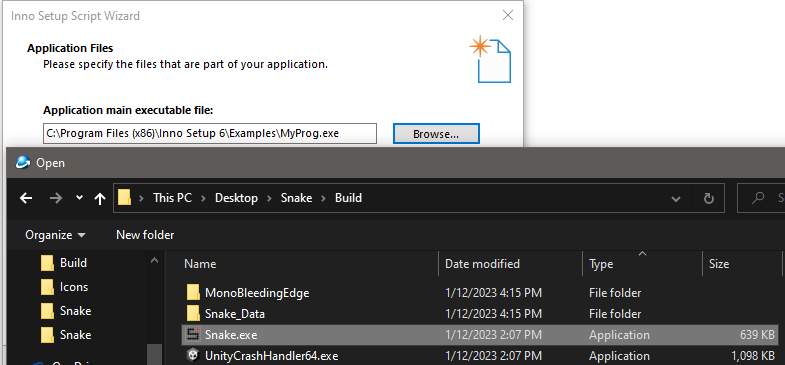
- You must select the
Application Main Executable Fileby clickingBrowse
-
Click Add File(s)
-
Select your loose files in the
Buildfolder except for the main executable file.
Do not select the folders yet
- Click
Open

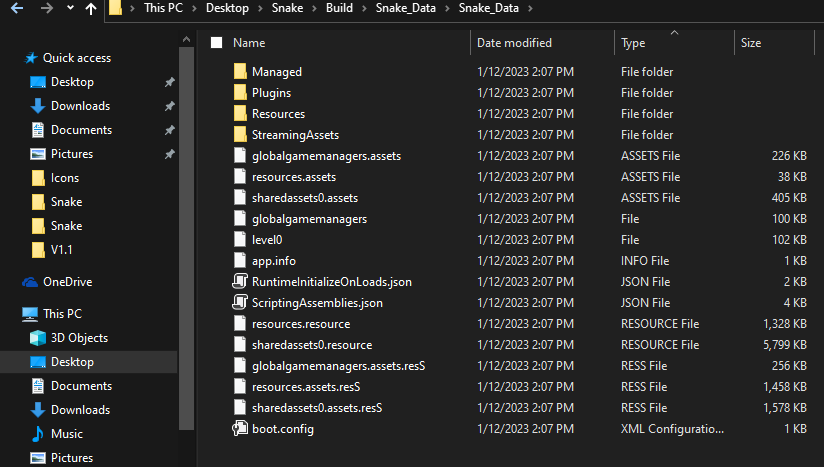
- In your file explorer, navigate to your
Buildfolder and in theMonoBleedingEdgeandGame_Datafolders, create a subfolder with the same name as the folder.
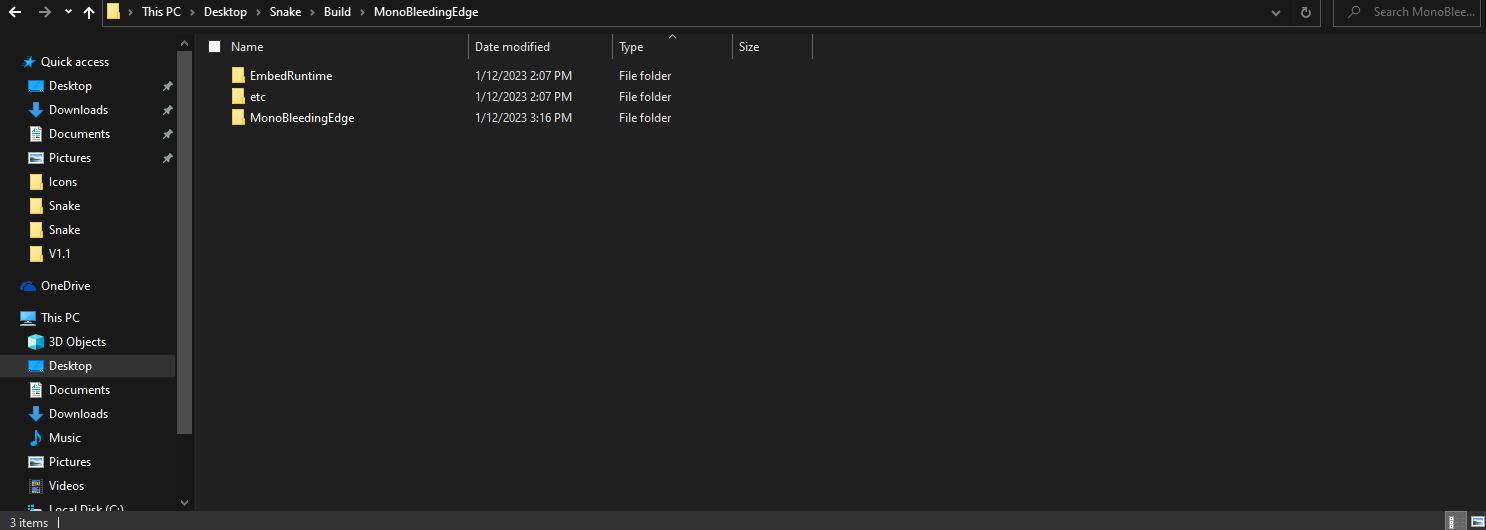
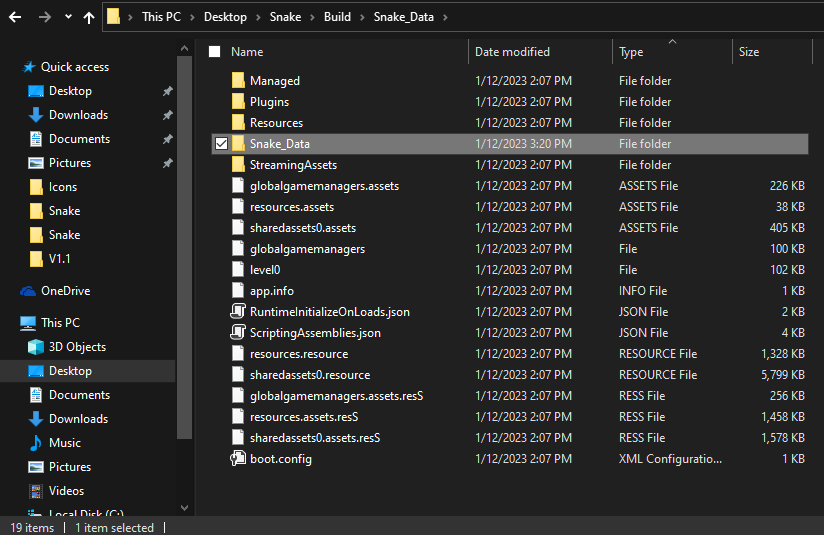
- Drag and place all files and folders into the new subfolders
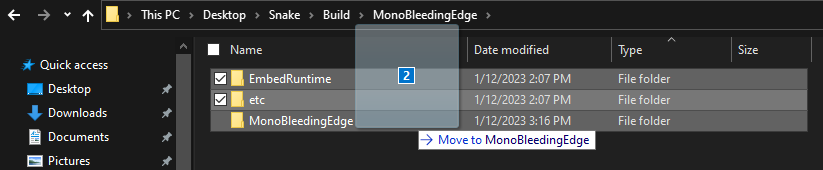

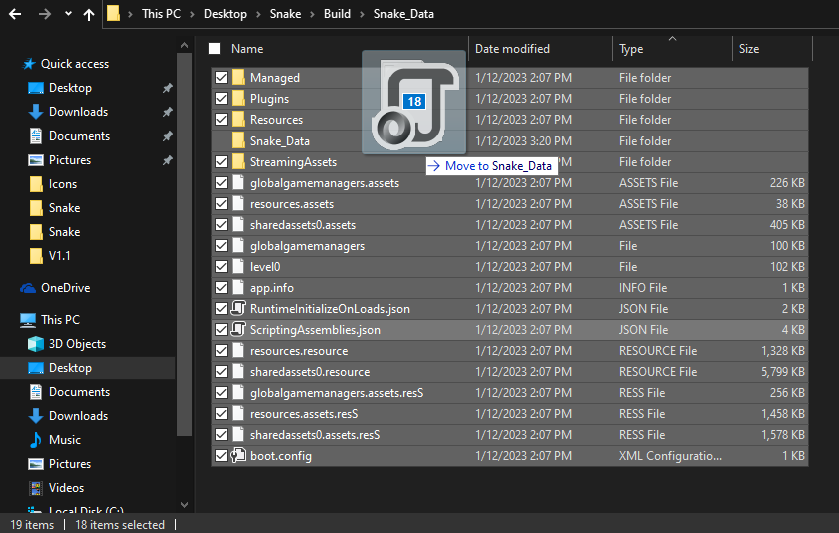
-
Back in the Inno Setup Script Wizard, select
Add folder -
Locate and add the parent
MonoBleedingEdgefolder
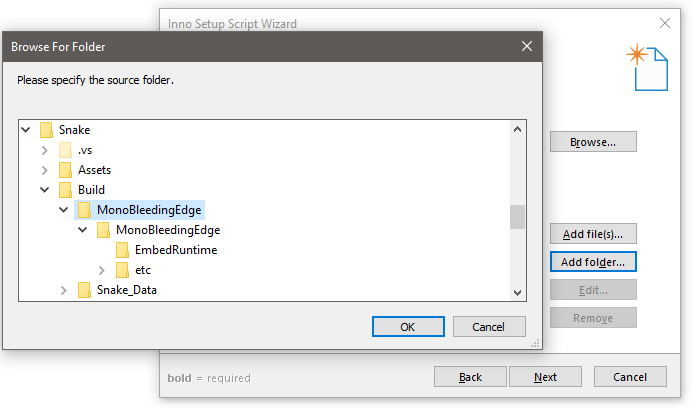
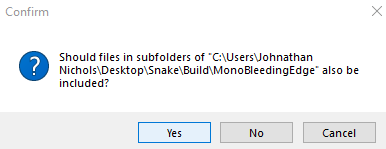
- When asked if files in subfolders should also be included, click
Yes
- Repeat steps
13,14and15to add the parentGame_Datafolder.
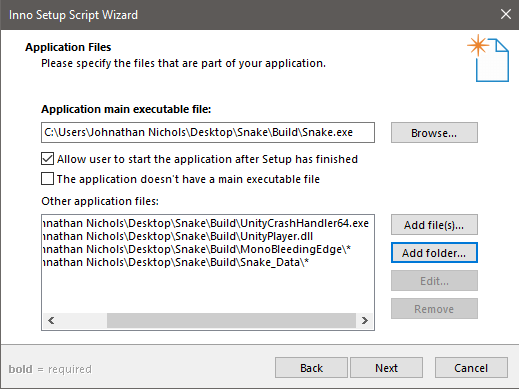
Your Inno Setup Script Wizard should now look like the image below.
- Click
Next
You do not have to change anything on this screen
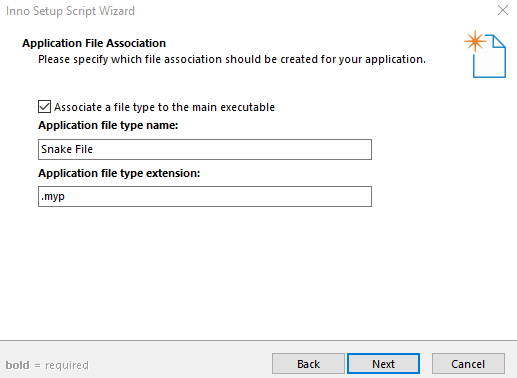
- Click
Next
You do not have to change anything on this screen
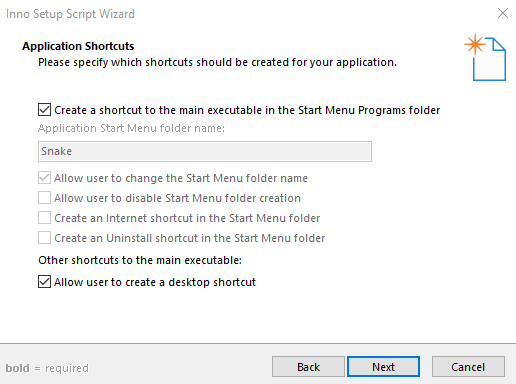
-
Click
Next -
Optional Add License files or information
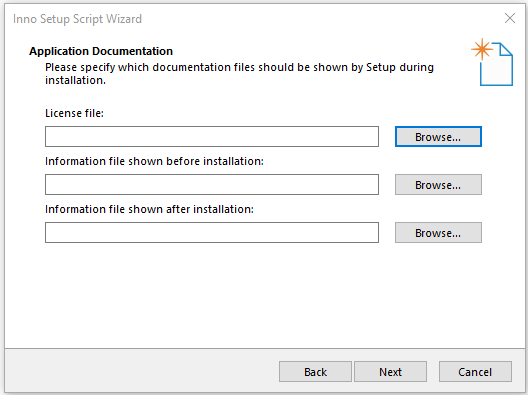
-
Click
Next -
select
Administrative install mode -
select
Ask the user to choose the install mode at startup -
Click
Next
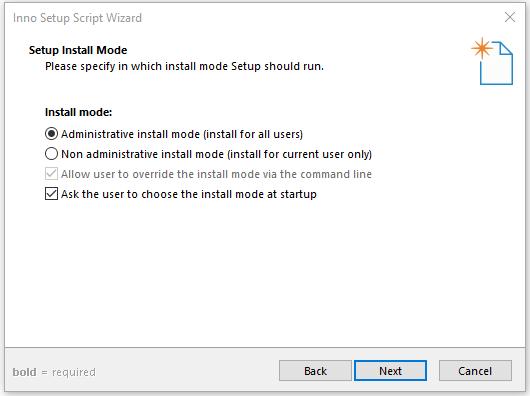
-
Select the language(s) of the program
-
Click
Next
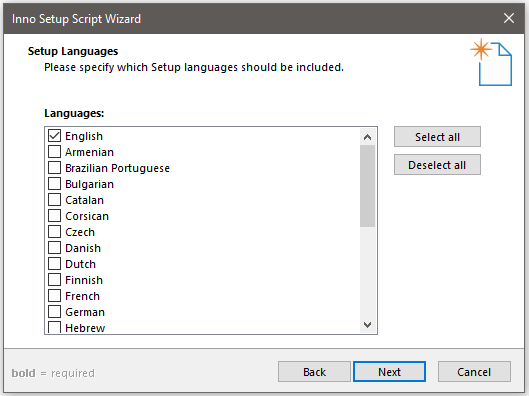
-
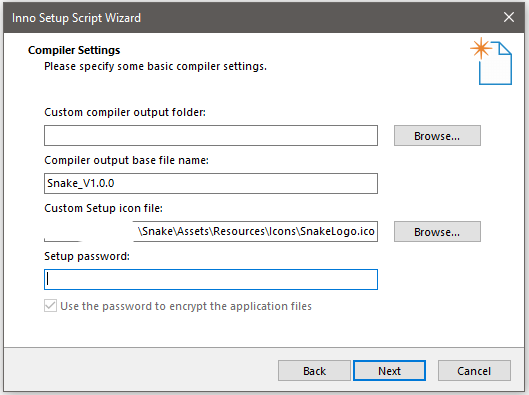
Optional Select where this installer will be generated Default location is to create an
Outputfolder in thisBuildfolder -
Select the file name and icon Icon must be in an icon file format such as
.ico. There are many free websites to convert an image to an icon -
Optional Set a password required to run the executable if desired
-
Click
Next
You do not have to change anything on this screen
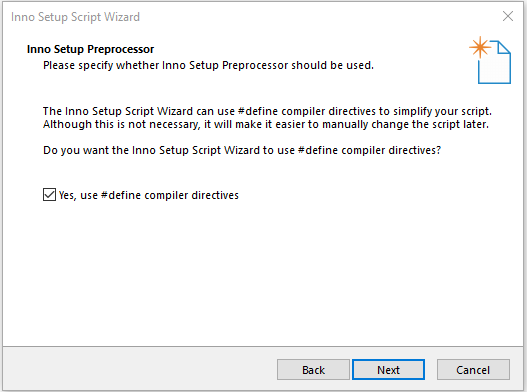
-
Click
Next -
Click
Finish
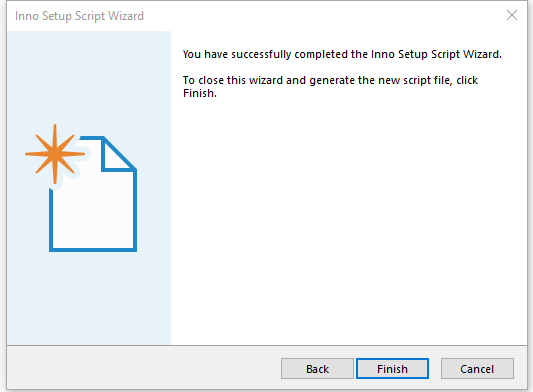
- Select
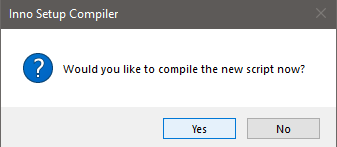
YesforWould you like to compile the new script now?
- Select
Yestosave the script before compiling
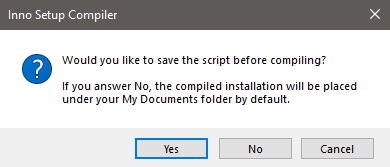
- Save the installer script anywhere you wish so it can be edited later.
- The installer executable file can be found wherever you saved it in step
27. If you did not change the default location, then it will be in an Output folder:

-
Run the installer by
double clickingit, orright clickit and selectopen -
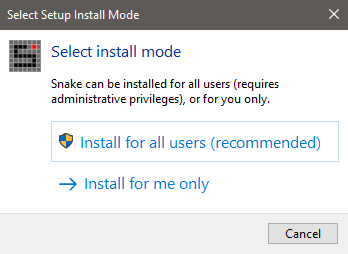
Choose to
Install for all usersor just for the currently signed in userInstall for me only
-
Give permission to install the application If
Install for all userswas selected -
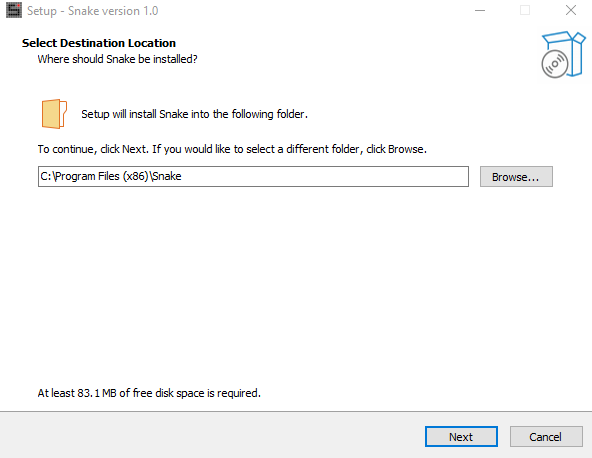
Select a destination location or leave at the default values
-
Click
Next
-
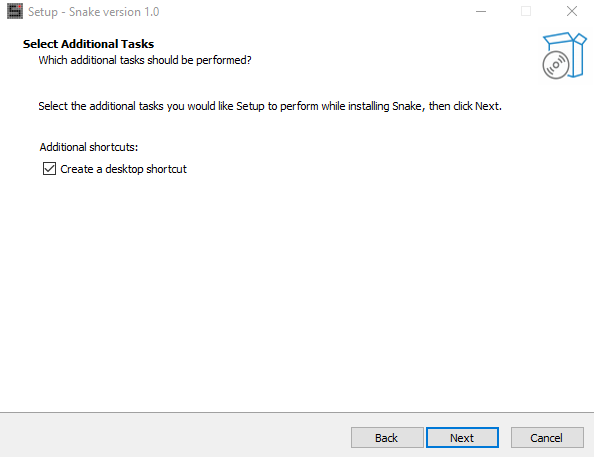
Select the checkbox to add a desktop shortcut if you wish
-
Click
Next
- Review the information, then click
Install
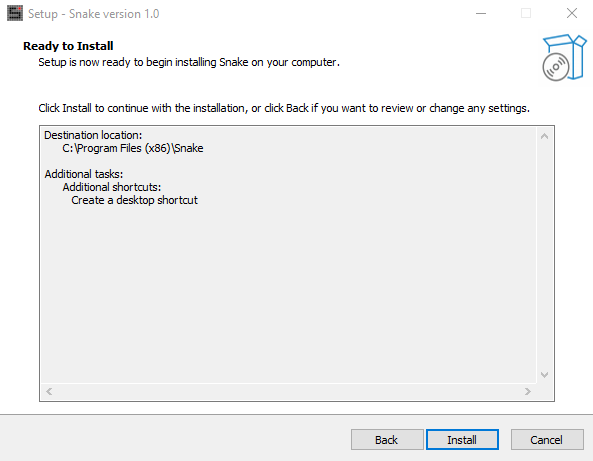
- Wait a moment as files are extracted and installed

- Click the checkbox to launch the app right away or not, the click
Finish
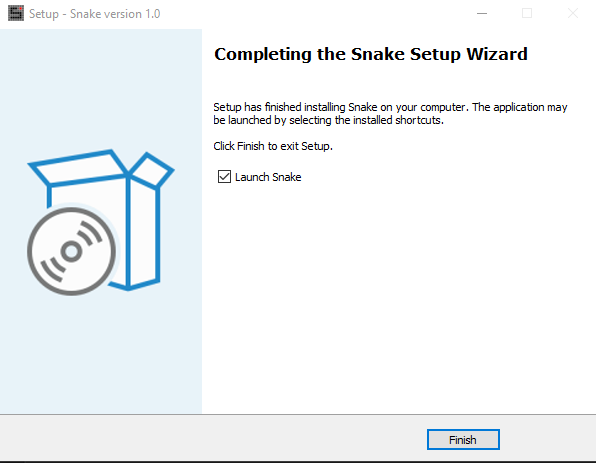
- Enjoy the application
- Open Control Panel, select
Uninstall a program
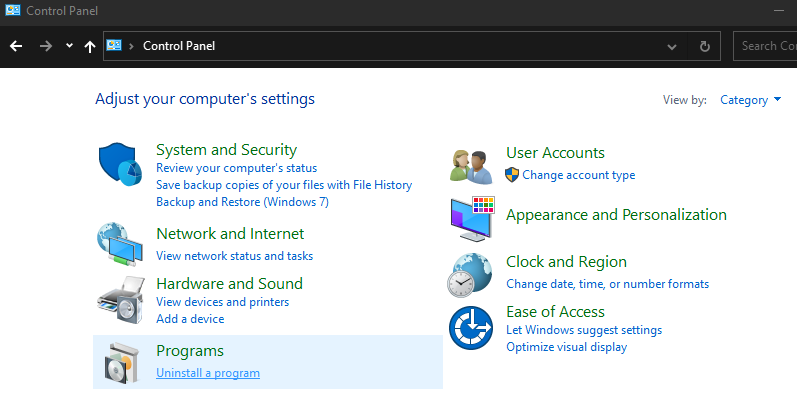
- Find your application, select it then click uninstall
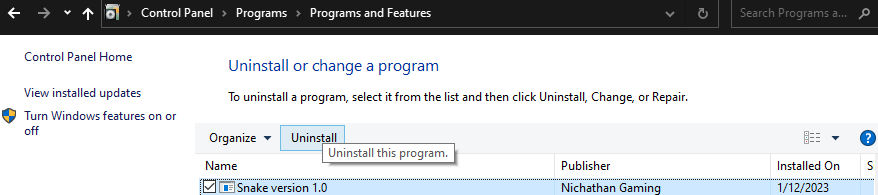
- Verify that you wish to uninstall it and wait a moment. A restart may be required to fully remove some applications.