Repository navigation
Releases
LabelScope 0.5.2

LabelScope 0.5.2 comes with 25 sample labels, so you can see what it does before you print anything.
New
- 25 sample labels. Open the ... menu and choose Sample labels, or press Try a sample label in the empty window. The samples come in six groups: shipping, warehouse, retail, manufacturing, healthcare and documents. They show real-life labels such as a parcel label, a GS1 pallet label, a UPC-A price label, serial-number labels, a pharmacy label with a Data Matrix and a shipping document with a PDF417. Open one, or choose Open all 25 sample labels.
- Each sample is its own card, in the language you chose, and you can click its fields and read its ZPL like any other job. If you keep jobs after closing LabelScope, the samples you opened come back too, and they never push out your real jobs.
- A sample from the app never changes what your printer remembers. Opened from the Sample labels menu or with Try a sample label, it is drawn in a memory of its own at 203 dpi, whatever density you chose in Printer setup. Your label size, graphics and settings stay as they were. A sample file opened with Open ZPL file or sent to the printer is a normal job and acts on the printer's memory, as it would on a real printer.
- All the data is made up. Names, addresses, phone numbers and bar code numbers are invented.
- The ZPL files are in the
samplesfolder on GitHub. Send them to a real Zebra printer and compare the print with what LabelScope shows.
Install: download LabelScope-Setup.exe below and run it, or press "Check for updates" in LabelScope. Your settings are kept.
LabelScope 0.5.1
LabelScope 0.5.1 counts labels the way a Zebra prints them when a job stores or deletes something in printer memory.
Fixed
- Pick tickets drawn on a saved template show as one label. Some label programs send each print in three parts: a template saved with
^IS ...,N, the label drawn on it with^IL, and^IDto delete the template. LabelScope showed three labels; it now shows one, drawn on its template, as the printer prints it. ^ISwith N stores the image and prints nothing. The template is no longer shown as a label with a warning. The message strip says what was stored.- A label that only stores or deletes something is not an empty label. A
^XA ... ^XZholding only^ID, or only a download such as~DG, now shows as "Stored in memory" instead of a blank label.
Install: download LabelScope-Setup.exe below and run it, or press "Check for updates" in LabelScope. Your settings are kept.
LabelScope 0.5.0
LabelScope 0.5.0 understands the ZPL commands that carry text and data: stored formats, serial numbers, date and time fields, every character set, and changed command characters.
New
- Stored formats (^DF, ^XF, ^FN, ^FE, ^FV): a format saved once is recalled with new data, just as on a Zebra. The status bar counts the stored formats.
- Serial numbers (^SN, ^SF with ^PQ): each copy is drawn with its own number, up to 100 distinct labels per format.
- Date and time fields (^FC, ^SO, ^SL, ^ST): they use the time the job arrived, so redrawing a job never changes its date.
- Every ^CI character set: text is decoded the way a Zebra decodes it, national characters and remapping included. Characters missing from the built-in fonts come from a Windows font, with a warning.
- Kept background (^MC): after ^MCN, the next label is drawn on top of the previous one.
- Changed command characters (^CC, ^CD, ^CT, ~CC, ~CD, ~CT): programs that switch from ^ to another character are read correctly.
- Setup jobs with ^MUd no longer show an error.
Install: download LabelScope-Setup.exe below and run it, or press "Check for updates" in LabelScope. Your settings are kept.
LabelScope 0.4.1
LabelScope 0.4.1 speaks the languages of the Americas: English, Español, Português (Brasil) and Français.
New
- The whole app in Portuguese (Brazil) and French, every message and screen included.
- Choose the language in the toolbar or in Printer setup; with "Windows language", LabelScope follows Windows (Spanish, Portuguese and French Windows pick their language automatically).
- Sizes and numbers use the decimal comma in Spanish, Portuguese and French.
- The README is now available in Español, Português and Français.
Install: download LabelScope-Setup.exe below and run it, or press "Check for updates" in LabelScope. Your settings are kept.
LabelScope 0.4.0
LabelScope 0.4.0 is a new window: see every field, catch barcodes that will not scan, and use it in Spanish.
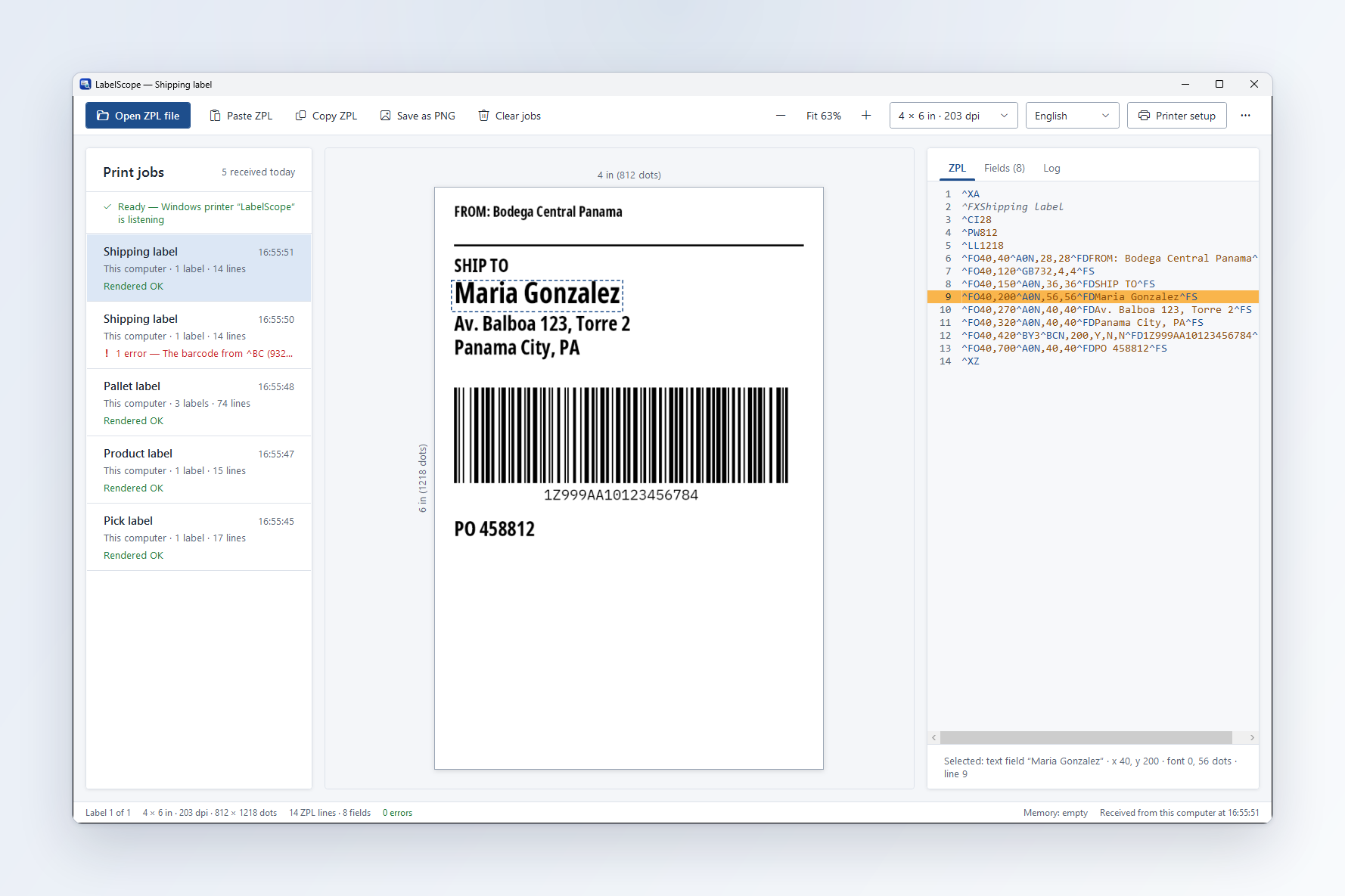
New
- A redesigned window: print-job cards, the label on a canvas with its size in inches and dots, and the ZPL with coloured commands.
- Fields tab: every drawn field with its position, size, font or barcode type and ZPL line. Click a field on the label, a row or a ZPL line and LabelScope highlights it everywhere.
- Barcodes that will not scan get a red outline and a plain message telling you how to fix them.
- Full Spanish interface, including every warning. Choose it in the toolbar or in Printer setup.
- Printer setup screen: printer name, label size, print density, language, and job options — no settings file to edit.
- Open ZPL file and Paste ZPL, one card per print job, keep jobs after closing.
- The label size comes from the ZPL first; Printer setup's label size is used only when the ZPL does not say.
^CI28(UTF-8) labels draw cleanly.- Much faster: one send of 5,000 labels is drawn in about 16 seconds.
Install: download LabelScope-Setup.exe below and run it, or press "Check for updates" in LabelScope. Your settings are kept.
LabelScope 0.3.2
LabelScope 0.3.2 draws font 0 text where a Zebra printer prints it.
Improved
- Font 0 (and fonts P to V) are placed and sized like the printer's: capitals start on the
^FOline and are as tall as on a printer. Before, text sat lower than on a real label. - A closer-fitting open-licence font (Noto Sans ExtraCondensed Bold) replaces IBM Plex Sans Condensed for font 0, so line lengths land within about 2% of the printer's. Zebra's own fonts are licensed and cannot be shipped, so letter shapes still differ slightly.
- A label that names a TrueType font LabelScope does not have is drawn exactly like font 0.
Install: download LabelScope-Setup.exe below and run it, or press "Check for updates" in LabelScope. Your settings are kept.
LabelScope 0.3.1
LabelScope 0.3.1 fixes labels that were drawn on the wrong size.
Fixed
- The label size now comes from the ZPL only. Many label programs send the width (
^PW) once, in a setup job before the labels. LabelScope now remembers it, as a Zebra printer does, together with^LL,^LH,^POand^LR, until it closes or you press "Clear printer memory". Before, it forgot the width and used a default size from settings.json, so parts of a label could be cut off. - When a label never says how long it is (no
^LL), the picture ends just below the last thing drawn, so nothing is cut off. - Font 0 is drawn narrower, closer to the letter widths a Zebra printer prints.
- A blank background image (
^IL) no longer shows a warning on every label.
Changed
DefaultLabelWidthMmandDefaultLabelHeightMmare no longer used. If your settings.json still has them, LabelScope says so; you can delete those lines.
Install: download LabelScope-Setup.exe below and run it, or press "Check for updates" in LabelScope. Your settings are kept.
LabelScope 0.3.0
LabelScope 0.3.0 adds graphics, images and fonts.
New
- Graphics with ^GF in hex, Base64 (:B64:) and compressed (:Z64:) form, including Zebra's compression letters.
- Downloads kept in printer memory while LabelScope runs: ~DG, ~DY (graphics, PNG images, TrueType fonts), ^IS, ~EG and ~DN. Recall them with ^XG, ^IM and ^IL.
- The status bar shows how much printer memory is used. A "Clear printer memory" button empties it, the same as switching a real printer off.
- Fonts 0, A to H and P to V are drawn at Zebra's cell sizes using the bundled IBM Plex fonts.
- Your own TrueType or OpenType fonts: put them in the folder named by "FontsFolder" in settings.json and use them with ^A@ or ^CW.
Good to know
- This version has not yet been compared with a real Zebra printer, so small differences in font shapes are expected.
- Binary graphic formats, stored formats (^DF/^XF) and OCR fonts come in a later version.
- A very large label with many full-size graphics can take a few seconds to draw.
Install: download LabelScope-Setup.exe below and run it. If you already have LabelScope, press "Check for updates" in the window. Your settings are kept.
LabelScope 0.2.1
Smaller improvements after 0.2.0.
- Light grid and stacked layout. Two boxes in the toolbar: a light 10 mm measuring grid over the label picture, and the label above the ZPL instead of beside it. They can also start switched on through
ShowGridandStackedLayoutin settings.json. - Crash log. If LabelScope ever stops unexpectedly, it says so in plain language and writes the details to crash.log next to the program, so you can send it to support. Look at the file first: it may contain file paths with your Windows user name.
- Fewer pointless warnings. Printer-setup commands that ZebraDesigner and similar programs send (media type, darkness, speed and so on) no longer produce warnings, because they do not change the picture.
^LRreverse print is now drawn.^FBwith width 0 draws nothing and tells you why, as a printer does.- PDF417 now reaches the full size the standard allows (about 2700 digits) instead of stopping with an internal error.
- MIT licence. LabelScope is now free software under the MIT licence.
The barcodes have still not been compared with a real Zebra printer, so scan-test a label on your real printer before relying on it.
Run the installer over an existing install, or press Update in LabelScope 0.1.2 or later. Your settings are kept.
LabelScope 0.2.0
Barcodes and rotation.
LabelScope now draws Code 128, Code 39, LOGMARS, Code 93, EAN-13, UPC-A, EAN-8, UPC-E, Interleaved 2 of 5, Codabar, Code 11, MSI, QR Code, Data Matrix and PDF417 (with ^BY, ^FH and the interpretation line), rotated text and fields (^FW, ^PO, the orientation letter of ^A) and diagonal lines (^GD). Printer status is now read through Windows directly, so no PowerShell window is started in the background. The window is sharp on screens with different scaling. A very long barcode can no longer break the whole label.
Important: the barcodes have not yet been compared with a real Zebra printer. They scan with an independent decoder in our checks, but always scan-test a label on your real printer before relying on it. The README lists the barcode types that are not drawn yet and the other known limits.
Run the installer over an existing install to update (or press Update in LabelScope 0.1.2 or later). Your settings are kept.