3.4
Review and ensure that you have setup your development environment before going through the steps below.
- From AWS Cloud9, create a new file.
cd ~/environment/ccoa
touch ccoa-3-config-rules-s3.yml
- Open the file and paste the template configuration below and save.
AWSTemplateFormatVersion: '2010-09-09'
Description: Deploy AWS Config Rules for S3
Resources:
  AWSConfigRuleForS3PublicRead:
    Type: AWS::Config::ConfigRule
    Properties:
      ConfigRuleName: s3-bucket-public-read-prohibited
      Description: Checks that your S3 buckets do not allow public read access. If an S3 bucket policy or bucket ACL allows public read access, the bucket is noncompliant.
      Scope:
        ComplianceResourceTypes:
          - AWS::S3::Bucket
      Source:
        Owner: AWS
        SourceIdentifier: S3_BUCKET_PUBLIC_READ_PROHIBITED
aws cloudformation create-stack --stack-name ccoa-3-config-rules-s3 --capabilities CAPABILITY_NAMED_IAM --disable-rollback --template-body file:///home/ec2-user/environment/ccoa/ccoa-3-config-rules-s3.yml
From your Cloud9 terminal, type the following:
aws cloudformation describe-stacks --stack-name ccoa-3-config-rules-s3
Or, go to the CloudFormation console.
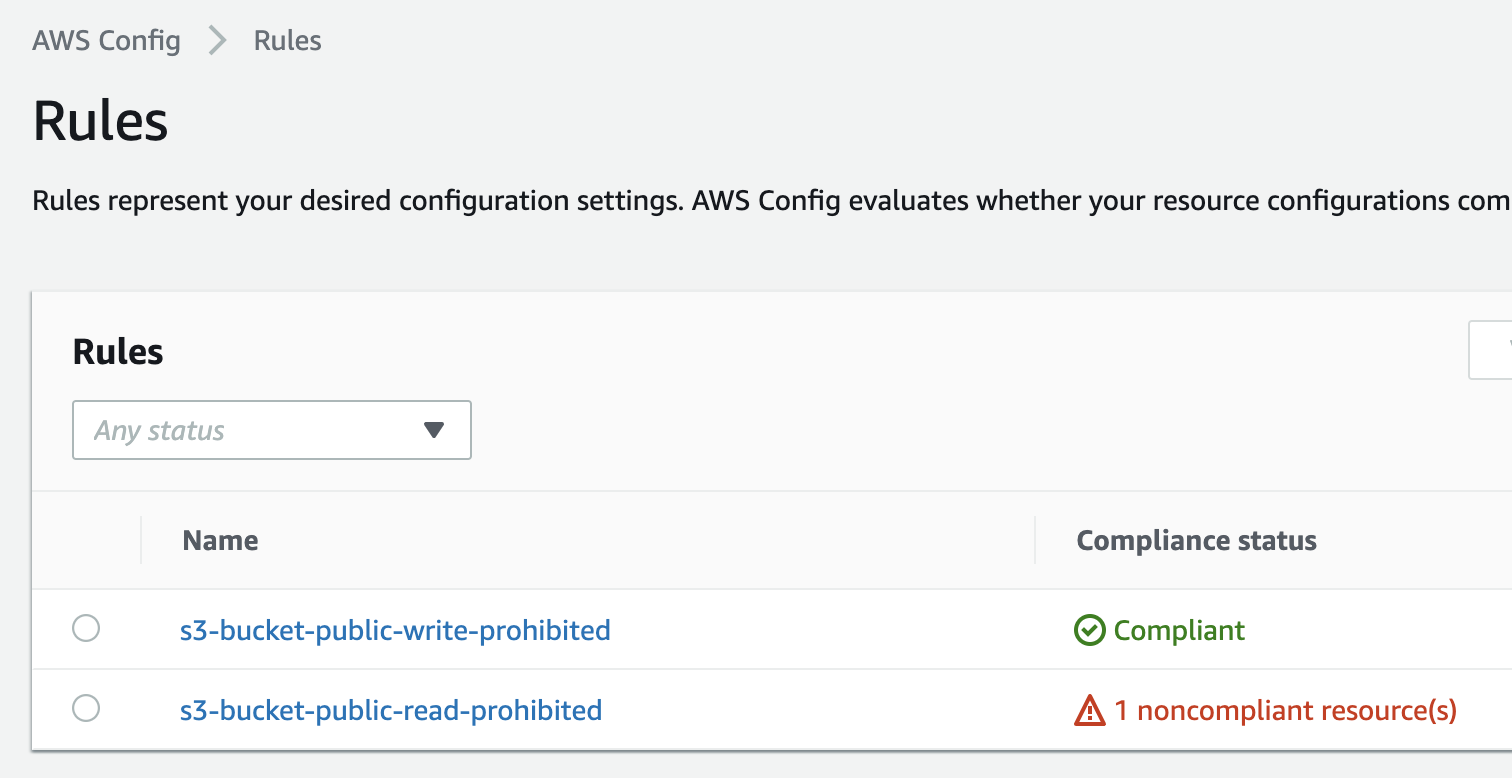
Go to AWS Config Rules Dashboard and view the results.
Go to Cleanup to remove any resources you created in this sublesson.