3.4
Review and ensure that you have setup your development environment before going through the steps below.
- From AWS Cloud9, create a new file.
cd ~/environment/ccoa
touch ccoa-3-config-rules-s3.yml
- Open the file and paste the template configuration below and save.
AWSTemplateFormatVersion: '2010-09-09'
Description: Deploy AWS Config Rules for S3
Resources:
  AWSConfigRuleForS3PublicRead:
    Type: AWS::Config::ConfigRule
    Properties:
      ConfigRuleName: s3-bucket-public-read-prohibited
      Description: Checks that your S3 buckets do not allow public read access. If an S3 bucket policy or bucket ACL allows public read access, the bucket is noncompliant.
      Scope:
        ComplianceResourceTypes:
          - AWS::S3::Bucket
      Source:
        Owner: AWS
        SourceIdentifier: S3_BUCKET_PUBLIC_READ_PROHIBITED
aws cloudformation create-stack --stack-name ccoa-3-config-rules-s3 --capabilities CAPABILITY_NAMED_IAM --disable-rollback --template-body file:///home/ec2-user/environment/ccoa/ccoa-3-config-rules-s3.yml
From your Cloud9 terminal, type the following:
aws cloudformation describe-stacks --stack-name ccoa-3-config-rules-s3
Or, go to the CloudFormation console.
Go to AWS Config Rules Dashboard and view the results.
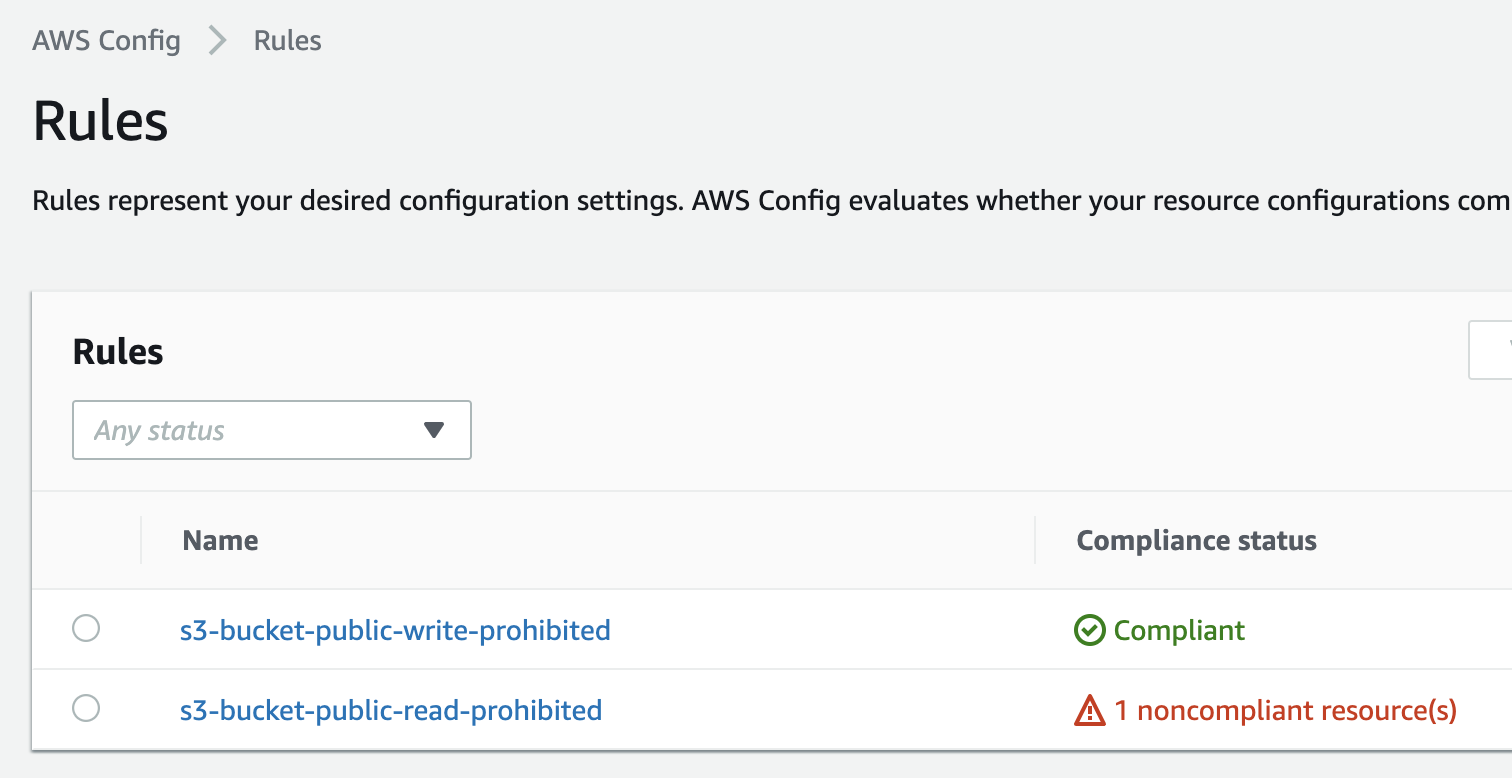
Creating AWS Config Managed Rules With AWS CloudFormation Templates
Go to Cleanup to remove any resources you created in this sublesson.