Repository navigation

New
- Account manager (👥 in the picker, Ctrl+M), for accounts bought with a subscription. Paste an order reads the shop's message: the order, the month paid, the warranty and every
email|password|2FA keyline. Each account then has its steps: open the site in a browser profile of its own, change the password (a strong one is made and kept), change the 2FA key, confirm the phone by hand, and sign in to the switcher in your default browser, or by the link pasted into the account's own window. Ctrl+Alt+V types the email, the password and the 2FA code into the field under the cursor. Every account shows its current 2FA code, Code from a key… gives one for any key, and notifications come before a warranty or a paid month ends. The details are encrypted for your Windows user and included in backups. - A sign-in by its link alone. Copy the sign-in link behind the ⌄ on Add account starts a sign-in without opening the browser, for a private window or another browser.
- A waiting sign-in is shown where it belongs: in the account's row, or in a row for the new account, with Open again, copy the link and Cancel, instead of a banner above the list.
- One way in for everything. The ⌄ on Add account lists every way of adding: the browser, a shop's order or a line
email|password|2FA key, the sign-in Codex uses now, anauth.json, a backup. Ctrl+V takes whatever account the clipboard holds, and files can be dropped on the list or the manager. - Sign in to all in the account manager opens the sign-in windows of the cards not signed in yet one after another, the next when the one before has come back.
- Deleting asks nothing and can be undone. The account goes at once, and Undo (Ctrl+Z) brings it back whole for about ten seconds: its sign-in, place, colour, shortcuts and limits.
- Rows can be dragged to another place in the list.
- The ⋯ menu of an account opens its password, 2FA and order in the manager.
- Search in the account manager (Ctrl+F): by email, order number or note. The filters count what the search leaves, and Esc clears it. A chevron on each card shows that it opens.
- Screen readers. Narrator reads every window: rows, buttons, switches, tabs and the text between them have names and states, and can be pressed from it. The windows also follow Windows' high contrast colours and its Animation effects setting.
- Hints on hover. Resting the pointer on an icon button (👥, ⟳, ⚙, ⋯, ✕) says what it does and its key, and a day of the tokens chart shows its figure.
- A first start explains itself. With no accounts yet, the list says what it is for and offers one button.
Changed
- Settings are split into five pages, picked on the left as in Windows 11 Settings: General, Switching, Limits, Accounts and About. Related options share one card, each has one short line of explanation, and an option that depends on another (the question before restarting ChatGPT, who may open the browser list) shows up only when that one is on. A click anywhere on a switch's row flips it, and Ctrl+Tab goes to the next page.
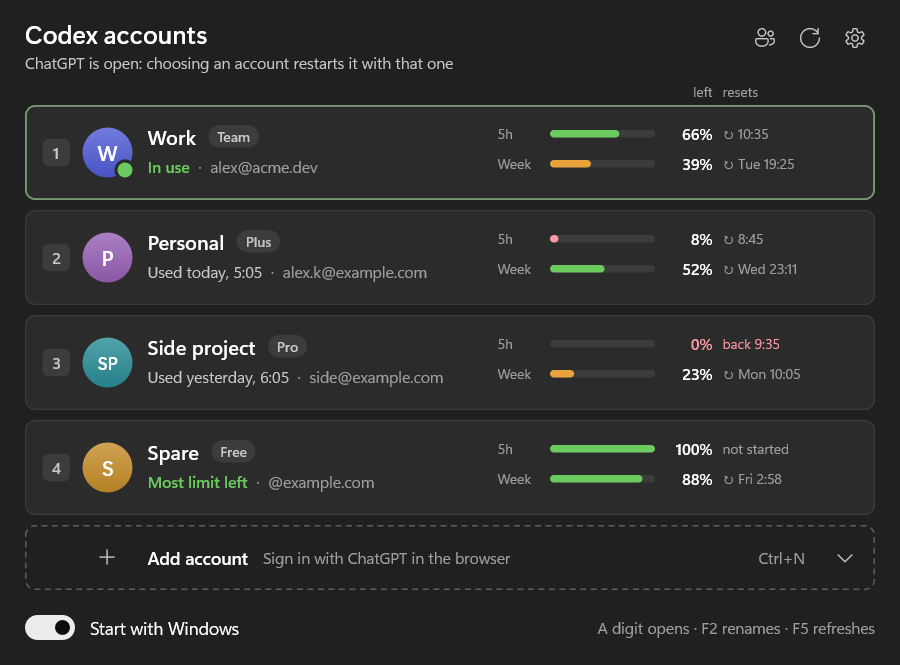
- Rows are easier to read. A date now says what it is ("Used today, 10:09"), a name made from the email is followed by
@example.comrather than the whole address again, and the two figures of a row are headed left and resets. - Grey text is darker in the light theme and lighter in the dark one, so emails, reset times and hints keep a contrast of 4.5:1. Text sizes come from one scale of six instead of fourteen.
- Copying says so. A copied code, password, email or link shows a line at the bottom of the window, with the reminder that a password or code leaves the clipboard in 45 seconds.
- Scrolling. PgUp, PgDn, Home and End scroll, the scroll bar can be dragged, the wheel moves as many lines as Windows is set to, and keyboard focus on a control out of view brings it into view.
- Settings, account details and the account manager open where you left them, at the size you gave them.
- The pointer stays an arrow over buttons, as in Windows' own windows, and hovering in the light theme tints a control slightly instead of turning it grey.
- Small things line up. Corners inside corners share one curve, the line under a text box follows its rounded corners, ⋯ darkens when pressed like every other icon button, and the cards in Settings have the same corners as everywhere else.
Fixed
- Signing in again with a different account than the one asked for added it without a word; now the switcher asks whether to try again or add it separately.
- With more than seven accounts, Tab couldn't reach the ones scrolled out of view.
- With more than seven accounts, turning the wheel while renaming left the text box over another row; scrolling now finishes the rename.
- Account details kept the old colours when the theme changed while they were open, and could be narrowed until the limits overlapped.
Download
| Your PC | File |
|---|---|
| Intel or AMD (almost every PC) | CodexAccountSwitcher-x64.exe |
| ARM: Snapdragon, Surface Pro X | CodexAccountSwitcher-arm64.exe |
Run the exe: it installs itself, or updates your copy with accounts and settings kept. Installed copies offer the update by themselves. It isn't code-signed, so Windows may ask: More info → Run anyway. SHA256SUMS.txt lists the checksums; the zip holds both exes with the documentation.