Repository navigation
Device
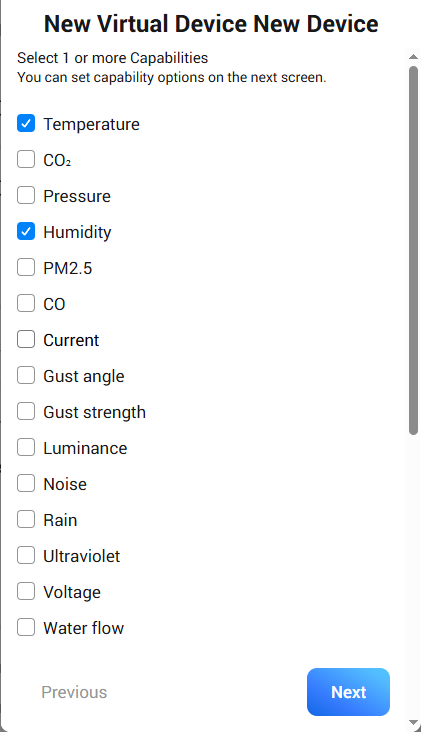
Temperature and Humidity are selected; use Next to review their options.
- Add a Device
- Classes and capabilities
- Capability options
- Edit a Device
- Behavior and limitations
- Next steps
- Add a Homey device and select Virtual Devices > Device.
- Enter a name, choose a built-in icon or upload an SVG, and choose a class.
- Review the suggested capabilities and the additional list. Select the values and controls you need; deselect those you do not.
- Select Next. Review capability, Energy and camera options where applicable, then select Add Device. Open the device to check its controls.

Enter a clear name, then select Next to continue.
The SVG upload screen limits the encoded image to about 1,048,000 characters. Use a simple SVG and avoid personal information in it. The icon is decorative: it does not change the device's behavior.
The class is a Homey device category. A capability is an individual control or value such as onoff, dim, or measure_temperature. The app asks the installed Homey library for available classes and capabilities and filters them by minimum Homey version, so the complete list can differ between versions. You can select extra capabilities beyond the class suggestions. Not every combination is necessarily useful or supported by every Homey interface or integration.
The pairing presets are:
| Class | Initially selected |
|---|---|
| Socket, TV, Amplifier, Window coverings, Fan, Kettle, Coffee machine, Remote | onoff |
| Light |
onoff, dim
|
| Heater |
onoff, target_temperature, measure_temperature
|
| Button, Doorbell | button |
| Speaker |
speaker_playing, volume_set, volume_mute
|
| Home alarm | homealarm_state |
| Thermostat |
target_temperature, measure_temperature
|
| Lock | locked |
| Blinds, Curtain, Sunshade | windowcoverings_state |
| Solar panel | measure_power |
| Vacuum cleaner | vacuumcleaner_state |
| Camera | alarm_motion |
| Sensor |
measure_temperature, measure_humidity, measure_battery
|
Many other classes also have presets. The list suggests class-specific options, including dimming, power, alarms, window controls, speaker controls and sensor measurements. The Homey capability reference explains standard capability IDs and types. A class and icon do not provide real measurements: supply values through a Flow.
See the complete class suggestions and defaults. They are pairing suggestions, not a promise that an integration supports every combination.
Expand a selected capability to give it a name. Numeric capabilities also offer minimum, maximum, step and decimals. Leave a field empty to use Homey's default. For newly selected temperature capabilities, target_temperature starts with minimum 12, maximum 32 and step 0.5; measure_temperature starts with 1 decimal. Choose values suitable for the capability and check the result after pairing. Homey's own validation and display behavior still apply.
See Device settings for Energy, camera and Repair options.
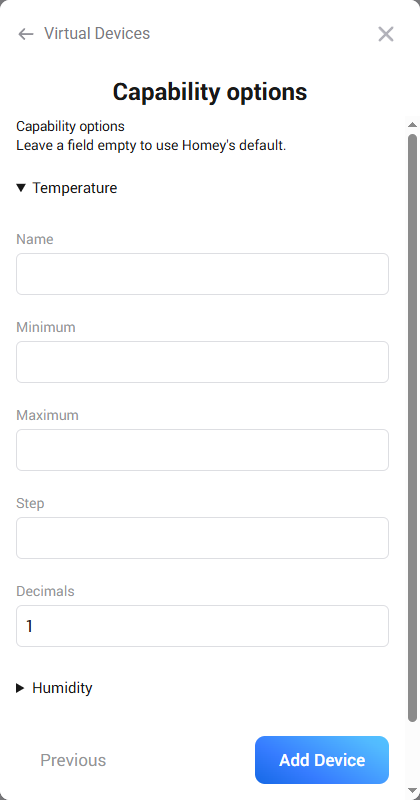
Leave a range field empty to use Homey's default. The Sensor's Temperature panel also shows the decimal setting.
Open the Device's settings in Homey and choose Repair. You can change its class, capabilities, options and, for supported devices, icon or media. Changing the class or removing capabilities can break existing Flows; check dependent Flows before saving. See Device settings.
- When a user or Homey changes a capability through the device control listener, the app emits Pressed / changed and the app-wide A virtual device changed. The latter includes the device name, capability ID and value as text.
- Changes are batched by the listener over 500 ms. A repeated unchanged
onoffvalue is ignored. Ifdimchanges andonoffexists, positive dimming sets on; zero sets off. - The capability value actions directly set a capability value. Do not rely on those writes to fire the user-control triggers; use a separate Flow connection when needed.
- A virtual value does not track another device automatically. Feed it a value with a Flow, and check its units and range.
Try copying a temperature, browse the Device Flowcards, or see Troubleshooting.