

CrossLink is an Static analysis tool designed to bridge the gap between Java and C/C++ codebases. It monitors file changes, analyzes JNI (Java Native Interface) dependencies, and maintains the integrity of cross-language links, ensuring that refactoring in one language doesn't break the connection to the other.
Maintaining large codebases that utilize JNI is challenging because standard IDEs often fail to track dependencies across the language barrier. CrossLink solves this by providing real-time analysis, dependency graphing, and automated refactoring support.

The system is composed of three primary layers:
-
Input Layer: Monitors the Java - C/C++ Codebase using a File Watcher to detect real-time changes.
-
Core Service Layer:
- Constant Analyzer: Tracks shared constants between Java and Native code.
- Dependency Analyzer: Maps the relationships between Java classes and C++ headers/implementations.
- JNI Index: A central database storing the mapping of all links.
- Integrity Maintainer: Ensures that moves or renames do not result in broken links.
-
Presentation Layer: Provides actionable insights including:
- Constant Analysis Report
- JNI Link Reports
- Visual Dependency Graphs.
- Syntax Highlighting for JNI links & library.
A major challenge in cross-language tools is scalability. Parsing an entire Java and C/C++ codebase for every keystroke is not feasible due to high computational demands. To maintain high performance and quick feedback, CrossLink uses a persistent JNI Index.
-
Index Construction - Upon initialization, CrossLink scans all c and cpp files within the workspace. It extracts function names that adhere to the standard JNI naming convention (i.e., Java_PackageName_ClassName_MethodName). These function signatures are mapped to their corresponding file paths in the JNI Index. This index is computed once and is only rebuilt when changes are detected in the C/C++ source files. These file changes are detected by File Watcher. File Watcher triggers re-analysis in the dependency analyzer and the constant analyzer.
-
Lookup and Live Highlighting - To provide live feedback in the editor, CrossLink minimizes parsing overhead by scanning only the active Java file. The process follows two steps:
-
(1) Native Scanning: The tool scans the Java file, specifically looking for lines that include the native keyword. It captures the package, class, and method names to create the expected C++ function name.
-
(2) Index Query: These computed names are checked against the pre-built JNI Index. If a match is found, the connection is noted, and the link is highlighted in green. If no match is found, the link gets highlighted in red, providing immediate visual feedback about the broken link.
-
- Dependency and JNI Link Graph: The tool creates a visual graph of file-level dependencies. It clearly marks nodes where JNI implementations are missing. This gives developers a high-level view of the project’s binding status.
- JNI Link Report: While the graph shows file dependencies,the Link Report panel provides detailed, method-level dependencies in a table format. It lists every specific Java-to-C++ method link.
-
Live Link Highlighting: As developers type, the tool highlights native method declarations in real-time (green for linked, red for broken). This prevents waiting for runtime UnsatisfiedLinkError exceptions. As explaied in below code snippet.
- 🟢 Green: Java method declaration present in some C/C++ file.
- 🔴 Red: Java method declaration Missing indicating broken link.
-
Cross-Language Navigation: Developers can click on a successfully linked Java native method to quickly jump to its corresponding C++ implementation definition. This simplifies code exploration. In below figure we can see Goto implementation option above the highlighted link.

- JNI Link Integrity Maintainer: Developers can move or copy native methods between Java classes, CrossLink automatically updates the corresponding C++ function signatures to match the new package and class path, preventing broken links.
- Constant Naming Assistance: The tool identifies numeric values passed across the JNI boundary and suggests meaningful constant names in a centralized “Constant Analysis” panel.
During copy operations, CrossLink checks for an existing C/C++ implementation file for the target java file and generates the correct JNI function name & signature. If no file exists, it initializes one,though developers must manually transfer the function body. Move operations automatically update the JNI function name in the source C/C++ file.
The constant naming assistance uses a rule-based engine that analyzes each value’s context against predefined patterns to suggest descriptive identifiers. For example, the system applies a TimeDomain rule to suggest TIMEOUT_DURATION for values like 3000 in time-sensitive code, an Infrastructure rule to propose SERVER_PORT for 8080 in networking contexts, and recognizes mathematical operations like price * 1.15 to suggest TAX_RATE_MULTIPLIER.
-
Library Loading: Highlights
System.loadLibrary()calls with different colors based on OS compatibility and file presence -
Native Method Linking: Highlights native method declarations and checks for corresponding C++ implementations
-
Color-coded status:
- 🔴 Red: Library file is missing or native method implementation is missing
- 🔵 Blue: Library exists but has wrong extension for current platform
- 🟢 Green: Library exists with correct extension or native method has C++ implementation
-
Platform detection: Automatically detects OS and expects appropriate library extensions:
- Windows:
.dll - Linux:
.so - macOS:
.dylib
- Windows:
-
Hover information: Detailed information about library status and native method implementation when hovering over highlighted code
- Constants analyzer: Scans for constants across Java and C++ files
- Naming suggestions: Provides constant naming based on context and usage
- Magic number identification: Detects numbers that should be extracted as constants
- Context-aware categorization: Groups constants by type, file, or usage context
- Webview-based control panel: UI for managing all features
- Real-time statistics: Shows dependency counts, connection metrics, and constants analysis
- Search and filtering: Advanced filtering capabilities for all data (or in simple terms a search button)
- Quick actions: Context menus for common refactoring operations (Copy or Move)
- Visual Studio Code
- Java projects with native dependencies (JNI)
- C++ projects that interface with Java
public class HelloJNI {
    static {
        System.loadLibrary("hello");  // Highlighted based on file presence
    }

    // Native method declarations - highlighted based on C++ implementation
    private native void sayHello();           // Green if implemented in C++
    public native int add(int a, int b);      // Green if implemented in C++
    public native String getMessage(String name); // Red if not implemented in C++
}git clone https://github.com/yourusername/crosslink.git
cd crosslink
Launch Extension Host
- Open the project folder in VS Code
- Press F5 (or go to Run → Start Debugging) click on "Debug Anyway" if popup comes.
- A new VS Code window will open with the extension loaded
- Open any java file from a JNI project.
For testing you can use this JNI repo https://community.opengroup.org/osdu/platform/domain-data-mgmt-services/seismic/open-vds
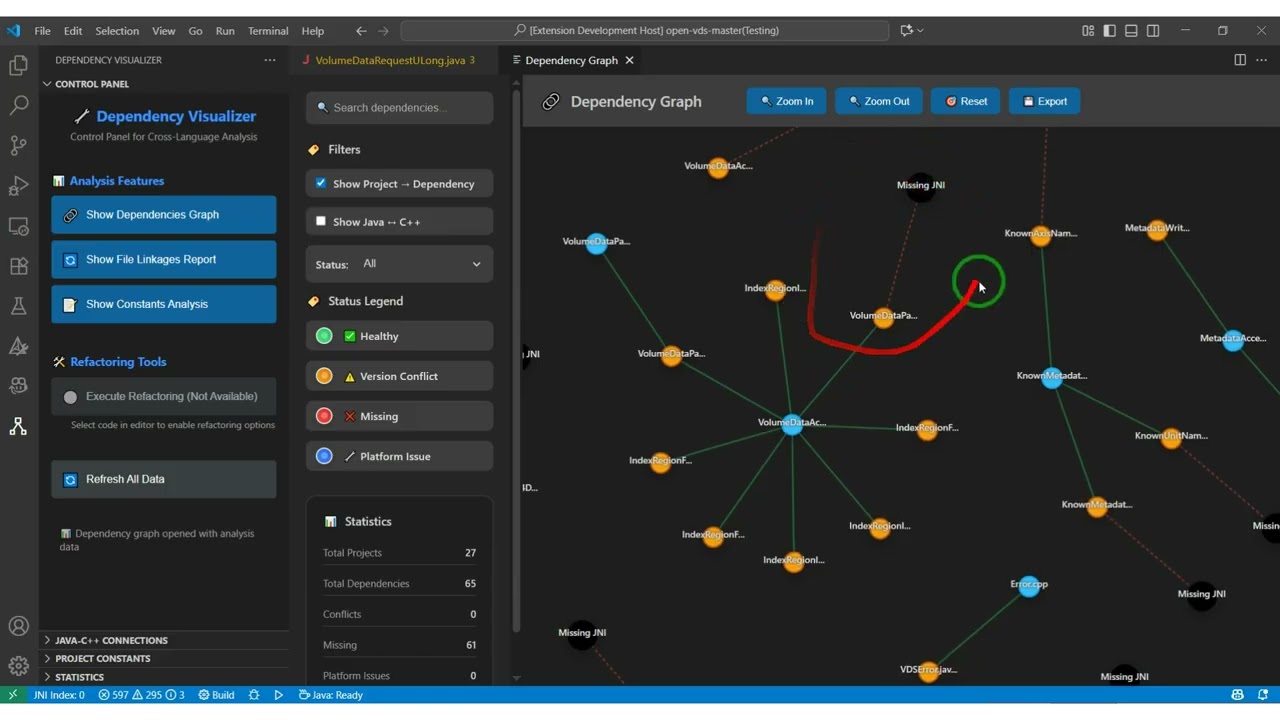
Video: CrossLink Tool Demonstration
- NEW: Added library loading code highlighting feature
- Color-coded highlighting for
System.loadLibrary()calls - Platform-aware library file detection
- Hover information and code lens support
- Automatic OS detection and extension validation
- Color-coded highlighting for
- Enhanced dependency analysis for cross-language projects
- Improved constants management with better naming suggestions
- Added comprehensive dashboard with real-time statistics
Initial release with basic dependency visualization and refactoring tools.
Ensure that you've read through the extensions guidelines and follow the best practices for creating your extension.
You can author your README using Visual Studio Code. Here are some useful editor keyboard shortcuts:
- Split the editor (
Cmd+\on macOS orCtrl+\on Windows and Linux). - Toggle preview (
Shift+Cmd+Von macOS orShift+Ctrl+Von Windows and Linux). - Press
Ctrl+Space(Windows, Linux, macOS) to see a list of Markdown snippets.