TaskCreation
Set isGraspableObjectsPositionRandom to true in HandymanConfig.json, then run the application to generate tasks.
The position of the objects and the grasping target will be determined automatically.
Note that EnvironmentInfo01.json and AvatarMotions01.dat will be updated when you perform the following data generation procedure.
The specific steps are as follows.
- Set the isGraspableObjectsPositionRandom in HandymanConfig.json to true.
- Enables the root object of the layout you want to use in the Unity scene.
e.g. Layout2020HM01
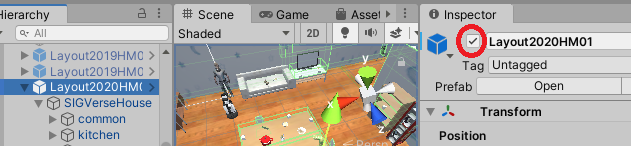
- If necessary, move cubes named GraspingCandidatesPositionXX in the Unity scene.
e.g. Layout2020HM01/GraspingCandidatesPositions/Lobby/GraspingCandidatesPositionXX.
Graspable objects will be randomly placed at the position of these cubes. - Enable the graspable objects you want to use.
e.g. GraspingCandidates/white_cup#1
* If the number of grasping candidates is more than the number of grasping candidates positions, an error will occur. - Start a ROS application.
- Run Handyman.
Please control the human avatar when necessary. Press "1" in the Game view to start controlling Ethan, "2" to start controlling EthanWoman. It is easier to control when both Scene view and Game view are displayed.
If you want to generate human avatar motions, you need to control the avatar for 600 seconds. If you don't need to generate human avatar motions, you don't need to wait 600 seconds, just replace AvatarMotions01.dat with an empty file.
* Please note that the graspable object may fall to the floor depending on its placement. - Stop Handyman.
- Open EnvironmentInfoXX.json and modify taskMessage, correctedTaskMessage, graspingTargetName and destinationName appropriately.