Setup Nginx on Google Cloud
-
Update apt
sudo apt-get update ```
-
Install nginx
sudo apt-get install nginx ```
- Get SSL-Certificate from provider.
- DNSimple: Domains > drill down into your domain > Domain tab on left side > SSL Certificates header > drill down into your certificate > Certificate section > Install the SSL certificate > Enjoy the crisp / clear instructions
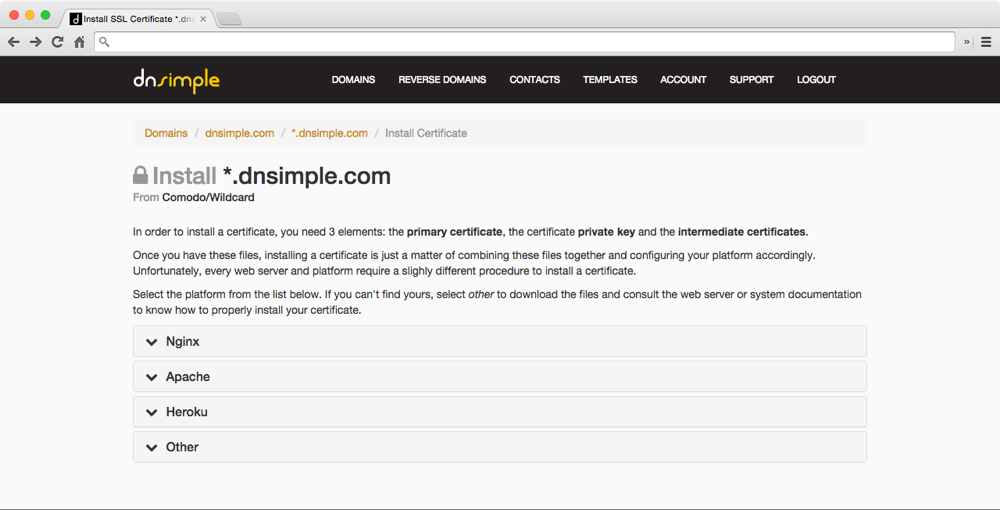
- Save .key and .pem in server
-
You may choose to use either
/etc/nginx/sslor/etc/ssl -
Example:
$ tree -L 1 /etc/ssl /etc/ssl ├── certs ├── openssl.cnf └── private
$ gcloud compute instances list $ gcloud compute copy-files ~/Downloads/MY_DOMAIN.key root@INSTANCE_NAME:/home/myUsername --zone INSTANCE_ZONE $ gcloud compute copy-files ~/Downloads/MY_DOMAIN.pem root@INSTANCE_NAME:/home/myUsername --zone INSTANCE_ZONE
$ tree -L 1 /etc/ssl /etc/ssl ├── certs ├── openssl.cnf ├── private ├── MY_DOMAIN_COM.key └── MY_DOMAIN_COM.pem $ ls -alrt /etc/ssl/ -rw-r----- 1 root root 7539 MY_DOMAIN_COM.pem -rw-r----- 1 root root 1675 MY_DOMAIN_COM.key ```
-
Add a new virtual host or edit default
-
Redirect http traffic to https
server { listen 80; return 301 https://$host$request_uri; } -
Add ssl certificate
server { listen 443; ssl on; ssl_certificate /etc/nginx/ssl/<CERTIFICATE_PEM>; ssl_certificate_key /etc/nginx/ssl/<CERTIFICATE_KEY>; server_name <DOMAIN_NAME>; #Redirect application port to https location / { proxy_set_header Host $host; proxy_set_header X-Real-IP $remote_addr; proxy_set_header X-Forwarded-For $proxy_add_x_forwarded_for; proxy_set_header X-Forwarded-Proto $scheme; # Fix the “It appears that your reverse proxy set up is broken" error. proxy_pass http://localhost:<APPLICATION_PORT>; proxy_read_timeout 90; proxy_redirect http://localhost:<APPLICATION_PORT> https://<DOMAIN_NAME>; } } -
If you have never configured your nginx for anything at all before and you just want a sample that you can replace/override:
-
cp /etc/nginx/sites-available/default /etc/nginx/sites-available/default.backup -
vi /etc/nginx/sites-available/default(still requires substitutions based on your setup)
```
server {
    listen 80;
    return 301 https://$host$request_uri;
}
server {
  listen   443;
  ssl on;
    ssl_certificate /etc/nginx/ssl/MY_domain_com.pem;
    ssl_certificate_key /etc/nginx/ssl/MY_domain_com.key;
  server_name mySubDomainName.domain.com;
  location / {
    proxy_set_header        Host $host;
    proxy_set_header        X-Real-IP $remote_addr;
    proxy_set_header        X-Forwarded-For $proxy_add_x_forwarded_for;
    proxy_set_header        X-Forwarded-Proto $scheme;
    proxy_connect_timeout       600;
    proxy_read_timeout          1200;
    proxy_send_timeout          600;
    send_timeout                600;
    # Fix the "It appears that your reverse proxy set up is broken" error.
    proxy_pass          http://localhost:1337;
    proxy_redirect      http://localhost:1337 https://mySubDomainName.domain.com;
  }
}
```
- Test the Nginx configuration:
$ /etc/init.d/nginx configtest /etc/nginx/sites-available/default
 * Testing nginx configuration [ OK ]
-
Restart nginx
/etc/init.d/nginx restart ```
- All the files should be easily listable:
ls -alrt /etc/nginx/ - Have a peek at
cat /etc/nginx/sites-available/defaultto make sure that all is as you think it should be - You can also peek at
cat /etc/nginx/nginx.confto see where the log files for nginx go: /var/log/nginx/access.log/var/log/nginx/error.log- and
tailorlessthose files if needed for troubleshooting