Repository navigation
Releases
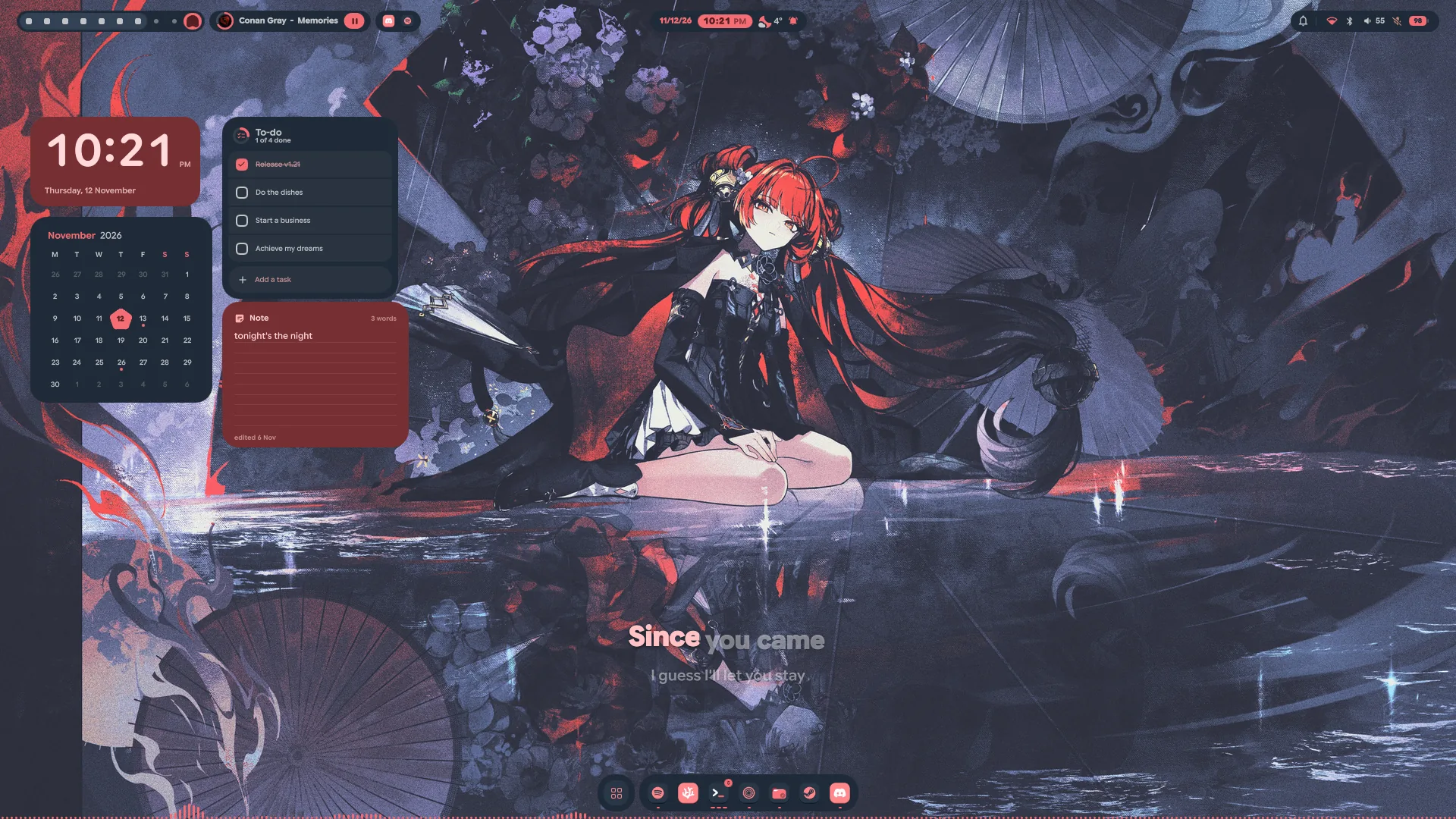
Lucid v1.21 — Lucid is an ecosystem

Lucid is an ecosystem. It began as a shell around your windows; now it is
everything between logging in and logging out, made to belong together. It has
apps of its own: Lumen for your files and every app's file dialog, Lens for
pictures and videos, and a rebuilt LucidShot. Its own icons and its own
pointer are drawn in your palette, and the login screen matches the lock. The
desktop is arranged in edit mode right where it stands, the bar can take the
bottom edge and open its panels as one shape with it, the control centre is laid
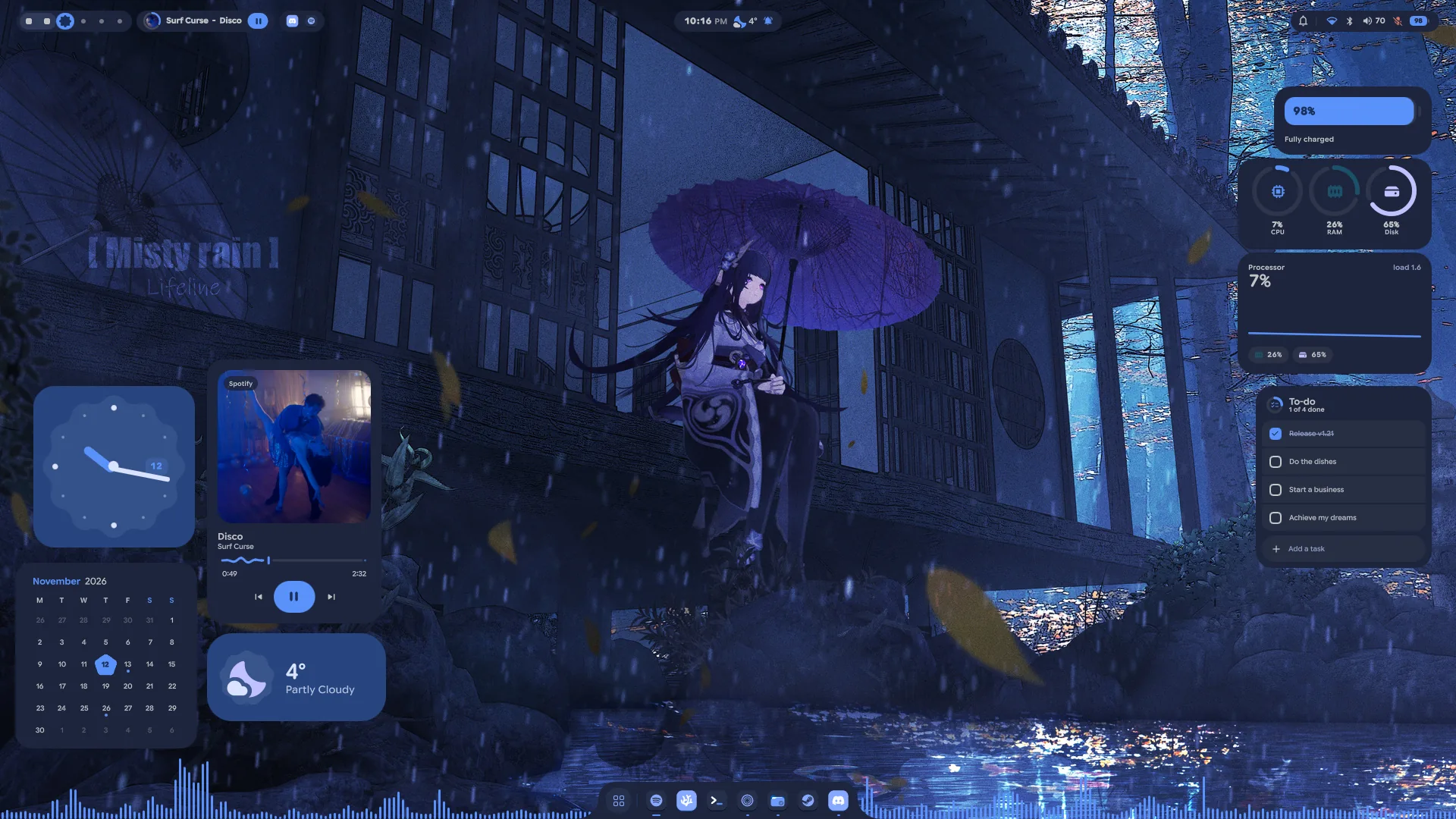
out on a grid of your own, whatever plays comes with its lyrics, and everything
moves on springs.
Twenty-three of the pull requests in this one are Ciro Rivera's, the
entries marked with a number below unless someone else is named. Thank you,
Ciro, and thank you @SKetU-l and @naevui.
Apps of Lucid's own
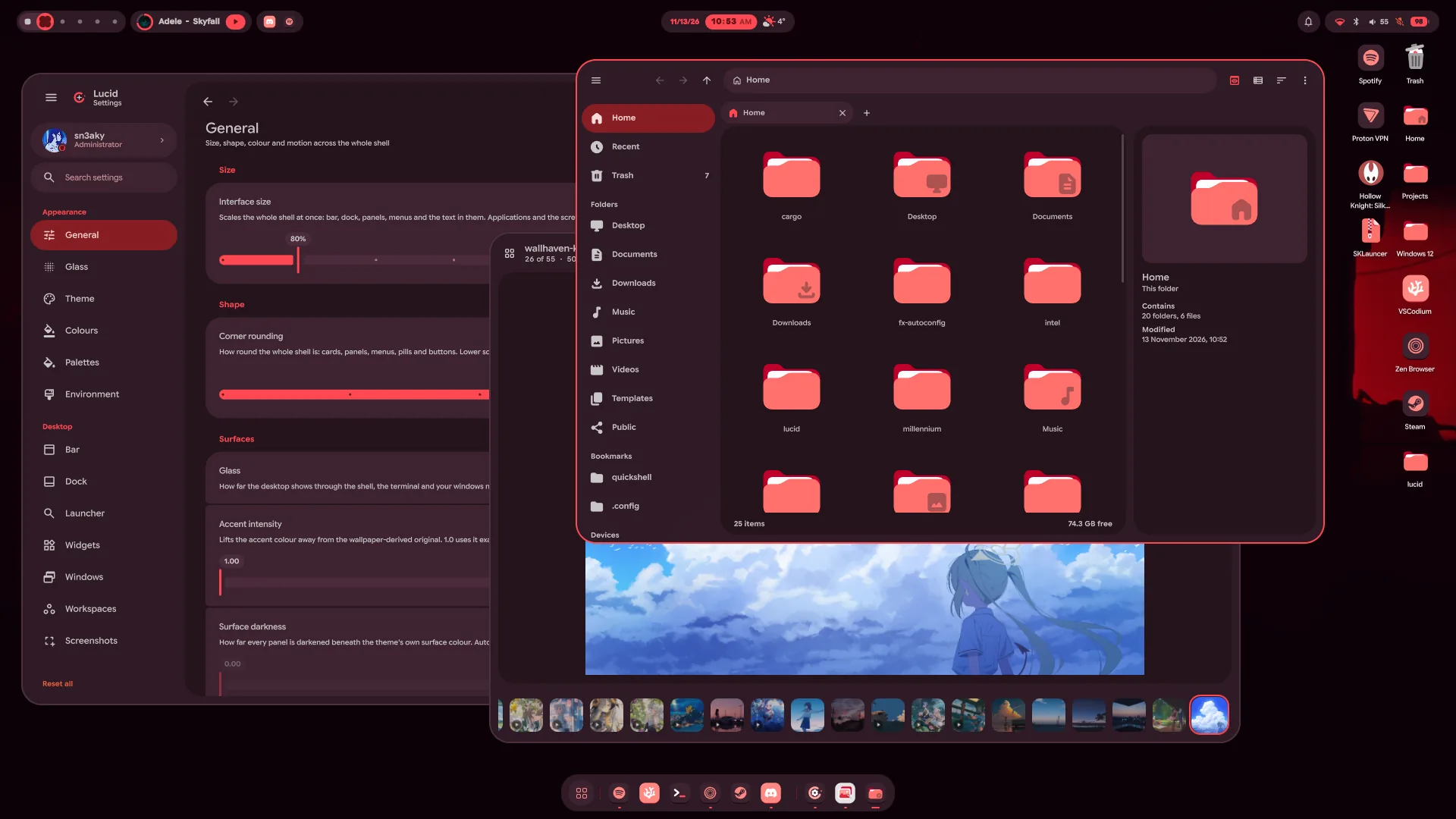
- Lumen, a file manager of Lucid's own, and every app's file dialog.
SUPER+E opens it, folders open in it, and the Open and Save dialogs of
every app are Lumen windows too, filters, overwrite check and all. Tabs with
a strip that always shows: pin one and it stays at the front of every new
window, give it a colour, drag it out into a window of its own and back.
Bookmarks with names and colours (Ctrl+D), Recent, Trash, your drives under
Devices with eject, a path bar you can type into, a grid or a list that
zooms from 24 to 256 pixels, and a preview pane. Right-click for Open
with…, Set as wallpaper, copying the path, compressing and extracting, and
more. Copies and moves run in the background, and Lumen does not quit until
they are done. - Network drives in Lumen. Connect to server (Ctrl+K, the sidebar's new
Network section or the ⋮ menu) opens a shared folder on another computer, a
NAS or a server. Type its address (smb://nas.local/media,
sftp://you@server,ftp://…, Windows' own\\server\share, or just a
name) and sign in if it asks: as a registered user or a guest, with the
password kept in your keyring if you tick it. A host Lumen has never seen asks
first. Connected shares sit under Network with their free space and a
button that disconnects them, and their files open, copy, move, rename and
delete like any others; a share has no trash, so deleting says it can't be
undone. Apps' open and save dialogs reach them too. Bookmark a folder on a
share and a click on it connects again later; the addresses you typed stay
in the dialog's Recent list, and Nearby shows the computers sharing
folders on your network once Avahi runs. - Lens, a picture viewer of Lucid's own. Open a picture and the rest of
its folder comes with it, in the order Lumen shows that folder: the arrow
keys, a swipe or a drag slide to the next one, the filmstrip jumps to any,
and All pictures (G) lays out the whole folder to search by name. The
wheel or a pinch zooms where the pointer is, a double click goes to 100%, and
a zoomed picture pans with a map of where you are. Edit (E) crops it (free,
its own shape, square, 4:3, 3:2, 16:9 or your screen's), turns, flips and
straightens it, adjusts its light and colour, or gives it one of twelve
looks; Draw (D) adds pen, highlighter, arrows, lines, boxes, rings, words
and boxes that pixelate what is under them. Edits wait for each picture until
they are saved, over it or as a copy; a turned JPEG is saved without losing
any quality. Saving over a picture keeps its original, for good: Revert to
original (right-click, the editor or Details) brings it back whenever you
like, and holding \ shows it in the edited one's place. Right-click for Set
as wallpaper, Open with…, Show in Lumen, copying the picture, its path,
the text in it or a colour off it, sending it to your phone, renaming it and
the trash. Details (I) show the camera's settings, where it was taken, a
histogram and the colours it is made of. Slideshow (F5) and full screen (F)
too. - Videos in Lens. Videos sit in the folder with the pictures and play
where they are, with a time line that waves while they play, volume, speed
and play-on-repeat; a click pauses, a double click goes full screen, and J,
L, comma and full stop step back and on. A frame can be saved as a picture or
copied, a sideways phone video turned upright without encoding it again (its
original kept), and Trim (E) cuts a part out as a copy: exactly at the
handles, or at once at the nearest keyframe.lens --default-videosmakes
Lens what opens videos as well.
Edit mode
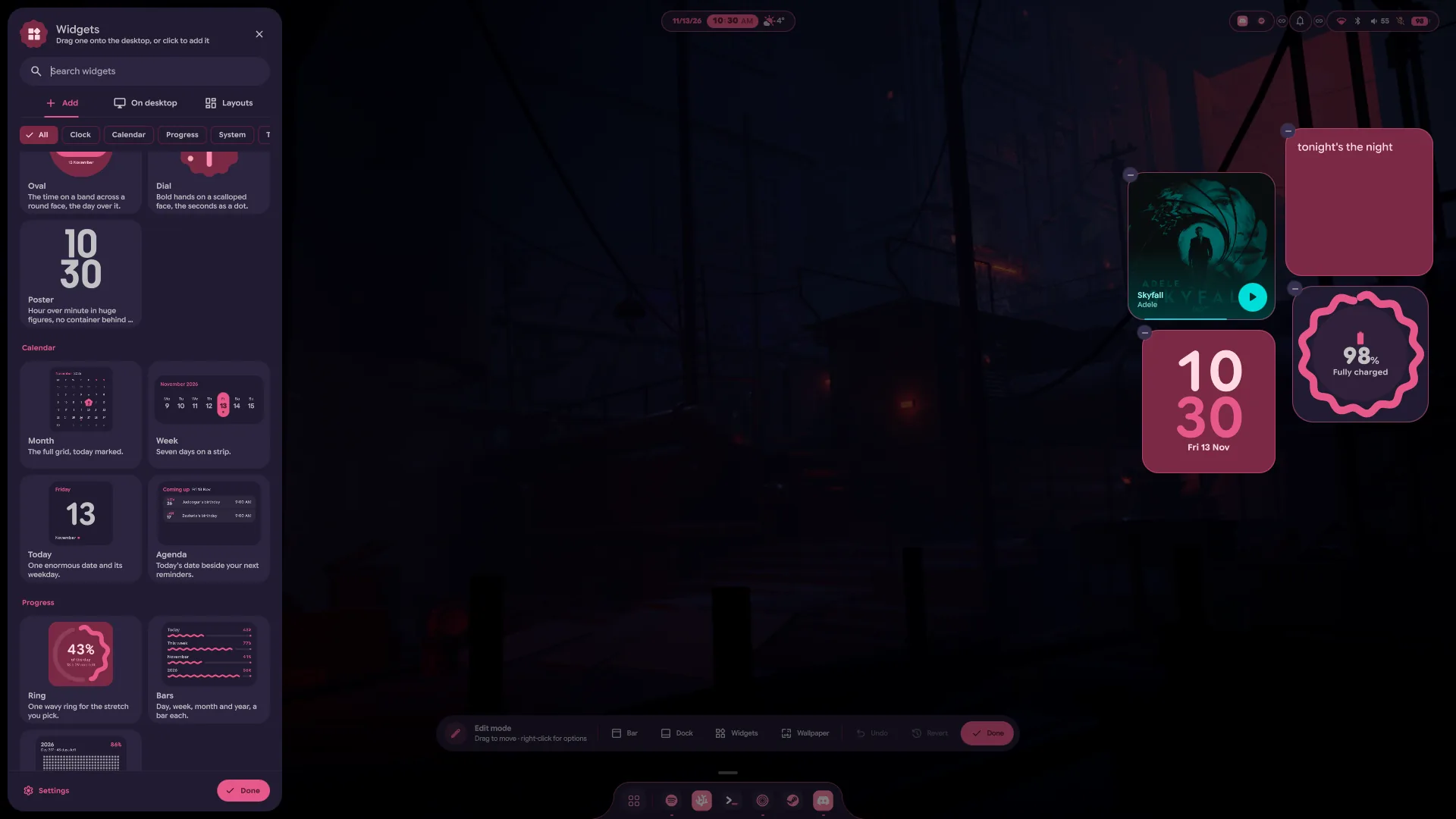
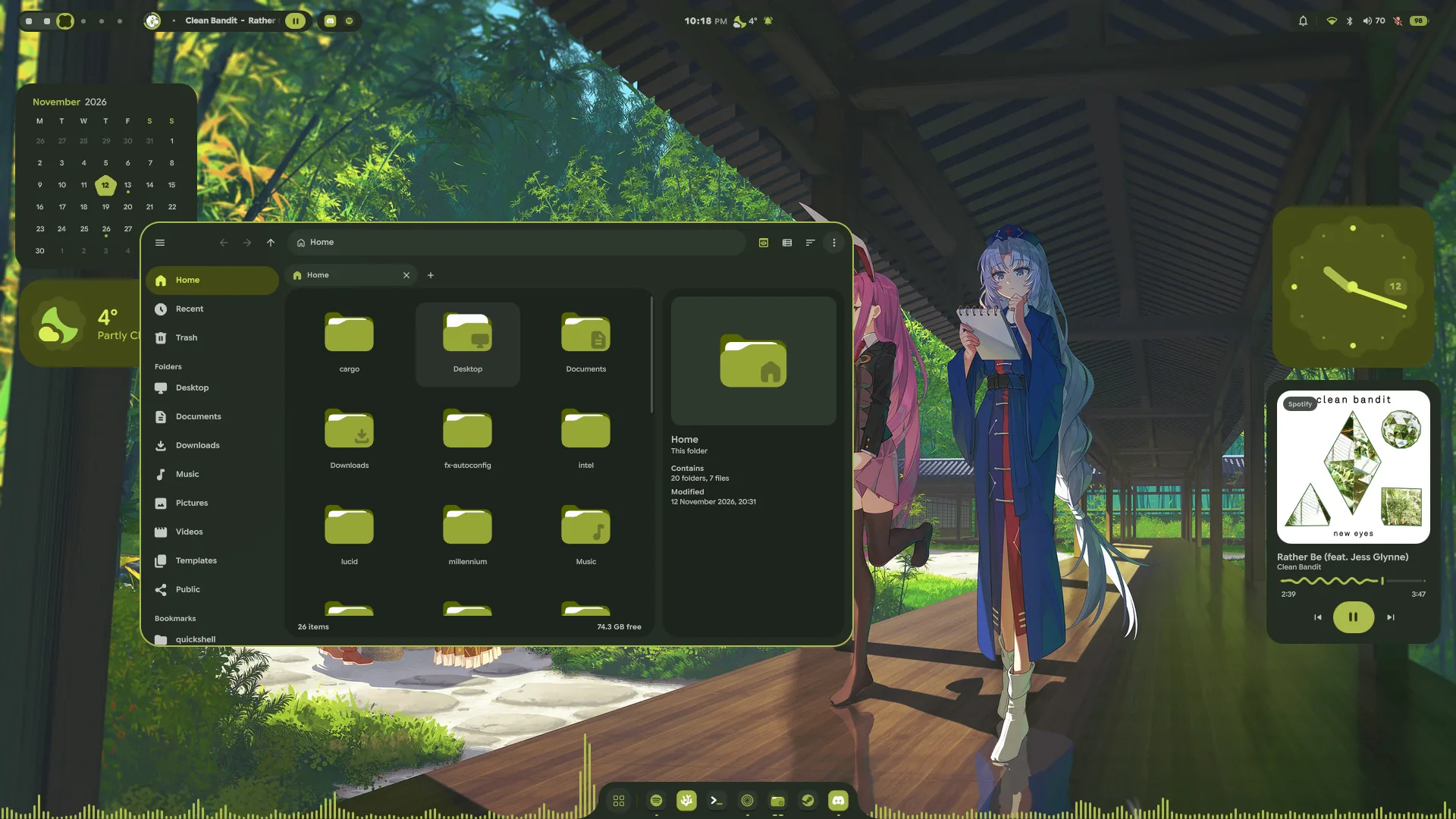
- Arrange the desktop where it stands. Pick Edit Desktop from the
desktop's right-click menu, or right-click any bar module, and the wallpaper
shades over so everything on the desktop can be arranged in place. Drag a bar
module along the bar to move it, into another group, or down off the bar to
take it out; one that has nothing to show right now keeps a dashed stand-in,
so it can be moved too, and the link between two neighbours joins them into
one island. Right-click a module, or the dock, for a sheet of its options
beside it: its looks, the bar's or the dock's style and sizes. A click still
opens a module, so the look just picked can be seen. The dock gets a handle:
drag it up to float the dock higher, or down into the bottom edge to make it
a notch. Undo takes back the last change and Revert everything since
edit mode began; Done, or Escape, leaves it. - The bar and the widgets are set up there now. Settings → Bar loses its
arrangement editor and the per-module cards, and Settings → Widgets its
layouts and its catalogue: modules are moved and set up in edit mode, and
widgets come from the widget panel on the desktop, which has the layouts too.
The Bar, Dock and Widgets pages each have a button that opens edit mode.
The bar
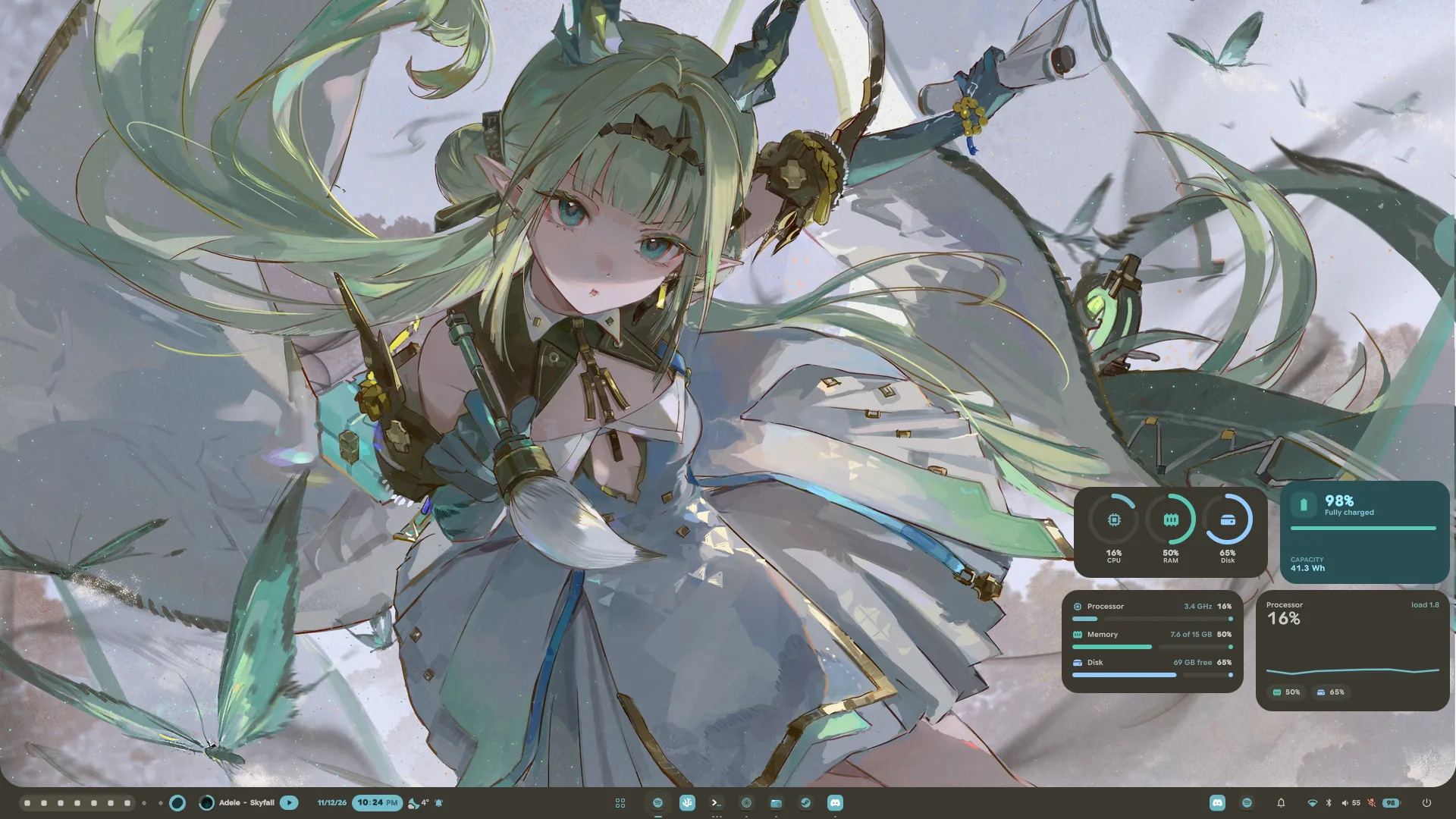
- The bottom edge. Position puts the bar on the bottom of the screen,
and it slides over to the new edge. Its pop-ups open upwards, one that hides
comes out of the bottom edge, and over a fullscreen window the launcher still
rises from the edge. With the bar there the dock steps aside, and on a full
bar the launcher rises out of the bar itself, one piece of glass with the
strip. #100 - Panels open as one shape with the bar. On a full bar and with notches, an
open panel grows out of the bar with no seam, panels side by side merge into
one shape, and a module at either end can meet the screen's side and curve
into it. #92, #95 - Start and Apps. Start is a button for the launcher, in a circle of its
own, drawn as the dock's launcher button by default, or as Lucid's mark, your
distro's logo, your picture or the word Start (#88). Apps puts the dock's pinned and running apps
on the bar, with their dots, names and right-click menus; drag a pin to
reorder it (#99). Joined, the two hover as one row. - The system tray, redesigned. Both looks are rebuilt in Material You.
Icons gives each app a slot like Apps does, with a mark that breathes
when one wants your attention; Collapsed stacks the first three icons with
a count. A click opens the tray: each app is a row with its real name, and
its menu opens right in the row, submenus sliding in beside it. A right
click on an icon opens that app's menu, a middle click and the wheel go to
the app as before, and any app can be hidden from the bar. - The System module shows what you pick of Wi-Fi, Bluetooth, the volume
and its level, the microphone and the battery. #97 - Content size. Settings → Bar → Content size scales what is in the bar,
80 to 140%, without changing the bar's own height. - Joins hold. A link between two modules carries across one that has
emptied out between them, and modules sit on whole pixels, so joined ones
leave no seam. #96 - Notch edges. A notch's edge blends are frosted like the rest of the bar,
light up with it on hover, curve as a quarter ellipse beside a short module
instead of stepping, and can reach up to 64 pixels. - Calmer motion. A panel closes on the exit curve, modules leave the bar in
order instead of all at once, a module's contents hold still while hover
grows its pill, switching a look animates, and a panel too wide for its place
clears the bar around it. Over a fullscreen window an open panel stands above
it. - Fewer, clearer looks. The clock's day and date are bold, the date in the
accent, and the window title is bolder. The Notifications module's Accent
look and the window title's Chip look are gone; a bar that used them takes
the default.
Music
<img src="https://raw.githubusercontent.com/Sn3akyy1/lucid/v1.21/assets/lyrics-widget.webp" alt="The Lyri...
Contributors


Assets 2
Lucid v1.20.1
A point release on top of Lucid 2: icons on the desktop, bar modules that join
into one island, live wallpapers and three new ways to pick a wallpaper, five
new widgets, files over Bluetooth, a Startup page, fingerprint unlock, and the
fix for Steam opening and closing in a loop. Much of it is once again the work
of Ciro Rivera, fifteen pull requests of it.
Fixed
- Steam no longer opens and closes in a loop. Settings → Environment
writes the cursor theme into~/.icons/default/index.theme, the file that
says what the default cursor theme is, and on first start it takes the name
the machine already uses. On a machine where that name wasdefault, the
default theme ended up inheriting itself. Steam's window, a Chromium inside,
follows that chain with no end and crashed each time it needed a cursor, so
it flashed up and vanished over and over (#55, #57). Lucid never writes such
a chain now and takes back one it wrote before, so the next start repairs it
with nothing to do. Thanks to @xherqs, who found the file. - Steam gets the right graphics driver. The installer left Steam's Vulkan
drivers to pacman, which picks NVIDIA's whenever no 32-bit driver is
installed yet. On an AMD or Intel machine that left Steam and every 32-bit
game without Vulkan. It now installs the drivers for the graphics cards the
machine has, and a re-run adds the one an earlier install left out. - A second click on a bar module closes its pop-up, as a click anywhere
else already did (#70).
From Ciro Rivera
Fifteen pull requests, some reworked on the way in. Thank you, Ciro.
Desktop icons
- Icons on the desktop. Your
~/Desktopfolder on the wallpaper of the main
display, the way Windows, macOS and GNOME have it, turned on in Settings →
General → Desktop icons. Folders, files and apps are drawn by the icon theme
picked on the Environment page; pictures, videos, music with cover art and
documents show thumbnails; the Trash fills up, and USB sticks and phones
appear while they are mounted. Widgets keep their space: an icon under one
steps aside, live while the widget is dragged. In #64. - It works like a real desktop. Click, Ctrl- or Shift-click, or draw a box;
drag into a folder, onto the Trash or a drive, or out to a file manager or a
browser. Space opens a quick look, F2 renames, and the right-click menu
cascades into submenus: New Item from~/Templates, Open With, compress
and extract, tags, Get Info, undo, and Send to your folders, a phone over
KDE Connect or a device over Bluetooth (#66). - Pins make shortcuts. Pull a pinned app up off the dock and drop it on the
desktop for a launcher there; the pin stays on the dock.
Bar
- Modules that join into one island. In Settings → Bar → Arrangement a
link sits between every two neighbours. Tap it and they sit flush as one
island, or one notch with its fillets only at the ends, with a faint line
where they meet (Lines between joined modules). A module opened in place
hangs its panel from its own stretch of the group, its corners curving into
the neighbours. In #67. - Notched pop-ups, off by default in Settings → Bar: in pop-up mode the
pop-up grows straight down out of its module or group, its corners blending
into the bar the way the notch's do. - A full bar. A third shape beside islands and notches: one strip across the
whole top edge with every module on it, hanging into the screen's corners
(Screen corners sizes them). Hovering a module lifts its own island out of
the strip, and an open panel curves into the strip where it meets it. In #16. - Open on hover and auto-hide, both off by default. A module can unfold
under the pointer without taking the keyboard from the window you are typing
in, and a click makes it an ordinary open panel. Auto-hide slides the bar up
out of sight and hands its space to the windows, and it comes back when the
pointer touches the top of the screen or a panel is open. In #16.
Wallpapers
- Four picker styles, each with a live thumbnail in Settings → Theme →
Wallpaper picker: Strip (the carousel), Pills, Tiles and Bento.
Arrow keys on the same page moves the wallpaper with ← → or ↑ ↓, so the
arrows can stay with the search field. In #65. - The transition is yours. Presets (Soft, Circle, Sweep, Wave, Instant,
Random) or your own, saved and named: the effect, its length, angle and
curve, and whether it grows from the centre, the picked card or the cursor.
Try transition runs it on the wallpaper you have. - Live wallpapers. Videos in the wallpaper folder (mp4, webm, mkv, mov) get
a side of the picker of their own, and>livegoes straight to them. A video
plays behind the desktop's icons and widgets, the colours come from its
first frame, and it holds still under windows, behind the lock screen and,
if you like, in game mode. Settings → Theme → Live wallpapers turns it off
and picks the decoder; on a hybrid laptop Automatic keeps the graphics card
asleep, and the same page lists the videos beside the pictures. In #73.
Bluetooth
- Files, both ways. A phone or laptop sending something brings a
notification with Accept and Decline, which then follows the transfer and
opens what arrived; Settings → Bluetooth picks the folder and whether paired
devices skip the question. Send files on a paired phone or computer, in the
control centre and in Settings, sends one file after another, with one
notification following it all. In #60. - A pairing agent. Nothing answered Bluetooth's pairing questions before, so
AirPods could come up connected with no sound and a phone that confirms a code
could not pair. The code now arrives as a notification with Pair and Decline.
Answer pairing questions turns it off where another app already does.
Windows and displays
- Pinned windows stand out with a border of their own from the palette and a
tab with a pin in a corner, which unpins the window on a click. A window
asking for attention gets a tab with a ringing bell once you are on its
workspace. Both are on Settings → Windows. In #61. - The display map lands a dragged display against a neighbour when it is let
go, never on top of one, and the arrow keys move a picked one. Pointing at a
box shows its number on the real screen. Resolution, refresh rate, scale,
rotation and mirroring now ask Keep these display settings? and go back by
themselves after 15 seconds. In #62. - The launcher and the OSD open on the display you are working on, unless
Settings → Displays pins the shell to one. In #63.
Widgets and apps
- A GitHub widget: your contributions as your profile draws them, as many
weeks as you drag it wide, or your streak. It needs only your username, no
token. In #69. - The battery widget no longer shows days of time left while plugged in and
full, and a battery held below a charge limit reads Plugged in, not
Charging. In #74. - Qt and KDE apps follow the theme. Prism Launcher, Dolphin, Kate and the
rest came up in light colours whatever the theme. With qt6ct installed, the
installer now gives Qt and KDE apps a colour scheme made from the theme; one
you picked yourself stays. In #68. - Open GTK4 and libadwaita apps repaint when the theme or the wallpaper
changes, instead of on their next start. In #75.
Startup
- A Startup page. Settings → Startup opens apps at login, sets environment
variables, and starts what apps put in~/.config/autostartwhen the session
does not (the plain Hyprland session never did, so an app's own Start at
login switch did nothing). It is kept in~/.config/hypr/lucid-startup.lua,
which an update never overwrites, unlike lines added by hand to
modules/autostart.luaandmodules/env.lua. The page lists those lines too
and moves them over with one button, and variables that no longer help, such
asMOZ_ENABLE_WAYLAND, come with a note saying why. In #77.
New widgets
- Five new widgets, in Material You's shapes. Progress shows how much of
the day, the week, the month and the year has gone, as a wavy ring, a bar
each, or the whole year as dots. Quick toggles puts Wi-Fi, Bluetooth, Do not
disturb and more on the desktop, as switches that turn into shapes when they
come on, a pill of buttons or Quick Settings tiles. Shortcuts sets your
dock's apps on shapes of their own, in a pill that blooms under the pointer,
or as a folder like a phone's. Search keeps the launcher's search on the
desktop, as a phone's search bar or over the launcher's modes. Sun works
out sunrise, sunset and the daylight left where you are. - New faces. The clock gains Oval, the time on a band across a round face,
and Dial, bold hands on a scalloped face with the seconds as a dot. The
weather gains Details. What is playing gets four that are not square:
Pill, Orbit, Capsule, and Shape, the cover cut to a shape of its own
that morphs with every track. - An Expressive preset lays the new ones out together.
Also new
- A dock that hides only when it is in the way. Settings → Dock →
Auto-hide → Dynamic tucks it away while a tiled window is open on the
workspace, or a floating one overlaps it, and leaves it up on a clear desktop. - A notched launcher. With the dock hidden or turned off, the launcher opens
as a notch from the bottom edge. - The Caps Lock and Num Lock cards can be turned off, in Settings → General
→ On-screen display (#59). - Metric or imperial, in Settings → Date & Time → Units: the weather in
the bar, on the lock screen and in the widgets, and the temperatures of the
processor, graphics card and drives, in °C and km/h or °F and mph, all at
once. It takes over from the °C or °F the weather widgets each ...
Contributors

Assets 2
Lucid v1.20 — Lucid 2
Lucid 2. Every surface is redrawn in Material You Expressive on one shared kit
of controls, the clock grows into an app, the launcher learns new modes and the
control centre's tiles are yours to arrange. On top of that sits a release's
worth of new features, most of them from Ciro Rivera, who wrote twenty-five
of the pull requests in this one. Thank you, Ciro.
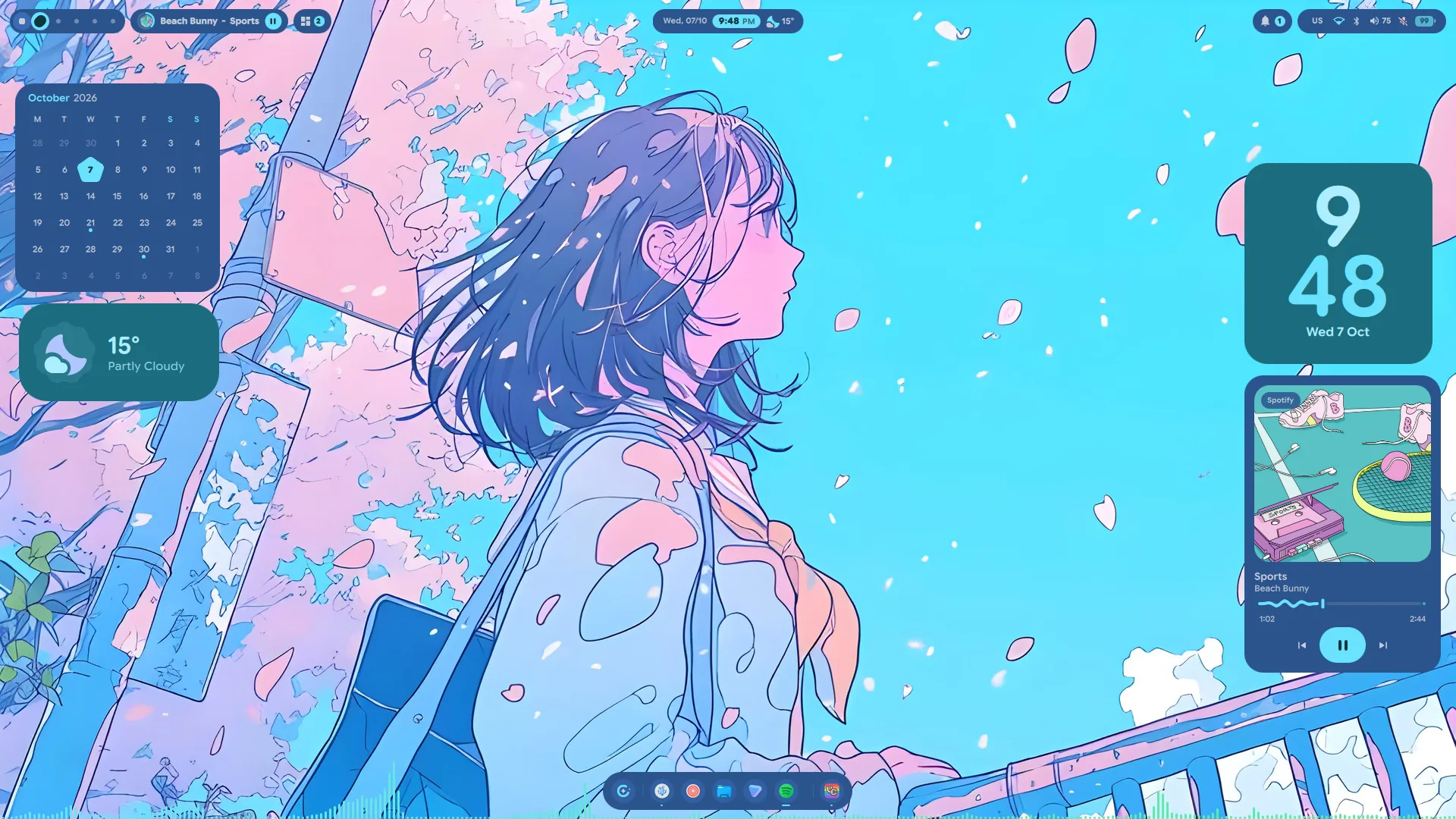
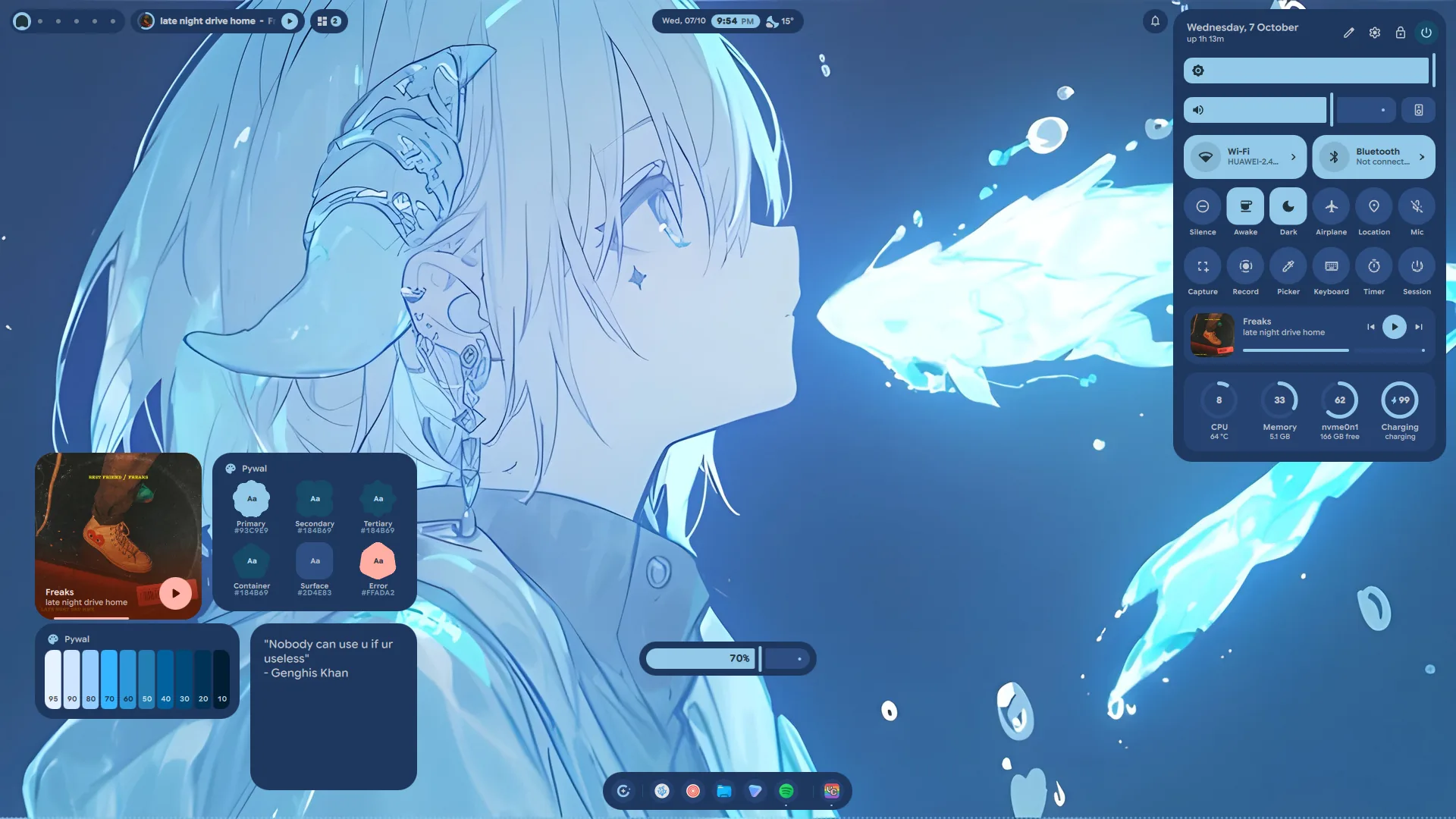
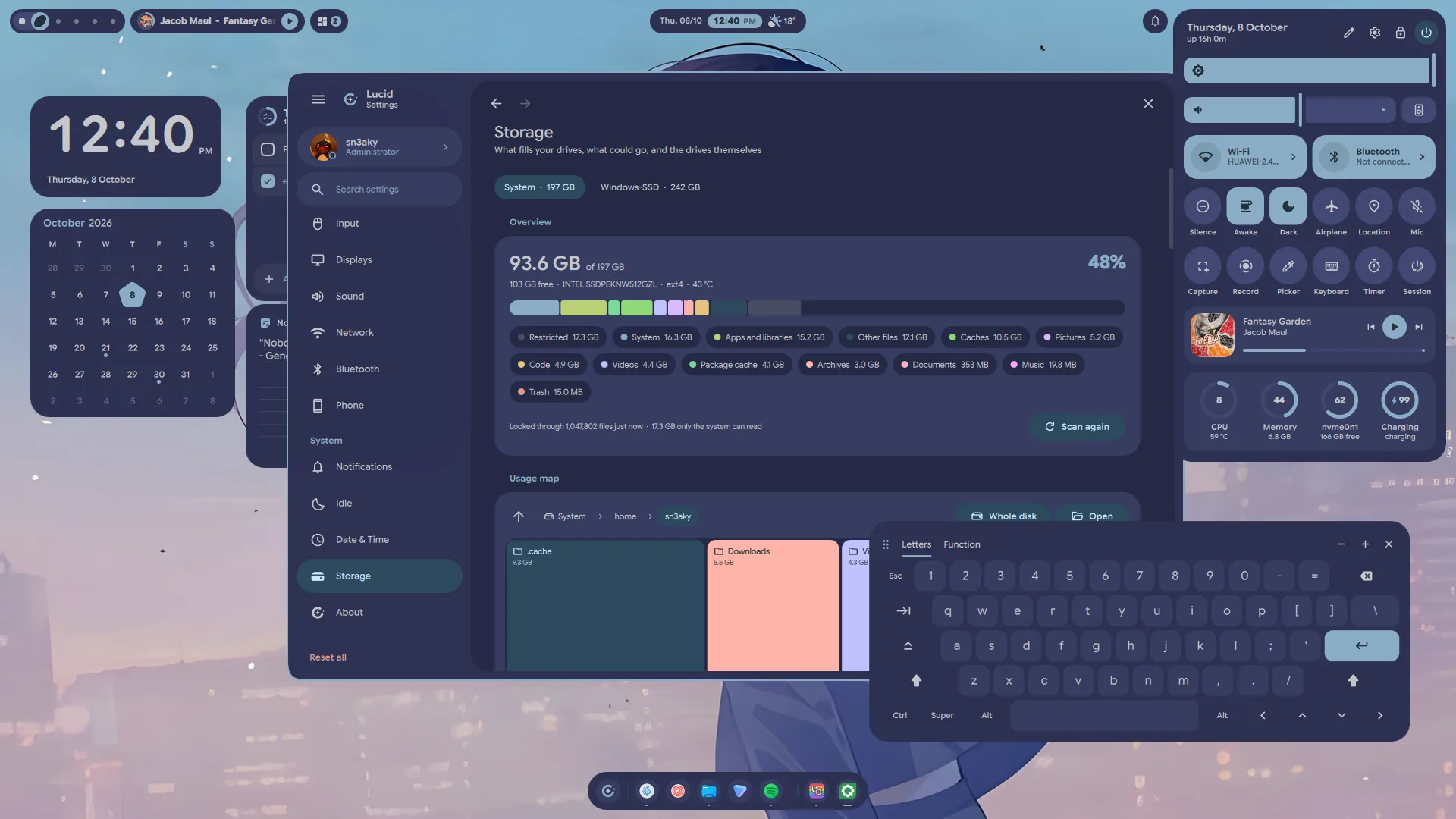
Lucid 2
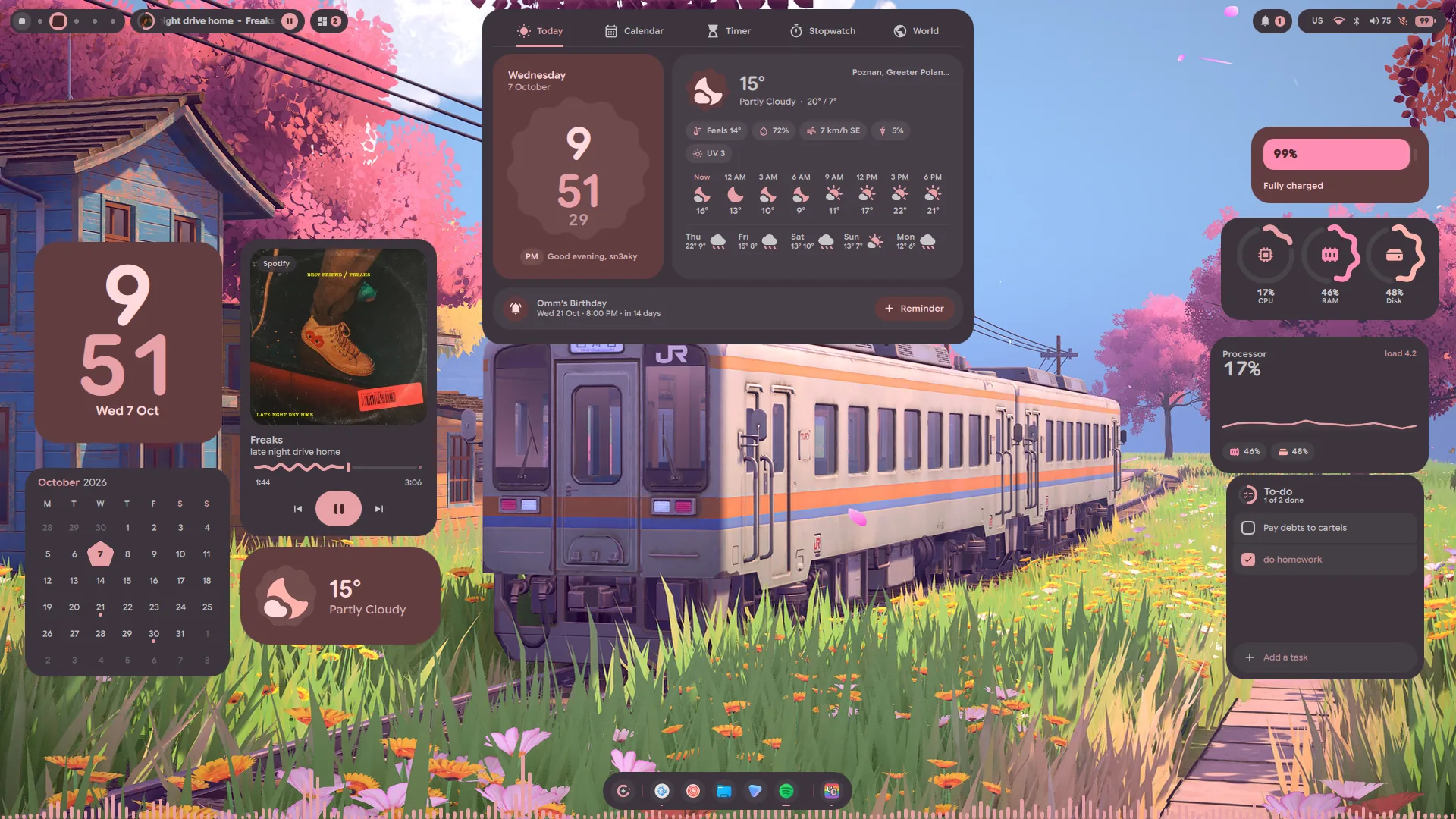
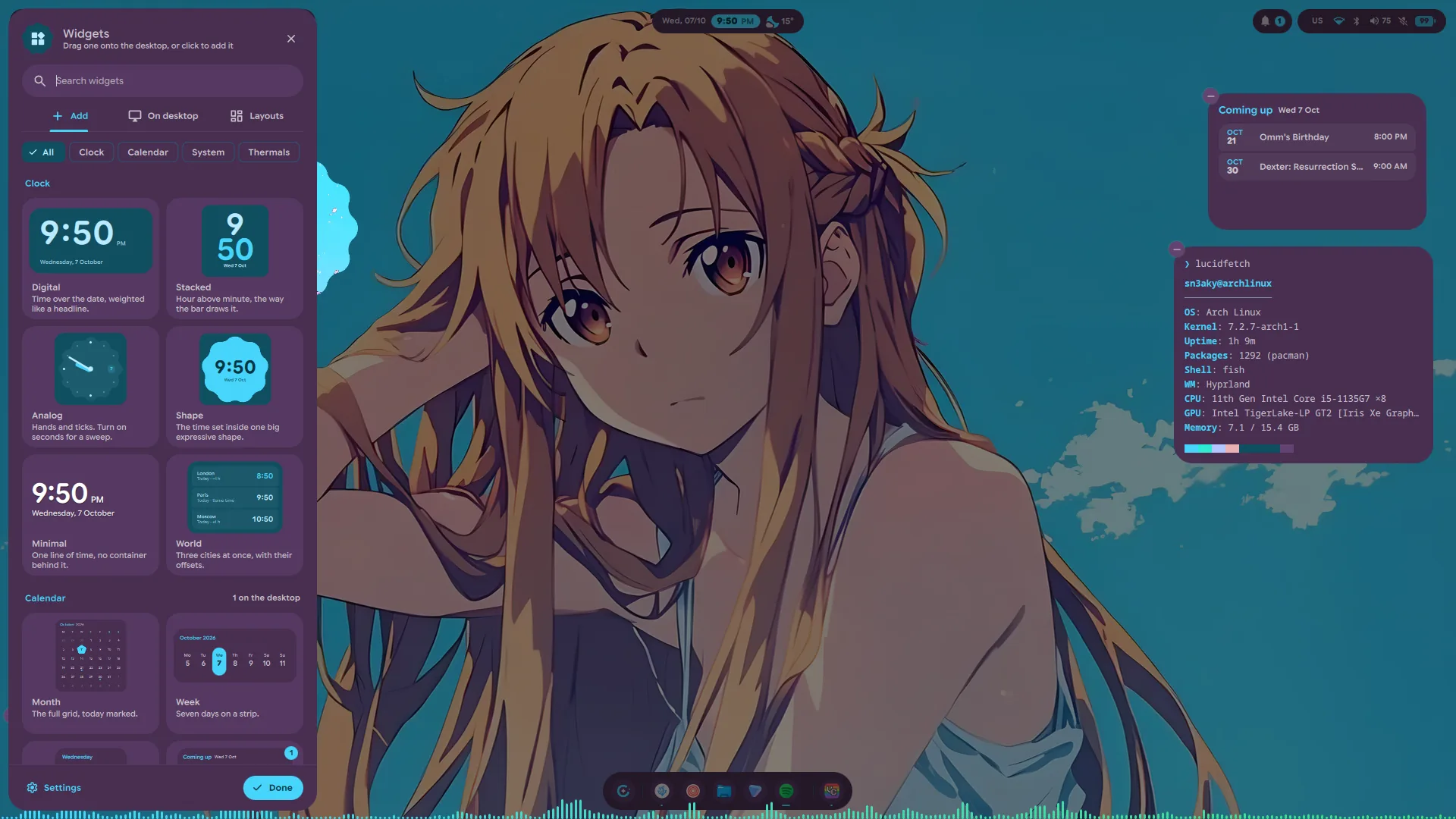
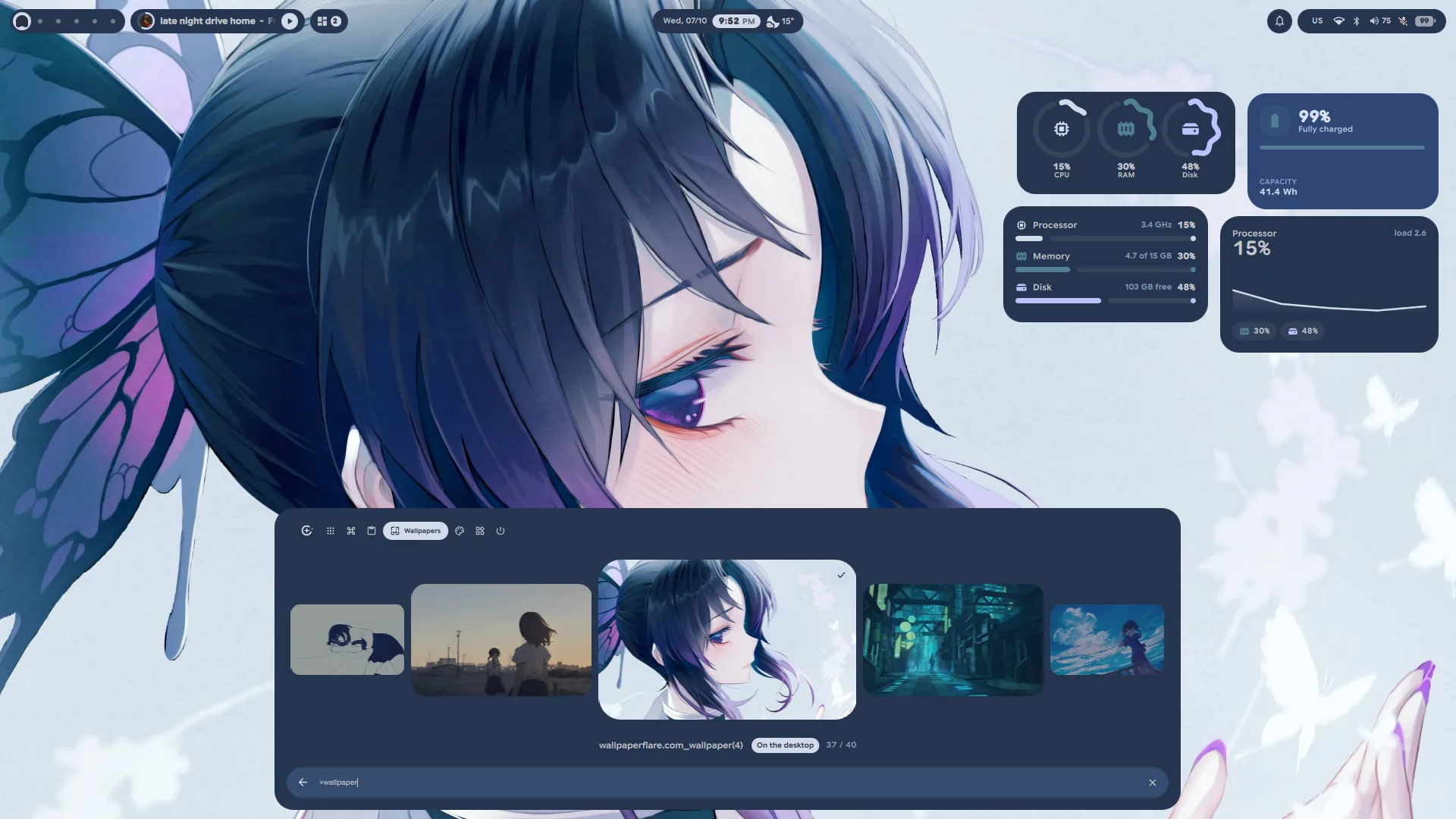
- What's new, in the shell. The first start after an update opens a sheet
with what the new version brings, once; Settings → About → What's new
opens it again, andqs ipc call updates whatsnewtoo. A newer release
waiting to be installed still links its notes on GitHub from the same card. - Material You Expressive, everywhere. The bar, dock, launcher, control
centre, clock, widgets, OSD, toasts, lock screen and settings now share one
kit of controls (lucidui/): buttons, chips, sliders, switches, tabs, text
fields, list items, loading indicators and the expressive shapes. Icons are
Material Symbols drawn from Google's own paths, multisampled so they stay
clean at the smallest sizes, and text is set in Google Sans Flex, bundled
under its OFL licence. - Interface size. Settings → General → Size scales the whole shell at
once, from 75 to 125 %: the bar, dock, panels, menus, desktop widgets and the
text in them. Apps and the monitor's own scale are left as they are. Widgets
keep their place against the edge or corner they sit nearest, and the new
size applies when the slider is let go. - Progress waves. Timers, the stopwatch, the media disc and the session
screen draw their rings the M3 Expressive way: the active arc waves, the track
stays still. - A session screen. SUPER+Escape opens lock, suspend, log out, restart and
shut down in one full-screen sheet. The three that end the session need a
second press within four seconds. - A window switcher. CTRL+ALT+TAB lays out every open window on every
workspace, the special ones included, newest first and with live previews.
As on Windows it stays up once the keys are let go: Tab or the arrows move,
Enter switches, Delete closes the window and Esc backs out. CTRL+ALT+TAB
again steps on; with SHIFT it steps back. - Password beads. On the lock screen, in the polkit prompt and on the login
screen, each character typed drops a Material Expressive shape that melts
into a dot. A selection gathers its beads into one band, and Ctrl+A sweeps it
across from the left. The shapes are androidx's own MaterialShapes, worked
out from the same numbers rather than drawn by eye. - The lock screen grows out of your desktop. Locking takes a picture of
each display first, so the lock starts as exactly what was on screen, which
frosts, sinks into a card and gives way to the wallpaper. Unlocking runs it
back: the cards fall away, the desktop rises through the frost, and the last
moments fade straight onto your live windows. - Workspaces as shapes. The workspace pill's resting look: an empty
workspace is a dot, one with windows a square, the one you are on a new
Material shape on each visit, and neighbouring busy workspaces join into one
run. The pill stretches from one to the next, and the marks under it take its
ink exactly. Hovering still brings the numbers. - The clock is an app. Behind the pill: Today, with the weather and what is
next; a month calendar with reminders; countdown timers and a pomodoro; a
stopwatch with laps; and world clocks. Whatever is counting shows on the pill
as a chip with a ring, and the timers are shared with the Timer widget and the
control centre's Timer tile. - The pomodoro has options of its own. The tune button on its card opens
them in place: four presets (25 / 5, 50 / 10, 15 / 3, 90 / 20), a stepper for
each length and for the rounds, and a daily goal the card counts toward.
Breaks and focus sessions can each start by themselves or wait for you, a set
can stop after its long break instead of repeating, and do-not-disturb can be
held for as long as a focus session runs. A phase in hand takes another
minute from the card, or any number over IPC (timer pomodoroAdd, beside
pomodoroSkipandpomodoroStop). The same options sit under Pomodoro
on Settings' Date & Time page. - Every widget is rebuilt, and four new ones join them: Timer, At a Glance,
Photo and Fetch. A widget's right-click menu is a new sheet with live previews
of its looks. - A widget panel. Right-click the desktop and choose Widget Panel, or pick
Widgets in the launcher's mode bar: a sheet slides in with every widget drawn
live. Drag one straight out to where it should sit — it snaps like any card —
or click it into the first free spot. It searches by name or by what a widget
does, lists what is already out (hover to find a card, click for its sheet,
lock or remove it) and switches layouts. While it is open the cards come up
over your windows with a − on each, and a card dragged onto the sheet is
taken off.qs ipc call widgets paneltoggles it. - The launcher gains a head band with its modes, the calculator's answer as
a card at the top of the results, and prefixes:?for the web,$to run a
command in your terminal and:for emoji. Apps can be hidden from it, and it
has a page of its own in Settings. - Control centre tiles are yours to arrange. Edit tiles lets you drag
them into any order and add or remove them from a shelf of spares; the
sliders ease as they move. - Switching wallpaper no longer stalls the desktop. The colours are worked
out at low priority, one run at a time with the newest request winning, and
the shell crossfades its own palette alongside the picture. Browsing the
wallpaper strip works out colours only for the picture you stop on, and
kitty, VSCodium, Discord, Spotify, Steam, GTK and the login screen follow
once, a few seconds later. The strip opens from small cached copies rather
than decoding every original, 8K ones included, each time. - Window borders follow the palette, and the starship prompt takes the
palette's colours without its format being replaced. - A Storage page. Settings → Storage shows what fills each drive, by kind
and as a map you can zoom through from your home folder or the whole disk,
what could go (package caches, old trash, duplicates and large files in your
own folders) with a confirm for each, and the drives themselves with their
health. It warns when space runs low and can empty trash after a number of
days. The bar's disk card and the System widget now count free space asdf
does, leaving the root reserve out.
Sounds
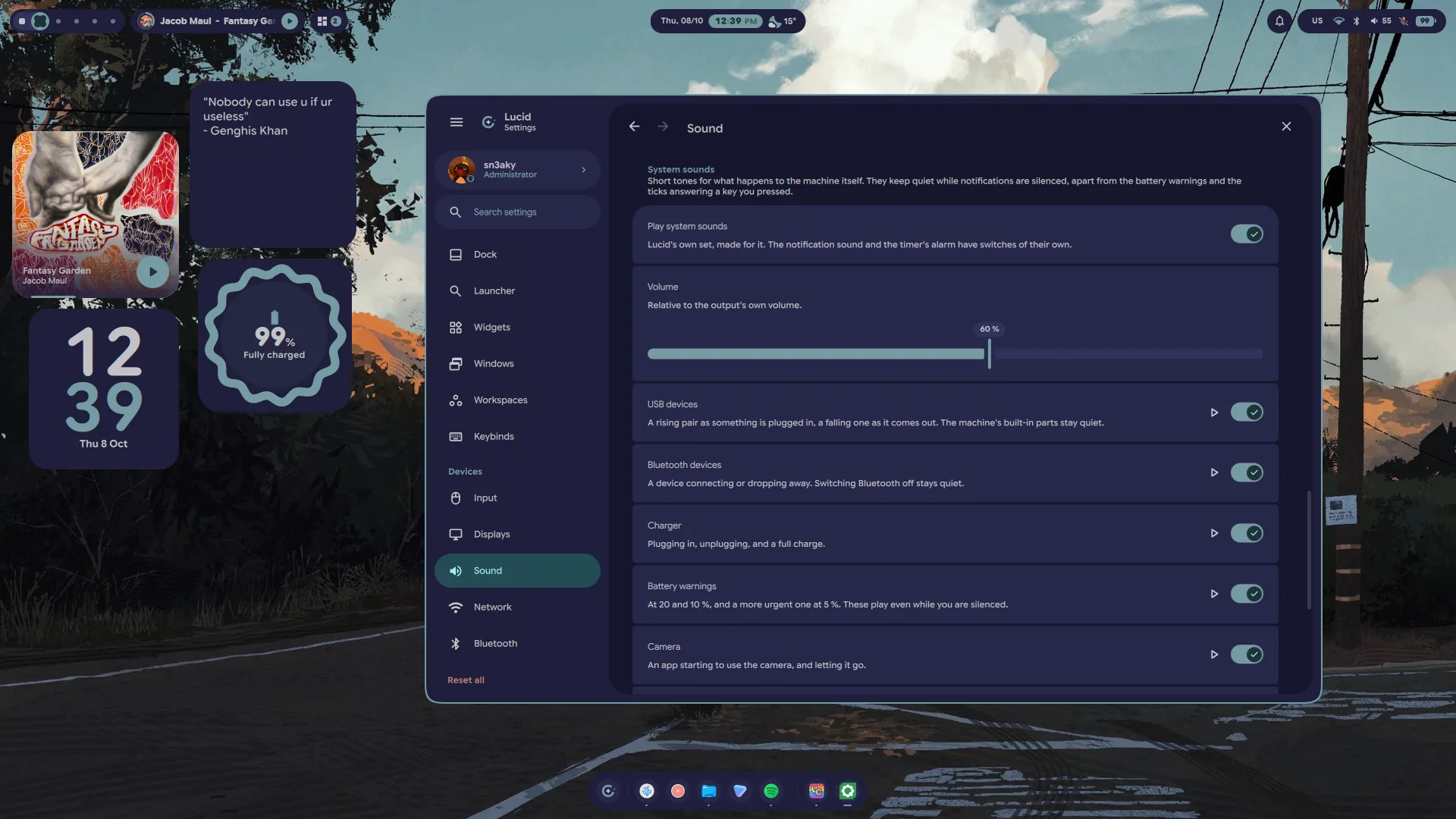
- Lucid has sounds of its own. The freedesktop bells and drops are gone;
every sound is synthesised — FM bells, plucks, blips and sweeps, nothing
recorded — bysupport/sounds/build-sounds.py, all in one key and levelled
to one loudness, so a volume you set means the same thing for each. - Eight notification sounds: Glint, Pulse, Chime, Tap, Orbit, Halo, Beacon
and Alert, picked from chips that play as you choose. A saved freedesktop
choice carries over to its nearest match. - System sounds for a USB or Bluetooth device connecting and leaving, the
charger going in and out, a full charge, low and critical battery, the camera
turning on and off, and a screenshot. Settings → Sound → System sounds has
a switch and a play button for each, and one volume for all of them. They
keep quiet while you are silenced, apart from the battery warnings. The timer
and pomodoro alarm is new as well, and reminders ring out loud now —
they used to arrive in silence — with a switch and a play button for each
under Settings → Date & Time → Timers. - Tiny ticks for your own keys: volume and brightness tick at the level
just set — where a drag or a held key starts and where it stops, not at every
step — and Caps Lock and the microphone answer on and off. Dimming while you
are away stays quiet. They start from Kenney's Interface
Sounds (CC0). - A toast for USB devices, named and drawn as what they are — a phone, a
mouse, a drive. The laptop's own built-in parts stay quiet, a hub full of
devices is one toast, and a device that drops an...
Contributors


Assets 2
Lucid v1.10.5 — the shell starts on login again
The shell disappeared after a restart. This release fixes that.
Fixed
- The shell starts on login again. After a reboot or a new login, the
wallpaper came back but the bar, dock and widgets did not, and re-running
install.shwas the only way to get them back. The line in
modules/autostart.luathat starts the shell opened with[ -x … ], and
Hyprland reads a command that opens with[...]as exec rules (as in
[workspace 2] kitty), so it ran nothing, silently. It usestest -xnow.
Found by @ciroenrique4-eng in #28.
Upgrading
Pull and re-run. The installer replaces ~/.config/hypr/modules/autostart.lua
with the fixed one.
git pull
./install.sh
If you kept your own Hyprland config when the installer asked, nothing in it
starts Lucid. Add this to ~/.config/hypr/hyprland.lua:
hl.on("hyprland.start", function ()
    local launcher = os.getenv("HOME") .. "/.config/lucid/launch-shell.sh"
    hl.exec_cmd("test -x '" .. launcher .. "' && exec '" .. launcher .. "' || exec quickshell")
end)
Contributors
Assets 2
Lucid v1.1.0 — lock screen, polkit, accounts and light mode
Everything the shell asks you for, it now asks for itself: a lock screen that
checks your password through PAM, the administrator prompt for the whole
machine, the accounts on it, and a login screen wearing the same palette. Around
that, a notification centre that groups and replies, clipboard history in the
launcher, a keyboard you can type with when there is not one, and a light mode
built rather than inverted.
Lock screen
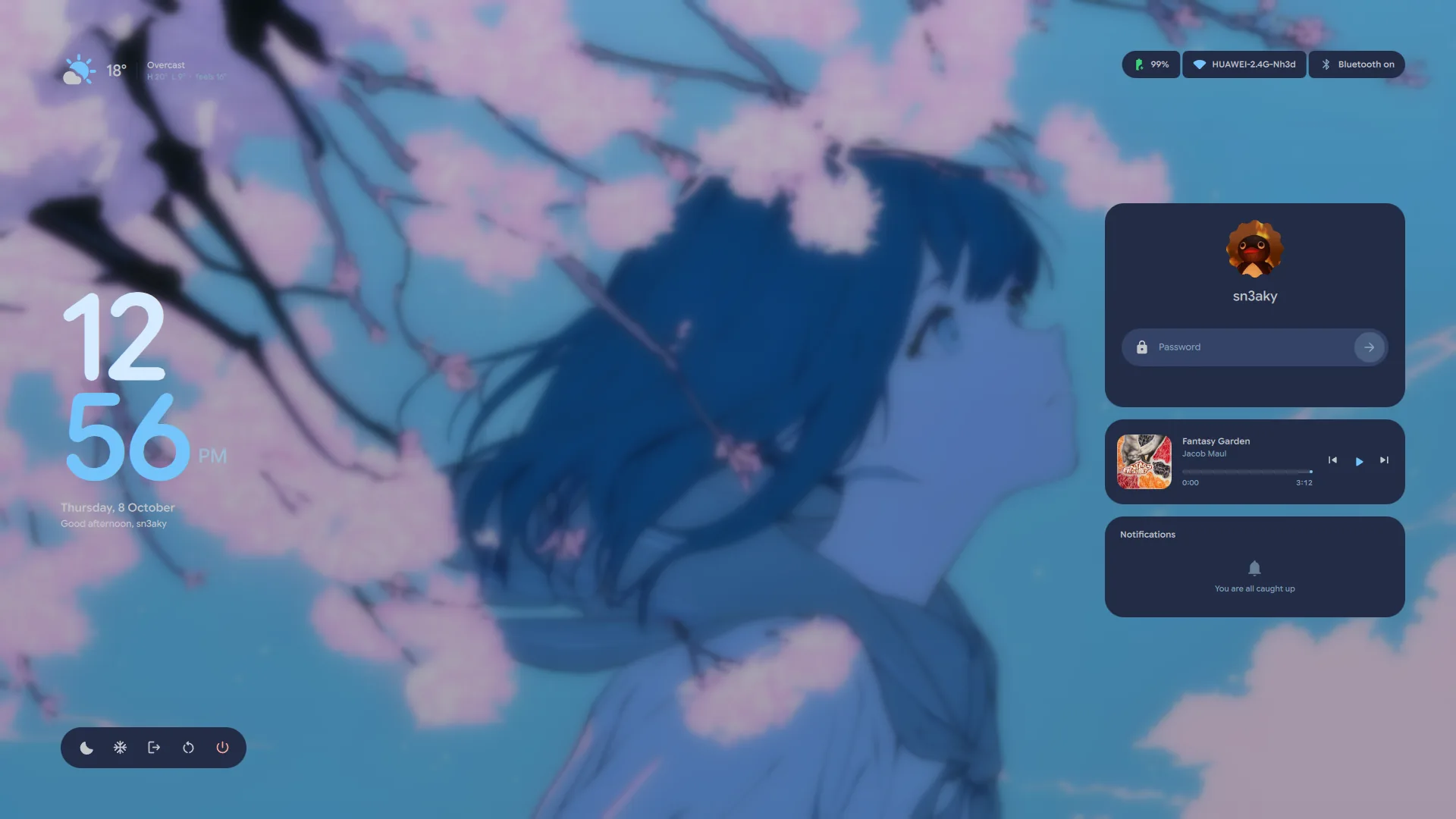
- The lock screen is rebuilt from scratch. The old single 1000x600 card
packed with weather, disk charts, CPU and RAM graphs and a fastfetch dump is
gone. In its place the content floats on the wallpaper the way Material You
lays out a lock screen: an oversized two-line clock in the wallpaper's own
accent colour on the left, the weather above it, the glanceable chips top
right, and a right-hand column carrying the sign-in card, what is playing and
the notifications. - It authenticates through PAM. The old screen shelled out to
sudo -S -v, which only worked for accounts that happen to be sudoers and
told you nothing when it failed. The lock now opens a real PAM session
against/etc/pam.d/login— the same service a display manager uses — so any
account can unlock, and PAM's own words are what you read when something goes
wrong. A second question from PAM (a token, a second factor) reopens the
field with PAM's prompt on it rather than dead-ending. - The refusals say something useful. "Incorrect password — 2 tries left"
counting down against faillock's realdeny, "Too many attempts — try again
in 8 minutes" with the countdown read fromfaillockitself, "The check
timed out" when PAM stops answering, and PAM's own sentence when it has one. - Caps Lock gets its own badge next to the field, so the commonest reason a
password is refused stays visible even while a refusal is on screen. The
active keyboard layout shows beside it when you are typing. - Two faces, one screen. Resting, the lock is a glance: clock, date,
greeting, weather, media, notifications. Touch the keyboard and it focuses —
the wallpaper blurs further, the clock shrinks out of the way, everything
that is not the field steps back, and the sign-in card is all that is lit.
It drifts back to the glance after half a minute of quiet. - The password field is an M3 outlined field: a focus ring in the accent,
beads that pop in per character, a reveal toggle, and a submit button that
turns into a proper indeterminate spinner while PAM thinks and a tick when it
opens. The lock glyph turns over on success; the pill and the avatar's ring
go green, or red and shake. - Power actions ask first. Log out, restart and shut down morph the bar
into a confirmation instead of going straight through; suspend and hibernate
still go immediately. The question withdraws itself after seven seconds.
Hovering one opens it into its own labelled pill inside the bar — the glyph
stays put, the bar grows around it — rather than floating a tooltip over the
wallpaper. - A caret you can steer. The beads are not just a count: a caret sits where
the next character will land, and the arrow keys walk it back through what is
already typed so a single character can be fixed instead of starting over.
Each new bead is left behind by that caret — it starts as the caret's own
line and settles into a dot where it stood. - Clicking away puts the lock back to rest. Anywhere off the sign-in card
drops the focus, forgets what was half-typed and clears any refusal still on
screen; the card itself counts as inside, so clicking the avatar aims the
keyboard at the field instead. - Notifications on the lock cannot reach past it. Their action buttons and
inline reply are hidden, andNotifsrefuses to invoke an action or send a
reply while the session is locked, so no card can launch or talk to an
application from the lock screen. - Every other screen gets the clock, not a second password field.
- Arriving and leaving are different gestures. The entrance is a staggered
wave read off a single number: the wallpaper settles out of a push-in and
blurs, the clock rises in from the left, and the right-hand cards slide in
one after another. Leaving is not that run backwards — the whole stage leans
forward and dissolves at once while the wallpaper comes back into focus. - New layout of the code.
Lockscreen.qmlis a root singleton holding the
session state, PAM, the attempt ledger and the IPC;lucidlock/is eleven
small views instead of one 3000-line file.lucidlock/BlurBackdrop.qml, which
nothing had used for a long time, is gone. qs ipc call -- lockkeepslock,unlockandisLocked, and gains
status(the session state as JSON). Nothing bypasses the password: the
scaffolding used while the screen was being built — a dry-run mode, and
handles that could force a verdict — is gone, so PAM is the only way in.
Authentication
- Lucid is the session's polkit agent. Anything on the machine that needs
an administrator — mounting a disk, changing the time zone, installing a
package,pkexec, the Users page — now asks through a Lucid dialog instead
of the KDE one. Only the dialog is ours: polkitd still decides what needs
authorising and PAM still checks the password, through polkit's own setuid
helper. Nothing about the security model changes. - The dialog says what is actually being asked. A badge glyph picked from
the action itself (a disk for udisks, a power symbol for logind, a terminal
forpkexec, a parcel for package installs), the action's short description
frompkactionas the headline, and polkit's own sentence underneath —
retyped out of its `like this' quoting into real quotation marks. - It shows whose password it wants. Every identity polkit will accept is
listed with the name and picture from the Users page, and when there is more
than one, picking a different administrator re-points the request at them. - The field is the lock screen's field — the same pill, focus ring and
reveal toggle — so a password prompt looks the same wherever the shell asks
for one. A refusal tints the pill, shakes it and says what PAM said; a grant
shows a tick before it leaves. - Escape, the Cancel button and a click on the dimmer all dismiss the request
properly, so whatever asked is told it was refused rather than left waiting.
The dialog holds the keyboard only while a request is actually live.
Users and accounts
- The settings app manages the machine's user accounts. A card at the top of
the navigation rail shows your picture and name and opens a new Users and
Accounts page, where every account on the machine is listed and picking one
points the whole page at it. - Full name, username, account type, login shell, email and location are all
editable, with the guards that matter: the last administrator cannot demote
themselves, an account that is signed in cannot be renamed, and you cannot
lock or clear the password of the account you are using. - Passwords are set through a dialog that checks the two entries match and
rates what you typed, and a password hint can be left alongside. An account
can instead be told to choose its own password at its next sign-in. - Accounts can be added and removed. Adding asks for a name, guesses the
username from it, and offers to set the first password now or leave it for
first sign-in. Removing makes the files a separate, explicit decision from the
account itself. - Account pictures can be chosen from the machine's stock faces or any image
on disk; it is centre-cropped and scaled to 256 px, saved to~/.facefor
your own account so the lock screen finds it, and can be removed again to fall
back to initials on a tonal disc. - Supplementary groups — audio, video, libvirt and the like — are shown as
chips you can toggle, batched into one authorisation rather than one per group. - Everything privileged goes through AccountsService on the system bus, so the
session's polkit agent does the asking and the shell never runs as root. A
refused or cancelled prompt is reported on the page instead of failing
silently. Requiresaccountsservice, now declared in the installer. - Account pictures keep a history. Changing your picture files the old one
away rather than losing it, and the picker shows what the account wore
before, newest first — clicking one puts it back. Removing a picture keeps it
too, so going back to initials is never a one-way door. - The shelf holds twelve pictures or 8 MB, whichever runs out first, and the
oldest drop off as new ones arrive. Pictures are stored by what they look
like, so re-applying one already there just moves it to the front instead of
filing a second copy. Clear empties the whole shelf. - The history lives in your own data directory, so reading it never asks for an
administrator. - Passwords now need four characters rather than six, in the password
dialog and when adding an account. The strength read-out is unchanged, so a
short password is allowed but still reads as weak. - Fixed: a face directory's own hidden fallback silhouette (SDDM ships one as
.face.icon) was being offered as a stock picture, showing up as an empty
black circle in the picker.
Notifications
- The notification centre is rebuilt. One place now owns every notification
in the shell — the pill on the bar, the popups and the lock screen are three
views onto the same list, so dismissing something dismisses it everywhere and
Do Not Disturb means the same thing wherever you turn it on. - Notifications group by application. Five messages from one chat collapse
into a single stack with the application's name on it; open it to read them,
clear it to drop the lot. A heading separates what has just arrived from the
rest, and...