Repository navigation
Contribute by Creating Your Own Blocks
We welcome contributions from the community! Tactigon Shapes runs inside a Docker container, which is a self-contained environment with everything the application needs to run (Python, libraries, configurations). By default, the project downloads a pre-built image from the cloud (nextdeveloper/tactigon-shapes) — this is convenient for end users, but as a contributor you need Docker to build the image from your local code instead, otherwise your changes won't be visible.
To contribute:
-
Fork the repository.
-
Create a new branch for your feature or bug fix.
-
Configure Docker to build from your local code. Since the container automatically pulls the image from
nextdeveloper/tactigon-shapes, you need two small adjustments to test your changes locally:- Inside
docker-compose.yml, undertactigon-shapes, comment outimage: nextdeveloper/tactigon-shapesand add abuilddirective that points to the local Dockerfile:
- Inside
   tactigon-shapes:
       # image: nextdeveloper/tactigon-shapes
       build:
         context: .
dockerfile: Dockerfile- In
start.sh, add--buildat the end of thedocker compose up -dcommand. This forces Docker to rebuild the image from your local code every time you start the project.
Note: these two changes are only for your local development environment — don't include them in the final pull request, as they would break the standard configuration for other users.
- Submit a pull request with a detailed description.
We appreciate your interest in Tactigon Shapes! If you encounter any issues or have feedback, feel free to open an issue.
- The logic of what happens behind a block is handled in shapes backend more specific in the modules as
tactigon_shapes\modules\<myModule>and intactigon_shapes\modules\shapes
Before diving in the creation of custom blocks, we have to distinguish the final outcome we are chasing.
The infrastructure of shapes is very structured: but to be able to get how the block flow works in the program you have to understand this logic:

-
The Python logic with the functions that do specific action sits in
tactigon_shapes\modules\<myModule>. The file in the modules have this functionality respectively:-
tactigon_shapes\modules\<myModule>\extension.pyHandles the python logic of what happens when we run a block in relation with the following files and sometimes for some specific usage to other outer files in the program. -
tactigon_shapes\modules\<myModule>\manager.py-> Core logic -
tactigon_shapes\modules\<myModule>\blueprint.py-> Flask routes and link to Jinja UI files -
tactigon_shapes\modules\<myModule>\models.py-> Definition of module's data (like configs or status) -
tactigon_shapes\modules\<myModule>\__init__.py-> Init logic
-
-
The blocks definition logic is handled in
tactigon_shapes\modules\shapes\static\js\custom_blocks.jswith the following functions:- Function
load<MyModule>Blockthat loads the json generated by blockly developer tool - Function
defineImportsAndLibrariesthat generate a python code that we write as a triple-quoted string and contains the imports and the function we wrote in our module - Function
define<MyBlock>Generatorsthat map the input values recieved from each block to use them in thedefineImportsAndLibrariesfunction. - Function
loadcustomBlockthat calls theload<MyModule>Blockfunction to load the blocks
- Function
-
The rendering logic of the block is handled in
tactigon_shapes\modules\shapes\templates\shapes\index.jinjawith the following html logic:</xml> <category name="CategoryName_1" colour="colour_1"> <block type="blockName_1"></block> <block type="blockName_2"></block> <block type="blockName_n°"></block> </category> <category name="CategoryName_2" colour="colour_2"> <block type="blockName_1"></block> <block type="blockName_2"></block> <block type="blockName_n°"></block> </category> <category name="CategoryName_n°" colour="colour_n°"> <block type="blockName_1"></block> <block type="blockName_2"></block> <block type="blockName_n°"></block> </category> </xml>
Tactigon Shapes is a visual programming system based on Blockly, Google's open-source library for block-based programming. Users build their programs by dragging and connecting colored blocks, which the system then translates into Python code that runs on the device.
Before doing the actual block there an important difference in the approach of creation with two differnt path.
-
On one side we have the first path wich is the hardest but the most preparatory to having a better overall vision. It consist in creating from scratch a new module building all the logic and in wich weare going to attach to the shapes blocks definition logic.
-
on the other side we have an easier approach but still effective. It consist in diving straight forward into block creation and insert it in an already existing module managing only the block definition and adding a python function in the
extension.pyfile. This second approach is logically the step that comes after creating a custom module, consequently it is addressed in both ways.
This guide will walk you through how to add your own module to the Tactigon Shape system.
Here's what each main folder does:
Stores all config files for the app and its modules.
Holds trained machine learning models and related info.
Includes speech recognition models and files.
The main Python package where everything connects.
This file is where everything starts. It handles command-line options and runs the Tactigon server.

Inside the project folder tactigon_shapes, you’ll find a folder named modules. This is where all modules live.
Each module should have:

-
blueprint.py: Flask routes and web APIs. -
extension.py: Connects your module to other systems/devices. -
manager.py: Business logic and how your module works. -
models.py: Data structures for your module. -
templates/,static/: For web UI (Jinja HTML, CSS, JS).
- Inside
modules/, create a new folder with your module’s name.

- Inside that folder, add these files (empty or with templates):
__init__.pyblueprint.pyextension.pymanager.pymodels.py-
templates/andstatic/folders if needed
- If you're building a web page, put your Jinja templates in the
templates/folder.

- In
models.py, define your module's data (like configs or status).

- In
manager.py, write your core logic (how it behaves or reacts).

- In
extension.py, connect to external devices or other modules.

- In
blueprint.py, create Flask routes and link your Jinja UI files.

Example:
When users go to /zion, they'll see index.jinja from the zion module.

This is what that page would look like:

Want to create custom blocks? Use this link

- Import your module’s
extensionandmanagerwhere needed.

- Register your module in
tactigon_shapes/__init__.py.

- Register the blueprint in the same file.

- Add your module to the navigation bar (optional, but useful!).

To do this, update tactigon_shapes/templates/base.jinja to include your link and icon:

- Need real-time updates from server to browser?
Use SocketApp from tactigon_shapes/modules/socketio/extension.py. It pushes live data from your backend to the UI.

The section for creating the block coincides with the second approach, so to continue development follow the guide below, making sure to do everything in your own module
Sometimes the standard set of blocks isn't enough and you need to create something specific to your use case. Creating a custom block means working at three levels:
The main steps to follow when creating new blocks are the following:
- Design the block visually — define its shape, inputs, color, and behavior using Blockly Developer Tools, an online editor that lets you build blocks without writing code manually.
- Register the block in the project — paste the auto-generated JSON into Tactigon Shapes so the system knows the block exists.
- Write the Python logic — define the actual function that runs when the block is executed, and the generator that translates the visual block into a Python call.
In this guide we'll walk through all three levels, using two reference examples (to_uppercase and quadratic_equation) and a simpler exercise (example_block) for first-time users.
Blockly Developer Tools is a web interface where you design your block visually. You drag the properties you need, see a real-time preview, and copy the generated JSON when you're done.
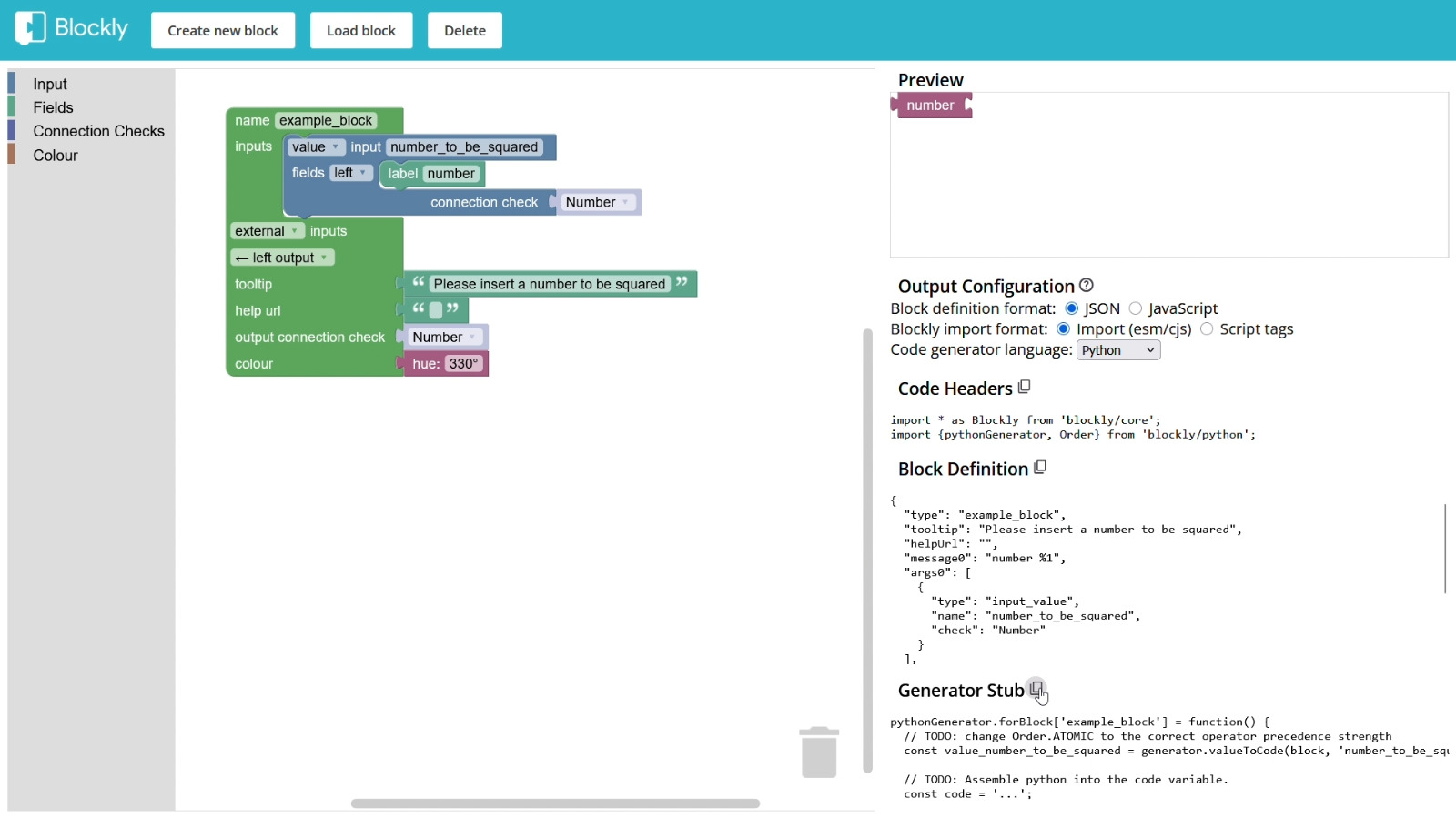
Here's an overview of all the options available, so you can configure your block without confusion.
The internal identifier of the block — the string the code uses to recognize it. Users never see this name; it only matters for the code that registers and uses the block.
Defines the slots where other blocks or values can be connected. There are three types:
- Value — a slot where the user attaches another block that returns a value (a number, a string, etc.). The most common type. For example, in a "square root" block, you'd use a value input where the user plugs in the number to be rooted.
-
Statement — a slot where the user attaches a sequence of instruction blocks. Used when your block executes other blocks inside it (like the body of an
ifor aforloop). - Dummy — no slot at all. Used purely for layout, to add a line break and organize elements visually across multiple rows.
Each input has a name (the internal identifier) used by the code to retrieve the value placed in that slot. If your block has multiple inputs, each one needs a unique name.
Important — visible label vs. internal name: the name of an input is not what the user sees. To show a label next to an input, you add a
fieldof typelabelinside it. For example, in a square block: the field label "n²" is what the user reads on the block, while the input namenumber_to_be_squaredis what the code uses to retrieve the value.
Fields are the visual and interactive elements that live inside an input. Available types:
- Label — static text, only visual. The user reads it but cannot edit it (e.g., "Number" or "n²").
- Text input — an editable text box where the user can type.
-
Numeric input — a numeric box with optional
min,max, andprecision(use0for integers only,0.1for one decimal, etc.). -
Dropdown — a menu with predefined options. Each option has two values: the one shown to the user and the internal one used by the code (e.g.,
["+", "PLUS"]). - Checkbox — a true/false toggle.
- Variable — a field to select or create a variable.
- Image — displays an image inside the block.
- Angle — an angle picker, returns degrees.
When you add a field inside an input, you can position it left, right, or centre relative to the slot.
A connection check filters what data type can connect to a slot or be returned as output. If the types don't match, Blockly physically prevents the user from attaching the block — a built-in form of validation that catches errors before runtime.
Available types:
- any — accepts any type of data
- Boolean — only true/false
- Number — only numbers
- String — only text
- Array — only lists/arrays
- Custom — you can define your own type name (useful for blocks that should only connect to each other)
For example, in a square block, setting the input's connection check to Number ensures the user can only attach blocks that produce a number.
Defines how the block connects to others around it:
- No connections — the block stands completely alone, doesn't attach to anything.
- Left output — the block returns a value and snaps horizontally inside another block as an argument. Used when your block computes something and the result feeds another block (e.g., a math operation).
- Top + Bottom — a normal instruction block, snaps vertically with others above and below.
- Top connection only — attaches under another block but has nothing below it (typical of final blocks in a sequence).
- Bottom connection only — only blocks below can attach to it (typical of starter blocks).
When you choose left output, you'll also see an output connection check to specify the data type returned.
- Tooltip — text shown when the user hovers over the block. Use it to briefly describe what the block does.
- Help URL — optional link to external documentation, opened from the right-click menu.
- Colour — the block's colour, expressed as an HSL hue from 0 to 360.
Once your block is designed, the right panel of Blockly Developer Tools generates everything you need:
- Block Definition format: choose JSON (this is what Tactigon Shapes expects).
- Code generator language: choose Python.
- Block Definition — the JSON describing your block, ready to be copied.
- Generator Stub — the skeleton of the JavaScript function that will translate the block into Python code, with TODO markers where you'll add your logic.
Note: you don't need to copy the Code Headers — Blockly imports are already handled by Tactigon Shapes.
In this guide we'll create two example blocks — to_uppercase (converts a string to uppercase) and quadratic_equation (solves a second-degree equation) — and add them to a new custom category.
If you want to organize your blocks, you can create a new category in the toolbox or add your block to an existing one. To create a new category, go to the edit.jinja file in the Shapes module — this file defines the entire toolbox structure (the sidebar panel where users pick blocks).
At the bottom of the existing categories, add your new one:
<category name="Custom Math" colour="#ff00f7">  {# <- New category #}
  <block type="to_uppercase">     {# <- uppercase block #}
  </block>
  <block type="quadratic_equation">   {# <- quadratic equation block #}
    <field name="op_1">PLUS</field>
    <value name="a_coeff">
      <shadow type="math_number">
        <field name="NUM">1</field>
      </shadow>
    </value>
    <field name="op_2">MINUS</field>
    <value name="b_coeff">
      <shadow type="math_number">
        <field name="NUM">3</field>
      </shadow>
    </value>
    <field name="op_3">PLUS</field>
    <value name="c_coeff">
      <shadow type="math_number">
        <field name="NUM">2</field>
      </shadow>
    </value>
  </block>
</category>
Important: all block, field, and value names inside a category must be unique — duplicates cause registration errors.

Open Blockly Developer Tools and design your block using the options described in the previous section. When you're done, copy the JSON from the Block Definition panel.
Here's the JSON for the to_uppercase block:
{
    "type": "to_uppercase",
    "tooltip": "",
    "helpUrl": "",
    "message0": "To Uppercase %1",
    "args0": [
        {
        "type": "input_value",
        "name": "TEXT",
        "check": "String"
        }
    ],
    "previousStatement": null,
    "nextStatement": null,
    "colour": "#f1c40f"
}Now we move to the custom_blocks.js file in the Shapes module. This is where the project registers all the visual blocks.
Inside loadCustomBlocks (which already exists and contains calls for all existing block groups), add a new call for your custom group at the end of the list:
// other functions call
loadCustomMathBlocks();     // <- New category load function call
Then, further down in the same file, define the loadCustomMathBlocks function and paste your JSON definitions inside it:
function loadCustomMathBlocks() {
    const blocksDefinitions = Blockly.common.createBlockDefinitionsFromJsonArray([
        // uppercase JSON block definition
        {
            "type": "to_uppercase",
            "tooltip": "",
            "helpUrl": "",
            "message0": "To Uppercase %1",
            "args0": [
                {
                "type": "input_value",
                "name": "TEXT",
                "check": "String"
                }
            ],
            "previousStatement": null,
            "nextStatement": null,
            "colour": "#f1c40f"
        },
        // quadratic equation JSON block definition
        {
            "type": "quadratic_equation",
            "message0": "%1 %2 x² %3 %4 x %5 %6 = 0",
            "args0":[
                { "type": "field_dropdown", "name": "op_1", "options": [ ["+", "PLUS"], ["-", "MINUS"] ] },
                { "type": "input_value", "name": "a_coeff", "check": "Number" },
                { "type": "field_dropdown", "name": "op_2", "options": [ ["+", "PLUS"], ["-", "MINUS"] ] },
                { "type": "input_value", "name": "b_coeff", "check": "Number" },
                { "type": "field_dropdown", "name": "op_3", "options": [ ["+", "PLUS"],["-", "MINUS"] ] },
                { "type": "input_value", "name": "c_coeff", "check": "Number" }
            ],
            "inputsInline": true,
            "output": "Array",
            "colour": "#ff00f7",
            "tooltip": "Calculates the solutions (roots) of a quadratic equation. Returns a list containing 0, 1, or 2 real numbers."
        }
    ]);

    Blockly.common.defineBlocks(blocksDefinitions);
}
After saving, restart the project — you'll see the new category and the new blocks in the workspace.

A visual block is just a graphic shape until you tell the system what Python code it should produce. This step has two parts: defining the actual Python helper function (the one that does the work), and writing the generator (the function that translates the block into a string of Python code).
Tactigon Shapes can generate code in JavaScript, Python, PHP, or Dart, but we recommend Python because almost all our projects use it.
4a — Add the Python helper function. In the same custom_blocks.js file, locate defineImportsAndLibraries and add your Python function inside the returned string. For the quadratic equation:
function defineImportsAndLibraries() {
    return `
# Shapes by Next Industries

# imports and functions
def quad_equation(a, b, c):
    import math
    if a == 0:
        return [-c/b] if b != 0 else []
    delta = b**2 - 4*a*c
    if delta < 0:
        return []
    elif delta == 0:
        return [-b / (2*a)]
    else:
        return [(-b + math.sqrt(delta)) / (2*a), (-b - math.sqrt(delta)) / (2*a)]

# ---------- Generated code ---------------

`;
}
This function handles all cases: linear degenerate (a=0), no real solutions (negative delta), one solution (zero delta), or two solutions.
4b — Register the generator. Inside defineCustomGenerators, add a call to your new generator function at the end of the list:
// other functions define
defineCustomMathGenerators();     // <- New category define function
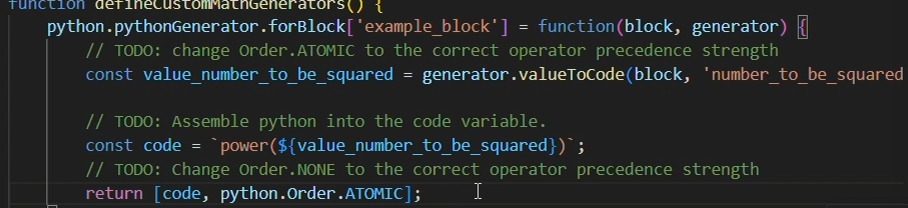
4c — Define the generator function. Below defineCustomGenerators, add the actual generators:
function defineCustomMathGenerators() {
    // uppercase function
    python.pythonGenerator.forBlock['to_uppercase'] = function(block) {
        const text_to_print = Blockly.Python.valueToCode(block, 'TEXT', Blockly.Python.ORDER_ATOMIC) || "''";
        const code = `debug(logging_queue, ${text_to_print}.upper())\n`;
        return code;
    };
    // quadratic equation function
    python.pythonGenerator.forBlock['quadratic_equation'] = function (block, generator) {
        const value_a = generator.valueToCode(block, 'a_coeff', generator.ORDER_ATOMIC) || '0';
        const value_b = generator.valueToCode(block, 'b_coeff', generator.ORDER_ATOMIC) || '0';
        const value_c = generator.valueToCode(block, 'c_coeff', generator.ORDER_ATOMIC) || '0';

        const op_1 = block.getFieldValue('op_1');
        const op_2 = block.getFieldValue('op_2');
        const op_3 = block.getFieldValue('op_3');

        const a_finale = (op_1 === 'MINUS') ? '-' + value_a : value_a;
        const b_finale = (op_2 === 'MINUS') ? '-' + value_b : value_b;
        const c_finale = (op_3 === 'MINUS') ? '-' + value_c : value_c;

        const code = `quad_equation(${a_finale}, ${b_finale}, ${c_finale})`;
        return [code, Blockly.Python.ORDER_ATOMIC];
    };
}
Important — generator vs Python function: the generator does not compute the result. It produces a string of Python code (e.g.,
"quad_equation(1, -3, 2)") that gets executed when the user runs the shape. The actual computation happens in the Python helper function defined in step 4a.
Restart the project, drag your new blocks into the workspace, attach values, and run the shape to verify everything works.
Here's a video walkthrough showing the full process of creating a custom block in Tactigon Shapes:
- Part 1 — Setup, fork, and Docker configuration
- Part 2 — Designing the block in Blockly and registering it
- Part 3 — Writing the Python logic and testing
Click each link to download or view the video in your browser.