Repository navigation
Features
Colour and style keys work on what you are using:
- Something selected: the key changes it. Your pen stays the same.
- Nothing selected: the key changes your pen, so the next thing you draw or write gets it. This works for colour, line width, line style, fill style, arrowheads, font, font size, align and opacity. A key that has nothing to change says so, and does nothing else. A short popup says what changed.
- Typing a text: colour, font, font size and align keys change that text.
Pen keys change lines, arrows and text. Fill keys change only the inside of boxes, circles and diamonds. Each colour key shows a short popup with the colour. The status bar at the bottom right shows your pen and fill colour while a drawing is open.
G does your last change again, like . in vim. Make one box red, dashed and bold. Then select the next box and press G. All the changes you made to one thing count as one change. With nothing selected, G puts the change on your pen.
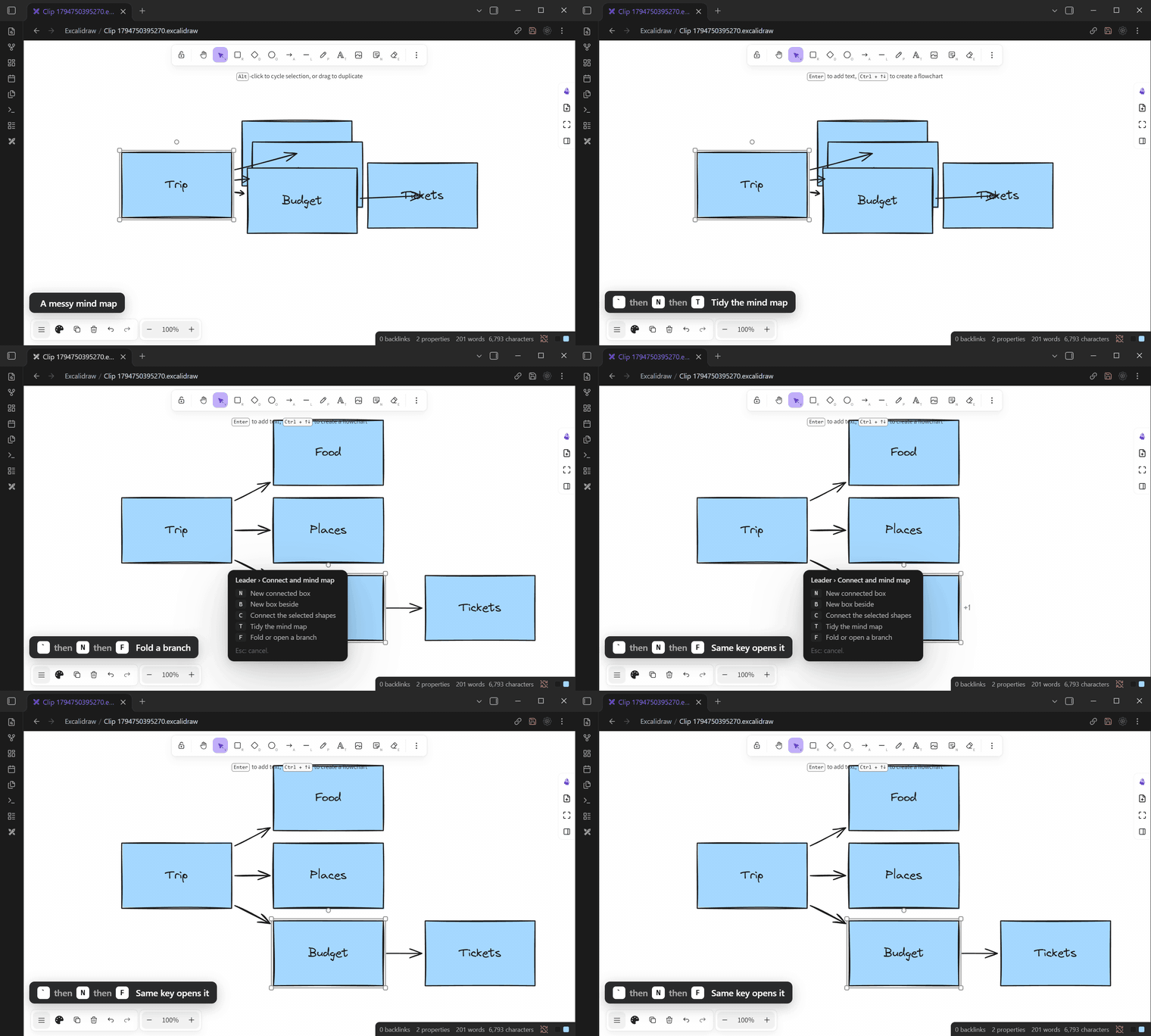
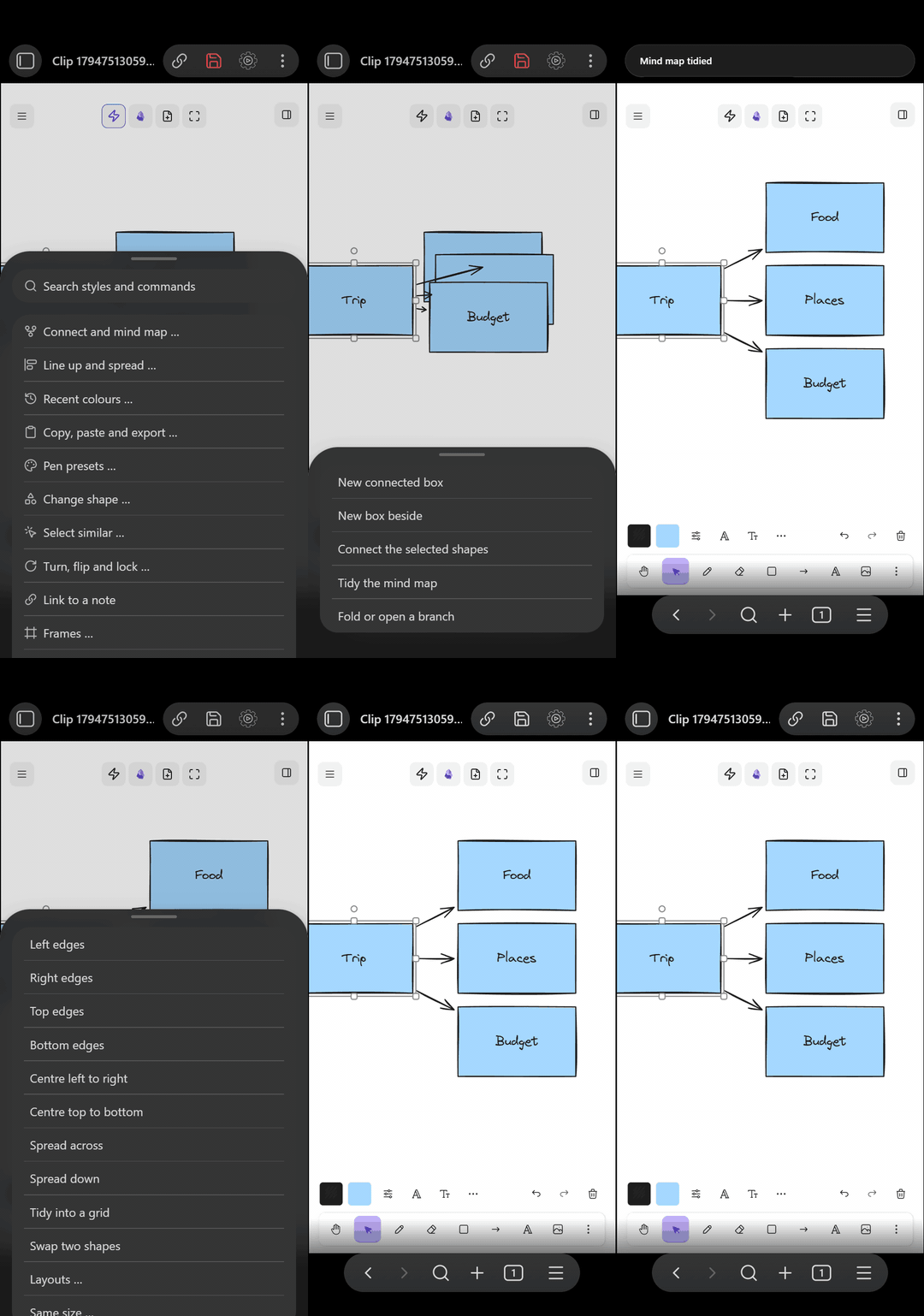
Select a box and press Tab. A new box appears with an arrow from yours, and you type its label at once. Press Tab on the same box again: the next child goes under the first. Shift+Tab adds a box beside the selected one, from the same parent. New boxes grow away from their parent, so a map can go right, left, up or down.
Ctrl+Alt+A ties the selected shapes together with arrows, in the order they sit.
Leader, N, T tidies the whole map, so no branch overlaps another. Leader, N, F folds a branch: the boxes under the selected box hide, and a small +3 says how many. The same key shows them again, next to the box even if you moved it.
Leader, N, Z folds every branch. Leader, N, O opens them all.
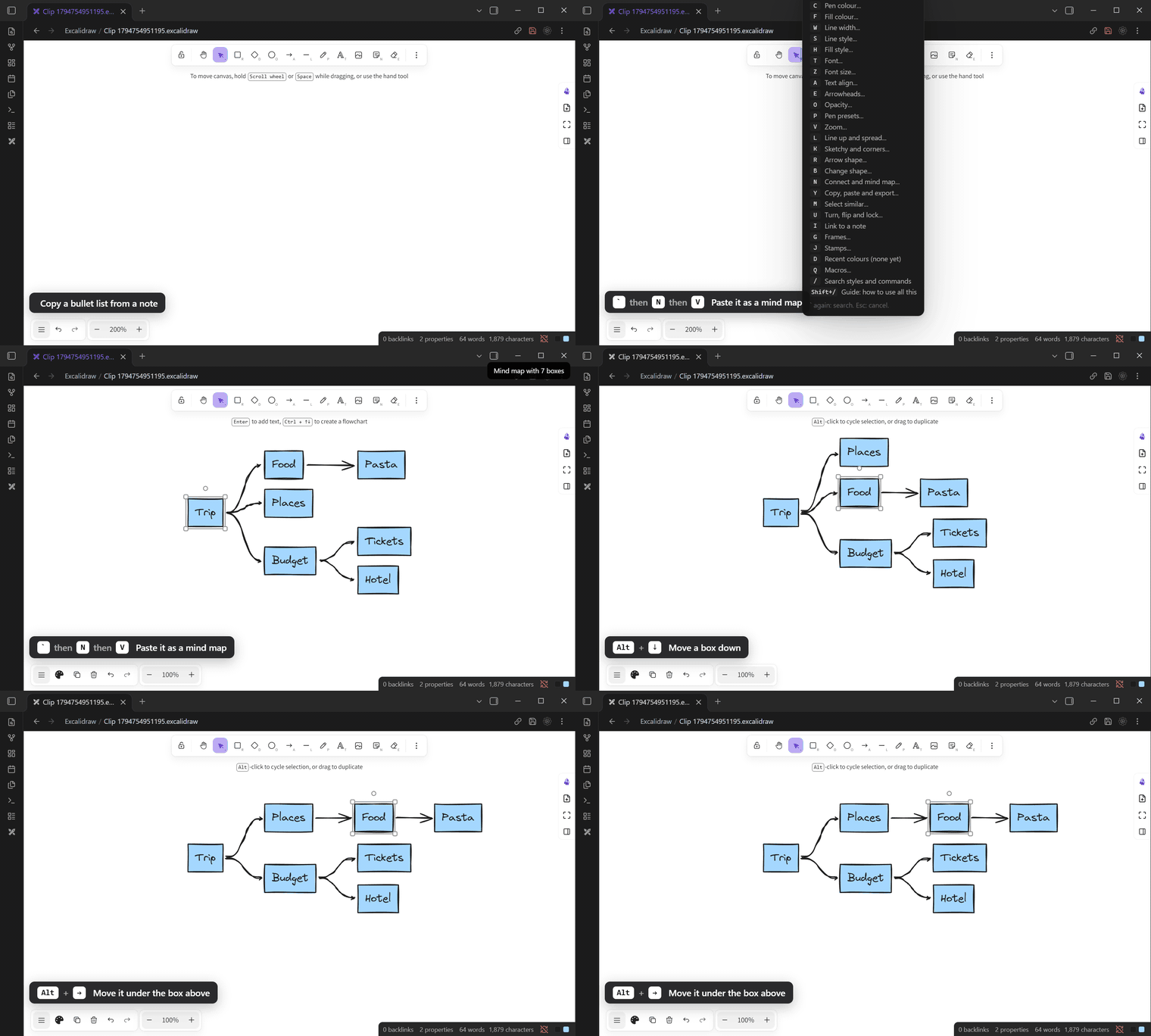
From a list, and back. Copy a bullet list from a note. In a drawing, press leader, N, V. Each item becomes a box, joined to the item it sits under. Leader, N, Y copies a map as a list, and leader, N, I puts the list at the end of a note.
Edit it like an outline. Select a box. Alt+Up and Alt+Down move it among its siblings. Alt+Left moves it up a level. Alt+Right moves it under the box above it. The map tidies itself after each move.
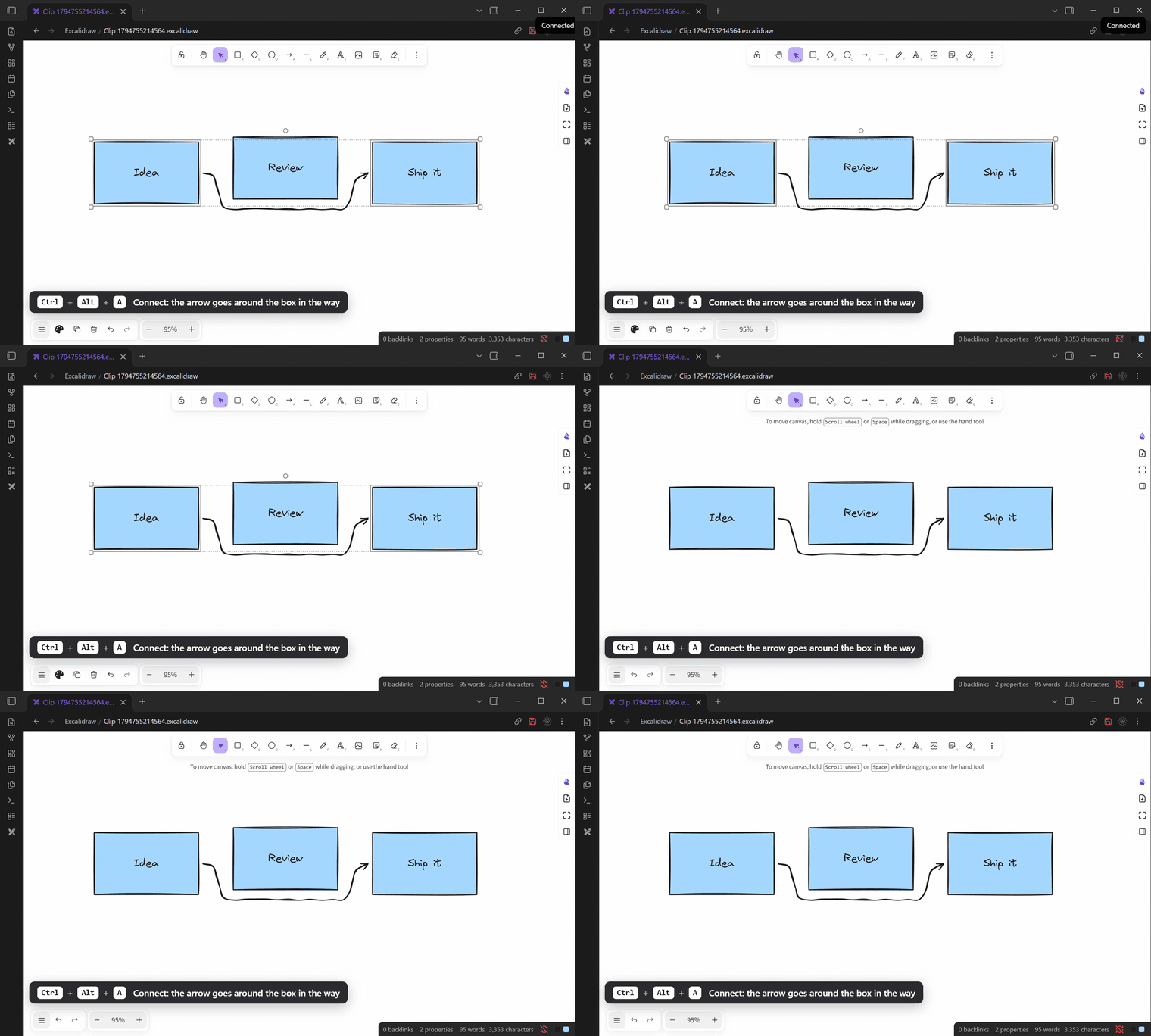
Every arrow this plugin draws (mind map, connect, duplicate) leaves from the sides that face each other, from the middle of each side, with a small gap. When the shapes are in line it is straight. When they are not, it is a soft S-curve, like a hand-drawn map. Choose Curved, Straight, Elbow or Like my pen in Settings → Moving and sizing → Arrow style.
When a shape moves (line up, spread, grid, swap), its arrows are laid fresh the same way, so they never end up cutting across a box. An arrow you drew with your own bends keeps them and stretches. This also works when you drag a shape with the mouse (turn it off in Settings → Moving and sizing).
When a box sits between the two shapes, the arrow goes under or over it, not through it.
Alt+S makes shapes clean, sketchy or very sketchy. Ctrl+Alt+R gives boxes and diamonds round or sharp corners. Alt+W makes arrows straight, curved or elbow (right-angle bends). Shift+C turns a box into a circle, then a diamond. It keeps the label, the style and the arrows. With nothing selected, these change your pen.
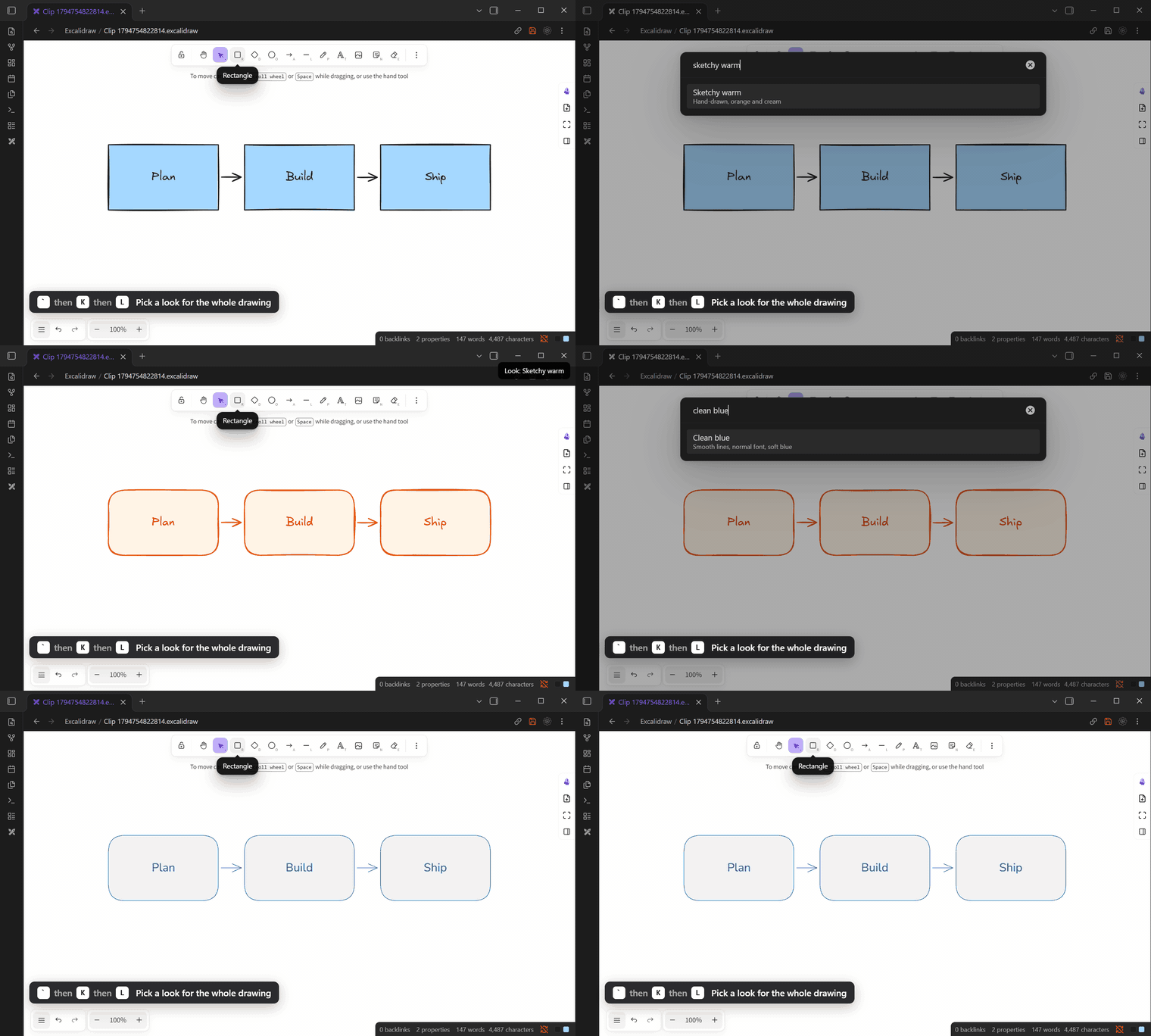
Leader, K, L gives the whole drawing one look: Clean blue, Sketchy warm, Bold grey, Soft green or Plain ink. All boxes, lines and text change in one step, and one Ctrl+Z undoes it.
Select an arrow and press leader, R, L to type a label on it.
Ctrl+Alt+C copies the whole style of the selected shape, or of your pen. Ctrl+Alt+V pastes it on the selection, or on your pen.
A preset is a saved pen: colour, fill, fill style, line width, line style, font, size, align, arrowheads and opacity. Save pen as preset N saves the selected shape's style, or your pen if nothing is selected. Use pen preset N works like every other key: on the selection, on your pen, or on the text you type. Rename or delete presets in Settings → Pen presets.
The preset bar sits in Excalidraw's own bottom row, next to zoom. Click a preset to use it. Right-click one to save over it. + saves a new one. The bar also shows the last colours you used (click: pen, right-click: fill), and buttons you add for any command in Settings → Pen presets. You can turn the bar off there too.
Settings → Pen presets → Share exports your presets, colours, stamps, macros and bar buttons to one file. Copy that file to another vault and press Import there.
Select 2 or more shapes, press the leader key, then L. A, D, W and S line up the left, right, top or bottom edges. C and X centre them. With 3 or more shapes, H spreads them out evenly across and V spreads them down. G tidies them into a grid, P swaps two, and Z makes them the same size. Each one is also a command, so you can give it a key in Settings → Hotkeys.
Lining up never piles shapes on each other. If a shape would land on another, or too close for an arrow, it moves down (or right) to leave a clear gap. So three boxes lined up left become a neat column.
It lines things up the way you see them:
- A group, a box with its label, and a frame with what is in it move as one.
- A loose text on a drawing, or right next to it, moves with that drawing, like a caption. This works even when you select only the drawing. A caption that belongs to another shape stays where it is.
- A turned shape lines up by its turned corners.
- Arrows tied to a shape follow it. Elbow arrows keep their right angles.
- Shapes too big to have gaps between them get evenly spaced middles.
- Locked things never move.
Leader, L, L lays the selection out as a flowchart (F, in a row with arrows), a timeline (T), a kanban board (K, three columns) or a 2×2 grid (M).
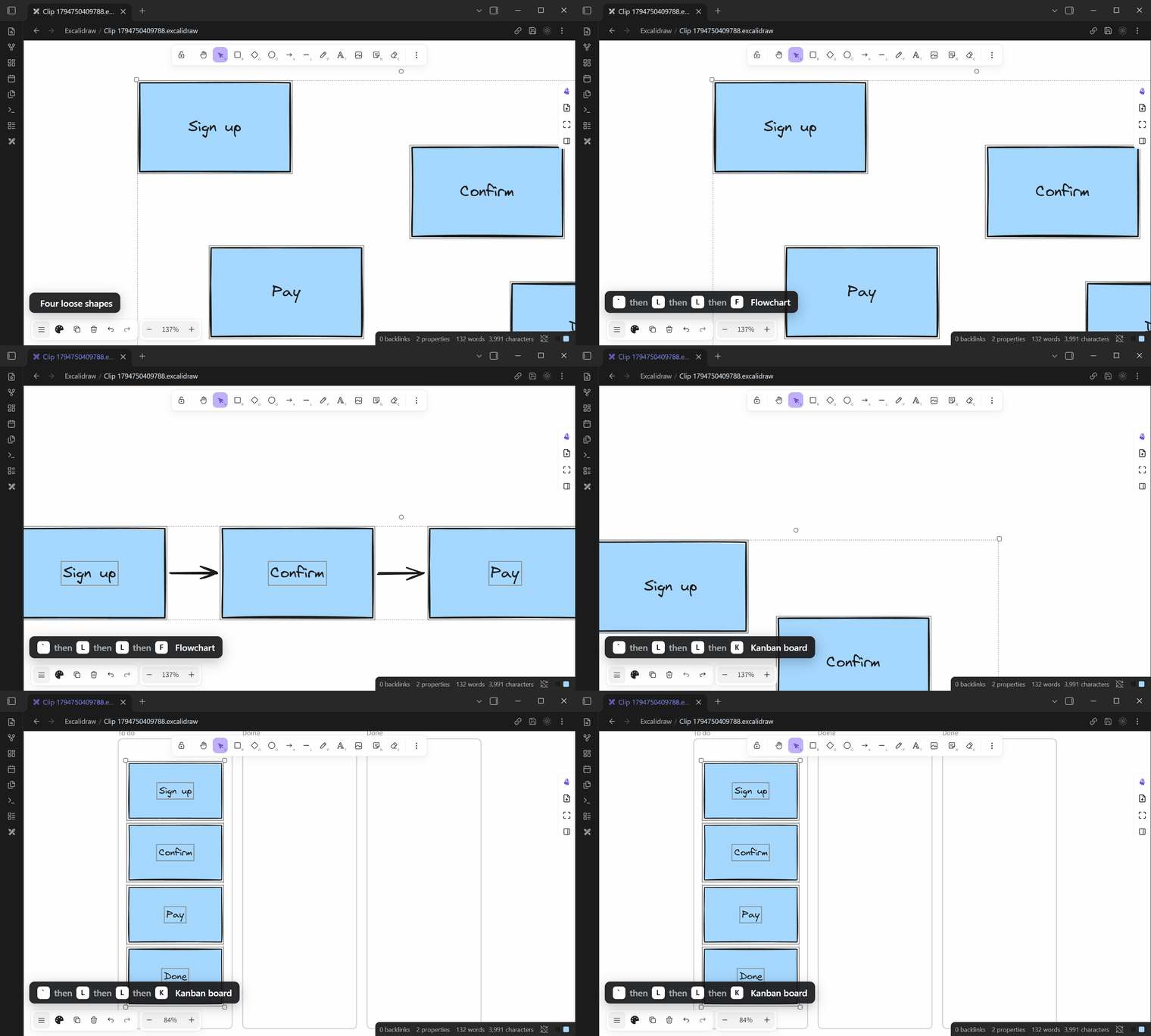
Moves glide into place, and each one is one undo step. Change the speed, or turn the glide off, in Settings → Moving and sizing.
With the leader key: M selects everything like the selected shape (same pen colour, fill, type or style). U turns, flips and locks. I links the selection to a note, with the smart search. G puts the selection in a frame, and jumps from frame to frame like slides.
Leader, Y, I copies the selection as a PNG, or the whole drawing when nothing is selected. Leader, Y, N saves the PNG and adds it to the end of a note you pick.
Obsidian on a phone or tablet has no keyboard shortcuts, so the plugin keeps to a light version there. A ⚡ button in the drawing's top row opens every action, with the same names as the leader menu. It leaves out what Excalidraw's own bar already has (colours, line, font), and it takes no room from the drawing. With a keyboard (a tablet keyboard cover, DeX), turn on Settings → Excalidraw Hotkeys → I use a keyboard on this device to get all the keys on that device.
Select some shapes, then press the leader key, J and S. That saves them as a stamp, named after its first text. Press the leader key, J and a number to place it at the mouse. J / finds one by name.
Press the leader key, Q and R, then do some steps: keys, leader keys, search picks and bar clicks. Press the leader key, Q and R again to stop. The status bar says Recording while it records. Play it with the leader key, Q and its number.
Press the leader key (`), then a short row of plain keys. A panel shows the choices at each step. Examples:
-
` C 3: pen colour 3.` F 0: no fill. -
` W 2: bold line.` S D: dashed.` H X: cross-hatch fill. -
` P 1: use preset 1.` P S 1: save preset 1. -
` V 3: zoom preset 3.` L A: line up left edges.` `or` /: search.
Escape or a click cancels.
Change the menu letters in Settings → Leader menu. There you can also add your own sequences for any Obsidian command, like ` X X for one you use a lot. Settings tells you when a sequence replaces a built-in key.
Shift+W/A/S/D selects the nearest shape above, left, below or right. With nothing selected, it selects the shape nearest the middle of the screen. Shift+F follows an arrow out of the selected shape. Shift+R follows it back.
Alt+Z opens a search for styles and commands. It knows other words (circle, thicker, copy, see-through), small typos and short forms like grn. Type several styles at once, like blu dashd thik. The top result then sets all of them in one step. Type a colour code like #ff8800 for that pen colour, or fill #ff8800 for that fill.
Hold two arrow keys to move the selection on a diagonal. Hold Shift too for a bigger step. This one is not in the Hotkeys menu.