Repository navigation
Build on windows (MinGW)
- Download https://repo.msys2.org/distrib/x86_64/msys2-x86_64-20230127.exe (link from https://www.msys2.org/wiki/MSYS2-installation/)
- Install it (Next->Next->Next...). After the install it'll open msys2 CLI.
- Do
pacman -S mingw-w64-x86_64-toolchain mingw-w64-x86_64-cmake mingw-w64-x86_64-glm mingw-w64-x86_64-SDL2 mingw-w64-x86_64-SDL2_image mingw-w64-x86_64-enet mingw-w64-x86_64-freetype mingw-w64-x86_64-glew mingw-w64-x86_64-openalin the CLI.
We're gonna use Qt Creator for now.
- Download Qt Creator for you platform: https://download.qt.io/official_releases/qtcreator/9.0/9.0.2/
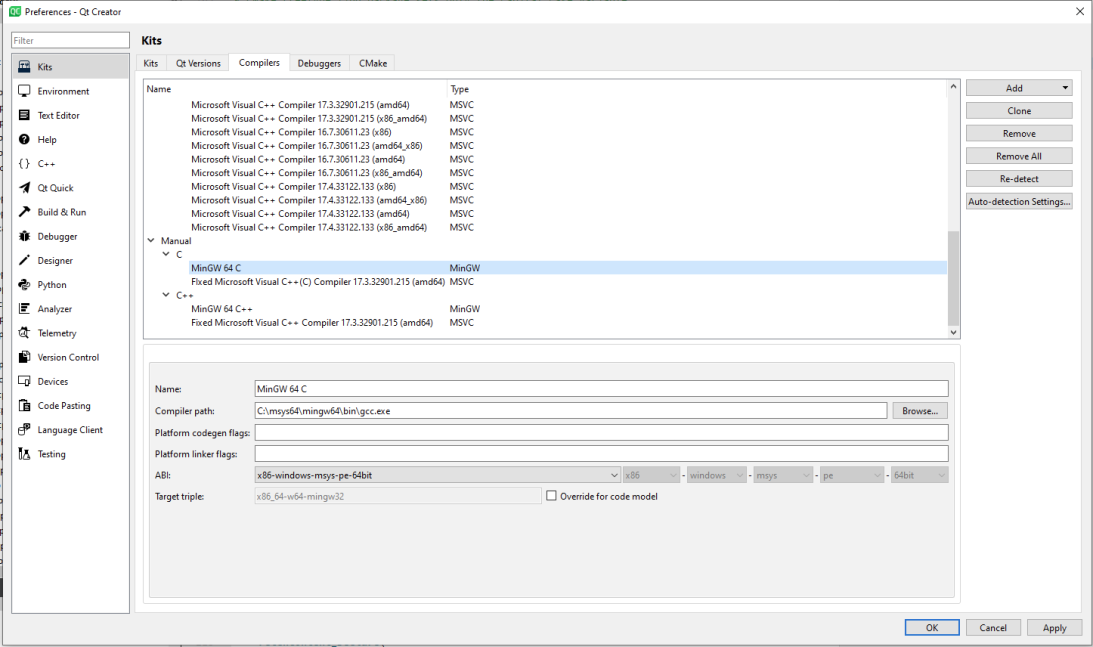
- Open the Preferences => Kits => Compilers. Manually add MinGW 64 C and C++ compilers. C compiler is C:\msys64\mingw64\bin\gcc.exe and C++ compiler is C:\msys64\mingw64\bin\g++.exe.
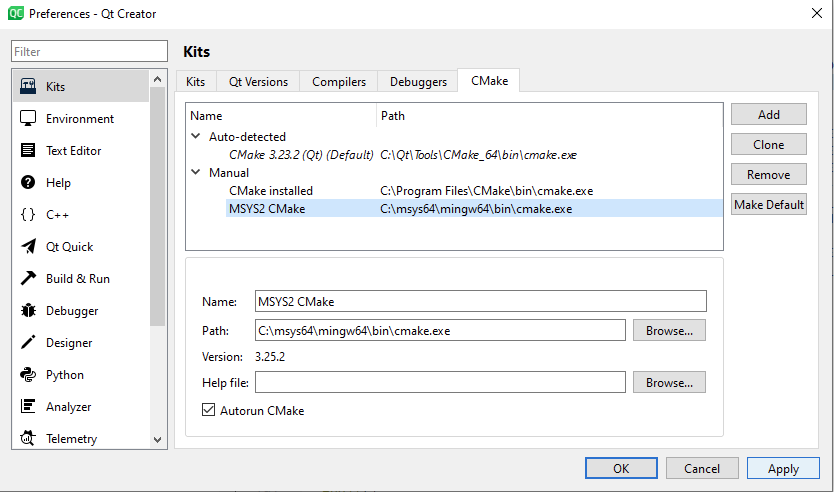
- Setup CMake in Preferences => Kits => CMake.
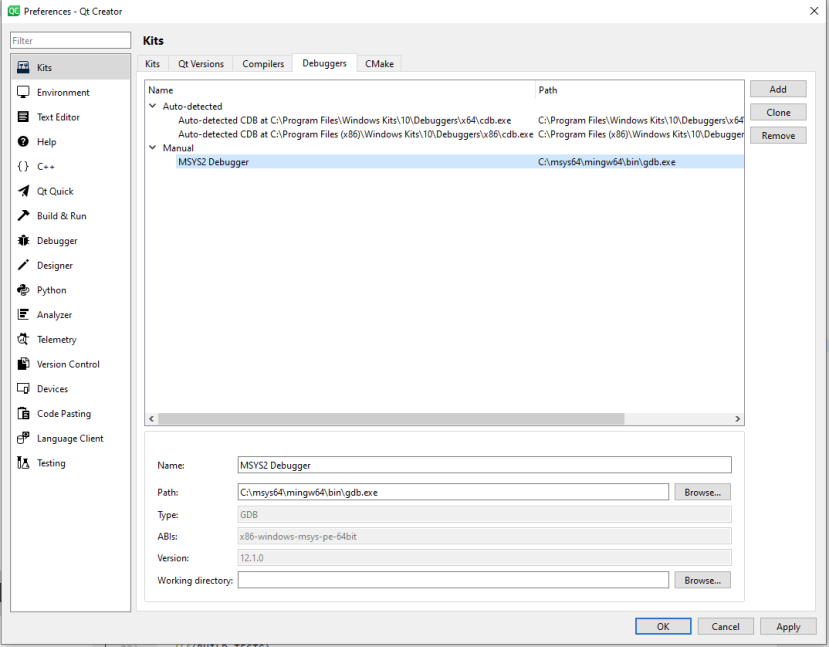
- Setup the debugger (optional)
https://github.com/WiredForWar/machines/tree/kaffeine/dev-reverted-gfx
https://lordovervolt.com/machines
In Qt Creator: File => Open file or project => (browse to the cloned repository) => CMakeLists.txt.
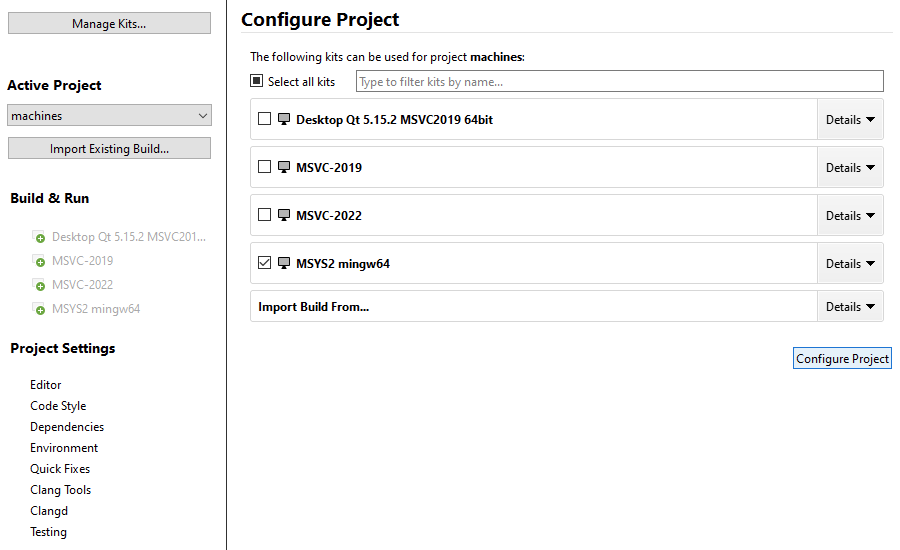
Then check the MSYS2 kit and uncheck all the others (if any). Click "Configure Project".
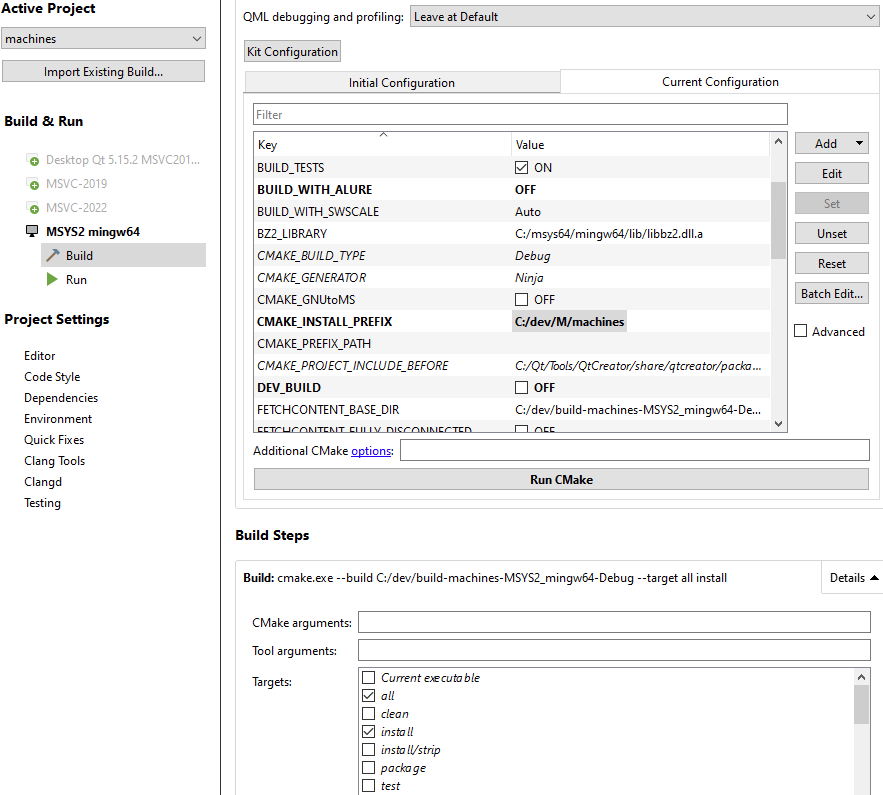
After the initial configuration, open the Current Configuration tab and set:
-
BUILD_WITH_ALUREtoOFF -
DEV_BUILDalso toOFF -
CMAKE_INSTALL_PREFIXto the machines installation directory.
Enable install target in the Build Steps below (open Details to do it).
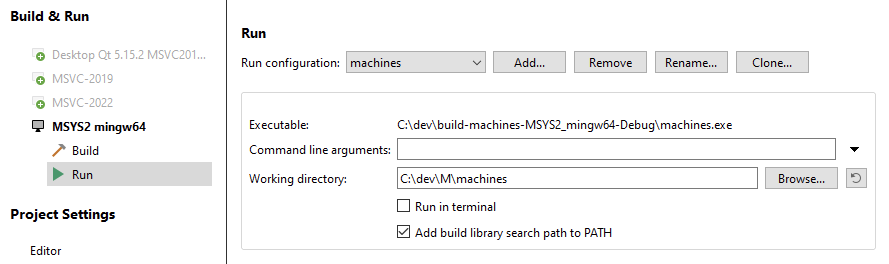
Set the executable working directory to the machines install directory.