Repository navigation
LabelPrint Studio 2.2.0

What's new in 2.2
🧻 A Rolls window you understand at a glance
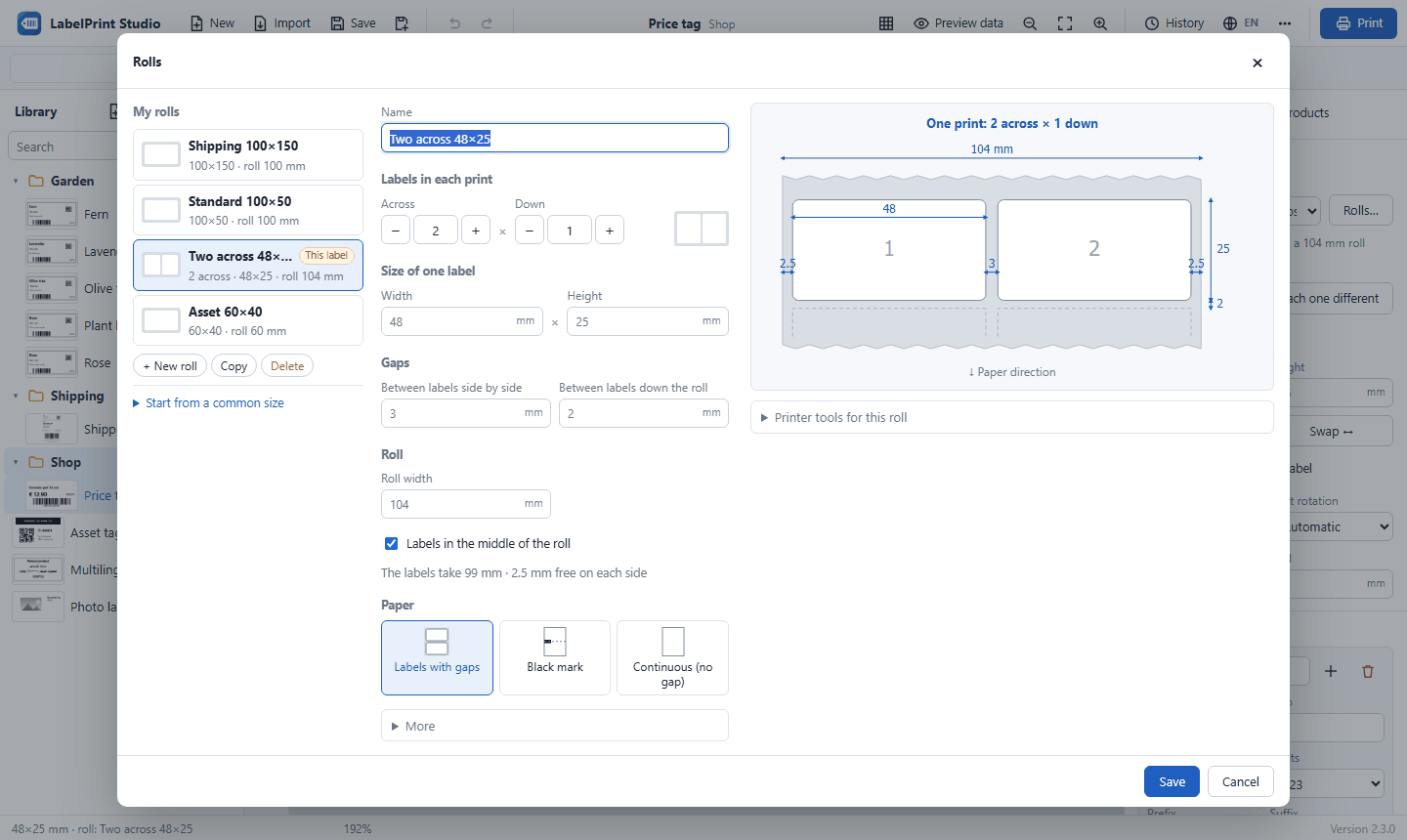
Describe your roll the way you see it:
- Labels in each print: how many across, and how many down (nearly always 1), with − and + buttons and a small picture.
- Size of one label: the width and height of a single label, not the whole row.
- Gaps: between labels side by side, and down the roll (for black-mark paper, the mark's height).
- Roll width, with Labels in the middle of the roll.
A large picture shows the roll as it comes out of the printer, with the labels numbered in print order, a frame around one print, and readable sizes. The size you are editing is highlighted.
If the labels don't fit (for example two 100 mm labels on a 100 mm roll), the window says by how much and offers one-click fixes: make the roll wider, or each label narrower. You can also start from a common size (single, two-across, three-across). A roll's name follows its layout until you rename it.
Also
- A print can hold more than one row of labels. The preview, test print, layout test and the printer's paper size follow it.
- Fixed a stray "null" under the roll form, and number boxes no longer show spin arrows over their "mm".
Download
👉 LabelPrintStudio-v2.2.0-win64.zip (Windows 10 / 11, 64-bit, about 11 MB; nothing else to install)
How to install
- Download the zip above.
- Right-click it → Extract All… to a permanent folder, for example
C:\LabelPrintStudio. - Double-click
Create Desktop Shortcut.batonce. - Start LabelPrint Studio from the desktop shortcut.
Updating in place: close the app and copy the folders app, web, python, the file run.py and the .bat files from the new zip over your installation folder. Your labels, rolls, settings and print history stay as they are.
Free and open source under the MIT License. Designed and developed by Amirhossein Arani.