Repository navigation
Releases
Divine Pulse 1.4.2


Divine Pulse 1.4.0 turns your battles into shareable videos, adds team export images, shows who has fallen and which classes your units have mastered, and lets you track the game from FE3H Recomp as well as Eden.
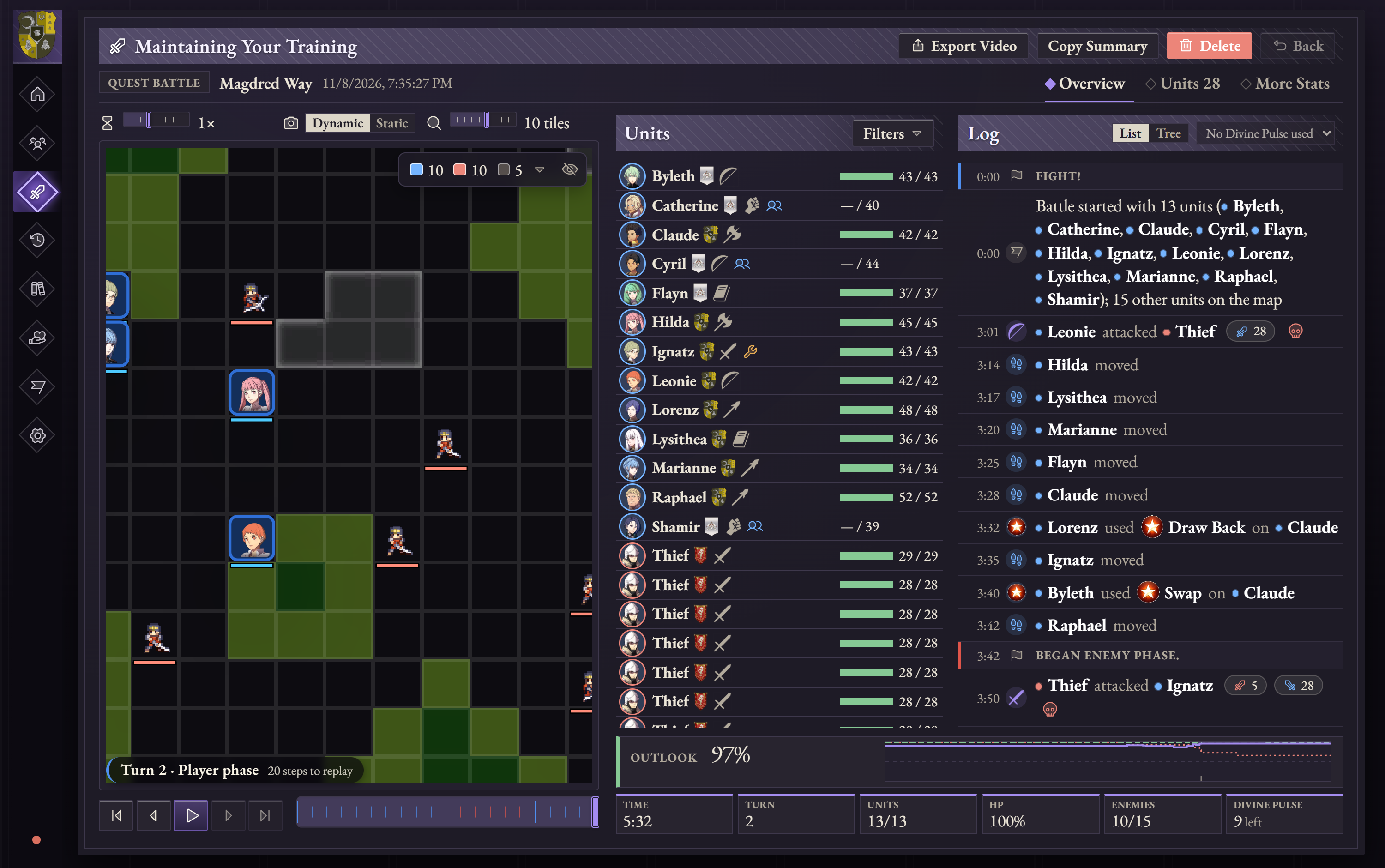
Export a battle as a video
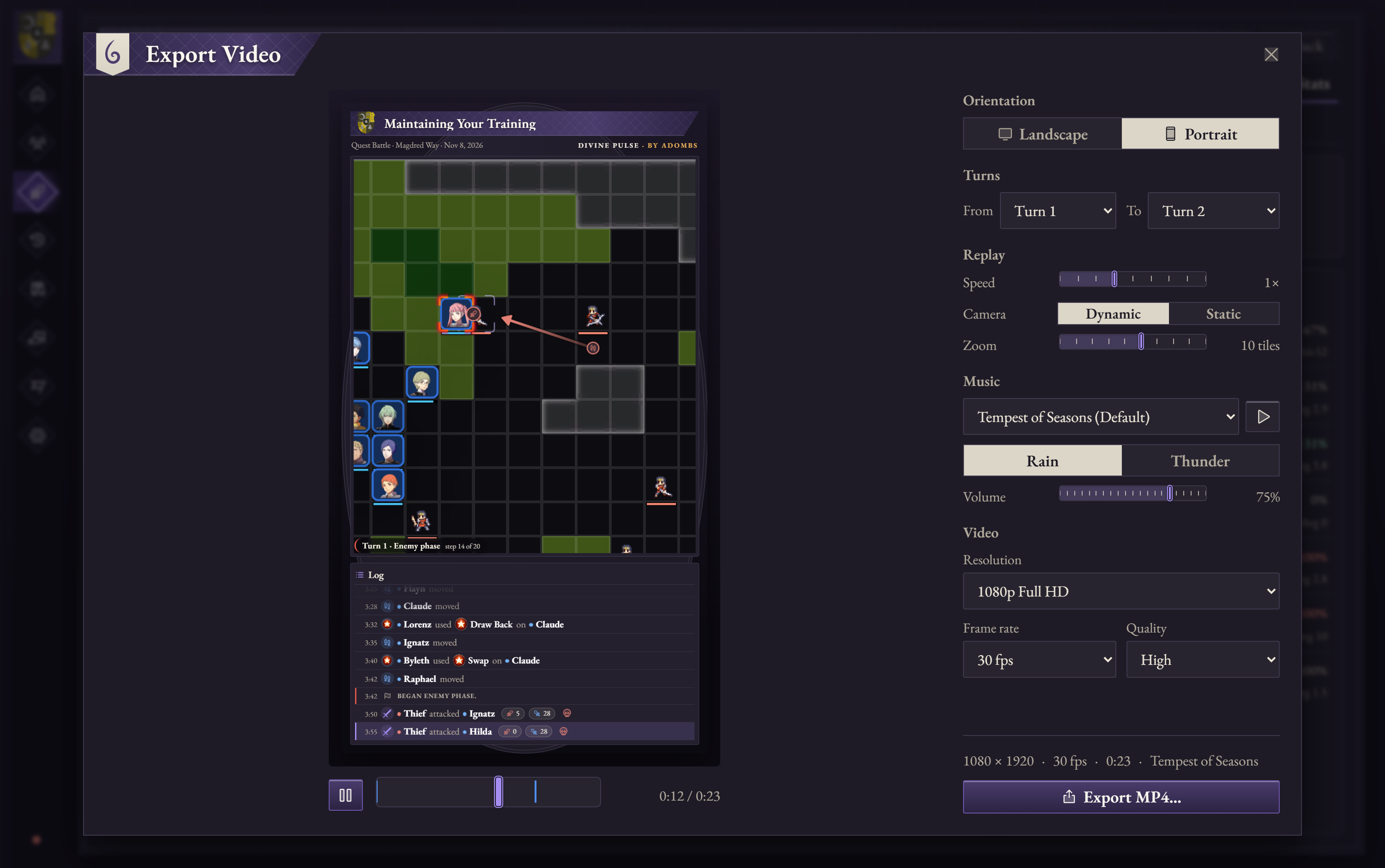
Open a saved battle and choose Export Video to save its replay as an MP4. Preview it first, then pick the turns to include, the replay speed, camera and zoom, and the video's size, frame rate and quality. Choose landscape (1920 × 1080) or portrait (1080 × 1920); the map, turn counter and action log are drawn into every frame.
Videos can play a battle theme underneath. The game's 20 battle themes are imported with your game files, each in a calm Rain and an intense Thunder version, and each battle starts with the theme it plays in the game. New replay speeds (0.75×, 1.5×, 2.5× and 3.5×) are available everywhere you replay a battle.
Export your team as images
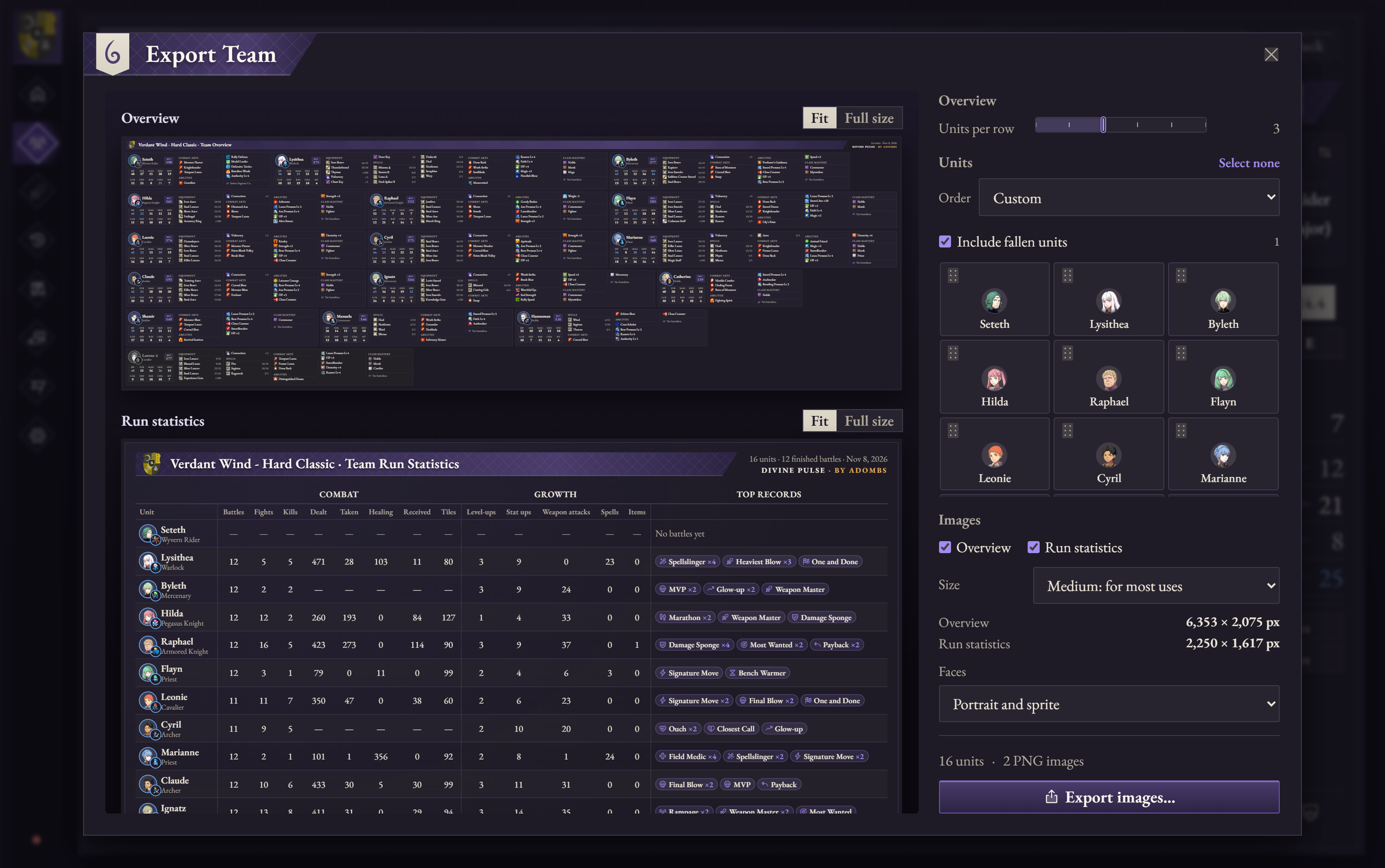
Choose Export Team on the Roster to save two images: an overview card for each unit (stats, equipment, spells, combat arts, abilities, battalion, and mastered classes) and a table of your run's combat and growth statistics with each unit's standout records. Set how many units sit side by side, drag units into the order you want or sort them by when they joined, stats, deployments or name, and leave out anyone you like. Show each unit as a portrait, a map sprite, or a portrait with its sprite as a badge.
Know who has fallen and what everyone has mastered
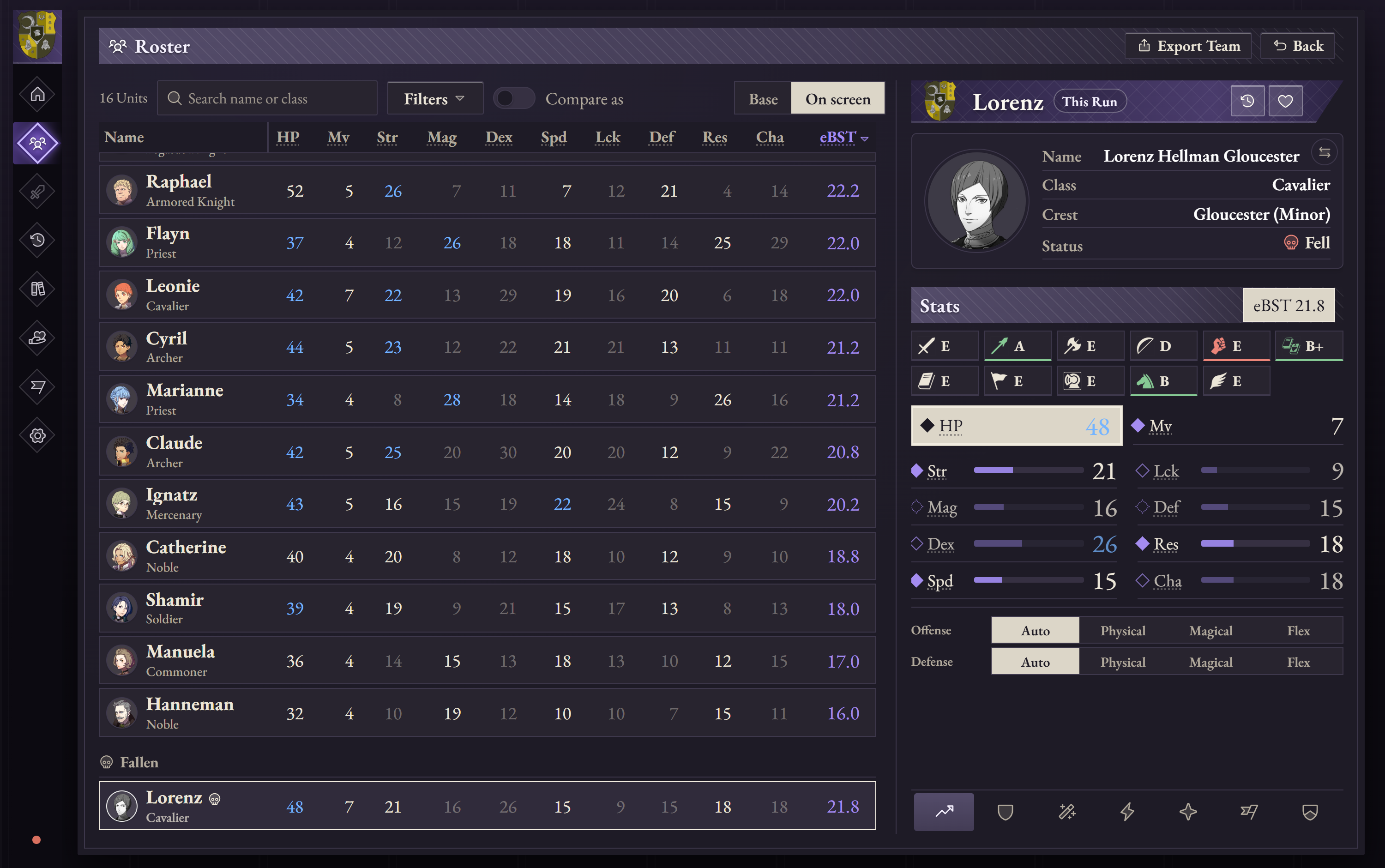
In Classic mode, units that die stay on the Roster in a greyed-out Fallen group, with a card that shows where they fell and opens that battle at the moment it happened. Use the new Status filter to show only the living or the fallen. The History statistics, Archive "in run" marks and a battle's Units tab include them too, and Export Team can include or leave out the fallen.
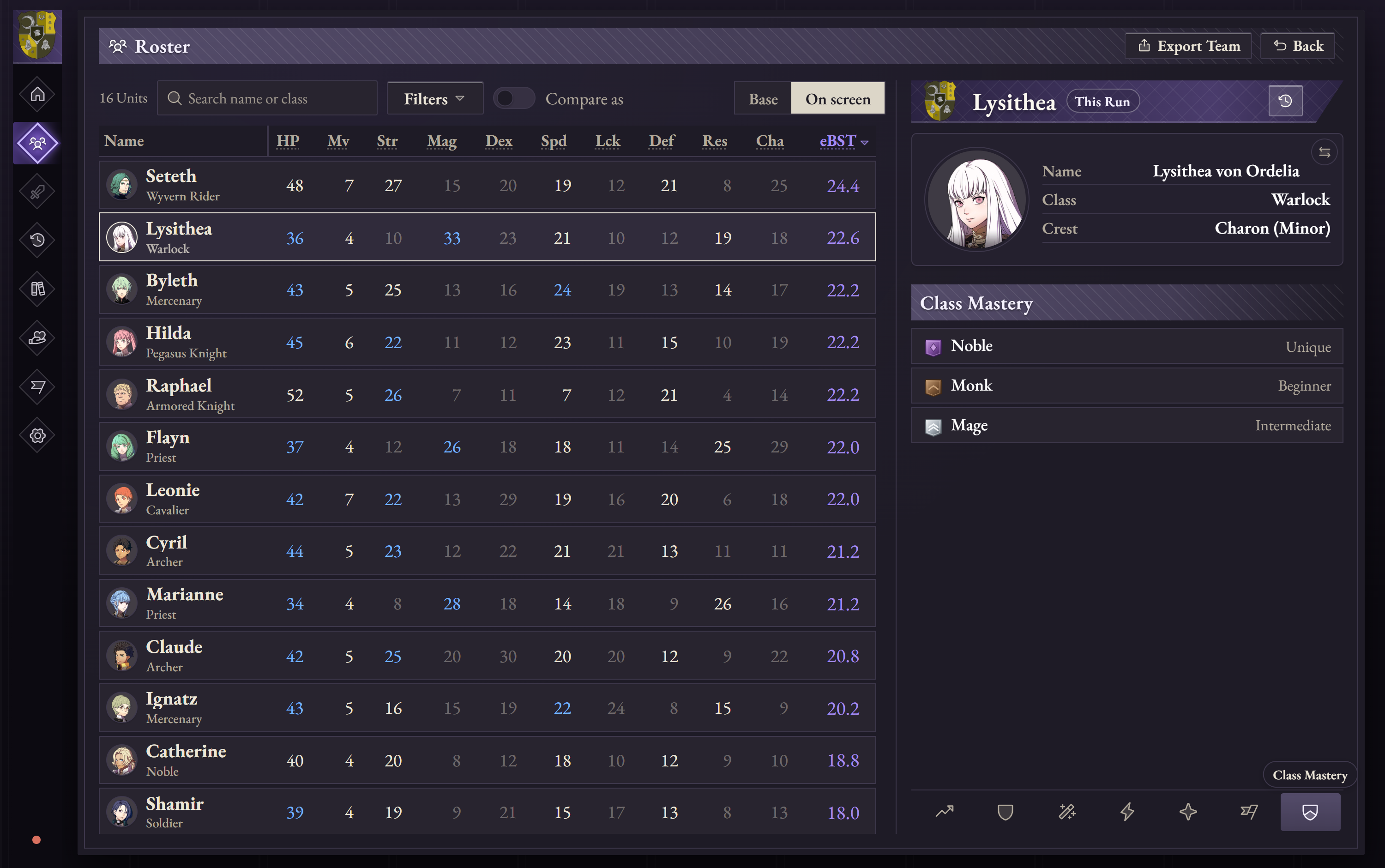
The new Class Mastery tab on a unit's card lists every class they have mastered, lowest tier first.
Battles sorted into five kinds
Battles are now Mission, Auxiliary, Paralogue, Quest and DLC battles, with the same names on the battle page, in History, in Battle Stats and on video headers. Quest battles are named after their quest instead of their map.
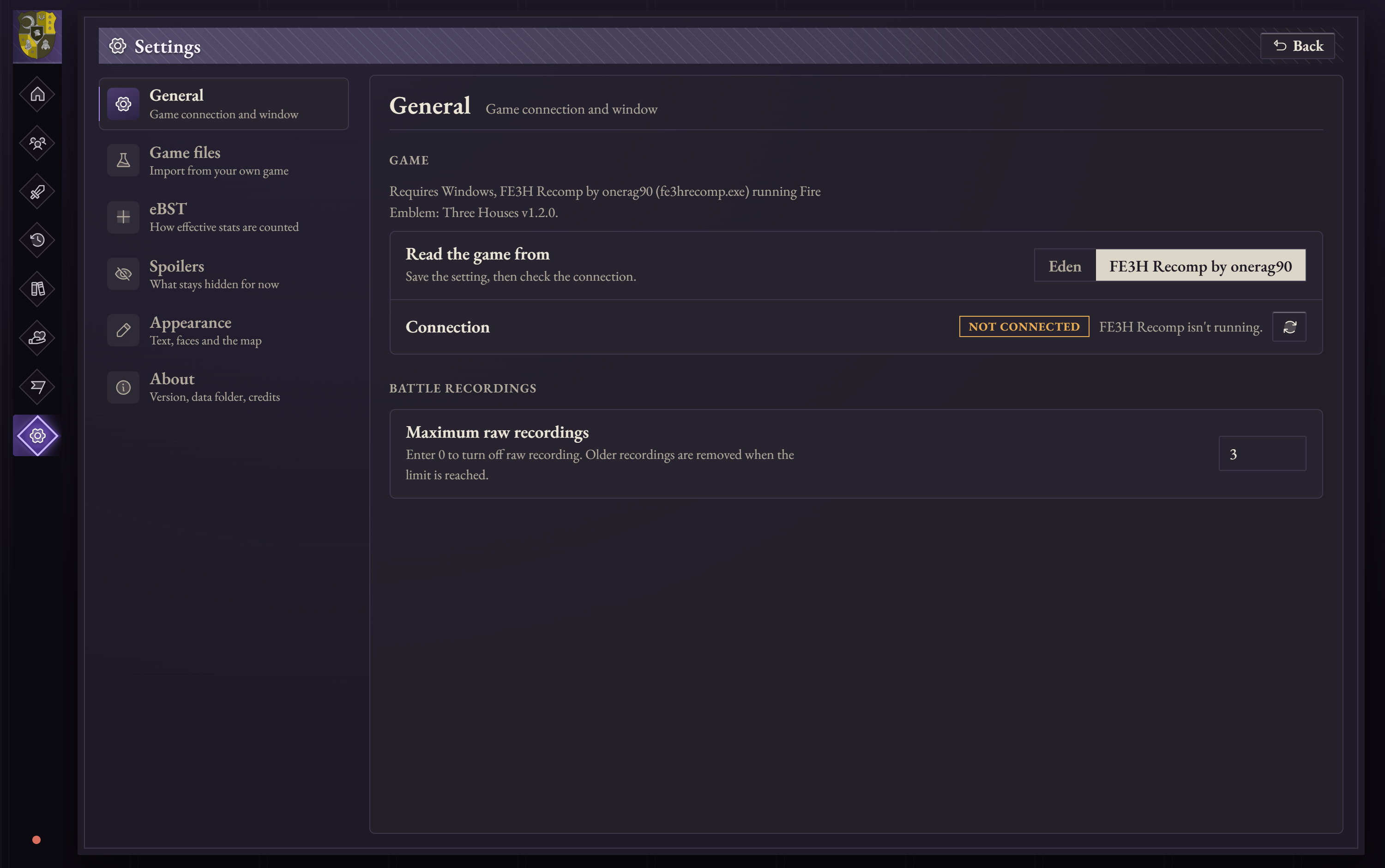
Play with FE3H Recomp
Divine Pulse can now read the game from FE3H Recomp by onerag90, the native Windows recompilation of Three Houses. Choose it in Settings → General → Game. Eden stays the default and nothing else about tracking changes.
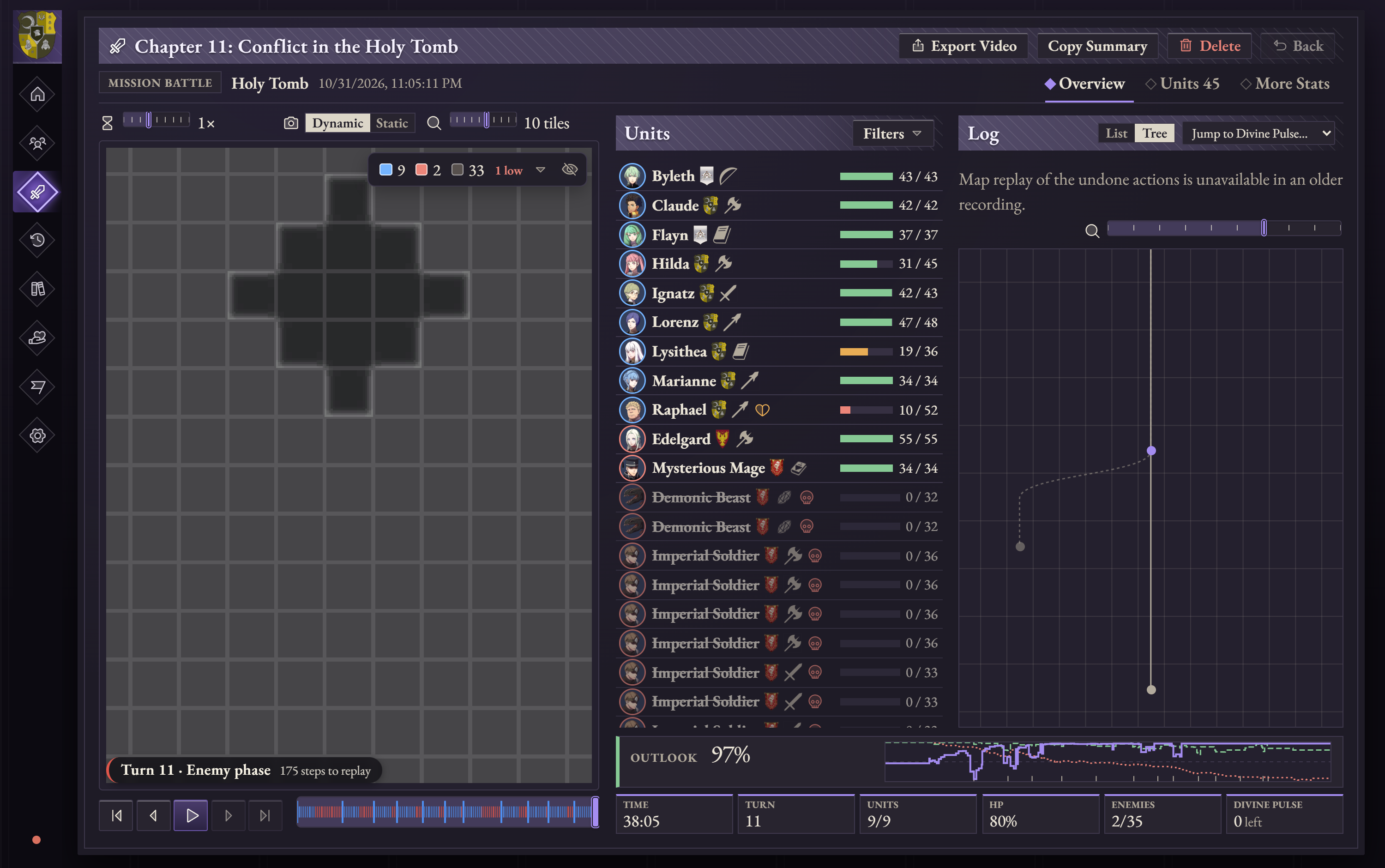
A more connected battle log
Gambits, level-ups, joins, departures and stat gains in the log now link to their battalion in the Archive or to the unit's card. The log's tree view is easier to read, with only one copy of a row shown at a time.
Smaller changes
- Tracking is much faster. Reading the game during a battle went from about two seconds to a few milliseconds, and a battle's units appear right away.
- Each unit's affiliation in a battle now comes straight from the game and updates if it changes mid-battle.
- Added map sprites for Jeralt, Rhea and Sothis, and fixed the sprites for Flayn, Hanneman, Manuela, Gilbert, Alois, Catherine, Shamir and Cyril.
- The Units tab's character card flips between portrait and map sprite, as on the Roster.
- The Roster's unit card fits every stat without scrolling, and Export Team and Export Video were tidied up.
- Light mode was removed. Divine Pulse now has one dark theme.
Get started
You’ll need 64-bit Windows 10 or 11 with Microsoft Edge WebView2, Eden with fastmem enabled or FE3H Recomp by onerag90, and your own copy of Fire Emblem: Three Houses with update 1.2.0.
- Choose the Windows installer for a regular install and Start menu shortcuts, or the portable ZIP to unpack and run Divine Pulse.exe from a folder.
- If you’re updating, re-import your game files once in Settings → Game files to get the new battle themes, quest names and map sprites.
- Use Runs → Export to back up your playthroughs and replays before updating.
Hotfix 1.4.1
- Export Team images now save at exactly the size shown in the dialog, with nothing cut off.
- Battle cards show the battle type beside the units, and dates as mm/dd/yyyy with the time.
- Each character now has the same portrait on the battle page as everywhere else.
- Long names and labels that were cut off now show in full.
- Finished battles now show their fights and kills.
- Units that fell are counted as lost everywhere losses are shown.
- Battle and run totals no longer turn into dashes when an adjutant is deployed.
Hotfix 1.4.2
- Battles stay on the map they were played on. Battle in the Outskirts (including the quest Something to Prove), Battle at Magdred Way and sometimes Battle in the Forest switched to the prologue's map when they ended. Battles already recorded keep the map they were saved with.
Divine Pulse 1.4.1
Divine Pulse 1.4.0 turns your battles into shareable videos, adds team export images, shows who has fallen and which classes your units have mastered, and lets you track the game from FE3H Recomp as well as Eden.
Export a battle as a video
Open a saved battle and choose Export Video to save its replay as an MP4. Preview it first, then pick the turns to include, the replay speed, camera and zoom, and the video's size, frame rate and quality. Choose landscape (1920 × 1080) or portrait (1080 × 1920); the map, turn counter and action log are drawn into every frame.
Videos can play a battle theme underneath. The game's 20 battle themes are imported with your game files, each in a calm Rain and an intense Thunder version, and each battle starts with the theme it plays in the game. New replay speeds (0.75×, 1.5×, 2.5× and 3.5×) are available everywhere you replay a battle.
Export your team as images
Choose Export Team on the Roster to save two images: an overview card for each unit (stats, equipment, spells, combat arts, abilities, battalion, and mastered classes) and a table of your run's combat and growth statistics with each unit's standout records. Set how many units sit side by side, drag units into the order you want or sort them by when they joined, stats, deployments or name, and leave out anyone you like. Show each unit as a portrait, a map sprite, or a portrait with its sprite as a badge.
Know who has fallen and what everyone has mastered
In Classic mode, units that die stay on the Roster in a greyed-out Fallen group, with a card that shows where they fell and opens that battle at the moment it happened. Use the new Status filter to show only the living or the fallen. The History statistics, Archive "in run" marks and a battle's Units tab include them too, and Export Team can include or leave out the fallen.
The new Class Mastery tab on a unit's card lists every class they have mastered, lowest tier first.
Battles sorted into five kinds
Battles are now Mission, Auxiliary, Paralogue, Quest and DLC battles, with the same names on the battle page, in History, in Battle Stats and on video headers. Quest battles are named after their quest instead of their map.
Play with FE3H Recomp
Divine Pulse can now read the game from FE3H Recomp by onerag90, the native Windows recompilation of Three Houses. Choose it in Settings → General → Game. Eden stays the default and nothing else about tracking changes.
A more connected battle log
Gambits, level-ups, joins, departures and stat gains in the log now link to their battalion in the Archive or to the unit's card. The log's tree view is easier to read, with only one copy of a row shown at a time.
Smaller changes
- Tracking is much faster. Reading the game during a battle went from about two seconds to a few milliseconds, and a battle's units appear right away.
- Each unit's affiliation in a battle now comes straight from the game and updates if it changes mid-battle.
- Added map sprites for Jeralt, Rhea and Sothis, and fixed the sprites for Flayn, Hanneman, Manuela, Gilbert, Alois, Catherine, Shamir and Cyril.
- The Units tab's character card flips between portrait and map sprite, as on the Roster.
- The Roster's unit card fits every stat without scrolling, and Export Team and Export Video were tidied up.
- Light mode was removed. Divine Pulse now has one dark theme.
Get started
You’ll need 64-bit Windows 10 or 11 with Microsoft Edge WebView2, Eden with fastmem enabled or FE3H Recomp by onerag90, and your own copy of Fire Emblem: Three Houses with update 1.2.0.
- Choose the Windows installer for a regular install and Start menu shortcuts, or the portable ZIP to unpack and run Divine Pulse.exe from a folder.
- If you’re updating, re-import your game files once in Settings → Game files to get the new battle themes, quest names and map sprites.
- Use Runs → Export to back up your playthroughs and replays before updating.
Hotfix 1.4.1
- Export Team images now save at exactly the size shown in the dialog, with nothing cut off.
- Battle cards show the battle type beside the units, and dates as mm/dd/yyyy with the time.
- Each character now has the same portrait on the battle page as everywhere else.
- Long names and labels that were cut off now show in full.
- Finished battles now show their fights and kills.
- Units that fell are counted as lost everywhere losses are shown.
- Battle and run totals no longer turn into dashes when an adjutant is deployed.
Divine Pulse 1.4.0
Divine Pulse 1.4.0 turns your battles into shareable videos, adds team export images, shows who has fallen and which classes your units have mastered, and lets you track the game from FE3H Recomp as well as Eden.
Export a battle as a video
Open a saved battle and choose Export Video to save its replay as an MP4. Preview it first, then pick the turns to include, the replay speed, camera and zoom, and the video's size, frame rate and quality. Choose landscape (1920 × 1080) or portrait (1080 × 1920); the map, turn counter and action log are drawn into every frame.
Videos can play a battle theme underneath. The game's 20 battle themes are imported with your game files, each in a calm Rain and an intense Thunder version, and each battle starts with the theme it plays in the game. New replay speeds (0.75×, 1.5×, 2.5× and 3.5×) are available everywhere you replay a battle.
Export your team as images
Choose Export Team on the Roster to save two images: an overview card for each unit (stats, equipment, spells, combat arts, abilities, battalion, and mastered classes) and a table of your run's combat and growth statistics with each unit's standout records. Set how many units sit side by side, drag units into the order you want or sort them by when they joined, stats, deployments or name, and leave out anyone you like. Show each unit as a portrait, a map sprite, or a portrait with its sprite as a badge.
Know who has fallen and what everyone has mastered
In Classic mode, units that die stay on the Roster in a greyed-out Fallen group, with a card that shows where they fell and opens that battle at the moment it happened. Use the new Status filter to show only the living or the fallen. The History statistics, Archive "in run" marks and a battle's Units tab include them too, and Export Team can include or leave out the fallen.
The new Class Mastery tab on a unit's card lists every class they have mastered, lowest tier first.
Battles sorted into five kinds
Battles are now Mission, Auxiliary, Paralogue, Quest and DLC battles, with the same names on the battle page, in History, in Battle Stats and on video headers. Quest battles are named after their quest instead of their map.
Play with FE3H Recomp
Divine Pulse can now read the game from FE3H Recomp by onerag90, the native Windows recompilation of Three Houses. Choose it in Settings → General → Game. Eden stays the default and nothing else about tracking changes.
A more connected battle log
Gambits, level-ups, joins, departures and stat gains in the log now link to their battalion in the Archive or to the unit's card. The log's tree view is easier to read, with only one copy of a row shown at a time.
Smaller changes
- Tracking is much faster. Reading the game during a battle went from about two seconds to a few milliseconds, and a battle's units appear right away.
- Each unit's affiliation in a battle now comes straight from the game and updates if it changes mid-battle.
- Added map sprites for Jeralt, Rhea and Sothis, and fixed the sprites for Flayn, Hanneman, Manuela, Gilbert, Alois, Catherine, Shamir and Cyril.
- The Units tab's character card flips between portrait and map sprite, as on the Roster.
- The Roster's unit card fits every stat without scrolling, and Export Team and Export Video were tidied up.
- Light mode was removed. Divine Pulse now has one dark theme.
Get started
You’ll need 64-bit Windows 10 or 11 with Microsoft Edge WebView2, Eden with fastmem enabled or FE3H Recomp by onerag90, and your own copy of Fire Emblem: Three Houses with update 1.2.0.
- Choose the Windows installer for a regular install and Start menu shortcuts, or the portable ZIP to unpack and run Divine Pulse.exe from a folder.
- If you’re updating, re-import your game files once in Settings → Game files to get the new battle themes, quest names and map sprites.
- Use Runs → Export to back up your playthroughs and replays before updating.
Divine Pulse 1.3.1

Divine Pulse 1.3.0 gives the Roster and Archive more room to show the details you need, makes battle history easier to browse, and puts game imports in the same place for installer and portable users.
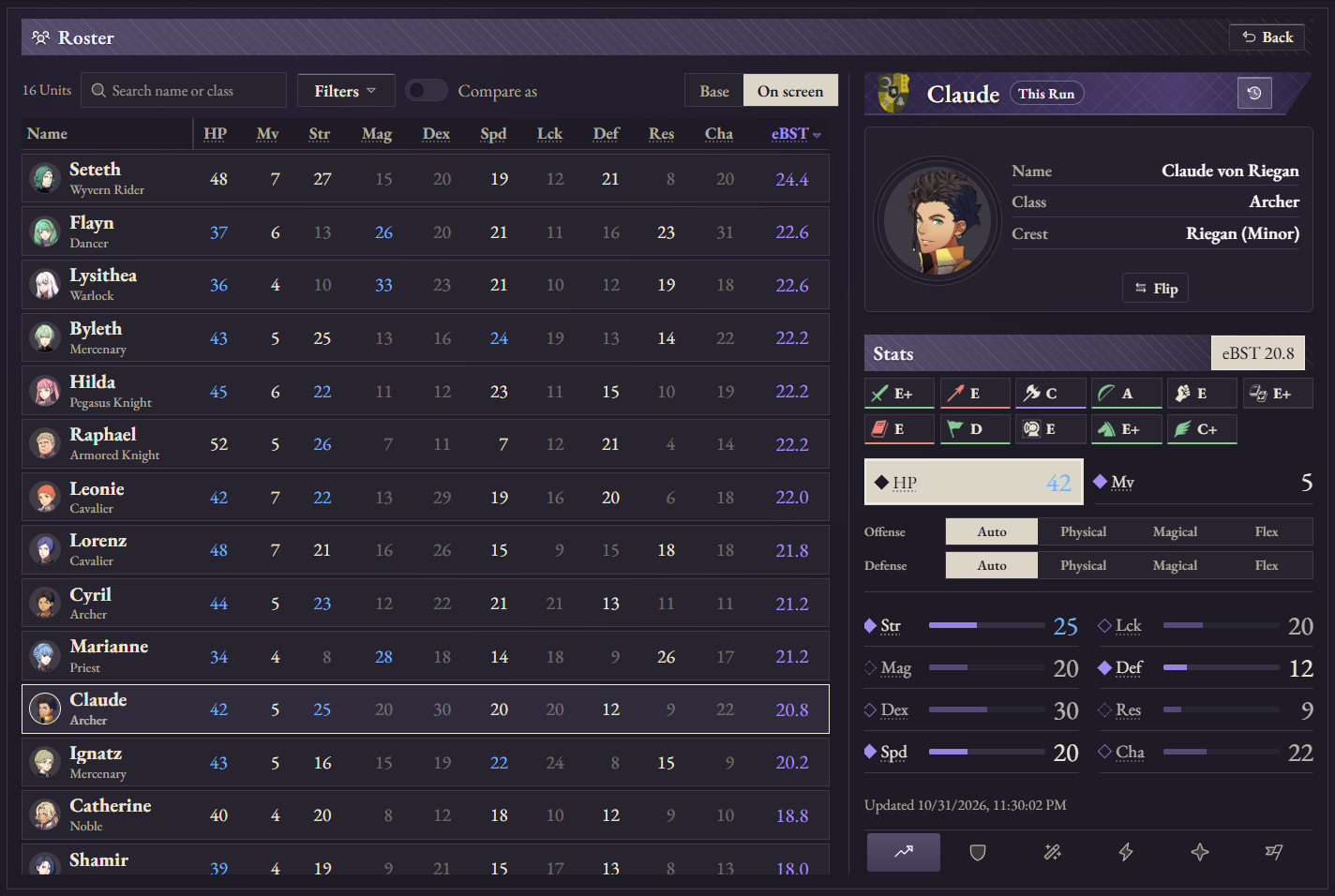
A roomier Roster and clearer character cards
- The tighter roster table gives the selected unit’s card more room. See their class, crest, skill ranks, and stats beside the list. Flip the card to see the unit’s map sprite and biography.
- The Stats, Growth, Position, Fights, and Arsenal panels have clearer rows and skill ranks. Position uses the same notched zoom control as the battle map.
- The sidebar opens on hover or keyboard focus and closes with Escape. Settings are grouped by topic, with a Save bar for pending changes. Spoilers have eye buttons to show or hide them, and your font choice applies throughout the app.
Better tools for following a battle
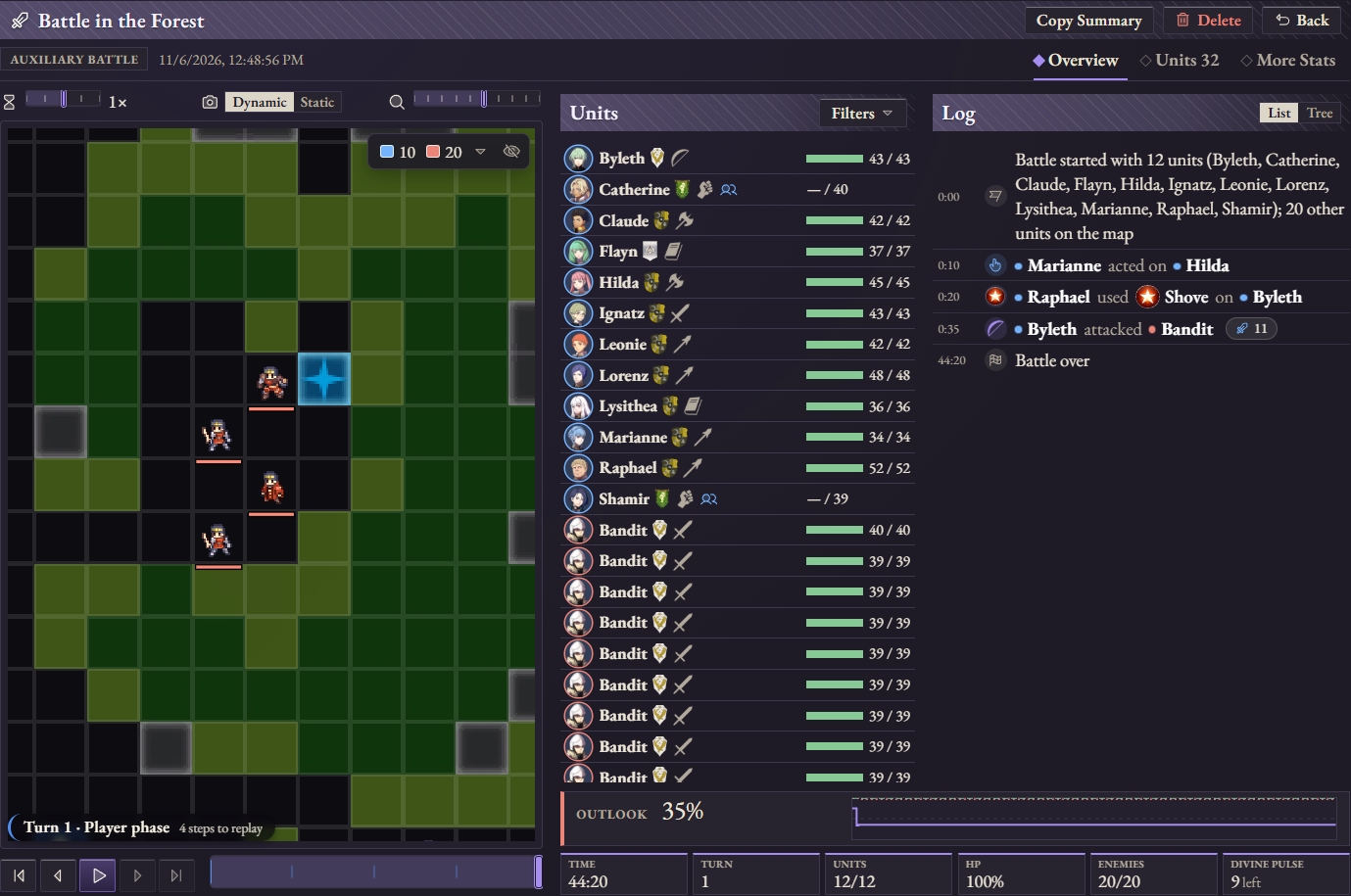
Gambits appear in the action log. Unit details show battalion level, endurance, remaining gambit uses, and when rattled status stops battalion bonuses from applying. The log keeps actions in order, including skipped turns when the game’s history is available. The win estimate excludes Divine Pulse use.
Open a saved battle in History to step through the map and log or revisit a rewind. Battle graphs are grouped by topic, with turn charts above unit charts and controls to pause or move between graphs.
Compare battles and characters in History
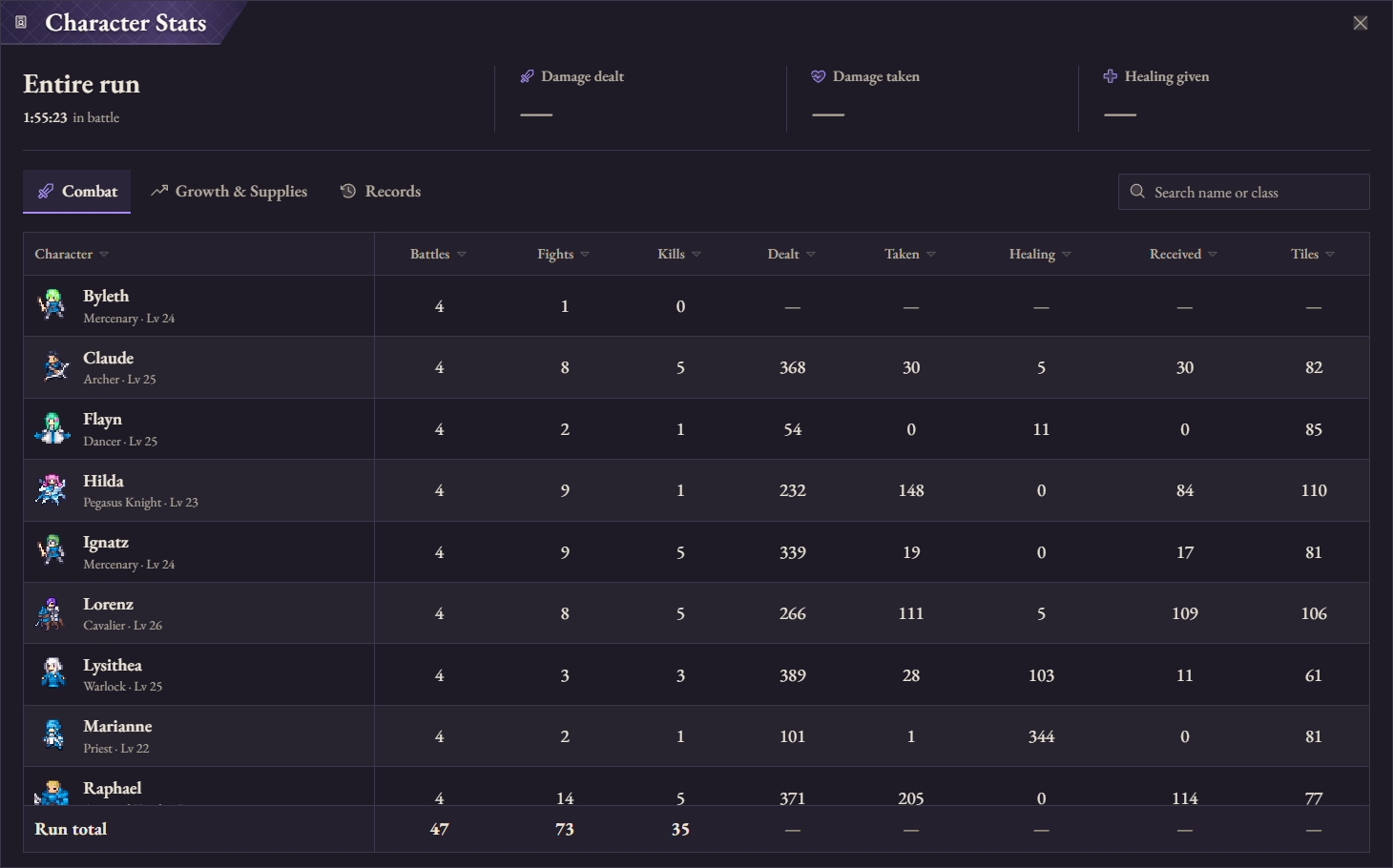
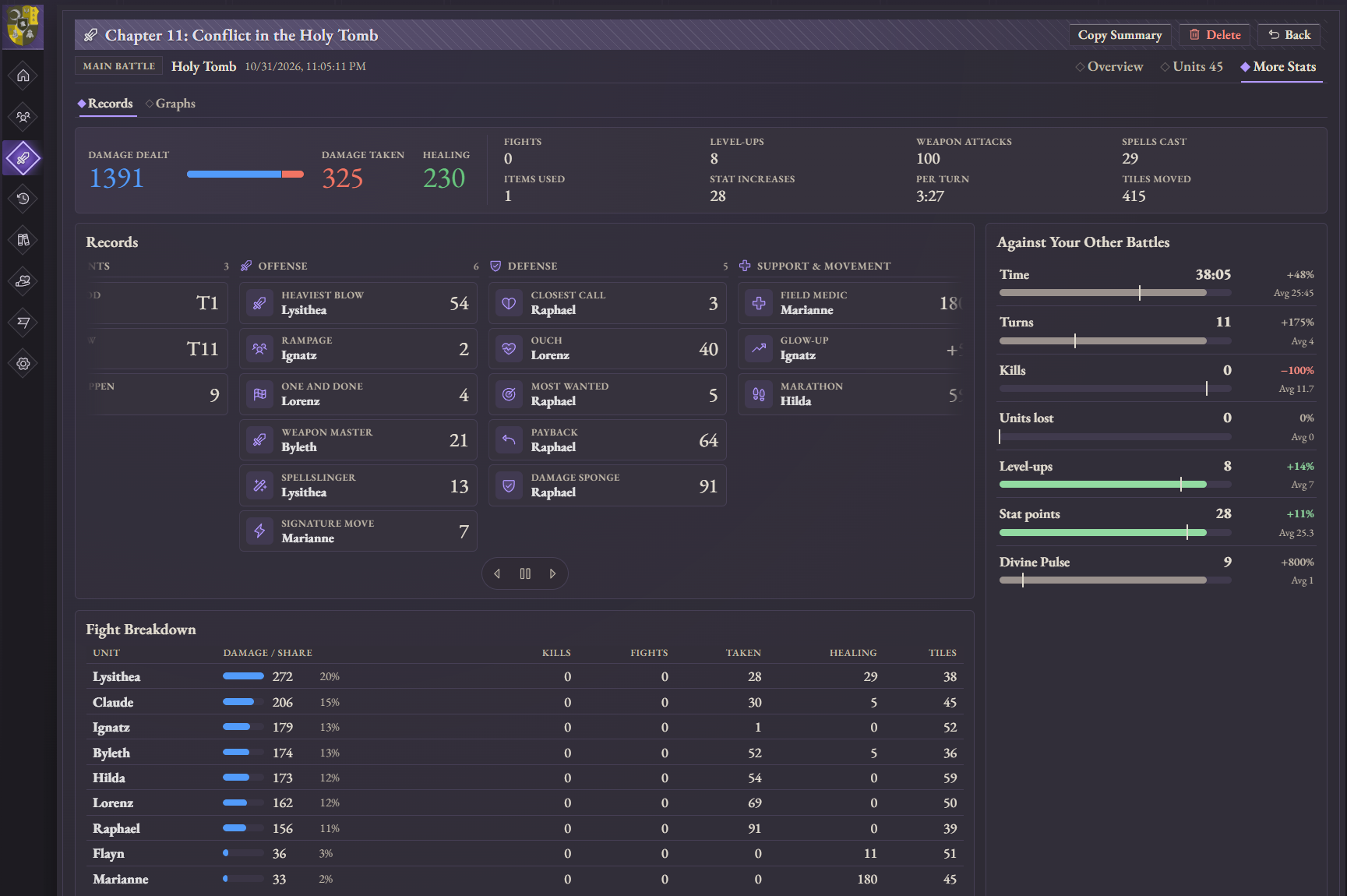
- Battle Stats and Character Stats open directly from History, with sortable columns, color-coded battle types, and totals that stay in view.
- Records and Awards make standout performances easier to find. Select a character in a battle’s standouts to see their performance across the run.
- Run totals use completed battles and the actions that stood at the end of each battle. Imported replays become separate copies, and duplicate run names prompt you to replace the run or enter a different name.
An Archive built for planning
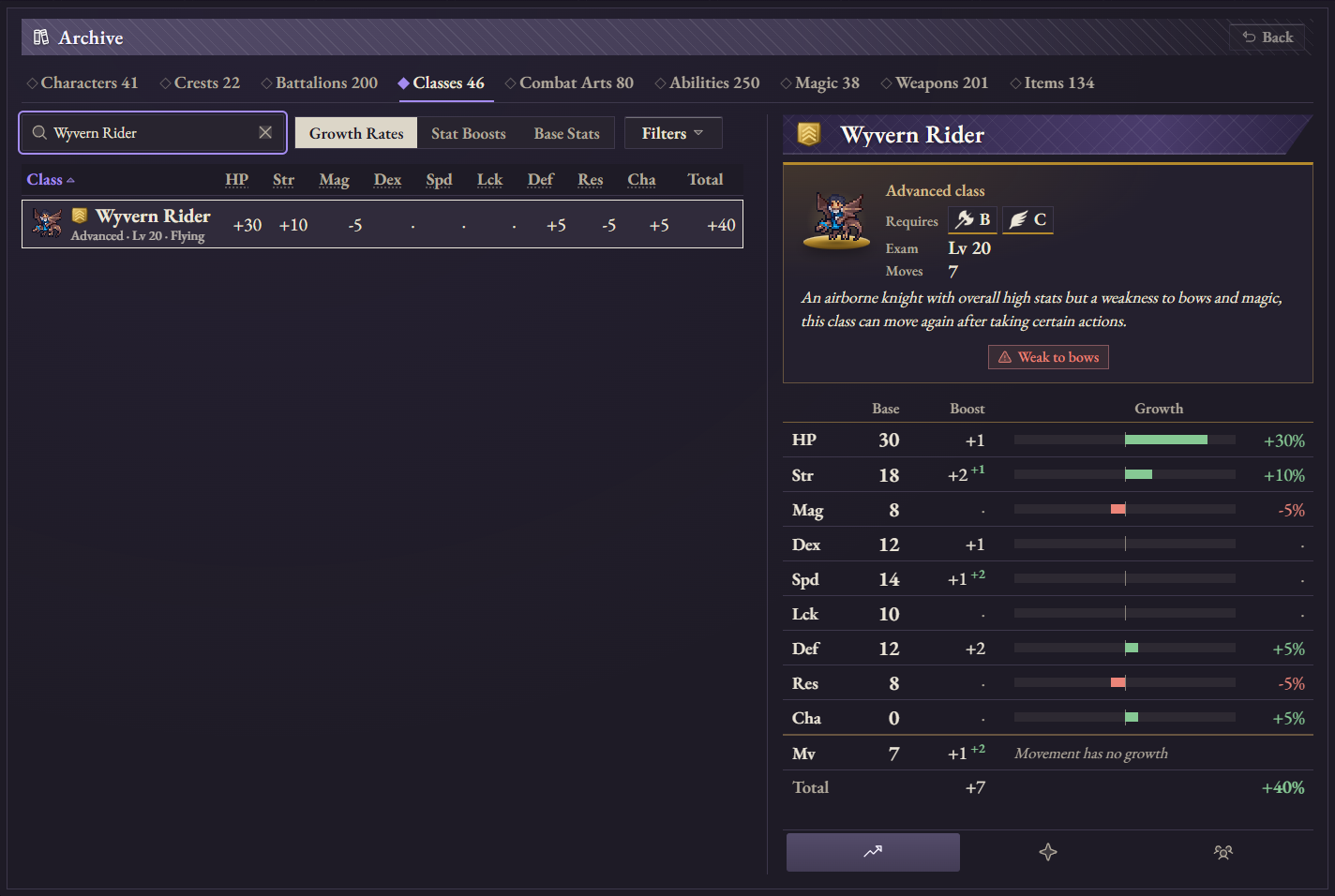
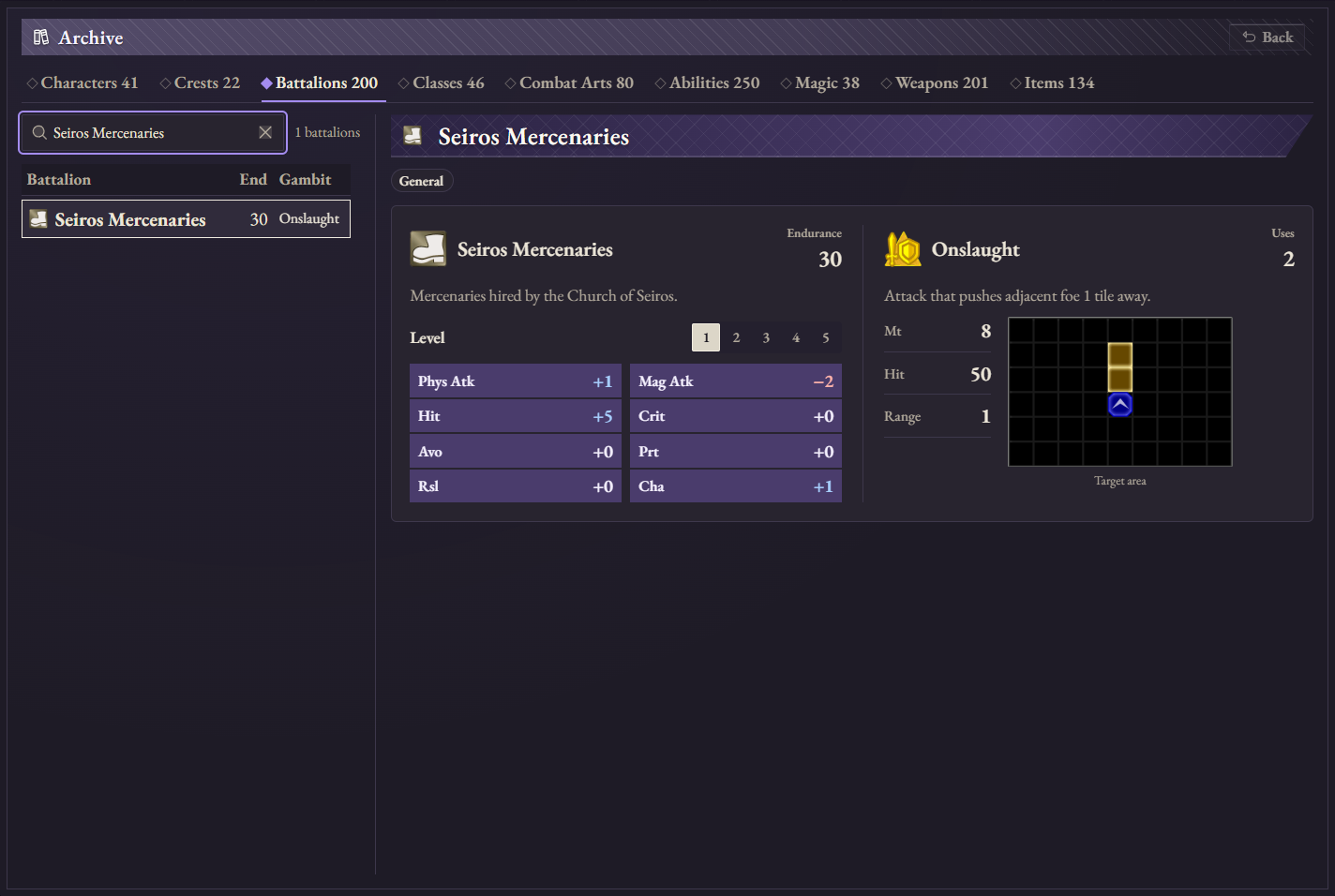
Classes now show tier plates in the list and filters. Open a class to see its sprite, exam requirements, movement, and growth bars together. Use the maximum-rank slider to narrow the weapon list, and find owners more quickly in the compact lost-item cards in Supports.
The new Battalions tab shows bonuses by level and previews the tiles each gambit targets. Battle records keep the battalion that was assigned at the time, so you can review it after changing your roster.
One import flow for both downloads
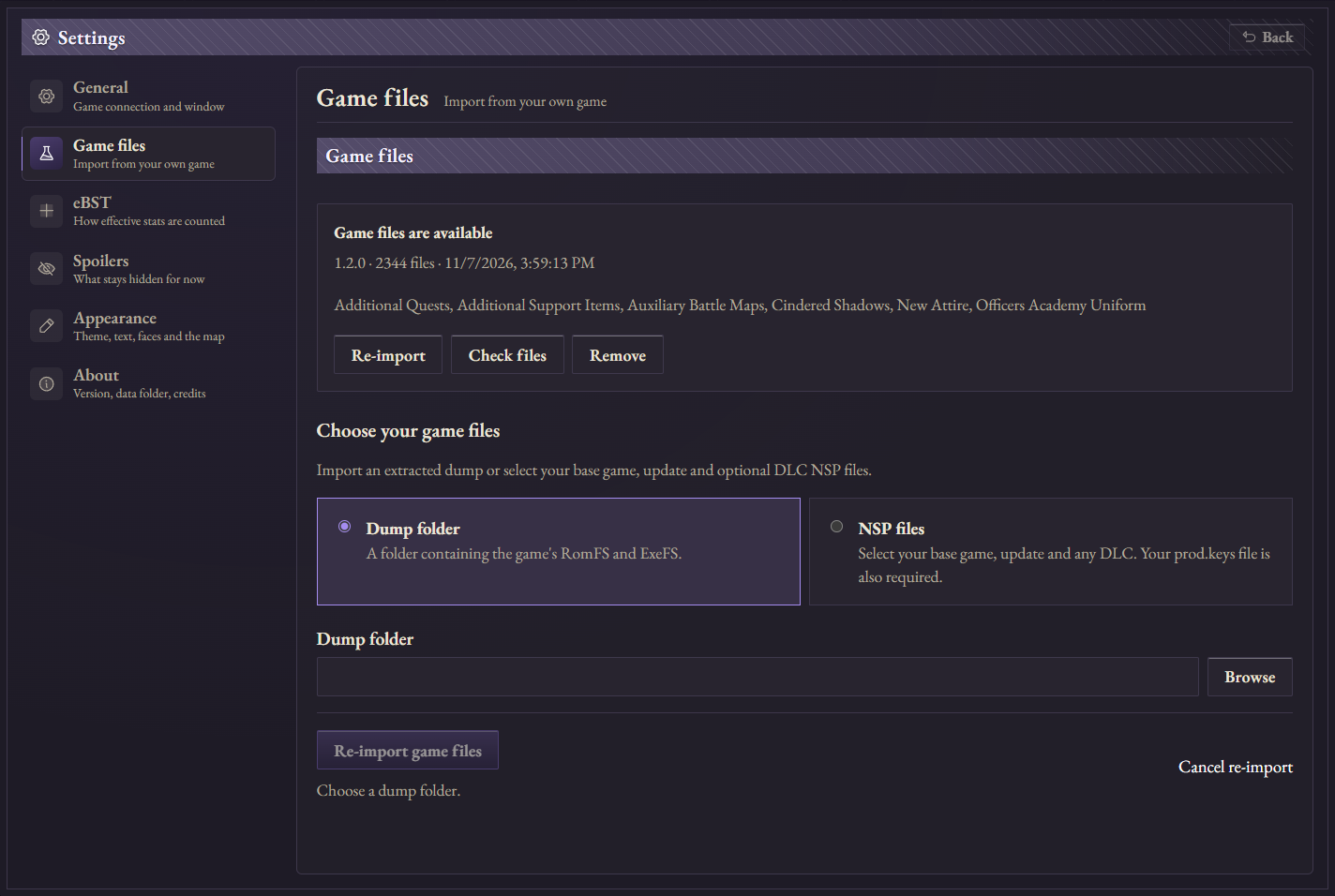
The installer sets up the app. Open Settings → Game files to select an extracted folder or your base game and update NSPs with your own prod.keys. Include your DLC if you want to use it in the companion. The app verifies the complete import, preserves your previous valid one if a replacement fails, and lets you keep raw NSP extractions if you choose.
Get started
You’ll need 64-bit Windows 10 or 11 with Microsoft Edge WebView2, Eden with fastmem enabled, and your own copy of Fire Emblem: Three Houses with update 1.2.0.
- Choose the Windows installer for a regular install and Start menu shortcuts, or the portable ZIP to unpack and run Divine Pulse.exe from a folder.
- After importing, create or load a run from Home. The roster updates automatically and warns you if a unit can’t be read completely. Close the window to quit.
- If you’re updating, use Runs → Export to back up your playthroughs and replays. On first launch with existing records, the app asks what to keep.
Hotfix 1.3.1
- On the battle map, show a unit's portrait when it has no map sprite, and a "?" when it has neither; missing images elsewhere also show "?".
- Give a unit with no known house or faction its army's banner (enemy, ally, third army or yours) from the game's own army pennants.
Divine Pulse 1.3.0
Divine Pulse 1.3.0 gives the Roster and Archive more room to show the details you need, makes battle history easier to browse, and puts game imports in the same place for installer and portable users.
A roomier Roster and clearer character cards
- The tighter roster table gives the selected unit’s card more room. See their class, crest, skill ranks, and stats beside the list. Flip the card to see the unit’s map sprite and biography.
- The Stats, Growth, Position, Fights, and Arsenal panels have clearer rows and skill ranks. Position uses the same notched zoom control as the battle map.
- The sidebar opens on hover or keyboard focus and closes with Escape. Settings are grouped by topic, with a Save bar for pending changes. Spoilers have eye buttons to show or hide them, and your font choice applies throughout the app.
Better tools for following a battle
Gambits appear in the action log. Unit details show battalion level, endurance, remaining gambit uses, and when rattled status stops battalion bonuses from applying. The log keeps actions in order, including skipped turns when the game’s history is available. The win estimate excludes Divine Pulse use.
Open a saved battle in History to step through the map and log or revisit a rewind. Battle graphs are grouped by topic, with turn charts above unit charts and controls to pause or move between graphs.
Compare battles and characters in History
- Battle Stats and Character Stats open directly from History, with sortable columns, color-coded battle types, and totals that stay in view.
- Records and Awards make standout performances easier to find. Select a character in a battle’s standouts to see their performance across the run.
- Run totals use completed battles and the actions that stood at the end of each battle. Imported replays become separate copies, and duplicate run names prompt you to replace the run or enter a different name.
An Archive built for planning
Classes now show tier plates in the list and filters. Open a class to see its sprite, exam requirements, movement, and growth bars together. Use the maximum-rank slider to narrow the weapon list, and find owners more quickly in the compact lost-item cards in Supports.
The new Battalions tab shows bonuses by level and previews the tiles each gambit targets. Battle records keep the battalion that was assigned at the time, so you can review it after changing your roster.
One import flow for both downloads
The installer sets up the app. Open Settings → Game files to select an extracted folder or your base game and update NSPs with your own prod.keys. Include your DLC if you want to use it in the companion. The app verifies the complete import, preserves your previous valid one if a replacement fails, and lets you keep raw NSP extractions if you choose.
Get started
You’ll need 64-bit Windows 10 or 11 with Microsoft Edge WebView2, Eden with fastmem enabled, and your own copy of Fire Emblem: Three Houses with update 1.2.0.
- Choose the Windows installer for a regular install and Start menu shortcuts, or the portable ZIP to unpack and run Divine Pulse.exe from a folder.
- After importing, create or load a run from Home. The roster updates automatically and warns you if a unit can’t be read completely. Close the window to quit.
- If you’re updating, use Runs → Export to back up your playthroughs and replays. On first launch with existing records, the app asks what to keep.
Divine Pulse v1.2.9 - First Public Release
The first public release of Divine Pulse: a free, open-source Windows app for tracking your Fire Emblem: Three Houses army and replaying your battles while you play in Eden. Your runs, battles and imported game files stay on your PC.
The version number continues from private development. Versions through 1.2.8 were unpublished development builds.
What you can do
- Follow your army automatically. Read every unit's stats, class and abilities from game memory, compare effective base stat totals (eBST), and keep a separate run for each playthrough.
- Follow battles live. See the turn, timer, unit HP, map and action log, alongside estimated battle outcomes.
- Replay what happened. Step through recorded battles on the map and review unit statistics, records and graphs.
- Keep the actions Divine Pulse undid. Rewound actions remain available as alternate timelines, with a tree view for exploring their branches.
- Review your playthrough. History brings together your battles, run totals and character statistics.
- Browse an offline reference. Characters, Archive and Supports use data imported from your own game, with language selection and spoiler controls.
The app opens in its own desktop window and can keep tracking from the system tray. It only reads emulator memory; it never changes the game.
Download and start
Choose one of the files below:
| Download | Use it for |
|---|---|
| Divine-Pulse-1.2.9-setup.exe | Recommended. Install for your Windows user, add shortcuts, and import game files during setup. No administrator prompt is required. |
| Divine-Pulse-1.2.9-windows-portable.zip | Extract the entire archive to a folder, run Divine Pulse.exe, and import game files on the first screen. Keep the executable, its .config file and the _internal folder together. |
| SHA256SUMS.txt | Verify the downloaded installer or ZIP against its SHA-256 checksum. |
Python and Node.js are not required. The app is unsigned, so Windows SmartScreen may show a warning on first launch. After verifying that you downloaded it from this repository, choose More info → Run anyway to continue.
Requirements
- Windows 10 or 11, 64-bit, with Microsoft Edge WebView2. Windows 11 includes WebView2; without it, the app falls back to a browser.
- Fire Emblem: Three Houses with update 1.2.0, running in Eden with fastmem enabled. Eden is the tested emulator; other game versions and Ryujinx are not supported.
- Your own game files: an extracted dump including ExeFS, or your base game, update and optional DLC NSPs with your own
prod.keys. See the game-file preparation guide.
Divine Pulse ships no game art, text or tables, and includes neither the game nor an emulator. Import your own files once to populate the app. NSP extraction uses the bundled tool, so it needs no separate tool download.
Desktop startup reliability
This release fixes a problem found while testing the unpublished 1.2.8 download: Windows could mark extracted DLLs as Internet files and prevent the standalone window from loading. The portable package now includes the application-specific configuration needed to load those DLLs. The release build also opens a real WebView2 window with those download markers present, so this failure stops packaging instead of reaching a release.
Development and privacy
This is the first public release from a solo maintainer, and rough edges remain. Battle outcome and inferred-fight figures are estimates. Bug reports about tracking accuracy and game-file imports are especially useful.
There is no account, telemetry or automatic update check. The local server listens only on 127.0.0.1 and rejects requests from other websites. Watch the releases page for updates.
- Report a bug or suggest a feature
- Report a security issue privately
- User guide · Full changelog · Contributing
Divine Pulse is licensed under GPL-3.0. Fire Emblem Wiki reference text is credited under GFDL 1.3; bundled software licenses and notices ship with the app.
Divine Pulse is a fan-made tool and is not affiliated with or endorsed by Nintendo, Intelligent Systems or Koei Tecmo.