BlazorTUI is a Razor Class Library for building retro text user interfaces in Blazor Server applications. It provides a fixed-size character grid with keyboard and mouse interaction, nested layouts, menus, dialogs, colors, and animated controls.


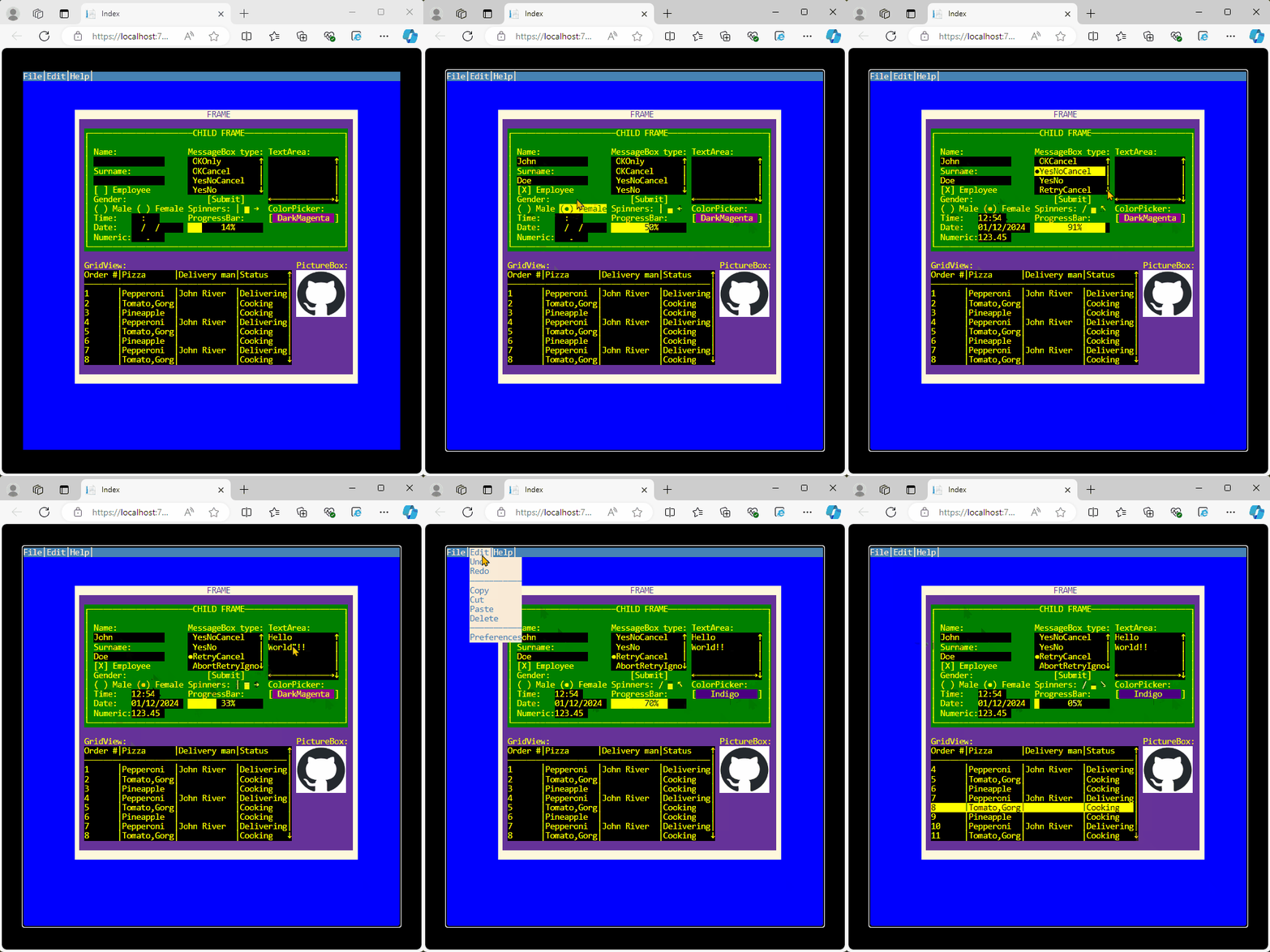
- Character-cell rendering with foreground and background colors.
- Nested frames and split panels with relative coordinates and z-order.
- Keyboard focus,
Tab/Shift+Tabnavigation, and mouse interaction. - Required fields, custom validation rules, inline error messages, and first-invalid focus.
- Menu bars with shortcuts and keyboard navigation.
- Modal dialogs and configurable message boxes.
- Status bars for persistent messages, shortcuts, and context.
- Responsive terminal scaling.
- A Blazor Server application.
- The .NET 10 SDK.
Install BlazorTUI from NuGet:
dotnet add package BlazorTUIAdd the BlazorTUI namespace to a Razor page, create a Screen, and render it with the component:
@page "/terminal"
@using global::BlazorTUI.TUI
@using Color = System.Drawing.Color

<BlazorTUI.BlazorTUI screen="@screen" />

@code {
    private readonly Screen screen = CreateScreen();

    private static Screen CreateScreen()
    {
        var screen = new Screen(80, 40);

        var frame = new Frame(
            "mainFrame",
            "CUSTOMER",
            12,
            5,
            56,
            12,
            Frame.BorderStyle.Line,
            Color.Yellow,
            Color.DarkBlue);

        screen.TopContainer.AddContainer(frame);

        frame.AddControl(new Label(
            "nameLabel", "Name:", 2, 2, 12, Color.White, Color.DarkBlue));

        frame.AddControl(new TextBox(
            "nameInput", "", 14, 2, 24, Color.Yellow, Color.Black));

        var saveButton = new Button(
            "saveButton", "Save", 14, 5, 10, Color.White, Color.DarkGreen);

        saveButton.Clicked += (_, _) =>
        {
            var message = new MessageBox(
                "Saved",
                "Result",
                MessageBox.Buttons.OKOnly,
                BorderStyle.Line,
                Color.White,
                Color.DarkGreen,
                screen);

            message.Show();
        };

        frame.AddControl(saveButton);
        screen.SetFocus("nameInput");

        return screen;
    }
}
Click inside the terminal before using the keyboard so the screen element receives browser focus. The focused terminal has a visible outline.
A Screen defines the terminal dimensions. Character cells keep a 1:2 width-to-height ratio at any supported screen size; there is no predefined row limit. A screen twice as wide as it is high—for example, 80 × 40—forms a square terminal, while other dimensions preserve their natural aspect ratio.
The terminal grows to the available host size without overflowing the viewport. To embed it in a smaller area, give its parent an explicit width and height; the grid will fit inside that area automatically.
Coordinates are zero-based. Controls use coordinates relative to their parent container, which makes it possible to move a complete group by repositioning its Frame.
Every control must have a non-empty, unique name. Add elements through:
AddContainerfor nested frames and containers.AddControlfor controls inside a container.
These methods initialize parent references, tab order, and z-order. Use screen.SetFocus("controlName") to select the initial control.
SplitPanel divides a rectangular area into two child containers separated by one splitter cell. A vertical split creates left and right panes; a horizontal split creates top and bottom panes:
var split = new SplitPanel(
    "mainSplit",
    2,
    3,
    46,
    15,
    SplitPanelOrientation.Vertical,
    splitterPosition: 18,
    Color.Yellow,
    Color.DarkBlue);

frame.AddContainer(split);

split.FirstPanel.AddControl(new Label(
    "navigationLabel", "Navigation", 1, 1, 12,
    Color.White, Color.DarkBlue));

split.SecondPanel.AddControl(new TextArea(
    "detailsText", "Details", 1, 1, 24, 5, 24, 5,
    Color.Yellow, Color.Black));

split.MoveSplitter(2);
Use FirstPanel and SecondPanel as normal containers for controls or nested containers. SplitterPosition is the size of the first pane, measured in columns for vertical splits and rows for horizontal splits. MoveSplitter clamps movement to the configured pane minimums, while direct SplitterPosition assignment validates the requested position. SplitterMoved reports previous and current splitter positions through SplitPanelResizedEventArgs.
| Category | Controls |
|---|---|
| Layout | Frame, SplitPanel, TabControl, TabPage |
| Text and input | Label, TextBox, PasswordBox, TextArea, NumericBox, DateBox, TimeBox |
| Selection | CheckBox, RadioButton, RadioGroup, ComboBox, ListBox, TreeView, Slider, ColorPicker |
| Actions and navigation | Breadcrumb, BreadcrumbItem, Button, CommandPalette, CommandPaletteItem, MenuBar, Menu, MenuItem |
| Data and feedback | GridView, ProgressBar, Spinner, StatusBar, PictureBox |
| Modal UI | Dialog, MessageBox |
Control constructors accept System.Drawing.Color values for foreground and background colors.
The recommended API follows standard .NET naming and event conventions:
- Use properties such as
Screen.Width,Screen.Rows,Screen.TopContainer,Control.Name,Control.Width, andTextBox.Value. - Use
IClipboardControlwhen application code needs to select, inspect, cut, or paste text programmatically. - Use
IUndoableControlto inspect, clear, undo, or redo a text control's bounded edit history programmatically. - Subscribe to
Clicked,GotFocus, andLostFocuswith+=. These events work consistently for mouse and keyboard activation. - Use
MenuBar.AddMenuandMenu.AddItemto build menus. TheirMenusandItemsproperties provide read-only views. - Use PascalCase enum members such as
BorderStyle.LineandFrame.BorderStyle.Solid.
Lowercase members from earlier releases remain available in the 0.8.x line for source and binary compatibility. New code should use the recommended members above.
Controls can validate required values and custom rules. Call screen.Validate() before saving or submitting; it validates the active dialog when one is open, otherwise it validates the main screen. All invalid controls keep their validation message, and the first focusable invalid control receives focus:
var nameInput = new TextBox(
    "nameInput", "", 14, 2, 24,
    Color.Yellow, Color.Black)
{
    IsRequired = true,
    RequiredMessage = "Name is required."
};

nameInput.ValidationRules.Add(
    value => value is string text && text.Length >= 2,
    "Use at least two characters.");

saveButton.Clicked += (_, _) =>
{
    if (!screen.Validate())
        return;

    string submittedName = nameInput.Value;
    _ = submittedName;
};
Validation messages are rendered inline beside the control when there is room, or below it when the right side is full. Use ShowValidationMessage, ValidationMessageForeColor, and ValidationMessageBackgroundColor to control that display. Use GetInvalidControls() when application code needs to inspect the current invalid controls after validation.
TextBox, PasswordBox, TextArea, DateBox, TimeBox, NumericBox, CheckBox, RadioButton, ComboBox, RadioGroup, ListBox, TreeView, Slider, and ColorPicker expose their current value to validation rules. For checkboxes and radio buttons, a required field means the value must be selected.
Use Screen.ApplyTheme to apply a reusable color palette to all current containers, controls, dialogs, and the menu bar. Built-in themes are available through TuiTheme.Classic, TuiTheme.Dark, TuiTheme.Light, and TuiTheme.HighContrast:
screen.ApplyTheme(TuiTheme.Dark);Controls can opt into a specific role or state before the theme is applied:
nameInput.ThemeRole = TuiThemeRole.Input;
nameInput.ThemeState = TuiThemeState.Error;

saveButton.ThemeRole = TuiThemeRole.Action;

screen.ApplyTheme(TuiTheme.HighContrast);
Available roles include Surface, Border, Input, Action, Selection, Status, Dialog, and Accent. Available states include Normal, Focus, Disabled, Error, and Selected.
Create custom palettes with TuiTheme and TuiColorPair:
var corporateTheme = new TuiTheme(
    "Corporate",
    normal: new TuiColorPair(Color.White, Color.DarkBlue),
    input: new TuiColorPair(Color.Yellow, Color.Black),
    action: new TuiColorPair(Color.White, Color.DarkGreen),
    error: new TuiColorPair(Color.White, Color.DarkRed),
    status: new TuiColorPair(Color.Black, Color.Cyan));

screen.ApplyTheme(corporateTheme);
Call ApplyTheme again to switch themes at runtime. Explicit colors assigned after applying a theme remain under application control until the next theme application.
Tab: move to the next focusable control.Shift+Tab: move to the previous focusable control.F2: open the first availableCommandPalette.Ctrl+KorCommand+K: alternative command-palette shortcut when the browser does not reserve it.Alt+PageDownorAlt+PageUp: move to the next or previous page of the focusedTabControl.Ctrl+Tabis also supported when the browser does not reserve it for browser-tab navigation.EnterorSpace: activate buttons and selection controls, open or confirm aComboBox, and toggle the selectedTreeViewnode.F4: open or close the focusedComboBox;Escapecloses it without changing the selection.- Arrow keys: navigate text, breadcrumbs, combo boxes, trees, lists, grids, color pickers, and menus where applicable. In a
TreeView, left and right collapse, expand, or move between parent and child nodes. HomeandEnd: move to the first or last item, or set aSliderto its minimum or maximum.PageUpandPageDown: move between pages in a focusedGridView, or apply the configuredLargeChangeto a focusedSlider.Shiftplus the arrow,Home, orEndkeys: select text inTextBoxandTextArea.Ctrl+A,Ctrl+C,Ctrl+X, andCtrl+V: select all, copy, cut, and paste in text controls. UseCommandinstead ofCtrlon macOS.Ctrl+ZandCtrl+Y: undo and redo text edits. On macOS, useCommand+ZandCommand+Shift+Z.Alt: show menu shortcut keys.- Mouse click: focus or activate the control under the selected cell.
When a dialog is open, it receives input until it is closed.
The component exposes the terminal as a labelled interactive region and provides a text representation for screen readers. Give each terminal a meaningful label and, when useful, a short description:
<BlazorTUI.BlazorTUI
    screen="@screen"
    AriaLabel="Order entry terminal"
    AriaDescription="Enter customer and delivery details, then submit the order." />
Clipboard and edit-history shortcuts are intercepted only while a compatible TextBox or TextArea has focus. Other browser and assistive-technology shortcuts that use Ctrl, Command, or modified Alt combinations remain available to the browser. Clipboard access follows browser security and permission rules; use HTTPS outside local development.
Shortcuts are configurable through screen.Shortcuts. Use TuiKeyGesture.Parse or shortcut strings to replace or add bindings:
screen.Shortcuts.SetBindings(
    TuiShortcutAction.ToggleCommandPalette,
    "F9",
    "Control+J");

screen.Shortcuts.SetBindings(TuiShortcutAction.SelectNextTab, "Alt+N");
screen.Shortcuts.SetBindings(TuiShortcutAction.SelectPreviousTab, "Alt+P");
screen.Shortcuts.AddBinding(TuiShortcutAction.ControlOpen, "Control+O");
Configurable actions cover screen navigation, menu navigation, tab switching, command palette activation, common control actions, clipboard operations, and undo/redo. If a shortcut is removed from screen.Shortcuts, it is also removed from the component's advertised aria-keyshortcuts and from the JavaScript interception layer.
Each text control retains its latest 100 text-changing operations. Undo and redo restore the text, cursor, selection, and TextArea scroll position. Assigning Value or calling ClearHistory() starts a new history.
Pasting into a TextBox converts line breaks to spaces and respects the control width. TextArea preserves line breaks and applies its MaxTextWidth and MaxLines limits.
Use screen.DialogService when application logic should wait for a modal choice without wiring button callbacks manually:
MessageBox.Result result = await screen.DialogService.ShowMessageAsync(
    "Order saved.",
    "Result",
    MessageBox.Buttons.OKOnly);

bool confirmed = await screen.DialogService.ConfirmAsync(
    "Submit this order?",
    "Confirm");
ShowMessageAsync returns the selected MessageBox.Result. ConfirmAsync returns true for confirmation and false for rejection. The dialog is still modal: while it is open, keyboard and mouse input are routed to the top dialog until it closes. Both APIs accept an optional CancellationToken; cancellation closes the dialog and cancels the returned task.
CommandPalette provides a searchable list of actions that users can open with the configured command-palette shortcut. By default this is F2, with Ctrl+K and Command+K also supported when the browser does not reserve those shortcuts:
var commands = new CommandPalette(
    "commands",
    new[]
    {
        new CommandPaletteItem("focusName", "Focus name", "Move focus", _ =>
            screen.SetFocus("nameInput")),
        new CommandPaletteItem("save", "Save", "Submit form", _ =>
            status.Value = "Saved")
    },
    28,
    17,
    28,
    Color.Yellow,
    Color.Black)
{
    Title = "Commands"
};

commands.CommandExecuted += (_, args) =>
    status.Value = $"Executed: {args.Command.Title}";

frame.AddControl(commands);
Use OpenPalette, ClosePalette, TogglePalette, AddCommand, RemoveCommand, ClearCommands, and GetCommand to control the palette and command list. SearchText filters by command name, title, or description. Users type to filter, use arrows, Home, and End to move through results, press Enter to execute the highlighted command, or press Escape to close the palette.
Breadcrumb displays a hierarchical path as one focusable navigation control. Users move between segments with the left and right arrows, jump with Home and End, and activate the selected segment with Enter, Space, or a mouse click:
var path = new Breadcrumb(
    "path",
    new[]
    {
        new BreadcrumbItem("home", "Home", "/"),
        new BreadcrumbItem("docs", "Docs", "/docs"),
        new BreadcrumbItem("controls", "Controls", "/docs/controls"),
        new BreadcrumbItem("breadcrumb", "Breadcrumb", "/docs/controls/breadcrumb")
    },
    3,
    5,
    44,
    Color.Yellow,
    Color.Black)
{
    Separator = " > "
};

path.SelectionChanged += (_, args) =>
    status.Value = $"Selected: {args.SelectedItem?.Text}";

path.ItemActivated += (_, args) =>
    Navigation.NavigateTo(args.Item.Value);

frame.AddControl(path);
Use AddItem, RemoveItem, ClearItems, GetItem, SelectIndex, SelectItem, SelectValue, ActivateSelectedItem, and ActivateItem to manage the path. Items exposes a read-only view. If the path is wider than the control, it is clipped from the left and prefixed with OverflowText, keeping the latest segments visible.
GridView displays tabular data and supports column sorting, row selection, and pagination:
var orders = new GridView(
    "ordersGrid",
    new[]
    {
        new GridView.GridColumn { Title = "Order", Width = 8 },
        new GridView.GridColumn { Title = "Pizza", Width = 12 },
        new GridView.GridColumn { Title = "Status", Width = 10 }
    },
    new[]
    {
        new GridView.GridRow { Cells = new[] { "1", "Pepperoni", "Cooking" } },
        new GridView.GridRow { Cells = new[] { "2", "Calzone", "Ready" } },
        new GridView.GridRow { Cells = new[] { "3", "Veggie", "Hold" } }
    },
    2,
    17,
    32,
    6,
    Color.Yellow,
    Color.Black,
    pageSize: 4);

orders.Sorted += (_, args) =>
    status.Value = $"Sorted: {args.Column?.Title} {args.Direction}";

orders.PageChanged += (_, args) =>
    status.Value = $"Page {args.PageIndex + 1} of {args.PageCount}";

orders.SelectionChanged += (_, args) =>
    status.Value = $"Selected order: {args.Row?.Cells[0]}";

frame.AddControl(orders);
Use SortByColumn(columnIndex) to toggle ascending/descending sorting, or SortByColumn(columnIndex, direction) for an explicit GridSortDirection. ClearSort restores the original row order. NextPage, PreviousPage, GoToPage, PageIndex, PageSize, and PageCount manage pagination. SelectedRow, SelectedRowIndex, SelectedSourceRowIndex, SelectRow, and SelectSourceRow manage row selection. Clicking a column header sorts it, clicking the up/down glyphs changes pages, and PageUp/PageDown work from the keyboard.
RadioGroup provides one selected value from a named list of options:
var contactMethod = new RadioGroup(
    "contactMethod",
    new[]
    {
        new RadioGroupOption("emailContact", "Email", "email"),
        new RadioGroupOption("phoneContact", "Phone", "phone")
    },
    14,
    12,
    24,
    Color.Yellow,
    Color.DarkBlue,
    selectedIndex: 0,
    RadioGroupOrientation.Horizontal);

contactMethod.SelectionChanged += (_, args) =>
    status.Value = $"Contact: {args.SelectedOption?.Text}";

frame.AddControl(contactMethod);
Use SelectedIndex, SelectedOption, SelectedItem, or SelectedValue to inspect the current choice. SelectIndex, SelectOption, SelectItem, and SelectValue change it programmatically. Options is read-only; update it through AddOption, RemoveOption, and ClearOptions. Users can change the selected option with arrow keys, Home, End, or mouse clicks.
ComboBox displays one selected value and opens a scrollable list over the controls below it:
var priority = new ComboBox(
    "priority",
    new[] { "Low", "Normal", "High", "Urgent" },
    14,
    9,
    22,
    Color.Yellow,
    Color.Black,
    selectedIndex: 1,
    maxDropDownItems: 4);

priority.SelectedIndexChanged += (_, _) =>
    status.Value = $"Priority: {priority.SelectedItem}";

frame.AddControl(priority);
Use SelectedIndex, SelectedItem, SelectIndex, or SelectItem to control the selection. Items is read-only; update it through AddItem, RemoveItem, and ClearItems. Users can change a closed combo box with the arrow, Home, and End keys, or open it with Enter, Space, or F4. While open, Enter confirms the highlighted item and Escape cancels it.
TreeView displays expandable TreeNode hierarchies with automatic scrolling and keyboard navigation:
var tree = new TreeView(
    "projectTree", 3, 4, 28, 14,
    Color.Yellow, Color.Black);

TreeNode workspace = tree.AddNode("workspace", "Workspace", true);
TreeNode source = workspace.AddNode("source", "src", true);
source.AddNode("programFile", "Program.cs");
source.AddNode("componentsFolder", "Components");

TreeNode documentation = workspace.AddNode("documentation", "docs");
documentation.AddNode("readmeFile", "README.md");

tree.SelectedNodeChanged += (_, args) =>
    status.Value = args.SelectedNode?.Text ?? "No selection";

frame.AddControl(tree);
Node names must be unique within a tree. Nodes and Children expose read-only views; use AddNode, RemoveNode, and ClearNodes to change the hierarchy. Use SelectNode, ToggleNode, ExpandAll, and CollapseAll for programmatic control. SelectedNodeChanged exposes the previous and new selections through TreeNodeSelectionChangedEventArgs; NodeExpanded, NodeCollapsed, and NodeActivated identify the affected node through TreeNodeEventArgs.
Users navigate visible nodes with ArrowUp, ArrowDown, Home, and End. ArrowRight expands a node or enters its first child; ArrowLeft collapses it or selects its parent. Enter and Space toggle and activate the selected node.
Slider provides horizontal and vertical numeric selection with configurable small and large changes:
var volume = new Slider(
    "volumeSlider",
    minimum: 0,
    maximum: 100,
    value: 50,
    step: 5,
    X: 4,
    Y: 7,
    length: 30,
    SliderOrientation.Horizontal,
    Color.Yellow,
    Color.Black,
    largeChange: 20);

volume.ValueChanged += (_, args) =>
    status.Value = $"Volume: {args.Value}";

frame.AddControl(volume);
Omit the orientation argument to create a horizontal slider. For a vertical slider, maximum is at the top and minimum at the bottom. Value, Minimum, and Maximum always preserve a valid range; invalid assignments throw ArgumentOutOfRangeException. Use Increase, Decrease, or SetValue for programmatic changes. Percentage exposes the current position from 0 to 100.
Users can click directly on the track. Arrow keys apply Step, PageUp and PageDown apply LargeChange, and Home and End select the limits. ValueChanged receives both the previous and current values through SliderValueChangedEventArgs.
StatusBar renders a one-line, non-focusable bar for persistent application state, hints, and shortcuts:
var status = new StatusBar(
    "statusBar",
    "Ready",
    0,
    19,
    60,
    Color.Black,
    Color.Cyan)
{
    Separator = "  "
};

status.AddItem("helpHint", "F1 Help");
status.AddItem("saveHint", "Ctrl+S Save");
frame.AddControl(status);

status.Value = "Order saved";
Use Text, Message, or Value to update the main message. MessageChanged reports previous and current text through StatusBarMessageChangedEventArgs. AddItem, RemoveItem, GetItem, and ClearItems manage optional StatusBarItem entries. Items are right-aligned by default; pass StatusBarItemAlignment.Left for contextual left-side entries.
PasswordBox provides the selection, paste, and undo/redo behavior of TextBox while rendering a mask instead of the stored value:
var password = new PasswordBox(
    "password",
    "",
    14,
    6,
    22,
    Color.Yellow,
    Color.Black,
    '*');

frame.AddControl(password);
The default mask is •. Use IsRevealed or ToggleReveal() to show the value explicitly. Copying and cutting are disabled by default, while pasting remains enabled; configure AllowCopy and AllowPaste when different behavior is required. Value always contains the unmasked text and should be handled as sensitive data.
TabControl is a container whose TabPage children each own an independent control tree. Add the tab control to a frame or screen before populating its pages so control-name validation covers the complete screen:
var tabs = new TabControl(
    "settingsTabs", 3, 4, 40, 14,
    Color.Yellow, Color.DarkBlue);
frame.AddContainer(tabs);

TabPage profile = tabs.AddTab("profileTab", "Profile");
profile.AddControl(new TextBox(
    "userName", "", 2, 2, 18,
    Color.Yellow, Color.Black));

TabPage options = tabs.AddTab("optionsTab", "Options");
options.AddControl(new CheckBox(
    "notifications", "Enable notifications", 2, 2, 28,
    Color.Yellow, Color.DarkBlue));
Select pages with SelectedIndex, SelectTab, SelectNextTab, or SelectPreviousTab. Users can click headers or press Alt+PageDown and Alt+PageUp; focus moves to the first focusable control on the new page. Ctrl+Tab remains available in browsers that deliver that shortcut to web content.
PictureBox accepts encoded image bytes. The default constructor treats the data as PNG:
byte[] imageData = File.ReadAllBytes("logo.png");

var picture = new PictureBox(
    "logo",
    imageData,
    47,
    17,
    10,
    5,
    Color.White,
    Color.Black);

frame.AddControl(picture);
For another browser-supported format, provide its MIME type after the byte array:
var picture = new PictureBox(
    "photo",
    jpegData,
    "image/jpeg",
    47,
    17,
    10,
    5,
    Color.White,
    Color.Black);
BlazorTUI displays the encoded image without resizing or converting the source data. If you are upgrading from an earlier version, replace the previous System.Drawing.Image constructor with one of the byte-array constructors above.
The repository contains focused pages that can be run directly:
| Example | Demonstrates |
|---|---|
| Controls and events | Text and password input, validation, combo-box and radio-group selection, command palette actions, checkbox state, callbacks, focus order, and status messages |
| Form validation | Required fields, custom validation rules, inline error messages, and first-invalid focus |
| Dialogs and menus | Menu shortcuts, custom modal dialogs, and message boxes |
| Images | Loading encoded image bytes into a PictureBox |
| TabControl | Tab pages, nested controls, focus changes, mouse selection, and keyboard navigation |
| TreeView | Hierarchical nodes, dynamic expansion, selection events, mouse input, and keyboard navigation |
| Slider | Horizontal and vertical ranges, direct mouse selection, small and large keyboard changes, and value events |
| SplitPanel | Vertical and horizontal panes, nested layouts, shared focus navigation, and programmatic resizing |
| Breadcrumb | Hierarchical path navigation, keyboard selection, mouse activation, item mutation, and activation events |
| Themes | Runtime theme switching, predefined palettes, control roles, and visual states |
| Complete showcase | All controls, nested frames, z-order, callbacks, and animation |
Run dotnet run --project SampleApp from the repository root and open /examples to browse them. The example routes are exercised by the automated test suite so API changes cannot silently leave the documentation out of date.
- Added Unicode-aware text handling for combining characters, accented text, emoji, and double-width characters.
- Updated text editing in
TextBox,PasswordBox, andTextAreaso cursor movement, selection, delete/backspace, paste clipping, and undo/redo state operate on text elements instead of UTF-16 code units. - Updated text rendering in common controls, menus, frames, dialogs, grids, breadcrumbs, status bars, and list-style controls to clip and align by visual cell width.
- Added regression coverage for Unicode editing, selection, paste clipping, and cell rendering.
- Added configurable keyboard shortcuts through
Screen.Shortcuts,TuiShortcutAction,TuiKeyGesture, andTuiShortcutMap, including dynamic Blazor and JavaScript routing plus dynamicaria-keyshortcuts. - Added
Screen.DialogServicewith task-basedShowMessageAsyncandConfirmAsyncAPIs that preserve modal dialog input and support cancellation. - Added form validation with required fields, custom rules, inline error messages, invalid styling, validation-change events, invalid-control inspection, and first-invalid focus.
- Added a focused form-validation example page and updated the controls-and-events example and NuGet consumer validation to exercise the public validation API.
- Added
Breadcrumb,BreadcrumbItem, typed selection-change events, and typed item-activation events. - Added keyboard navigation with arrows,
Home,End,Enter, andSpace, plus mouse activation and focus-visible selected segment rendering. - Added left-side overflow clipping so the latest path segments remain visible in narrow layouts.
- Added a focused executable Breadcrumb example and NuGet consumer coverage for the new public API.
- Added
GridViewcolumn sorting, logical pagination, row selection helpers, typed sorting/page/selection events, and NuGet consumer coverage for the advanced grid API. - Added reusable themes, predefined
Classic,Dark,Light, andHighContrastpalettes, runtime theme switching throughScreen.ApplyTheme, and role/state color mapping for existing controls.
- Added
StatusBar,StatusBarItem, item alignment options, and typed message-change events. - Added left and right status segments for persistent messages, shortcuts, and contextual hints.
- Added
SplitPanelwith vertical and horizontal pane layouts, nested containers, configurable splitter position, pane minimums, and resize events. - Ensured content rendered through nested containers is clipped by every ancestor frame or pane.
- Added
RadioGroup, named options, typed selection-change events, horizontal and vertical layouts, and keyboard/mouse selection. - Added
CommandPalette, searchable commands, typed execution events, keyboard/mouse execution, globalF2routing, and browser-dependentCtrl+K/Command+Krouting. - Added focused sample coverage and NuGet consumer validation for the new public API.
- Added deterministic package builds, Source Link metadata,
.snupkgsymbol packages, package validation, and a tagged release workflow that verifies version/tag consistency and generates release notes from this changelog.
- Added horizontal and vertical
Slidercontrols with configurable ranges, steps, large changes, direct mouse selection, and typed value-change events. - Added conventional arrow,
Home,End,PageUp, andPageDownslider navigation plus an executable example. - Added
TreeView,TreeNode, typed node and selection event arguments, nested read-only collections, and unique node names. - Added mouse selection, expand/collapse markers, automatic scrolling, and conventional tree keyboard navigation.
- Added selection, expansion, collapse, and activation events plus programmatic selection and bulk expand/collapse APIs.
- Added a focused executable TreeView example and NuGet consumer coverage for the new public API.
- Added
ComboBoxwith a bounded scrollable drop-down, mouse selection, keyboard navigation, collection helpers, and selection-change events. - Added
TabControlandTabPagecontainers with independent page contents, mouse selection, programmatic selection, and change events. - Added focus-aware
Ctrl+TabandCtrl+Shift+Tabnavigation with screen-reader announcements. - Added
Alt+PageDownandAlt+PageUpnavigation for browsers that reserveCtrl+Taband do not expose it to web pages. - Preserved tab navigation when the selected page has no focusable controls, including wrap-around from the final page.
- Prevented hidden containers from receiving keyboard input and preserved unique control-name validation across prebuilt tab pages.
- Added
PasswordBoxwith configurable masking and explicit reveal support. - Preserved text selection and bounded undo/redo behavior while keeping the unmasked value out of the cell buffer by default.
- Added configurable copy and paste policies; password copying and cutting are disabled by default while pasting remains enabled.
- Removed the unused
ExampleJsInteroptemplate class, which referenced a JavaScript file that is not part of the package.
- Added text selection and clipboard support to
TextBoxandTextAreathroughCtrl/Command+A,C,X, andV. - Added the public
IClipboardControlAPI for programmatic selection, inspection, cutting, and pasting. - Added multiline paste normalization, configured text-limit enforcement, visible selection colors, and browser clipboard fallbacks.
- Added bounded undo and redo history for
TextBoxandTextArea, includingCtrl/Commandkeyboard shortcuts and the publicIUndoableControlAPI.
- Added a consistent PascalCase public API, standard .NET events, read-only collection views, and precise argument validation while retaining the legacy
0.8.xmembers. - Added focused executable examples for controls, events, dialogs, menus, and images.
- Added accessible terminal semantics, screen-reader text, live menu and dialog announcements, visible focus, and selective keyboard interception that preserves browser shortcuts.
- Added revision-based incremental rendering, unchanged-row skipping, cached cell CSS, and synchronization-safe timer updates.
- Added responsive rendering for arbitrary positive screen dimensions without a predefined row limit.
- Corrected cursor visibility and duplicate frame-title rendering regressions.
- Upgraded the library, sample, dependencies, and package to .NET 10.
- Removed the
System.Drawing.Commondependency and changedPictureBoxto consume encoded image bytes for cross-platform use. - Eliminated compiler, analyzer, nullable, package, and platform warnings.
- Added automated unit, component, HTTP, and NuGet-consumer tests with Windows and Linux CI validation.
- Reworked the README around installing and using the library from NuGet.
BlazorTUI is available under the MIT License.