Repository navigation
Releases
Xylem v0.9.0

Views of the list (Alt+V)
Alt+V opens other ways to look at the files of the list (the directory,
Branch or Showall, with the filespec and W that are on). They only read:
what you choose in one goes back to the file window as a filter, and from
there Ctrl+T, Ctrl+C or Batch act as always.
- Scan (
S): what in a folder deserves a look before you open it. Names
with hidden characters or a double extension (fatura.pdf.exe), setuid
files and what anyone can write, links that leave the folder or point to
nothing, and, read with the viewer's own readers and limits, executables
without PIE or NX or packed, Office documents with macros or a remote
template, patches that climb out with... Enter on a category brings its
files back to the list. It is not an antivirus: it points, it does not
promise the rest is safe. - Timeline (
T): the files in a histogram by the date they changed, by
hours, days, weeks, months or years. Enter on a bar, or on a range
(Shift+← →), keeps only its files, as aWcondition. - Table (
L): the list in the table viewer, a file per row with the
columns ofW(name,ext,dir,size,modified,age_days,
mode...). It has the SQL filter, the record as a form and Batch, it sorts
by any column (s), and a list of millions of files opens at once. W there takes the filter back
to the file window as its condition.
Fuzzy find (|)
Type pieces of a name (cfgxy finds config/xylem, rdme finds
README.md) and the cursor goes to the best folder in the tree, or the best
file in the file window. The results show as you type, the best first, even
in a tree of millions of folders. Ctrl+T tags the chosen result and Alt+T the
whole list. A new page of the manual, "Finding files and folders", says which
search answers which question.
Ebooks
EPUB and FictionBook (.fb2, .fb2.zip) open as a book to read, in a
column with the paragraphs of a printed book: a title page, Space for the
next page, ] [ for chapters, Tab for the contents, Enter for the notes
called on the page, g 40% for a part of the book, and how long is left of
the chapter and of the book. I shows the report on the file: what the book
says of itself, and whether it carries scripts, things fetched from outside
or DRM.
R remembers where you stopped, and the book opens there next time. If you
turn it on (F12, page 5), Xylem also keeps the time you spent reading each
book, your sessions and your reading speed, only on your computer.
Norton Guides
The viewer reads Norton Guides (.ng), the help files of DOS and Clipper
libraries. V or Autoview shows a guide as a document: its title and credits,
its menus, then every entry with a number (§12). Links and see-also lines
say which entry they lead to (→ §12). Tab chooses a link, Enter (or
a click) follows it and Backspace goes back; the viewer's search still
looks through the whole guide. The drawing characters of the guide show as
they did in DOS. A guide that is damaged or made to trick a reader shows what
it can, with a list of the problems at the top. H shows the bytes.
The format is known thanks to Dave Pearson, who worked it out in the 1990s:
https://www.davep.org/norton-guides/
New versions
Xylem can tell that a new version is out. The first time it starts, it asks
whether it may look once a day; with a yes, it fetches only the number of the
latest version from the website, and the top line says when a newer one is
out. Nothing is downloaded or installed, and G on page 3 of F12 changes
the answer later.
Smaller things
- F1 opens the help at the section of what you are doing (in the Batch of
the viewer, at "Batch in the viewer"), and links to a section of a page now
lead to it. Oin the viewer goes through two more encodings, Windows-1251 and KOI8-R
(Cyrillic), before UTF-16.- The Type display (Alt+F) says
EPUB ebook (ZIP),FB2 ebookand
FB2 ebook (ZIP).
Fixed
- With Git on, a big repository on a slow file system (
/mnt/cfrom WSL, a
network share) froze the screen whilegit statusran, for minutes. The
status is now read in the background, and a slow repository is read again
less often. - The library Xylem uses for system calls (rustix 1.1.6) is updated for an
advisory about extended attributes
(RUSTSEC-2026-0486).
What's Changed
- rustix 1.1.6: fixes RUSTSEC-2026-0486 by @andrelnfernandes in #135
- Views, stage 4: the Table measured before it is written by @andrelnfernandes in #136
- V0.9.0: Views Table, release notes and translationsiews table by @andrelnfernandes in #138
Full Changelog: v0.8.0...v0.9.0
Contributors

Assets 16
- 9.08 MB
2026-11-22T11:34:02Z - 110 Bytes
2026-11-22T11:34:02Z - 9.09 MB
2026-11-22T11:36:52Z - 103 Bytes
2026-11-22T11:36:52Z - 9.92 MB
2026-11-22T11:35:19Z - 109 Bytes
2026-11-22T11:35:19Z - 7.33 MB
2026-11-22T11:34:02Z - 95 Bytes
2026-11-22T11:34:02Z - 7.95 MB
2026-11-22T11:35:19Z - 94 Bytes
2026-11-22T11:35:19Z -
2026-11-22T11:25:03Z -
2026-11-22T11:25:03Z - Loading
Xylem v0.8.0
Some Alt keys changed
Ctrl and Alt now mean two different things:
- Ctrl+letter acts on the tagged files, as before: Ctrl+C copies them,
Ctrl+D deletes them, Ctrl+T tags everything. - Alt+letter is the other version of a command. In the tree it acts on
the whole branch (Alt+P Prune, Alt+R Release); in the file window, on the
tagged files keeping their paths (Alt+C, Alt+M); and it opens the tools
(Alt+U Usage, Alt+D Duplicates, Alt+S Sort, Alt+X the terminal).
Up to 0.7, several Alt keys only repeated the Ctrl ones. These changed:
| Key | Up to 0.7 | From 0.8 |
|---|---|---|
| Alt+A | Attributes of the tagged files | nothing (use Ctrl+A) |
| Alt+D | delete the tagged files | Duplicates (to delete the tagged files: Ctrl+D) |
| Alt+R | rename the tagged files | Release the branch, the same as - (to rename the tagged files: Ctrl+R) |
| Alt+T | tag everything | nothing (use Ctrl+T) |
| Alt+U | untag everything | Usage (to untag everything: Ctrl+U) |
| Alt+W | Usage | nothing (use Alt+U) |
| Alt+Y | Duplicates | nothing (use Alt+D) |
If you used Alt+D to delete the tagged files: it now opens Duplicates,
which deletes nothing without asking first.
To keep the old keys, add them to [keys.any] in config.toml, one or
all of them. All of them, as they were up to 0.7:
[keys.any]
"alt+a" = "attributes_tagged"
"alt+d" = "delete_tagged"
"alt+r" = "rename_tagged"
"alt+t" = "tag_all"
"alt+u" = "untag_all"
"alt+w" = "usage"
"alt+y" = "duplicates"
They work in both windows, Alt+R in the tree included, and Release is still
on -. If you already set keys of your own in [keys], those stay as you
set them. To see the keys in effect, press K in the help (F1).
The manual explains all this in "What Ctrl and Alt mean", on the tagging page.
Every command is in a menu
Before, some commands worked but appeared in no menu. Now each one has its
place in the footer:
- N New date (Ctrl+N for the tagged files), A Available (in the tree),
?statistics,\Treespec; - F5 and Ctrl+F5 for archives, F7 Autoview, F12 setup;
- Ctrl+B Batch, Ctrl+S Search and Ctrl+V View of the tagged files;
- Ctrl+F7, Ctrl+F8 and Ctrl+F9 to tag, untag and invert the whole branch;
- Alt+Q to quit and leave the shell in the current folder.
For that, the footer usually takes three lines instead of two: the
commands by letter, in alphabetical order, on the first two, and the function
keys and symbols on the third. On a screen wide enough for every menu to fit,
it keeps two lines, so the tree loses no line there.
The menus also show only what works where you are. Inside an archive, they
leave out what would write to it. On a remote machine, they now show
everything that works there, including Delete, Makedir, Move, Rename,
Attributes and New date, which the old menu left out.
Menus on a narrow screen
When a menu does not fit the width of the window, its words are first
shortened, all by the same amount and always keeping the highlighted letter.
Only if that is not enough do the last entries leave, with a … where they
were. F9 (or Esc) always stays.
Tables with no limit of 50,000 rows
With V, a CSV or TSV file, JSON Lines, a dBase file (.dbf), and a table,
view or query of a SQLite database show all their rows, however many. The
grid keeps the rows near the cursor and reads the others as you move, with the
screen always free: a row not read yet shows as … for a moment.
- The total shows while it is counted,
2,000+ (counting…), and then the
real number. Ctrl+End goes to the last row andgto any. - The filter (
&) goes over the whole table, in the background, saying how
far it got; the matches show as they are found, up to 1,000,000. - Esc stops the count or the filter, keeping what they found so far.
- When the file changes while it is open, Xylem stops reading it and says
so: R reads it again. - A big table opens at once: its text and hex are read only when you go to
them (T, H). A 330 MB database that took seconds now opens right away.
Spreadsheets (XLSX, XLSB, XLS, ODS) cannot be read in parts and keep the limit
of 50,000 rows; past it, the header says so and O opens the sheet in your
spreadsheet program. Autoview (F7) still reads only the first rows. Parquet
comes in a later version.
Query files with a SQL condition (W, Alt+N)
You can now filter the file window with a SQL condition (the WHERE clause)
over file attributes or their contents:
- W filters the files of the list; Ctrl+W looks only at the tagged
files. Columns includename,ext,path,dir,depth,size,disk,
modified,age_days,mode,kind, andtagged.ext = 'jpg' AND size > 10000000 ext IN ('md', 'txt') AND age_days < 7
- contains('text') searches inside file contents without an index. It runs
in steps with Esc to cancel; before reading, it asks and tells how many files
and bytes will be read.ext IN ('md', 'txt') AND contains('invoice')
- words('text') looks for whole words (and prefixes like
words('fatur*'))
without case or accents. - Alt+N indexes a branch using tantivy so that
words()answers
immediately:- The index is built only when asked (never in the background).
- It stays in your cache (
~/.cache/xylem/index/on Linux;%LOCALAPPDATA%\xylem\cache\indexon Windows). - To update or delete the index, press Alt+N on the branch again.
- Files over 64 MiB, binary files, symlinks, build directories (
target,node_modules),.git, and secret files (.env,*.key,*.pem,id_rsa) are left out.
Note: W, Ctrl+W, and Alt+N are provisional keys.
The search box (P)
P opens a box over the screen that lists files by the words in them as
you type (Ctrl+P: among the tagged files). Indexed branches (Alt+N)
answer at once; files not in an index are read only after you confirm. Enter
goes to the file, Ctrl+V opens it in the viewer at the line found, Ctrl+T
tags it.
The mouse
Xylem is still made for the keyboard, and the mouse is off until you turn
it on: F12, page 2, R (or mouse = true). Then:
- a click picks a directory or a file, or presses the key written in the
footer; a double click is Enter in the tree and View on a file (never a
program of the system: a click by mistake must not run a hostile file); - the wheel scrolls the list under the pointer, also the other side of a
split screen; the scroll bar can be dragged; - the middle button or Ctrl+click tags a file, Shift+click tags a range;
- the right button opens a menu of what can be done with the item under
the pointer, each line with its key. The Menu key or Shift+F10 opens
it from the keyboard; - the programs of the built-in terminal and the framed editor (mc, vim, htop,
tmux) get the mouse when they ask for it, inside their own panel.
A click never does what its key would not: Delete still asks. With the mouse
on, hold Shift (Option in iTerm2) to select text in the terminal.
Seven new viewers
Each one shows what the file holds, and what in it deserves a second look.
Nothing is ever run, loaded or fetched.
- JSON, YAML and TOML as a tree that folds, with the path of each node
(kcopies it). A key that appears twice is marked; YAML aliases are never
expanded. - Logs with the colors of their levels and their own ANSI colors (other
sequences are dropped and counted), and follow: at the end, new lines
come in as they are written. - Patches with an index of files and hunks (
][,}{, Tab), and
what to check in red: a file made executable, a symlink, a path into.git
or out with.., lines that only look unchanged. - Jupyter notebooks, cell by cell, with their outputs.
- Office documents (Word, OpenDocument, PowerPoint, Impress) as text,
after a block that tells what does not show in the program that made them:
macros, remote templates (as in Follina), tracked changes, hidden text. - Executables (ELF, PE, Mach-O) as a report: protections (PIE, NX, RELRO,
ASLR, CFG...), a signature (shown, not verified), signs of packing or of
data after the last section, the libraries and symbols. - Certificates and keys (PEM, DER, OpenSSH,
authorized_keys,
known_hosts) as a report: validity, weak keys and signatures, the order of
a chain, fingerprints. A private key shows only its kind and size, never
its numbers, also in Autoview.
The viewer, otherwise
- A text of any size: with V, a file on disk over 16 MiB is read through a
window, as the tables are. Lines are counted, searched and filtered in the
background, and Esc stops them. - A record as a form: in a table, Enter shows the record under the
cursor a field per line; ← → go to the next or previous record, andc
copies it. In the structure of the table (i),cnow copies the list of
columns too.
macOS
Xylem now builds on macOS (thanks to @zoomosis, #123), and CI checks it.
There is no macOS package yet and it is not tested on a Mac: install it with
cargo install xylem-fm. A file that grows in a directory on screen keeps
its old size there until the directory is read again.
Smaller things
- Several terminals side by side: the manual now shows how to run tmux in
the built-in terminal (Alt+X) and split it into panes. With tmux, the tree
follows only the shell Xylem started, and the tmux session goes on after
Xylem closes. - Seconds in the clock: F12, page 2, Q (or
clock_seconds = true).
Off by default. - B in Branch or Showall goes back to the folder's own list, instead of
building the same Branch again. - The small file window under the tree now takes a quarter of the screen's
height, with at least 3 files: more files on a tall terminal, more tree on a
short one. On an ordinary 34-line screen it looks as before. - **The hi...
Contributors

Assets 16
Xylem v0.7.0
Write on remote machines and in containers
A window on a machine over SSH is no longer read-only:
- Copy to it from here, or within it; Move in every direction (the
original is removed only once the copy is in place and checked); Rename,
Makedir, Delete and Prune; Attributes (octal) and New date;
and Duplicates there. - Each file goes to a temporary file next to the destination, is checked for
size and only then put in place; Esc removes it. Nothing is removed through a
symbolic link, and Prune leaves other disks alone. - There is no trash on a remote machine: the question says so.
Containers without sshd: docker://container/path opens a container on this
machine through docker exec and its own sftp-server, with everything above,
and Alt+X opens a shell in it. Podman works with XY_DOCKER=podman. Xylem
only ever runs docker exec: it starts, changes or downloads no container.
Still to come: Edit and eXecute there, Git over ssh, and refreshing by itself.
Bookmarks with names, also of remote machines
- F2 in the bookmarks manager (F11) gives a bookmark a name, such as
"Oracle server". The place always shows next to it. - In a window on a remote machine or in a container, Ctrl+F11 saves the
folder by the address that opens it, and going to it connects again. No
password is saved. - F11 in the Log, Copy and Move prompts brings a bookmark into the prompt,
to confirm there.
Log, Copy and Move start empty
L, and Copy and Move without a split screen, now open with nothing typed.
↑ goes through the places used before, the last one first: those logged and
the folders copied or moved to, what Copy and Move remembered before included.
F2 still picks a folder in a tree. With the screen split, Copy and Move still
suggest the other window.
A folder is read only when you ask
A folder you have not opened is no longer read from the disk: the file window
says Not logged, and its connector shows a ?. + logs and opens it,
with its subfolders listed but not read; * logs the whole branch; -
leaves the folder not logged again. Moving the cursor reads nothing. This is how
ZTreeWin does it, and it keeps a large or slow disk from being read just because
you passed over it.
Clouds and network shares without a frozen screen
- On a folder mounted by rclone, the tree shows at once and fills in as folders
arrive, the one under the cursor first. The root of a large Drive used to take
over 29 s on a blank screen. - Branch, Usage and Compare ask rclone for the whole branch at once, as *
already did. - The same background reading now covers network shares: SMB (
cifs), SSHFS,
WebDAV and, under WSL, a Windows share mounted by its UNC path. - There, no automatic Git status and no inotify: Ctrl+G and F3 still work.
Act from the Usage view
T and U tag a file or a folder, Del deletes it, Alt+P prunes it
and V views it, all without leaving the view, whose totals follow right
after. Another disk is never a target.
Safer with files from others
- A
.xlsxof 1.4 KiB could ask for 550 GiB and bring Xylem down, even in
Autoview. Spreadsheets are now read one row at a time, and time and Esc stop
them while they open. - Parquet pages that would need over 1 GiB at once are refused.
- V reads a table in another thread: the screen stays free, and Esc shows
what came so far. - Searching the tagged files no longer holds the screen up on a huge file or
archive entry. - SQLite, built into Xylem, is updated for CVE-2026-119375
(RUSTSEC-2026-0459).
Smaller things
- The look: file names colored by type (F12, N), large sizes and recent
dates stand out, the way from the root to the cursor in the tree, bars of how
full the disk is, a scroll thumb, and rounded borders in the modern themes
(F12, O). - Tables: Ctrl+Home and Ctrl+End go to the first and last record, i
shows the structure of a DBF or SQLite table, and a wide table scrolls to the
cursor's column. - Statistics (?): numbers, decimals and dates follow your settings, the disk
is counted as the panel does, and a file with hard links counts once. - A start screen with the name for two seconds (any key closes it; F12,
P), and the version in the header. - The website is now the manual, with a side menu and search, in six
languages.
Install
Download the archive for your system below (Linux x86_64 or ARM64, static;
Windows x86_64), a .deb or .rpm package, or cargo install xylem-fm. The
website: https://andrelnfernandes.github.io/xylem/
What's Changed
- README and website: lead with what the reader gets by @andrelnfernandes in #84
- Usage view: tag, delete, prune and view from inside it by @andrelnfernandes in #85
- Cloud opens without waiting by @andrelnfernandes in #86
- Cloud arrows without waiting by @andrelnfernandes in #87
- Hostile spreadsheets and archive search by @andrelnfernandes in #88
- Remote machines: writing over SFTP (phase 3), and docker:// by @andrelnfernandes in #89
- Visual: colors by type, emphasis, the way in the tree, bars, header, … by @andrelnfernandes in #90
- Info: numbers, decimals and dates follow the config; disk statistics … by @andrelnfernandes in #91
- Viewer tables: Ctrl+Home/Ctrl+End and the structure of the table (i) by @andrelnfernandes in #92
- Start screen with the name, the version in the header, and the websit… by @andrelnfernandes in #93
- Website: the manual as an mdBook, with a side menu, in six languages by @andrelnfernandes in #94
- Viewer tables: scroll right to the cursor's column by @andrelnfernandes in #95
- Website: the whole site as the book, with the side menu by @andrelnfernandes in #96
- Statistics: the ? screen counts the disk as the panel does; hard link… by @andrelnfernandes in #97
- calamine 0.38: fixes RUSTSEC-2026-0436 by @andrelnfernandes in #99
- Backlog: every drive at a glance, a df inside Xylem by @andrelnfernandes in #98
- Tests on network disk by @andrelnfernandes in #101
- log a folder only when asked for by @andrelnfernandes in #102
- read CNAB 240 and SPED files as tables through layouts by @andrelnfernandes in #103
- take fixed-width and multi-record layouts out of Xylem by @andrelnfernandes in #104
- read network shares in the background, like rclone mounts by @andrelnfernandes in #105
- open the Log, Copy and Move prompts empty by @andrelnfernandes in #106
- add the plan for named bookmarks, and bookmarks of remote machines by @andrelnfernandes in #107
- name bookmarks, keep remote ones by their address, and bring them into prompts by @andrelnfernandes in #108
- Version 0.7.0 by @andrelnfernandes in #109
Full Changelog: v0.6.0...v0.7.0
Contributors
Assets 16
Xylem v0.6.1
Security fix: crafted .xls and .xlsb files
A spreadsheet in the old .xls or .xlsb format, crafted for it, could make
Xylem 0.6.0 crash or try to take gigabytes of memory when opened in the viewer,
or in Autoview just by passing over the file. The cause was in calamine, the
library that reads spreadsheets
(RUSTSEC-2026-0436); its
version 0.38 bounds both, and this release uses it. The weekly cargo audit in
CI found the advisory.
Nothing else changes from 0.6.0. If you browse folders with spreadsheets you
did not create, update; until then, keep Autoview (F7) closed there.
Install
Download the archive for your system below (Linux x86_64 or ARM64, static;
Windows x86_64), a .deb or .rpm package, or cargo install xylem-fm. The
website: https://andrelnfernandes.github.io/xylem/
What's Changed
- Version 0.6.1 by @andrelnfernandes in #100
Full Changelog: v0.6.0...v0.6.1
Contributors
Assets 16
Xylem v0.6.0
Tables in the viewer
Spreadsheets (XLSX, ODS), CSV, JSON Lines, DBF with its memo files, SQLite and
Parquet open in V as a table, with a SQL filter (\ or &): write a
condition, as in a WHERE, and only the rows that meet it stay, each with its
number in the file. Tab lists the sheets of a spreadsheet or the tables and views
of a database, and typing part of a name narrows the list; [ and ] go to the
previous or next one, and T goes back to the text.
In a SQLite database, the same prompt takes a whole read-only query, starting with
SELECT or WITH: JOIN, GROUP BY, functions, all that SQLite does. Ctrl+B
writes all that the query gives. Xylem only reads: UPDATE, DELETE and the like
get a message pointing to another program, which O can open.
SQLite and Parquet are read by libraries written in C, so they open only with
V, never in Autoview. The hope is to replace them with Rust as soon as there
is a usable option.
Batch over records
Ctrl+B in the viewer writes a file from the records of a table or the lines
of a text, not only from tagged files:
- whole records as JSON, CSV, XML or HTML, or template files with a header, a
record and a footer; - conditions in a record (
%%if,%%else,%%end,%%stop if), and totals in
the footer (%{sum:column},%{min:...},%{max:...},%{avg:...}), with
exact decimals; - a destination ending in
.db,.sqliteor.sqlite3writes a SQLite table; - m or Insert marks records in a table, and the batch writes only those.
The demo folder has files to try it with.
Duplicates
Alt+Y looks for duplicates under the current branch, and D in the Usage
view does it for the folder listed. It finds equal files and whole equal folders,
on local disks and, without downloading anything, through the hashes rclone gives
for a cloud service.
Rendered Markdown
.md and .markdown files open rendered in the viewer, also in Autoview, inside
archives and compressed. T shows the source. Nothing is run or downloaded.
Large clouds
* on a folder mounted by rclone now asks for the whole branch at once: a
folder of 680 subfolders went from some 17 minutes to 16 seconds, and a whole
Drive of 240,262 files took 25 minutes. It shows a counter and Esc stops it.
When Google refuses too many requests, Xylem says so and asks whether to go on,
and the manual explains what helps.
Safer with what comes from others
- Looking at a repository runs nothing it names. Git can run commands that a
repository's own configuration names. Xylem no longer lets it, unless the folder
is one you trust (git_trusted, K on F12 page 1). A repository with its own
filters, as withgit-crypt, therefore shows no markers, Status, Diff or Blame
outside a trusted folder, with a message saying why; Log and Graph work. - Archives open in the background. Entering a compressed TAR no longer holds
the screen up: a file built to decompress to 200 GiB stays at 11 MiB of memory,
the footer shows the progress and Esc cancels. An archive with over a million
entries, or 256 MiB of paths, is refused with a message.
Smaller things
- & in the viewer shows only the lines that match, plain text or regular
expression. - An editor in Xylem's frame now says it is a separate program, with its own keys,
and how to leave the usual ones: inhexedit, Esc does not do it. - The built-in terminal and the frame no longer lose repeated characters, which
lefthexeditshowing0for the address00000000and too few dots. - * on any folder reads one folder per step, shows on screen which one, and
answers Esc between them. - The site, the READMEs and the manual in six languages caught up with all this,
and the roadmap now says what comes next, and in what order.
Install
Download the archive for your system below (Linux x86_64 or ARM64, static;
Windows x86_64), a .deb or .rpm package, or cargo install xylem-fm. The
website: https://andrelnfernandes.github.io/xylem/
What's Changed
- Viewer tables by @andrelnfernandes in #63
- Viewer: tables only from files on disk; [ and ] really switch sheets by @andrelnfernandes in #64
- Docs: the viewer's table mode, in the manual, READMEs and site by @andrelnfernandes in #65
- Viewer: tables read as streams of typed records, with the viewer's li… by @andrelnfernandes in #66
- Viewer: Batch (Ctrl+B) over the records of a table or the lines of a … by @andrelnfernandes in #67
- Batch: whole records as JSON, CSV, XML or HTML; warn when text was cut by @andrelnfernandes in #68
- Viewer batch templates by @andrelnfernandes in #69
- Git safe reads by @andrelnfernandes in #70
- Batch: refuse the open file's variables inside a SQL string by @andrelnfernandes in #71
- Viewer: Markdown files open rendered by @andrelnfernandes in #72
- Batch demo by @andrelnfernandes in #73
- Duplicates: find equal files and folders, locally and through rclone by @andrelnfernandes in #74
- Log: one read per step, and the folder being read on screen by @andrelnfernandes in #75
- Cloud mounts: * asks rclone for the whole branch at once by @andrelnfernandes in #76
- Markdown test: wait for the whole frame before reading the screen by @andrelnfernandes in #77
- Batch: conditions, totals, SQLite output and marked records by @andrelnfernandes in #78
- Plan: the order of the work and the rhythm of releases by @andrelnfernandes in #81
- Archives: open in the background, and Esc cancels by @andrelnfernandes in #79
- Docs: catch up with Duplicates, Batch and Markdown by @andrelnfernandes in #80
- Version 0.6.0 by @andrelnfernandes in #82
- Plan: Xylem as a programming cockpit, and ideas to evaluate by @andrelnfernandes in #83
Full Changelog: v0.5.0...v0.6.0
Contributors
Assets 16
Xylem v0.5.0
Safe with hostile files
Files you download, archives you open, names a remote server sends and
repositories you clone are now all treated as hostile. Control characters and
bidirectional controls (Trojan Source) never reach the terminal: the viewer
shows them as marked dots, names with hidden bidi characters are marked, and
O asks before opening them. Decompression has limits on output, time and
memory; archives are extracted in the background and can be cancelled;
nothing is written outside the destination (no .., no absolute paths, no
symbolic links from archives, no setuid bits); temporary files are exclusive;
the ssh questions are stricter; and the dependencies are checked against the
RustSec database in CI, every week too. The README and the manual now have a
security statement: what Xylem promises, what it does, and how to make the
attack surface smaller still.
A better viewer
- W wraps long lines, # shows line numbers, g (or :) jumps to
a line (or a byte offset in hex). .gz,.xz,.zstand.bz2files are shown decompressed, with an
honest notice when they are cut (viewer_decompress, F12 page 2).- Old text files in CP437, CP850 or Windows-1252, and UTF-16, are recognized;
O goes through the encodings (legacy_charsetfixes one instead of
guessing). - The size limit of what the viewer reads is configurable
(viewer_max_size;autois the RAM / 32, between 16 and 256 MiB), and a
memory budget keeps huge texts and very long lines from slowing it down.
The editor inside Xylem
E (and eXecute) now open the editor inside Xylem's frame
(editor_in_frame), and vi, vim and nvim take the colors of Xylem's theme
(editor_theme). Binary files can go to a hex editor of your choice
(edit_binary, binary_editor; without one, the first of hexedit, heh,
bvi or dhex on the PATH).
Help in six languages
The manual inside Xylem (F1) is now in English, Portuguese, Spanish, French,
German and Chinese; L in the help switches the language.
docs/manual/TRANSLATING.md explains how to add another.
Closer to ZTreeWin
- - in the tree releases the branch, as in ZTreeWin: its files leave
memory, and their tags go too (the message says how many); ← still only
collapses. - Ctrl+S in the tree is ZTreeWin's Ctrl-Showall: a Showall of the tagged
files only (the title says "Showall (tagged)"). - The manual has a page comparing Xylem with ZTreeWin, which starts with a
thank-you.
Git: Graph
Ctrl+G → G shows git log --graph --decorate --oneline --all of the whole
repository in the viewer, with git's own colors (one per branch, and local
branches, remote branches, tags and HEAD apart), adjusted to stay readable on
the theme. Only the text colors are read from git's output; any other escape
sequence is dropped.
Icons (Nerd Fonts)
icons = "nerd-fonts" (M on F12 page 2) shows icons for files, folders
and Git states. Any monospaced font works, in its Nerd Font edition.
.deb and .rpm packages
The release now has packages for Debian, Ubuntu and their derivatives
(.deb) and for Fedora, RHEL, openSUSE and theirs (.rpm), x86_64 and
ARM64, with the menu entry, the icons and the man page.
Smaller things
- A roadmap in the README: what is done, what comes next and what is for
later. - Screenshots of remote machines (SSH) in the manual and on the website.
- The crates.io homepage is the website.
Install
Download the archive for your system below (Linux x86_64 or ARM64, static;
Windows x86_64), a .deb or .rpm package, or cargo install xylem-fm. The
website: https://andrelnfernandes.github.io/xylem/
What's Changed
- Add binary/hex editor integration and F12 options (edit_binary, binar… by @andrelnfernandes in #53
- Nerd fonts by @andrelnfernandes in #54
- Docs: screenshots of remote machines (SSH) by @andrelnfernandes in #55
- Manual: the comparison with ZTreeWin starts with a thank-you by @andrelnfernandes in #56
- Roadmap: what is done, what comes next and what is for later by @andrelnfernandes in #57
- Release: .deb and .rpm packages for Linux by @andrelnfernandes in #58
- Tree: - releases the branch from memory, as in ZTreeWin by @andrelnfernandes in #59
- Tree: Ctrl+S shows only the tagged files (ZTreeWin's Tags-Only Showall) by @andrelnfernandes in #60
- Git: Graph in the Git menu (git log --graph --decorate --oneline --all) by @andrelnfernandes in #61
- Version 0.5.0 by @andrelnfernandes in #62
Full Changelog: v0.4.0...v0.5.0
Contributors
Assets 16
Xylem v0.4.0
Where did the space go? (Alt+W)
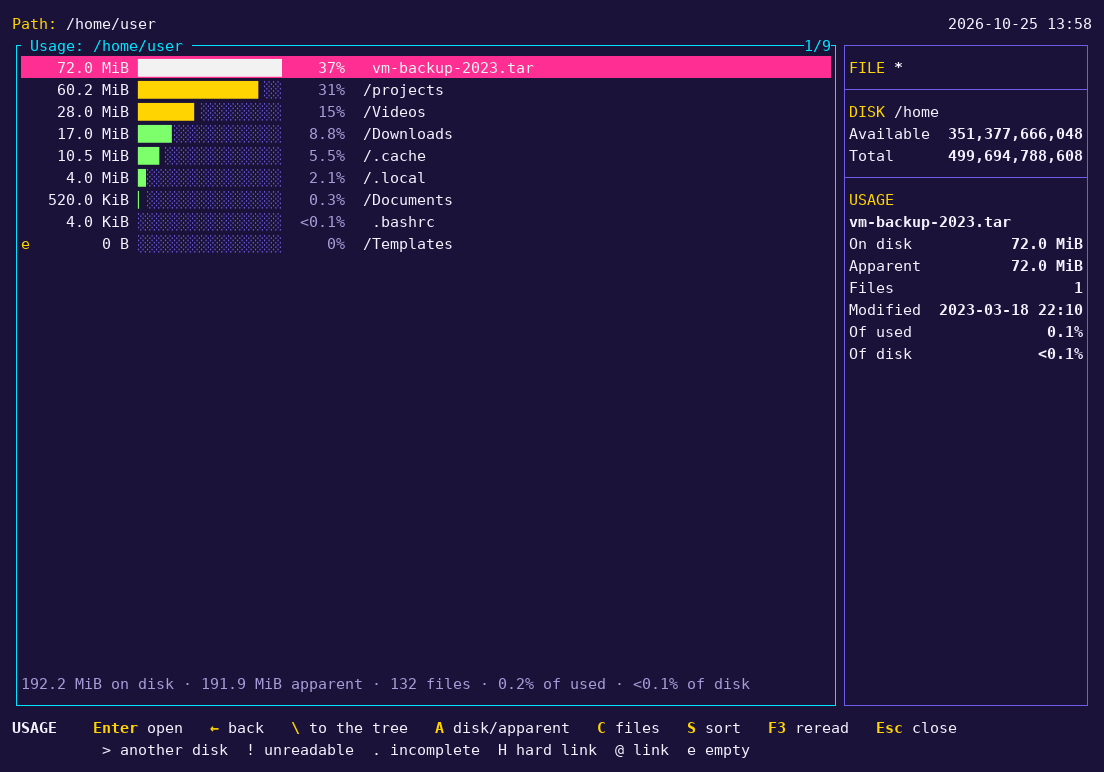
Alt+W opens the new Usage view: the folders and files of a branch by
the space they take, largest first, with a bar and their share of the folder.
Enter goes into a folder, down to what fills the disk; the panel on the right
shows the item's size on the disk and apparent, number of files and date.
One disk at a time (other file systems are marked > and left out), hard
links counted once, and the space on the disk as du counts it (A switches
to the apparent size). The bars take the color of their share: up to 10%, up
to 40%, more.
In the tree, Alt+K → Percent shows each folder's share of the one above,
with a colored bar against its largest sibling.
Remote machines over SSH
Type user@host:/path (or ssh://user@host:port/path) in L (Log), or
give it to xy, and browse that machine's files as a tree, alone or next to
this one with F8. Xylem speaks SFTP through your own ssh, so
~/.ssh/config, keys, the agent and known_hosts all apply, and nothing is
installed on the other side; passwords and host keys are asked in the
footer. The viewer, search, Compare and Copy (to this machine) work there,
and Alt+X opens a shell on the remote machine, with the tree following
its cd. The remote side is read-only for now.
Google Drive, S3 and other cloud storage, through rclone
Mount them with rclone and Xylem works there like on
any folder. On Linux, the DISK panel, Info and Avail say which service a
mounted folder is (Google Drive, Amazon S3, OneDrive...). The new manual page
explains the setup, what is different on a mounted remote, and how to find
what fills a Google Drive before buying more storage.
New themes: slate, graphite, daylight and vivid
In the style of Windows Terminal (slate) and of macOS in dark and light mode
(graphite, daylight), and vivid: strong colors on a deep indigo, for
presentations, videos and screenshots (the one above). Twelve themes in all,
in F4 or with theme = "..."; each has its own colors for the bars
(bar_low, bar_mid, bar_high, which [colors] can change too).
Smaller things
- E no longer opens binary files in the text editor: the new
[editors]
table inconfig.tomlchooses a program by file name, and binary files
without one are refused, with a hint to use O. xy --manshows the formatted manual page in a terminal; redirected to a
file, it still writes the source, for installing it.- The Alt menu in the footer lists Alt+W.
Install
Download the archive for your system below (Linux x86_64 or ARM64, static;
Windows x86_64), or cargo install xylem-fm. The website:
https://andrelnfernandes.github.io/xylem/
What's Changed
- Remote machines over SSH: browse, view and copy from them, with a terminal there by @andrelnfernandes in #24
- Editors by file type: E no longer opens binary files in the text editor by @andrelnfernandes in #25
- Website on GitHub Pages, new themes and screenshots in modern themes by @andrelnfernandes in #26
- Cloud storage through rclone: manual page and service in the DISK panel by @andrelnfernandes in #28
- Website: an author section and what is coming next by @andrelnfernandes in #30
- Alt+K Percent: each directory's share of the one above, with a bar by @andrelnfernandes in #29
- xy --man: show the formatted page in a terminal by @andrelnfernandes in #27
- Usage view (Alt+W): where the space of a branch goes by @andrelnfernandes in #31
- Website: the author's bio, the story of Xylem and XTree links by @andrelnfernandes in #32
- Manual: finding what fills a Google Drive with Alt+K Percent by @andrelnfernandes in #33
- Website: disk usage moves from "Coming next" to a section of its own by @andrelnfernandes in #34
- Version 0.4.0 by @andrelnfernandes in #35
Full Changelog: v0.3.0...v0.4.0
Contributors
Assets 8
Xylem v0.3.0
New
- Contextual help. F1 (or Alt+H, for terminals that keep F1 for themselves) opens help about what you are doing: inside a prompt, that prompt's topic; in a question, viewer or window, its own. Esc returns to where you were, with what you had typed. Topics are linked (Tab, Enter, Backspace), with an index (I) and the keys in effect (K).
- The manual in docs/manual: the same text as the help.
xy --manprints a man page from it, and the Linux archives include it asxy.1. - More archives: Alt+F5 opens
.7z,.tar.xz,.tar.bz2and.tar.zst, besides ZIP and TAR.GZ. - Two display modes (Alt+F): owner (
user:group) and type (what each file is, like thefilecommand: "PNG image, 800 x 600", "python3 script"...). - Copy/Move: the overwrite question shows the size and date of both files (newer or older, larger or smaller), and a destination folder that does not exist is created after you confirm.
Fixed
- Batch rename with
s/…/…/icrashed on names with characters likeK(Kelvin sign) orİ. - Batch rename with
*.*dropped a trailing dot (A.becameA). - In a solid 7z archive, only the first file could be read.
Full changelog: v0.2.0...v0.3.0
Xylem v0.2.0
xt is now Xylem. The command is xy, and the crate is xylem-fm.
The xylem is the tissue that carries water through a tree, and it starts
with an X, like XTree.
Upgrading from xt
- Install with
cargo install xylem-fmor grab a binary below. - On its first run,
xymoves xt's configuration, history and bookmarks
to its own folders (~/.config/xylem,~/.local/state/xylem) and
tells you so. Nothing is lost. - Replace your
xt()shell function withxy()(see the README). - In the built-in terminal,
$XT_TAGGEDand$XT_TERMINALare now
$XY_TAGGEDand$XY_TERMINAL.
New
- Copy paths to the clipboard: Yank (
Y,Ctrl+Insert;Ctrl+Y
for tagged files;yin the viewer). It works over SSH and tmux
(OSC 52) and keeps the clipboard after Xylem exits, on X11 and Wayland. - Trash and Oops: with
delete_to_trash = true(orTat the
prompt), deleted files go to the system trash or Recycle Bin;
Oops (Oin the tree,Ctrl+Z) brings them back.Shift+Del
always deletes for good. - Batch rename of tagged files (
Ctrl+R/Alt+R): wildcard masks
(new_*.*), search and replace (s/foo/bar/i), counters (%03d,
<#>) and case conversion (F2). - Directory bookmarks: manager (
F11/Alt+B), quick jump ('
followed by a key), add (Ctrl+B). - Quitting while a program runs in the built-in terminal now asks first.
- An icon: in the README, embedded in
xy.exe, and a Linux menu entry
(packaging/linux/xylem.desktop).
Fixed
- Copying to the clipboard could freeze the interface on GNOME/Wayland.
- Error messages from
gio trashno longer land on the screen.
Full changelog: v0.1.0...v0.2.0
xt v0.1.0
What's Changed
- Windows support (experimental) and CI by @andrelnfernandes in #1
- Viewer: E edits the file in the configured editor by @andrelnfernandes in #2
- Git commands (Ctrl+G) and status markers, off by default by @andrelnfernandes in #3
- Git: status in color, and D in the viewer for a file's diff by @andrelnfernandes in #4
- F2 picks the folder in a tree (Copy, Move, Log, Ctrl+B, F5) by @andrelnfernandes in #5
- Alt+C / Alt+M path modes: full, tree, current, relative by @andrelnfernandes in #6
- Test: wait for the opened file's contents (flaky on Windows) by @andrelnfernandes in #7
- Statistics (?): system, network, xt itself and a detailed disk by @andrelnfernandes in #8
- Built-in terminal (Alt+X); temp files only in the user's space by @andrelnfernandes in #9
- Right panel as in ZTreeWin: FILE, DISK and DISK Statistics by @andrelnfernandes in #10
- Readme screenshots by @andrelnfernandes in #11
- README: animated demo at the top by @andrelnfernandes in #12
- Packaging: crates.io as xt-fm, binaries in GitHub releases by @andrelnfernandes in #13
New Contributors
- @andrelnfernandes made their first contribution in #1
Full Changelog: https://github.com/andrelnfernandes/xt/commits/v0.1.0