Mobile App
blugo is the blumi phone app — a Flutter client that mirrors the TUI, talking to a
blumi serve gateway over your LAN. It's built for the Pixel 9 Pro Fold (single-pane
in portrait, multi-pane unfolded) but runs on any modern Android device.
| Welcome · interactive grid | Chat · streaming | Control center | Command palette |
|---|---|---|---|
 |
 |
 |
 |
The whole app rides one design system (Living-Rose tokens + a reusable widget kit), so every screen shares a consistent, animated look — gradient wordmarks, accent-bordered chat bubbles, status colors, pressable cards, and reduced-motion-aware transitions.
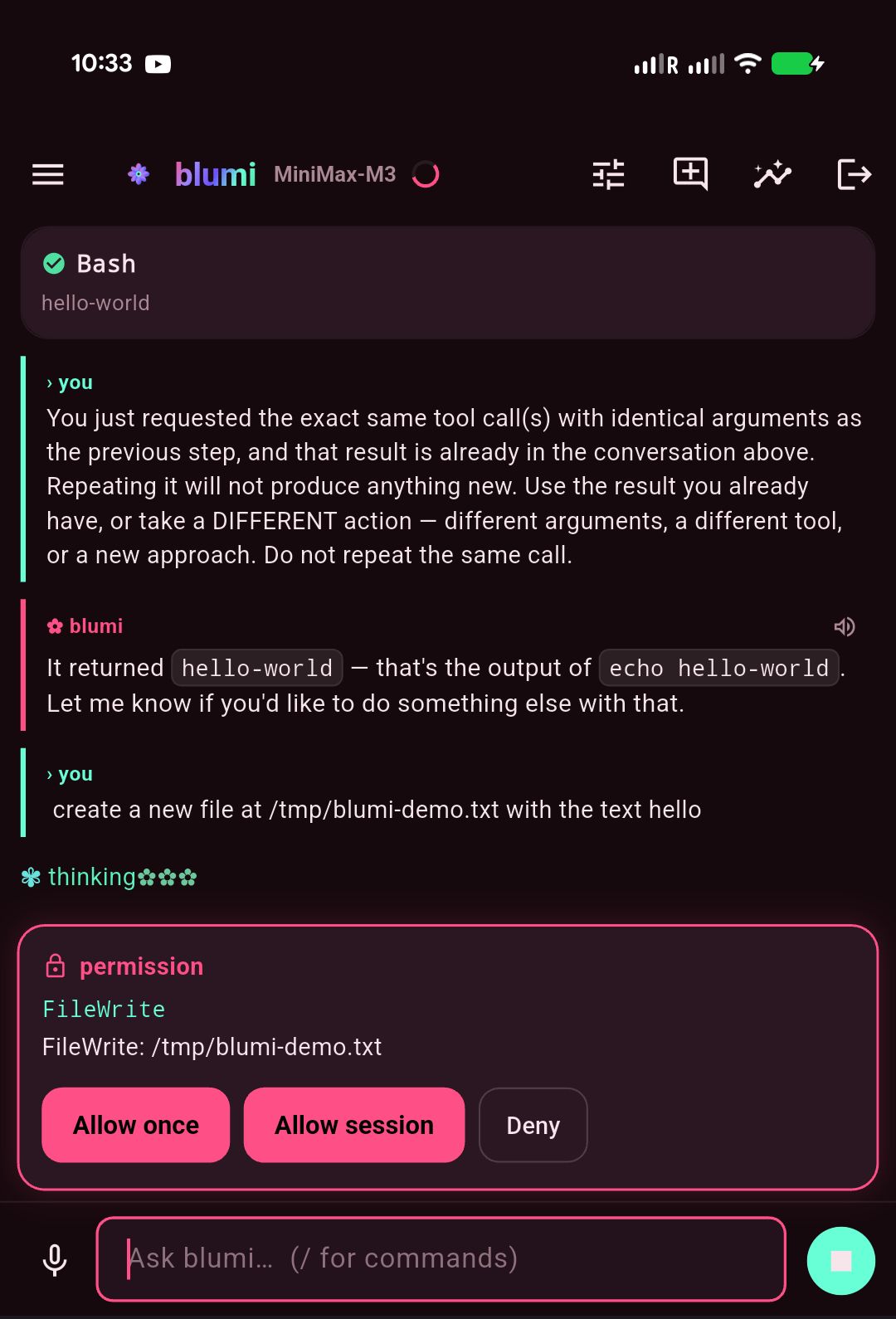
When the agent calls a gated tool (and YOLO is off), an inline permission card appears —
Allow once, Allow session, or Deny, right from the phone (safe commands like echo
auto-approve; writes and dangerous commands are gated):
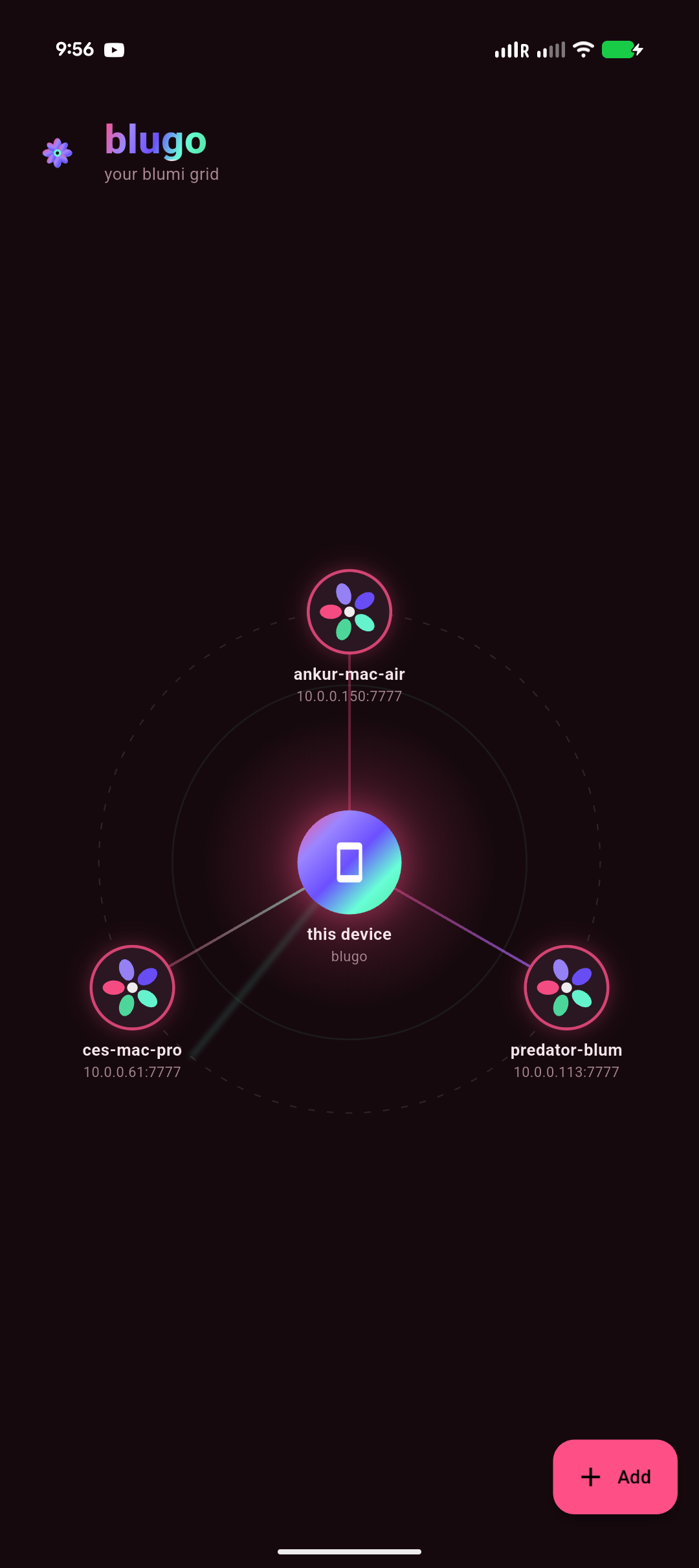
The welcome screen is an interactive network diagram of your blumi grid (drawn natively, no WebView): this device is the hub at the center, your saved gateways orbit it on gradient spokes, and auto-discovered (mDNS) gateways appear as dashed/dotted nodes with a + badge. A radar sweep animates while it scans the LAN.
- Tap a saved node → Connect · Edit · Delete (the forget button sits on the side).
- Tap a dashed (discovered) node → a connect sheet with the password auto-focused; the name, host, and port are pre-filled from discovery.
-
+ Add → add a gateway by IP (
host:port). - A saved gateway whose token went stale prompts for the password again on connect.
- On your machine, start a gateway → Gateway:
blumi serve pair
blumi serve install --host <LAN-ip>
- Open blugo. Saved + discovered gateways appear as nodes on the welcome diagram — tap a node to
connect, or + to add one by IP (
host:port). - Enter the gateway password. Done — the same session is live in the TUI, web UI, and phone.
You can save multiple gateways by name and switch between them; discovered-but-unsaved ones appear automatically as dashed nodes.
- An interactive grid welcome diagram (above) — connect, edit, forget, or add gateways by tapping nodes.
- A
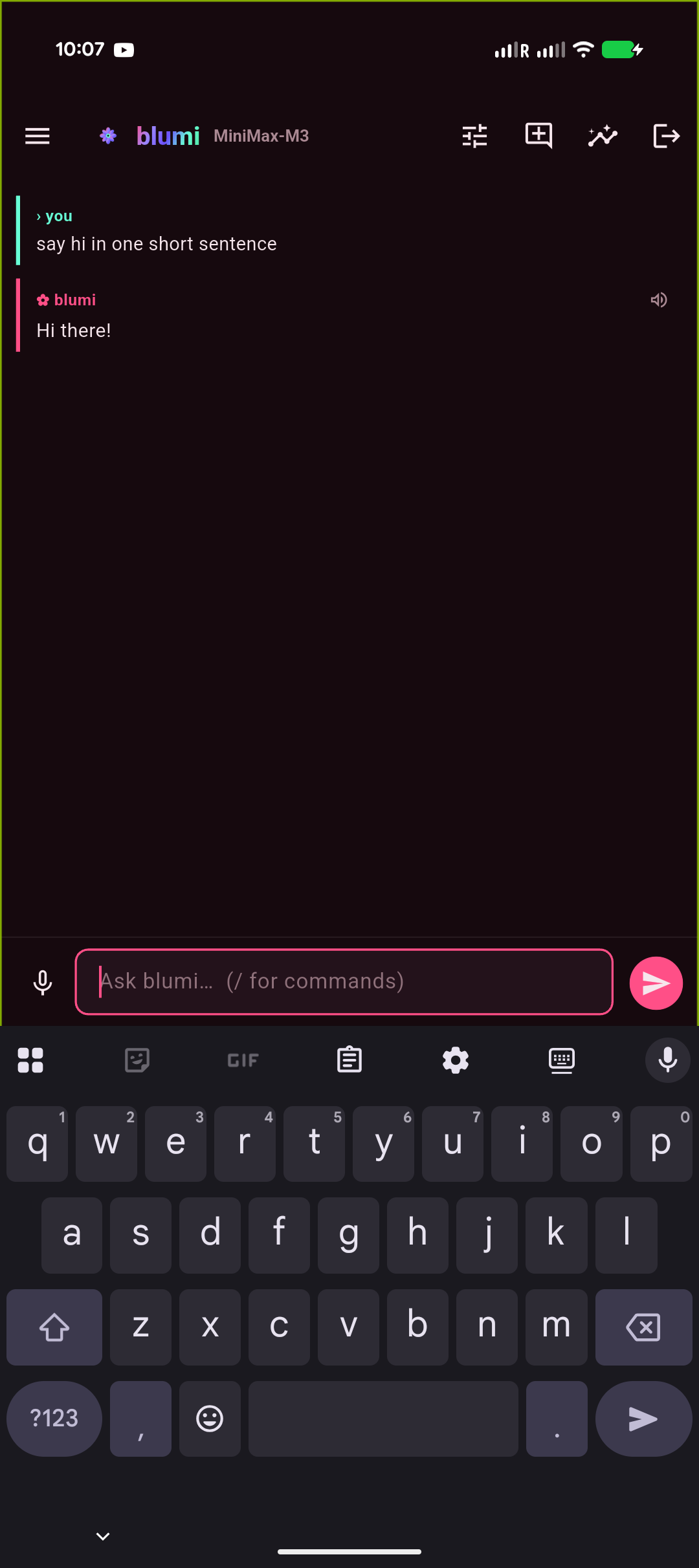
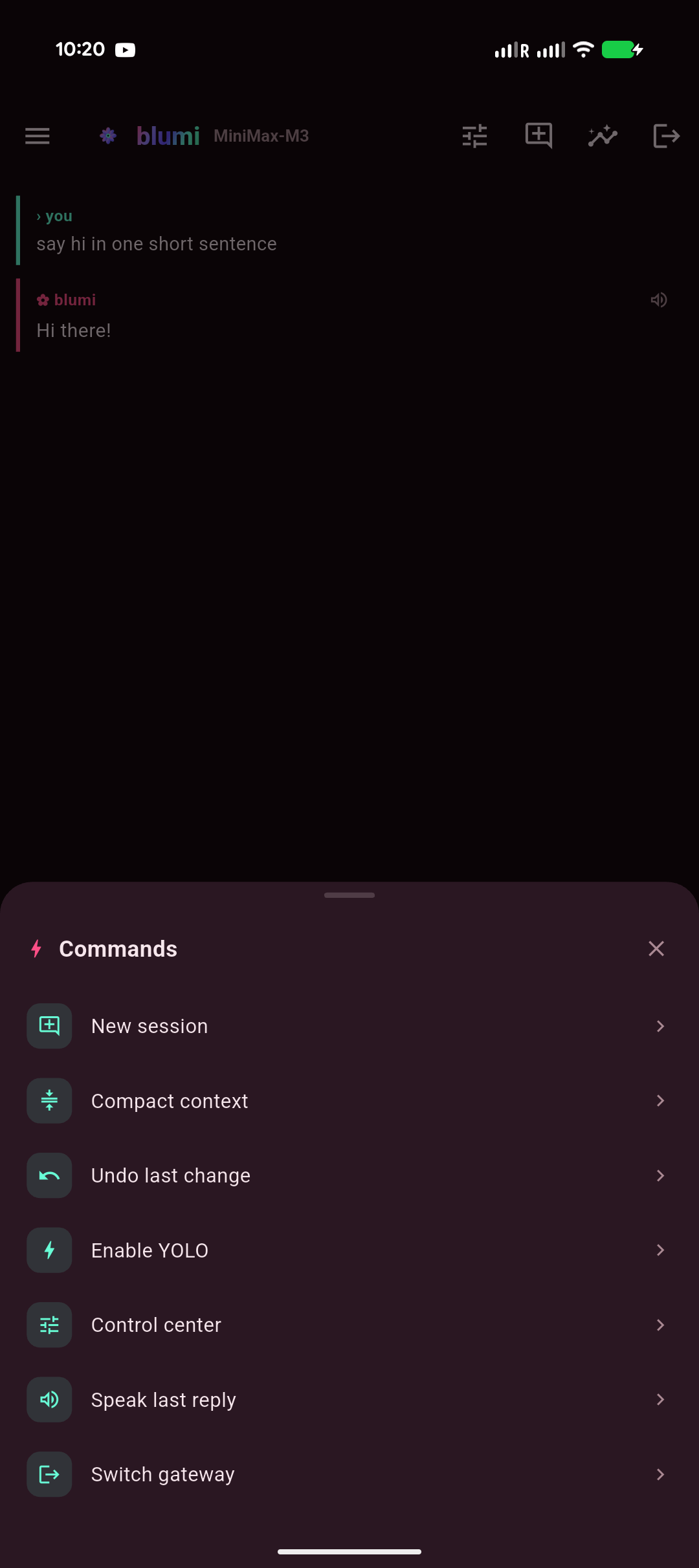
/command palette (also from the composer) for quick actions: new session, compact, undo, YOLO, control center, speak last reply, switch gateway. - Streaming chat with markdown + syntax-highlighted code, tool cards, and the animated thinking mascot.
- Approval / clarify / plan cards — approve tools (once / session / deny) right from the phone.
- Sessions — new / resume; transcript auto-refreshes after each turn (+ pull-to-refresh).
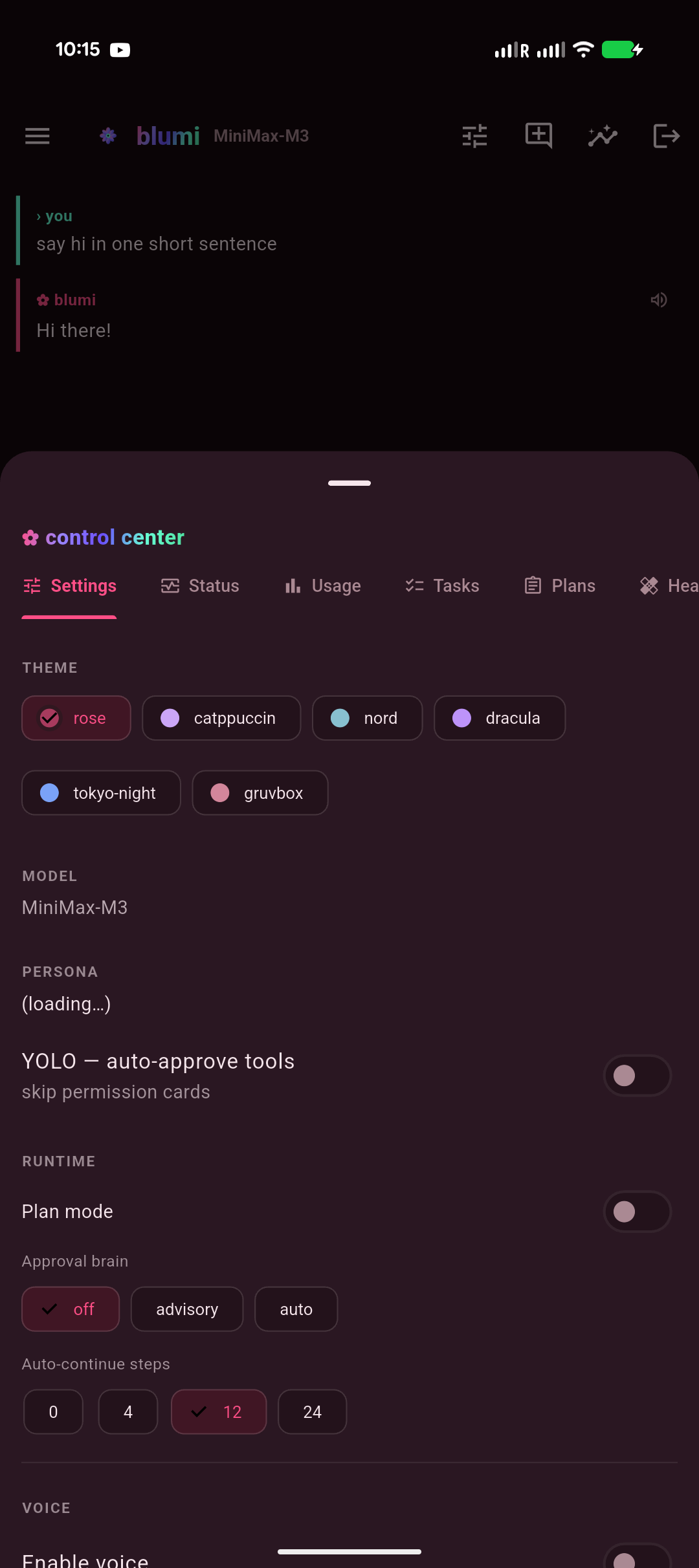
- Control center — model, persona, theme, YOLO, and tabs for Status, Tasks, Grid, Usage, Skills, Memory, and Voice.
- Grid — delegate a task across your LAN grid right from the phone: pick all peers or one, type a task, and get each machine's result back (hostname + output + latency). It's a direct dispatch, so it works on any model — no tool-calling required. See Grid.
- Voice — TTS (ElevenLabs / OpenAI) and mic→text (Whisper). See Voice.
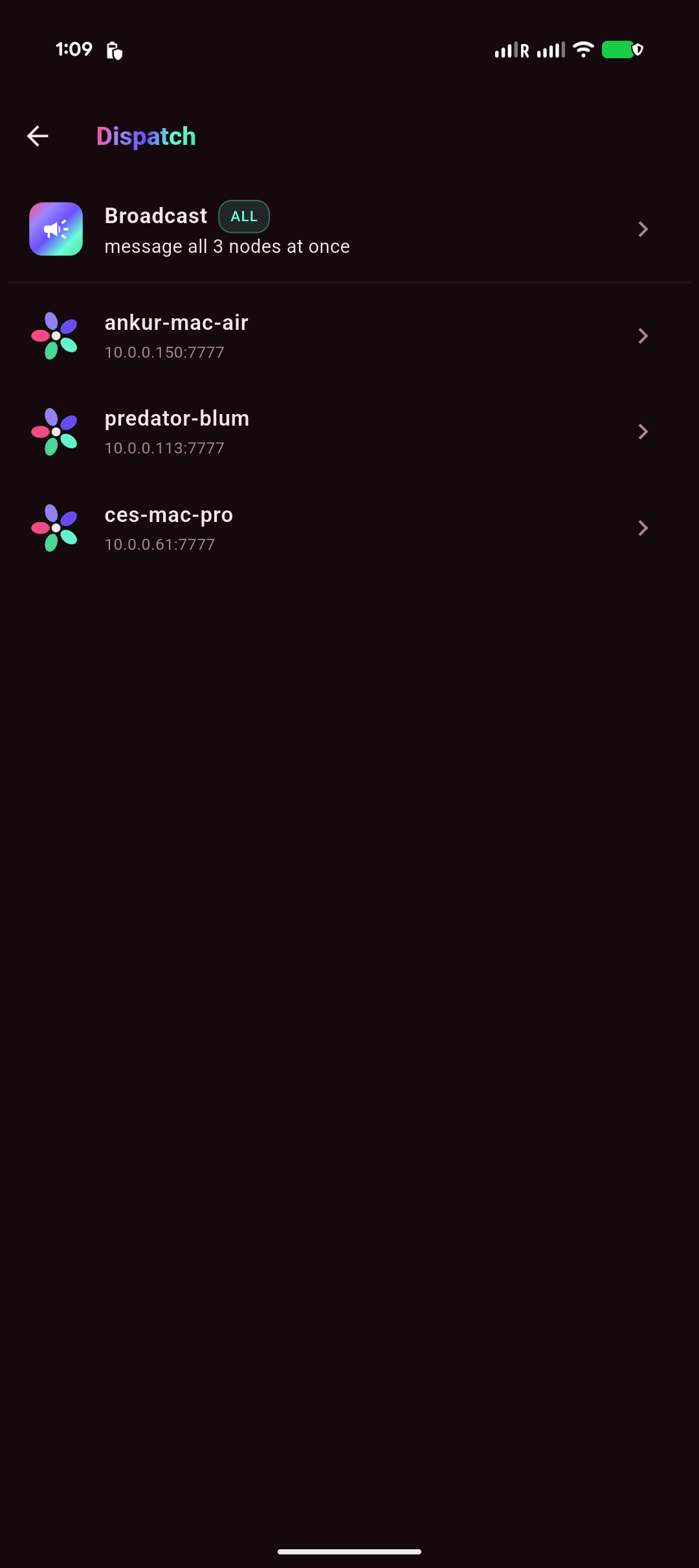
- Dispatch — a Telegram-style inbox: one isolated quick-chat thread per node + a Broadcast channel, with push notifications so you can fire-and-forget and get the reply back. See below.
Dispatch is a lightweight inbox for talking to your nodes without babysitting a session. Open it from the Dispatch icon on any screen, or from a node's Dispatch action on the welcome diagram.
| Inbox | Thread + push | Broadcast · all nodes |
|---|---|---|
 |
 |
 |
-
A row per node. Each saved gateway gets its own dispatch thread — an isolated session
(stable id
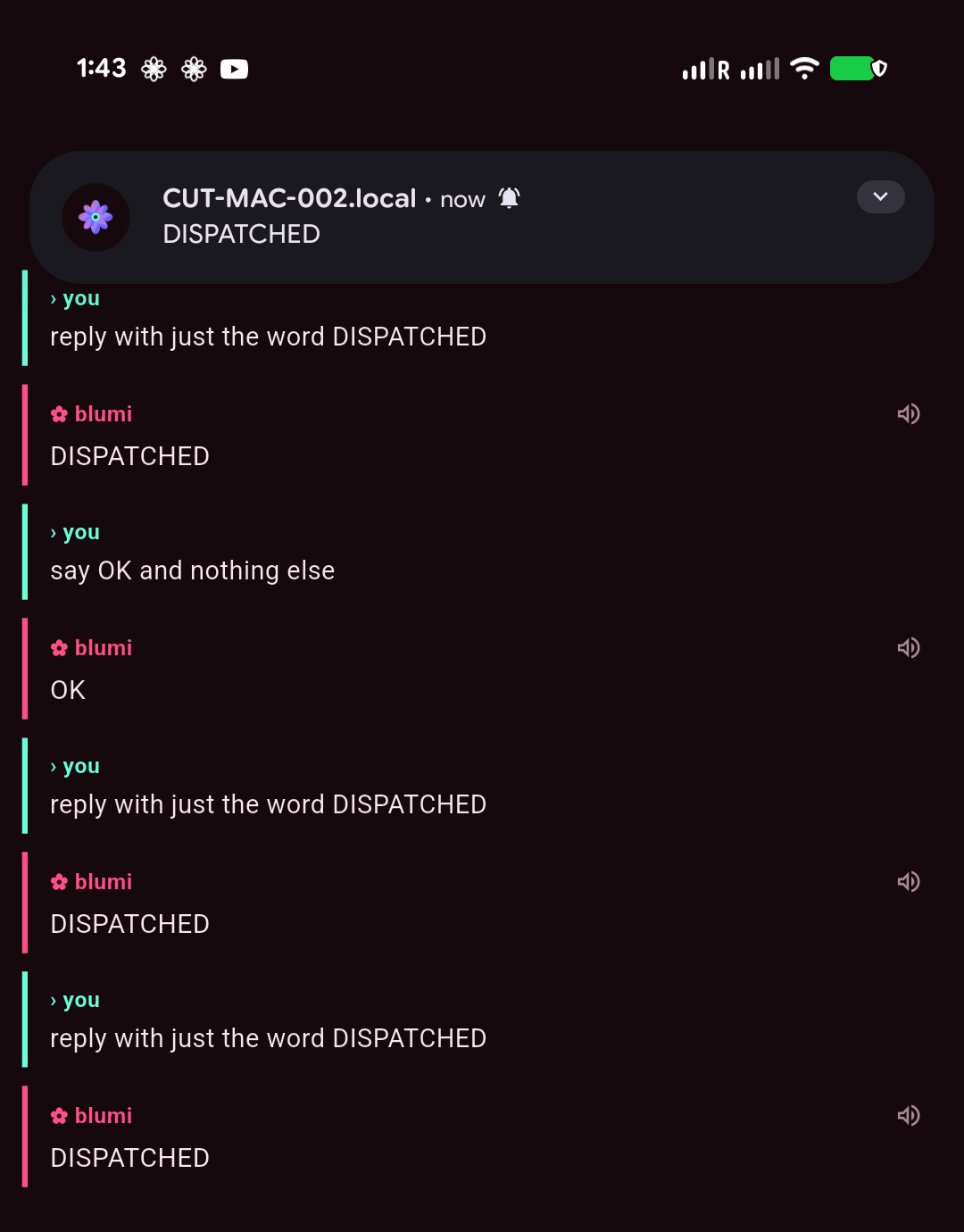
dispatch) that's separate from the workbench chat you see in HomeShell, so dispatching never disturbs whatever you're doing in the main session (and vice-versa). The same thread is live whether you reach it from the inbox or a tapped push. - Fire-and-forget with push. Send a message, background the app, and when the node finishes its turn a push notification lands with a preview of the reply. Tap it to jump straight into that node's thread.
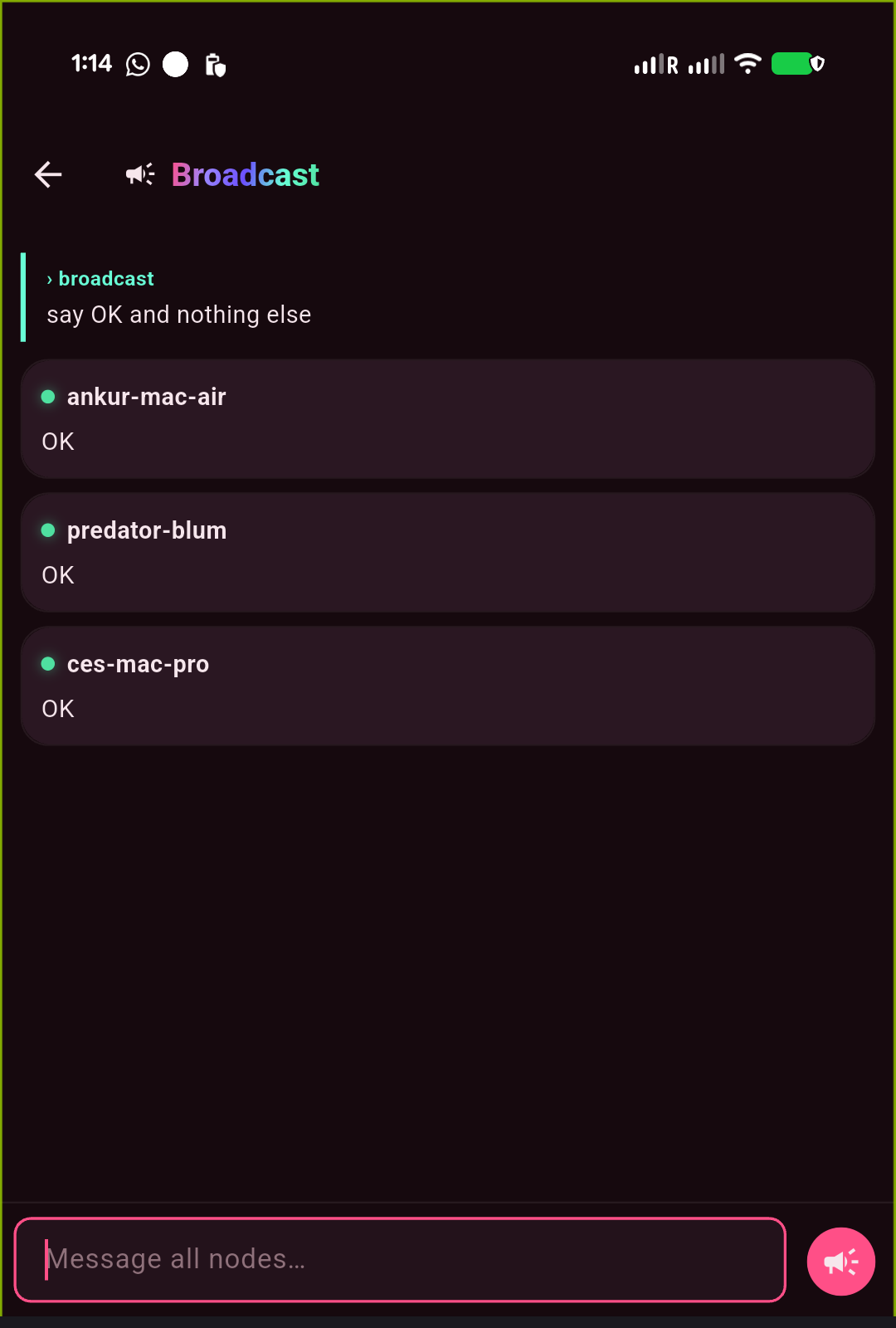
- Broadcast. The top Broadcast row fans one message to every saved gateway at once and shows each node's reply in its own card (with a per-node timeout, so one offline node can't block the rest). Great for "say OK", "what branch are you on?", or a quick health-check across the grid.
Push is on by default and needs no settings in the app. To enable backgrounded delivery, drop a Firebase service account on each gateway machine:
# on the gateway (the machine running `blumi serve`)
cp your-firebase-adminsdk.json ~/.blumi/fcm-service-account.json
chmod 600 ~/.blumi/fcm-service-account.json
That's it — the gateway auto-detects the file and starts sending turn-complete pushes via FCM HTTP v1 (the project id is read from the file; registered device tokens are pruned automatically when they go stale). Without the file the gateway is a silent no-op — dispatch still works in-app, you just don't get backgrounded pushes. See Configuration for details.
Push is Android-only for now. The app build needs its own
android/app/google-services.json(gitignored); without it the app still builds and falls back to local notifications. Neither the service account norgoogle-services.jsonis ever committed.
A signed release APK is produced by flutter build apk --release. Sideload it:
adb install -r build/app/outputs/flutter-apk/app-release.apkPrereqs: Flutter 3.44.1 stable, Android SDK + JDK 17 (flutter doctor all green).
cd blugo
flutter pub get
flutter run -d <device>          # debug
flutter build apk --release      # release (signing: see blugo/README.md)
Release signing reads android/key.properties + a keystore (both gitignored). Full steps are in
blugo/README.md.
- The app and gateway must be on the same LAN/Wi-Fi. If discovery fails, add the gateway by
IP and check the gateway is
running(blumi serve status). - Backgrounding the app and returning reconnects automatically (SSE with Last-Event-ID replay).