Repository navigation
User guide
← Back to chordleaf · Common questions
Use EN / ES in the top bar to choose English or Spanish. The app starts in your browser language (English for languages other than Spanish). This guide uses the English control labels. Changing the interface does not translate songs.
The desktop workspace has a navigation rail, an editing panel and a sheet preview. Choose Settings, Lyrics, Chords, Key, Search or Identify. On phones and portrait touch tablets, the bottom navigation switches between Settings, Lyrics, Harmony and Preview; Harmony contains key analysis, song chords, search and identification. Your text and cursor remain in place. For a shorter introduction in Spanish, see your first song in five minutes.
- Start or import a song
- Import audio
- Place a chord precisely
- Browse and print chord diagrams
- Identify a chord
- Prepare and export the sheet
- Recover or back up your workspace
Choose the large New song action, then Start from scratch, or use See an example on the start page to try an original demo song. A blank song's title starts empty; its placeholder is not printed. Add an artist if needed. New song → Open document → Choose document supports:
| File | What to expect |
|---|---|
| TXT, CHO, ChordPro | Bracketed chords or chord lines above lyrics. Exported chordleaf TXT retains document settings and custom voicings. |
| PDF with selectable text | Lyrics, chords, headers and columns recovered from their positions. Review the result. |
| Word (.docx) | Text and identifiable column structure. Review titles and alignment. |
Imports accept up to 10 MiB per file, 50 PDF pages and 50,000 text characters per song. Direct edits, chord insertion and transposition use the same song text limit. Large or complex documents can still take longer to process. Scanned PDFs need external OCR. Convert legacy .doc files to .docx first. Each song opens in a tab. Closing a song saves it in Recent, without a confirmation. Closed songs remain available until explicitly removed; Delete saved song opens a confirmation, and Cancel leaves the copy intact; View all shows the whole list. If browser storage is full or unavailable, the song stays open so you can export it.
For copied text, choose New song → Paste from clipboard and grant access if your browser asks. If clipboard access is unavailable, start a blank song, open Lyrics and paste into the text editor. Import audio creates an experimental draft from a recording; follow the audio guide to choose and manage its local models.
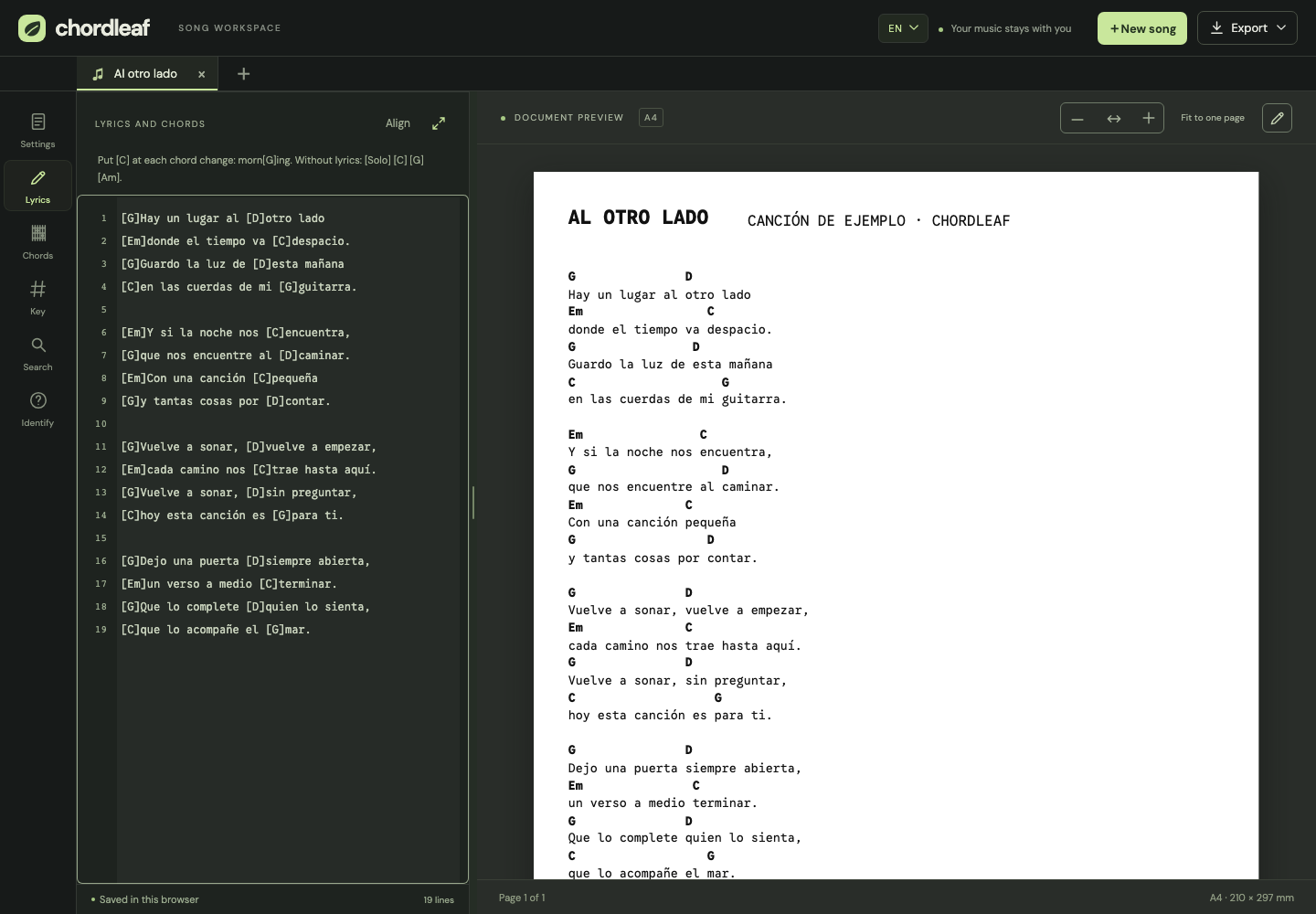
Write its symbol in brackets immediately before the letter where it should sound:
[G]Let it ring, [D]start again.
A mor[Emaj7]ning beside the [Abm7b5]sea.
In mor[Emaj7]ning, n is the chord’s reference character. Labels use their middle character for odd lengths and the left middle character for even lengths: E places E over the letter, Em starts over that letter and spans the next one, and Em7 places m over it. Preview, PDF and Word share this alignment. Brackets take no space on the sheet. If long symbols collide, the printed layout adds horizontal spacing to keep them on one row. Source lyrics and saved chord anchors remain unchanged. Transposition, font size and columns preserve those anchors. A manual line break gives more control over long verses. Emoji and combining characters may not align like ordinary monospaced text.
Drag the vertical divider to resize the editor. Focus it with Tab and use Left/Right; Home or double-click restores its starting width. On mobile, switch between Lyrics and Preview with the bottom navigation; pinch the sheet to zoom.
The expand icon beside Lyrics and chords opens a larger editor with the same text, cursor and undo history. Done or Escape returns to the document. Changes save while typing. In landscape Safari, swipe up over the top bar to hide the browser bars before typing. The compact keyboard view keeps the field and Done visible. If Safari leaves no usable space, the keyboard closes with guidance and your text stays saved; portrait offers more space.
The preview opens at a readable A4 width. Fit to width expands it to the available space and follows changes to the editor width.
The preview's pencil enables editing directly on the sheet. Select the lyric to edit only its words: chord tokens are hidden in this editor and follow their anchored text as you insert or delete words. On a phone, a separate editor fits the visible screen: Done confirms, Cancel restores the original verse, and Return adds a line break. With a hardware keyboard, Ctrl/Cmd+Enter also confirms and Escape cancels. On desktop, Enter commits and Shift+Enter adds a line break. The Lyrics section keeps the complete source with chord brackets for raw editing.
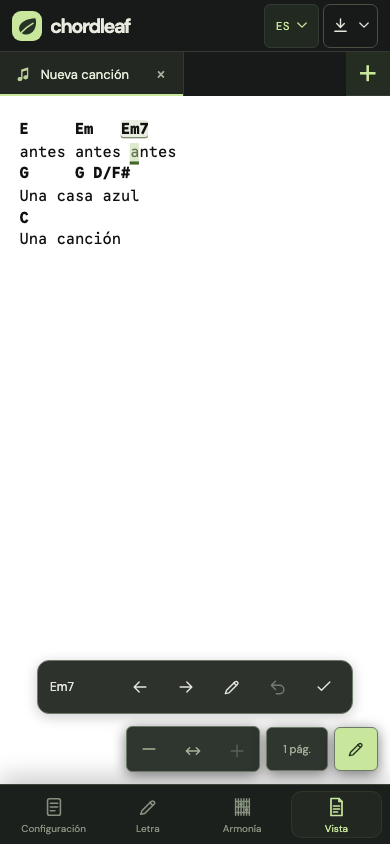
Use Align beside the text editor's expand control, or enable the preview pencil, to move chords directly on the sheet. Drag a chord over the lyric; the highlighted cell shows its target letter. A compact floating set of controls appears when you select a chord, showing only its name. Tap that name to rename just the chord; on desktop you can also double-click the chord directly. The left/right buttons move it one character at a time; a focused chord also accepts Left/Right, Home and End. On phones, alignment opens the sheet and increases the view zoom when needed so lyrics remain readable. Page edges scroll while you drag. The Done action or the preview pencil ends editing and restores the previous view zoom.
Each completed move updates the original bracket token immediately. Undo restores alignment changes until another source edit invalidates that history; it remains available after deselecting a chord. Use the pencil action (Edit verse lyrics) for the selected verse or tap the lyric directly, including while a chord is selected. Touch cancellation discards the current drag. Literal bracketed headings, other chord occurrences and lyric line breaks are preserved. Instrumental chord sequences keep their normal flow. Editing the title or artist uses a discreet underline; keyboard navigation still highlights the focused text.
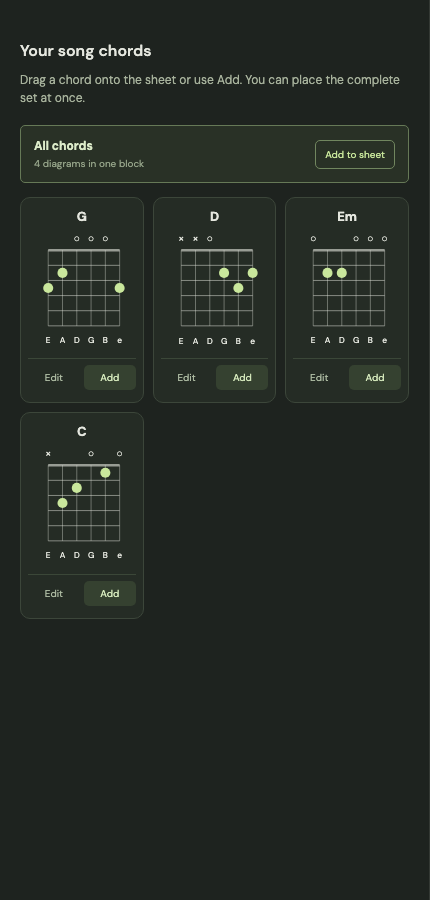
Open Chords in the desktop rail, or Harmony → Chords on a phone. Each card shows a chord name and its current guitar diagram. Use Edit on a card to change its frets. Values run from low E to high e: -1 is muted, 0 open, and positive values are frets. You can mark a custom voicing with an asterisk or restore the catalog shape.
Drag a card onto the sheet, or use its compact Add action. All chords → Add to sheet places every song chord in one clearly labelled block. Diagrams can be moved, resized or removed. Drag the right edge to change width, the bottom edge to change height, or the corner to change both. Column counts stay fixed while resizing, so making the frame smaller does not unexpectedly enlarge the diagrams. Select the grid button on a diagram group to set width and height in millimeters and choose its columns, with a live preview. Rows follow the number of chords; diagrams keep their proportions inside the frame.
If a chord has no catalog position, Chordleaf asks you to define its six frets or add only the available diagrams. It never prints a “No position” placeholder inside the block. You can edit a missing position later from its song card; once saved, existing All chords blocks include it automatically.
Arrow keys move a focused diagram and Delete removes it. On a resize handle, Left/Right changes width and Up/Down changes height; hold Shift for smaller increments. Diagrams and custom positions are included in exports. Dots and barres stay green in the sidebar and print black on white in the document, PDF and Word.
Search searches 828 chords and 3,283 positions. Select a diagram to view alternative positions. Supported aliases include EM7 / EΔ7 for Emaj7, A♭ø7 / Abm7(b5) for Abm7b5, C6/9 for C69, and Dm(maj7) for Dmmaj7. A recognized symbol may still have no catalog voicing.
Read diagrams from low to high strings, E A D G B e: ○ is open, × is muted, dots mark frets. A number at the side marks the starting fret for higher positions.
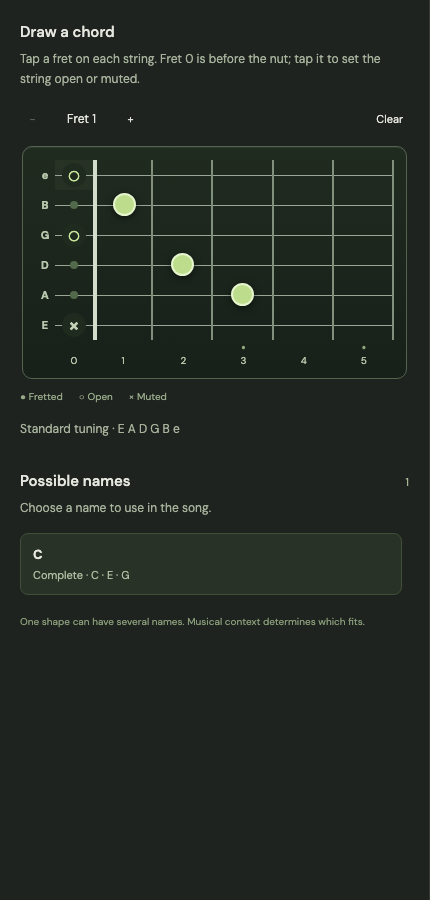
Open Identify in the desktop rail, or Harmony → Identify chord on a phone, and place a dot on each string you want to play. The horizontal fretboard follows tablature orientation: frets increase left to right, the high e string is at the top and low E is at the bottom. Its size stays fixed when the sidebar gets wider; on a wide sidebar, interpretations appear beside it. Press the same dot again to mute it. The control beside each string name switches between × Muted (muted) and ○ Open (open), with contrasting backgrounds and visible labels. − Fret 1 + moves the visible five-fret window one fret at a time; selections outside that window remain saved and their fret numbers appear beside the string names. Clear mutes all strings.
The panel focuses on the fretboard and possible chord names. Exact interpretations come first, followed by incomplete voicings labelled no5 (missing fifth).
Names and fret numbers are relative to the capo. A short note indicates the active capo. The identifier covers a documented formula vocabulary, not every possible harmonic analysis. Read the harmony model and its limits.
Select a result to retain that exact voicing. Insert at cursor adds it where you left the text cursor. Alternatively, choose a song chord under Replace in song, then choose all occurrences or a specific numbered occurrence with its line number. Replace chord updates bracket tokens without changing lyrics. Undo last change restores the previous text, shapes and sheet diagrams; subsequent text changes invalidate that undo action. Custom shapes belong to a chord symbol, so every occurrence of that same symbol shares its voicing.
In Settings, the Semitones − / + controls move all chord symbols by a semitone. Section labels such as [Estribillo] remain unchanged.
Capo sets the capo fret. The chain links it to the chords: raising a linked capo by one fret lowers the chord symbols by one semitone to keep the sounding key. Enabling the chain alone changes no chords.
Key estimates the key from the written chords and shows its degrees. This is guidance, not a definitive analysis, and is not printed.
Adjust font size, margins and one or two columns. Fit to one page attempts to fit the song by reducing font size to a readable minimum; a long song may still need multiple pages. Preview zoom changes only the view, not the exported layout.
Write {column} on its own line to start another column, or another page in a single-column document. It is not printed. Instrumental passages can include separators:
[Emaj7] | [G#m7] - [E5+]
| Export | Use it for |
|---|---|
| Download PDF | Printing or sharing a fixed layout. |
| Export Word · DOCX | Further editing in a word processor; rendering may vary. |
| Text · TXT | Preserving lyrics, anchors, settings and custom diagrams for re-editing. |
| ChordPro (.cho) | Interchange with other chord-sheet apps. |
| Download editable project | Reopening one complete song as .chordleaf.json. |
| Workspace backup · JSON | Backing up all open and closed songs. |
Preview, PDF and Word share a layout model. Reimported PDF or Word reconstructs that model from appearance, so review chord placements. An editable .chordleaf.json project preserves one song, its settings and diagrams; use Export → Download editable project, then New song → Open editable project to reopen it. TXT and ChordPro remain useful interchange formats. Autosave belongs to this browser: export before changing devices or clearing browser data.
New song opens the initial menu with Import from a website, Open document, Paste from clipboard, Start from scratch and Open editable project. The public website also offers Import audio, marked Beta/Experimental. Each import option opens its own screen; ← Back returns to the menu. Closing and reopening starts fresh. Paste lyrics with aligned chords or open TXT, ChordPro, text-based PDF or DOCX. Legacy .doc files must first be saved as .docx.
For a web import, paste an HTTPS song URL from LaCuerda, AcordesWeb, TusAcordes, Chordie, Acordes.cc or Ultimate Guitar. Cifra Club often blocks server requests; its saved HTML can still be parsed locally when offered. Chordleaf converts the accessible chord version into editable lyrics and anchored chords. LaCuerda supports both its normal chord page and its /TXT/ link; its six-string fingering legends are left out of the song text. Ultimate Guitar supports tabs.ultimate-guitar.com and Spanish es.ultimate-guitar.com chord pages. Integrations are maintained per provider rather than per song, so a provider markup change can require an adapter update. Search pages, protected content and tablature-only versions are not supported. The source URL is kept with the working song. A running Chordleaf server is needed for this option.
Every import tries one and two columns, 6–10 mm margins and 8–12 pt type, choosing the largest font that fits on one A4 page. Imported column/page breaks are reflowed. At equal font sizes, one column and 10 mm margins take preference. Longer songs keep all their content on multiple pages rather than shrinking below 8 pt. Fit to one page repeats this search; all document controls remain editable afterwards.
New songs include a small grey chordleaf.com footer in the preview, PDF and Word. Turn it off in Settings → More options → Show chordleaf.com in the footer if you prefer. Catalog diagrams use the original fingering's barre information, including full and partial barres; unknown custom shapes infer a conservative barre when possible.
Write [Solo] [C] [G] [Am] [F] on its own line. The sheet displays [Solo] C – G – Am – F, all on the same baseline. [Intro] works in the same way. A line with only several chords also works, even if written together as [C][G][Am]. Explicit bar lines and repeat signs such as |: [C] | [G] :| x2 are preserved. Long sequences wrap between whole chords. The preview, PDF and Word share this layout.
Bracketed sequences remain independent of the following lyric line. Plain imported chord rows above lyrics still attach to those lyrics; for an explicit standalone passage, use brackets and optionally a section label or bar separators.
If saved data cannot be read, Chordleaf leaves the original browser storage untouched and shows Recover data. Download that JSON file and keep it private; it can contain your songs. Export any new work as TXT before leaving. Ask for help using an invented example rather than posting the recovery file publicly. Once you have recovered or backed up everything you need, clear this site's stored data in your browser settings to start a clean session. Recovery JSON is a diagnostic backup, not a supported song-import format.
Chordleaf allows one active editor per browser profile and origin. A second browser tab offers Use here. The current tab saves before handing over. If saving fails or the tab does not respond, the current tab keeps its editing lease; export your changes there before retrying. The song tabs inside Chordleaf are safe to use together. An up-to-date HTTPS browser with Web Locks support is required.
Word/PDF preparation stays visible until it finishes. Document actions are disabled during that job; you can keep editing without changing the exported snapshot.
Wait for Offline: ready before leaving coverage. If preparation fails or an update is pending, the status explains the next step. Browser caches can still be cleared: keep downloaded backups.
Choose Export → Workspace backup · JSON to save all open and closed songs, layouts and custom chord shapes. This option remains available with no open song. To restore, choose New song → Open editable project and select the JSON backup. Open songs become new tabs and closed songs return to Recent; existing songs are preserved. Older backups containing only open songs still work. Each file supports up to 500 songs in total, 50,000 characters per song and 10 MiB. Larger libraries open a list of backup parts: download every part, keep them together and restore each through Open editable project. Future unsupported versions are rejected rather than guessed.
Export a workspace backup before moving between a preview address and your final domain: browser storage does not move between websites. Keep the backup somewhere safe; it contains your song content.
Use Back, Close or Escape to cancel an import. Word decoding and automatic fitting run in dedicated workers that are terminated on cancellation. Browser web requests are aborted; the server still applies its own download timeout. Word and PDF imports stop after 15 seconds if parsing has not completed.
Word imports ignore embedded images, allow at most 32 MiB of declared expanded ZIP content and 2 MiB of generated markup. PDF imports accept at most 50,000 text characters, 20,000 text items and 2,000 characters in any one text fragment. These checks protect ordinary use; they are not a complete hostile-document sandbox. For complex files, split the document or import its text instead.