Easily convert terminal output into SVG images. truecolor, animation, cropping and many appearance options are supported.

Console screenshots in raster formats (PNG, etc.) often make text look blurry. console2svg converts console output into vector SVG images so you can save your terminal as a crisp, scalable image.
For example, open this image in your browser and zoom in — the text remains sharp at any scale.
There are similar tools, but console2svg stands out for:
- Standalone: no additional software or libraries required.
- Windows support: works on Windows, Linux and macOS.
- Video mode: save command execution animations as SVG.
- Crop: trim specific parts of the output.
- Background and window chrome: add background colors/images and window frames to produce presentation-ready SVGs for docs or social media.
The simplest way to use it is to just put the command you want to run after console2svg. For example, the following command converts the description text of console2svg into SVG (oh, how meta).
console2svg console2svg
You can also generate SVG with a window frame. and some options to customize the appearance.
console2svg -w 120 -c -d macos-pc -- console2svg
In video mode, you can capture the animation of the command execution and save it as an SVG.
console2svg -v -c -d macos -- copilot --banner



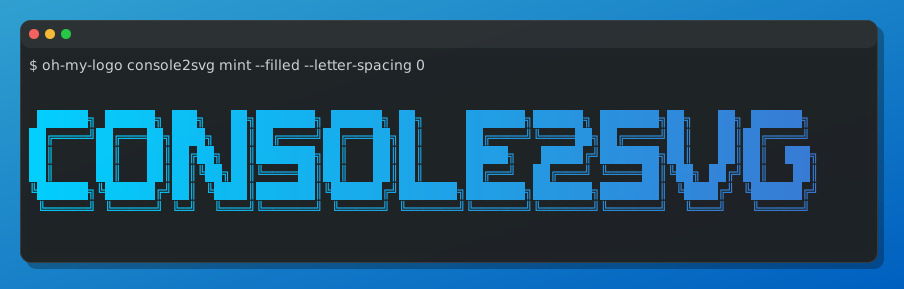
You can install it as a global tool using the dotnet or npm package manager.
# dotnet global tool
dotnet tool install -g ConsoleToSvg
# npm global package
npm install -g console2svg
It is also distributed as a static binary.
# linux
curl -sSL https://github.com/arika0093/console2svg/releases/latest/download/console2svg-linux-x64 -o console2svg
mv -f console2svg /usr/local/bin/
chmod +x /usr/local/bin/console2svg

# windows (cmd)
curl -sSL https://github.com/arika0093/console2svg/releases/latest/download/console2svg-win-x64.exe -o console2svg.exeWidth and height default to the current terminal dimensions.
my-command | console2svgconsole2svg "git log --oneline"Or pass the command after --:
console2svg -- dotnet run app.csuse -m video or -v to capture the animation of the command execution and save it as an SVG.
console2svg -v -- nyancatNo loop playback:
console2svg -v --no-loop -- nyancatYou can crop the output by specifying the number of pixels or characters to crop from each side.
# ch: character width, px: pixel
console2svg --crop-top 1ch --crop-left 5px --crop-right 30px -- your-command
You can also crop at the position where a specific character appears.
When specifying a character, you can specify it like :(number), which crops at a relative position from the detected line.
For example, the following example crops from the line where the character Host is located to 2 lines above the line where the character .NET runtimes installed: is located.
console2svg --crop-top "Host" --crop-bottom ".NET runtimes installed:-2" -- dotnet --infoThe result will look like this.

You can set the background color or image of the output SVG, and adjust the opacity of the background fill.
console2svg -w 100 -h 10 -c -d macos-pc --background "#003060" --opacity 0.8 -- dotnet --version
You can also set a gradient background.
console2svg -w 100 -h 10 -c -d macos-pc --background "#004060" "#0080c0" --opacity 0.8 -- dotnet --version
Image background is also supported.
console2svg -w 100 -h 10 -c -d macos-pc --background image.png --opacity 0.8 -- dotnet --version
console2svg -d macos-pc -- dotnet --versionavailable themes:
none: no window frame (default)macos: macOS style window frame (default if-dis specified without a value)macos-pc: macOS style window frame with background and shadowwindows: Windows style window framewindows-pc: Windows style window frame with background and shadow
-o: Output SVG file path (default:output.svg)-c: Prepend the command line to the output as if typed in a terminal.-w: width of the output SVG (default: terminal width[pipe], 80ch[pty])-h: height of the output SVG (default: terminal height[pipe], auto[pty])-v: output to video mode SVG (animated, looped by default)-d: window chrome style (none, macos, ...)--background: background color or image for the output SVG--verbose: enable verbose logging--crop-*: crop the output by specified pixels, characters, or text patterns