Repository navigation

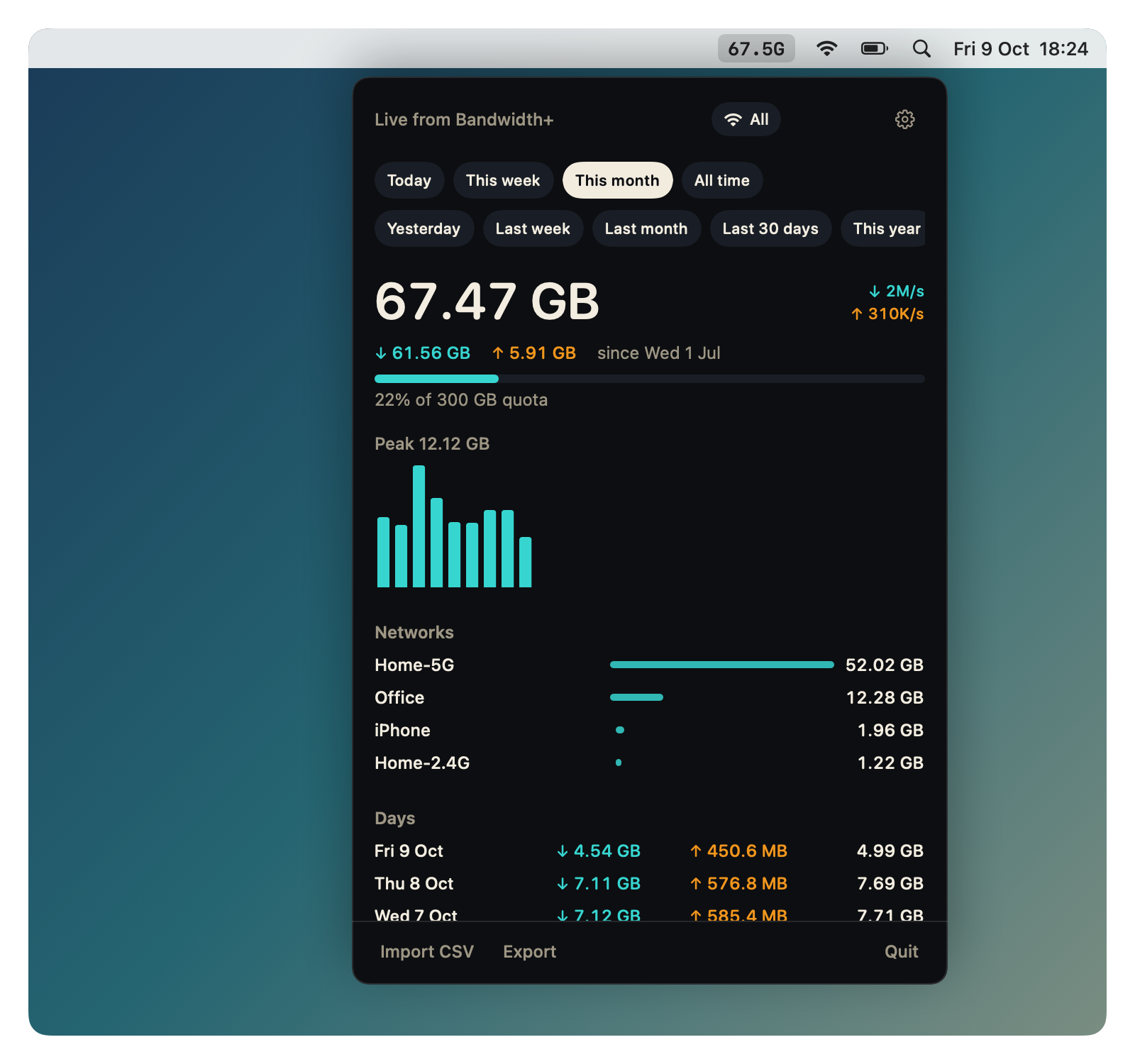
Bandwidth Meter 1.1.0 installs from one disk image, with no Terminal. Updating
from 1.0.x keeps everything you have recorded.
Install
- Open
Bandwidth-Meter-1.1.0.dmgand double-click Install.pkg. It puts
the menu bar app in/Applicationsand thebandwidth-metercommand in
/usr/local/bin, then opens the app. When you close the installer window,
the disk image is ejected. - If Bandwidth+ isn't installed, the installer says so and links to it on the
Mac App Store. You can continue: Import CSV works without it. - Uninstall.app on the same disk image removes the app, the command, and
the installer receipt. It asks before it deletes your saved totals, and
keeps them unless you say otherwise.
First launch
- The installer isn't notarized yet, so macOS stops it the first time. On
macOS 15 and later, click Open Anyway in System Settings › Privacy &
Security. The steps are under Download below.
Also
- The installer quits a running copy before it updates, and keeps your history
and settings. - The three zips and
install.shfrom 1.0.1 are gone. If you used the CLI zip,
the old command in~/.local/binmay come first on yourPATH. Delete it,
or run Uninstall.app, which removes it too.
Download
Bandwidth-Meter-*.dmg has everything. Open it and double-click
Install. The installer puts the menu bar app in /Applications and the
bandwidth-meter command in /usr/local/bin, then opens the app. You don't
need Terminal.
Apple Silicon, macOS 14 or later. Keep Bandwidth+
running so each day is recorded.
The installer isn't notarized yet, so macOS stops it the first time:
- macOS 15 or later: click Done on the warning, open System Settings ›
Privacy & Security, scroll down to Security, click Open Anyway next
to "Install.pkg", and confirm with your password. Right-click › Open no
longer skips the check. - macOS 14: right-click Install, choose Open, then Open again.
The same goes for Uninstall on the disk image. It removes the app and the
command, and asks before it deletes your saved totals.
Updating: run the new installer. It replaces the app and keeps your history and
settings.
See the changelog
for every change, and PRIVACY.md
for what the app reads and stores.