Repository navigation
Releases
TrueStretch 1.2.0 — No more Sticky Keys pop-ups, and your real in-game settings

TrueStretch 1.2.0 — No more Sticky Keys pop-ups, and your real in-game settings
What's new
- Optimize Max now checks the three Windows keyboard-shortcut pop-ups: Sticky Keys (press Shift 5 times), Filter Keys (hold the right Shift key for 8 seconds) and Toggle Keys (hold Num Lock for 5 seconds). Windows turns these shortcuts on by default, and all three are things you do while walking, crouching or holding an angle. The pop-up appears over VALORANT and steals focus, and Filter Keys makes Windows ignore quick key presses.
- Apply turns off only the shortcut, never the feature itself. Sticky, Filter and Toggle Keys stay available in Windows Settings > Accessibility > Keyboard if you ever want them.
- If you actually use one of these features (it's switched on), TrueStretch leaves it and its shortcut alone and just shows it as information.
- The "Inside VALORANT" list now shows your real settings. NVIDIA Reflex, Multithreaded Rendering, Material/Texture/Detail/UI quality, Anti-Aliasing, Anisotropic Filtering, Bloom, Distortion, Cast Shadows and the FPS limit are read from VALORANT's own settings file for the account you played last. Each one says what it is now, what to pick and the exact menu (for example "Multithreaded Rendering: Off → On", or "60 FPS cap — your screen is 144 Hz"). These live in your Riot account, so TrueStretch only reads them; you change them in the game.
Why it matters for the player
No more "Do you want to turn on Sticky Keys?" window in the middle of a round, and no more missed key presses after holding Shift. The change is applied live and also kept for the next time you sign in to Windows. And if Multithreaded Rendering got switched off or an FPS cap is holding you below your monitor's refresh rate, Optimize Max now tells you instead of guessing.
Details
- Like every Optimize Max item, each change is verified after it is made, and Undo puts back the exact original value (the live Windows setting and the registry copy).
What's fixed
- When TrueStretch pins VALORANT to the high-performance graphics card (the game page toggle or the Optimize Max check), it now changes only that one setting. Windows keeps other choices for the same program in the same place — for example Auto HDR — and those used to be replaced along with it. They are kept exactly as they were.
Verify your download
SHA-256 1E73BD9CD85F97F1A4436894E9442E04D5BC5A458B5C8CA39666931340EFF5D9
Already using TrueStretch? It updates itself.
TrueStretch 1.1.1 — fixes app not opening (Defender false positive)
TrueStretch 1.1.1 — fixes "nothing happens when I open it"
Download TrueStretch.exe — Windows 10 / 11. Your settings, accounts and backups are kept.
What was wrong
On some PCs, double-clicking TrueStretch 1.1.0 did nothing. Microsoft Defender's machine-learning check blocked it as Program:Win32/Contebrew.A!ml — a false positive (!ml means a model's guess, not a known threat; Program: is the "unwanted program" category, not malware).
The cause: TrueStretch is one .exe that unpacked its program into the Temp folder on every start and launched it from there. That pattern is what Defender's model flags.
What changed
- TrueStretch now unpacks once into its own folder,
%LOCALAPPDATA%\TrueStretch\<version>, and reuses it. Defender accepts this — tested with real double-click launches and Defender's own scanner, with no detections. - It starts faster, because nothing is unpacked again on later starts.
- Old versions' folders are removed automatically after an update.
If 1.1.0 is blocked on your PC
A blocked 1.1.0 can't start, so it can't update itself. Download 1.1.1 above and replace the old file. Optional: in Windows Security → Virus & threat protection → Protection history you can remove the old "Contebrew" entry.
Everything from 1.1.0 is included: Optimize Max, the new layout and the VALORANT-style design — see the 1.1.0 notes.
Verify your download
SHA-256 4F4289BB86A3F4ECFC1C390B16F0F415C51F3E47580B19EBE3A11594E21E4B61
Get-FileHash .\TrueStretch.exe in PowerShell must print the same hash.
TrueStretch 1.1.0 — Optimize Max + new design
TrueStretch 1.1.0 — Optimize Max, a new layout, and a VALORANT-style redesign
Already using TrueStretch? It updates itself — open it and click Update now (or Settings → General → Updates → Check now). Your settings, accounts and backups stay exactly as they are.
New here? Download TrueStretch.exe — one file, Windows 10 / 11, nothing to install.
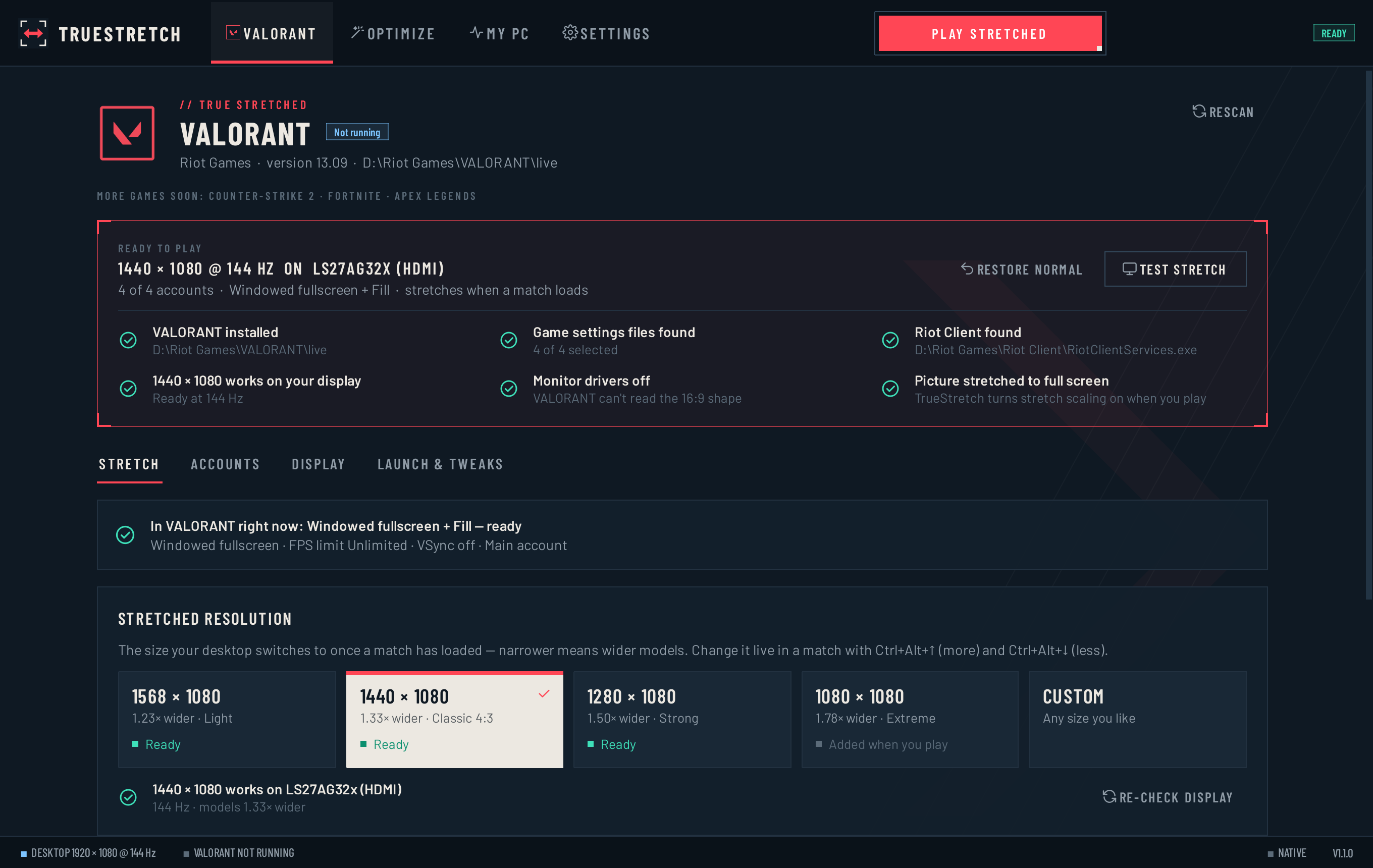
Optimize Max — every FPS and input-delay setting on your PC, one by one
A new OPTIMIZE section scans your PC with 68 checks in 12 categories and lists every change on its own — nothing bundled together. Each row shows what the setting is now, what it should be, why it matters, and how big the impact is (high / medium / low). On top you get an optimization score out of 100.
| Category | What it checks and can fix |
|---|---|
| Windows | Power mode · Game Mode · Xbox Game Bar background recording · Optimizations for windowed games (big one: TrueStretch runs VALORANT in Windowed fullscreen) · Hardware-accelerated GPU scheduling · Refresh rate · VALORANT on the fast graphics card (laptops) · Transparency effects · Pending Windows restart |
| Windows power plan | Processor minimum state · Processor boost mode · Core parking · USB selective suspend (mouse hitches) · PCI Express link power saving (GPU latency) · Wi-Fi power saving (ping spikes). Only the plugged-in values change; battery life is untouched. |
| Graphics card (NVIDIA) | Power management mode · Texture filtering quality · Vertical sync · Low latency mode · Preferred refresh rate · Driver frame cap. Changed only in VALORANT's own program profile — other games are not touched. |
| VALORANT files | VSync · HDR · Dynamic resolution · every graphics quality group (shadows, effects, post-processing, textures, shading, anti-aliasing, view distance, foliage, global illumination, reflections) — for every account on the PC, and the copy HP OMEN AI keeps. |
| Startup apps | Each program that starts with Windows (Discord, Chrome, Overwolf, Spotify, …) — disable them one at a time. Riot, Vanguard, drivers and security software are never listed. |
| Background & overlays | Discord overlay, NVIDIA overlay & Instant Replay, RTSS / Afterburner, Overwolf, Medal, OBS, Wallpaper Engine, and programs using lots of memory — with exactly how to turn each one off. |
| Network | Wi-Fi or cable. |
| Your PC | Memory running slower than rated (XMP/EXPO off in BIOS) · single-channel memory · SSD or hard drive · graphics driver age · laptop on battery · memory integrity. |
| Inside VALORANT / AMD Software / Intel Graphics | The settings only those programs can change (NVIDIA Reflex, multithreaded rendering, material quality, Anti-Lag, …) — each one listed separately with exactly where to change it. |
How it stays safe
- Nothing changes until you press Apply. Pick items one by one or Apply selected.
- Every change is verified — after applying, TrueStretch reads the setting back and tells you if it didn't stick.
- Everything can be undone — the original value is saved the first time, and Undo / Undo all put back exactly what was there (even settings that didn't exist before are removed again).
- It never touches security settings, game memory or anti-cheat. Things that can't be changed safely (BIOS memory speed, your mouse software, other people's apps) are shown as information, not changed.
- Scanning and applying run in the background with live progress — the window never freezes.
Diagnostics — a full technical report of every value TrueStretch read, where it read it from (registry key, file, driver setting), and every change made this session. Copy it or Save to Desktop for a bug report. Your Riot account ID is hidden automatically.
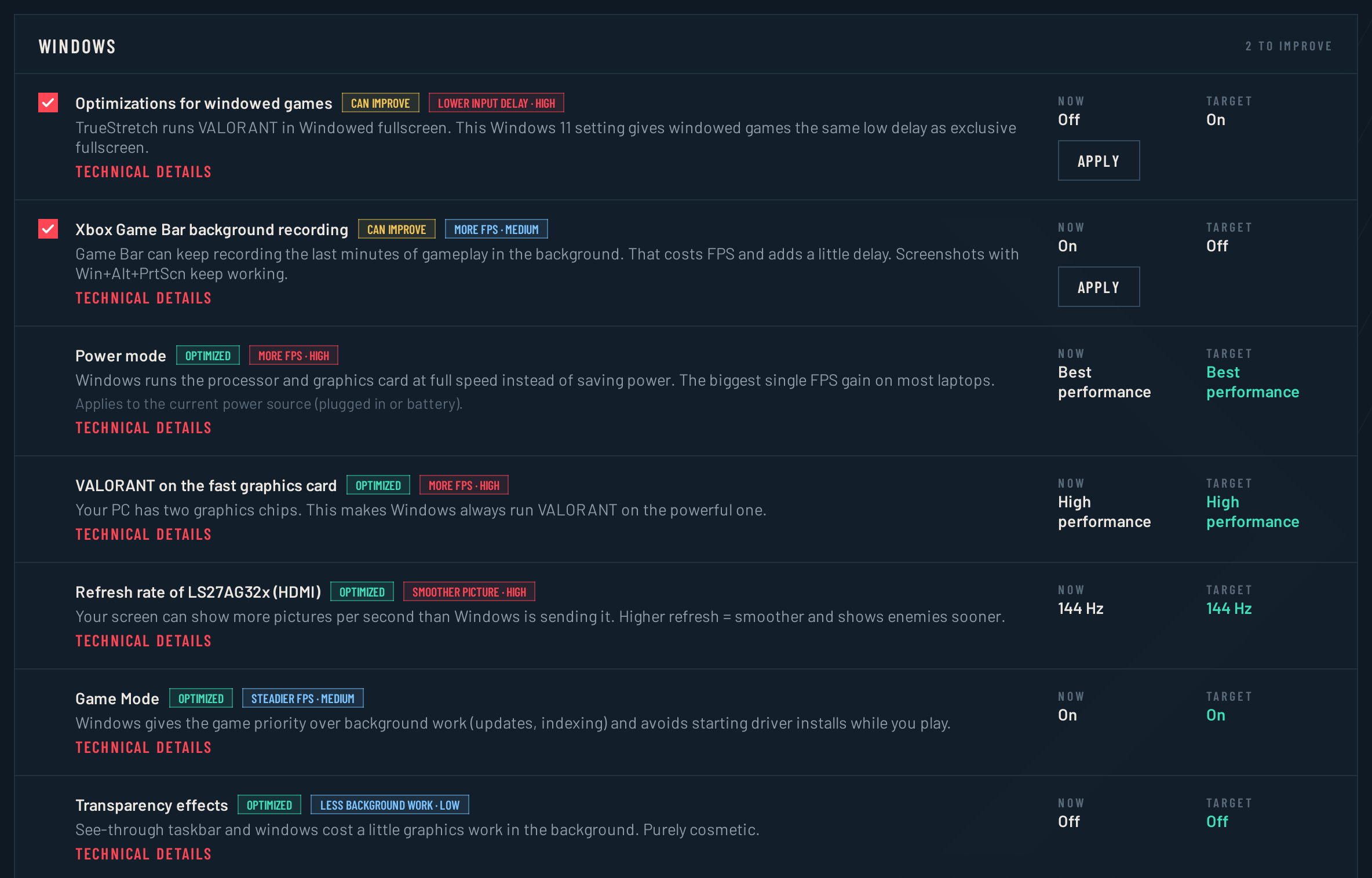
A new layout — like the VALORANT client
- Top bar with a centered PLAY button. One main action, always in the same place. It shows the live state next to it: READY, MENU · NATIVE, IN MATCH · STRETCHED.
- Four clear sections instead of eight: VALORANT (your stretch level, readiness checklist, accounts, display, launch options), OPTIMIZE, MY PC, SETTINGS (general, backups and about in one place, with centered tabs like VALORANT's settings menu).
- The readiness checklist is right on the VALORANT page — you see at a glance that everything is set.
- The manual Setup guide tab is gone: setup has been fully automatic since 1.0.0.
A VALORANT-style redesign
- Deep navy, off-white highlights and red only where it matters. The selected stretch level becomes a solid off-white panel with a red top bar — the way VALORANT marks a selected option.
- Sharp edges everywhere, thin lines, corner brackets, uppercase condensed headings (Barlow Condensed), framed red buttons, square markers, and a quiet geometric background.
- A new sharp logo. No rounded cards, no gradients, no emoji.
Responsive and faster
- Content stays centered on wide monitors and reflows on small windows: stretch levels, checklists and hardware cards change their number of columns, rows stack when there's no room, and the menu turns into icons. Works from 900 × 600 up to ultrawide.
- Snappier: only the page you're looking at redraws; the others refresh when you open them.
Fixed
- Undo of VALORANT file changes now also restores the copy HP OMEN AI keeps.
- Undo now removes settings that didn't exist before instead of leaving them behind.
New website
candyqueenjr.github.io/TrueStretch — rebuilt in the same style with scroll animations (wipe reveals, line-by-line headlines, a live timeline, count-ups), sharp 2× screenshots with a lightbox, and a layout tested from 360 px phones to 1920 px monitors.
Verify your download
SHA-256 DF942F84FB8261AB2A6596564591DE542101FA10D30728C3AEF03556E6B7AE41
In PowerShell: Get-FileHash .\TrueStretch.exe must print the same hash. The built-in updater checks this automatically. See SECURITY.md.
Something not working? Settings → Support file, then open a bug report.
TrueStretch 1.0.0
TrueStretch 1.0.0 — first public release 🎉
True stretched resolution for VALORANT — one click, fully automatic.
⬇ Download
TrueStretch.exe — one file, nothing to install. Windows 10 / 11.
First start: Windows may say “Windows protected your PC” → click More info → Run anyway. TrueStretch is free and not code-signed.
✨ Highlights
- One click: Play stretched prepares everything and starts VALORANT. The stretch switches on as soon as a match or the Range has loaded, and back off when a match is found or you return to the menu.
- Works on every PC: adds the custom resolution and full-screen scaling automatically on NVIDIA, AMD and Intel — or uses the closest resolution your screen already has.
- Four stretch levels + custom sizes. Ctrl+Alt+↑/↓ changes it live, Ctrl+Alt+S toggles.
- Every account on the PC, including new ones after their first sign-in.
- Safe: backups before every change, Restore normal, and a guard that puts your resolution back even if TrueStretch crashes.
- My PC: your screens, graphics and Windows settings explained, with one-click fixes.
- Auto-updates: future versions install in seconds, verified with SHA-256.
🔒 Verify your download
SHA-256 716A77C3EBDC4A306B4E054764BAE8F1DA8CA25FD13A2EA8882869A777CA1F1D
Get-FileHash .\TrueStretch.exe in PowerShell must print the same hash. See SECURITY.md.
Something not working? Settings → Support file, then open a bug report.