Repository navigation
Configuration
Everything changed in the Options menu is saved to openblood.ini next to the
executable. The file uses key = value lines; ; starts a comment.
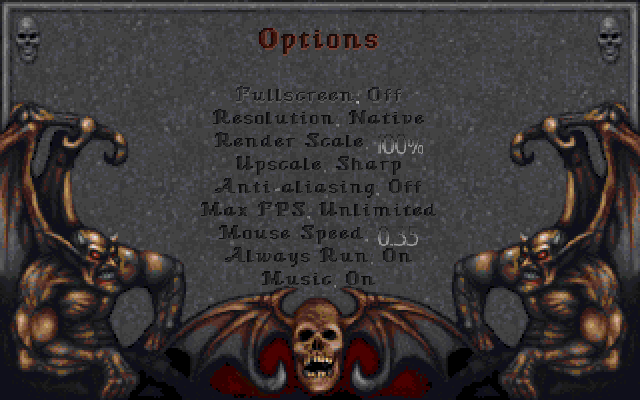
| Option | ini key | Values |
|---|---|---|
| Fullscreen | fullscreen |
0 / 1
|
| Resolution | resolution |
native (window size, default) or e.g. 1920x1080. Other aspect ratios are letterboxed; sizes above the window are averaged down. |
| Render Scale | render_scale |
0.25 – 1.0 (lower = faster, blurrier) |
| Upscale | upscale |
nearest (blocky), smooth (bilinear), sharp (crisp pixels with clean edges; default) |
| Anti-aliasing | antialias |
0 off, 1 = 2x, 2 = 4x supersampling (4x costs about four times the rendering) |
| Max FPS | max_fps |
0 unlimited, 60 / 120 / 144 / 240. Caps the frame rate with even pacing; motion stays smooth. |
| Mouse Speed | mouse_sensitivity |
0.05 – 3.0
|
| Always Run | always_run |
0 / 1
|
| Music | music |
0 / 1
|
Other keys: data_dir, window_width, window_height, invert_mouse, sound, volume,
music_volume, skill, start_map.
| Argument | Effect |
|---|---|
--data <dir> |
folder with the original Blood files |
--map E1M1 |
start directly in a level (skips intro and menu) |
--windowed |
start in a window |
--scale 0.5 |
render scale for this run |
--maxfps 60 |
frame-rate cap for this run |
--nosound |
no audio |
--help |
short usage text |
Running openblood <tool> ... starts a developer tool instead of the game; see
Developer Tools.
- The 3D view is rendered at output resolution × render scale × AA factor (AA factor: 1, √2 or 2 per axis).
- The frame is resampled to the output rectangle: area-averaged when shrinking (supersampling), or enlarged with the chosen upscale filter.
- The HUD and menus are drawn afterwards at full window resolution, so they stay sharp whatever the render scale.
Example: a 3840×2160 window with 4x anti-aliasing renders 7680×4320 pixels per frame. If that is too slow, lower anti-aliasing first, then render scale.
- Rendering uses every CPU core (columns are rendered in parallel).
- Sound effects are preloaded once at startup (~26 MB, ~10 ms); music streams from disk in small chunks, so level changes do not stall.
-
F5toggles 100% / 50% render scale on the fly, handy for checking whether the renderer is the bottleneck. -
OB_PROFILE=1logs slow frames with a per-stage breakdown (see Developer Tools).