Repository navigation
workspaces
A workspace is a named set-up of both panels: which tabs each panel has and which folder each shows, whether a panel shows its files or a terminal, which panel is active, where the divider stands and, if you like, a colour theme of its own. Calling one up makes the window look that way in one step - for example a server on the left and another on the right, both as terminals, or your local projects folder on the left and a web server on the right.
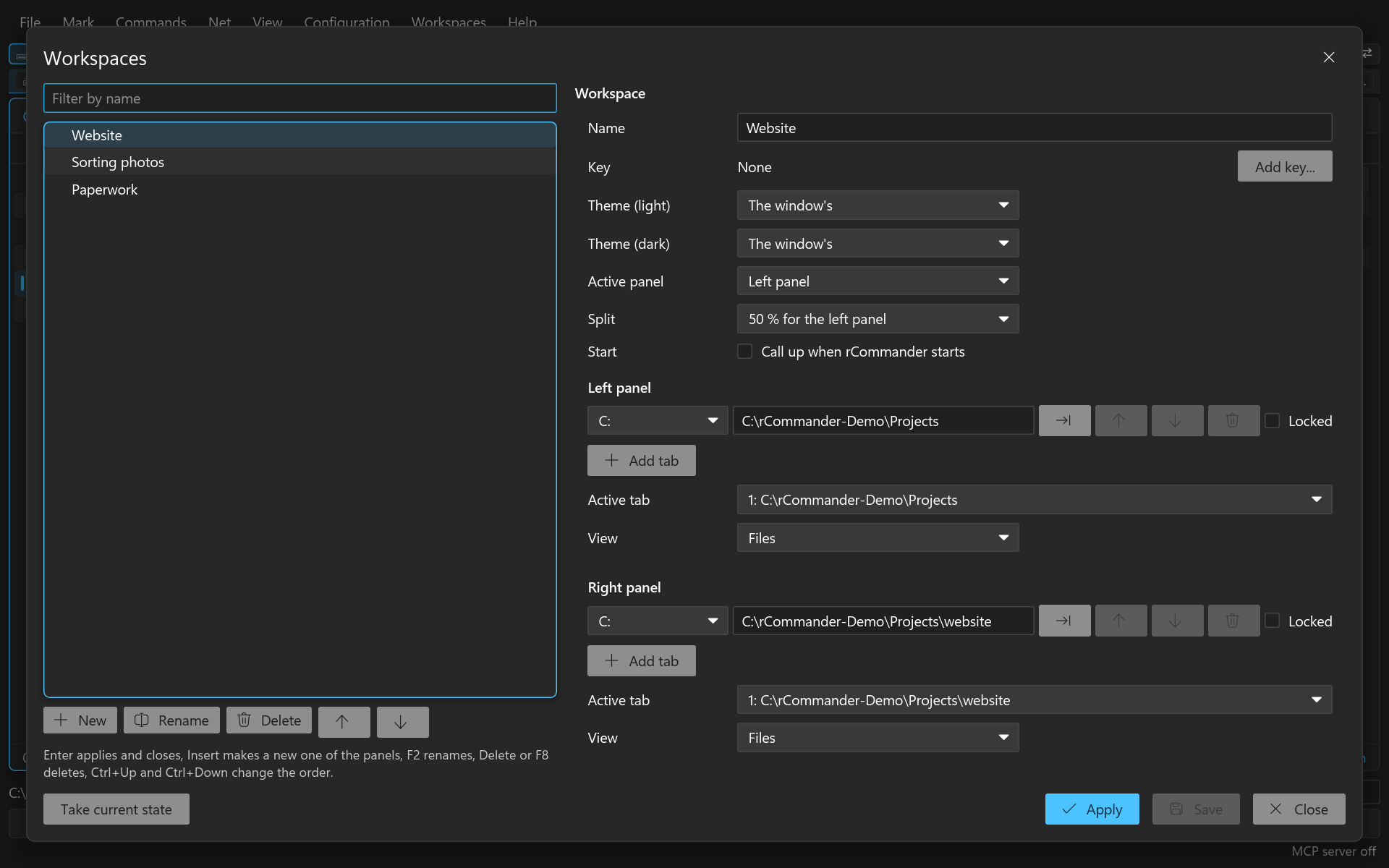
- Ctrl+Shift+W opens the workspaces window: type a few letters to narrow the list, then Enter (or a double click) calls up the workspace at the cursor and closes the window.
- The command palette (Ctrl+Shift+P) has a row Workspace: for each workspace.
- The menu bar's Workspaces menu lists them, with Save current state as... and Manage....
- A key of its own: in the workspaces window Add key..., or Settings > Shortcuts > Add key for a workspace....
What happens to the tabs a panel already has is the setting Calling up a workspace
(workspaces.apply_mode, Settings > Folders):
| Choice | Effect |
|---|---|
| Replace the tabs, keep locked ones (default) | The workspace's tabs replace the panel's; a locked tab stays |
| Replace all tabs | The workspace's tabs replace every tab of the panel |
| Add the tabs | The workspace's tabs come after the panel's |
A terminal of the same kind that already runs in the panel - the same shell, WSL distribution or SSH server - is reused, not started again. A tab on a server that has since been deleted, or that does not answer, is left out; the status bar says what was left out, and the rest of the workspace still comes up.
While a workspace with a theme is the one called up last, the window draws in that theme (the light or the dark one, after the mode); your theme setting itself stays as it is.
The list on the left, the workspace at the cursor in a form on the right.
| Key | Action |
|---|---|
| Letters | Narrow the list |
| Arrows, Enter, double click | Move; Enter calls up the workspace and closes the window |
| Insert | A new workspace of the panels as they are now; you name it first |
| F2 | Rename |
| Delete, F8 | Delete, after a question |
| Ctrl+Up, Ctrl+Down | Move the workspace up or down the list |
| Escape | Close |
The form: the Name, a key of its own, a Theme (light) and Theme (dark) (or the window's), the active panel, the divider, whether it comes up at the start, and for each panel its tabs - each with its place (a drive, a WSL distribution or a server, as the drive bar lists them) and folder, the panel's current folder at a click, up, down, remove and Locked - the active tab, and whether the panel shows its files or a terminal (local shell, WSL or SSH) with its start folder.
- Take current state puts what both panels show now into the workspace at the cursor.
- Apply saves the form's changes, calls the workspace up and closes the window, as Enter does; Save keeps the form; Close closes.
Call up when rCommander starts in a workspace's form makes it the one rCommander calls up when
it starts, after the tabs of the last run came back; switched off, the start shows the last run's
tabs alone. Only one workspace can have it. The setting behind it is Workspace at the start
(workspaces.on_start, Settings > Folders). A start folder given with RC_START_DIR wins.
Every part has an MCP tool (workspaces_list, workspaces_get, workspaces_create,
workspaces_capture, workspaces_update, workspaces_rename, workspaces_move,
workspaces_delete, workspaces_apply); workspaces_apply may start shells and is asked for
like opening a terminal. Opening the window is for people only. See the MCP server.