GDB Server
In this blog post, the GDB server of vAmiga is described as a feature preview. It's purpose is to inform about the upcoming functionality and to get feedback from potential users. The GDB server will be an official part of vAmiga 2.0 and can be tested with all upcoming beta builds.
We demonstrate the feature by debugging the following small C program that prints the series of prime numbers to the console:
#include <stdio.h>

int prime(int x)
{
    for (int y = 2; y < x; y++) {
        int rem = x % y;
        if (rem == 0) return 0;
    }
    return 1;
}

int main(int argc, char *argv[])
{
    int n = 2;
    while (n) {
        if (prime(n)) {
            printf("%d is a prime number\n", n);
        }
        n++
    }
}
To debug the program in vAmiga, we have to compile it into an Amiga executable first. This can be done easily by using the AmigaOS port of the GCC Compiler Collection by Stefan Franke. For the rest of the article we assume the compiler collection has been installed on your machine. E.g., after compiling the collection on macOS with default settings, you should be able to spot the generated binaries in the following directory:
/opt/amiga/bin
Besides others, this directory contains the following two programs:
m68k-amigaos-gcc
m68k-amigaos-gdb
The first program allows us to compile the test program into an Amiga EXE file:
m68k-amigaos-gcc prime.c -g -mcrt=nix13 -o prime.exe
Option -g instructs the compiler to generate debug information. Option -mcrt=nix13 is needed because we want to run the program on a virtual Amiga with Kickstart 1.3. If everything works as expected, an Amiga executable called prime.exe has been created.
Next, we start vAmiga and click on the following toolbar icon to open the retro shell:
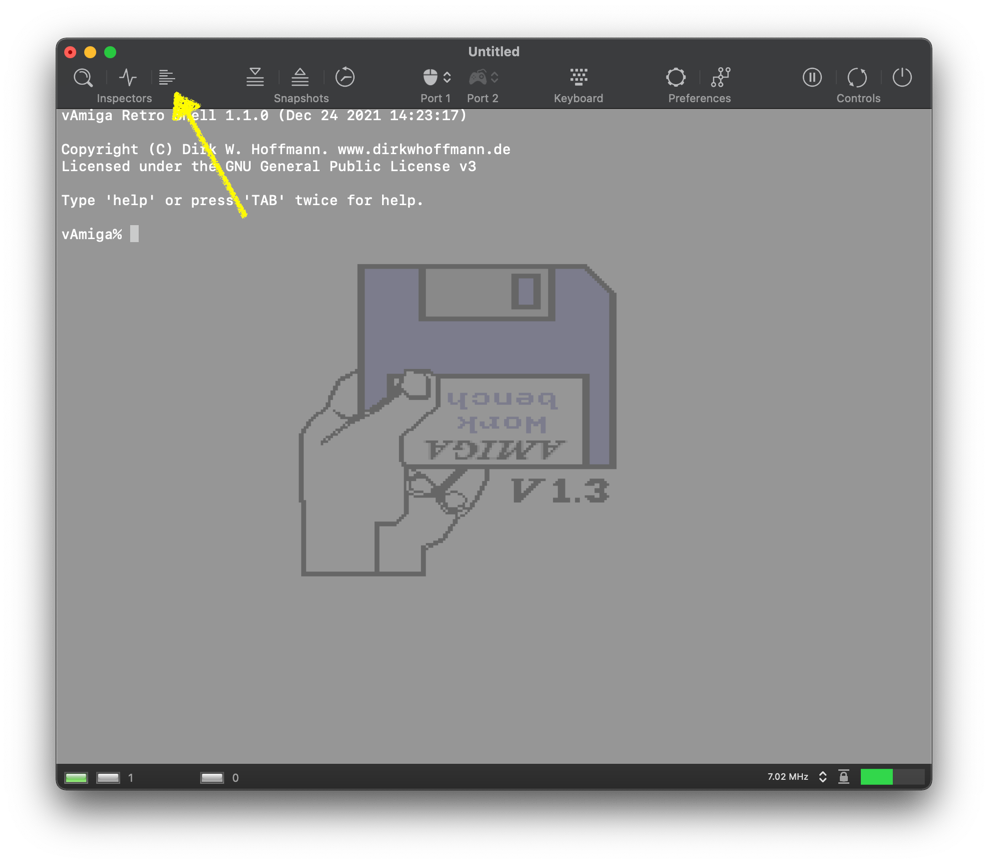
Retro shell is the debug console of vAmiga. It provides a simple but powerful command line interface to control the emulator. In vAmiga 2.0, a rudimentary GDB server can be activated within the console. The server allows an instance of GDB to connect to the emulator via a socket connection. To activate the server, type in the following command:
vAmiga% server gdb start file 8082
Waiting for process 'file' to launch.
This command tells the GDB server to listen on port 8082. file is the name of the process we want to attach to. Later, when our compiled program will be loaded in vAmiga, file will be the name of the process that belongs to our sample program. This process does not yet exist, which is acknowledged by vAmiga with an appropriate message. Now, the server is waiting in the background for the process to show up. In this pending state, the server is still inactive which means that it does not allow any client to connect yet.
Next we load our compiled program into vAmiga. The easiest way is to drag and drop the EXE program into the emulator. In this case, vAmiga automatically converts the EXE file into a bootable ADF. It also generates a startup-sequence for us that automatically loads the EXE programs when the disk is inserted into the boot drive. Please note the ADF creator renames the dragged in executable to file on the ADF to avoid naming issues. This is reason why we had to specify 'file' as the process name above.
Now we only have to wait a few seconds for the program to load. Shortly after the program has started, the pending GDB server wakes up and attaches to the previously specified process:

From now on the GDB server is ready to accept external connections on port 8082. At this point, we start the AmigaOS port of GDB on our host operating system:
m68k-amigaos-gdb prime.exe
The GNU debugger comes up:
GNU gdb (GDB) 10.0.50.211207-144216-git
Copyright (C) 2020 Free Software Foundation, Inc.
...
Reading symbols from prime.exe...
(gdb)
The debugger launches and we can connect to vAmiga's GDB server with the target remote command:
(gdb) target remote :8082
Remote debugging using :8082
warning: Target reported unsupported offsets: Text=00c08728;Data=00c0b060;Bss=00c0b1e0
0x00fc81ec in ?? ()
(gdb)
On the emulator side, we can check the connection status by typing in
server gdb inspect
This command displays some status information about the current server state as well as a small statistics about received and sent packages.
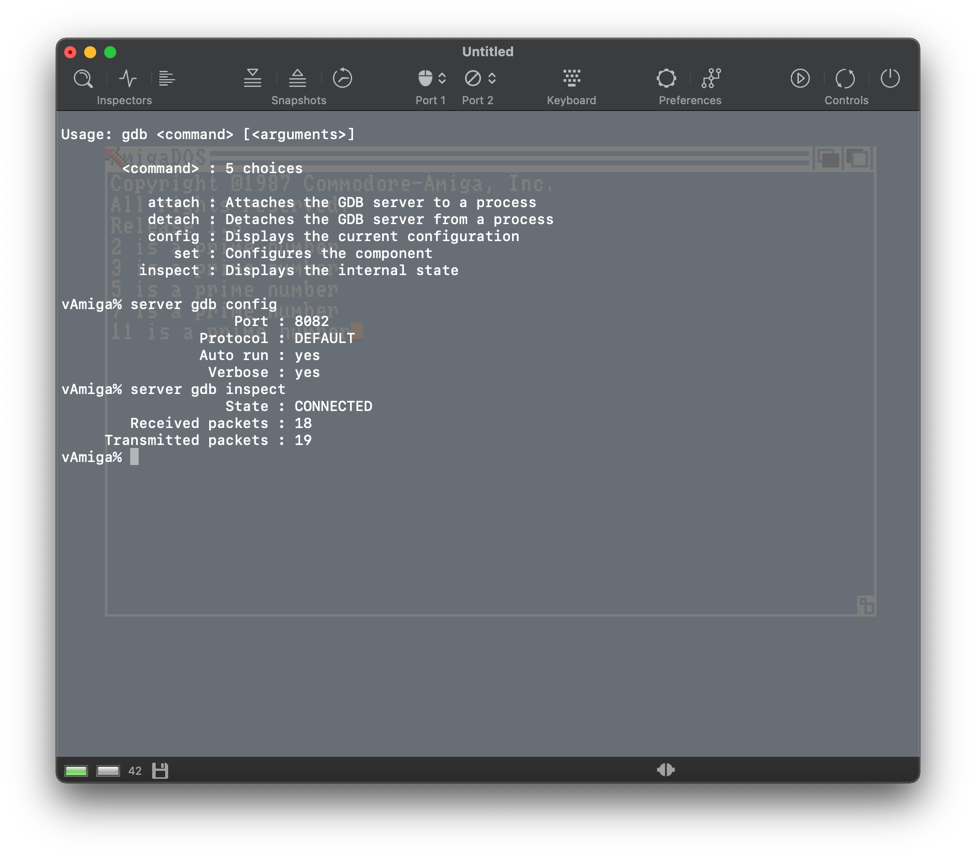
In our example, the server is now in CONNECTED state which means that a stable connection with the GDB client has been established. Connection state is also indicated by a small icon in the status bar. As you might have notices, this icon has changed several times by now. Besides the off state, four different server states can be distinguished.

From left to right:
- The server is waiting for a process to start.
- The server is ready and waiting for a client to connect.
- The server is connected to a client.
- The server has encountered a connection error.
The error state icon should never be displayed for a longer time. If an error occurs, vAmiga is supposed to disconnect the client and either shut the server down or put it back into one of the non-error states.
From now on we can debug the program in GDB. By issuing the following commands, we advice GDB to switch to split view, set a breakpoint, and continue emulation:
layout split
b prime
c
Emulation continues until the breakpoint has been hit:
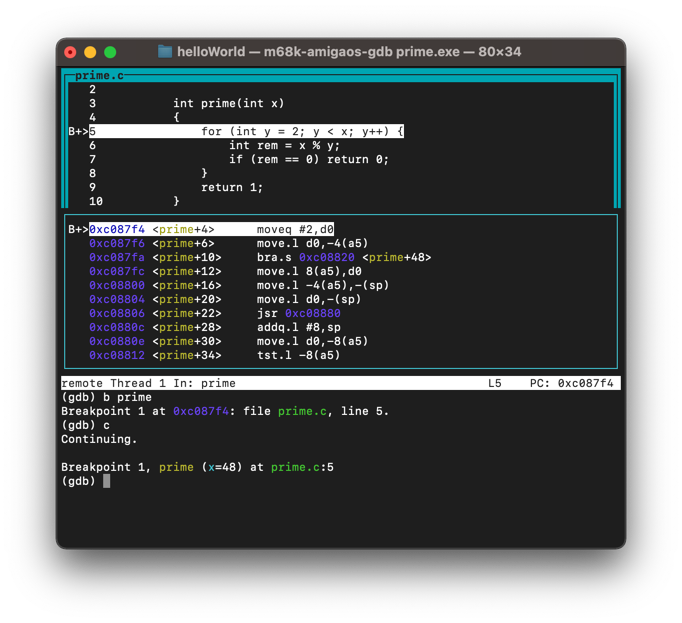
Using the s command, we can single-step through our program and display values with the print command:
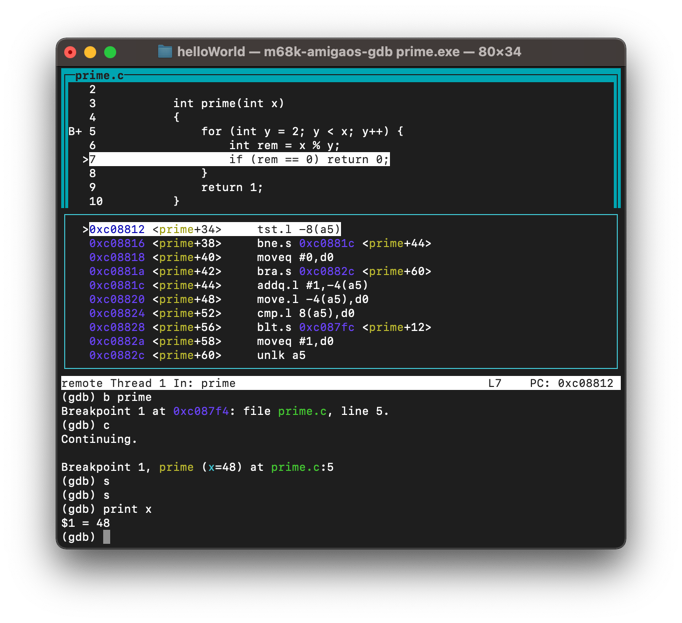
Please note that m68k-amigaos-gdb has some limitations w.r.t. to printing the values of variables. With the version used in this demonstration, only the variables of local variables and function parameters can be displayed.
vAmiga's GDB server is in a very early state at the moment. It is meant to be a proof-of-concept implemention instead of a productive tool. In fact, only a few protocol command are supported which means that it is not possible to use all GDB features at the moment. As always, bug reports are highly appreciated. I also welcome all those who want to extend the functionality or connect the vAmiga to their own debugging front-ends. To get an impression about the implementation, potential developers are advised to have a look at the following file where all command handlers are implemented:
/Emulator/Misc/RemoteServers/GdbServerCmds.cpp