Repository navigation
v0.19.0 — Send chats and emails to Carl

Send your AI chats and emails to Carl as sources for your topics. A project you’re working on, a decision you’ve made, or a question you haven’t answered can help Carl decide what matters to you.
Send AI chats to CarlNotes
Add the CarlNotes MCP and ask your connected AI to “Send this chat to Carl.” It provides what you’re working on as a topic source. Choose where it goes in the topic picker: the best matches appear first, and you can search, select several topics, or create a new one from the chat.
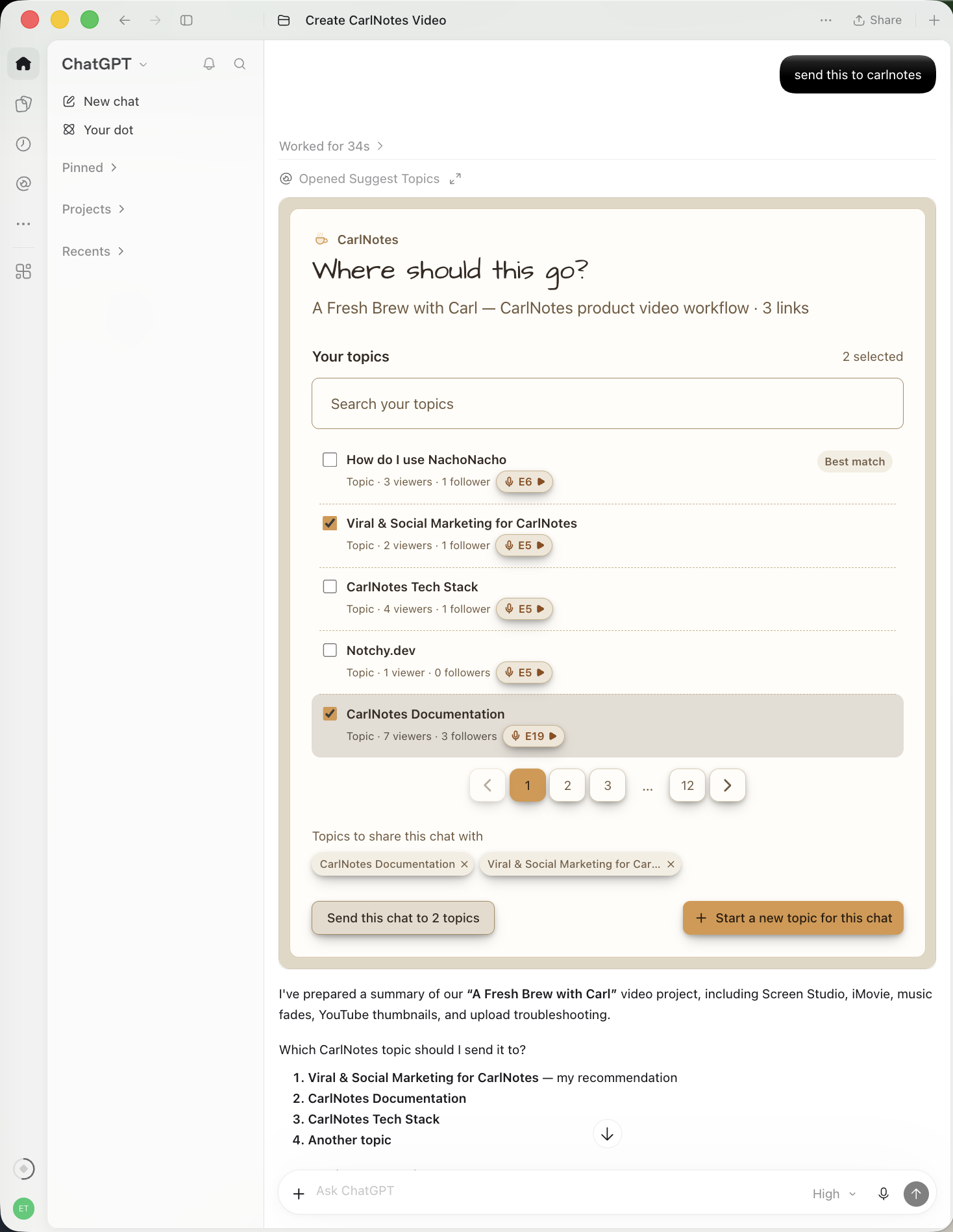
Creating a topic lets you edit its settings before saving the chat into it. Connect your AI app to get started.
Open Personal sources on a topic to see your chat sources. Chats and emails are encrypted. Only you can see them.
Send emails to CarlNotes
On Plus or Premium, send a note or forward an email to carl@updates.carlnotes.com. Use your CarlNotes account email. Carl replies in the same thread with matching topics for you to choose. Nothing goes into your topics until you choose.
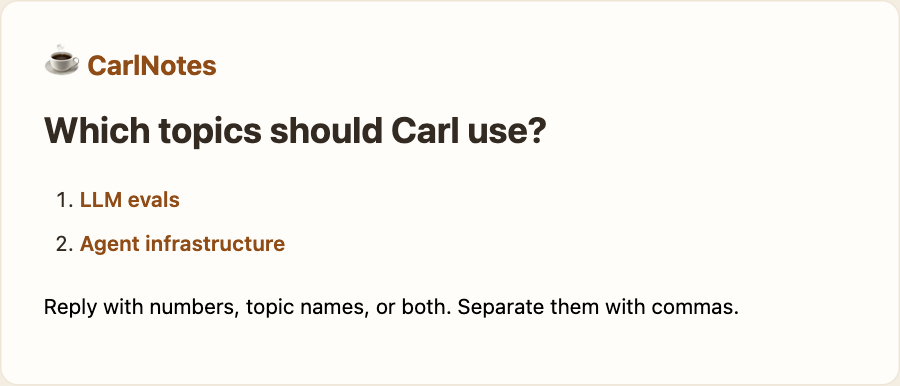
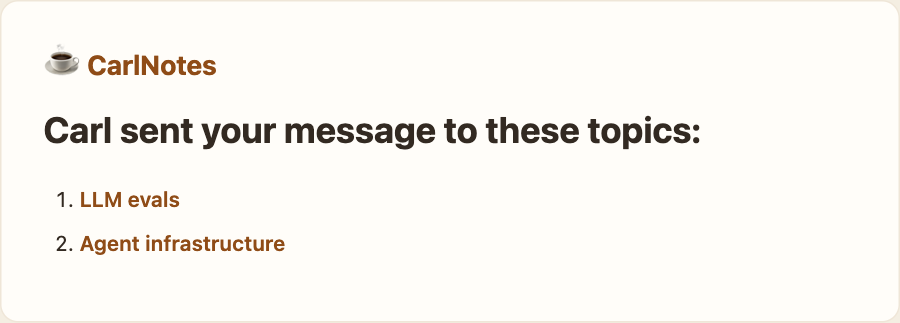
Write back with numbers, topic names, or both. Carl saves your message to those topics and replies with links to them.
Already know where it belongs? Put “topic: your topic” in the subject. Carl sends a confirmation email to save to your topic directly. More about emailing Carl.
Open Personal sources on a topic to see your email message sources. Chats and emails are encrypted. Only you can see them.
Everything in this release
- Send an AI chat to existing topics or create a topic from it.
- Email Carl on Plus and Premium, then choose topics in the same thread or name one in the subject.
- Read and delete your saved items in Personal sources on web and mobile.
- Your saved messages remain encrypted until you delete them.