Repository navigation
Getting started
- Download the Windows x64 portable ZIP from Releases. Extract the whole folder and open
WebCompare.exe. Setup adds a Start menu shortcut. - The app starts in Chinese. Choose 设置 → 语言 → English. In the picker, open the folder with your results and switch to thumbnails. For a first run, try the six sample images.
- Select the images in filename order and start the comparison. With six images, choose 2 rows × 3 columns. Open Settings to change language or check the app version.
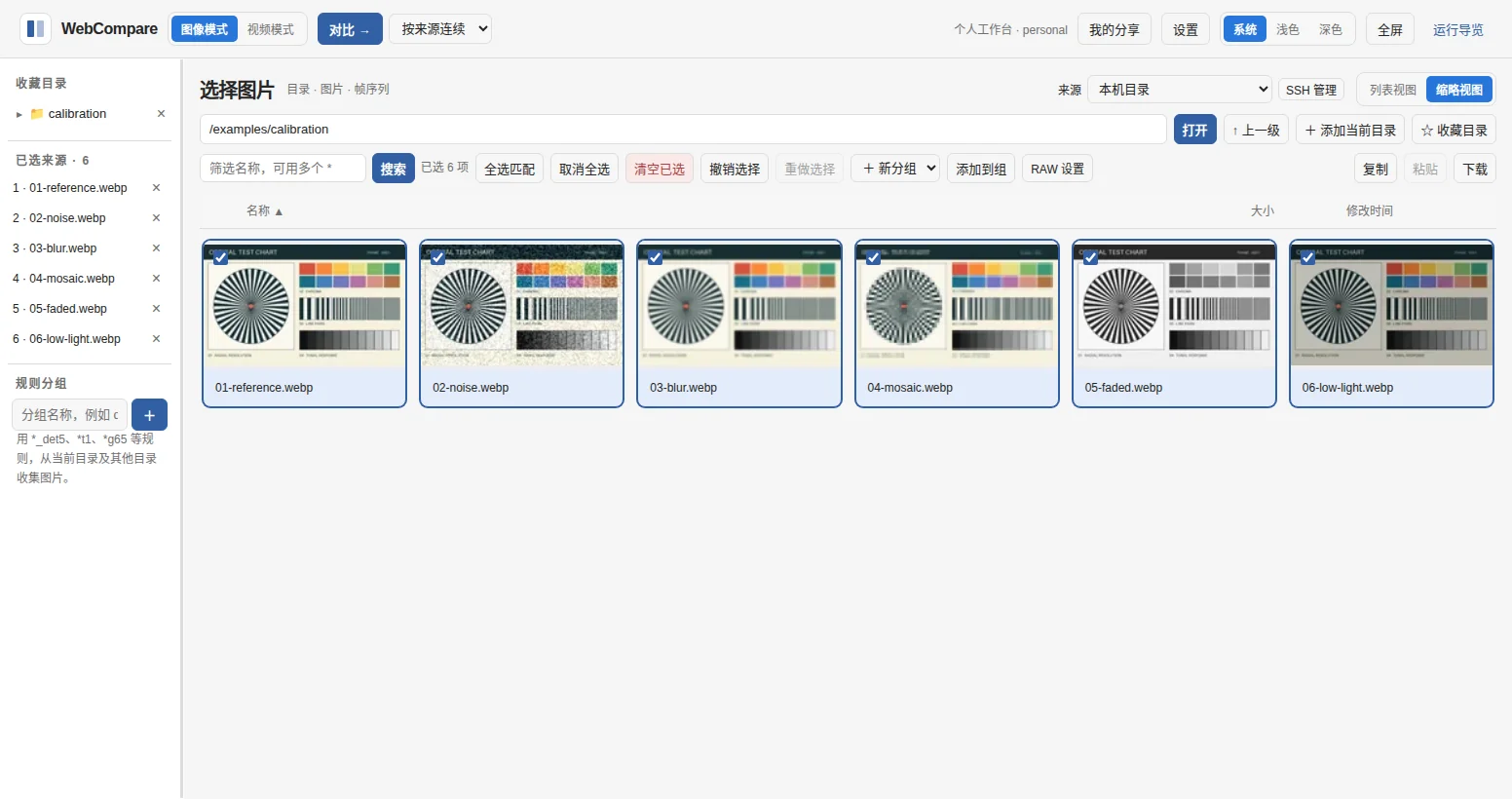
On a server, install in your own Python 3.12+ environment. See Remote images and SSH for the install and tunnel commands.
On an Ubuntu 24.04 x86_64 desktop with GTK3 and WebKitGTK 4.1, unpack the portable tar.gz and run ./webcompare-desktop. If you have sudo, you can install the DEB with sudo apt install ./webcompare-desktop_*.deb.
Open Settings → Software updates. The desktop app checks for updates and downloads them automatically. Turn this off for manual checks. When an update is ready, save your work and choose Close and install. Portable installs keep the original shortcut and CLI entry point. Setup and DEB use the system installer. On Linux without a graphical installer, Settings shows the downloaded DEB path. Install it with sudo apt install /full/path/to/file.deb.
If a first update check on Windows encounters a certificate error, run curl.exe -I https://api.github.com/repos/fenghansen/WebCompare/releases/latest in PowerShell. This asks Windows to verify the official site’s certificate chain. After an HTTP 200 response, reopen the workbench and check again.
If you run WebCompare with Python, Settings can check the version. To upgrade, download the new wheel from Releases, run python -m pip install --upgrade ./webcompare-VERSION-py3-none-any.whl with its actual filename inside your virtual environment, and restart the service.