App permissions help support user privacy by protecting access to the following:
- Restricted data, such as system state and users' contact information
- Restricted actions, such as connecting to a paired device and recording audio
This page provides an overview to how Android permissions work, including a high-level workflow for using permissions, descriptions of different types of permissions, and some best practices for using permissions in your app. Other pages explain how to minimize your app's requests for permissions, declare permissions, request runtime permissions, and restrict how other apps can interact with your app's components.
To view a complete list of Android app permissions, visit the permissions API reference page.
To view some sample apps that demonstrate the permissions workflow, visit the Android permissions samples repository on GitHub.
If your app offers functionality that might require access to restricted data or restricted actions, determine whether you can get the information or perform the actions without needing to declare permissions. You can fulfill many use cases in your app, such as taking photos, pausing media playback, and displaying relevant ads, without needing to declare any permissions.
If you decide that your app must access restricted data or perform restricted actions to fulfill a use case, declare the appropriate permissions. Some permissions, known as install-time permissions, are automatically granted when your app is installed. Other permissions, known as runtime permissions, require your app to go a step further and request the permission at runtime.
Figure 1 illustrates the workflow for using app permissions:
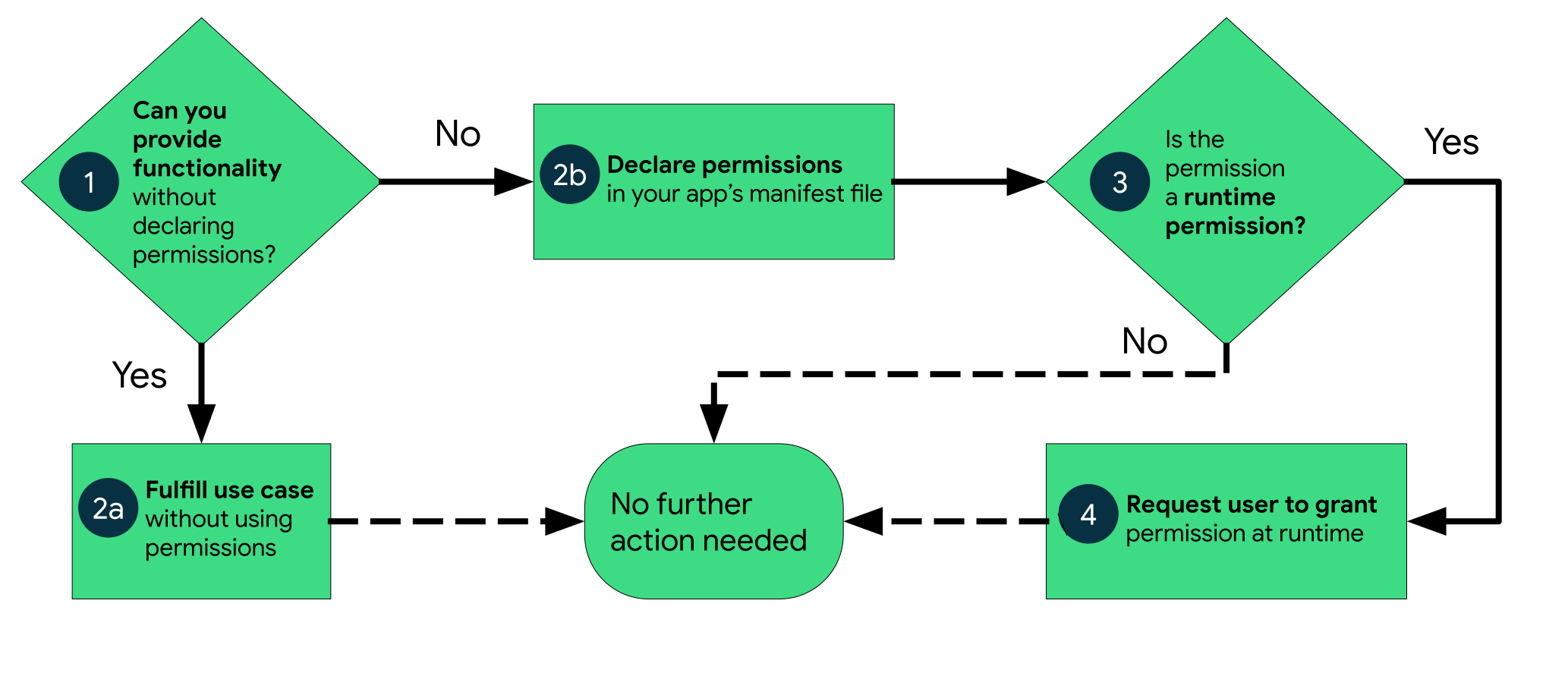
Figure 1. High-level workflow for using permissions on Android.
Android categorizes permissions into different types, including install-time permissions, runtime permissions, and special permissions. Each permission's type indicates the scope of restricted data that your app can access, and the scope of restricted actions that your app can perform, when the system grants your app that permission. The protection level for each permission is based on its type and is shown on the permissions API reference page.
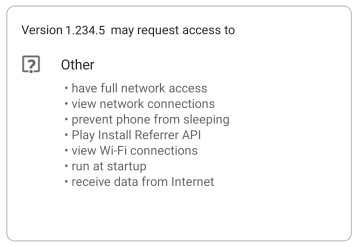
Figure 2. The list of an app's install-time permissions, which appears in an app store.
Install-time permissions give your app limited access to restricted data or let your app perform restricted actions that minimally affect the system or other apps. When you declare install-time permissions in your app, an app store presents an install-time permission notice to the user when they view an app's details page, as shown in figure 2. The system automatically grants your app the permissions when the user installs your app.
Android includes several sub-types of install-time permissions, including normal permissions and signature permissions.
These permissions allow access to data and actions that extend beyond your app's sandbox but present very little risk to the user's privacy and the operation of other apps.
The system assigns the normal protection level to normal permissions.
The system grants a signature permission to an app only when the app is signed by the same certificate as the app or the OS that defines the permission.
Applications that implement privileged services, such as autofill or VPN services, also make use of signature permissions. These apps require service-binding signature permissions so that only the system can bind to the services.
The system assigns the signature protection level to signature permissions.
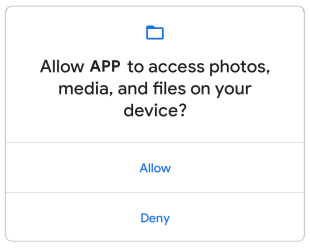
Figure 3. The system permission prompt that appears when your app requests a runtime permission.
Runtime permissions, also known as dangerous permissions, give your app additional access to restricted data or let your app perform restricted actions that more substantially affect the system and other apps. Therefore, you need to request runtime permissions in your app before you can access the restricted data or perform restricted actions. Don't assume that these permissions have been previously granted—check them and, if needed, request them before each access.
When your app requests a runtime permission, the system presents a runtime permission prompt, as shown in figure 3.
Many runtime permissions access private user data, a special type of restricted data that includes potentially sensitive information. Examples of private user data include location and contact information.
The microphone and camera provide access to particularly sensitive information. Therefore, the system helps you explain why your app accesses this information.
The system assigns the dangerous protection level to runtime permissions.
Special permissions correspond to particular app operations. Only the platform and OEMs can define special permissions. Additionally, the platform and OEMs usually define special permissions when they want to protect access to particularly powerful actions, such as drawing over other apps.
The Special app access page in system settings contains a set of user-toggleable operations. Many of these operations are implemented as special permissions.
Learn more about how to request special permissions.
The system assigns the appop protection level to special permissions.
Permissions can belong to permission groups. Permission groups consist of a set of logically related permissions. For example, permissions to send and receive SMS messages might belong to the same group, as they both relate to the application's interaction with SMS.
Permission groups help the system minimize the number of system dialogs that are presented to the user when an app requests closely related permissions. When a user is presented with a prompt to grant permissions for an application, permissions belonging to the same group are presented in the same interface. However, permissions can change groups without notice, so don't assume that a particular permission is grouped with any other permission.
App permissions build on system security features and help Android support the following goals related to user privacy:
- Control: The user has control over the data that they share with apps.
- Transparency: The user understands what data an app uses and why the app accesses this data.
- Data minimization: An app accesses and uses only the data that's required for a specific task or action that the user invokes.
This section presents a set of core best practices for using permissions effectively in your app. For more details on how you can work with permissions on Android, visit the app permissions best practices page.
When the user requests a particular action in your app, your app should request only the permissions that it needs to complete that action. Depending on how you are using the permissions, there might be an alternative way to fulfill your app's use case without relying on access to sensitive information.
Request permissions as late into the flow of your app's use cases as possible. For example, if your app lets users send audio messages to others, wait until the user has navigated to the messaging screen and has pressed the Send audio message button. After the user presses the button, your app can then request access to the microphone.
When you include a library, you also inherit its permission requirements. Be aware of the permissions that each dependency requires and what those permissions are used for.
When you make a permissions request, be clear about what you're accessing, why, and what functionalities are affected if permissions are denied, so users can make informed decisions.
When you access sensitive data or hardware, such as the camera or microphone, provide a continuous indication in your app if the system doesn't already provide these indicators. This reminder helps users understand exactly when your app accesses restricted data or performs restricted actions.
Permissions aren't only for requesting system functionality. Your app's system components can restrict which other apps can interact with your app, as described on the page about how to restrict interactions with other apps.
As mentioned in the workflow for using permissions, if your app requests app permissions, you must declare these permissions in your app's manifest file. These declarations help app stores and users understand the set of permissions that your app might request.
The process to request a permission depends on the type of permission:
- If the permission is an install-time permission, such as a normal permission or a signature permission, the permission is granted automatically at install time.
- If the permission is a runtime permission or special permission, and if your app is installed on a device that runs Android 6.0 (API level 23) or higher, you must request the runtime permission or special permission yourself.
To declare a permission that your app might request, include the appropriate <uses-permission> element in your app's manifest file. For example, an app that needs to access the camera has this line in AndroidManifest.xml:
<manifest ...>
    <uses-permission android:name="android.permission.CAMERA"/>
    <application ...>
        ...
    </application>
</manifest>
Some permissions, such as CAMERA, let your app access pieces of hardware that only some Android devices have. If your app declares one of these hardware-associated permissions, consider whether your app can still run on a device that doesn't have that hardware. In most cases, hardware is optional, so it's better to declare the hardware as optional by setting android:required to false in your <uses-feature> declaration, as shown in the following code snippet from an AndroidManifest.xml file:
<manifest ...>
    <application>
        ...
    </application>
    <uses-feature android:name="android.hardware.camera"
                  android:required="false" />
<manifest>
If you declare hardware as optional, it's possible for your app to run on a device that doesn't have that hardware. To check whether a device has a specific piece of hardware, use the hasSystemFeature() method, as shown in the following code snippet. If the hardware isn't available, gracefully disable that feature in your app.
// Check whether your app is running on a device that has a front-facing camera.
if (applicationContext.packageManager.hasSystemFeature(
        PackageManager.FEATURE_CAMERA_FRONT)) {
    // Continue with the part of your app's workflow that requires a
    // front-facing camera.
} else {
    // Gracefully degrade your app experience.
}
// Check whether your app is running on a device that has a front-facing camera.
if (getApplicationContext().getPackageManager().hasSystemFeature(
        PackageManager.FEATURE_CAMERA_FRONT)) {
    // Continue with the part of your app's workflow that requires a
    // front-facing camera.
} else {
    // Gracefully degrade your app experience.
}
To declare a permission only on devices that support runtime permissions—that is, devices that run Android 6.0 (API level 23) or higher—include the <uses-permission-sdk-23> element instead of the <uses-permission> element.
When using either of these elements, you can set the maxSdkVersion attribute to indicate that devices running a version of Android higher than the specified value don't need a particular permission. This lets you eliminate unnecessary permissions while still providing compatibility for older devices.
For example, your app might show media content, such as photos or videos, that the user created while in your app. In this situation, you don't need to use the READ_EXTERNAL_STORAGE permission on devices that run Android 10 (API level 29) or higher, as long as your app targets Android 10 or higher. However, for compatibility with older devices, you can declare the READ_EXTERNAL_STORAGE permission and set the android:maxSdkVersion to 28.
Every Android app runs in a limited-access sandbox. If your app needs to use resources or information outside of its own sandbox, you can declare a runtime permission and set up a permission request that provides this access. These steps are part of the workflow for using permissions.
If you declare any dangerous permissions, and if your app is installed on a device that runs Android 6.0 (API level 23) or higher, you must request the dangerous permissions at runtime by following the steps in this guide.
If you don't declare any dangerous permissions, or if your app is installed on a device that runs Android 5.1 (API level 22) or lower, the permissions are automatically granted, and you don't need to complete any of the remaining steps on this page.
The basic principles for requesting permissions at runtime are as follows:
- Ask for a permission in context, when the user starts to interact with the feature that requires it.
- Don't block the user. Always provide the option to cancel an educational UI flow, such as a flow that explains the rationale for requesting permissions.
- If the user denies or revokes a permission that a feature needs, gracefully degrade your app so that the user can continue using your app, possibly by disabling the feature that requires the permission.
- Don't assume any system behavior. For example, don't assume that permissions appear in the same permission group. A permission group merely helps the system minimize the number of system dialogs that are presented to the user when an app requests closely related permissions.
Before you declare and request runtime permissions in your app, evaluate whether your app needs to do so. You can fulfill many use cases in your app, such as taking photos, pausing media playback, and displaying relevant ads, without needing to declare any permissions.
If you conclude that your app needs to declare and request runtime permissions, complete these steps:
-
In your app's manifest file, declare the permissions that your app might need to request.
-
Design your app's UX so that specific actions in your app are associated with specific runtime permissions. Let users know which actions might require them to grant permission for your app to access private user data.
-
Wait for the user to invoke the task or action in your app that requires access to specific private user data. At that time, your app can request the runtime permission that's required for accessing that data.
-
Check whether the user has already granted the runtime permission that your app requires. If so, your app can access the private user data. If not, continue to the next step.
You must check whether you have a permission every time you perform an operation that requires that permission.
-
Check whether your app should show a rationale to the user, explaining why your app needs the user to grant a particular runtime permission. If the system determines that your app shouldn't show a rationale, continue to the next step directly, without showing a UI element.
If the system determines that your app should show a rationale, however, present the rationale to the user in a UI element. In this rationale, clearly explain what data your app is trying to access and what benefits the app can provide to the user if they grant the runtime permission. After the user acknowledges the rationale, continue to the next step.
-
Request the runtime permission that your app requires to access the private user data. The system displays a runtime permission prompt, such as the one shown on the permissions overview page.
-
Check the user's response—whether they chose to grant or deny the runtime permission.
-
If the user granted the permission to your app, you can access the private user data. If the user denied the permission instead, gracefully degrade your app experience so that it provides functionality to the user without the information that's protected by that permission.
Figure 1 illustrates the workflow and set of decisions associated with this process:
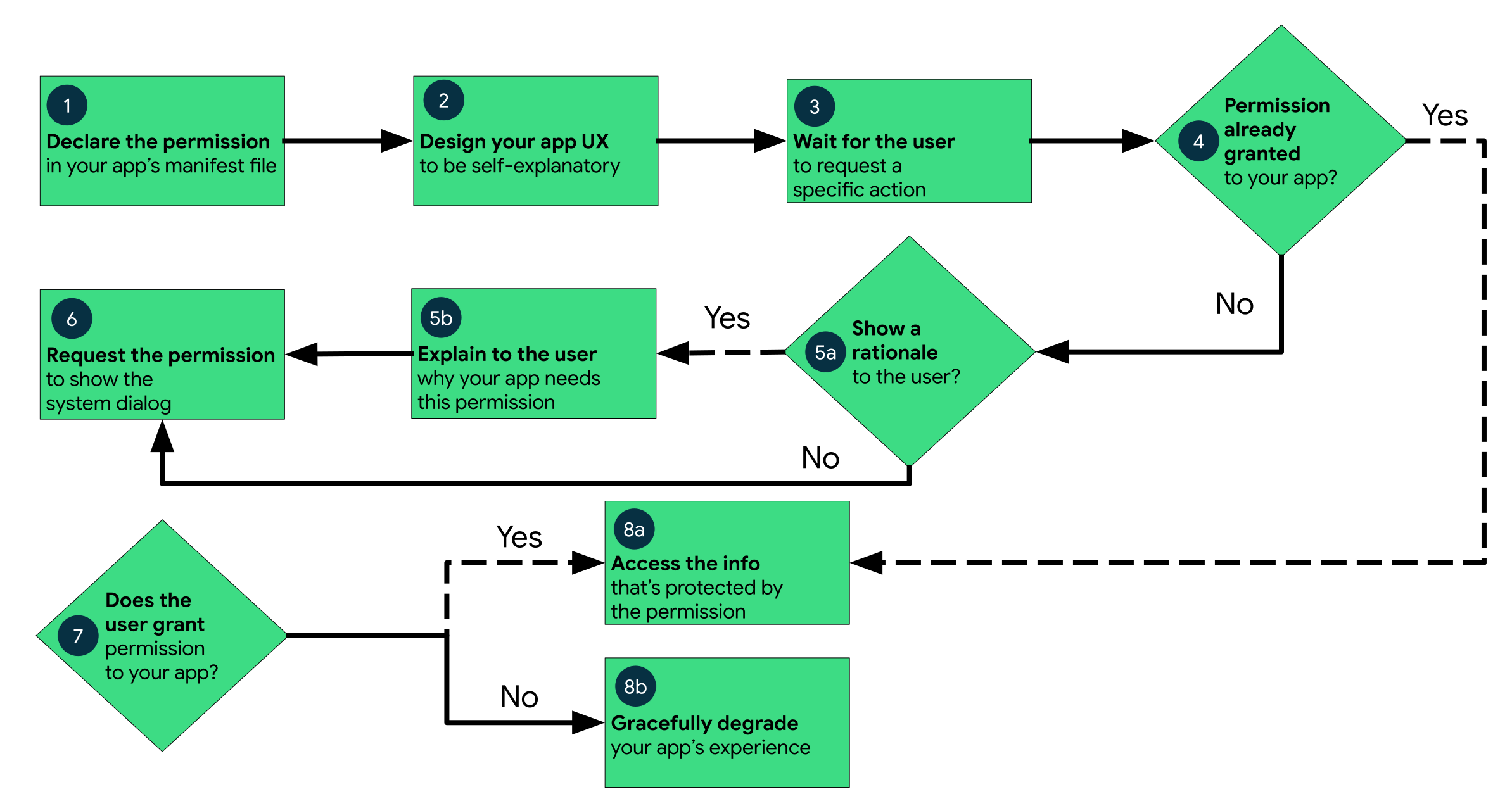
Figure 1. Diagram that shows the workflow for declaring and requesting runtime permissions on Android.
To check whether the user already granted your app a particular permission, pass that permission into the ContextCompat.checkSelfPermission() method. This method returns either PERMISSION_GRANTED or PERMISSION_DENIED, depending on whether your app has the permission.
The permissions dialog shown by the system when you call [requestPermissions()](about:/reference/androidx/core/app/ActivityCompat#requestPermissions\(android.app.Activity,%20java.lang.String[],%20int\)) says what permission your app wants, but doesn't say why. In some cases, the user might find that puzzling. It's a good idea to explain to the user why your app wants the permissions before you call requestPermissions().
Research shows that users are much more comfortable with permissions requests if they know why the app needs them, such as whether the permission is needed to support a core feature of the app or for advertising. As a result, if you're only using a fraction of the API calls that fall under a permission group, it helps to explicitly list which of those permissions you're using and why. For example, if you're only using coarse location, let the user know this in your app description or in help articles about your app.
Under certain conditions, it's also helpful to let users know about sensitive data access in real time. For example, if you’re accessing the camera or microphone, it’s a good idea to let the user know by using a notification icon somewhere in your app, or in the notification tray (if the application is running in the background), so it doesn't seem like you're collecting data surreptitiously.
Ultimately, if you need to request a permission to make something in your app work, but the reason isn't clear to the user, find a way to let the user know why you need the most sensitive permissions.
If the ContextCompat.checkSelfPermission() method returns PERMISSION_DENIED, call shouldShowRequestPermissionRationale(). If this method returns true, show an educational UI to the user. In this UI, describe why the feature that the user wants to enable needs a particular permission.
Additionally, if your app requests a permission related to location, microphone, or camera, consider explaining why your app needs access to this information.
After the user views an educational UI, or the return value of shouldShowRequestPermissionRationale() indicates that you don't need to show an educational UI, request the permission. Users see a system permission dialog, where they can choose whether to grant a particular permission to your app.
To do this, use the RequestPermission contract, included in an AndroidX library, where you allow the system to manage the permission request code for you. Because using the RequestPermission contract simplifies your logic, it is the recommended solution when possible. However, if needed you can also manage a request code yourself as part of the permission request and include this request code in your permission callback logic.
To allow the system to manage the request code that's associated with a permissions request, add dependencies on the following libraries in your module's build.gradle file:
androidx.activity, version 1.2.0 or laterandroidx.fragment, version 1.3.0 or later
You can then use one of the following classes:
- To request a single permission, use
RequestPermission. - To request multiple permissions at the same time, use
RequestMultiplePermissions.
The following steps show how to use the RequestPermission contract. The process is nearly the same for the RequestMultiplePermissions contract.
-
In your activity or fragment's initialization logic, pass in an implementation of
ActivityResultCallbackinto a call toregisterForActivityResult(). TheActivityResultCallbackdefines how your app handles the user's response to the permission request.Keep a reference to the return value of
registerForActivityResult(), which is of typeActivityResultLauncher. -
To display the system permissions dialog when necessary, call the
launch()method on the instance ofActivityResultLauncherthat you saved in the previous step.After
launch()is called, the system permissions dialog appears. When the user makes a choice, the system asynchronously invokes your implementation ofActivityResultCallback, which you defined in the previous step.Note: Your app cannot customize the dialog that appears when you call
launch(). To provide more information or context to the user, change your app's UI so that it's easier for users to understand why a feature in your app needs a particular permission. For example, you might change the text in the button that enables the feature.Also, the text in the system permission dialog references the permission group associated with the permission that you requested. This permission grouping is designed for system ease-of-use, and your app shouldn't rely on permissions being within or outside of a specific permission group.
The following code snippet shows how to handle the permissions response:
// Register the permissions callback, which handles the user's response to the
// system permissions dialog. Save the return value, an instance of
// ActivityResultLauncher. You can use either a val, as shown in this snippet,
// or a lateinit var in your onAttach() or onCreate() method.
val requestPermissionLauncher =
    registerForActivityResult(RequestPermission()
    ) { isGranted: Boolean ->
        if (isGranted) {
            // Permission is granted. Continue the action or workflow in your
            // app.
        } else {
            // Explain to the user that the feature is unavailable because the
            // feature requires a permission that the user has denied. At the
            // same time, respect the user's decision. Don't link to system
            // settings in an effort to convince the user to change their
            // decision.
        }
    }
// Register the permissions callback, which handles the user's response to the
// system permissions dialog. Save the return value, an instance of
// ActivityResultLauncher, as an instance variable.
private ActivityResultLauncher<String> requestPermissionLauncher =
    registerForActivityResult(new RequestPermission(), isGranted -> {
        if (isGranted) {
            // Permission is granted. Continue the action or workflow in your
            // app.
        } else {
            // Explain to the user that the feature is unavailable because the
            // feature requires a permission that the user has denied. At the
            // same time, respect the user's decision. Don't link to system
            // settings in an effort to convince the user to change their
            // decision.
        }
    });
And this code snippet demonstrates the recommended process to check for a permission and to request a permission from the user when necessary:
when {
    ContextCompat.checkSelfPermission(
            CONTEXT,
            Manifest.permission.REQUESTED_PERMISSION
            ) == PackageManager.PERMISSION_GRANTED -> {
        // You can use the API that requires the permission.
    }
    ActivityCompat.shouldShowRequestPermissionRationale(
            this, Manifest.permission.REQUESTED_PERMISSION) -> {
        // In an educational UI, explain to the user why your app requires this
        // permission for a specific feature to behave as expected, and what
        // features are disabled if it's declined. In this UI, include a
        // "cancel" or "no thanks" button that lets the user continue
        // using your app without granting the permission.
        showInContextUI(...)
    }
    else -> {
        // You can directly ask for the permission.
        // The registered ActivityResultCallback gets the result of this request.
        requestPermissionLauncher.launch(
                Manifest.permission.REQUESTED_PERMISSION)
    }
}
if (ContextCompat.checkSelfPermission(
        CONTEXT, Manifest.permission.REQUESTED_PERMISSION) ==
        PackageManager.PERMISSION_GRANTED) {
    // You can use the API that requires the permission.
    performAction(...);
} else if (ActivityCompat.shouldShowRequestPermissionRationale(
        this, Manifest.permission.REQUESTED_PERMISSION)) {
    // In an educational UI, explain to the user why your app requires this
    // permission for a specific feature to behave as expected, and what
    // features are disabled if it's declined. In this UI, include a
    // "cancel" or "no thanks" button that lets the user continue
    // using your app without granting the permission.
    showInContextUI(...);
} else {
    // You can directly ask for the permission.
    // The registered ActivityResultCallback gets the result of this request.
    requestPermissionLauncher.launch(
            Manifest.permission.REQUESTED_PERMISSION);
}
As an alternative to allowing the system to manage the permission request code, you can manage the permission request code yourself. To do so, include the request code in a call to requestPermissions().
The following code snippet demonstrates how to request a permission using a request code:
when {
    ContextCompat.checkSelfPermission(
            CONTEXT,
            Manifest.permission.REQUESTED_PERMISSION
            ) == PackageManager.PERMISSION_GRANTED -> {
        // You can use the API that requires the permission.
        performAction(...)
    }
    ActivityCompat.shouldShowRequestPermissionRationale(
            this, Manifest.permission.REQUESTED_PERMISSION) -> {
        // In an educational UI, explain to the user why your app requires this
        // permission for a specific feature to behave as expected, and what
        // features are disabled if it's declined. In this UI, include a
        // "cancel" or "no thanks" button that lets the user continue
        // using your app without granting the permission.
        showInContextUI(...)
    }
    else -> {
        // You can directly ask for the permission.
        requestPermissions(CONTEXT,
                arrayOf(Manifest.permission.REQUESTED_PERMISSION),
                REQUEST_CODE)
    }
}
if (ContextCompat.checkSelfPermission(
        CONTEXT, Manifest.permission.REQUESTED_PERMISSION) ==
        PackageManager.PERMISSION_GRANTED) {
    // You can use the API that requires the permission.
    performAction(...);
} else if (ActivityCompat.shouldShowRequestPermissionRationale(
        this, Manifest.permission.REQUESTED_PERMISSION)) {
    // In an educational UI, explain to the user why your app requires this
    // permission for a specific feature to behave as expected, and what
    // features are disabled if it's declined. In this UI, include a
    // "cancel" or "no thanks" button that lets the user continue
    // using your app without granting the permission.
    showInContextUI(...);
} else {
    // You can directly ask for the permission.
    requestPermissions(CONTEXT,
            new String[] { Manifest.permission.REQUESTED_PERMISSION },
            REQUEST_CODE);
}
After the user responds to the system permissions dialog, the system then invokes your app's implementation of onRequestPermissionsResult(). The system passes in the user response to the permission dialog, as well as the request code that you defined, as shown in the following code snippet:
override fun onRequestPermissionsResult(requestCode: Int,
        permissions: Array<String>, grantResults: IntArray) {
    when (requestCode) {
        PERMISSION_REQUEST_CODE -> {
            // If request is cancelled, the result arrays are empty.
            if ((grantResults.isNotEmpty() &&
                    grantResults[0] == PackageManager.PERMISSION_GRANTED)) {
                // Permission is granted. Continue the action or workflow
                // in your app.
            } else {
                // Explain to the user that the feature is unavailable because
                // the feature requires a permission that the user has denied.
                // At the same time, respect the user's decision. Don't link to
                // system settings in an effort to convince the user to change
                // their decision.
            }
            return
        }

        // Add other 'when' lines to check for other
        // permissions this app might request.
        else -> {
            // Ignore all other requests.
        }
    }
}
@Override
public void onRequestPermissionsResult(int requestCode, String[] permissions,
        int[] grantResults) {
    switch (requestCode) {
        case PERMISSION_REQUEST_CODE:
            // If request is cancelled, the result arrays are empty.
            if (grantResults.length > 0 &&
                    grantResults[0] == PackageManager.PERMISSION_GRANTED) {
                // Permission is granted. Continue the action or workflow
                // in your app.
            }  else {
                // Explain to the user that the feature is unavailable because
                // the feature requires a permission that the user has denied.
                // At the same time, respect the user's decision. Don't link to
                // system settings in an effort to convince the user to change
                // their decision.
            }
            return;
        }
        // Other 'case' lines to check for other
        // permissions this app might request.
    }
}
When you request location permissions, follow the same best practices as for any other runtime permission. One important difference when it comes to location permissions is that the system includes multiple permissions related to location. Which permissions you request, and how you request them, depend on the location requirements for your app's use case.
If your app contains a feature that shares or receives location information only once, or for a defined amount of time, then that feature requires foreground location access. Some examples include the following:
- Within a navigation app, a feature lets users get turn-by-turn directions.
- Within a messaging app, a feature lets users share their current location with another user.
The system considers your app to be using foreground location if a feature of your app accesses the device's current location in one of the following situations:
-
An activity that belongs to your app is visible.
-
Your app is running a foreground service. When a foreground service is running, the system raises user awareness by showing a persistent notification. Your app retains access when it's placed in the background, such as when the user presses the Home button on their device or turns their device's display off. On Android 10 (API level 29) and higher, you must declare a foreground service type of
location, as shown in the following code snippet. On earlier versions of Android, it's recommended that you declare this foreground service type.```<service android:name="MyNavigationService" android:foregroundServiceType="location" ... >
You declare a need for foreground location when your app requests either the [`ACCESS_COARSE_LOCATION`](about:/reference/android/Manifest.permission#ACCESS_COARSE_LOCATION) permission or the [`ACCESS_FINE_LOCATION`](about:/reference/android/Manifest.permission#ACCESS_FINE_LOCATION) permission, as shown in the following snippet:
<manifest ... >
```An app requires background location access if a feature within the app constantly shares location with other users or uses the Geofencing API. Several examples include the following:
- Within a family location sharing app, a feature lets users continuously share location with family members.
- Within an IoT app, a feature lets users configure their home devices such that they turn off when the user leaves their home and turn back on when the user returns home.
The system considers your app to be using background location if it accesses the device's current location in any situation other than the ones described in the foreground location section. The background location accuracy is the same as the foreground location accuracy, which depends on the location permissions that your app declares.
On Android 10 (API level 29) and higher, you must declare the ACCESS_BACKGROUND_LOCATION permission in your app's manifest to request background location access at runtime. On earlier versions of Android, when your app receives foreground location access, it automatically receives background location access as well.
<manifest ... >
  <!-- Required only when requesting background location access on
       Android 10 (API level 29) and higher. -->
  <uses-permission android:name="android.permission.ACCESS_BACKGROUND_LOCATION" />
</manifest>
If the user denies a permission request, your app should help users understand the implications of denying the permission. In particular, your app should make users aware of the features that don't work because of the missing permission. When you do so, keep the following best practices in mind:
-
Guide the user's attention. Highlight a specific part of your app's UI where there's limited functionality because your app doesn't have the necessary permission. Examples of what you could do include the following:
- Show a message where the feature's results or data would have appeared.
- Display a different button that contains an error icon and color.
-
Be specific. Don't display a generic message. Instead, make clear which features are unavailable because your app doesn't have the necessary permission.
-
Don't block the user interface. In other words, don't display a full-screen warning message that prevents users from continuing to use your app at all.
At the same time, your app should respect the user's decision to deny a permission. Starting in Android 11 (API level 30), if the user taps Deny for a specific permission more than once during your app's lifetime of installation on a device, the user doesn't see the system permissions dialog if your app requests that permission again. The user's action implies "don't ask again." On previous versions, users saw the system permissions dialog each time your app requested a permission, unless they had previously selected a "don't ask again" checkbox or option.
If a user denies a permission request more than once, this is considered a permanant denial. It's very important to only prompt users for permissions when they need access to a specific feature, otherwise you might inadvertently lose the ability to re-request permissions.
In certain situations, the permission might be denied automatically, without the user taking any action. (A permission might be granted automatically as well.) It's important to not assume anything about automatic behavior. Each time your app needs to access functionality that requires a permission, check that your app is still granted that permission.
To provide the best user experience when asking for app permissions, also see App permissions best practices.
To identify whether an app has been permanently denied permissions (for debugging and testing purposes), use the following command:
adb shell dumpsys package PACKAGE_NAME
Where PACKAGE_NAME is the name of the package to inspect.
The output of the command contains sections that look like this:
...
runtime permissions:
  android.permission.POST_NOTIFICATIONS: granted=false, flags=[ USER_SENSITIVE_WHEN_GRANTED|USER_SENSITIVE_WHEN_DENIED]
  android.permission.ACCESS_FINE_LOCATION: granted=false, flags=[ USER_SET|USER_FIXED|USER_SENSITIVE_WHEN_GRANTED|USER_SENSITIVE_WHEN_DENIED]
  android.permission.BLUETOOTH_CONNECT: granted=false, flags=[ USER_SENSITIVE_WHEN_GRANTED|USER_SENSITIVE_WHEN_DENIED]
...
Permissions that have been denied once by the user are flagged by USER_SET. Permissions that have been denied permanently by selecting Deny twice are flagged by USER_FIXED.
To ensure that testers see the request dialog during testing, reset these flags when you're done debugging your app. To do this, use the command:
adb shell pm clear-permission-flags PACKAGE_NAME PERMISSION_NAME user-set user-fixed
PERMISSION_NAME is the name of the permission you want to reset.
To view a complete list of Android app permissions, visit the permissions API reference page.
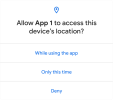
Figure 2. System dialog that appears when an app requests a one-time permission.
Starting in Android 11 (API level 30), whenever your app requests a permission related to location, microphone, or camera, the user-facing permissions dialog contains an option called Only this time, as shown in figure 2. If the user selects this option in the dialog, your app is granted a temporary one-time permission.
Your app can then access the related data for a period of time that depends on your app's behavior and the user's actions:
- While your app's activity is visible, your app can access the data.
- If the user sends your app to the background, your app can continue to access the data for a short period of time.
- If you launch a foreground service while the activity is visible, and the user then moves your app to the background, your app can continue to access the data until the foreground service stops.
If the user revokes the one-time permission, such as in system settings, your app can't access the data, regardless of whether you launched a foreground service. As with any permission, if the user revokes your app's one-time permission, your app's process terminates.
When the user next opens your app and a feature in your app requests access to location, microphone, or camera, the user is prompted for the permission again.
Android provides several ways to reset unused runtime permissions to their default, denied state:
- An API where you can proactively remove your app's access to an unused runtime permission.
- A system mechanism that automatically resets the permissions of unused apps.
On Android 13 (API level 33) and higher, you can remove your app's access to runtime permissions that your app no longer requires. When you update your app, perform this step so that users are more likely to understand why your app continues to request specific permissions. This knowledge helps build user trust in your app.
To remove access to a runtime permission, pass the name of that permission into revokeSelfPermissionOnKill(). To remove access to a group of runtime permissions at the same time, pass a collection of permission names into revokeSelfPermissionsOnKill(). The permission removal process happens asynchronously and kills all processes associated with your app's UID.
For the system to remove your app's access to the permissions, all processes tied to your app must be killed. When you call the API, the system determines when it's safe to kill these processes. Usually, the system waits until your app spends an extended period of time running in the background instead of the foreground.
To inform the user that your app no longer requires access to specific runtime permissions, show a dialog the next time the user launches your app. This dialog can include the list of permissions.
If your app targets Android 11 (API level 30) or higher and isn't used for a few months, the system protects user data by automatically resetting the sensitive runtime permissions that the user had granted your app. Learn more in the guide about app hibernation.
Some apps depend on access to sensitive user information related to call logs and SMS messages. If you want to request the permissions specific to call logs and SMS messages and publish your app to the Play Store, you must prompt the user to set your app as the default handler for a core system function before requesting these runtime permissions.
For more information on default handlers, including guidance on showing a default handler prompt to users, see the guide about permissions used only in default handlers.
To grant all runtime permissions automatically when you install an app on an emulator or test device, use the -g option for the adb shell install command, as demonstrated in the following code snippet:
adb shell install -g PATH_TO_APK_FILE
For additional information about permissions, read these articles:
To learn more about requesting permissions, review the permissions samples
You can also complete this codelab that demonstrates privacy best practices.
A special permission guards access to system resources that are particularly sensitive or not directly related to user privacy. These permissions are different than install-time permissions and runtime permissions.
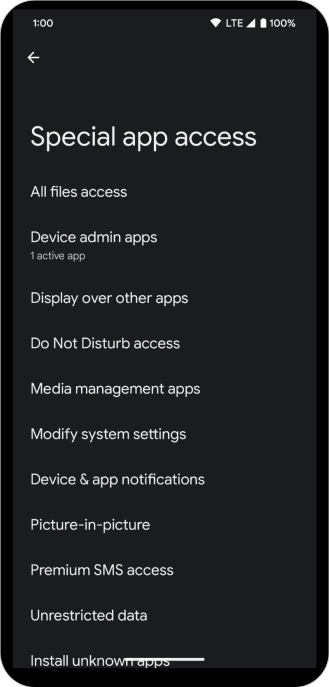
Figure 1. The Special app access screen in system settings.
Some examples of special permissions include:
- Scheduling exact alarms.
- Displaying and drawing over other apps.
- Accessing all storage data.
Apps that declare a special permission are shown in the Special app access page in system settings (figure 1). To grant a special permission to the app, a user must navigate to this page: Settings > Apps > Special app access.
To request a special permission, do the following:
- In your app's manifest file, declare the special permissions that your app might need to request.
- Design your app's UX so that specific actions in your app are associated with specific special permissions. Let users know which actions might require them to grant permission for your app to access private user data.
- Wait for the user to invoke the task or action in your app that requires access to specific private user data. At that time, your app can request the special permission that's required for accessing that data.
- Check whether the user has already granted the special permission that your app requires. To do so, use each permission's custom checking function. If granted, your app can access the private user data. If not, continue to the next step. Note: You must check whether you have the permission every time you perform an operation that requires that permission.
- Present a rationale to the user in a UI element that clearly explains what data your app is trying to access and what benefits the app can provide to the user if they grant the special permission. In addition, since your app sends users to system settings to grant the permission, also include brief instructions that explain how users can grant the permission there. The rationale UI should provide a clear option for the user to opt-out of granting the permission. After the user acknowledges the rationale, continue to the next step.
- Request the special permission that your app requires to access the private user data. This likely involves an intent to the corresponding page in system settings where the user can grant the permission. Unlike runtime permissions, there is no popup permission dialog.
- Check the user's response – whether they chose to grant or deny the special permission – in the
onResume()method. - If the user granted the permission to your app, you can access the private user data. If the user denied the permission instead, gracefully degrade your app experience so that it provides functionality to the user without the information that's protected by that permission.
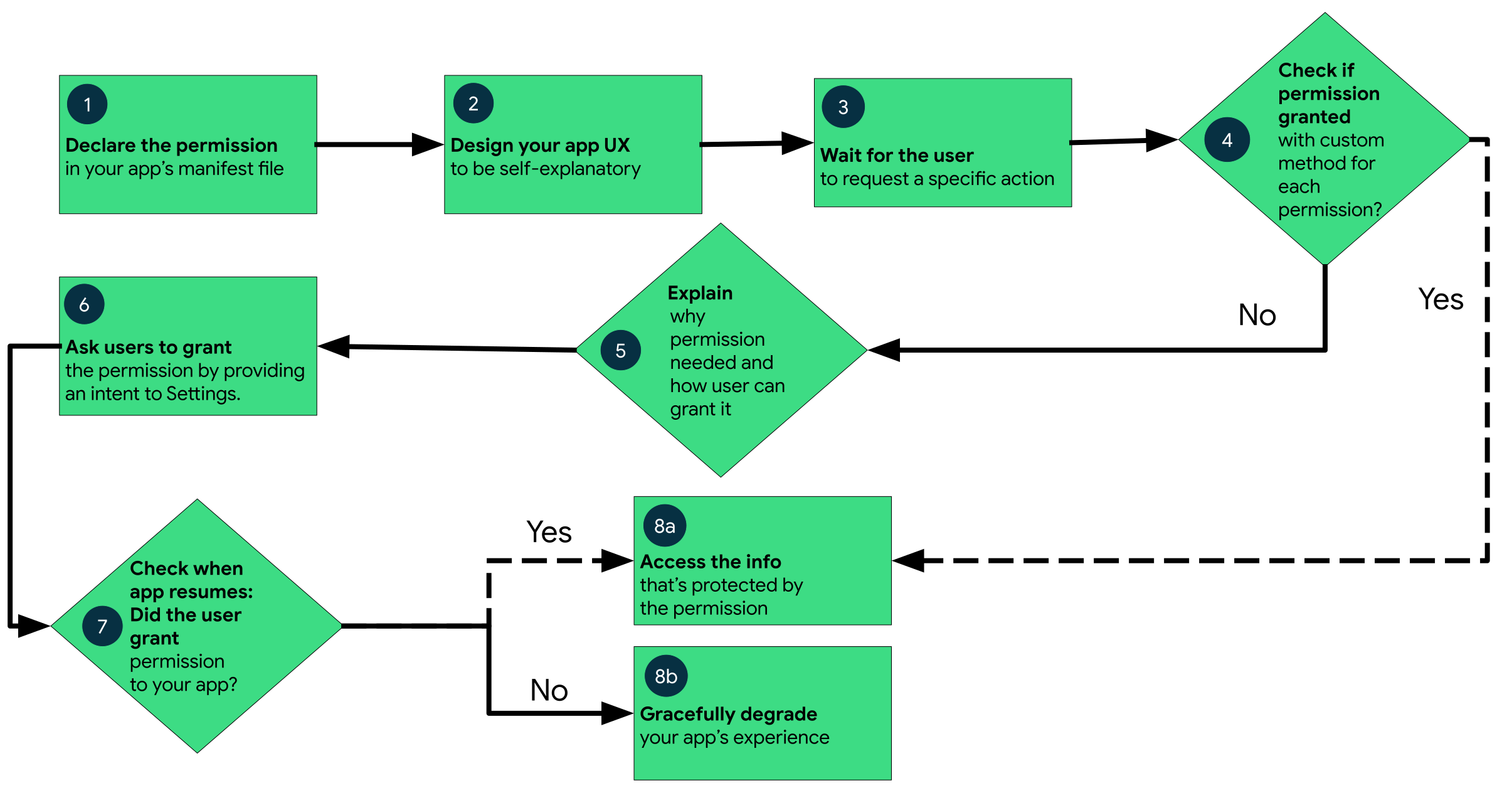
Figure 2. Workflow for declaring and requesting special permissions on Android.
Unlike runtime permissions, the user must grant special permissions from the Special App Access page in system settings. Apps can send users there using an intent, which pauses the app and launches the corresponding settings page for a given special permission. After the user returns to the app, the app can check if the permission has been granted in the onResume() function.
The following sample code shows how to request the SCHEDULE_EXACT_ALARMS special permission from users:
val alarmManager = getSystemService<AlarmManager>()!!
when {
   // if permission is granted, proceed with scheduling exact alarms…
   alarmManager.canScheduleExactAlarms() -> {
       alarmManager.setExact(...)
   }
   else -> {
       // ask users to grant the permission in the corresponding settings page
       startActivity(Intent(ACTION_REQUEST_SCHEDULE_EXACT_ALARM))
   }
}
Sample code to check the permission and handle user decisions in onResume():
override fun onResume() {
   // ...

   if (alarmManager.canScheduleExactAlarms()) {
       // proceed with the action (setting exact alarms)
       alarmManager.setExact(...)
   }
   else {
       // permission not yet approved. Display user notice and gracefully degrade
       your app experience.
       alarmManager.setWindow(...)
   }
}
The following sections provide some best practices and considerations when requesting special permissions.
Special permissions operate differently than runtime permissions. Instead, refer to the permissions API reference page and use the custom access check functions for each special permission. Examples include AlarmManager#canScheduleExactAlarms() for the SCHEDULE_EXACT_ALARMS permission and Environment#isExternalStorageManager() for the MANAGE_EXTERNAL_STORAGE permission.
Similar to runtime permissions, apps should request special permissions in-context when the user requests a specific action that requires the permission. For example, wait to request the SCHEDULE_EXACT_ALARMS permission until the user schedules an email to be sent at a specific time.
Provide a rationale before redirecting to system settings. Since users leave the app temporarily to grant special permissions, show an in-app UI before you launch the intent to the Special App Access page in system settings. This UI should clearly explain why the app needs the permission and how the user should grant it on the settings page.
The permissions related to location, microphone, and camera grant your app access to particularly sensitive information about users. The platform includes several mechanisms, described on this page, to help users stay informed and in control over which apps can access location, microphone, and camera.
These privacy-preserving system features shouldn't affect how your app handles the permissions related to location, microphone, and camera, as long as you follow privacy best practices.
In particular, make sure you do the following in your app:
- Wait to access the device's camera until the user has granted the
CAMERApermission to your app. - Wait to access the device's microphone until the user has granted the
RECORD_AUDIOpermission to your app. - Wait until the user interacts with a feature in your app that requires location before you request the
ACCESS_COARSE_LOCATIONpermission or theACCESS_FINE_LOCATIONpermission, as described in the guide on how to request location permissions. - Wait until the user grants your app either the
ACCESS_COARSE_LOCATIONpermission or theACCESS_FINE_LOCATIONpermission before you request theACCESS_BACKGROUND_LOCATIONpermission.
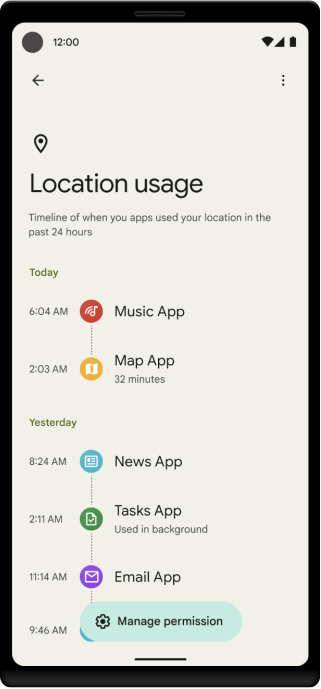
Figure 1. Location usage screen, part of the Privacy Dashboard.
On supported devices that run Android 12 or higher, a Privacy Dashboard screen appears in system settings. On this screen, users can access separate screens that show when apps access location, camera, and microphone information. Each screen shows a timeline of when different apps have accessed a particular type of data. Figure 1 shows the data access timeline for location information.
Your app can provide a rationale for users to help them understand why your app accesses location, camera, or microphone information. This rationale can appear on the new Privacy Dashboard screen, your app's permissions screen, or both.
To explain why your app accesses location, camera, and microphone information, complete the following steps:
-
Add an activity that, when started, provides some rationale for why your app performs a particular type of data access action. Within this activity, set the
android:permissionattribute toSTART_VIEW_PERMISSION_USAGE.If your app targets Android 12 or higher, you must explicitly define a value for the
android:exportedattribute. -
Add the following intent filter to the newly-added activity: ```
...
3. Decide what your data access rationale activity should show. For example, you might show your app's website or a help center article. To provide a more detailed explanation about the types of data that your app accesses, as well as when the access occurred, handle the extras that the system includes when it invokes the permission usage intent:
* If the system invokes `ACTION_VIEW_PERMISSION_USAGE`, your app can retrieve a value for [`EXTRA_PERMISSION_GROUP_NAME`](about:/reference/android/content/Intent#EXTRA_PERMISSION_GROUP_NAME).
* If the system invokes `ACTION_VIEW_PERMISSION_USAGE_FOR_PERIOD`, your app can retrieve values for `EXTRA_PERMISSION_GROUP_NAME`, [`EXTRA_ATTRIBUTION_TAGS`](about:/reference/android/content/Intent#EXTRA_ATTRIBUTION_TAGS), [`EXTRA_START_TIME`](about:/reference/android/content/Intent#EXTRA_START_TIME), and [`EXTRA_END_TIME`](about:/reference/android/content/Intent#EXTRA_END_TIME).
Depending on which intent filters you add, users see an information icon next to your app's name on certain screens:
* If you add the intent filter that contains the `VIEW_PERMISSION_USAGE` action, users see the icon on your app's permissions page in system settings. You can apply this action to all runtime permissions.
* If you add the intent filter that contains the `VIEW_PERMISSION_USAGE_FOR_PERIOD` action, users see the icon next to your app's name whenever your app appears in the Privacy Dashboard screen.
When users select that icon, your app's rationale activity is started.
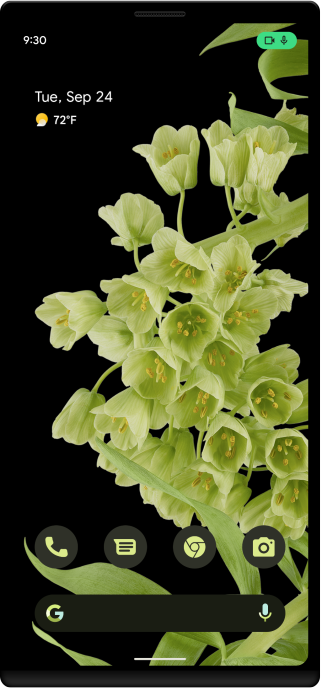
**Figure 2.** Microphone and camera indicators, which show recent data access.
Indicators
----------
On devices that run Android 12 or higher, when an app accesses the microphone or camera, an icon appears in the status bar. If the app is in [immersive mode](about:/training/system-ui/immersive#immersive), the icon appears in the upper-right corner of the screen. Users can open Quick Settings and select the icon to view which apps are currently using the microphone or camera. Figure 2 shows an example screenshot that contains the icons.
### Identify the screen location of indicators
If your app supports immersive mode or a full-screen UI, the indicators might momentarily overlap your app's UI. To help adapt your UI to these indicators, the system introduces the [`getPrivacyIndicatorBounds()`](about:/reference/android/view/WindowInsets.Builder#setPrivacyIndicatorBounds\(android.graphics.Rect\)) method, which the following code snippet demonstrates. Using this API, you can identify the bounds where the indicators might appear. You might then decide to organize your screen's UI differently.
### Kotlin
view.setOnApplyWindowInsetsListener { view, windowInsets -> val indicatorBounds = windowInsets.getPrivacyIndicatorBounds() // change your UI to avoid overlapping windowInsets }
Toggles
-------
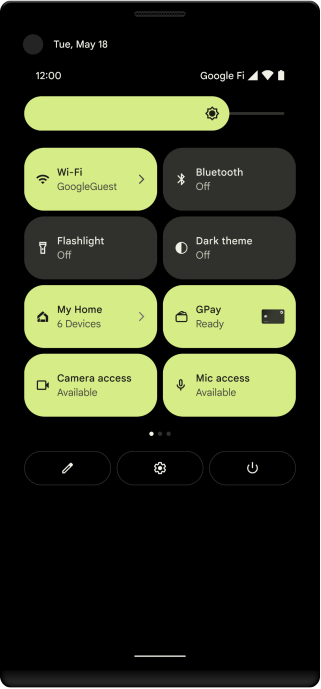
**Figure 3.** Microphone and camera toggles in Quick Settings.
On [supported devices](#toggles-check-device-support) that run Android 12 or higher, users can enable and disable camera and microphone access for all apps on the device by pressing a single toggle option. Users can access the toggleable options from [Quick Settings](https://support.google.com/android/answer/9083864), as shown in figure 3, or from the Privacy screen in system settings.
The camera and microphone toggles affect all apps on the device:
* When the user turns off camera access, your app receives a blank camera feed.
* When the user turns off microphone access, your app receives silent audio. Additionally, [motion sensors are rate-limited](about:/guide/topics/sensors/sensors_overview#sensors-rate-limiting), regardless of whether you declare the [`HIGH_SAMPLING_RATE_SENSORS`](about:/reference/android/Manifest.permission#HIGH_SAMPLING_RATE_SENSORS) permission.
When the user turns off access to camera or microphone, then launches an app that needs access to camera or microphone information, the system reminds the user that the device-wide toggle is turned off.
### Check device support
To check whether a device supports microphone and camera toggles, add the logic that appears in the following code snippet:
### Kotlin
val sensorPrivacyManager = applicationContext .getSystemService(SensorPrivacyManager::class.java) as SensorPrivacyManager val supportsMicrophoneToggle = sensorPrivacyManager .supportsSensorToggle(Sensors.MICROPHONE) val supportsCameraToggle = sensorPrivacyManager .supportsSensorToggle(Sensors.CAMERA)
### Java
SensorPrivacyManager sensorPrivacyManager = getApplicationContext() .getSystemService(SensorPrivacyManager.class); boolean supportsMicrophoneToggle = sensorPrivacyManager .supportsSensorToggle(Sensors.MICROPHONE); boolean supportsCameraToggle = sensorPrivacyManager .supportsSensorToggle(Sensors.CAMERA);
# App permissions best practices  |  Privacy  |  Android Developers
Permission requests protect sensitive information available from a device and should only be used when access to information is necessary for the functioning of your app. This document provides tips on ways you might be able to achieve the same (or better) functionality without requiring access to such information; it is not an exhaustive discussion of how permissions work in the Android operating system.

For a more general look at Android permissions, please see [Permissions overview](https://developer.android.com/guide/topics/permissions/requesting). For details on how to work with permissions in your code, see [Requesting app permissions](https://developer.android.com/training/permissions/requesting).

In Android 6.0 (API level 23) and higher, apps can request permissions from the user at runtime, rather than prior to installation. This allows apps to request permissions when the app actually requires the services or data protected by the services. While this doesn't (necessarily) change overall app behavior, it does create a few changes relevant to the way sensitive user data is handled:

### Increased situational context

Users are prompted at runtime, in the context of your app, for permission to access the functionality covered by those permission groups. Users are more sensitive to the context in which the permission is requested, and if there’s a mismatch between what you are requesting and the purpose of your app, it's even more important to provide detailed explanation to the user as to why you’re requesting the permission. Whenever possible, you should provide an explanation of your request both at the time of the request and in a follow-up dialog if the user denies the request.

To increase the likelihood of a permission request being accepted, only prompt when a specific feature is required. For instance, only prompt for microphone access when a user clicks on the microphone button. Users are more likely to allow a permission that they are expecting.

### Greater flexibility in granting permissions

Users can deny access to individual permissions at the time they’re requested _and_ in settings, but they may still be surprised when functionality is broken as a result. It’s a good idea to monitor how many users are denying permissions (e.g. using Google Analytics) so that you can either refactor your app to avoid depending on that permission or provide a better explanation of why you need the permission for your app to work properly. You should also make sure that your app handles exceptions when users deny permission requests or toggle off permissions in settings.

### Increased transactional burden

Users are asked to grant access for permission groups individually and not as a set. This makes it extremely important to minimize the number of permissions you’re requesting. This increases the user-burden for granting permissions and therefore increases the probability that at least one of the requests will be denied.

Permissions that require becoming a default handler
---------------------------------------------------

Some apps depend on access to sensitive user information related to call logs and SMS messages. If you want to request the permissions specific to call logs and SMS messages and publish your app to the Play Store, you must prompt the user to set your app as the _default handler_ for a core system function before requesting these runtime permissions.

For more information on default handlers, including guidance on showing a default handler prompt to users, [see the guide on permissions used only in default handlers](https://developer.android.com/guide/topics/permissions/default-handlers).

Know the libraries you're working with
--------------------------------------

Sometimes permissions are required by the libraries you use in your app. For example, ads and analytics libraries may require access to the `LOCATION` permissions group to implement the required functionality. But from the user's point of view, the permission request comes from your app, not the library.

Just as users select apps that use fewer permissions for the same functionality, developers should review their libraries and select third-party SDKs that aren't using unnecessary permissions. For example, if you're using a library that provides location functionality, make sure you aren't requesting the `FINE_LOCATION` permission unless you're using location-based targeting functionality.

Limit background access to location
-----------------------------------

When your app is running in the background, [access to location](https://developer.android.com/training/location/background) should be critical to the app's core functionality and show a clear benefit to users.

Test for both permissions models
--------------------------------

In Android 6.0 (API level 23) and higher, users grant and revoke app permissions at run time, instead of doing so when they install the app. As a result, you'll have to test your app under a wider range of conditions. Prior to Android 6.0, you could reasonably assume that if your app is running at all, it has all the permissions it declares in the app manifest. Now, the user can turn permissions on or off for _any_ app, regardless of API level. You should test to ensure your app functions correctly across various permission scenarios.

The following tips will help you find permissions-related code problems on devices running API level 23 or higher:

*   Identify your app’s current permissions and the related code paths.
*   Test user flows across permission-protected services and data.
*   Test with various combinations of granted or revoked permissions. For example, a camera app might list `[CAMERA](about:/reference/android/Manifest.permission#CAMERA)`, `[READ_CONTACTS](about:/reference/android/Manifest.permission#READ_CONTACTS)`, and `[ACCESS_FINE_LOCATION](about:/reference/android/Manifest.permission#ACCESS_FINE_LOCATION)` in its manifest. You should test the app with each of these permissions turned on and off, to make sure the app can handle all permission configurations gracefully.
*   Use the [adb](https://developer.android.com/tools/help/adb) tool to manage permissions from the command line:
    *   List permissions and status by group:

        ```
$ adb shell pm list permissions -d -g
*   Grant or revoke one or more permissions:

    ```
$ adb shell pm [grant|revoke] ...
* Analyze your app for services that use permissions.
Additional resources
--------------------
* [Material Design guidelines for Android permissions](https://material.io/design/platform-guidance/android-permissions.html#usage)
* [Android Marshmallow 6.0: Asking For Permission](https://www.youtube.com/watch?v=iZqDdvhTZj0): This video explains the Android runtime permission model and the right way to ask users for permissions.
* [Explain why the app needs permissions](about:/training/permissions/requesting#explain)
* [Best practices for unique identifiers](https://developer.android.com/training/articles/user-data-ids)
# Permissions used only in default handlers | Privacy | Android Developers
Several core device functions, such as reading call logs and sending SMS messages, depend on access to sensitive user information. To protect user privacy and provide users with more control over the information that they provide to apps on their device, Google Play restricts apps' access to call- and messaging-related permission groups.
If you distribute your app on the Google Play Store and want to access sensitive user information related to call logs and SMS messages, your app needs to be registered as the user's _default handler_ for the core device function related to that permission, unless your app satisfies one of the [exception cases](https://support.google.com/googleplay/android-developer/answer/9047303#exceptions) that appear in the Play Console Help Center. For example, to access call-related permissions, your app needs to be registered as the user's default Phone or Assistant handler, unless your app satisfies an exception case.
This guide provides a brief overview of how users access default handlers on Android-powered devices. The guide then reviews the requirements that an app must satisfy before becoming eligible to be a default handler. Finally, the guide walks you through the process of receiving user consent to become a default handler.
To learn more about default handlers, as well as how to handle permissions in an app that's available on the Play Store, [see the Permissions policy guide](https://play.google.com/about/privacy-security-deception/permissions/).
View and change the set of default handlers
-------------------------------------------
Android lets users set default handlers for several core use cases, such as placing phone calls, sending SMS messages, and providing assistive technology capabilities.
The Settings app on Android includes a screen that shows users which apps are currently default handlers for the device's core functions, as shown in figure 1. From this screen, users can change the default handler for a given function, as shown in figure 2.
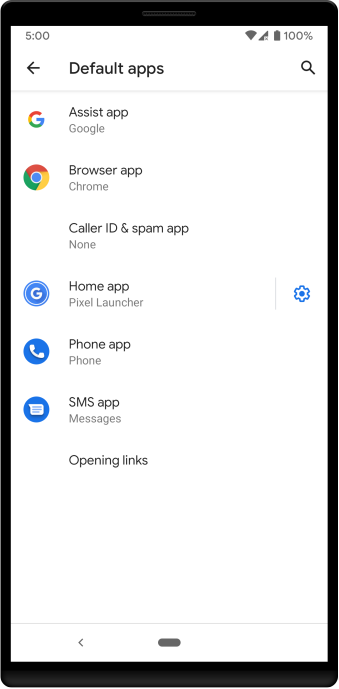
**Figure 1.** System settings screen showing list of default handlers on a device.
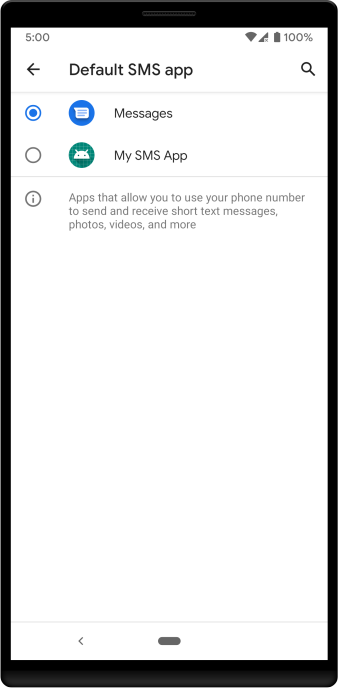
**Figure 2.** System settings screen showing how to change the default SMS handler.
Follow requirements for default handlers
----------------------------------------
Given the sensitive user information that an app accesses while serving as a default handler, your app cannot become a default handler unless it meets the following Play Store listing and core functionality requirements:
* Your app must be able to perform the functionality for which it's a default handler. For example, a default SMS handler must be able to send text messages.
* Your app must provide a privacy policy.
* Your app must make its core functionality clear in the Play Store description. For example, a default Phone handler should describe its phone-related capabilities in the description.
* Your app must declare permissions that are appropriate for its use case. For more details about which permissions you can declare as a given handler, see the [guidance on using SMS or call log permission groups](https://support.google.com/googleplay/android-developer/answer/9047303#intended) in the Play Console Help Center.
* Your app must ask to become a default handler **before** it requests the permissions associated with being that handler. For example, an app must request to become the default SMS handler before it requests the `READ_SMS` permission.
Request user consent
--------------------
After ensuring that your app follows each of the requirements necessary to become a default handler, you can add logic to display the dialog shown in figure 3. This dialog asks the user to make your app the default handler for a particular use case.
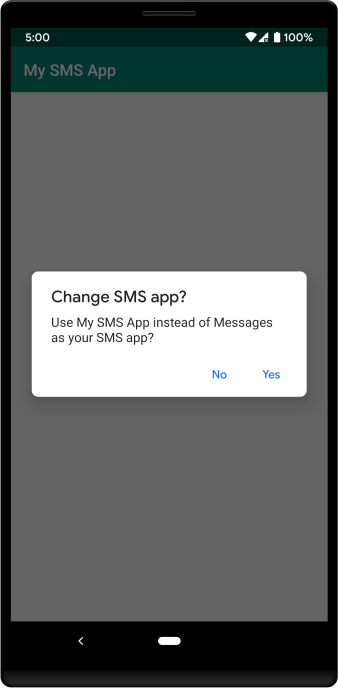
**Figure 3.** Prompt asking the user whether they want to change their device's default SMS handler.
The following example code shows the logic necessary to display a prompt that asks the user to change their device's default SMS handler:
### Kotlin
val setSmsAppIntent = Intent(Telephony.Sms.Intents.ACTION_CHANGE_DEFAULT) setSmsAppIntent.putExtra(Telephony.Sms.Intents.EXTRA_PACKAGE_NAME, packageName) startActivityForResult(setSmsAppIntent, your-result-code)
### Java
Intent setSmsAppIntent = new Intent(Telephony.Sms.Intents.ACTION_CHANGE_DEFAULT); setSmsAppIntent.putExtra(Telephony.Sms.Intents.EXTRA_PACKAGE_NAME, getPackageName()); startActivityForResult(setSmsAppIntent, your-result-code);
# Restrict interactions with other apps  |  Privacy  |  Android Developers
Permissions aren't only for requesting system functionality. You can also restrict how other apps can interact with your app's components.

This guide explains how to check the set of permissions that another app has declared. The guide also explains how you can configure activities, services, content providers, and broadcast receivers to restrict how other apps can interact with your app.

Check another app's permissions
-------------------------------

To view the set of permissions that another app declares, use a device or emulator to complete the following steps:

1.  Open an app's **App info** screen.
2.  Select **Permissions**. The **App permissions** screen loads.

    This screen shows a set of permission groups. The system organizes the set of permissions that an app has declared into these groups.


There are a number of other useful ways to check permissions:

*   During a call into a service, pass a permission string into [`Context.checkCallingPermission()`](about:/reference/android/content/Context#checkCallingPermission\(java.lang.String\)). This method returns an integer that indicates whether that permission has been granted to the current calling process. Note that this can only be used when you are executing a call coming in from another process, usually through an IDL interface published from a service or in some other way given to another process.
*   To check whether another process has been granted a particular permission, pass the process (PID) into [`Context.checkPermission()`](about:/reference/android/content/Context#checkPermission\(java.lang.String,%20int,%20int\)).
*   To check whether another package has been granted a particular permission, pass the package name into [`PackageManager.checkPermission()`](about:/reference/android/content/pm/PackageManager#checkPermission\(java.lang.String,%20java.lang.String\)).

Restrict interactions with your app's activities
------------------------------------------------

Use the `android:permission` attribute to the [`<activity>`](https://developer.android.com/guide/topics/manifest/activity-element) tag in the manifest to restrict which other apps can start that `[Activity](https://developer.android.com/reference/android/app/Activity)`. The permission is checked during `[Context.startActivity()](about:/reference/android/content/Context#startActivity\(android.content.Intent\))` and `[Activity.startActivityForResult()](about:/reference/android/app/Activity#startActivityForResult\(android.content.Intent,%20int\))`. If the caller doesn't have the required permission, then a `[SecurityException](https://developer.android.com/reference/java/lang/SecurityException)` occurs.

Restrict interactions with your app's services
----------------------------------------------

Use the `android:permission` attribute to the [`<service>`](https://developer.android.com/guide/topics/manifest/service-element) tag in the manifest to restrict which other apps can start or bind to the associated `[Service](https://developer.android.com/reference/android/app/Service)`. The permission is checked during `[Context.startService()](about:/reference/android/content/Context#startService\(android.content.Intent\))`, `[Context.stopService()](about:/reference/android/content/Context#stopService\(android.content.Intent\))`, and `[Context.bindService()](about:/reference/android/content/Context#bindService\(android.content.Intent,%20android.content.ServiceConnection,%20int\))`. If the caller doesn't have the required permission, then a `SecurityException` occurs.

Restrict interactions with your app's content providers
-------------------------------------------------------

Use the `android:permission` attribute to the [`<provider>`](https://developer.android.com/guide/topics/manifest/provider-element) tag to restrict which other apps can access the data in a `[ContentProvider](https://developer.android.com/reference/android/content/ContentProvider)`. (Content providers have an important additional security facility available to them called [URI permissions](#uri), which is described in the following section.) Unlike for the other components, there are two separate permission attributes you can set for content providers: [`android:readPermission`](about:/guide/topics/manifest/provider-element#rprmsn) restricts which other apps can read from the provider, and [`android:writePermission`](about:/guide/topics/manifest/provider-element#wprmsn) restricts which other apps can write to it. Note that if a provider is protected with both a read and write permission, holding only the write permission doesn't permit an app to read from a provider.

The permissions are checked when the provider is first retrieved and when an app performs operations on the provider. If the requesting app doesn't have either permission, a `SecurityException` occurs. Using `[ContentResolver.query()](about:/reference/android/content/ContentResolver#query\(android.net.Uri,%20java.lang.String[],%20android.os.Bundle,%20android.os.CancellationSignal\))` requires the read permission; using `[ContentResolver.insert()](about:/reference/android/content/ContentResolver#insert\(android.net.Uri,%20android.content.ContentValues\))`, `[ContentResolver.update()](about:/reference/android/content/ContentResolver#update\(android.net.Uri,%20android.content.ContentValues,%20java.lang.String,%20java.lang.String[]\))`, or `[ContentResolver.delete()](about:/reference/android/content/ContentResolver#delete\(android.net.Uri,%20java.lang.String,%20java.lang.String[]\))` requires the write permission. In all of these cases, not holding the required permission results in a `SecurityException`.

### Give access on a per-URI basis

The system provides you with additional fine-grained control over how other apps can access your app's content providers. In particular, your content provider can protect itself with read and write permissions while still allowing its direct clients to share specific URIs with other apps. To declare your app's support for this model, use the [`android:grantUriPermissions`](about:/guide/topics/manifest/provider-element#gprmsn) attribute or the [`<grant-uri-permission>`](https://developer.android.com/guide/topics/manifest/grant-uri-permission-element) element.

You can also grant permissions on a per-URI basis. When starting an activity or returning a result to an activity, set the [`Intent.FLAG_GRANT_READ_URI_PERMISSION`](about:/reference/android/content/Intent#FLAG_GRANT_READ_URI_PERMISSION) intent flag, the [`Intent.FLAG_GRANT_WRITE_URI_PERMISSION`](about:/reference/android/content/Intent#FLAG_GRANT_WRITE_URI_PERMISSION) intent flag, or both flags. This gives other apps read, write, or read/write permissions, respectively, for the data URI that's included in the intent. Other apps gain these permissions for the specific URI regardless of whether they have permission to access data in the content provider more generally.

For example, suppose that a user is using your app to view an email with an image attachment. Other apps shouldn't be able to access the email contents in general, but they might be interested in viewing the image. Your app can use an intent and the `Intent.FLAG_GRANT_READ_URI_PERMISSION` intent flag to let an image-viewing app see the image.

Another consideration is [app visibility](https://developer.android.com/training/package-visibility). If your app targets Android 11 (API level 30) or higher, the system makes some apps visible to your app automatically and hides other apps by default. If your app has a content provider and has granted URI permissions to another app, your app is [automatically visible](https://developer.android.com/training/package-visibility/automatic) to that other app.

For more information, view the reference material for the [`grantUriPermission()`](about:/reference/android/content/Context#grantUriPermission\(java.lang.String,%20android.net.Uri,%20int\)), [`revokeUriPermission()`](about:/reference/android/content/Context#revokeUriPermission\(android.net.Uri,%20int\)), and [`checkUriPermission()`](about:/reference/android/content/Context#checkUriPermission\(android.net.Uri,%20int,%20int,%20int\)) methods.

Restrict interactions with your app's broadcast receivers
---------------------------------------------------------

Use the `android:permission` attribute to the [`<receiver>`](https://developer.android.com/guide/topics/manifest/receiver-element) tag to restrict which other apps can send broadcasts to the associated `[BroadcastReceiver](https://developer.android.com/reference/android/content/BroadcastReceiver)`. The permission is checked _after_ `[Context.sendBroadcast()](about:/reference/android/content/Context#sendBroadcast\(android.content.Intent\))` returns, as the system tries to deliver the submitted broadcast to the given receiver. This means that a permission failure doesn't result in an exception being thrown back to the caller—it just doesn't deliver the `[Intent](https://developer.android.com/reference/android/content/Intent)`.

In the same way, you can supply a permission to `[Context.registerReceiver()](about:/reference/android/content/Context#registerReceiver\(android.content.BroadcastReceiver,%20android.content.IntentFilter,%20java.lang.String,%20android.os.Handler\))` to control which other apps can broadcast to a programmatically registered receiver. Going the other way, you can supply a permission when calling `[Context.sendBroadcast()](about:/reference/android/content/Context#sendBroadcast\(android.content.Intent,%20java.lang.String\))` to restrict which broadcast receivers can receive the broadcast.

Note that both a receiver and a broadcaster can require a permission. When this happens, both permission checks must pass for the intent to be delivered to the associated target. For more information, see [Restricting broadcasts with permissions](about:/guide/components/broadcasts#restrict-broadcasts-permissions).


# Define a custom app permission  |  Privacy  |  Android Developers
This document describes how app developers can use the security features provided by Android to define their own permissions. By defining custom permissions, an app can share its resources and capabilities with other apps. For more information about permissions, see the [permissions overview](https://developer.android.com/guide/topics/permissions/requesting).

Background
----------

Android is a privilege-separated operating system, in which each app runs with a distinct system identity (Linux user ID and group ID). Parts of the system are also separated into distinct identities. Linux thereby isolates apps from each other and from the system.

Apps can expose their functionality to other apps by defining permissions that other apps can request. They can also define permissions that are automatically made available to any other apps that are signed with the same certificate.

### App signing

All APKs must be [signed with a certificate](about:/studio/publish/app-signing#certificates-keystores) whose private key is held by their developer. The certificate does _not_ need to be signed by a certificate authority. It's allowable, and typical, for Android apps to use self-signed certificates. The purpose of certificates in Android is to distinguish app authors. This lets the system grant or deny apps access to [signature-level permissions](about:/guide/topics/manifest/permission-element#plevel) and grant or deny an app's [request to be given the same Linux identity](about:/guide/topics/manifest/manifest-element#uid) as another app.

#### Grant signature permissions after device manufacturing time

Starting in Android 12 (API level 31), the [`knownCerts`](about:/reference/android/R.attr#knownCerts) attribute for signature-level permissions lets you refer to the digests of known signing certificates at declaration time.

You can declare the `knownCerts` attribute and use the `knownSigner` flag in your app's [`protectionLevel`](about:/reference/android/R.attr#protectionLevel) attribute for a particular signature-level permission. Then, the system grants that permission to a requesting app if any signer in the requesting app's signing lineage, including the current signer, matches one of the digests that's declared with the permission in the `knownCerts` attribute.

The `knownSigner` flag lets devices and apps grant signature permissions to other apps without having to sign the apps at the time of device manufacturing and shipment.

### User IDs and file access

At install time, Android gives each package a distinct Linux user ID. The identity remains constant for the duration of the package's life on that device. On a different device, the same package might have a different UID—what matters is that each package has a distinct UID on a given device.

Because security enforcement happens at the process level, the code of any two packages can't normally run in the same process, since they need to run as different Linux users.

Any data stored by an app is assigned that app's user ID and isn't normally accessible to other packages.

For more information about Android's security model, see [Android Security Overview](https://source.android.com/tech/security/index.html).

Define and enforce permissions
------------------------------

To enforce your own permissions, you must first declare them in your `AndroidManifest.xml` using one or more [`<permission>`](https://developer.android.com/guide/topics/manifest/permission-element) elements.

### Naming convention

The system doesn't allow multiple packages to declare a permission with the same name unless all the packages are signed with the same certificate. If a package declares a permission, the system also doesn't permit the user to install other packages with the same permission name, unless those packages are signed with the same certificate as the first package.

We recommend prefixing permissions with an app's package name, using reverse-domain-style naming, followed by `.permission.` and then a description of the capability that the permission represents, in upper SNAKE\_CASE. For example, `com.example.myapp.permission.ENGAGE_HYPERSPACE`.

Following this recommendation avoids naming collisions and helps clearly identify the owner and intention of a custom permission.

### Example

For example, an app that needs to control which other apps can start one of its activities can declare a permission for this operation as follows:
<permission
  android:name="com.example.myapp.permission.DEADLY_ACTIVITY"
  android:label="@string/permlab_deadlyActivity"
  android:description="@string/permdesc_deadlyActivity"
  android:permissionGroup="android.permission-group.COST_MONEY"
  android:protectionLevel="dangerous" />
...
The [protectionLevel](about:/guide/topics/manifest/permission-element#plevel) attribute is required and tells the system how to inform users of apps requiring the permission or what apps can hold the permission, as described in the linked documentation.
The android:permissionGroup attribute is optional and only used to help the system display permissions to the user. In most cases, you set this to a standard system group (listed in [android.Manifest.permission_group](https://developer.android.com/reference/android/Manifest.permission_group)), although you can define a group yourself, as described in the following section. We recommend using an existing group, because this simplifies the permission UI shown to the user.
You need to supply both a label and description for the permission. These are string resources that the user can see when they are viewing a list of permissions (android:label) or details on a single permission (android:description). The label is short: a few words describing the key piece of functionality the permission is protecting. The description is a couple of sentences describing what the permission lets a holder do. Our convention is a two-sentence description where the first sentence describes the permission and the second sentence warns the user of the type of things that can go wrong if an app is granted the permission.
Here is an example of a label and description for the [CALL_PHONE](about:/reference/android/Manifest.permission#CALL_PHONE) permission:
<string name="permlab_callPhone">directly call phone numbers</string>
<string name="permdesc_callPhone">Allows the app to call non-emergency
phone numbers without your intervention. Malicious apps may cause unexpected
calls on your phone bill.</string>
As shown in the previous section, you can use the android:permissionGroup attribute to help the system describe permissions to the user. In most cases, you set this to a standard system group (listed in [android.Manifest.permission_group](https://developer.android.com/reference/android/Manifest.permission_group)), but you can also define your own group with [<permission-group>](https://developer.android.com/guide/topics/manifest/permission-group-element).
The <permission-group> element defines a label for a set of permissions—both those declared in the manifest with [<permission>](https://developer.android.com/guide/topics/manifest/permission-element) elements and those declared elsewhere. This affects only how the permissions are grouped when presented to the user. The <permission-group> element doesn't specify the permissions that belong to the group, but it gives the group a name.
You can place a permission in the group by assigning the group name to the [<permission>](https://developer.android.com/guide/topics/manifest/permission-element) element's [permissionGroup](about:/guide/topics/manifest/permission-element#pgroup) attribute.
The [<permission-tree>](https://developer.android.com/guide/topics/manifest/permission-tree-element) element declares a namespace for a group of permissions that are defined in code.
You can define custom permissions for your apps and request custom permissions from other apps by defining <uses-permission> elements. However, carefully assess whether it is necessary to do so.
- If you are designing a suite of apps that expose functionality to one another, try to design the apps so that each permission is defined only once. You must do this if the apps aren't all signed with the same certificate. Even if the apps are all signed with the same certificate, it's a best practice to define each permission only once.
- If the functionality is only available to apps signed with the same signature as the providing app, you might be able to avoid defining custom permissions by using signature checks. When one of your apps makes a request of another of your apps, the second app can verify that both apps are signed with the same certificate before complying with the request.
If a custom permission is necessary, consider whether only applications signed by the same developer as the application performing the permission check need to access it—such as when implementing secure interprocess communications between two applications from the same developer. If so, we recommend using signature permissions. Signature permissions are transparent to the user and avoid user-confirmed permissions, which can be confusing to users.
API reference for the manifest tag that declares your app's required system permissions.
A detailed discussion about the Android platform's security model.
Android is focused on helping users take advantage of the latest innovations while making their security and privacy top priorities. Use the checklists on this page as a source for common privacy guidelines and best practices.
Some of the best practices described on this page also appear in the cheat sheet.

- Request the minimum permissions that your feature needs: when introducing major changes to your app, review the requested permissions to confirm that your app's features still need them.
- Newer versions of Android often introduce ways to access data in a privacy-conscious manner without requiring permissions. For more information, see Evaluate whether your app needs to declare permissions.
- If your app is distributed on Google Play, you can use Android vitals to obtain the percentage of users that deny permissions in your app. Use this data to reassess the design of features whose required permissions are most commonly denied.
- Explain why a feature in your app needs a permission: follow the recommended flow to do so. Request the permission when it's needed, rather than at app startup, so that the permission need is clear to users.
- Be aware that users or the system can deny the permission multiple times: Android respects this user choice by ignoring permission requests from the same app.
- Degrade gracefully without permission: your app should degrade gracefully when users deny or revoke a permission—for example, disabling voice input if the user doesn't grant the microphone permission.
- Remove access to unnecessary permissions: when you update your app, remove its access to any runtime permissions that it no longer needs.
- Understand the permissions required by an SDK or library: if you're using an SDK or library that accesses data guarded by dangerous permissions, users generally attribute this to your app. Make sure you understand the permissions that your SDKs require and why.

Data about a user's location is sensitive; avoid using location data if possible. If you must use location services, take steps to minimize the collection of location data. Use the following checklist to minimize your app's use of location.
- Degrade gracefully without location data: on Android 10 (API level 29) and higher, users can limit your app's location access to while the app is in use. Design your app so that it degrades gracefully when it doesn't have uninterrupted access to location.
- Use nearby Bluetooth or Wi-Fi devices: if your app needs to pair the user's device with a nearby device over Bluetooth or Wi-Fi, use the companion device manager, which doesn't require location permissions. Learn more about Bluetooth and Wi-Fi permissions.
- Use coarse location accuracy when possible: review the level of location granularity that your app needs. Coarse location access is sufficient to fulfill most location-related use cases.
- Access location in the background only as necessary: if your app requires background location, such as with geofencing, implement it to be obvious to users. Learn more about considerations for using background location.
- Access location data while your app is visible to the user: this lets users better understand why your app requests location information.
- Don't initiate foreground services from the background: consider launching your app from a notification and then executing location code when your app's UI becomes visible. If your app must retain location access to support a user-initiated ongoing task after the user navigates away from your app's UI, start a foreground service before going into the background.
Note: You can read more about what's considered sensitive data in the User Data article page in the Google Play Developer Policy Center.
- Audit access to data: on Android 11 (API level 30) and higher, perform data access auditing to gain insights into how your app and its dependencies access private data from users, making it easier to identify unexpected data access.
- Declare package visibility needs: if your app targets Android 11 or higher, the system makes certain apps invisible to your app by default. Learn how to make those other apps visible to your app.
- Support scoped storage: to give users more control and limit file clutter, apps targeting Android 10 (API level 29) or higher automatically have scoped access into external storage, or scoped storage. Such apps have access only to their own directory and media they've created. Learn how to migrate to scoped storage.
- Work with user-resettable identifiers: to protect the privacy of your users, use the most restrictive identifier that satisfies your use case—see the checklist for resettable identifiers in this document.
- Provide prominent disclosure and consent: follow the Google Play User Data policy best practices for providing prominent disclosure and consent requests to users.
- Declare your app's data use: properly fill out the Google Play Console Data safety form, which explains to users which types of user data your app collects and shares.
- Securely pass sensitive data to other apps: use an explicit intent to pass sensitive data to another app. Grant one-time data access to further restrict another app's access.
- Don't include sensitive data in Logcat messages or log files: learn more.

- Don't access IMEI or the device serial number: these identifiers are persistent. An app targeting Android 10 (API level 29) or higher causes a
SecurityExceptionif it tries to access these identifiers. - Only use an advertising ID for user profiling or ads use cases: always respect user preferences on advertisement tracking for personalization. Important: This is required for Google Play.
- Use a privately-stored GUID: for the vast majority of non-ads use cases, use a privately-stored globally-unique ID (GUID), which is app-scoped.
- Use the SSAID for apps that you own: to share states between apps that you own without requiring users to sign into an account, use secure settings Android ID (SSAID). Learn more about how to save signed-out user preferences between apps.

Be transparent, secure, and thorough in how you handle sensitive data. Use the following checklist as guidance to ensure your app safely handles user data.
- Provide a rationale for access to sensitive information: on Android 12 (API level 31) and higher, users can access the Privacy Dashboard in system settings to learn details related to when apps access location, microphone, and camera information. Learn more about providing this explanation to users.
- Prompt the user to disable app hiberation: if a user hasn't interacted with an app that targets Android 11 (API level 30) or higher for a few months, the system places that app in a hiberation state. Learn about app hibernation and how to ask the user to disable it.
- Securely pass sensitive data to other apps: if you need to pass sensitive data to another app, use an explicit intent. Grant one-time data access to further restrict another app's access.
- Visually indicate your app is capturing audio or imagery: even when your app is in the foreground, show a real-time indicator that you are capturing from the microphone or camera. Note: Android 9 (API level 28) and higher don't allow for microphone or camera access when your app is in the background.
The privacy cheat sheet is a quick reference of some of the most useful privacy APIs in Android, as well as the best practices that you should keep top of mind when you design your app.
The cheat sheet is also downloadable in PDF format:
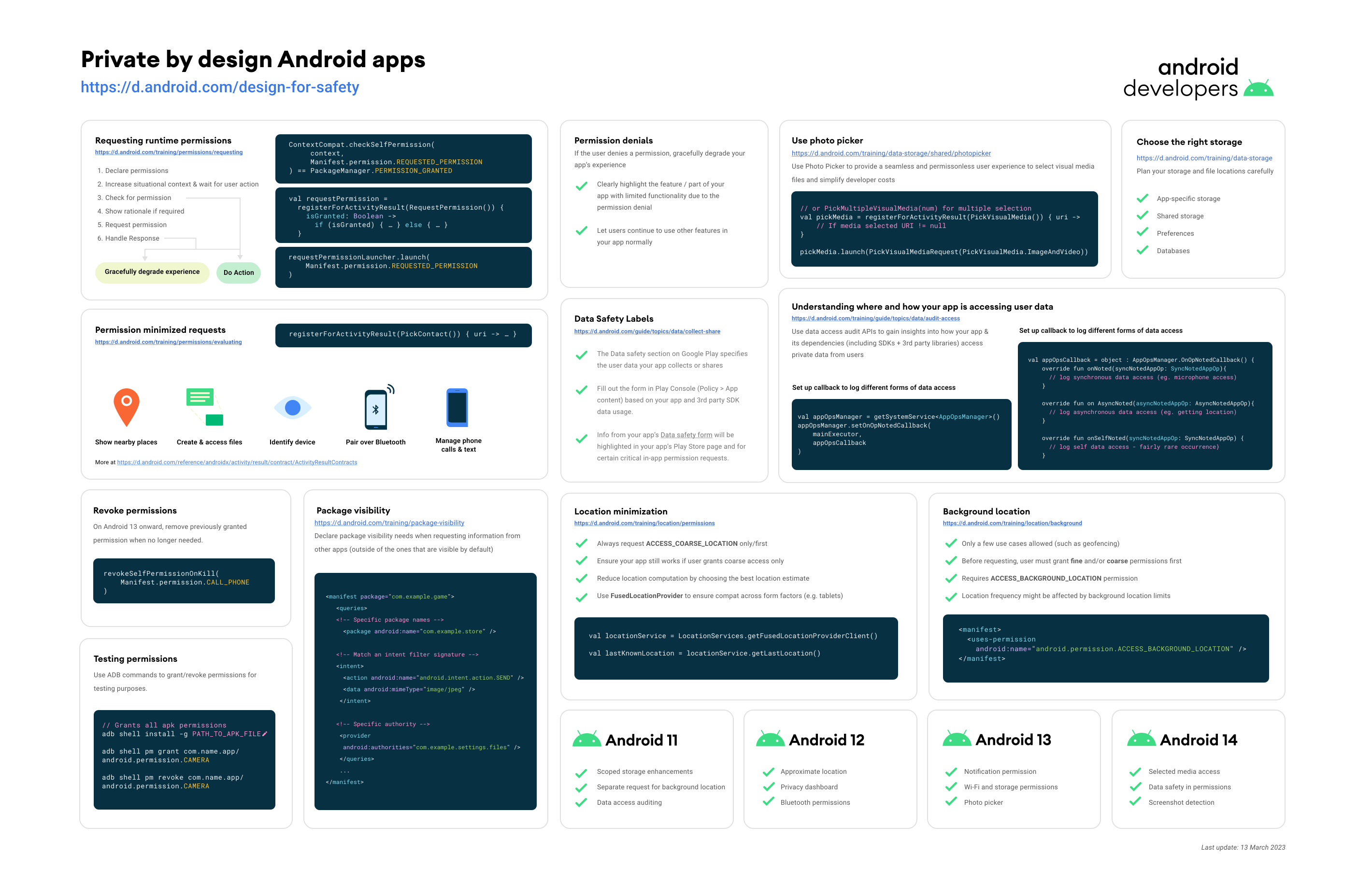
As part of improving app quality and protecting user privacy, we recommend you minimize the permissions usage in your apps. This helps users discover and use high-quality apps that provide a safe and secure user environment.
Requesting permissions from users interrupts the user flow, and users can deny your request. In addition, each time you declare a new permission, you must review how your app requests and shares user data. Some particularly sensitive permissions and APIs require you to provide in-app disclosure of your data access, collection, use, and sharing.
There are multiple alternative ways to minimize permission usage:
- Declare permissions which provide coarse location information, rather than precise location information, if your app just needs approximate location.
- Call APIs which allow your app to perform the desired functionality without declaring permissions.
- Invoke specific intents or event handlers to perform functionality, instead of declaring permissions.
- The system provides built-in contracts for different file operations and also supports custom contracts.
If you must declare a permission, always respect the user's decision and provide a way to gracefully degrade your app's experience.
This page describes several use cases that your app can fulfill without declaring the need for any permissions.
Your app might need to know the user's approximate location. This is useful for showing location-aware information, such as nearby restaurants.
Some use cases only require a rough estimate of a device's location. In these situations, do one of the following, depending on how often your app needs location-aware information:
- If your app frequently needs location, declare the
ACCESS_COARSE_LOCATIONpermission. The permission provides a device location estimate from location services, as described in the documentation about approximate location accuracy. - If your app needs location less often, or only once, consider asking the user to enter an address or a postal code instead.
Other use cases require a more precise estimate of a device's location. Those situations are the only times when it's OK to declare the ACCESS_FINE_LOCATION permission.
Android lets you create and access files without needing to declare any permissions related to storage or sensors.
Your app might allow users to choose from their photos and videos, such as for message attachments or profile pictures.
To support this functionality, use the photo picker. The photo picker doesn't require any runtime permissions to use. When a user interacts with the photo picker to select photos or videos to share with your app, the system grants temporary read access to the URI associated with the selected media files.
If your app needs to access media files without using the photo picker, you don't need to declare any storage permissions:
- If you access media files that your app created, your app already has access to these files in the media store.
- If you access media files that other apps created, use the Storage Access Framework.
Your app might show documents that the user created, either in your app or in another app. A common example is a text file.
In this situation, declare the READ_EXTERNAL_STORAGE only for compatibility with older devices. Set the android:maxSdkVersion to 28.
Depending on which app created the document, do one of the following:
- If the user created the document in your app, access it directly.
- If the user created the document in another app, use the Storage Access Framework.
Users might take pictures in your app, using the pre-installed system camera app.
In this situation, don't declare the CAMERA permission. Instead, invoke the ACTION_IMAGE_CAPTURE intent action.
Users might record videos in your app, using the pre-installed system camera app.
In this situation, don't declare the CAMERA permission. Instead, invoke the ACTION_VIDEO_CAPTURE intent action.
A particular instance of your app might need to know which device it's running on. This is useful for apps that have device-specific preferences or messaging, such as different playlists for TV devices and wearable devices.
In this situation, don't access the device's IMEI directly. In fact, as of Android 10, you can't do so. Instead, do one of the following:
- Get a unique device identifier for your app's instance using the Instance ID library.
- Create your own identifier that's scoped to your app's storage. Use basic system functions, such as
randomUUID().
Your app might offer an enhanced experience by transferring data to another device over Bluetooth.
To support this functionality, don't declare the ACCESS_FINE_LOCATION, ACCESS_COARSE_LOCATIION, or BLUETOOTH_ADMIN permissions. Instead, use companion device pairing.
Google Play services offers a library that lets you automatically enter a payment card number. Instead of declaring the CAMERA permission, you can use the debit and credit card recognition library.
Android and Google Play services offer libraries that let you manage phone calls and text messages without needing to declare any permissions related to phone calls or SMS messages.
To streamline a two-factor authentication workflow, your app might automatically enter the one-time passcode that is sent to a user's device to verify their identity.
To support this functionality on devices powered by Google Play services, don't declare the READ_SMS permission. Instead, use the SMS Retriever API.
On other devices, if your app targets Android 8.0 (API level 26) or higher, generate an app-specific token using createAppSpecificSmsToken(). Pass this token to another app or service that can send a verification SMS message.
To provide more efficient sales or support, your app might allow the user to enter their device's phone number automatically.
To support this functionality on devices powered by Google Play services, don't declare the READ_PHONE_STATE permission. Instead, use the Phone Number Hint library.
To minimize unnecessary interruptions for the user, your app might filter phone calls for spam.
To support this functionality, don't declare the READ_PHONE_STATE permission. Instead, use the CallScreeningService API.
Your app might offer the ability to place a phone call by tapping a contact's information.
To support this functionality, use the ACTION_DIAL intent action rather than the ACTION_CALL action. ACTION_CALL requires the install-time permission CALL_PHONE, which prevents devices that can't place calls, such as some tablets, from installing your application.
If the user receives a phone call, or if a user-configured alarm occurs, your app should pause any media playback until your app regains audio focus.
To support this functionality, don't declare the READ_PHONE_STATE permission. Instead, implement the onAudioFocusChange() event handler, which runs automatically when the system shifts its audio focus. Learn more about how to implement audio focus.
Android includes support for the Google Code Scanner API, powered by Google Play services, which allows you to decode barcodes without declaring any camera permissions. This API helps preserve user privacy and makes it less likely that you need to create a custom UI for your barcode-scanning use case.
The API scans the barcode and only returns the scan results to your app. Images are processed on-device, and Google doesn't store any data or scan results.
If your app needs to support complex use cases or barcode formats, or if it requires a custom UI, use the ML Kit barcode scanning API instead.
Android provides multiple ways to reset unused runtime permissions to their default, denied state.
Read design guidance.
Once you've evaluated that your app needs to declare and request runtime permissions, follow a specific workflow to do so.
Read design guidance.
Using requestPermissions() displays a dialog indicating which permissions your app wants to use but doesn't explain why, which might be puzzling to the user.
For more details and recommendations on how and when to show this dialog, read design guidance.
Your app should help users understand the implications of denying a permission before and after they choose to do so.
Read design guidance.
The Play Console includes a Data safety form on the App content page. In this form, you explain to users which types of user data your app collects and shares. This information helps promote data transparency and user trust.
To help you fill out this form, this guide provides examples of places in your app's code where your app may collect different types of user data. In particular, it provides examples of permission declarations and API calls that your app may use to collect or share a particular type of user data, which would require you to declare that collection or sharing in the Data safety form.
The guide has the following format:
- The main headings list the different categories of data types that are available in the Data safety form, along with a non-exhaustive list of ways that your app, or a library included in your app, may access user data related to that category.
- The sub-headings list the different data types that are available in the form, to remind you of the data types that are part of a particular category.
While we are offering this guidance to make it easier for you to complete the Data safety form, you alone are responsible for making complete and accurate declarations in your app's Play store listing. Only you possess all the information required to complete the Data safety form. Google cannot make determinations on behalf of developers regarding how they collect or handle user data based on their particular usage and practices. It's up to developers to appropriately handle any user data that their apps collect or share. When we become aware of a discrepancy between your app behavior and your declaration, we may take appropriate action, including enforcement action.
The details in this guidance are subject to change as we continue working with developers and to improve both developer and user experiences. For more information, read this blog post.
In addition to the specific suggestions listed in the following sections, there may be more general indicators that your app, or a library included in your app, collects or shares user data. These indicators include, but aren't limited to, the following:
- UI components that hide text input, such as password entry fields.
- Workflows that request the user to authenticate using biometrics.
- Forms and alerts that prompt the user to enter user data, confirm a submission, or make a choice.
- Code that controls the behavior of a
WebViewelement in your app. - Support for the autofill framework.
- Use of the data access auditing APIs.
There are different ways that your app, or a library included in your app, may access user data related to location. The following list provides several examples but isn't exhaustive:
- Declares at least one of the following permissions:
ACCESS_COARSE_LOCATIONACCESS_FINE_LOCATIONACCESS_MEDIA_LOCATION
- Derives location information from an IP address or access point name.
User or device physical location to an area greater than or equal to 3 square kilometers, such as the city a user is in, or location provided by Android's ACCESS_COARSE_LOCATION permission.
User or device physical location within an area less than 3 square kilometers, such as location provided by Android's ACCESS_FINE_LOCATION permission.
There are different ways that your app, or a library included in your app, may access user data related to personal information. The following list provides several examples but isn't exhaustive:
- Declares at least one of the following permissions:
BIND_AUTOFILL_SERVICEGET_ACCOUNTS
- Uses the
AccountManagerAPI.
How a user refers to themselves, such as their first or last name, or nickname.
A user's email address.
User IDs that relate to an identifiable person. For example, an account ID, account number, or account name.
A user's address, such as a mailing or home address.
A user's phone number.
In addition to the broader suggestions listed at the beginning of this section, there may be more specific indicators that your app, or a library included in your app, collects or shares a user's phone number. These indicators include, but aren't limited to, the following:
- Declares at least one of the following permissions:
READ_CALL_LOGREAD_PHONE_NUMBERSREAD_PHONE_STATE, if your app targets Android 10 (API level 29) or lowerREAD_SMS
- Requests user consent to become the device's default dialer app or default SMS app.
- Has carrier privileges.
Information about a user's race or ethnicity.
Information about a user's political or religious beliefs.
Information about a user's sexual orientation.
Any other personal information. For example, a user's date of birth, gender identity, or veteran status.
There are different ways that your app, or a library included in your app, may access user data related to financial information. The following list provides several examples but isn't exhaustive:
- Uses Google Play's Billing Library.
- Uses the Google Pay APIs.
- Declares the
BIND_AUTOFILL_SERVICEpermission and uses the autofill framework.
Information about a user's financial accounts such as credit card number.
Information about purchases or transactions a user has made.
Information about a user's credit. For example, their credit history or credit score.
Any other financial information. For example, a user's salary or debts.
There are different ways that your app, or a library included in your app, may access user data related to health & fitness. The following list provides several examples but isn't exhaustive:
- Declares at least one of the following permissions:
ACTIVITY_RECOGNITIONBODY_SENSORSBODY_SENSORS_BACKGROUND
- Uses at least one of the following APIs:
Information about a user's health, such as medical records or symptoms.
Information about a user's fitness, such as exercise or other physical activity.
There are different ways that your app, or a library included in your app, may access user data related to messages. The following list provides several examples but isn't exhaustive:
- Declares at least one of the following permissions:
READ_SMSRECEIVE_MMSRECEIVE_SMSRECEIVE_WAP_PUSHSEND_SMSWRITE_SMSdepending on developer usage
A user's emails including the email subject line, sender, recipients, and the content of the email.
A user's text messages including the sender, recipients, and the content of the message.
Any other types of messages. For example, instant messages or chat content.
There are different ways that your app, or a library included in your app, may access user data related to photos or videos. The following list provides several examples but isn't exhaustive:
- Uses the system photo picker.
- Declares at least one of the following permissions:
READ_EXTERNAL_STORAGEREAD_MEDIA_IMAGESREAD_MEDIA_VIDEOREAD_MEDIA_AUDIOWRITE_EXTERNAL_STORAGE
- Provides a workflow for handling media files.
- Record HDR video content.
A user's photos.
A user's videos.
There are different ways that your app, or a library included in your app, may access user data related to audio files. The following list provides several examples but isn't exhaustive:
- Declares at least one of the following permissions:
CAPTURE_AUDIO_OUTPUTRECORD_AUDIOREAD_EXTERNAL_STORAGEWRITE_EXTERNAL_STORAGE
- Provides a workflow for handling media files.
A user's voice such as a voicemail or a sound recording.
A user's music files.
Any other user-created or user-provided audio files.
There are different ways that your app, or a library included in your app, may access user data related to files and docs. The following list provides several examples but isn't exhaustive:
- Declares at least one of the following permissions:
READ_EXTERNAL_STORAGEWRITE_EXTERNAL_STORAGEMANAGE_EXTERNAL_STORAGE
- Provides a workflow for data and file storage.
- Provides a workflow for data backup.
There are different ways that your app, or a library included in your app, may access user data related to the user's calendar. The following list provides several examples but isn't exhaustive:
READ_CALENDARWRITE_CALENDAR
There are different ways that your app, or a library included in your app, may access user data related to the user's contacts. The following list provides several examples but isn't exhaustive:
- Declares at least one of the following permissions:
ACCEPT_HANDOVERADD_VOICEMAILANSWER_PHONE_CALLSCALL_PHONEPROCESS_OUTGOING_CALLSREAD_CALL_LOGREAD_CONTACTSREAD_PHONE_NUMBERSREAD_PHONE_STATEREAD_SMSRECEIVE_MMSRECEIVE_SMSRECEIVE_WAP_PUSHSEND_SMSWRITE_CONTACTS
There are different ways that your app, or a library included in your app, may access user data related to the user's app activity. The following list provides several examples but isn't exhaustive:
- Binds to a system service, such as
AccessibilityServiceorTextService. - Declares the
QUERY_ALL_PACKAGESpermission and callsgetInstalledApplications()or similar methods. - Creates a search interface.
- Supports the Google Shortcuts Integration Library.
- Uses the
InstrumentationAPI.
Information about how a user interacts with your app. For example, the number of times they visit a page, or what they tap on.
Information about what a user has searched for in your app.
Information about the apps installed on a user's device.
Any other user-generated content not listed here, or in any other section. For example, user bios, notes, or open-ended responses.
Any other user actions not listed here. For example, gameplay information likes, or dialog options.
There are different ways that your app, or a library included in your app, may access user data related to web browsing. The following list provides several examples but isn't exhaustive:
- Sends requests to users to make your app the default browser app.
- Maintains a browsing cache or cookies.
- Creates a search interface.
There are different ways that your app, or a library included in your app, may access user data related to app info and performance. The following list provides several examples but isn't exhaustive:
- Declares the
BATTERY_STATSpermission. - Uses APIs such as the following:
- Calls methods such as the following:
getAudioDevicesForAttributes()andgetDirectProfilesForAttributes()from theAudioManagerAPI.
Crash log data from your app. For example, the number of times your app has crashed, stack traces, or other information directly related to a crash.
Information about the performance of your app. For example: battery life, loading time, latency, framerate, or any technical diagnostics.
Any other app performance data not listed here.
Examples of these IDs include: an IMEI number, MAC address, Widevine Device ID, Firebase installation ID, or advertising identifier.
There are different ways that your app, or a library included in your app, may access user data related to device or other IDs. The following list provides several examples but isn't exhaustive:
- Declares at least one of the following permissions:
AD_ID(Google Play services permission)READ_PRIVILEGED_PHONE_STATE
- Uses API such as
AdvertisingIdClient. - Derives device or other identifier information from an IP address or access point name.
The following table provides a summary of changed content on this page:
- Date: December 13 2022
- Description of change: Updated the location, health and fitness, photos and videos, app info and performance, and device or other IDs categories to mention the capabilities introduced in Android 13.
- Date: February 24, 2022
- Description of change: Changed the name of the Device or other identifiers data type category to Device or other IDs. Changed the names and descriptions of several data types, including data types in the Personal info, Financial info, Health and fitness, Messages, and App activity categories.
- Date: January 4, 2022
- Description of change: Updated the "Sexual orientation and gender identity" data type. This data type now refers to only sexual orientation. Gender identity is now an example of other personal information.
- Date: October 18, 2021
- Description of change: Initial version published.
You can gain insights into how your app and its dependencies access private data from users by performing data access auditing. This process, available on devices that run Android 11 (API level 30) and higher, lets you better identify potentially unexpected data access. Your app can register an instance of AppOpsManager.OnOpNotedCallback, which can perform actions each time one of the following events occurs:
- Your app's code accesses private data. To help you determine which logical part of your app invoked the event, you can audit data access by attribution tag.
- Code in a dependent library or SDK accesses private data.
Data access auditing is invoked on the thread where the data request takes place. This means that if a third-party SDK or library in your app calls an API that accesses private data, data access auditing lets your OnOpNotedCallback examine information about the call. Usually, this callback object can tell whether the call came from your app or the SDK by looking at the app's current status, such as the current thread's stack trace.
To perform data access auditing using an instance of AppOpsManager.OnOpNotedCallback, implement the callback logic in the component where you intend to audit data access, such as within an activity's onCreate() method or an application's onCreate() method.
The following code snippet defines an AppOpsManager.OnOpNotedCallback for auditing data access within a single activity:
override fun onCreate(savedInstanceState: Bundle?) {
    val appOpsCallback = object : AppOpsManager.OnOpNotedCallback() {
        private fun logPrivateDataAccess(opCode: String, trace: String) {
            Log.i(MY_APP_TAG, "Private data accessed. " +
                    "Operation: $opCode\nStack Trace:\n$trace")
        }

        override fun onNoted(syncNotedAppOp: SyncNotedAppOp) {
            logPrivateDataAccess(
                    syncNotedAppOp.op, Throwable().stackTrace.toString())
        }

        override fun onSelfNoted(syncNotedAppOp: SyncNotedAppOp) {
            logPrivateDataAccess(
                    syncNotedAppOp.op, Throwable().stackTrace.toString())
        }

        override fun onAsyncNoted(asyncNotedAppOp: AsyncNotedAppOp) {
            logPrivateDataAccess(asyncNotedAppOp.op, asyncNotedAppOp.message)
        }
    }

    val appOpsManager =
            getSystemService(AppOpsManager::class.java) as AppOpsManager
    appOpsManager.setOnOpNotedCallback(mainExecutor, appOpsCallback)
}
@Override
public void onCreate(@Nullable Bundle savedInstanceState,
        @Nullable PersistableBundle persistentState) {
    AppOpsManager.OnOpNotedCallback appOpsCallback =
            new AppOpsManager.OnOpNotedCallback() {
        private void logPrivateDataAccess(String opCode, String trace) {
            Log.i(MY_APP_TAG, "Private data accessed. " +
                    "Operation: $opCode\nStack Trace:\n$trace");
        }

        @Override
        public void onNoted(@NonNull SyncNotedAppOp syncNotedAppOp) {
            logPrivateDataAccess(syncNotedAppOp.getOp(),
                    Arrays.toString(new Throwable().getStackTrace()));
        }

        @Override
        public void onSelfNoted(@NonNull SyncNotedAppOp syncNotedAppOp) {
            logPrivateDataAccess(syncNotedAppOp.getOp(),
                    Arrays.toString(new Throwable().getStackTrace()));
        }

        @Override
        public void onAsyncNoted(@NonNull AsyncNotedAppOp asyncNotedAppOp) {
            logPrivateDataAccess(asyncNotedAppOp.getOp(),
                    asyncNotedAppOp.getMessage());
        }
    };

    AppOpsManager appOpsManager = getSystemService(AppOpsManager.class);
    if (appOpsManager != null) {
        appOpsManager.setOnOpNotedCallback(getMainExecutor(), appOpsCallback);
    }
}
The onAsyncNoted() and onSelfNoted() methods are called in specific situations:
-
onAsyncNoted()is called if the data access doesn't happen during your app's API call. The most common example is when your app registers a listener and the data access happens each time the listener's callback is invoked.The
AsyncNotedOpargument that's passed intoonAsyncNoted()contains a method calledgetMessage(). This method provides more information about the data access. In the case of the location callbacks, the message contains the system-identity-hash of the listener. -
onSelfNoted()is called in the very rare case when an app passes its own UID intonoteOp().
Your app might have several primary use cases, such as letting users capture photos and share these photos with their contacts. If you develop a multi-purpose app, you can apply an attribution tag to each part of your app when you audit its data access. The attributionTag context is returned back in the objects passed to the calls to onNoted(). This helps you more easily trace data access back to logical parts of your code.
To define attribution tags in your app, complete the steps in the following sections.
If your app targets Android 12 (API level 31) or higher, you must declare attribution tags in your app's manifest file, using the format shown in the following code snippet. If you attempt to use an attribution tag that you don't declare in your app's manifest file, the system creates a null tag for you and logs a message in Logcat.
<manifest ...>
    <!-- The value of "android:tag" must be a literal string, and the
         value of "android:label" must be a resource. The value of
         "android:label" is user-readable. -->
    <attribution android:tag="sharePhotos"
                 android:label="@string/share_photos_attribution_label" />
    ...
</manifest>
In the onCreate() method of the activity where you access data, such as the activity where you request location or access the user's list of contacts, call createAttributionContext(), passing in the attribution tag that you wish to associate with a part of your app.
The following code snippet demonstrates how to create an attribution tag for a photo-location-sharing part of an app:
class SharePhotoLocationActivity : AppCompatActivity() {
    lateinit var attributionContext: Context

    override fun onCreate(savedInstanceState: Bundle?) {
        attributionContext = createAttributionContext("sharePhotos")
    }

    fun getLocation() {
        val locationManager = attributionContext.getSystemService(
                LocationManager::class.java) as LocationManager
        // Use "locationManager" to access device location information.
    }
}
public class SharePhotoLocationActivity extends AppCompatActivity {
    private Context attributionContext;

    @Override
    public void onCreate(@Nullable Bundle savedInstanceState,
            @Nullable PersistableBundle persistentState) {
        attributionContext = createAttributionContext("sharePhotos");
    }

    public void getLocation() {
        LocationManager locationManager =
                attributionContext.getSystemService(LocationManager.class);
        if (locationManager != null) {
            // Use "locationManager" to access device location information.
        }
    }
}
Update your AppOpsManager.OnOpNotedCallback callback so that your app's logs include the names of the attribution tags that you defined.
The following code snippet shows updated logic that logs attribution tags:
val appOpsCallback = object : AppOpsManager.OnOpNotedCallback() {
    private fun logPrivateDataAccess(
            opCode: String, attributionTag: String, trace: String) {
        Log.i(MY_APP_TAG, "Private data accessed. " +
                    "Operation: $opCode\n " +
                    "Attribution Tag:$attributionTag\nStack Trace:\n$trace")
    }

    override fun onNoted(syncNotedAppOp: SyncNotedAppOp) {
        logPrivateDataAccess(syncNotedAppOp.op,
                syncNotedAppOp.attributionTag,
                Throwable().stackTrace.toString())
    }

    override fun onSelfNoted(syncNotedAppOp: SyncNotedAppOp) {
        logPrivateDataAccess(syncNotedAppOp.op,
                syncNotedAppOp.attributionTag,
                Throwable().stackTrace.toString())
    }

    override fun onAsyncNoted(asyncNotedAppOp: AsyncNotedAppOp) {
        logPrivateDataAccess(asyncNotedAppOp.op,
                asyncNotedAppOp.attributionTag,
                asyncNotedAppOp.message)
    }
}
@Override
public void onCreate(@Nullable Bundle savedInstanceState,
        @Nullable PersistableBundle persistentState) {
    AppOpsManager.OnOpNotedCallback appOpsCallback =
            new AppOpsManager.OnOpNotedCallback() {
        private void logPrivateDataAccess(String opCode,
                String attributionTag, String trace) {
            Log.i("MY_APP_TAG", "Private data accessed. " +
                    "Operation: $opCode\n " +
                    "Attribution Tag:$attributionTag\nStack Trace:\n$trace");
        }

        @Override
        public void onNoted(@NonNull SyncNotedAppOp syncNotedAppOp) {
            logPrivateDataAccess(syncNotedAppOp.getOp(),
                    syncNotedAppOp.getAttributionTag(),
                    Arrays.toString(new Throwable().getStackTrace()));
        }

        @Override
        public void onSelfNoted(@NonNull SyncNotedAppOp syncNotedAppOp) {
            logPrivateDataAccess(syncNotedAppOp.getOp(),
                    syncNotedAppOp.getAttributionTag(),
                    Arrays.toString(new Throwable().getStackTrace()));
        }

        @Override
        public void onAsyncNoted(@NonNull AsyncNotedAppOp asyncNotedAppOp) {
            logPrivateDataAccess(asyncNotedAppOp.getOp(),
                    asyncNotedAppOp.getAttributionTag(),
                    asyncNotedAppOp.getMessage());
        }
    };

    AppOpsManager appOpsManager = getSystemService(AppOpsManager.class);
    if (appOpsManager != null) {
        appOpsManager.setNotedAppOpsCollector(appOpsCollector);
    }
}