Repository navigation
Updating
From version 1.4.0 on, OPDS Plus updates itself. Versions before 1.4.0 can't, so install 1.4.0 or later by hand once, as described in Installation.
- Open OPDS Plus Catalog → Settings → Updates and tap Check for updates.
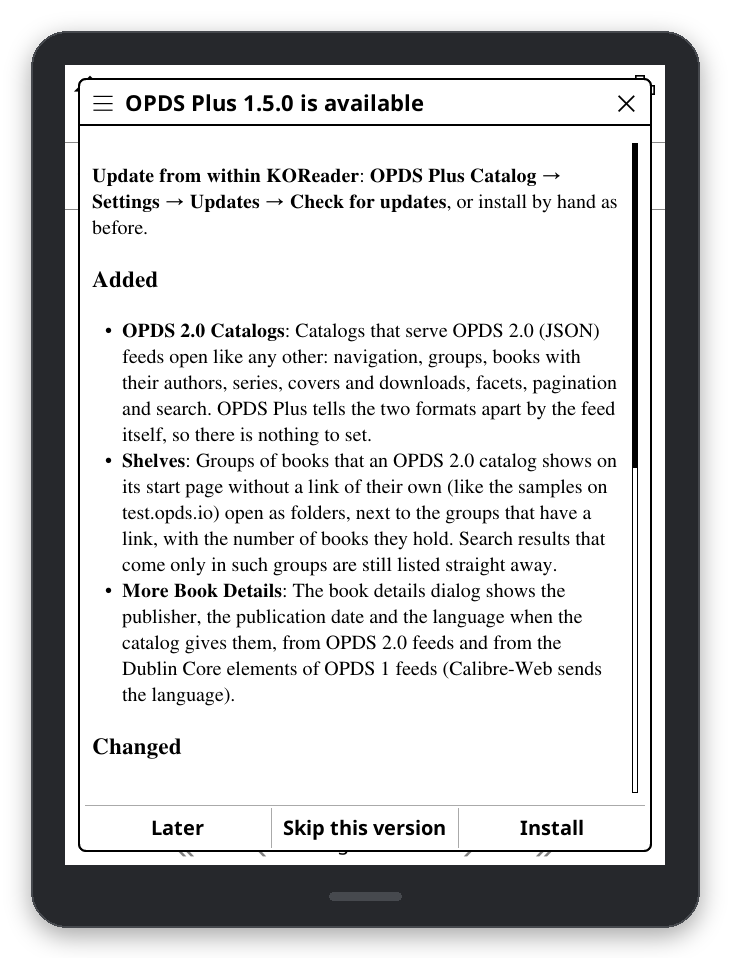
- If there is a newer release, its release notes are shown. Tap Install, Skip this version or Later.
- Restart KOReader when asked.
The update is downloaded from GitHub, its checksum is compared with the one published with the release, and
every file in it is checked before anything is changed. The installed version is then swapped for the new one,
and kept next to it as opds_plus.koplugin.bak.
From 1.6.0, notes are formatted with headings, lists and emphasis. Current KOReader uses its native Markdown viewer; KOReader v2025.10 uses a compatibility viewer built from its existing Markdown converter and HTML scroller. The compatibility viewer keeps the general text viewer's font size and text style. Use the page keys or touch scrolling to read long notes. Install, Skip this version and Later are unchanged. Links and remote images in notes are not opened or fetched.
If formatting fails, View as plain text opens the complete original notes with the same update controls. Cancelling that prompt does not install or skip the release.
Automatic update check (weekly) is on by default. When you open OPDS Plus and the last completed check is at least a week old, it checks for a new release if the device is already online and tells you about it once with a short notice. It never installs anything by itself. A version you skipped is not announced again. About OPDS Plus, at the bottom of Settings, shows when the last check was made.
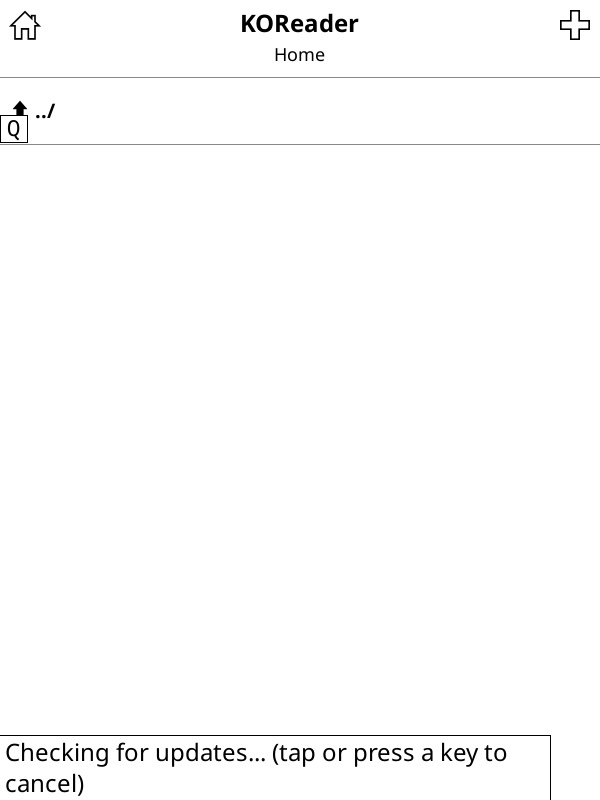
Connectivity probes and release requests run in a background worker. Manual checks show a status that you can cancel with a tap or key. An automatic check is invisible; input interrupts it and is passed through to the screen underneath. It never turns Wi-Fi on. A manual check retains KOReader's usual Wi-Fi prompt/action when offline.
Cancelled or watchdog-aborted checks leave Last checked unchanged and may retry on the next catalog open; there is no automatic retry loop. One check runs at a time, and manual checks replace automatic ones. Background workers have a 20-second watchdog, including a stalled connectivity probe. Suspending, closing KOReader, installing/rolling back, or deleting plugin settings cancels pending work.
If workers are unavailable, automatic checks only log the failure. A manual check offers a foreground option and warns that input will pause; it never falls back to blocking without asking.
After an update, Roll back to previous version puts the version before it back, and keeps the newer one so you can switch again. Restart KOReader afterwards.
If the device lost power in the middle of an update and OPDS Plus is gone from the menu, open KOReader's
plugins folder and rename opds_plus.koplugin.bak back to opds_plus.koplugin.
A plugin folder that is a link, or has a .git folder in it, is a development install: update it with
git pull. Allow updating a development install lets the updater replace it anyway. A linked folder is then
moved aside as the backup, and the folder it points to is not changed.
A check is one request to api.github.com for the latest release of this repository, with the user agent
OPDSPlus/<version>. GitHub sees your IP address, as with any request. Nothing else is sent, and OPDS Plus has
no server of its own. The security policy
describes how the updater checks connections and archives.
| Message | What to do |
|---|---|
| Could not reach GitHub | Check the Wi-Fi connection and try again. |
| The secure connection to GitHub failed | Correct the device's date and time if they are wrong, then try again. |
| GitHub answered with an error | Try again later. GitHub limits how often a device may ask. |
| The plugins folder can't be written to / not enough free space | Free some space, or install by hand. |
| This KOReader can't open zip archives | Install the update by hand from the release page. |
| The release notes could not be formatted | Choose View as plain text to read the original notes and keep the update controls. |
| The downloaded update did not match its checksum | Nothing was changed. Try again; if it keeps failing, install by hand. |
In every case the installed version is kept.