Repository navigation
Views and Features
Settings are under OPDS Plus Catalog → Settings and are kept between sessions.
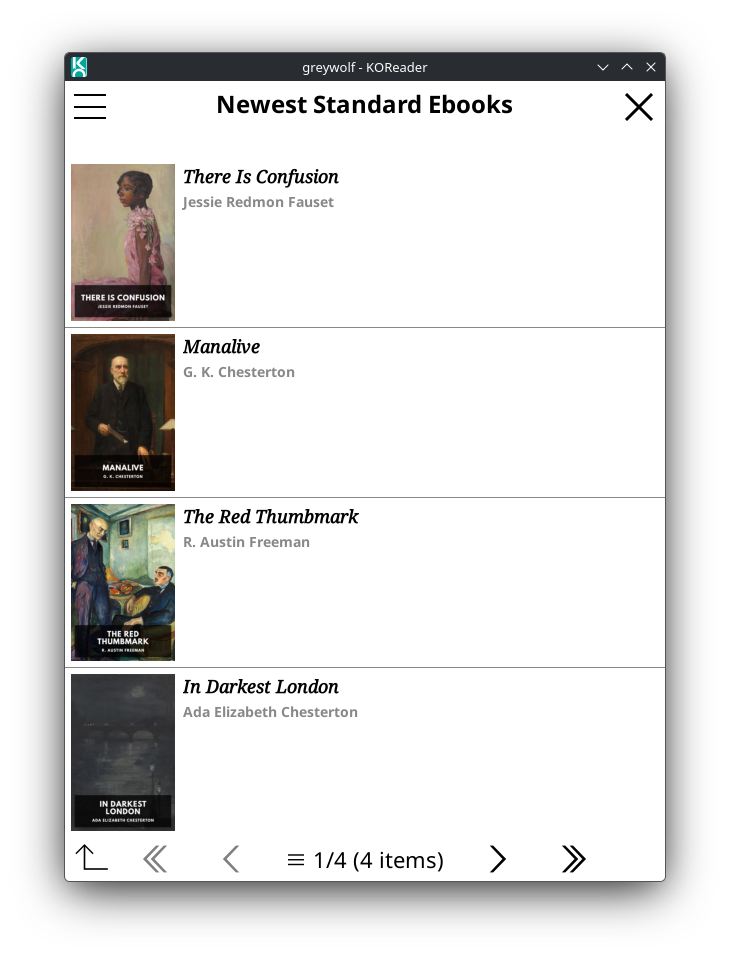
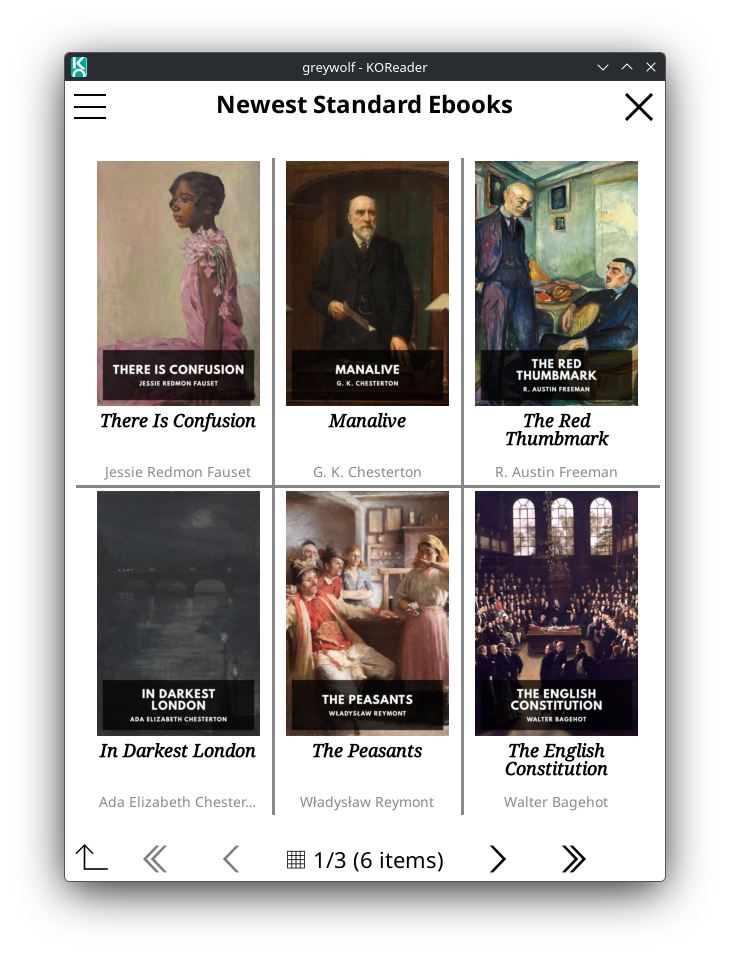
| List View | Grid View |
|---|---|
 |
 |
- List View shows each book's cover next to its title, authors and series. Cover Size (under List View Settings) has presets from Compact (8% of the screen height) to Extra Large (20%), or a custom size from 5% to 25%.
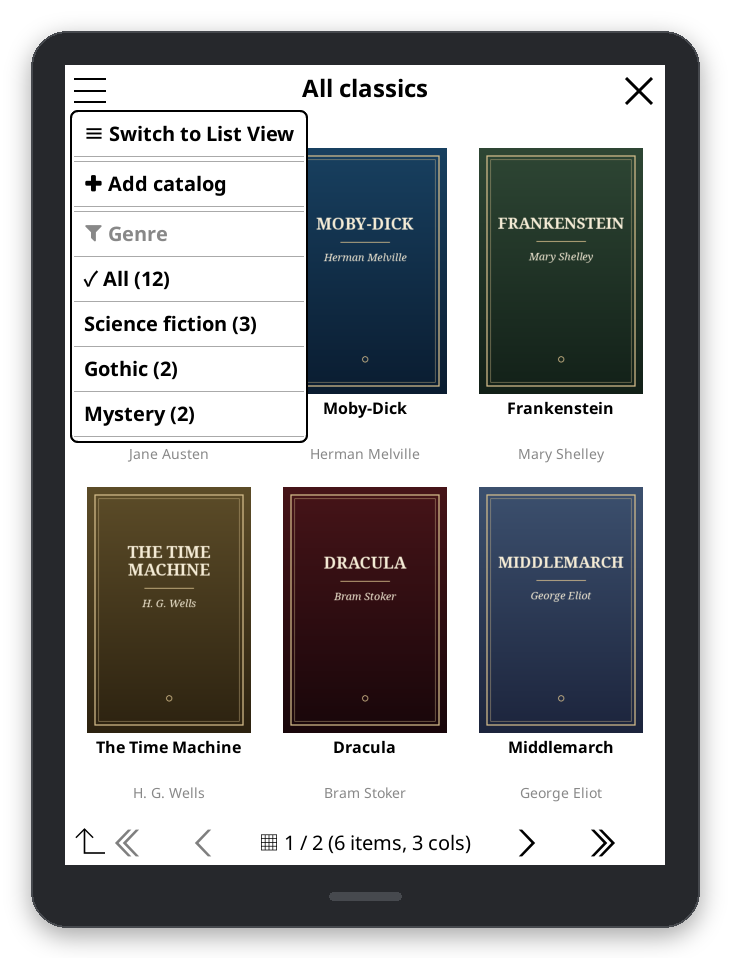
- Grid View shows covers in 2 to 4 columns. Grid Layout has Compact (4 columns), Balanced (3) and Spacious (2); Grid Borders sets no borders, a hash grid or individual tiles, with their thickness and colour.
- Switch between them with the menu at the top left of a catalog page (Switch to Grid View / Switch to List View), or set the default under Settings → Display Mode.
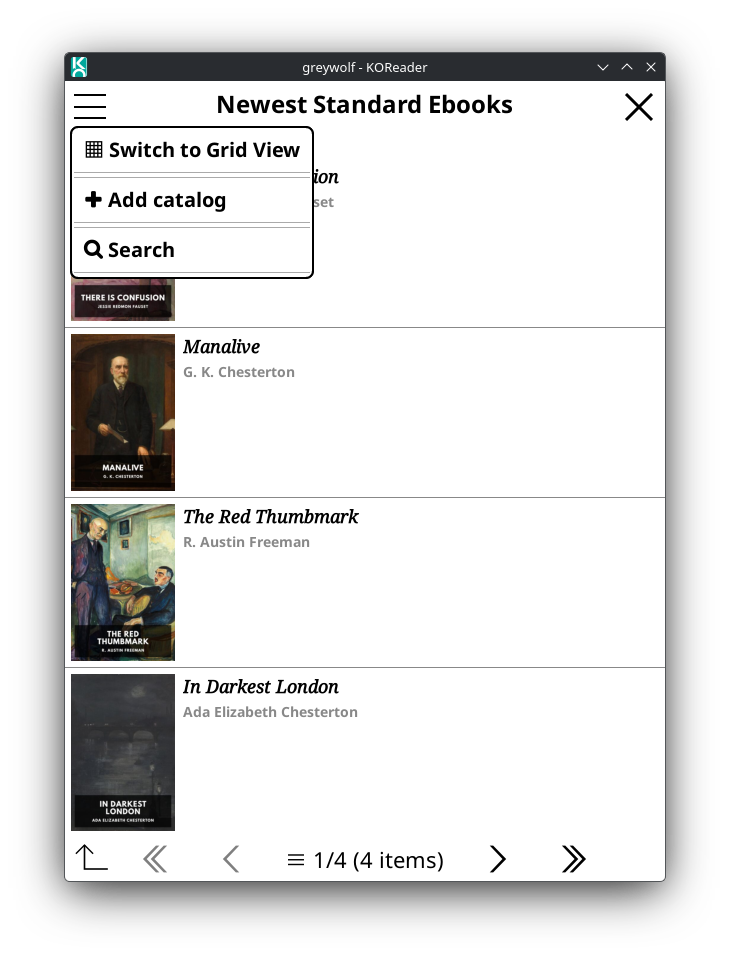
Font & Text sets the font, size and weight of titles and of the details under them, separately or with one font for both, and the colour of the details.
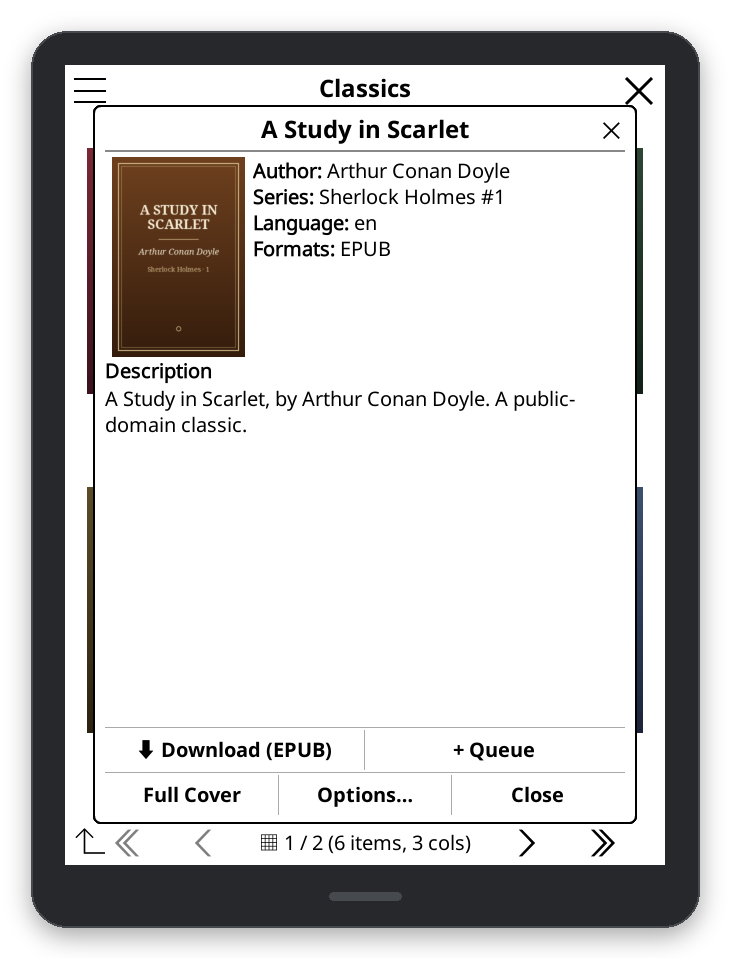
Tapping a book opens its details: cover, authors, series and number, publisher, publication date, language, description and the formats you can download, when the catalog provides them. From there you can download a format, choose the folder, change the file name, or view the cover.
OPDS Plus removes a leading Calibre-style SERIES: metadata line from the description only when
its name and number match the series field. Rating/tags and the story text remain; a series mentioned in
prose, later in the description, or with different metadata is kept. The same text is used in download
information and when saving a new description. Existing downloaded-book descriptions are not rewritten.
- Save Description with Downloads (on by default) saves the catalog's description with the file, so it shows in KOReader's Book information. A description the book already has, or one you edited, is never replaced. To remove a saved one, long-press it in Book information and tap Reset custom.
- Use server filenames (in a catalog's Edit dialog) keeps the server's file name instead of "Author - Title".
Under Cover Settings:
- Prefer Large Covers: use higher-quality covers when the catalog has them, instead of faster thumbnails.
- Enable Cover Cache: keep downloaded covers on the device. Advanced sets the cache size and how long covers are kept, and clears the cache.
- Parallel Cover Downloads (on by default): download several covers at once in the background. Turn it off if covers stop loading or the device runs low on memory.
- Prefetch Neighboring Covers (off by default): once the visible covers are ready and input is idle, cache covers for one neighboring display page, following the last navigation direction (initially forward). Requires caching and parallel downloads. It shares the two-worker limit, does not decode or paint speculative covers, and never fetches a catalog page just to discover more cover links.
- Thumbnails on Navigation Entries (on by default): show thumbnails for entries such as a series or an author, when the server provides them.
Warming stops when the page, view or catalog changes, a dialog covers the browser, or the browser closes. Disabling prefetch, caching or parallel downloads also cancels it. Devices that cannot start background processes skip warming instead of fetching synchronously.
OPDS Plus retains up to 8 MiB of decoded covers per browser, separate from the disk cache. Images still used on screen or by a dialog are never evicted, so they can exceed that budget. Older, unused covers are decoded again from disk when needed (or downloaded if disk caching is off). Replacing the listing or closing its browser releases unused images. This does not cap KOReader's total RAM.
- Add catalog is in the menu at the top left of the list of catalogs. Inside a catalog, the same menu's Add catalog saves the page you are on as a catalog of its own.
- Long-press a catalog to edit, delete or sync it.
- Default Catalog opens your favourite catalog straight away when you browse catalogs. Press Back for the list.
- Search and facets (filters such as genre, with their counts) are in the menu at the top left when the catalog offers them.
Catalog requests, parsing and mapping run in the background. Tap or press a key while Loading catalog... is shown to cancel without replacing the current listing or changing its page or history. A new navigation request or closing the browser also cancels old work, including a request still waiting for Wi-Fi. Catalog pages are fetched sequentially as needed; results are not truncated.
If a background process cannot start, the plugin asks before trying in the foreground. Load pauses input until that request finishes; Cancel leaves the current page alone. This is independent of the cover download setting. It does not speed up the server itself, and final widget construction still uses the UI thread.
Some servers only answer requests with extra headers: a server behind Cloudflare Access, for example, expects
CF-Access-Client-Id and CF-Access-Client-Secret. In a catalog's Edit dialog, tap Headers and write
one Name: value per line.
- The headers go with everything sent to the catalog's own server (same scheme, host and port): pages, covers, downloads, sync and Kavita page streaming. A redirect to another server is followed without them.
-
Host,Content-Length,ConnectionandAccept-Encodingcan't be set. AnAuthorizationheader replaces the catalog's username and password. - Headers are saved as plain text in
opdsplus.lua, like passwords. - Linked authentication-document discovery sends neither catalog credentials nor custom headers.
Sync downloads new books from the catalogs that have Sync catalog ticked in their Edit dialog.
- In the menu at the top left of the list of catalogs, tap Set sync folder (sync needs one), and optionally Set max number of files to sync and Set file types to sync.
- Tap Sync all catalogs. It stops at the last book synced before; Force sync all catalogs goes through the whole catalog again. A single catalog can be synced from its long-press menu.
Both actions are also in KOReader's gesture manager as OPDS Plus: Sync all catalogs and OPDS Plus: Force sync all catalogs.
This is separate from the default-off Sync streaming progress setting, which synchronizes page positions for supported Kavita/Komga streams. See the streaming guide for consent, conflicts and limitations. Downloaded-book reading positions are not synchronized.
On devices with keys, the D-pad moves the focus (an underline) from item to item, Enter opens it, Back goes up one level (and closes the browser at the top), and Home closes the browser.
- Settings, catalogs (with their passwords and headers) and download history:
<KOReader folder>/settings/opdsplus.lua. - Cached covers:
<KOReader folder>/cache/opds_plus/.
KOReader's plugin manager can remove both (Disable plugin and delete settings or Delete plugin and settings). Downloaded books are never deleted.