Repository navigation
Knowledge and Documents
Home › Using Granary › Work together › Knowledge and Documents
On this page: AI in this module · Articles and SOPs · Categories · The document library · Watermarks, tracking IDs and leaked copies · Partners and the library · Settings that affect this module · Permissions
The Knowledge Base holds two kinds of content. Articles & SOPs are Markdown pages your team writes and reads in Granary: wiki pages, guides, runbooks, policies, templates, FAQs and standard operating procedures (SOPs). Articles are signed by their author before they publish; SOPs also need the Owner's countersignature and go through approval. Documents is the library of finished files the company hands out, such as the company profile, brochures, datasheets and the internal price list. Each document has versions, an audience, an owner and a review date, and every copy that leaves the system carries a watermark footer and a hidden tracking ID. Everyone on the staff reads the knowledge base; editors, document owners and directors maintain it. Nary reads both to answer questions and to pick the right document for a customer.

The knowledge base is what Nary reads to answer "how do we..." questions, and Nary helps keep it up to date. See AI Across Granary.
- Answers from your SOPs: Nary searches published, non-private articles and SOPs and cites them in the chat.
- PDF to article: attach a Source PDF to a new article and the AI converts it to Markdown (scanned pages too). You check, sign and publish it (see below).
-
SOP drafts from the chat: "Write an SOP for handling returns". Nary shows a Draft SOP card; applying it
creates a draft article you review, publish and sign (needs
kb:manage_sops). - SOP revisions: on Nary > Report, under SOP revisions, the Owner can have Nary rewrite sales SOPs for the way the company works with Nary. The drafts wait in the knowledge base and go through the normal SOP approval.
- Documents: Nary searches and reads the library documents you may view (amounts hidden; the internal price list never), finds datasheets for a deal's products, and sends a document to a customer as a card. When writing to a customer it only offers documents meant for customers.
- AI knowledge (guidance only the AI reads) is separate from this module: see Nary AI Assistant.
- Open Knowledge Base > Articles & SOPs.
- Use the tabs to narrow the list: All, Published, Drafts, Archived or SOPs.
- Click a type chip (wiki, sop, runbook, ...) or a category chip to filter further, or type in Search articles (it matches titles).
- Click a row to see its category, version, views, dates and tags, then click Open article.
The cards above the list show Total articles, Published, SOPs and Total views.
What you see depends on your access:
- Staff who cannot edit the knowledge base see published articles only.
- Articles with the access level Management only or Restricted need the
kb:view_restrictedpermission. - A Private article (orange lock pill) is visible only to the person who created it.

- Open Knowledge Base > Articles & SOPs and click New article.
- Fill in Title. The Slug (the article's web address) is filled from the title; change it if you like. Slugs must be unique.
- Pick a Type: Wiki, SOP, Runbook, Guide, Policy, Template or FAQ.
- Pick an Access level: All staff, Department only, Management only or Restricted.
- Optionally add Tags (comma-separated), a Summary and a category.
- Turn on Only visible to me to make the article private.
- Write the body in Markdown. The toolbar inserts headings, bold, italic, lists, quotes, code, tables and horizontal rules; switch between Write and Preview.
- Click Save draft, or Save and publish.
A new article always starts as a draft. Save and publish only publishes it if the rules below allow it; an article still needs its author's signature first.
On Knowledge Base > Articles & SOPs, click Import .md (or drop a .md file on the button). Granary creates
a draft article from the file. YAML frontmatter at the top of the file (for example title, summary) fills the
matching fields; without a title, the first heading is used. Only .md files are accepted.
- Click New article, fill in the title and other fields, and attach a file under Source PDF (optional).
- Click Save draft. (Save and publish is disabled while a PDF is attached: you review the conversion first.)
- The article page shows the conversion progress. The AI converts the PDF to Markdown in a background job; long documents take a few minutes and the page refreshes itself.
- When it finishes, the page says Written by AI from the file name, with the page count and whether the PDF was scanned. Only the first 150 pages are converted.
- Check the text against the original (click Original to download it): conversion can misread tables and figures. Then edit, sign and publish as usual.
If the conversion fails or never starts, the page explains why and offers Re-convert. A conversion replaces the article body, so it only runs on an empty article unless you confirm the replacement.

- Open the article. The Signatures panel shows the Author box (and, for an SOP, the Owner box).
- If you wrote the article, click Sign article. You may attach a Signature image (optional). Click Sign article in the dialog.
- A non-SOP article publishes as soon as its author signs.
Rules:
- Only the article's author can sign it, and only once.
-
Publish (on a draft) needs the
kb:publishpermission, and the article must already carry its author's signature. - If you edit an article after it was signed or submitted, the signatures are cleared and it goes back to draft.
SOPs are for executive management: creating or editing one needs the kb:manage_sops permission. An SOP has extra
SOP fields: SOP code (for example SOP-001), Owner role, Trigger, and a list of Procedure steps
(step title, responsible party, description). If you leave the body empty, Granary fills in an SOP template.
To publish an SOP:
- The author signs it (Sign article).
- The Owner signs it (Sign as Owner, then Countersign as Owner). Only the Owner account can countersign.
- With both signatures, the SOP goes to the SOP approval flow. The approval panel on the SOP page shows its state. It publishes once approved. If no approval policy is active for SOPs, it publishes at once; if the Owner is the approver, it is approved on the spot.

A published SOP is never edited in place. When you click Edit on a published SOP and save, Granary opens a new draft revision and takes you to it. The published version stays live until the revision is signed, approved and published; then the revision replaces it and the old one is archived. The SOP code stays on the published SOP.
- An SOP can have only one open draft revision. If one exists, edit that revision instead (the SOP page links to it).
- The edit page has a Change history panel listing earlier versions of the article.
For other article types, saving an edit stores the previous text in the change history and bumps the version.
Open the article and click Export PDF. The PDF uses your letterhead and includes the signature blocks.
Open the article and click Delete, then Yes. You need the kb:create permission. The article is removed
from the list (a soft delete).

- Open Knowledge Base > Categories.
- Click New category and fill in Name (the Slug is generated), an optional Parent category (leave it at Top level for a main category) and Description.
- Click Create category.
Creating categories needs the kb:manage_categories permission.
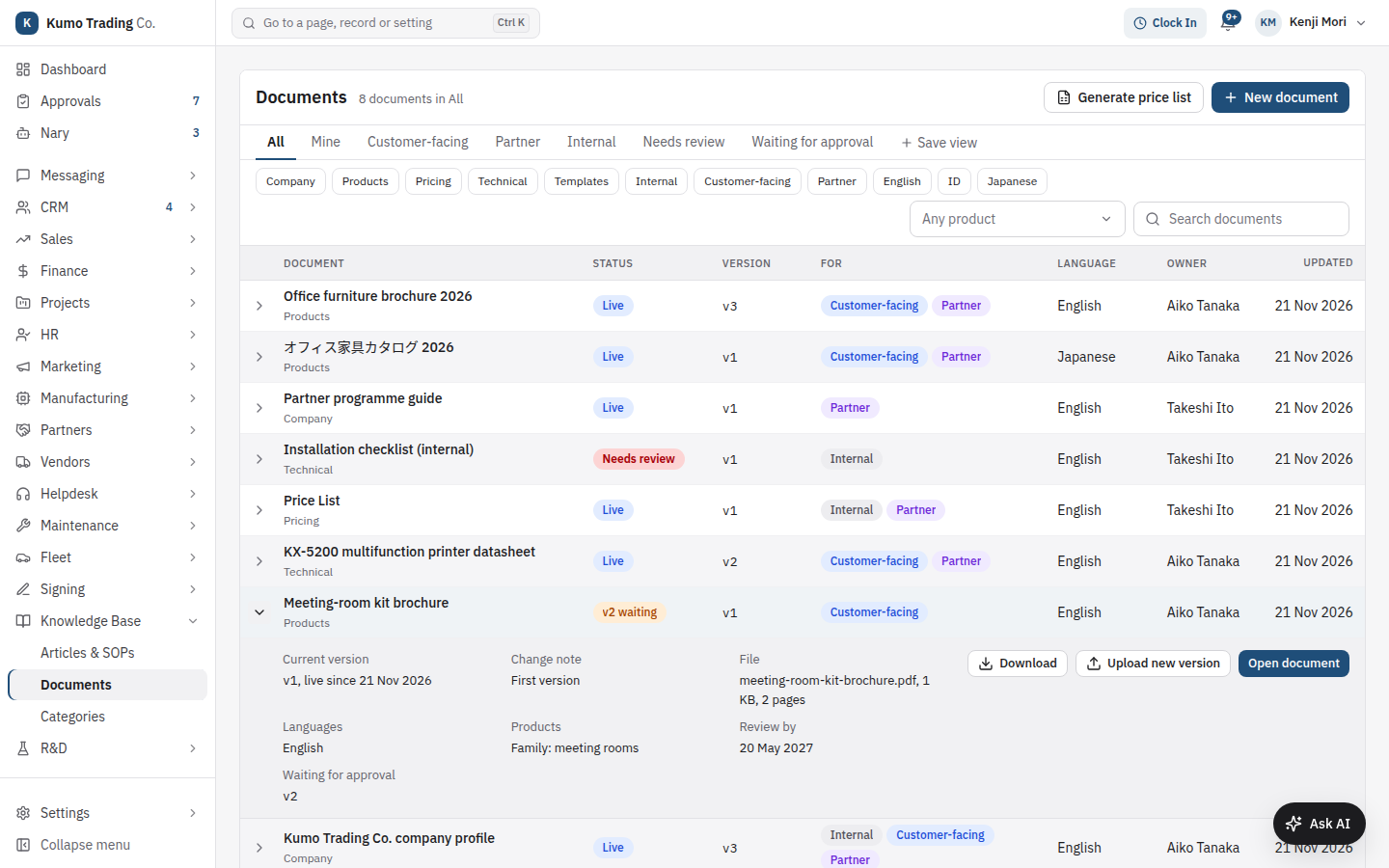
The library keeps the files you send or show to people: brochures, datasheets, the company profile, system requirements and the like. Each document has:
- Who it is for (its audiences): Internal, Customer-facing and/or Partner.
- A Category, which can be limited to some roles.
- An Owner, who keeps it up to date and gets review reminders.
- A Language, and optionally the same document in other languages (Translation of).
- Products: catalog products or a whole product family. Nary picks documents for a deal by these.
- A Review by date.
- Versions, of which one is live.
- Open Knowledge Base > Documents.
- Use the tabs: All, Mine, Customer-facing, Partner, Internal, Needs review, Waiting for approval.
- Filter with the category, audience and language chips, pick a product under Any product, or type in Search documents (it matches the title, description and the text of the live version).
- Click a row to see the current version, change note, file, languages, products and review date, then click Download, Upload new version or Open document.
The Status column shows Live, a version waiting for approval, Needs review (the review date is near or past) or No live version. You only see documents in categories open to your roles.
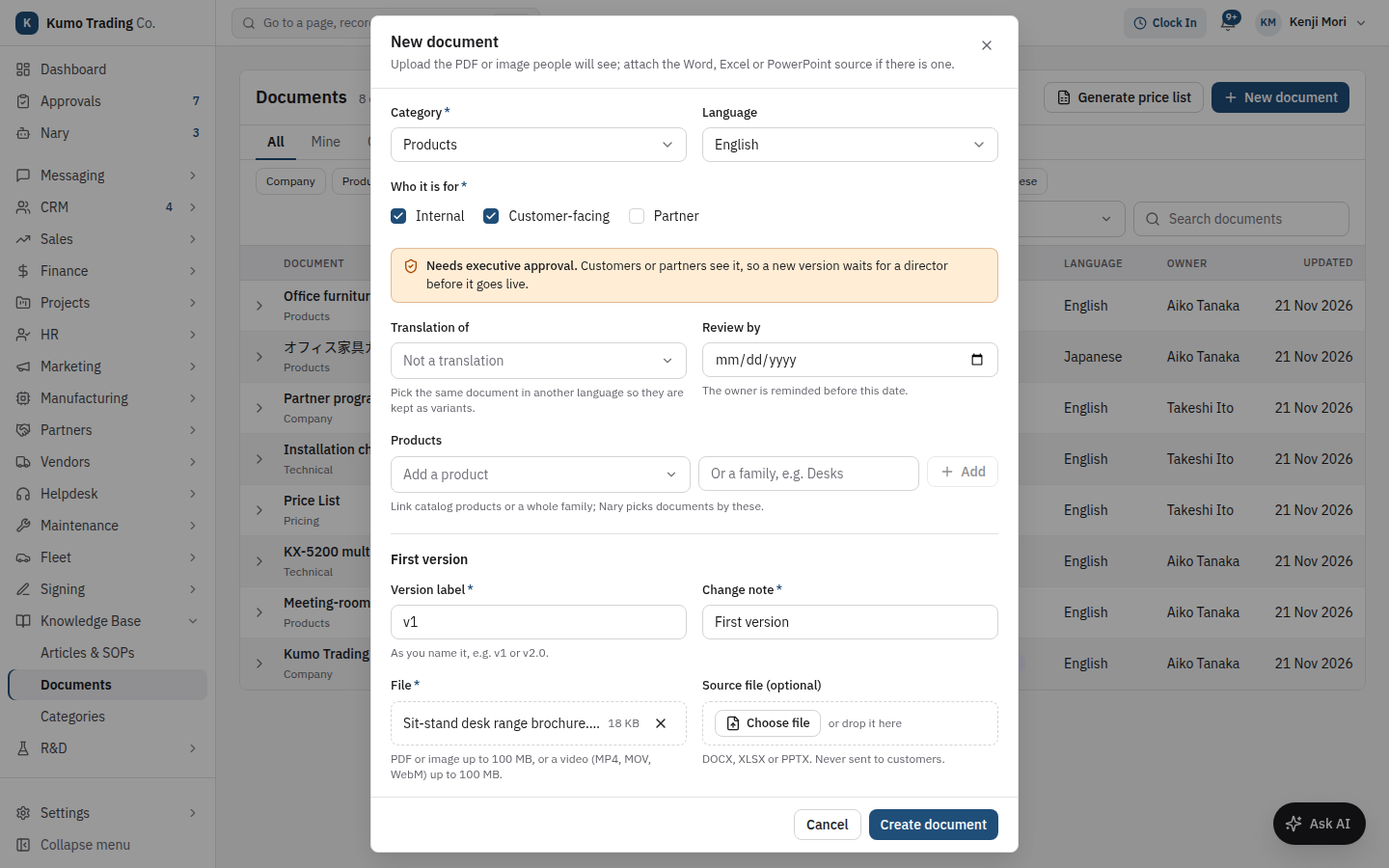
- Open Knowledge Base > Documents and click New document.
- Fill in Title, Description, Category and Language.
- Tick Who it is for. If you tick Customer-facing or Partner, the dialog warns that the document Needs executive approval: each new version waits for a director before it goes live.
- Optionally set Translation of, Review by, Products (a catalog product, or type a family name) and Owner.
- Under First version, enter a Version label (for example
v1) and a Change note. - Choose the File people will see: a PDF or an image (PNG, JPG, WebP, GIF), or a video (MP4, MOV, WebM).
- Optionally add a Source file (optional): the DOCX, XLSX or PPTX the PDF was made from. The source is never sent to customers; when you add one, the file must be its PDF.
- Click Create document.
An internal-only document goes live at once. A customer-facing or partner document is sent for approval.
- Open the document and click Upload new version.
- The Version label is suggested from the last one (
v3becomesv4,v2.1becomesv2.2). Change it if you number differently. - Write a Change note (one or two lines; everyone sees it) and choose the File, plus an optional source.
- Click Upload and publish (internal documents) or Upload and send for approval (customer or partner documents).
For internal documents the new version goes live and the previous one becomes superseded. For customer or partner documents it waits for approval; the Owner's own upload is approved on the spot. If you upload again while a version is still waiting, the new upload replaces the waiting one (which is marked rejected, "Replaced by ...").
When a version goes live, staff who can see the document get one bell notification (no email).
When a customer-facing or partner version is waiting, the document page shows an approval panel and the note
"label goes live when a director approves it", with a View it link. Approvers are users with
documents:manage_all. Approving makes the version live; rejecting needs a reason. Approval requests also appear
under Approvals.
Only a director (documents:manage_all) can widen an internal document to customers or partners. The internal
price list always stays internal.

- The document page shows the current version in a viewer. Your copy carries a footer with your name and a tracking ID.
- Click Download to get the PDF stamped for you. Editors also get Source file (DOCX, XLSX or PPTX); the source carries the tracking ID in its file properties.
- The Version history card (doc admins only) lists every version with its status (live, superseded, waiting, rejected). Click View or Download on any version, or Restore to make an old version current again. Restoring creates a new version from the old file; for a customer or partner document it goes through approval.
- Linked articles: click Link an article to show this document as a card inside a knowledge base article.
Click Edit details to change the title, description, category, audiences, language, translation, products, review date and owner. The new owner must be an active staff member. Doc admins can change the owner even if they may not edit the document itself.
A daily job reminds a document's owner when the Review by date is within the reminder window or past, at most once every 7 days. Reminders never block anything. Setting a new review date resets the reminder.
Click Generate price list on Knowledge Base > Documents (needs documents:create). Granary renders the list
prices from the product catalog into a PDF, one section per currency with its own price list, grouped by product
family, and adds it as a new live version of the internal Price List document (created on first use). Nary is
never given this document.
Click the trash icon on the document page, then Delete document. Only a director (documents:manage_all) can
delete. The document disappears from the library, from Nary and from the partner portal. Copies already sent keep
their tracking ID.
Every copy of a library document that leaves the server is stamped and logged:
- PDF: one line of small grey text at the bottom of every page, plus the tracking ID as invisible text and in the file properties.
- Images: a small grey stamp in the bottom-right corner, with the ID in the image metadata.
- DOCX, XLSX, PPTX (source downloads only): no visible change, the ID in the document properties.
- Videos: logged, never watermarked.
Each copy gets its own ID (ID- followed by 10 characters, for example ID-7K2M9QX4TB) and a log row recording who
got it, which version, when and through which channel. Staff copies use the staff footer; copies for customers and
partners (sent by Nary, sent from the ERP, or downloaded on the partner portal) use the customer footer, filled
with the recipient's company. Only live versions of documents with a customer or partner audience are ever sent
outside; a partner-only document goes only to partner accounts.
The visible footer survives printing and photos. The hidden ID survives forwarding, but not retyping or screenshots.

- Open any document and click Trace a leaked copy (doc admins only).
- Upload The copy you found (PDF, image, or an Office source file), or type the ID from its footer under Or the ID from its footer.
- Granary reads the marks in the file (or matches its hash) and shows who the copy was given to.
Partner accounts see documents with the Partner audience on the partner portal (Documents), live versions only. Each download is stamped with the partner's company name. See Partners.
Under Settings > Company & branding > Knowledge & documents:
| Setting | What it does |
|---|---|
Largest file (documents.max_file_mb, default 100 MB) |
Upper size of each uploaded PDF, image or source file. |
Footer on copies sent out (documents.watermark.customer_text) |
Footer on customer and partner copies. {company}, {name}, {date} and {id} are filled in. |
Footer on staff copies (documents.watermark.staff_text) |
Footer on what staff view or download. Same placeholders. |
Footer font size (documents.watermark.font_size, default 7 pt) |
Size of the grey footer line. |
Remind owners before review (documents.review_reminder_days, default 14) |
How many days before the review date owners are reminded. |
Price list document title (documents.price_list.document_title) |
Title of the internal document Generate price list adds versions to. |
| Category visibility | Which roles see each document category (empty means everyone with documents:view). |
Other settings that touch this module:
- Letterhead (Company & branding): the header image on exported article PDFs.
-
Approvals & signing: the approval policies for SOPs (
sop_article) and customer or partner document versions (library_document_version). - The maximum video size for document versions follows the Nary upload limit (
nary.upload.video_max_mb).
| Permission | What it allows |
|---|---|
kb:create |
Create, edit, import (Markdown and PDF) and delete articles; see drafts; link documents to articles. |
kb:publish |
Publish a signed draft article. |
kb:manage_sops |
Create and edit SOPs (executive management). |
kb:manage_categories |
Create knowledge base categories. |
kb:view_restricted |
Read articles with the access level Management only or Restricted. |
documents:view |
See the document library (each category may be limited to some roles). |
documents:create |
Create documents, upload new versions of documents you own, generate the price list. |
documents:admin |
Old versions and restore, owner change, category access, trace a leaked copy (no approval). |
documents:manage_all |
Everything above, plus edit any document, approve customer and partner versions, widen an audience, delete. |
Only the Owner can countersign SOPs. The superadmin bypasses these checks.
- Collaboration: channels, email and calls for day-to-day work.
- Projects and R&D: where many runbooks and guides are used.
- Partners: the partner portal shows partner-facing documents.
- HR and Payroll: policies and onboarding guides often live in the knowledge base.
← Previous: R&D | Next: Collaboration →