Repository navigation
Releases
v0.9.1

Booya 0.9.1 brings a new look for the whole app, keeps clicks and zoom in step with late starting recordings, and makes updates, deletes and exports safer around each other.
This is the first published build with the redesign. Version 0.9.0 was tagged but never published, because the Linux build could not download its packages from Ubuntu's mirror. Everything planned for 0.9.0 is in this release.
New look
- The app has been redesigned around ink on paper (#51). With nothing open, the stage is a paper sheet with a "Show it once." headline, a short looping figure of the ghost cursor at work and a Recent ledger. Once a recording is open, the stage turns into a dark well for the video.
- Record is the one orange button. It shows a 3, 2, 1 countdown, then turns into a timer with a Stop segment while you record. The countdown can be turned off in Settings, under Appearance.
- The timeline has a timecode ruler, zoom brackets, a caption lane and a playhead with a timecode tab. It folds down to a slim ruler when nothing is open.
- The side panel uses numbered sections, switches and model cards that say whether each feature is ready, needs a model or needs a fix. Run auto edit explains why it is off when it can't run.
- The status bar shows the mic level in dB, the source, your models and the version.
- Prefer a dark stage? Settings, Appearance, Stage lets you pick Paper or Ink.
Sync and recording
- Clicks and zoom stay lined up with the video even when the first frame arrives up to 30 seconds late. The old limit was 10 seconds (#48).
- When the mic and system audio start far apart, they now line up correctly in the mix, and the mic timing log is no longer deleted before its fix is applied (#45).
- Recording folders are named down to the millisecond, so two quick takes can't land in the same folder (#46).
- Restart recording asks to discard your changes only once. Throwing away a "Record here" take no longer makes the next recording get spliced in at the old spot (#50).
Safety
- A new take or export can't start while an update is installing, and two lock calls that could crash the app no longer do (#43).
- Open, Recent, Sample and a new Record ask before they replace a project with unsaved changes (#44).
- Deleting a recording or your data waits for a running export to finish, and an update can't restart the app during an HTML export (#49).
Behind the scenes
- CI jobs now have time limits, so a stuck test gets stopped instead of holding up everything after it (#47).
- Release and CI builds on Linux no longer hang when an Ubuntu mirror stops answering. Each package install has a time limit and moves on to another mirror if the first one fails (#53).
Things to do
- On macOS, expect to grant Screen Recording again, because each build is a new ad hoc identity.
Not tested on real hardware
The redesign was checked with screenshots and layout tests down to 1024 by 640. The sync changes in #45 and #48 were checked by CI and unit tests only. A clap test on a real Mac and Windows PC has not been done for this build.
v0.8.0
Booya 0.8.0 keeps voice and picture in sync, starts recording about 5 seconds sooner, exports faster, and adds export cancel, caption looks, a draggable camera bubble and a No background option.
Sync
- Voice, camera and auto zoom now run on one clock (#14).
- When system audio was recorded along with the mic, the mic's clock correction was skipped. Over a couple of minutes that could drift by about a quarter of a second and pull captions with it. The correction now runs in both cases (#39).
- If the mic stopped sending sound for a few seconds partway through a take, Booya closed up the gap, so every word after it played early by the length of the gap. This could show up as an offset of several seconds. Each gap is now put back as silence, and
audio.loggets amicrophone clock:line that lists any gaps it found (#40, #7).
Faster
- Recording starts about 5 seconds sooner with the mic on. The countdown used to wait for ffmpeg to write its first 5 second block of audio; it now writes every quarter second.
audio.loggets astart timing:line showing how long each recorder took to start (#41). - Export decodes, draws and encodes at the same time. A 4K test export went from 25.8 s to 14.1 s (#27, #10).
- Decoding a long recording uses about half the memory (#28).
New
- Cancel an export, and see about how long it has left (#34, #6).
- Caption looks: box, outline or pop, at the bottom, middle or top (#31).
- Drag the camera bubble anywhere on the preview, and scroll to resize it (#29).
- No background: just the recording and the camera, edge to edge (#37, #8).
- Booya says so when the screen recorder stops mid recording, and warns when free disk space drops under 2 GB (#30).
- Recording time in the tray, and Linux icons (#17).
- Auto edit cancel and camera layout options (#11).
- New look: Ghost x Ink mono (#15).
Fixes
- Touch on a touch screen that is not the primary monitor lands in the right place on Windows (#38).
- Clicks and zoom land in the right place on displays with different scaling (#24).
- On macOS, key logging set to Off no longer starts a key watcher (#21).
- Projects, settings and exports are written safely, so a crash never leaves a half written file, and an export can't overwrite one of its own inputs (#19).
- An update install or a delete can't run during a recording (#25).
- One panic no longer takes down Stop or the whole app (#32).
- Windows: Show in folder works with spaces in the path, and models are extracted with the system tar (#33).
- Two caption wrap bugs for Telugu and Hindi, found by new property tests (#26).
Things to do
- On macOS, expect to grant Screen Recording again, because each build is a new ad hoc identity.
Not tested on real hardware
The sync changes in #39 and #40, the faster start in #41 and the touch fix in #38 were checked by CI and unit tests only. A clap test on a real Mac and Windows PC, and touch on a second monitor, have not been done for this build.
Booya 0.7.0
Booya 0.7.0 fixes the Windows microphone, makes auto zoom far calmer, fixes missing captions and silent editor playback, and adds device frames, motion blur, music, per clip mute, system audio on Windows and macOS, and a first run permissions screen on a Mac.
Windows microphone
Voice was missing from Windows recordings. No single cause can be proven without the hardware, but the code had several real defects, all fixed:
- Errors from ffmpeg's DirectShow capture were swallowed under the hidden console window, so nothing said why. The ffmpeg output now goes to
audio.login the project folder, and the editor shows "Mic not recorded: reason". - The level meter in the web view could still hold the microphone when ffmpeg opened it. The meter is now stopped (by the app, not the page) before recording starts.
- The device chosen in the list and the name handed to the recorder could differ (friendly name against alternative name, quoting, non-ASCII names, the default device).
- A silent microphone was never noticed. The UI now warns within 2 seconds when the level stays at zero, and the Windows setting "Let desktop apps access your microphone" gets its own message with a link.
- The final join silently dropped a sound file it could not read.
- There was no in-process path. On Windows the microphone is now recorded through WASAPI (cpal) and written on the same clock as the screen, with DirectShow only as the fallback.
booya doctor --audiorecords 3 seconds and reports the level, and a Windows CI test checks that pipeline errors reach the user.
Auto zoom
- The camera stays on the whole screen and zooms only for a cluster of clicks (3 in one small area, about a fifth of the screen, within 4.5 s on Normal; the count and window are settings), a burst of typing over 1.5 s, or a marker.
- Gone from the defaults: zooms on a resting cursor, on a changed screen or a sliding window, on a single click and cursor following. They made the camera move with no click.
- No zoom in the first second. The whole screen stays up at least 1.5 s between zooms. Slow spring easing (about 0.9 s), long holds, a dead zone for small cursor moves.
- Scrolling is logged on all systems. While scrolling the camera eases out to the full screen and stays there until 0.8 s after it stops.
- A typical minute now gets 3 to 6 zooms at most.
Captions
Some sentences got no caption. Whisper's small model often gets the words right but not their times: it holds one word over several seconds, then piles the rest into one instant or past the end of the audio. A caption with no time on screen never shows, and words that were heard again in a gap were dropped by their time. Word times are now brought back onto the voice (pile-ups spread out, unbelievable times replaced by a proportional layout over the voiced stretches, words in silence moved onto the voice), a stretch that gave almost nothing is heard once more without whisper's "not speech" shortcut, and a caption stays at least 0.6 s. A regression test uses the pattern of the report's 20 s clip (the middle sentence drifting late, a dozen words stamped at the very end). The exact output of the user's model could not be reproduced here, and the video is not in the repository.
Editor playback
Editor sound was silent in the macOS app. Playback now runs natively (cpal, with ffmpeg decoding to PCM) on Windows and macOS, in step with the video, with drift correction (re-seek past 60 ms). The web audio element stays as the fallback. Settings > Audio diagnostics shows what the web view reports and writes it to the log.
New
- Device frames: laptop, browser and phone (simple vector shapes).
- Motion blur on zoom and pan moves (off by default).
- Music: import a file, volume, ducking under the voice, fade in and out, start point and loop.
- Mute a clip, and camera pins at the four corners and the middle of each edge.
- System audio on Windows (WASAPI loopback) and macOS (ScreenCaptureKit, macOS 13 or newer), off by default, recorded on the side and mixed into the voice track. Nothing playing is fine and leaves no file.
- First run permissions on a Mac: Screen Recording (required), Microphone, Input Monitoring and System audio, with a button for each that asks or opens the exact Settings page, green checks that update every second, and a notice when an update switched one off. Also under Settings > Permissions. Windows and Linux show the microphone only. Booya never sends your recordings anywhere.
Honest limits
- The Windows and macOS capture, WASAPI and ScreenCaptureKit audio, native playback and the permission calls were verified by CI compile and unit tests only. They have not been run on a real Windows PC or a Mac.
- The web view of the macOS app (WKWebView) was not available for testing.
- Native playback shifts pitch at speeds other than 1x. The web audio element keeps pitch.
- Wayland is still not supported, and the earlier limits in 0.5.2 still apply.
v0.6.0
DemoLens 0.6.0 adds camera layouts. You can show the screen alone, the screen with a camera bubble, the camera next to the screen, or the camera full screen, and change between them during the video. Tall and square videos now follow the cursor. Camera recording now works on Windows too.
Layouts
- Four layouts: screen only, camera bubble, side by side and camera full screen. Pick the one for the whole recording under Style > Layout.
- Change during the video: the timeline has a new LAYOUT lane when the recording has a camera. Double click to add a block, drag it, drag its edges, choose its layout, delete it. Blocks never overlap, and a short Blend glides from one layout to the next. The editor preview and the export use the same renderer, so what you see is what you get.
- Vertical and square: in 9:16 and 1:1 the screen shows a window that follows the cursor and blends towards the zoom, and the camera sits above or below it. Turn this off to keep the whole screen with bars.
- Projects without a camera look and behave as before. Old projects open unchanged.
Camera on Windows
- Webcam recording uses DirectShow. It picks the first real camera and skips virtual ones (OBS, Snap and similar) unless you name one with
DEMOLENS_CAMERA.
Other
- The timeline no longer failed to draw its lane labels in recordings without a camera (found by the new layout tests).
docs/COMPETITORS.mdnow compares DemoLens with ScreenCharm feature by feature. The gaps still open are device frames, motion blur, background music and muting a single clip.
Honest limits
- The Windows camera code and the editor app shell were verified by CI compile only. No Windows computer with a camera was available.
- Layouts are verified with the real renderer and exporter on synthetic recordings in 4 layouts and 3 shapes, and with the editor in Chrome. They have not been run in the macOS web view.
- Face tracking and camera cutout are not part of this release.
- System audio is still Linux only. Everything listed under "Honest limits" in 0.5.2 still applies.
v0.5.2
DemoLens 0.5.2 shows full keyboard shortcuts, keeps the window and panels on screen, lets you drag the panel sizes, makes captions start when you start talking, stops fast speech from losing words, brings back editor sound on macOS, and retunes auto zoom so it zooms only when something matters.
Parts of this release (the macOS key tap, key names on Windows and Linux, touch, the macOS sound fix) are built and tested on CI but have not been run on real hardware. See "Honest limits".
Key overlay shows the whole shortcut
- Cmd, Ctrl, Alt or Win plus a key is now shown as one shortcut, for example Cmd+W or Ctrl+T, instead of the modifier alone.
- Shift is shown when it is part of a shortcut (Cmd+Shift+4) or goes with a named key (Shift+Tab). Shift with a letter is typing, so it stays as typed text.
- On macOS the key tap now reports the real key with its modifiers. Option and Ctrl combos use US keyboard position names.
Window and panels
- The window opens inside the visible screen, and shrinks if it is too big for the display. It is clamped again when the display changes.
- The side panel and the timeline now have draggable splitters. Drag with a mouse or finger, use the arrow keys (Shift for bigger steps, Home to reset), or double click or double tap to reset. Sizes are remembered and given back when the window grows.
Captions
- Start on the voice. A word is moved to when the voice actually starts, so a recording with 2 seconds of silence before you speak no longer gets captions that begin early. A test with 2 seconds of leading silence guards this.
- Fast talking. Long recordings are listened to in overlapping pieces, the pieces are merged so no word is counted twice, and any gap where speech was heard but no words were found is listened to again. Words cut off at a piece edge are ignored in favour of the other piece.
Editor sound on macOS
- If the web view cannot play the compact sound file, the editor switches by itself to a plain WAV copy, and says so if both fail.
- The sound is unlocked by your first click or key press in the editor, which is what WebKit needs before it will play.
- A new check notices when playback starts but the clock does not move and switches to the fallback.
Auto zoom, retuned
Zoom now scores each moment and only zooms when the score is high enough:
- A marker you placed always counts most. Then the first key of typing, a click that you aimed at, a place where the cursor rested, and last a click with no aiming.
- Clicks that are navigation (a tab switch, Cmd+Tab, arrows), quick repeats, right clicks, drags, clicks at the very edge, and clicks after the cursor jumped across the screen never zoom.
- Zooms stay put for nearby events, pan for events that are a bit further away, and zoom out when the next event is far away. Zooms are kept apart so the picture never pumps.
- New Style choice: Subtle, Normal and Lively. Normal is the default.
- The zoom eases with a spring curve, calmer at the start and the end.
- The full rules are in docs/EDITING.md under "Auto zoom: when it zooms".
Honest limits
- The macOS key tap, key names on Windows and Linux, and touch were verified by CI compile only, not on real hardware.
- macOS may ask again for Input Monitoring after each update because the app is signed ad hoc. This is the likely reason shortcuts showed only the modifier on a Mac.
- Option and Ctrl combos on non-US layouts use US position names. On Windows, AltGr can look like Ctrl+Alt.
- Linux uses X11 through rdev. Wayland is not supported.
- Scroll events are not in the log, so scrolling never triggers a zoom.
- The small target check is a guess from the cursor settling, because the log has no information about element size.
- Windows system audio capture is not implemented yet.
- WKWebView and Safari are not available to us, so the macOS sound fix is tested in Chrome and by reasoning only.
v0.5.1
DemoLens 0.5.1 fixes the terminal windows that kept opening and closing on Windows, makes touch screens and pens work, reworks auto zoom so it is calm and never crops too tight, makes sure automatic cutting never removes something happening on screen, copes with quiet recordings, and fixes the silent editor preview.
The Windows and touch code here compiles and is exercised on CI, but it has not been run on real touch hardware. See "Check it on your touch laptop" and "Honest limits".
What was wrong on Windows
- Console windows. DemoLens is a windowed program, and every ffmpeg, ffprobe and helper it started opened its own console window for a moment, then closed it. Recording, the editor preview, export and the window list all start many of them. Every child process now starts through one helper that asks Windows for no window. A test fails the build if any code starts a process any other way, so it cannot come back on any OS.
- A PowerShell per refresh. Listing windows ran PowerShell each time. It now asks Windows directly, which takes microseconds and opens nothing.
- Screen scaling. On a 125 percent or 150 percent display the screen was captured smaller than the pointer positions that were logged, so clicks and zooms landed off target. The capture now uses real pixels, and the capture region is the real screen or window rectangle, including a second monitor to the left or above.
- Microphone. The Windows capture asked for a device literally named "Microphone", which most PCs do not have, so recording with a mic failed. It now uses the first real input device, or the one you choose.
- Touch. A tap on a touch screen does not move the cursor or press the left button as far as the old input watcher could tell, so taps were never seen.
Touch and pen
- Taps are clicks. Windows (Raw Input) and Linux on X11 (XInput 2) report finger and pen contacts. A tap or a press is logged as a click, so auto zoom and click effects treat it like one, and the key overlay shows "Tap". A drag with a finger is a drag.
- A tap ripple of its own. A soft fingertip disc and one ring, instead of the mouse ripple. It uses your ripple color.
- No double clicks. Apps that turn a tap into a mouse click would have counted it twice. Those duplicates are removed when recording stops.
- Editor on a finger. The timeline: drag, trim an edge (a larger grab area for a finger), double tap on the zoom lane to add a zoom, pinch with two fingers to zoom the view and slide to pan. Buttons, tabs, fields, sliders and the area picker handles are bigger on touch screens, and the 300 ms tap delay and double tap page zoom are off. An interrupted touch (a palm, a system gesture) cancels a drag cleanly.
Auto zoom, reworked
- Gentle by default. The default zoom is 1.5x and never goes deeper than 2x. A zoom keeps a margin of about 17 percent around what you clicked, so the target is never at the edge of the picture. A click right at the screen edge gets a gentler zoom still.
- Only when it means something. A zoom needs a cluster: two or more separate clicks close together, typing, or a marker you placed. A single stray click, or a double click, no longer zooms. Clicks far apart on the screen are split into separate zooms instead of one wide, useless zoom.
- Smooth. Zooms ease in and out in about a second. The camera follows the cursor only when it leaves a dead zone, and never leaves the screen. When you cut something out in the middle of a zoom, the camera now shortens the zoom instead of snapping, and zooms that touch each other animate every frame.
- Zoom intensity in the Auto edit panel: Subtle, Normal or Strong.
- Edit every zoom. Drag a zoom on the timeline to move it, drag its edges to resize it, change its level, click "Set focus point" and then click the preview to say where it should look, delete it, or add one at the playhead.
Cutting never removes screen activity
- Silence cutting is off by default. When you turn it on, a pause is cut only where the microphone is quiet and no key or mouse event happened and the picture did not change. Mic level alone is never enough, so a loud voice in the background cannot hide a pause, and a quiet moment while you are doing something is kept.
- You see the proposed cuts as red bands on the timeline first. "Apply cuts" makes them and "Discard" throws them away. Undo restores everything.
- The old short trims came from cutting on mic silence alone with only a short safety margin around input events and no look at the picture. We checked the splice and export code as well: picture and sound stay the same length across cuts (there is a test for that).
Quiet recordings and little or no audio
- A recording with a very quiet microphone is gated first and then lifted by at most 15 dB, so hiss is not turned into noise. A track that is only a noise floor is left alone.
- A recording with no sound track at all exports and transcribes without failing.
- Transcription says why it made no captions ("no sound", "too quiet", "no speech heard") instead of failing, and adds no captions when there is no speech. Stock phrases that speech models invent on silence are dropped. Existing captions are never cleared by an empty result.
The editor preview has sound again
- The sound has its own small file, built in seconds with the loudness evened out, and is played from memory. Before, the editor was silent until the whole 720p video copy finished building. If the first way fails there is a second way, and if both fail the editor says so in plain words.
- New volume and mute next to Play (key M). They change only what you hear while editing, never the export. If Mute is on under Style > Audio, the editor tells you the export will be silent.
- New AUDIO lane with the waveform, laid out through your cuts and speed changes.
- A browser test plays the real editor with a real recording and checks the clock moves, the player is unmuted, and sound actually comes out. It also covers: the fallback path, a broken sound file (it says so), and a recording with no sound.
Captions checked on real speech
- A test speaks four sentences with espeak-ng, transcribes them with a real model on CI, and checks the words, the caption times, that SRT and VTT agree, that the captions are saved with their word timings, that cutting filler words keeps the later captions in step, and that a recording with no speech gets no captions.
- Another test checks that the captions burned into the picture and the SRT show the same text at every moment, through cuts and a 2x speed change.
A clearer editor
- Every lane is labelled (CLIPS, ZOOM, NOTES, BLUR, KEYS, SPEECH, AUDIO). Empty lanes say what to do.
- Selecting a zoom, note or blur on the timeline opens its settings.
- The shortcuts list (press ?) includes the new keys.
- Screenshots of the editor are produced by CI on every change.
Other
demolens doctornow works on Windows and reports touch support, the virtual screen size, the windows it can see and the microphones it can see.- Quitting the app stops any recording, meter or decoder ffmpeg that is still running.
- CI records the real Windows screen and a region, with spaces in the folder name, then builds a project and exports it, and checks that no ffmpeg is left running.
- The release build now checks that the bundled Windows ffmpeg has gdigrab and dshow.
Check it on your touch laptop
- Update from 0.5.0: Settings > About and updates > Check for updates.
- Start a recording and watch the taskbar. No console window should flash.
- Run
demolens doctorin a terminal. Undertouchit should say your screen is supported. Send me the output if it does not. - Record 10 s tapping the screen with a finger, then open it. You should see a tap ripple and an automatic zoom at each tap.
- In the editor try a pinch on the timeline and a double tap on the zoom lane.
Honest limits
- Voice isolation is not included. Removing a loud voice in the background from the microphone needs a separate model. "Remove background noise" still removes steady noise only. A loud background voice can still be transcribed. We only make sure it never decides where to cut.
- The preview sound was tested in Chrome with a real recording. The macOS and Windows web views are not available to the author, so if sound is still missing there, the editor now shows why in the sound label next to the volume.
- Touch capture is checked only by compiling it for Windows and Linux. Raw Input on some touch drivers may not report contacts. If it does not,
doctorsays so and I need your device name. - Touch positions map to the main monitor. A rotated screen is not handled.
- Linux touch needs X11 with XInput 2.2. Wayland is not covered.
- Windows system audio capture is still not available. The microphone is.
- macOS has no touch screens, so nothing changes there except the process clean-up and the editor fixes.
- macOS capture is still not run on real hardware by the author.
- Caption word times from the small speech model are rough. A held word is shortened and words piled up at the end are spread over the time the voice is really on. A bigger model gives better timing.
- The speech engine is now built without CPU specific instructions, so the installers do not crash with "illegal instruction" on a processor older than the one that built them.
v0.5.0
DemoLens 0.5.0 adds updates from inside the app, a rewrite of how keys are captured and shown, recording a take into the middle of a project, projects saved as folders with autosave, and a measured answer to the audio lag report.
Most of the macOS, Windows and Linux capture code here compiles on CI but has not been run by the author on real hardware. See "Check it on your Mac" and "Honest limits".
What is new
- Updates inside the app. Settings > About and updates > Check for updates, a banner with Install and restart, and a switch for checking at launch. Update files are signed and checked against a key built into the app. A copy installed from a
.debor.rpmis pointed to the download page. Seedocs/UPDATES.md. - Keys, not just letters. Modifiers (Ctrl, Alt, Option, Shift, Cmd, Win), Fn, Caps Lock, F1 to F12, media keys, Cmd-click and Option-drag are captured and shown. On a Mac you can show the symbols (⌘ ⌥ ⇧ ⌃) or words, per project. Typing stays hidden if you ask. The letters you type are still never stored.
- Record a take into the middle. Under the preview: Record here inserts a new take at the playhead; Re-record clip records over the selected clip. The captions, zooms, callouts, blur boxes and shapes after that point move to match. Project > Import a video clip at the playhead does the same from a file. The old recording is kept, so Undo works.
- Projects. Save writes a
.demolensfolder with the recording and everything in it, so it can be moved or shared. A Project menu (Save as, Duplicate, Open a project folder), recent projects on the start screen, a Locate dialog for missing files, autosave every 15 s with a recovery offer after a crash. Seedocs/PROJECTS.md. - Edit more text. Callout text can now be changed in place.
docs/EDITING.mdlists every text element and where to change it. - More control over auto zoom. Zoom hold and Group clicks within under Style > Zoom. A 1.25x clip speed.
Sound against picture
You reported the audio lagging. A flash and beep test signal now runs through every stage on every OS in CI. The file stages (editor preview proxy, export, cut then export, a microphone that opened 350 ms late) are within 17 ms on Ubuntu, macOS and Windows, with at most 4 ms of drift. The problem was not Mac only:
- The editor preview followed the video clock, not the sound. It now follows the sound.
- On Linux, recording the microphone inside the screen ffmpeg put the sound 471 ms early in the test. A separate microphone file with wall clock stamps, joined at the end, brings that to 118 ms, 353 ms better, and part of the rest is the test's own start skew. Windows used the same design and now uses the new one. macOS already had it.
demolens syncprobeprints the table. Results and method are indocs/SYNC.md.
Fixes
- Callout text could only be deleted and re-added. It can be edited.
- CI now installs ffmpeg before the tests, so the media tests run on macOS and Windows too.
Check it on your Mac
- Update from 0.4.2 if you can: Settings > About and updates > Check for updates. This is the first release the updater can deliver, so 0.4.2 itself has no updater and must be replaced by hand once.
- After the update macOS may ask for Screen Recording, Microphone and Input Monitoring again, because the app is signed ad hoc. Allow them and reopen DemoLens.
- Record 30 s with the microphone and Keys on. Press Fn, Option, Ctrl, F-keys and a media key. Run
demolens verifyon the file and send me the output, plus whether the sound looks late when you play it. - Move the playhead to the middle, press Record here, record a few seconds, stop. Check the end of the project moved and nothing is out of step. Then Undo.
- Save, quit, reopen from the recent list. Change something, wait 15 s, force quit, reopen, and accept the recovery.
Honest limits
- No macOS capture sync number exists. CI runners cannot capture a screen or microphone.
- Windows has no audio capture test. Only its screen clock was checked (14 flashes, worst deviation 38 ms).
- Linux with microphone and system audio together still mixes them in one process.
- Media keys, Fn on Windows and Linux, and AltGr were written from the platform documentation and not tried on hardware.
- The export leads the sound by about 16 ms on every OS. It is constant and below anything visible.
- The splice, project and update screens were checked as logic and on CI, not driven by hand in a window. The splice keeps sync inside budget on test files.
- Per clip settings: only speed. A splice ignores the new take's webcam and hides the project's webcam, because one offset cannot cover a gap.
- Updates need the signing key on the release machine. If the release was built without it, update files are signed afterwards with
scripts/sign-release.py. - Still ad hoc signed on macOS, no notarization: Gatekeeper will warn on first launch, as before.
v0.4.2
DemoLens 0.4.2 comes from watching a real 4K recording made with 0.4.0 on a MacBook: the voice broke up, no keys were shown, the captions were wrong and the zoom lurched. It also adds word by word caption editing.
(These changes were first meant for 0.4.1. That tag was already published and tags are never moved, so they ship as 0.4.2.)
Most of the macOS code here compiles on CI but has not been run on a Mac by the author. See "Check it on your Mac".
What was wrong with the sound
The test file had AAC mono at 96 kHz. Inside it were about 64 stretches of exact digital silence, 90 to 470 ms long, in the middle of speech, plus 2.5 s of silence at the start. The microphone and the 4K picture were in one ffmpeg process. When the picture pipe backed up, the microphone packets arrived in bursts, and the resampler that corrects timing filled the gaps with silence and dropped samples. That is the stutter, the cut words and the robotic tone. Loudness normalising and noise removal were not the cause (noise removal is off unless asked for, and normalising is a gain change).
Fixes
- Microphone recorded on its own (macOS). A separate ffmpeg writes the microphone to
recording.mic.mkvas 32 bit float, with no timestamp based resampling. When you stop, the sound is laid out by sample count, lined up with the picture, resampled to 48 kHz and encoded as AAC. The temporary file is deleted after a successful join. If the join fails the file is kept. - 48 kHz output. Recordings and exports are 48 kHz. AAC exports use 192k, Opus 160k.
demolens verifyfinds dropouts. It reports the sample rate and any runs of exact silence inside speech, and lists them as issues.- Smooth recording at 4K (macOS). Screens taller than 1600 px are recorded at 1440p by default. Pick Native, 1440p or 1080p next to the microphone controls, or use
--max-heighton the command line. Frames are no longer copied twice under a lock, and the pipe to ffmpeg holds far fewer frames. Clicks and the pointer path are scaled to match the smaller picture. If more than 5% of frames are late, the recording prints a hint. - Keys and shortcuts.
- The Keys button is labelled and on by default in the app. It stays off by default in the command line. Only shortcut names and the timing of typing are kept, never the letters.
- macOS needs Input Monitoring. The app asks when you turn Keys on, checks at launch, and opens the right Settings page.
demolens doctorreports it anddemolens doctor --prompt-keystriggers the system prompt. Starting a recording without the permission shows a warning. - Keys are read from the hardware state, so combinations the system keeps for itself, such as Cmd+Tab, are seen.
- Labels say Cmd and Option on a Mac.
- Edit captions word by word. In the Transcript panel, click a word to change it (Enter saves, Tab goes to the next word, Escape cancels). The word keeps its timing. A word replaced by several shares the old word's time, and an emptied word is removed. You can also split a line at the word you last clicked, merge a line with the next, and nudge the start, the end or the whole line by 0.1 s. The edits are saved in the project and are what burned in captions, SRT and VTT use.
- Better transcripts. Quiet audio is lifted before it goes to Whisper, and the transcript cache is reset so old poor results are not reused. The report names the model, and says so when the tiny model was used. The best model you have installed is used (base.en is recommended, small.en is preferred if present).
- Calmer auto zoom. The zoom in and out eases more gently (the fastest moment is 1.9 times the average speed, down from 3), takes 1.2 s by default, and starts earlier. The camera now ignores more of the pointer's small movements (steadiness 0.8, a wider dead zone) and follows more slowly. Existing projects keep their saved settings, so press Apply to auto zoom to rebuild them.
Check it on your Mac
demolens doctor --prompt-keys. Allow Input Monitoring, then quit and reopen DemoLens.- Record 30 s with the microphone and Keys on, talking while switching apps with Cmd+Tab. Run
demolens verifyon it.audio_rateshould be 48000 anddropoutsempty. - Check the shortcut labels appear, including Cmd+Tab, and that the picture is smooth at the default 1440p. Try Native to compare.
- Transcribe with the base.en model and fix a word in the Transcript panel. Export with burned in captions and check the SRT.
- Check the zoom after a click, and while moving the pointer a little.
Senddemolens verifyoutput anddemolens doctoroutput if anything looks off.
Honest limits
- The microphone file, the 1440p capture, the faster frame handoff and the key reading are macOS code that has only been compiled on CI. The audio join, the event scaling and the dropout detector are tested on Linux with synthetic files built to have the same shape.
- Cmd+Tab is read from the keyboard state. The app switcher animation itself is the system's, and a frame stutter during it may remain. Send a new recording if so.
- Linux and Windows still mix the microphone in the main ffmpeg process.
- Key capture does not know about password fields. Turn Keys off while typing secrets.
- Whisper can still mishear. That is why captions are editable now.
v0.4.1
DemoLens 0.4.1 fixes four problems found by running 0.4.0 on a MacBook with ScreenCaptureKit: audio that started late, exports that came out shorter than the video, the stacking order of windows in the picker, and a way to see why a window is not listed.
The fixes were written against the numbers from that test and checked on Linux with synthetic recordings made to have the same shape (sound that starts a second after the picture). They have not been run on a Mac by the author. See "Check it on your Mac".
Fixes
- Audio that starts late (macOS). In the test,
demolens verifyreported the audio starting 778 ms after the video. The microphone takes a moment to open, and the recording clock used to start before ffmpeg was even launched. Now:- the shared clock starts when ffmpeg is launched, so the picture no longer carries the time spent opening the screen and listing microphones;
- when the recording is finished, the microphone is lined up with the picture: silence is put in front of a late start, an early start is trimmed, and a track that ends early is padded with silence. Only the audio is re-encoded, and only when it needs it. The picture is still copied;
- the sound stays where it really happened, so a voice that began 0.8 s in is still 0.8 s in, with silence before it.
- Clicks and zooms against the picture (macOS). Input events are logged on the same clock. If the first video frame arrives some time after that clock starts, the events, pauses and the webcam offset are moved earlier by that amount, so zooms still land on the right frame.
- Export was cut to the length of the audio. The export told ffmpeg to stop at the shortest stream, so a 7.5 s video with 6.7 s of sound came out as 6.7 s. The audio is now padded with silence to the full length and the video is never cut. This applies to MP4, WebM and the copy-only export.
- Old recordings. Export now reads where the audio and video really start in the source file. A recording made with 0.4.0 or earlier, whose sound starts late in the file, keeps its silence at the start instead of having the sound pulled to the beginning of the picture. Recordings from 0.4.1 are already lined up, so nothing extra is applied to them.
- Window stacking order (macOS). The picker used ScreenCaptureKit's list order as the stacking order. The direction was correct (a lower number is in front, and in the test Brave at 73 was in front of the DemoLens window at 89), but ScreenCaptureKit does not promise that order. The order now comes from the window server's own front to back list, and the numbers are consecutive ranks (0 is in front). If that list cannot be read, the old order is the fallback. There is a test for the ranking.
Changes
demolens sources --allalso prints every window ScreenCaptureKit reports, whether the picker lists it, and why not (not on screen, wrong layer, too small, DemoLens itself). The list is on screen, layer 0, at least 120 by 80 points. In the test only 2 of 107 windows were listed. The rest are expected to be menu bar items, the Dock, helper windows, and windows on other spaces or minimised, which stay hidden on purpose. Run it to confirm that on your machine.
Check it on your Mac
demolens record --screen 0 --mic --seconds 6, thendemolens verifyon the result.audio_offset_msshould be near 0 andissuesempty. Send the JSON if it is not.- Export it at 1080p and run
ffprobeon the output: the duration should match the video, not the audio. - Export an older recording that has late sound. The first part should be quiet, and the voice should start where it did in the recording.
demolens sources --all, with a few windows open and one in front. The front one should havez0 in the normal output, and the second list should show why anything missing is hidden.- Record with a click at the start and check the zoom lands on it.
Honest limits
- Only the audio and event timing code paths were tested, on Linux. The macOS code (the window server list, the clock start, the event shift) compiles on CI but has not run.
- The microphone's own start-up delay is real. The first moments of a recording made with a microphone may be silent for a few hundred milliseconds. That is now correct rather than shifted.
- The 40 ms tolerance means a track within 40 ms of the picture is left alone.
- System audio on macOS still needs a loopback device.
v0.4.0
DemoLens 0.4.0 adds a glass frame for exports, shortcuts you can change, markers while recording, and a redesign of the interface to look like a desktop tool instead of a web template.
As with earlier releases, this was built and tested on CI and on a Linux box. The author has not run it on a Mac or a Windows PC. The macOS-only parts (window vibrancy, the menu bar item, global shortcut registration) are compiled by CI but have never been run. See "Check it on your Mac".
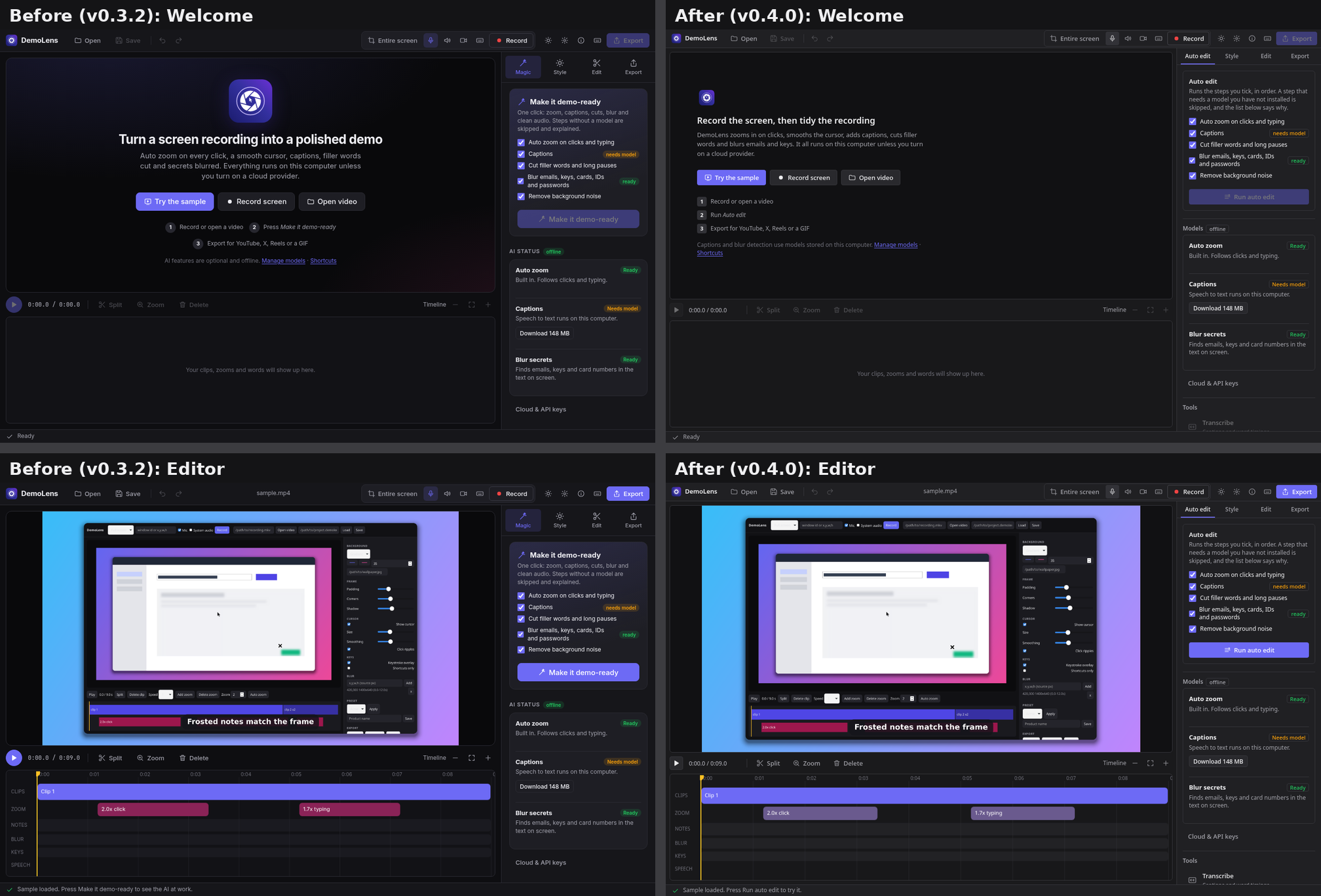
The screenshots in this release come from the real interface in a browser with a stand-in backend. They show layout and styling, not live recording.
New
- Glass frame for exports. Style > Glass puts the recording on a frosted panel: the background behind it is blurred, tinted, and given a thin light edge and a corner radius. Blur, tint colour and strength, edge light, corner radius and inset are all adjustable. Captions, notes and the key display can use the same frosted look. Two presets, "Frosted" and "Frosted dark", start from it. The preview and the export use the same renderer, so they match. Glass is off in the interactive HTML demo.
- Glass look for the app. Settings > Appearance has a Glass look switch. On macOS the window becomes translucent and the system blurs what is behind it. On Windows and Linux it is a blur drawn inside the page, so it only shows over content, for example behind dialogs. It is off by default. If the system asks for Reduce Transparency, panels stay opaque whatever the switch says.
- Shortcuts you can change. Settings > Shortcuts lists every recording action: start or stop, pause or resume, record an area, a window or the full screen, restart the take, discard, drop a marker, and toggle the microphone, webcam and key display. Click the keys, press a new combination. It warns about a clash with another action, and if the system refuses the combination because another app holds it, the row shows that. Clear or reset one row, or reset all. Choices are saved. The keys appear in tooltips, the app menu and the tray menu. A combination needs Ctrl or Alt (Cmd on a Mac) so it cannot hijack normal typing.
- Markers. Press the marker shortcut or the flag button on the recording pill, and the editor adds a zoom to the cursor at that moment.
- Area tab. Refresh is now "Retake screenshot" and keeps your selection. If windows move or open while the tab is showing, it tells you the screenshot is stale. Recording an area or a window from a shortcut opens the picker and starts recording as soon as you choose.
- Menu bar or tray item on macOS and Windows with start, stop, pause and the same shortcut labels. Turn it off in Settings > Appearance.
Interface redesign
The old interface looked like a generic generated app: violet gradients everywhere, glowing background blobs, big rounded cards, a sparkle icon and slogans. This release replaces that.
- System font (SF Pro on a Mac, Segoe UI on Windows), a 4 and 8 pixel spacing scale, neutral greys with violet only on the primary button, the selected tab and focus rings.
- A compact 40 pixel toolbar, 28 pixel buttons, 1 pixel borders, small radii, and section headings in sentence case.
- Inspector tabs are plain text. The "Magic" tab is now "Auto edit", the "Make it demo-ready" button is "Run auto edit", "AI tools" is "Tools", and "AI status" is "Models". The welcome screen is left aligned, with no hero illustration.
- The recording pill uses the system font and the glass look, and has the marker button.
- README, comparison doc and these notes were rewritten in plainer language. The CLI keeps
demolens readyas the command name. - Not changed: the app icon and
assets/logo.svgstill use the violet gradient tile.
Fixes and changes
- The recording pill is wider (384 px) to fit the marker button.
- The Linux build is now bundled with libayatana-appindicator, because the build tool requires it once the tray feature is in the project. The tray item itself is only created on macOS and Windows.
- CI has a separate step for the shortcut recorder tests, next to the snap geometry tests.
Check it on your Mac
- Open Settings > Shortcuts and rebind one action. Press it with another app in front. It should fire. Then try a combination another app owns (for example the system screenshot keys) and check that the row shows an error.
- While rebinding, press a combination that is already registered. Recording the keys should work, because registered shortcuts are paused during capture.
- Settings > Appearance > Glass look. The window should show your wallpaper blurred through the sidebar. Turn on System Settings > Accessibility > Display > Reduce transparency and check it goes opaque.
- Record a few seconds, press the marker shortcut twice, stop, and look for two extra zooms in the Zoom track.
- Check the menu bar item: its entries should show your shortcut keys and update after you change them.
- Style > Glass, then export. Look at the frame edge and the captions.
Honest limits
- Not run on hardware: macOS vibrancy, the menu bar and tray item, registering global shortcuts with the system, and the marker path through a real recording. CI only checks that they compile.
- The settings screens were exercised in a browser with a fake backend, including recording a combination, a clash message and the reset buttons. The real shortcut registration was not.
- The glass render is covered by unit tests and a rendered example. It is a CPU blur, so very large frames with a high blur radius export more slowly. The browser preview scales it down.
- Glass for the app only shows over other content on Windows and Linux. There is no system blur there.
- Pause and resume still behave as in 0.3.x, but their keys are now the default of a rebindable action. Existing users keep Ctrl/Cmd+Shift+P.
- Builds are still not notarised or signed.