Repository navigation
v0.4.0

DemoLens 0.4.0 adds a glass frame for exports, shortcuts you can change, markers while recording, and a redesign of the interface to look like a desktop tool instead of a web template.
As with earlier releases, this was built and tested on CI and on a Linux box. The author has not run it on a Mac or a Windows PC. The macOS-only parts (window vibrancy, the menu bar item, global shortcut registration) are compiled by CI but have never been run. See "Check it on your Mac".
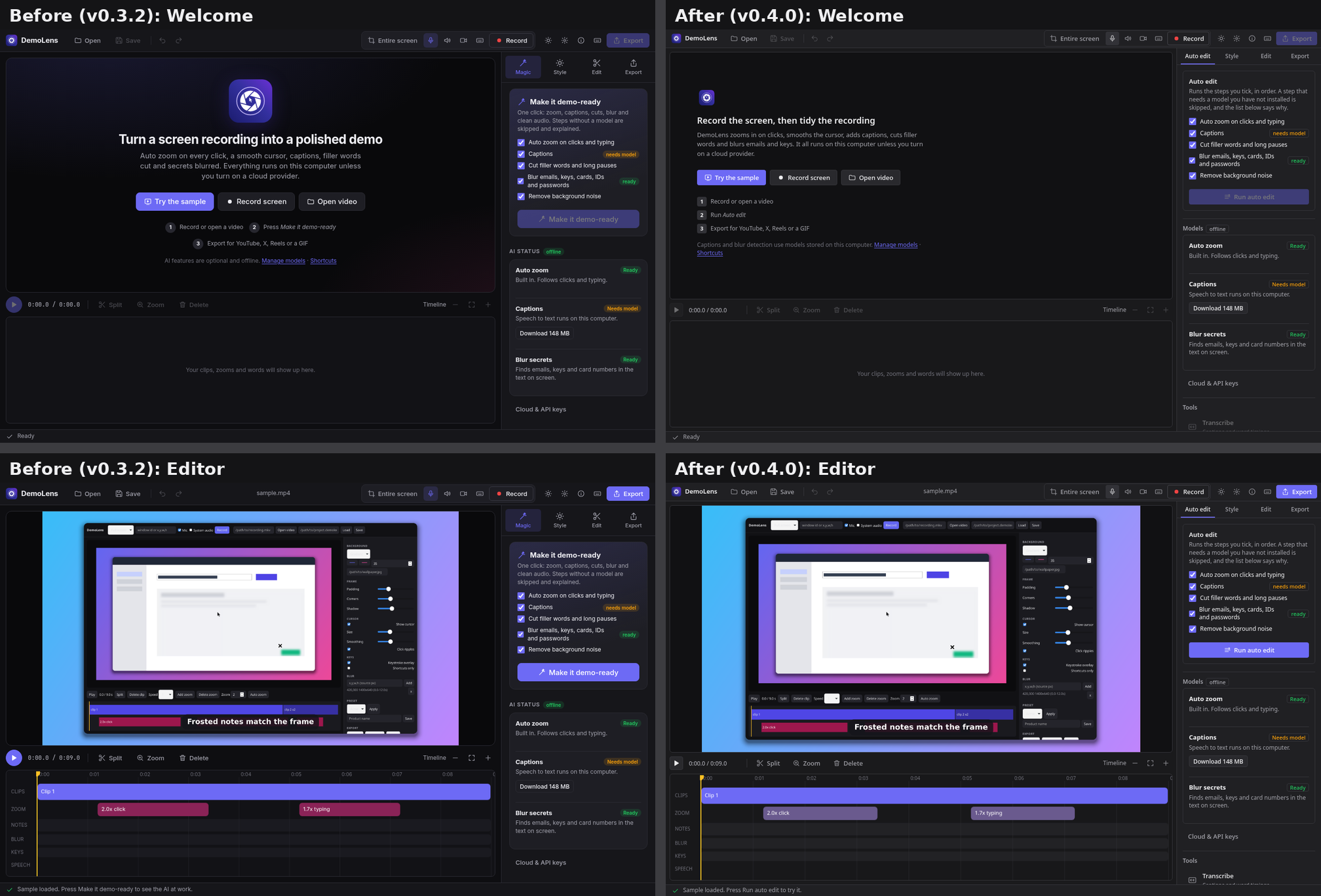
The screenshots in this release come from the real interface in a browser with a stand-in backend. They show layout and styling, not live recording.
New
- Glass frame for exports. Style > Glass puts the recording on a frosted panel: the background behind it is blurred, tinted, and given a thin light edge and a corner radius. Blur, tint colour and strength, edge light, corner radius and inset are all adjustable. Captions, notes and the key display can use the same frosted look. Two presets, "Frosted" and "Frosted dark", start from it. The preview and the export use the same renderer, so they match. Glass is off in the interactive HTML demo.
- Glass look for the app. Settings > Appearance has a Glass look switch. On macOS the window becomes translucent and the system blurs what is behind it. On Windows and Linux it is a blur drawn inside the page, so it only shows over content, for example behind dialogs. It is off by default. If the system asks for Reduce Transparency, panels stay opaque whatever the switch says.
- Shortcuts you can change. Settings > Shortcuts lists every recording action: start or stop, pause or resume, record an area, a window or the full screen, restart the take, discard, drop a marker, and toggle the microphone, webcam and key display. Click the keys, press a new combination. It warns about a clash with another action, and if the system refuses the combination because another app holds it, the row shows that. Clear or reset one row, or reset all. Choices are saved. The keys appear in tooltips, the app menu and the tray menu. A combination needs Ctrl or Alt (Cmd on a Mac) so it cannot hijack normal typing.
- Markers. Press the marker shortcut or the flag button on the recording pill, and the editor adds a zoom to the cursor at that moment.
- Area tab. Refresh is now "Retake screenshot" and keeps your selection. If windows move or open while the tab is showing, it tells you the screenshot is stale. Recording an area or a window from a shortcut opens the picker and starts recording as soon as you choose.
- Menu bar or tray item on macOS and Windows with start, stop, pause and the same shortcut labels. Turn it off in Settings > Appearance.
Interface redesign
The old interface looked like a generic generated app: violet gradients everywhere, glowing background blobs, big rounded cards, a sparkle icon and slogans. This release replaces that.
- System font (SF Pro on a Mac, Segoe UI on Windows), a 4 and 8 pixel spacing scale, neutral greys with violet only on the primary button, the selected tab and focus rings.
- A compact 40 pixel toolbar, 28 pixel buttons, 1 pixel borders, small radii, and section headings in sentence case.
- Inspector tabs are plain text. The "Magic" tab is now "Auto edit", the "Make it demo-ready" button is "Run auto edit", "AI tools" is "Tools", and "AI status" is "Models". The welcome screen is left aligned, with no hero illustration.
- The recording pill uses the system font and the glass look, and has the marker button.
- README, comparison doc and these notes were rewritten in plainer language. The CLI keeps
demolens readyas the command name. - Not changed: the app icon and
assets/logo.svgstill use the violet gradient tile.
Fixes and changes
- The recording pill is wider (384 px) to fit the marker button.
- The Linux build is now bundled with libayatana-appindicator, because the build tool requires it once the tray feature is in the project. The tray item itself is only created on macOS and Windows.
- CI has a separate step for the shortcut recorder tests, next to the snap geometry tests.
Check it on your Mac
- Open Settings > Shortcuts and rebind one action. Press it with another app in front. It should fire. Then try a combination another app owns (for example the system screenshot keys) and check that the row shows an error.
- While rebinding, press a combination that is already registered. Recording the keys should work, because registered shortcuts are paused during capture.
- Settings > Appearance > Glass look. The window should show your wallpaper blurred through the sidebar. Turn on System Settings > Accessibility > Display > Reduce transparency and check it goes opaque.
- Record a few seconds, press the marker shortcut twice, stop, and look for two extra zooms in the Zoom track.
- Check the menu bar item: its entries should show your shortcut keys and update after you change them.
- Style > Glass, then export. Look at the frame edge and the captions.
Honest limits
- Not run on hardware: macOS vibrancy, the menu bar and tray item, registering global shortcuts with the system, and the marker path through a real recording. CI only checks that they compile.
- The settings screens were exercised in a browser with a fake backend, including recording a combination, a clash message and the reset buttons. The real shortcut registration was not.
- The glass render is covered by unit tests and a rendered example. It is a CPU blur, so very large frames with a high blur radius export more slowly. The browser preview scales it down.
- Glass for the app only shows over other content on Windows and Linux. There is no system blur there.
- Pause and resume still behave as in 0.3.x, but their keys are now the default of a rebindable action. Existing users keep Ctrl/Cmd+Shift+P.
- Builds are still not notarised or signed.